Now you can complete this integration on Insider One's new onboarding center. Refer to Insider Onboarding Center for further details.
Previous Steps:
Once you add the type: 'purchase' method to the Confirmation page and deploy it, you should make a test purchase on your website to verify that your purchase events are sent to Google Analytics. To do this, you should:
Enable Google Analytics Events on Inone
Track the event on Google Analytics
Enable Google Analytics Events
You can test your Confirmation page integration with a test purchase on your website, along with a test event that Insider One sends to your Google Analytics account.
To enable the test Google Analytics event:
1. Log in to your Inone account.
2. Go to Settings > Inone Settings.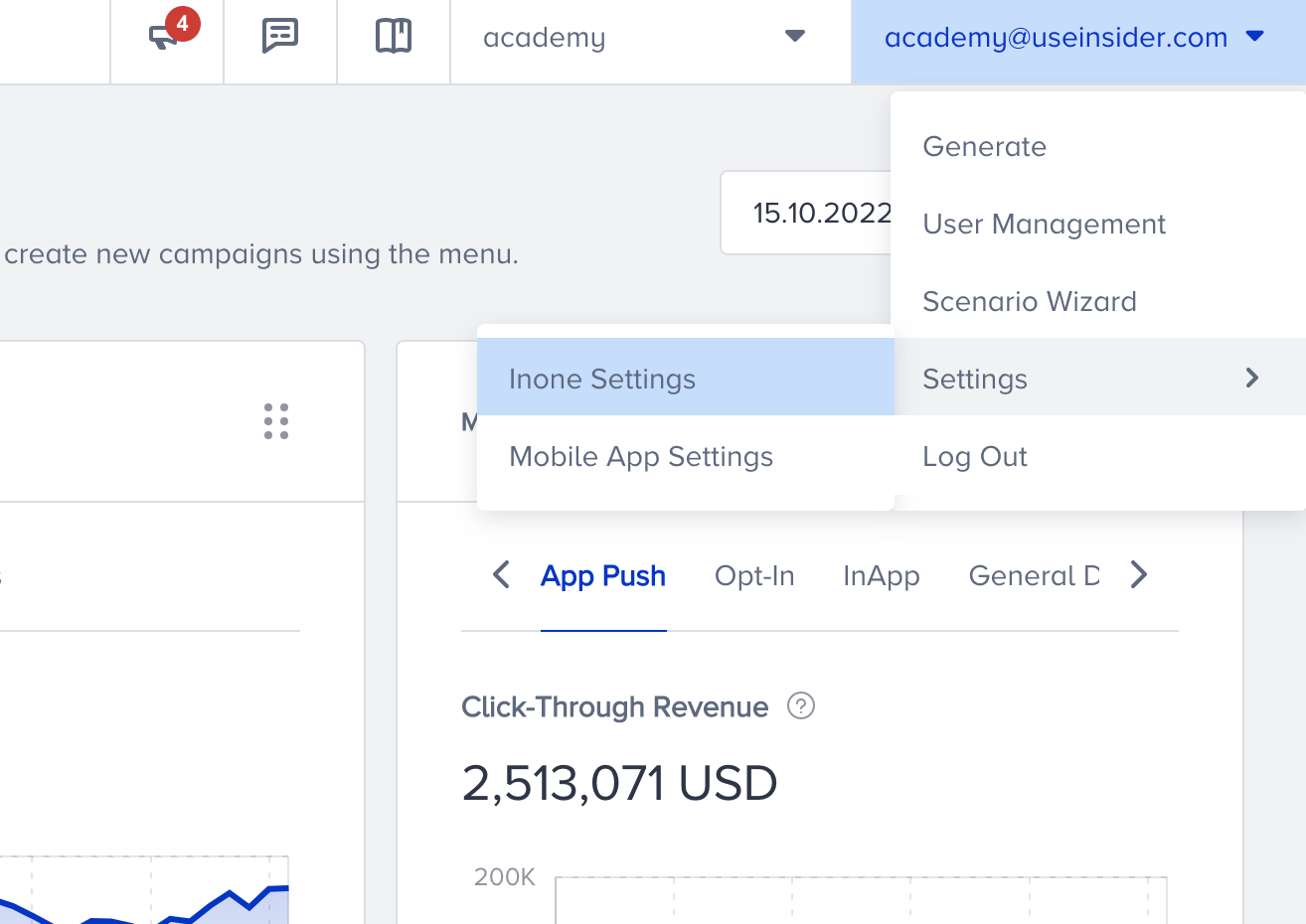 3. Navigate to Google Analytics and scroll down the page to check the following Purchase Confirmation Event box.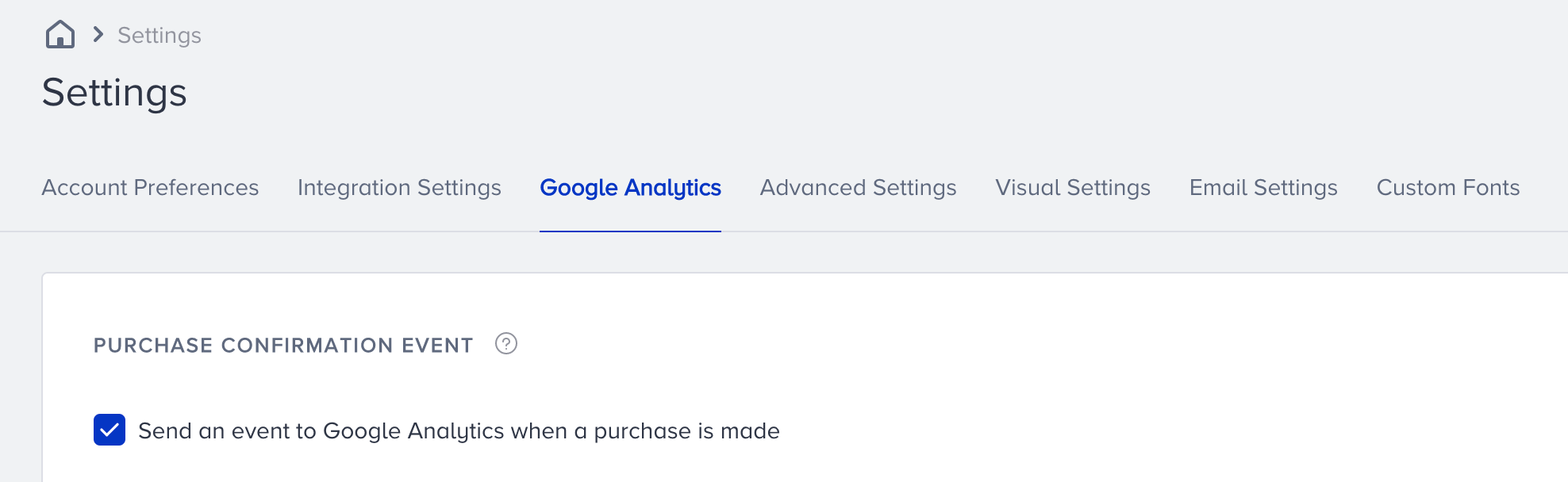
Track the purchase event on Google Analytics
You can use this Purchase Confirmation Event to test your Confirmation page integration. After enabling the Purchase Confirmation Event:
1. Go to your website and make a test purchase.
2. Meanwhile, ensure your Google Analytics account is available on another tab.
3. Navigate to Realtime > Events > Events (Last 30 min) on Google Analytics.
4. Your purchase should be listed with the Insider event category and ins-purchase-confirmation event action.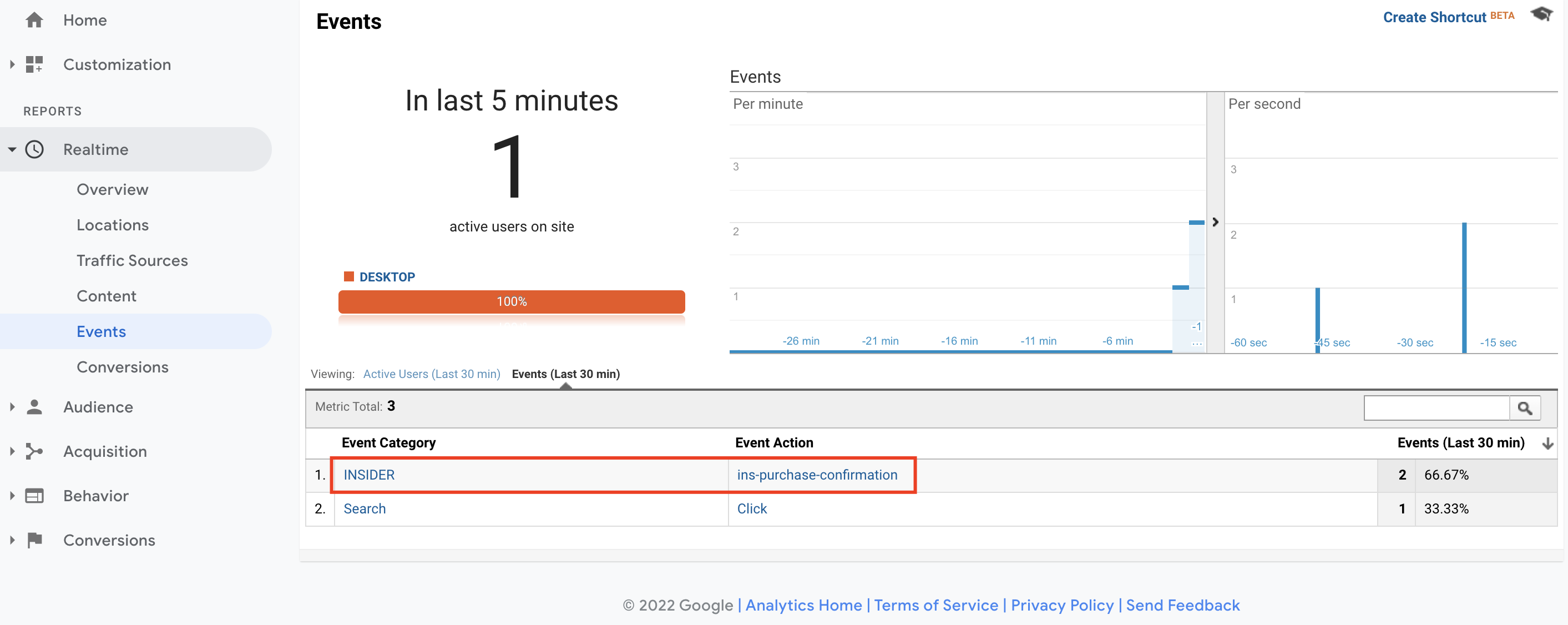 5. If this event is present, you have successfully completed the integration.
If you prefer to not include this type of purchase event in your Google Analytics account, you can always uncheck the Purchase Confirmation event. If you uncheck the box and want to test it, you can make another test purchase and ensure that the ins-purchase-confirmation event is not present under Events.
Once you complete the configuration to pass the "Confirmation" value to the page object on your confirmation page, Insider starts tracking the transactions on this page.
What should you do if the ins-purchase-confirmation event is not listed?
If the ins-purchase-confirmation event is not listed in the Events on Google Analytics, be sure that the following criteria are in effect:
The type: 'purchase' object loads before the Insider Tag (ins.js).
The integration code is not in preview mode and has been deployed on your website.
The value for the type key in the Insider.insiderObject.page object is a string, as in "Confirmation".
The value starts with an uppercase letter, as in "Confirmation".
If your after-payment page is in an iframe, Insider Tag is also implemented in the iframe.