LLM Strategy Creator is a conversational AI tool inside Smart Recommender that lets you create and configure Recommendation Strategies using plain language. Instead of manually selecting algorithms, setting filters, and configuring page types one by one, you describe it, and the Strategy Agent builds the strategy for you.
You can type freely, ask the Strategy Agent to adjust your strategy mid-conversation, and create it without any product expertise when you're ready.
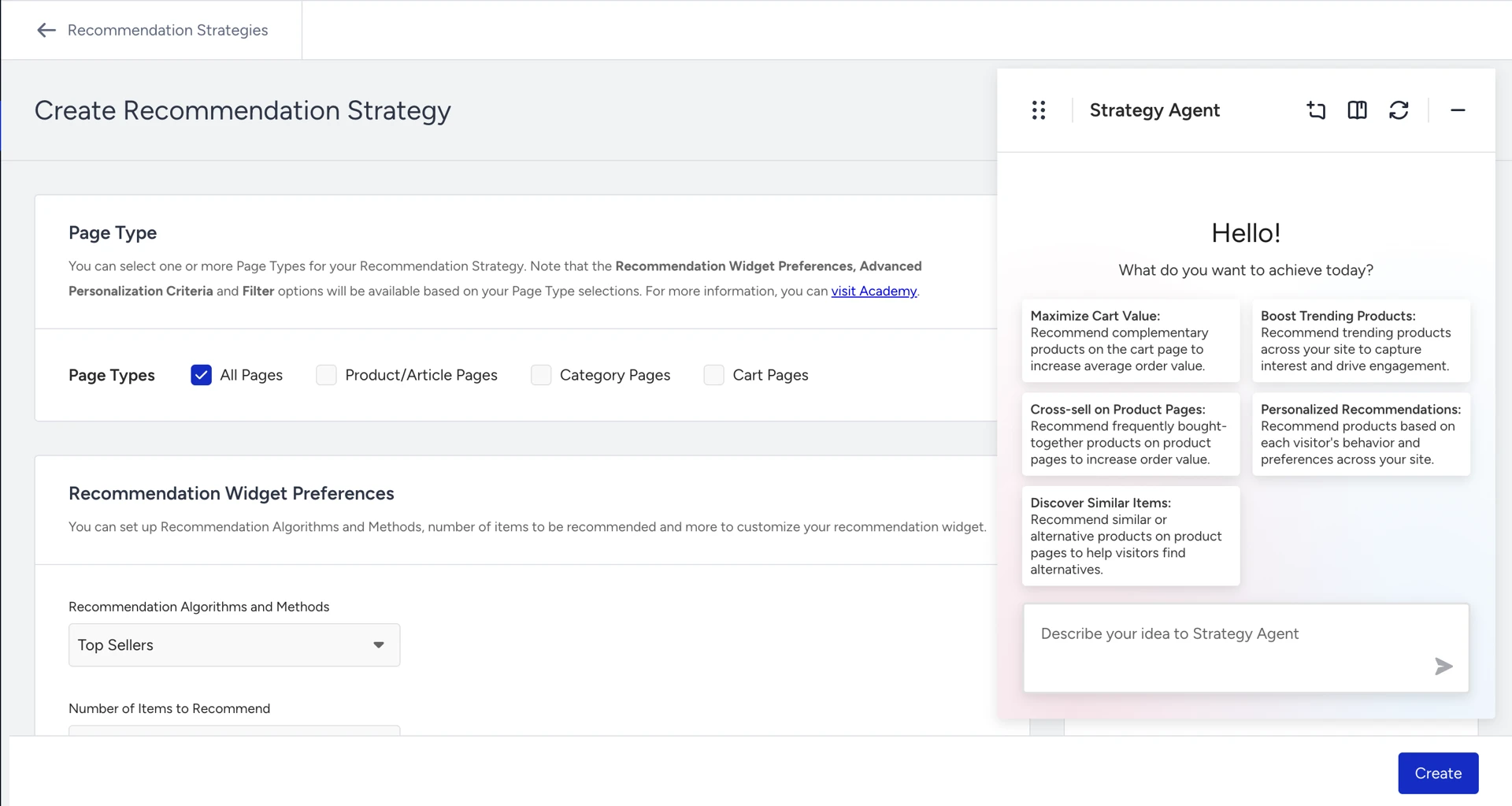
Where to access the LLM Strategy Creator
LLM Strategy Creator is available in two scenarios:
Create a new strategy
Navigate to Recommendation > Recommendation Strategies in the InOne panel.
Click Create a Strategy.
Select either LLM Strategy Creator (free-form chat) or Goal-Based (select a predefined goal).
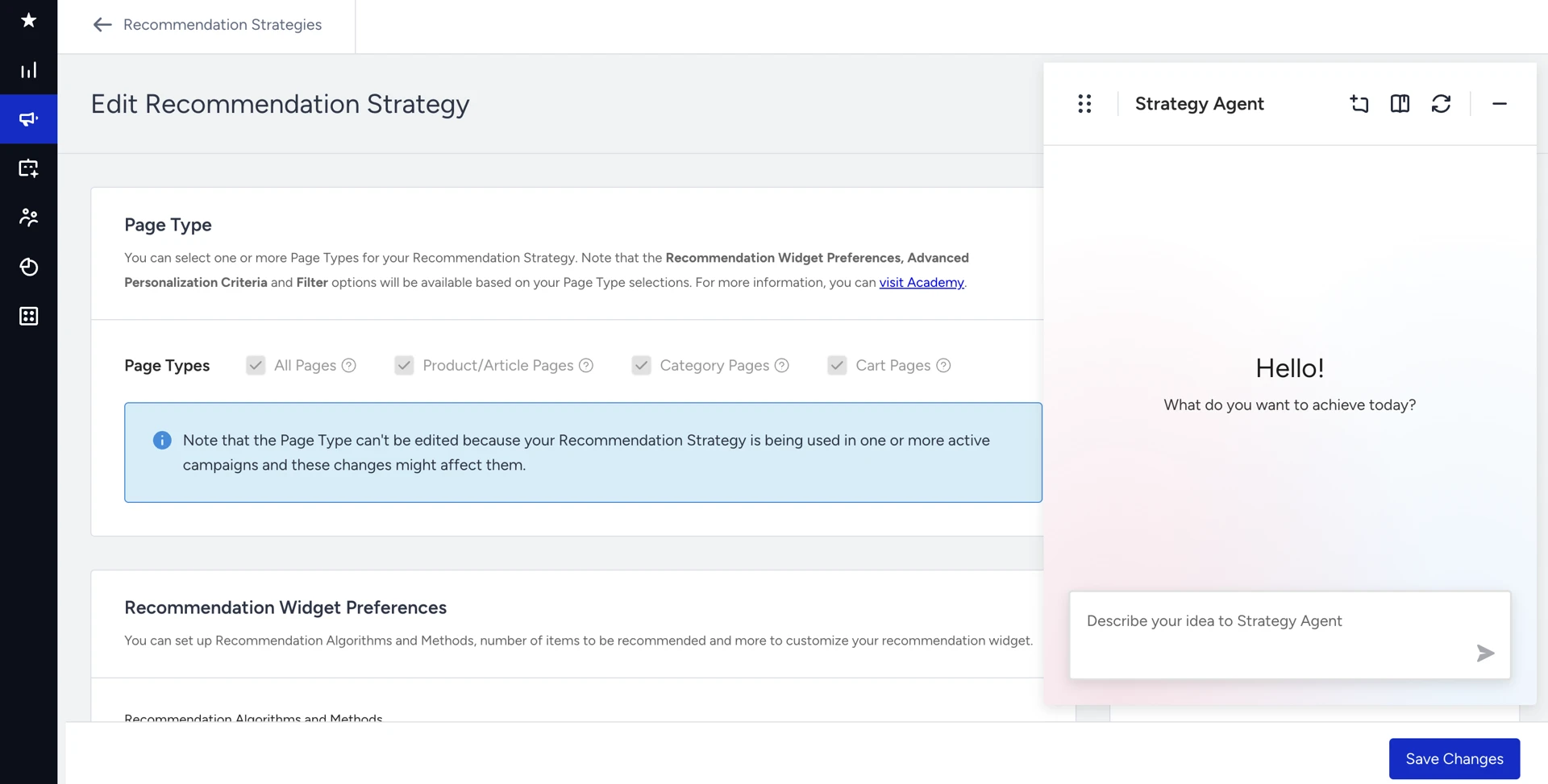
Edit an existing strategy
Go to Recommendation Strategies and open any existing strategy.
Click Edit.
Use the chat interface to describe the changes you want to make. The Strategy Agent reads your current strategy configuration and applies changes on top of it; it does not start from scratch.
Create a strategy
You can create a strategy in two ways:
Goal-based creation
If you want to get started quickly and aren’t sure which algorithm to use, this method is the best for you.
You select a predefined campaign goal from a list. The system instantly generates a recommendation strategy based on that goal, and algorithm, page type, and initial configuration are all set automatically. You can then refine the strategy by chatting with the Strategy Agent.
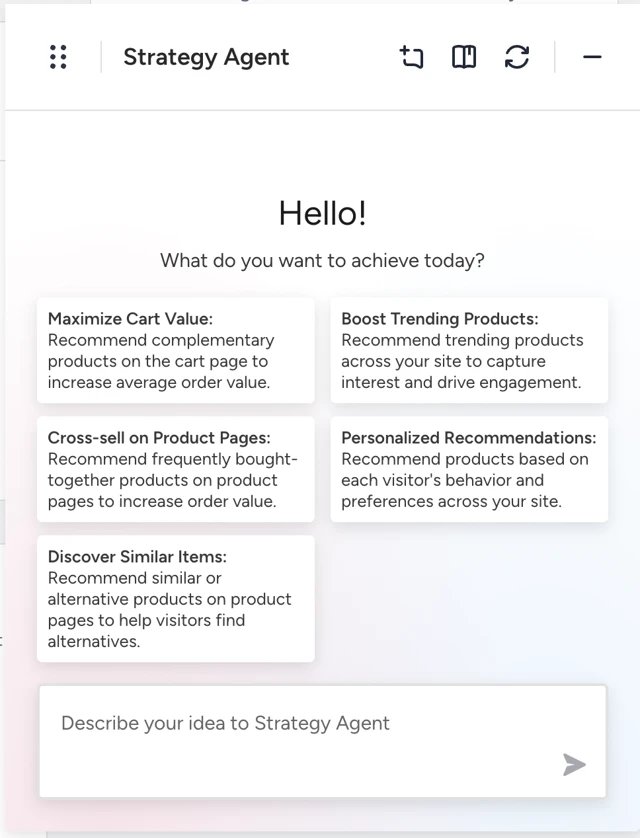
To create a goal-based flow:
Click Create on the Recommendation Strategies page.
Choose a goal from the list. The available goals are:
Maximize Cart Value
Cross-Sell on Product Page
Discover Similar Items
Boost Trending
Personalized Recommendations
The Strategy Agent generates a strategy instantly and shows you the configuration.
Click Apply to confirm the configuration.
Optionally type follow-up messages to refine the strategy (e.g. "only show items above $50").
Click Apply after each change to confirm.
When ready, name your strategy and click Create to save and activate your strategy.
LLM Chat (Free-Form)
If you know what you want and want to describe it directly, this method is the best for you.
You type your intent in plain language. The Strategy Agent maps it to the correct algorithm, page type, and filters. If required information is missing (e.g., you didn't specify a page type), the Strategy Agent asks a clarifying question. Once the configuration is complete, you review and create the strategy.
To create an LLM Chat flow:
Click Create on the Recommendation Strategy page.
Type your intent (e.g., "Show trending Nike products under 250 USD on the homepage").
The Strategy Agent proposes a strategy configuration.
Click Apply to confirm, or type a follow-up to adjust.
Continue refining until you're satisfied.
Name your strategy and click Create to save and activate your strategy.
How the clarifying questions work
The LLM doesn't blindly generate a strategy from incomplete or ambiguous input. When a user's intent is unclear, or when the requested configuration doesn't align with what exists in their catalog (e.g. referencing a brand, attribute, or category that isn't present), the LLM pauses and asks targeted clarifying questions before proceeding. In this state, no "Apply" button is shown, the strategy is only created once the LLM has enough valid, catalog-aligned information to generate it correctly. This prevents misconfigured strategies from being applied silently.
Actions you can take during a chat
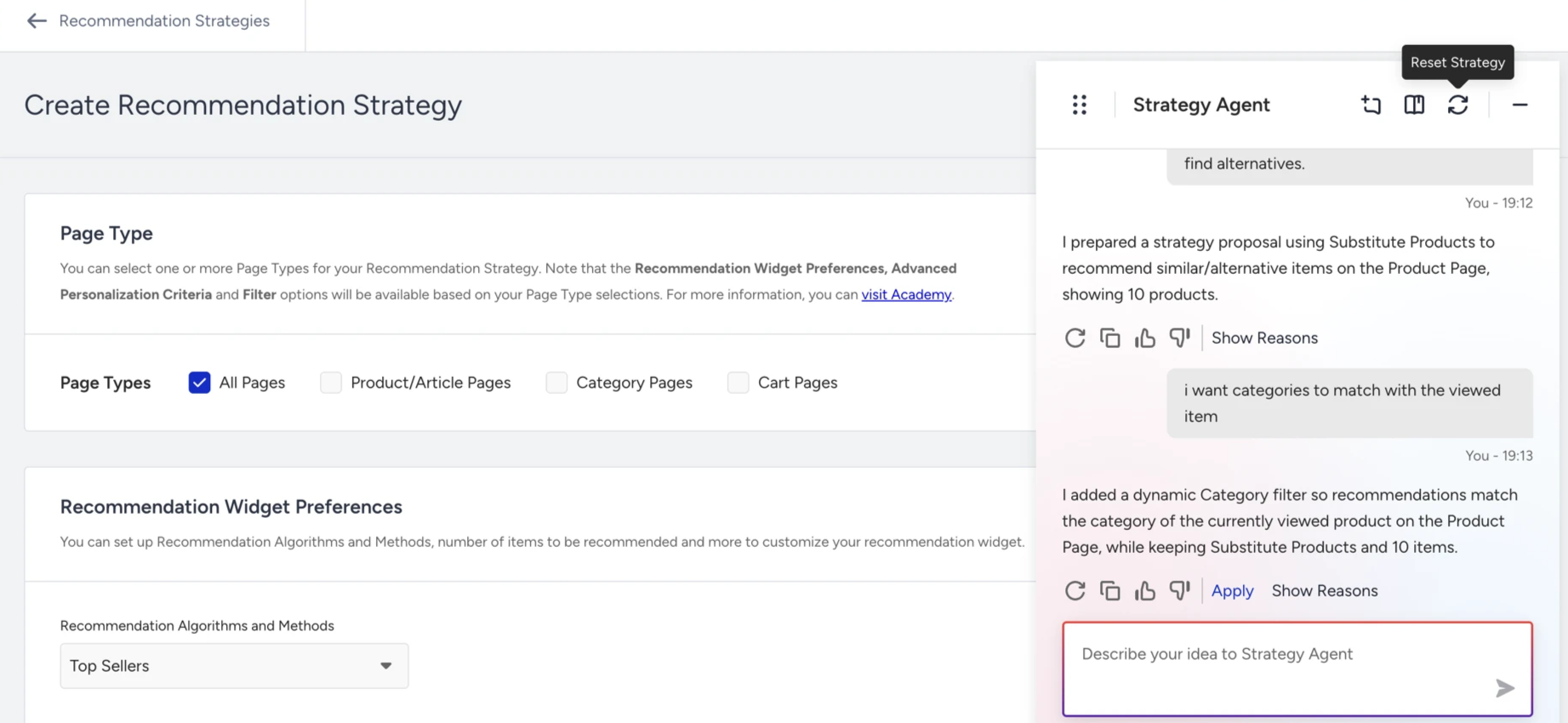
Apply: Confirms the Strategy Agent's proposed change and applies it to your strategy draft.
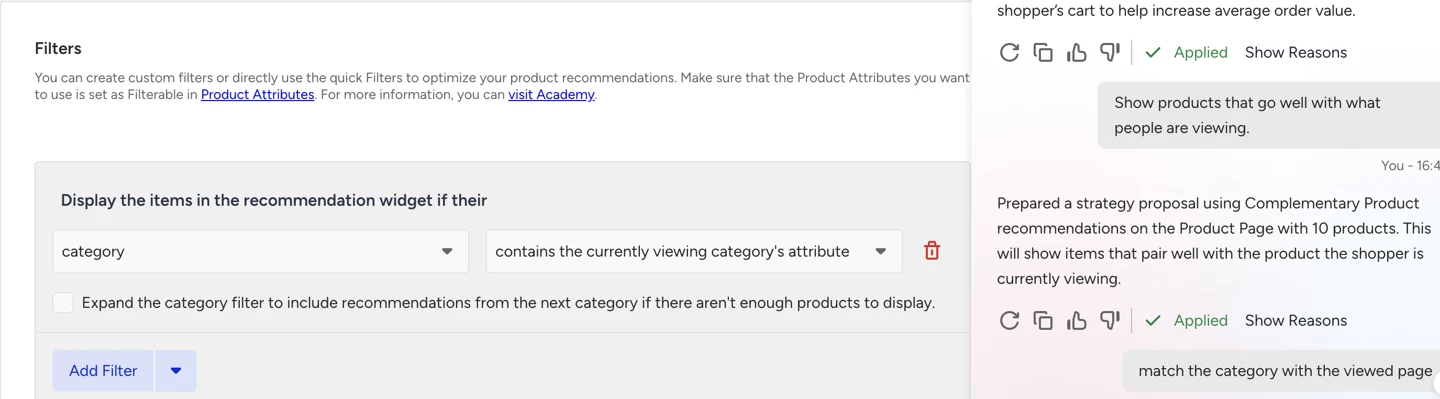
Changes are not visible on the Recommendation Strategy creation page until you click Apply. Review the proposed configuration before applying.
Show Reasons / Hide Reasons: After each Strategy Agent proposal, you can click Show Reasons to see why the Strategy Agent made that specific recommendation, which algorithm was chosen, why that page type was selected, and what logic was applied. Click Hide Reasons to collapse the explanation.
Like / Dislike: After any Strategy Agent response, you can like or dislike it. If you dislike a response, you can leave a comment explaining what you want instead. The Strategy Agent will revise its proposal based on your feedback.
Reset: Clears the current strategy and chat session entirely. The Strategy Agent will ask for confirmation before resetting. Use this if you want to start over with a completely different direction.
Use cases
Goal-based strategy creation
You select "Maximize Cart Value" from the predefined goals. The Strategy Agent instantly generates a Recommendation Strategy on the Cart page and shows the proposal in the chat. You review it and click Apply; this is what reflects the changes on your strategy page. You then type "only show items above $50, " and the Strategy Agent proposes adding a price filter. You click Apply again and click Create to activate the strategy.
Direct LLM chat
You type "Show trending Nike products under 250 USD on the homepage." The Strategy Agent maps this to Trending Products on the Main Page, using a brand filter (Niki) and a price filter (under $250) in a single turn. Review the proposal, then click Apply and Create to activate your strategy.
Multi-turn refinement
You type "Show products that go well with what people are viewing." The Strategy Agent proposes the Complementary algorithm on Product Pages, and you click Apply. You add "only items under $200" and click Apply. You then say "also match the category with the viewed item," and click Apply, and click Create to activate.
Reset strategy
You build a Trending Products strategy with multiple filters across several turns. Midway, you decide the direction is wrong and click Reset. The Strategy Agent asks for confirmation before clearing everything. You confirm, the session resets, and you start fresh with a new intent.
Like / dislike a response
The Strategy Agent proposes Most Valuable Products on All Pages. You dislike the response and comment, "I don't want this on all pages, only product pages." The Strategy Agent revises the proposal — page type updated to Product Pages. If you like the response, click Apply, then click Create to activate.
Tips for better results
Be specific. "Show trending products in x category/brand under $250 on the homepage" works better than "show some products."
Use natural language. You don't need to know algorithm names. Saying "products people usually buy together" is enough.
Iterate freely. You can refine your strategy across multiple messages. Each change only applies when you click Apply.
Use dislike + comment when the Strategy Agent misunderstands. A short comment explaining what you actually want gets a faster correction than starting over.
Limitations
Understanding the limitations helps you know what to expect.
No chat history between sessions. Each time you start a new strategy creation or editing session, the chat starts fresh. The Strategy Agent does not remember previous conversations.
Cannot edit multiple strategies from one chat. Each chat session is tied to one strategy. You cannot manage or modify other strategies from within a chat.
Cannot access your campaign performance data. The Strategy Agent does not have visibility into how your past campaigns performed. Strategy suggestions are based on your intent and product catalog, not historical results.
Cannot answer questions outside of the recommendation strategy. If you ask something unrelated to strategy creation, the Strategy Agent will redirect you back to the task.
Session limits apply. There is a maximum number of messages per session. If you reach the limit, the Strategy Agent will present your current strategy and prompt you to save or continue in a new session.