Car Rentals is a convenience-driven, trip-specific vertical where booking behavior is shaped by travel dates, destination, budget, car type preferences, and last-minute changes. Shoppers often compare multiple vehicle options, evaluate add-ons such as insurance, GPS, or child seats, and seek deals that match their itinerary.
Effective recommendations should:
Upsell higher-value vehicles (e.g., premium or larger cars) to increase booking value.
Cross-sell essential extras like insurance, child seats, or Wi-Fi to enhance the rental experience.
Encourage repeat bookings through loyalty-driven personalization or reminders of past rentals.
Optimize fleet utilization and revenue by dynamically surfacing available vehicles and balancing demand across categories.
Personalization in this vertical simplifies comparisons, addresses customer needs at every decision point, and maximizes both customer satisfaction and operational efficiency.
What you can achieve with Smart Recommender
Upsell premium vehicles on the homepage
Encourage users to upgrade by highlighting premium or luxury vehicles available for their chosen dates and location. This helps increase revenue per booking and inspires travelers to consider higher-value options.
Cross-sell add-ons for convenience
Surface useful extras like GPS, child seats, or insurance packages during the booking flow. These recommendations boost basket value while improving the overall rental experience.
Geo-based recommendations for drop-off points
Suggest convenient drop-off locations based on the user’s selected pick-up point and travel route. This improves the booking experience and helps align supply with demand.
Win back inactive renters with tailored deals
Re-engage dormant customers by showcasing personalized offers such as discounts, loyalty perks, or location-specific promotions tied to past rental history.
Last-minute upgrades at checkout
At the checkout stage, recommend spontaneous upgrades like larger vehicles or eco-friendly electric cars at an exclusive price. These timely nudges can lift conversion and booking value.
Personalized vehicle suggestions by trip type
Use Attribute Affinity to match cars with inferred trip purpose—compact cars for city breaks, SUVs for family holidays, or vans for group travel. Personalization ensures users see the most relevant options.
Budget-friendly alternatives
Highlight best-value or discounted cars to appeal to price-sensitive travelers who are comparing multiple options. This can secure bookings that might otherwise be lost to competitors.
A/B testing across the booking journey
Test different placements, bundles, or pricing formats for vehicle upgrades and add-ons. Insights from these experiments reveal what drives the highest revenue per booking and improves overall conversion.
Walkthrough: Increasing Revenue with Add-On Cross-Sells
One of the most effective ways to increase your rental business’s Average Booking Value (ABV) is by encouraging customers to add relevant extras to their reservation. In car rentals, add-ons such as insurance, GPS, or child seats are often last-minute decisions, yet they contribute significantly to incremental revenue.
In this example, we’ll walk through how to set up a cross-sell campaign on the checkout page to boost ABV for customers with lower spend. The test will compare two strategies: one recommending insurance packages and the other highlighting in-car extras like GPS or child seats. The goal is to determine which category of add-ons delivers the highest increase in ABV when offered alongside the selected vehicle.
1. Create your Recommendation Strategy
It's time to create your first recommendation strategy. Navigate to the Recommendation Strategies and click Create.
Select your page type as Cart Page.
Select your algorithm as Purchased Together to suggest add-ons frequently booked with selected vehicles.
Enter the number of add-ons you want to recommend.
Exclude add-ons the customer may have already selected during booking.
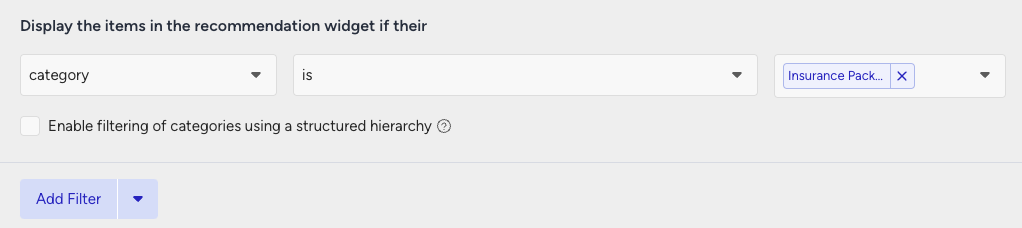
Add a filter for the category attribute to display only “Insurance Packages.”
Then, create your second strategy that you want to test against.
Select your page type as Cart Page.
Select your algorithm as Viewed Together algorithm.
Enter the number of add-ons you want to recommend.
Exclude already-selected add-ons.
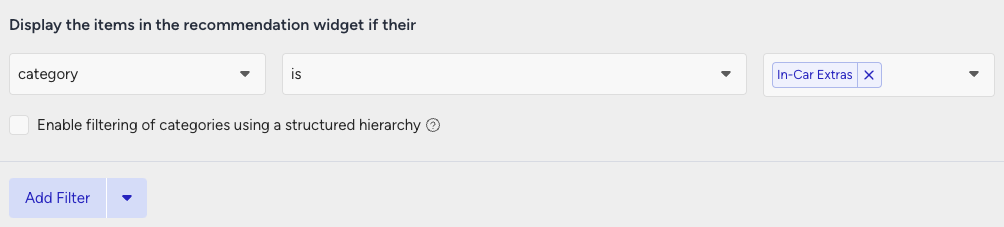
Add a filter for the category attribute to display only “In-Car Extras” like GPS, child seats, or Wi-Fi.
2. Launch your campaign
Now, launch your cross-sell campaign using your strategies.
Go to the Web Smart Recommender page and click Create.
Select your integration method for the widget.
On the Segments step, pick the audience.
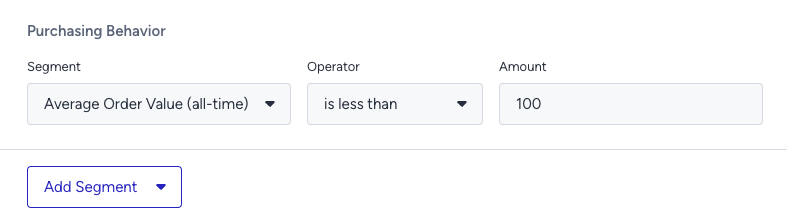
For this example, you can select customers with a low AOV under Purchasing Behavior and set your threshold.
On the Rules step, decide where and when to show your campaign.
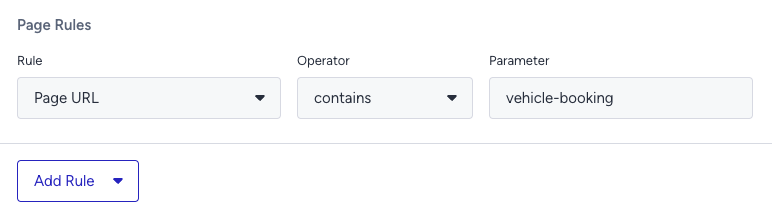
Use Page Rules to target the checkout page for vehicle bookings
On the Design step:
Assign your two strategies to the variants.
Assign traffic allocation for each variant.
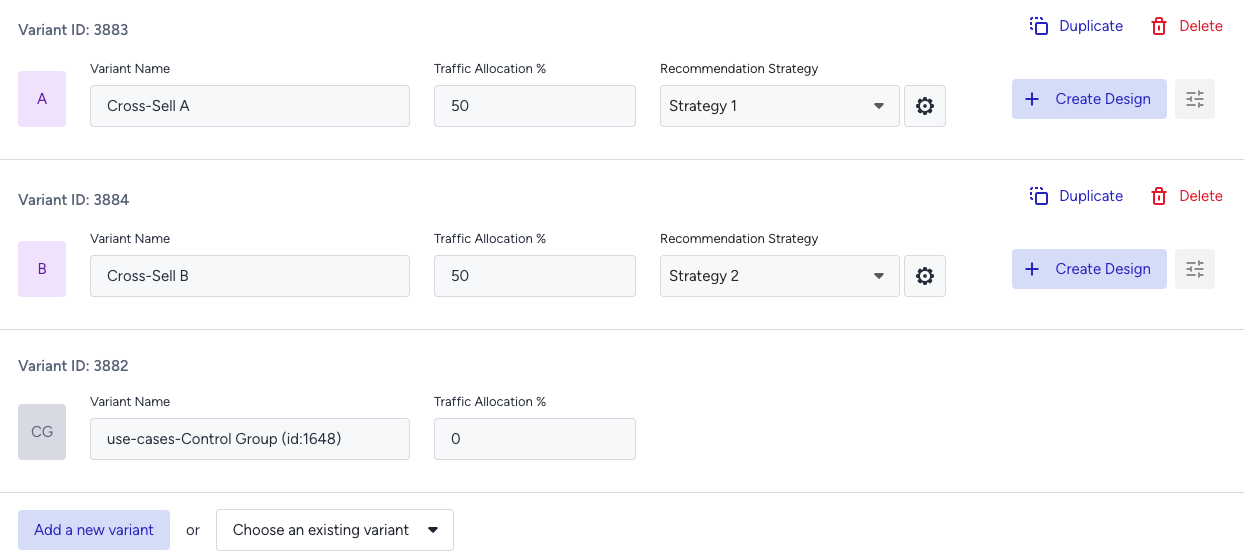
Now you’re ready to design your widget. Click Edit Design to open the Advanced Product Card Designer. Here, you can customize your product cards however you like.
Make sure all the add-ons you want to display are included in your product catalog. If you need to show more information on your add-ons, you can create custom attributes from Product Attributes page.
After finalizing your campaign design, the next step is to select the locales and stores where you want the campaign to appear.
Once your targeting is set:
Review the campaign details.
Confirm that all settings match your objectives.
Click Launch to activate your first campaign.
3. Track your campaign metrics
You’ve launched your campaign—great work! Now it’s time to track how it’s performing.
Go to the Smart Recommender Analytics page.
Locate your campaign under the Campaign and Variant Metrics table. Once the experiment duration ends, click your campaign name.
Compare key metrics, including Direct Revenue, Average Order Value (AOV), and Conversion Rate
You can see which product category—insurance or in-car extras—led to higher AOV for low-spending customers.
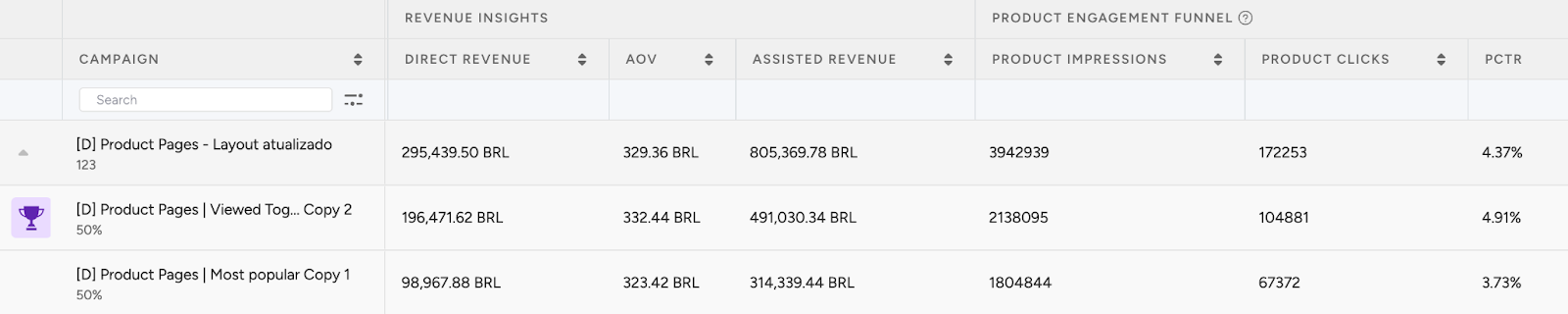
If one variant is clearly winning, adjust the traffic allocation to 100%. This ensures the best-performing strategy receives all traffic and maximizes impact.
Test more add-on categories in future campaigns, like premium roadside assistance or fuel plans, to discover additional revenue opportunities.
4. Optimize your campaigns
Once your campaigns are live and running, it’s time to review results and apply data-driven improvements.
Go to the Smart Recommender Analytics page.
Evaluate campaign performance based on engagement metrics.
Track Engagement Funnel Metrics: Understand how users interact with your recommendations at every step. View product impressions, clickthrough rate, add-to-cart rate, and conversion rate for each campaign to pinpoint where you’re driving engagement and where there’s room to improve.

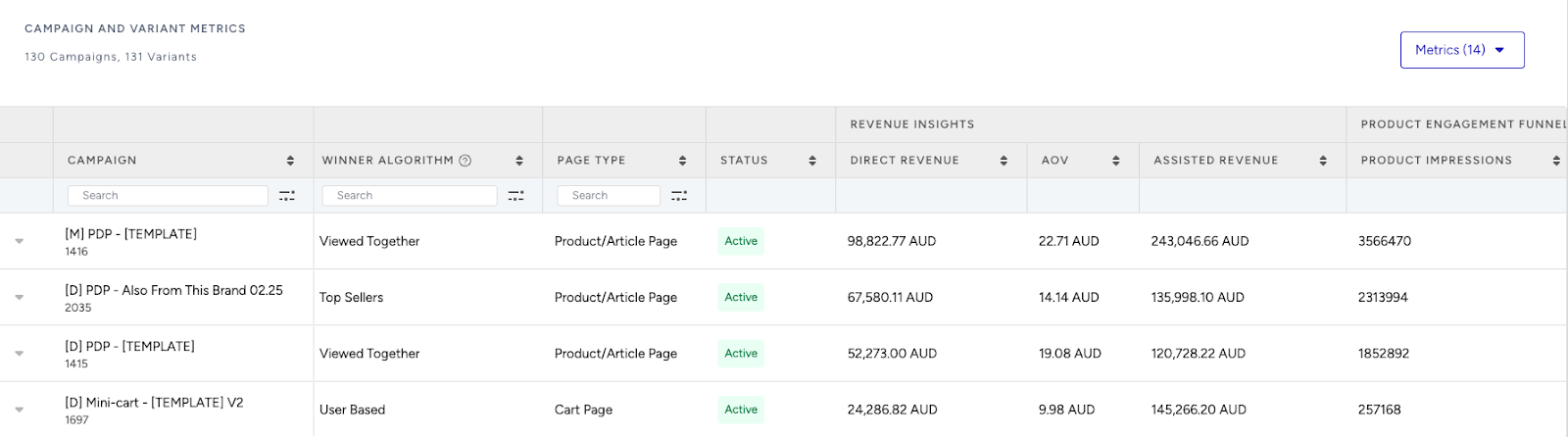
Compare Campaign and Variant Performance: Use the Campaign and Variant Metrics table to review key KPIs like AOV, Conversion Rate, and Direct Revenue. Identify which strategies are delivering the best results and refine or scale your winning variant accordingly.
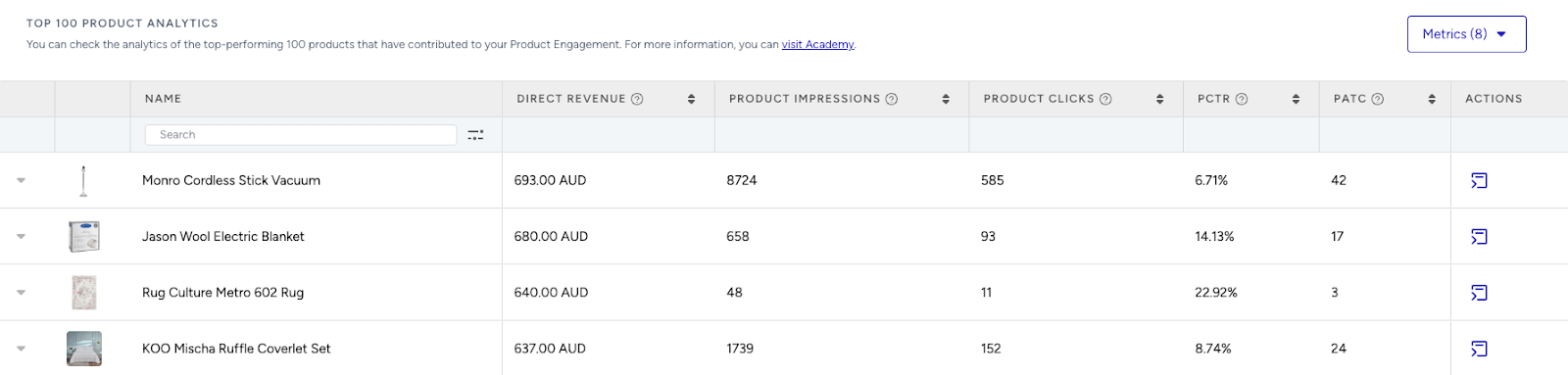
Analyze Product-Level Impact: Visit the Top 100 Product Analytics to see which products are performing well within your campaigns. Consider giving extra visibility to low-performing but strategic items by highlighting them in future recommendation widgets.
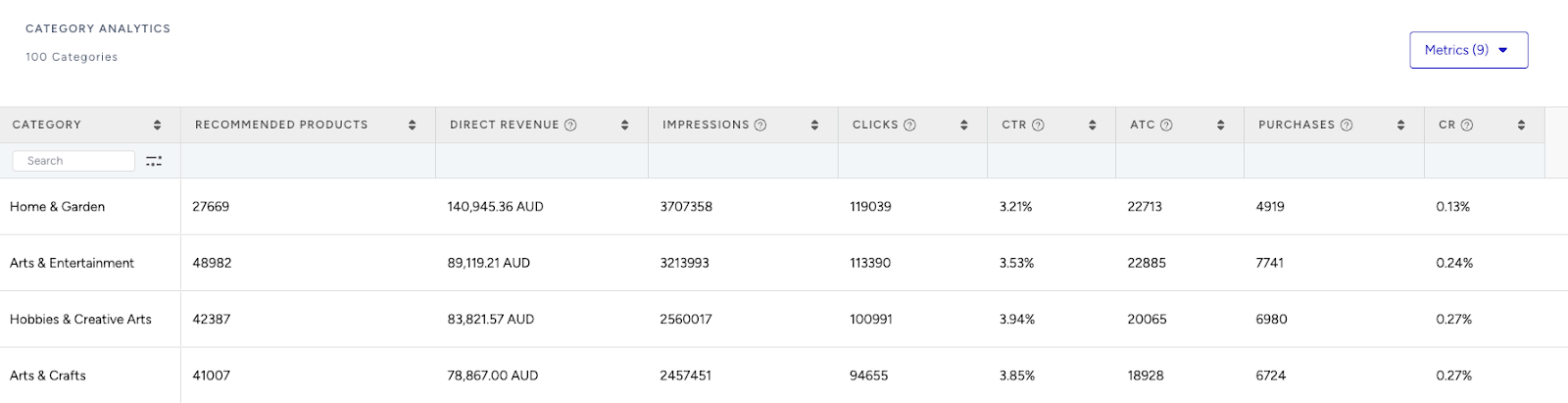
Review Category Trends: Use the Category Analytics view to assess which product categories drive the most conversions. You can prioritize high-performing categories to maximize conversions or spotlight underperforming categories to help boost their visibility and performance.
Use cases based on the page types
Home Page
Popular cars for your dates
Show top-booked vehicles for selected dates and pick-up location to help users choose quickly.
Create a strategy with the Most Popular algorithm to highlight high-demand vehicles.
Apply filters for pick-up location and date range.
Enable Attribute Affinity to personalize by car type preferences (e.g., SUVs vs. compacts).
Upgrade to premium deals
Inspire upgrades by featuring limited-time offers on luxury or premium cars.
Create a strategy with the Trending Products algorithm.
Add a filter as car class = Premium.
Add dynamic headlines like “Upgrade Your Ride Today!”
Product Detail Page
Better alternatives
Suggest better or higher-class vehicles for a small price difference, encouraging upgrades.
Create a strategy with the Substitute Products algorithm.
Add a filter as car class higher than the current one.
Use headlines like “Drive in More Comfort.”
Trip essentials with this car
Recommend trip-specific extras based on the selected vehicle and trip type.
Create a strategy with the Complementary Products algorithm.
Filter for add-on category = Extras.
Use headlines like “Complete Your Journey.”
Category Page
Best value in this category
Surface the most affordable or discounted options for budget-conscious renters browsing specific car classes.
Create a strategy with the Highest Discounted algorithm.
Apply a category filter that matches the user’s browsing category.
Turn off affinity for pure value focus.
Top picks for families
Highlight the most booked family cars (SUVs, vans) for users browsing relevant categories.
Create a strategy with the Trending Products algorithm.
Apply a category filter for family vehicle types.
Enable Attribute Affinity for personal relevance.
Cart Page
Don't Miss These Add-Ons
Show popular add-ons like insurance or GPS before checkout to maximize attach rate.
Use the Most Popular algorithm.
Filter for add-on categories like Insurance, GPS, or Extras.
Top Up for a Better Experience
Prompt users to upgrade their car or add premium extras with messages like "Add $30 to get a luxury upgrade."
Use the Checkout Recommendation algorithm with a spend threshold.
No filters required; affinity is optional.