Media & Entertainment is an engagement-driven, preference-heavy vertical where user behavior is shaped by content interests, viewing history, genres, moods, and subscription tiers. Audiences binge-watch series, explore trending titles, follow creators, and switch between free and premium plans depending on perceived value.
Effective recommendations should:
Increase watch time by surfacing highly relevant or binge-worthy content.
Upsell subscriptions by promoting premium-only shows, ad-free experiences, or higher-tier plans.
Promote new releases to capture attention quickly and sustain excitement.
Drive repeat engagement across devices by personalizing experiences from mobile to TV.
Personalization in this vertical is critical for keeping users engaged, helping them discover fresh content, and guiding them toward higher-value tiers and longer retention.
What you can achieve with Smart Recommender
Personalized watchlists on the homepage
Keep users engaged by surfacing fresh content that aligns with their favorite genres, shows, or creators. Personalized watchlists drive repeat visits and boost daily engagement.
Trending now highlights
Spotlight popular or fast-rising titles in real time to spark curiosity and create urgency. This leverages fear of missing out (FOMO) to increase viewership.
Win back churned users with tailored picks
Re-engage inactive or lapsed viewers with personalized recommendations based on their past watch history and genre preferences, encouraging them to return.
Cross-promote related content
On content detail pages, suggest sequels, spin-offs, or similar shows to keep users watching longer and reduce drop-off between sessions.
Genre-based deep dives
Curate collections around themes, moods, or genres—such as “True Crime Thrillers” or “Feel-Good Comedies”—using Attribute Affinity to drive exploration.
Family-friendly recommendations
Highlight kids-only or family-safe content for users with relevant profiles, ensuring a trusted experience and increasing household engagement.
A/B testing across the content journey
Experiment with placement, layout, and bundling of recommendations to discover which strategies maximize clicks, watch time, and retention
Walkthrough: Driving Views with Cross-Promotions
One of the most effective ways to increase your platform’s Total Watch Time (TWT) is by keeping users engaged with relevant content suggestions. When viewers finish an episode or movie, they often look for what to watch next. A well-timed cross-promotion strategy can seamlessly guide them into the next viewing choice and extend their session.
In this example, we’ll walk through how to set up a cross-promotion campaign on content detail pages to boost TWT for users with shorter session durations. The test will compare two approaches: one recommending sequels or prequels of the current title, and the other highlighting titles within the same genre. The goal is to identify which type of recommendation leads to higher view completion rates and longer overall watch time.
1. Create your Recommendation Strategy
It's time to create your first recommendation strategy. Navigate to the Recommendation Strategies and click Create.
Select your page type as Product Detail Page.
Choose the algorithm as the Complementary Products to suggest content that pairs well with what the user is watching.
Enter the number of titles you want to recommend.
Exclude content the user has recently watched to keep it fresh.
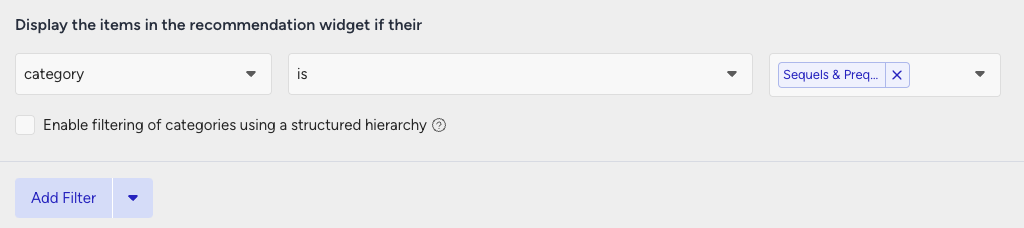
Add a filter for the category attribute to display “Sequels & Prequels”.
Then, create your second strategy that you want to test against.
Select your page type as Product Detail Page.
Select your algorithm as the Viewed Together algorithm.
Enter the number of titles you want to recommend.
Exclude watched content.
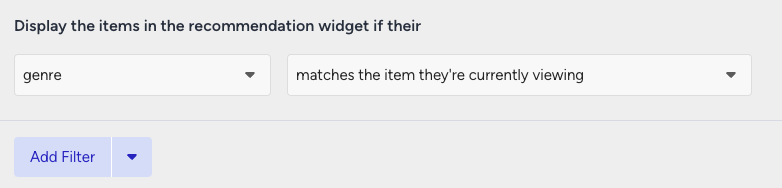
Filter for the same genre titles.
2. Launch your campaign
Now, launch your cross-sell campaign using your strategies.
Go to the Web Smart Recommender page and click Create.
Select your integration method for the widget.
On the Segments step, pick the audience.
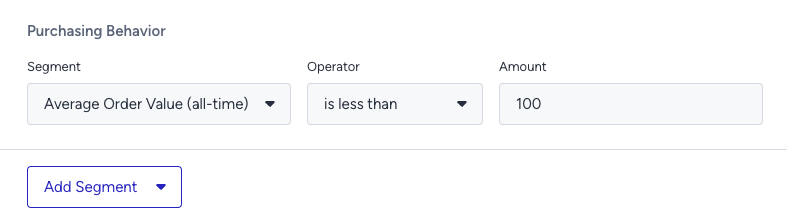
For this example, you can select customers with a low AOV under Purchasing Behavior and set your threshold.
On the Rules step, decide where and when to show your campaign.
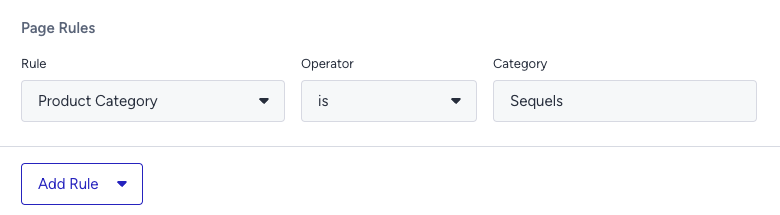
Use Page Rules to target content detail pages of relevant shows or movies.
On the Design step:
Assign your two strategies to the variants.
Assign traffic allocation for each variant.
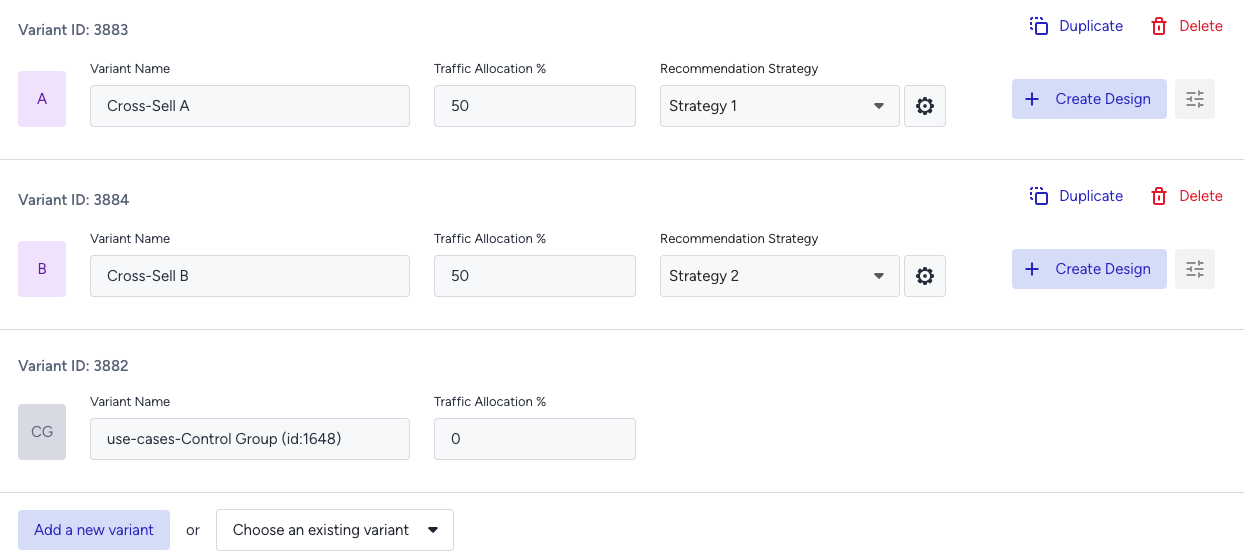
Now you’re ready to design your widget. Click Edit Design to open the Advanced Product Card Designer. Here, you can customize your product cards however you like.
Make sure all the metadata like genre, cast, or tags you want to display are included in your product catalog. If you need to show more information on your metadata, you can create custom attributes from Product Attributes page.
After finalizing your campaign design, the next step is to select the locales and stores where you want the campaign to appear.
Once your targeting is set:
Review the campaign details.
Confirm that all settings match your objectives.
Click Launch to activate your first campaign.
3. Track your campaign metrics
You’ve launched your campaign—great work! Now it’s time to track how it’s performing.
Go to the Smart Recommender Analytics page.
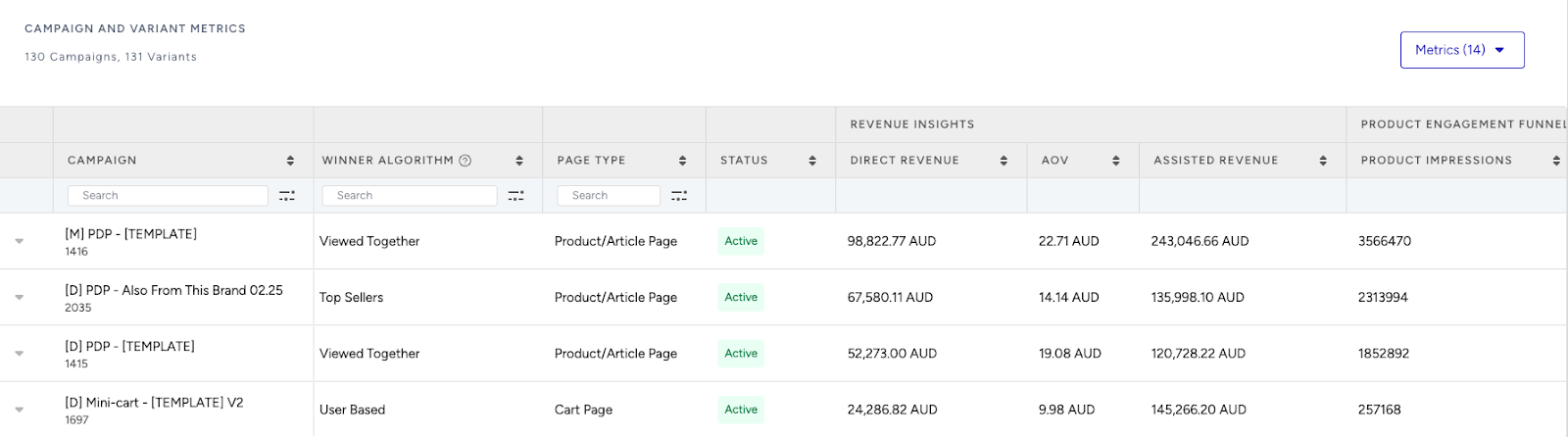
Locate your campaign under the Campaign and Variant Metrics table. Once the experiment duration ends, click your campaign name.
Compare key metrics, including View Completion Rate, Total Watch Time (TWT), and Clickthrough Rate.
You can see which category—sequels/prequels or same-genre—kept users watching longer.
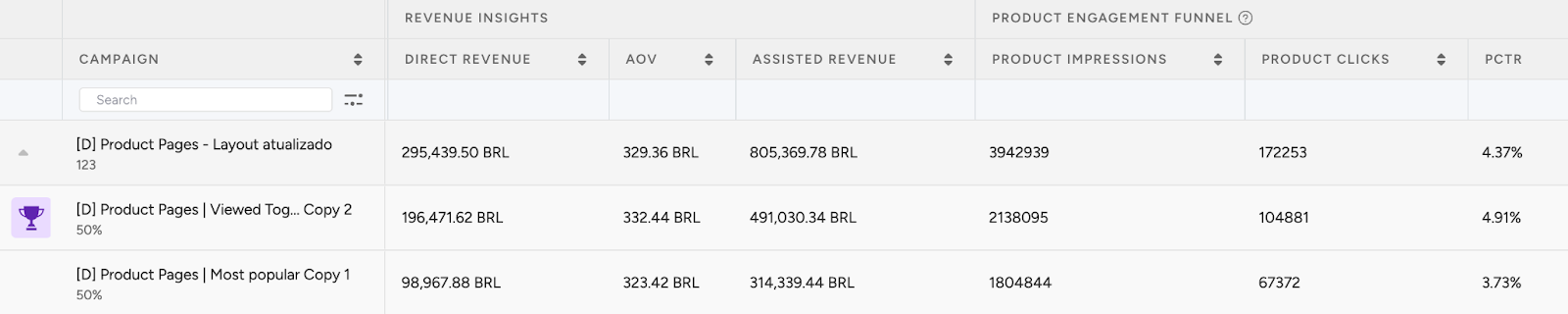
If one variant is clearly winning, adjust the traffic allocation to 100%. This ensures the best-performing strategy receives all traffic and maximizes impact.
You can test new variations like recommending behind-the-scenes content or related documentaries for deeper engagement.
4. Optimize your campaigns
Once your campaigns are live and running, it’s time to review results and apply data-driven improvements.
Go to the Smart Recommender Analytics page.
Evaluate campaign performance based on engagement metrics.
Track Engagement Funnel Metrics: Understand how users interact with your recommendations at every step. View product impressions, clickthrough rate, add-to-cart rate, and conversion rate for each campaign to pinpoint where you’re driving engagement and where there’s room to improve.

Compare Campaign and Variant Performance: Use the Campaign and Variant Metrics table to review key KPIs like AOV, Conversion Rate, and Direct Revenue. Identify which strategies are delivering the best results and refine or scale your winning variant accordingly.
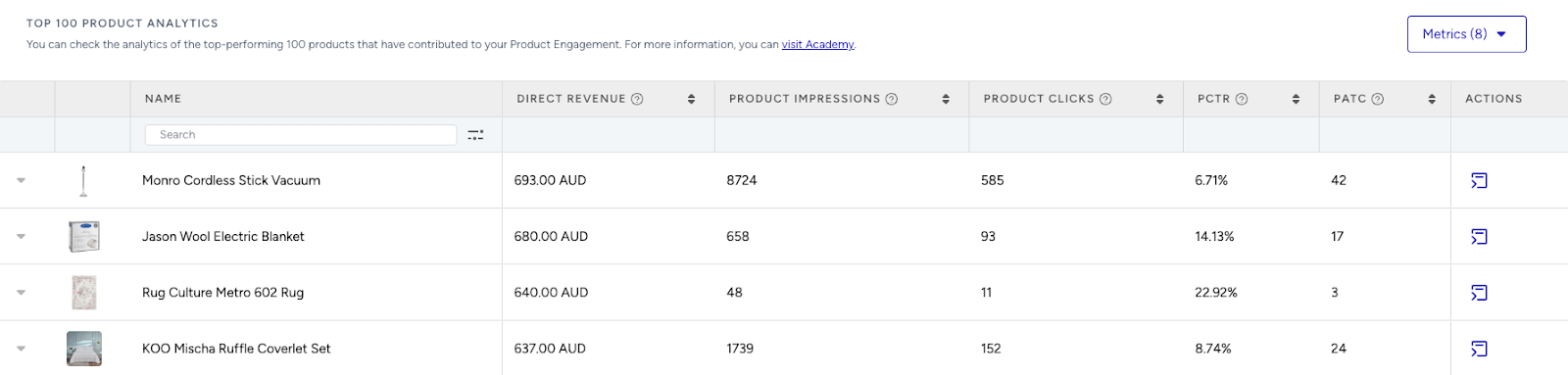
Analyze Product-Level Impact: Visit the Top 100 Product Analytics to see which products are performing well within your campaigns. Consider giving extra visibility to low-performing but strategic items by highlighting them in future recommendation widgets.
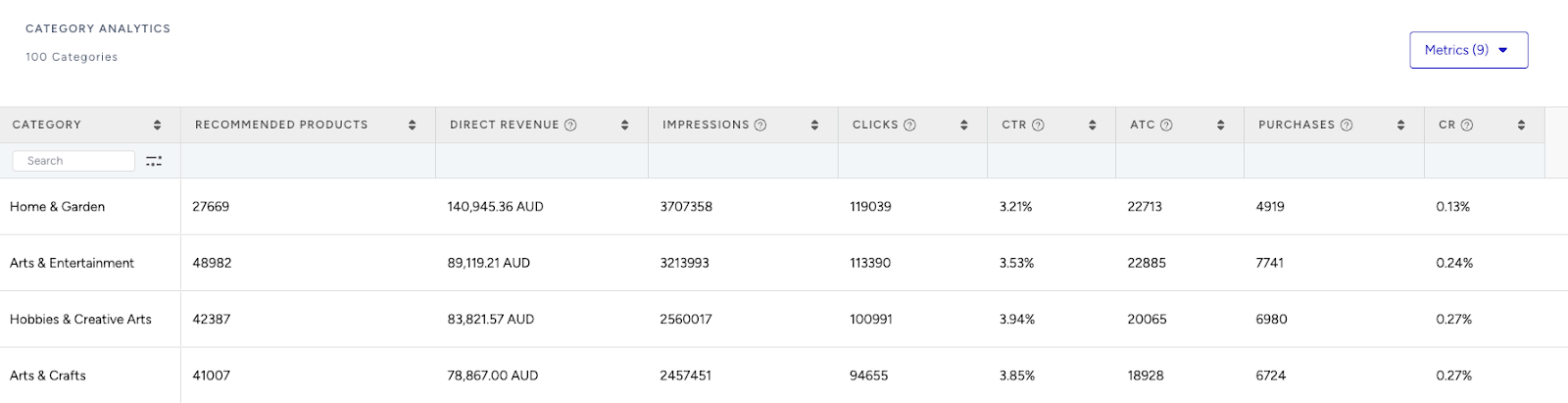
Review Category Trends: Use the Category Analytics view to assess which product categories drive the most conversions. You can prioritize high-performing categories to maximize conversions or spotlight underperforming categories to help boost their visibility and performance.
Use cases based on the page types
Home Page
Because you watched
Recommend similar content based on past viewing to keep users bingeing.
Create a strategy with the Most Popular algorithm with Attribute Affinity for content affinity.
Apply filters for genre or creator.
What is hot this week
Feature trending shows or movies to catch the buzz.
Create a strategy with the Trending Products algorithm.
No filters needed, or filter for specific genres.
Use dynamic widget titles like “Most Watched Right Now.”
Product Detail Page
More like this
Keep users in a content loop by suggesting similar series, spin-offs, or same-genre hits.
Create a strategy with the Complementary Products algorithm.
Filter by the same genre or shared cast.
Use a headline, such as “You Might Also Like.”
Category Page
Top picks in this genre
Show top-viewed or trending content within the genre a user is exploring.
Create a strategy with the Trending Products algorithm.
Filter by the currently browsing genre.
Enable Attribute Affinity for better personalization.
Trending in this genre
Surface critically acclaimed but lesser-known content to encourage discovery.
Create a strategy with the User Based algorithm.
Filter by genre or mood.
Keep affinity on for personal taste.