Electronics is a high-involvement vertical where customers are guided by functionality, technical specifications, brand reputation, and compatibility with existing devices. Purchase decisions are shaped by reviews, feature comparisons, and use cases—whether for work, entertainment, or home setup.
Effective recommendations should:
Simplify the selection process.
Surface relevant accessories that extend product value.
Suggest complementary items that enhance usage.
Personalization plays a key role: it helps novice buyers feel confident in their choices while streamlining the research process for tech-savvy shoppers.
What you can achieve with Smart Recommender
Simplify product discovery with personalized tech picks
On the homepage, surface tailored selections such as “Laptops for Work,” “Top Smartphones in Your Region,” or “Noise-Cancelling Headphones” based on browsing behavior, budget range, or brand preference.
Cross-sell essential accessories on product pages
Encourage attachment sales by recommending chargers, cases, or memory cards alongside the device being viewed.
Support complementary purchases at checkout
Highlight bundles like phone + wireless earbuds or laptop + mouse on the cart page to increase AOV and streamline the shopping experience.
Re-engage with previously viewed or related devices
Resurface laptops, tablets, or TVs explored in past visits to bring hesitant shoppers closer to conversion.
Highlight best-selling tech by category
Showcase top-reviewed, high-converting items in categories like smartphones, laptops, and TVs to build trust and assist decision-making.
Boost value per visit with limited-time deals
Use home and category pages to spotlight trending discounts or time-sensitive offers to drive urgency and repeat visits.
Affinity-based device and brand suggestions
Tailor recommendations using attributes like screen size, brand, operating system, or device type to ensure relevance at every touchpoint.
Optimize product discovery with A/B testing
Test recommendation logic, widget placement, and product card layouts across segments (e.g., new vs. returning users, mobile vs. desktop) to find high-performing strategies.
Walkthrough: Driving AOV with Accessory Cross-Sells
Many electronics purchases can be expanded into larger orders by recommending essential accessories—such as chargers, cases, cables, or protective gear—at the right moment. Since these items are often forgotten but necessary, they are ideal for AOV-driven cross-sell strategies.
In this example, we’ll walk through how to create and test a campaign that recommends either wireless mice or laptop bags to shoppers viewing laptops. The goal is to identify which accessory category delivers more value when promoted alongside laptops.
1. Create your Recommendation Strategy
It's time to create your first recommendation strategy. Navigate to the Recommendation Strategies and click Create.
Select your page type as Product Detail Page.
Select your algorithm as the Purchased Together algorithm. This algorithm recommends products that are often bought alongside the currently viewed item—in this case, accessories frequently purchased with laptops.
Set the number of products to display. A range of 4 to 6 items typically works well for accessory-based widgets.
Add a filter for the category attribute to display recommendations from the “Wireless Mouse” category.
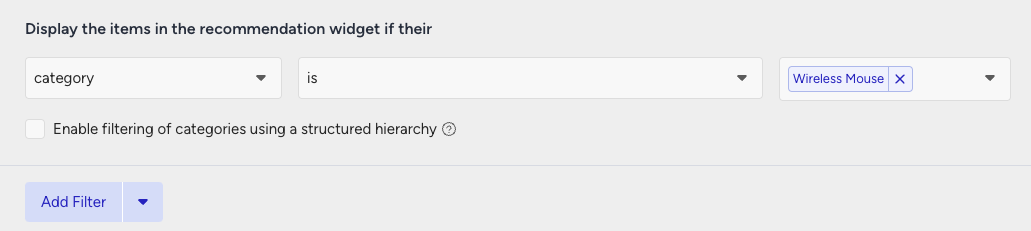
To keep the recommendations relevant, exclude items purchased within the last 4 weeks.
Make sure all the attributes you want to filter are included in your product catalog and marked as filterable. You can create a new custom attribute for “Mouse” from Product Attributes page.
Then, create the second strategy that you want to test against.
Select your page type as Product Detail Page.
Select your algorithm as Purchased Together to recommend suitable products for cross-selling.
Set the number of products to display. A range of 4 to 6 items typically works well for accessory-based widgets.
Exclude the recently purchased products in the last 4 weeks to keep your customer engaged.
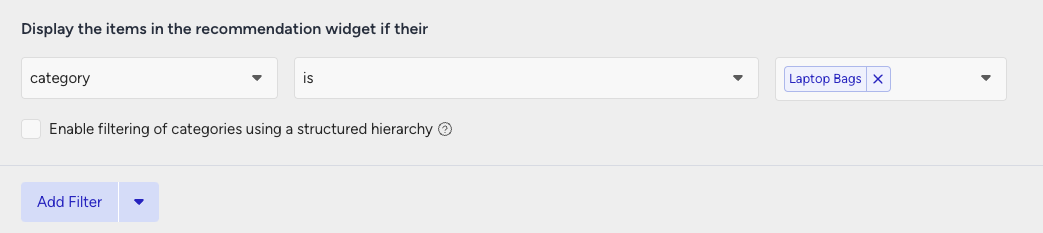
Add a filter for the category attribute to display recommendations from the “Laptop Bags” category.
2. Launch your campaign
Now, launch your first campaign using your strategies.
Go to the Web Smart Recommender page and click Create.
Select your integration method for the widget.
On the Segments step, pick the audience.
For this example, you can select customers with a low AOV under Purchasing Behavior and set your threshold.
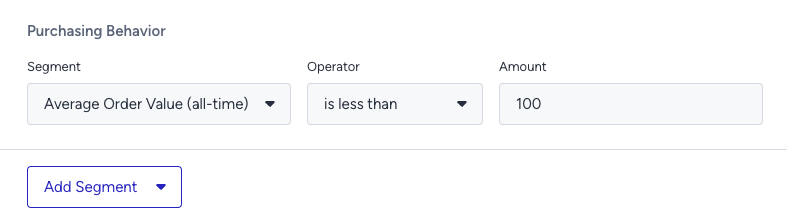
On the Rules step, decide where and when to show your campaign.
Use Page Rules to target the product detail pages of laptop products.
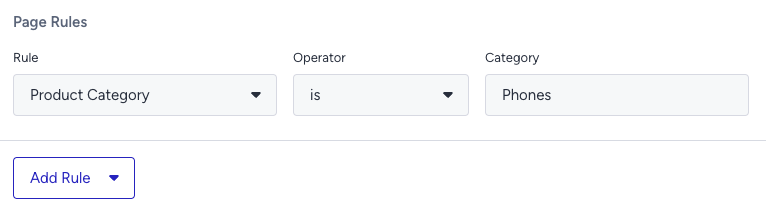
On the Design step:
Assign your two strategies to the variants.
Assign traffic allocation for each variant.
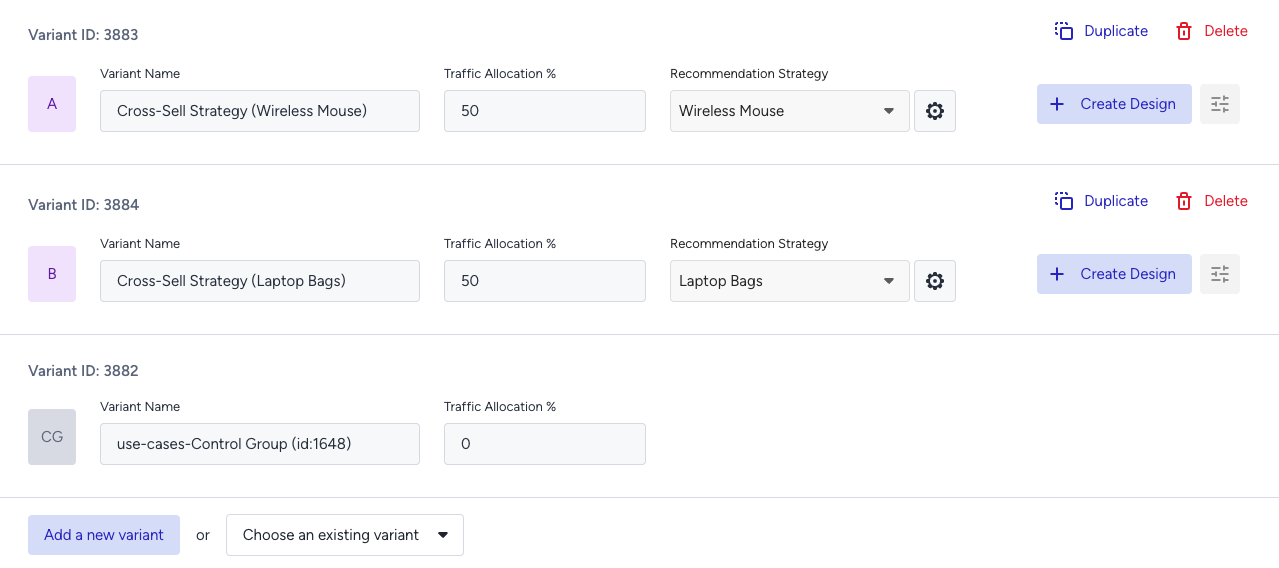
Now you’re ready to design your widget. Click Edit Design to open the Advanced Product Card Designer. Here, you can customize your product cards however you like.
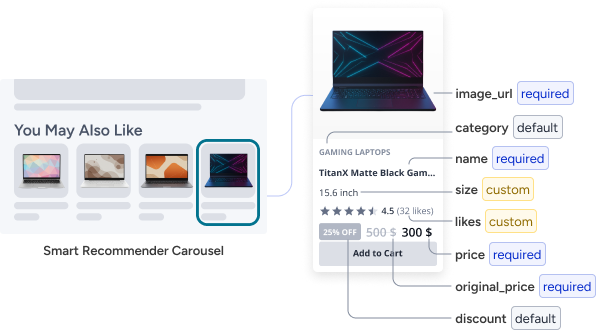
Make sure all the attributes you want to display are included in your product catalog. If you need to show more information on your product cards, you can create custom attributes from Product Attributes page.
After finalizing your campaign design, the next step is to select the locales and stores where you want the campaign to appear.
Once your targeting is set:
Review the campaign details.
Confirm that all settings match your objectives.
Click Launch to activate your first campaign.
3. Track your campaign metrics
You’ve launched your campaign—great work! Now it’s time to track its performance.
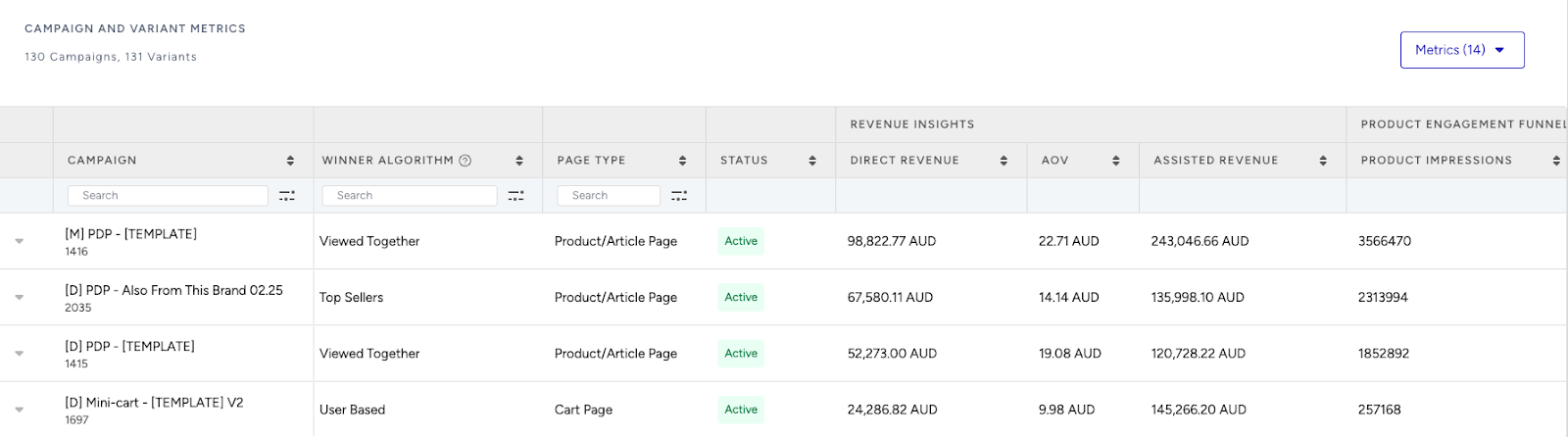
Go to the Smart Recommender Analytics page.
Locate your campaign under the Campaign and Variant Metrics table. Once the experiment duration ends, click your campaign name.
Compare key metrics, including Direct Revenue, Average Order Value (AOV), and Conversion Rate.
You can see which product category—Wireless Mouse or Laptop Bags—led to higher AOV for low-spending customers.
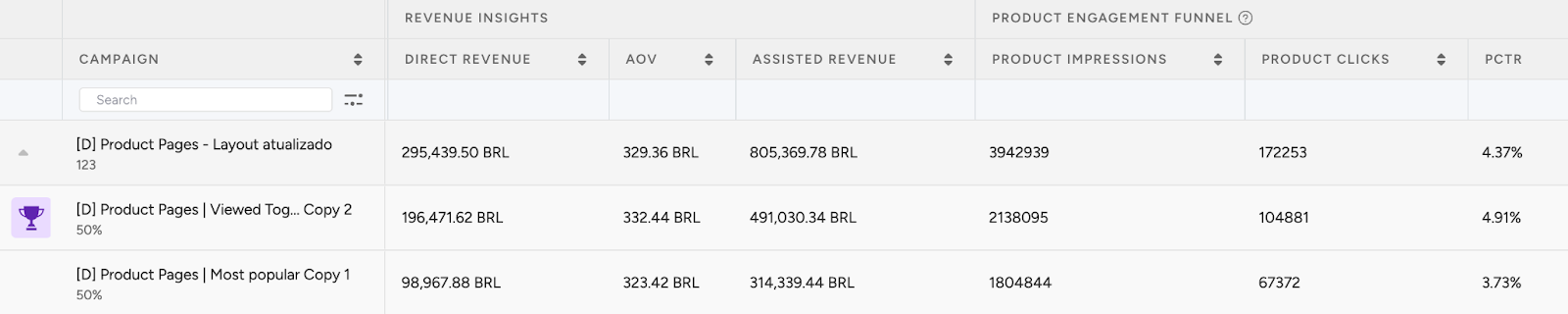
If one variant is clearly winning, adjust the traffic allocation to 100%. This ensures the best-performing strategy receives all traffic and maximizes impact.
You can also test and compare additional cross-sell strategies by adjusting the rules and filters based on other product categories to discover which combinations drive the most value.
4. Optimize your campaigns
Once your campaigns are live and running, it’s time to review results and apply data-driven improvements.
Go to the Smart Recommender Analytics page.
Evaluate campaign performance based on engagement metrics.
Track Engagement Funnel Metrics: Understand how users interact with your recommendations at every step. View product impressions, clickthrough rate, add-to-cart rate, and conversion rate for each campaign to pinpoint where you’re driving engagement and where there’s room to improve.

Compare Campaign and Variant Performance: Use the Campaign and Variant Metrics table to review key KPIs like AOV, Conversion Rate, and Direct Revenue. Identify which strategies are delivering the best results and refine or scale your winning variant accordingly.
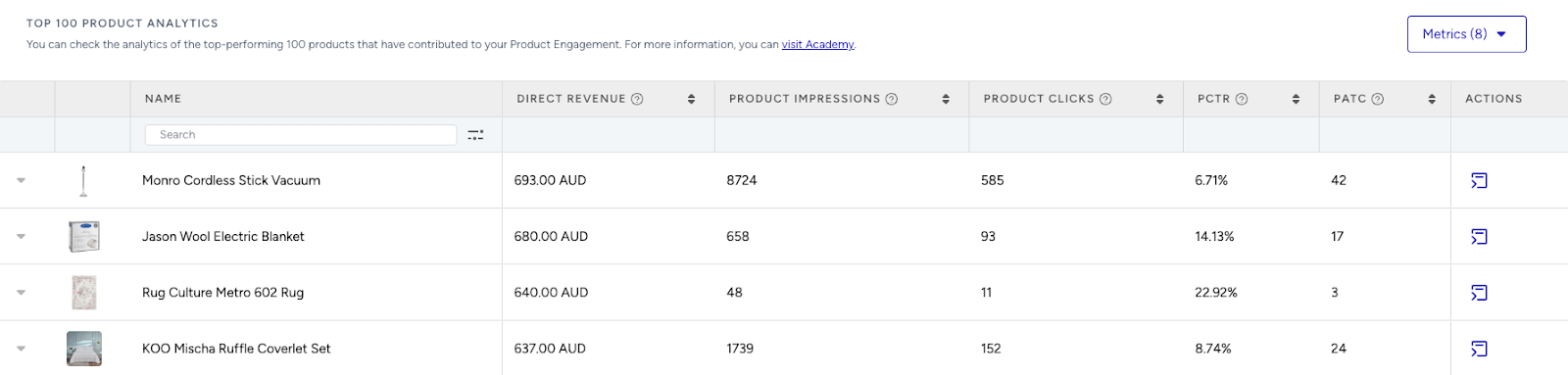
Analyze Product-Level Impact: Visit the Top 100 Product Analytics to see which products are performing well within your campaigns. Consider giving extra visibility to low-performing but strategic items by highlighting them in future recommendation widgets.
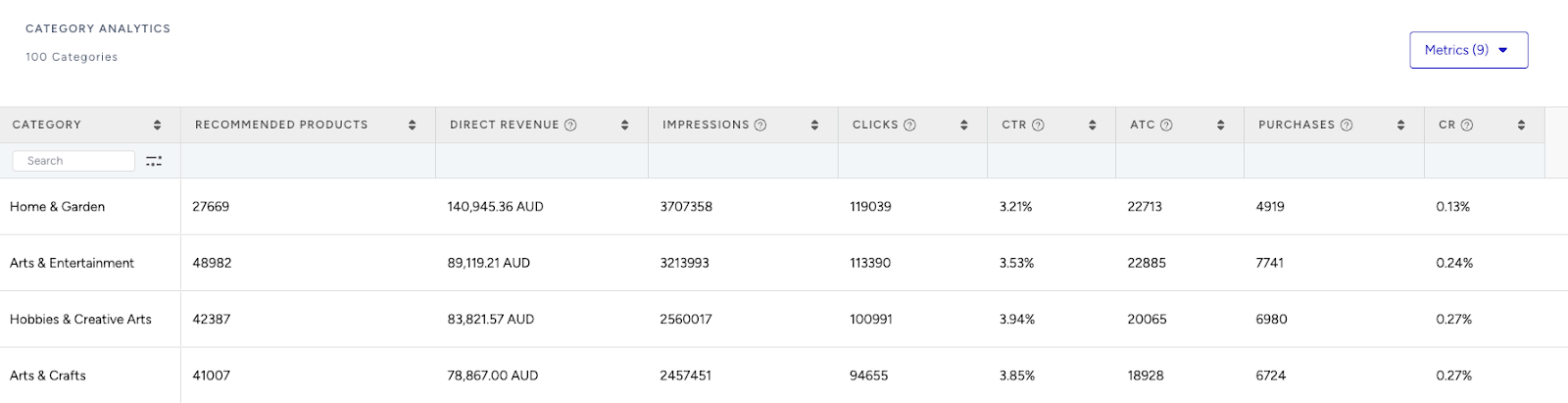
Review Category Trends: Use the Category Analytics view to assess which product categories drive the most conversions. You can prioritize high-performing categories to maximize conversions or spotlight underperforming categories to help boost their visibility and performance.
Use cases based on the page types
Home Page
Personalized tech picks
Help returning users navigate quickly by showing device categories or brands they prefer—like “Laptops for Creatives” or “Your Favorite Brands”.
Create a strategy with the Most Popular algorithm.
Enable the “Enhance recommendations based on Attribute Affinity” toggle to personalize recommendations based on your customer’s affinities.
Segment the campaign for returning users.
This personal touch can improve clickthrough rates and drive more profound discovery.
You can set the Attribute Affinity to Device Type, Category, and Brand attributes to personalize recommendations based on these attributes from the Product Attributes page.
Recently viewed items
Let returning visitors continue where they left off by showing products they browsed in previous sessions—such as TVs, earbuds, or tablets.
Create a strategy with the Recently Viewed algorithm.
Add an exclusion rule to the strategy to hide already purchased items.
Target returning users on the segment step.
A/B test its performance against User Based algorithm to see which performs best for re-engagement.
Recently Viewed and User-Based are personalized algorithms that rely on a user's past behavior. To use them effectively, ensure your segments are set to returning users.
Power essentials
Display everyday tech essentials that appeal to a broad audience, such as power banks, charging cables, or wireless earphones.
Create a strategy with the Top Sellers algorithm to ensure relevancy across a broad customer base.
Add a filter for category + is one of + Accessories, Chargers, Cables.
Keep affinity off to ensure utility-based recommendations.
Set campaign segment to new users.
A/B test different copy variations, such as “Everyday Tech Must-Haves” vs. “Power Up Your Day,” and consider customizing product cards with durability icons or fast-charging indicators.
Product Detail Page
Complete your setup with accessories
Encourage accessory purchases directly from the device detail page. For example, if a user is viewing a laptop, show compatible mice, bags, or external drives.
Create a strategy with the Purchased Together algorithm.
Add filters: brand + matches the item they're currently viewing and category + is one of + mice, laptop bags, external drives. Connect these two filters with OR connector to recommend relevant products.
Exclude already purchased products to increase discovery.
Similar devices you may like
Support comparative shopping by showing similar devices in terms of price range, brand, or specifications.
Create a strategy with the Viewed Together algorithm to show alternatives to the currently viewed product.
Add filters for category and price range to ensure relevance. Connect these filters with AND connector to make sure recommendations are from the same category and have a similar price range.
category + matches the item they're currently viewing
price + is more or less than their currently viewing item by + 10%
Enable Attribute Affinity for sharper targeting.
This helps users confidently evaluate alternatives.
Category Page
Discounted devices in this category
Capture attention from deal seekers by showcasing high-discount products in the current category.
Create a strategy with the Highest Discounted algorithm.
Apply category + matches the item they're currently viewing filter to match the category being browsed.
Keep Attribute Affinity off to emphasize value over personalization.
You can A/B test widget placement and visual discount badges to identify the highest-converting design.
Trending in laptops/smartphones/tablets
Help decision-making with trending and top-viewed items within a category.
Create a strategy with the Trending Products algorithm.
Apply category + contains the currently viewing category’s attribute filter.
If your category type is hierarchical, enable the “Expand the category filter to include recommendations from the next category if there aren't enough products to display.” checkbox to make sure recommendations are shown even though there aren’t enough products to recommend from the category the user is visiting.
Enable Attribute Affinity to boost items that match preferred brands, screen sizes, or technical specifications.
Cart Page
Add-ons for your device
Offer helpful last-minute items, such as adapters, cables, or screen protectors, that complement the products already in the user’s cart.
Create a strategy with the Purchased Together algorithm.
Add a category + is one of + adapters, cables, screen protectors filter to recommend practical add-ons.
Leave affinity off to prioritize functional relevance.
A/B test whether messaging such as “Don’t Forget These Essentials” or “Complete Your Setup” increases order value better.
Boost to free shipping
Encourage upsells by showing products that help users meet shipping thresholds.
Create a strategy with the Checkout Recommendation algorithm with a spend threshold (e.g., 500 USD for furniture).
No filters required, attribute affinity is optional.
Highlight remaining spend with a note like “Top up to 100 USD more for free shipping!” for urgency.
If you don’t have a free shipping campaign, you can also use the Purchased Together algorithm to recommend possible upsell products that align with the products in their cart.