You cannot make any changes to External Platform Integrations without having either an Administrator or an Editor with PII access in InOne. Refer to User Roles for further information.
You can establish Insider One as an output in mParticle’s ecosystem and send data from mParticle to Insider One. With this integration, mParticle audiences are sent as attributes to Insider One and will correspond to Insider One’s attribute-based segments.
This integration guide provides a complete framework for:
Use Cases
Sending your website and app data from mParticle to Insider One helps you leverage a variety of use cases:
Triggering Journeys
You can track user behavior such as cart abandonment and purchases to trigger journeys with Insider One’s Architect products and target users across channels such as website, web push, and email.
Personalizing user experience
By leveraging native integration with mParticle, you can use comprehensive user information, such as name, age, city, country, etc., passed through mParticle to deliver personalized user experiences and messaging across channels.
Configure Insider One as an output
To configure Insider One as an output in your mParticle channel, follow these steps:
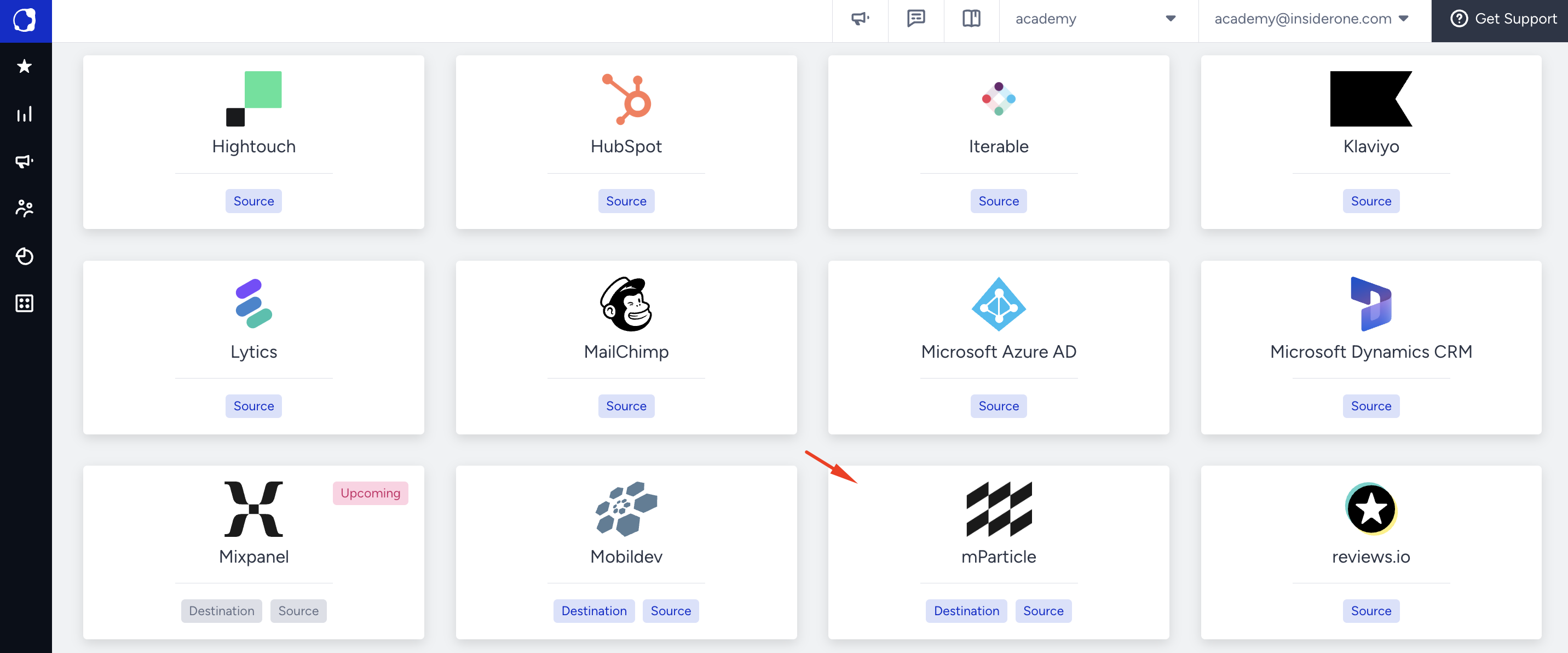
Navigate to Components > Integrations > External Integrations on the Insider One's InOne panel.
.png)
Select the mParticle platform.
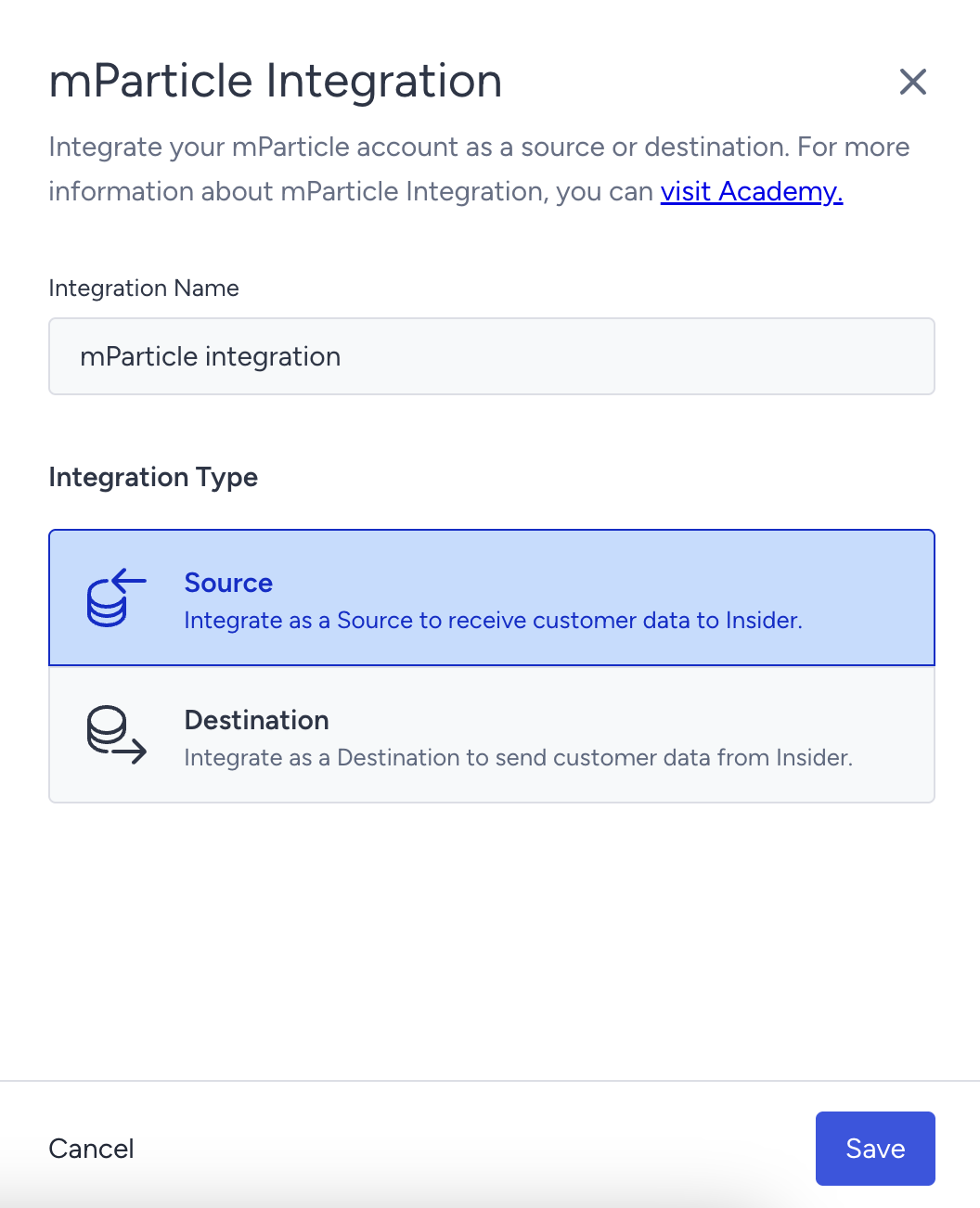
Give a name to your integration, select Source as the integration type, and click the Save button.
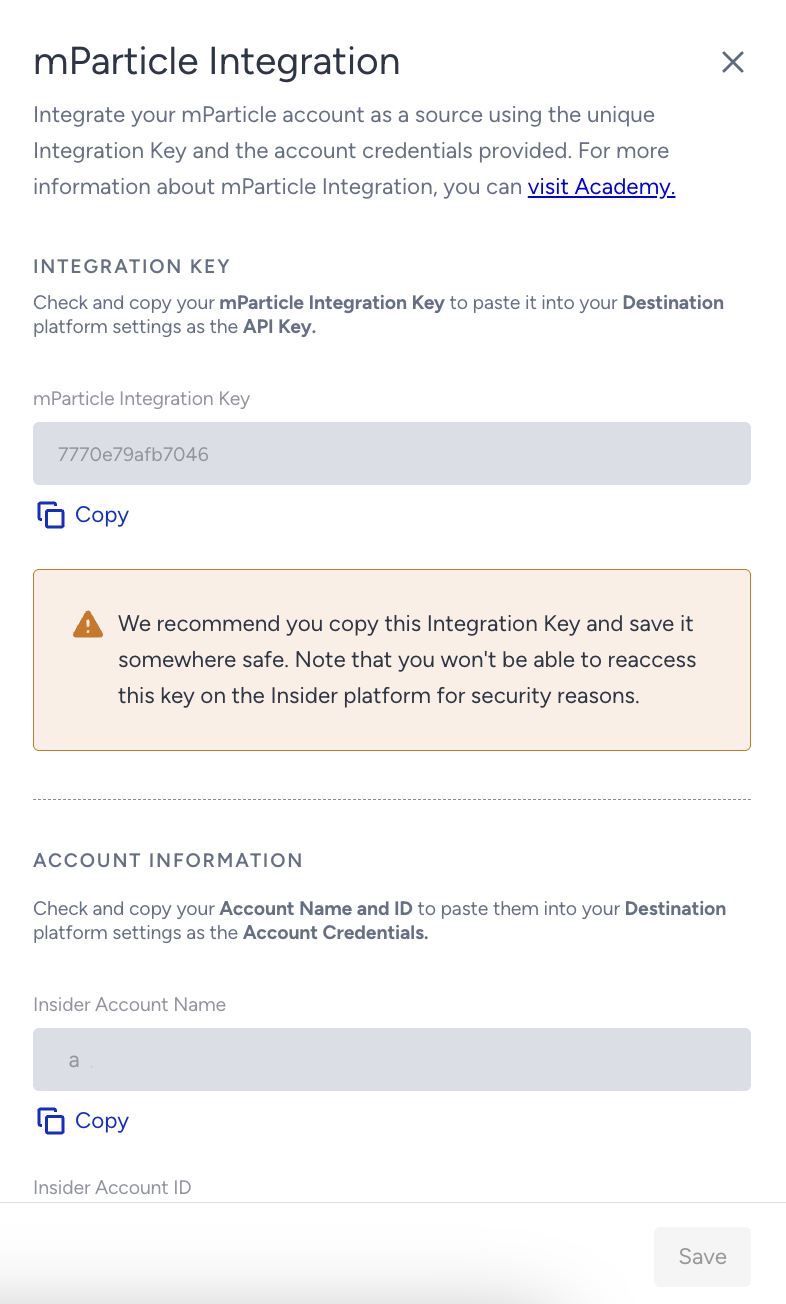
Copy the mParticle Integration Key, Insider One Account Name, and Insider One Account ID, then click the Save button.
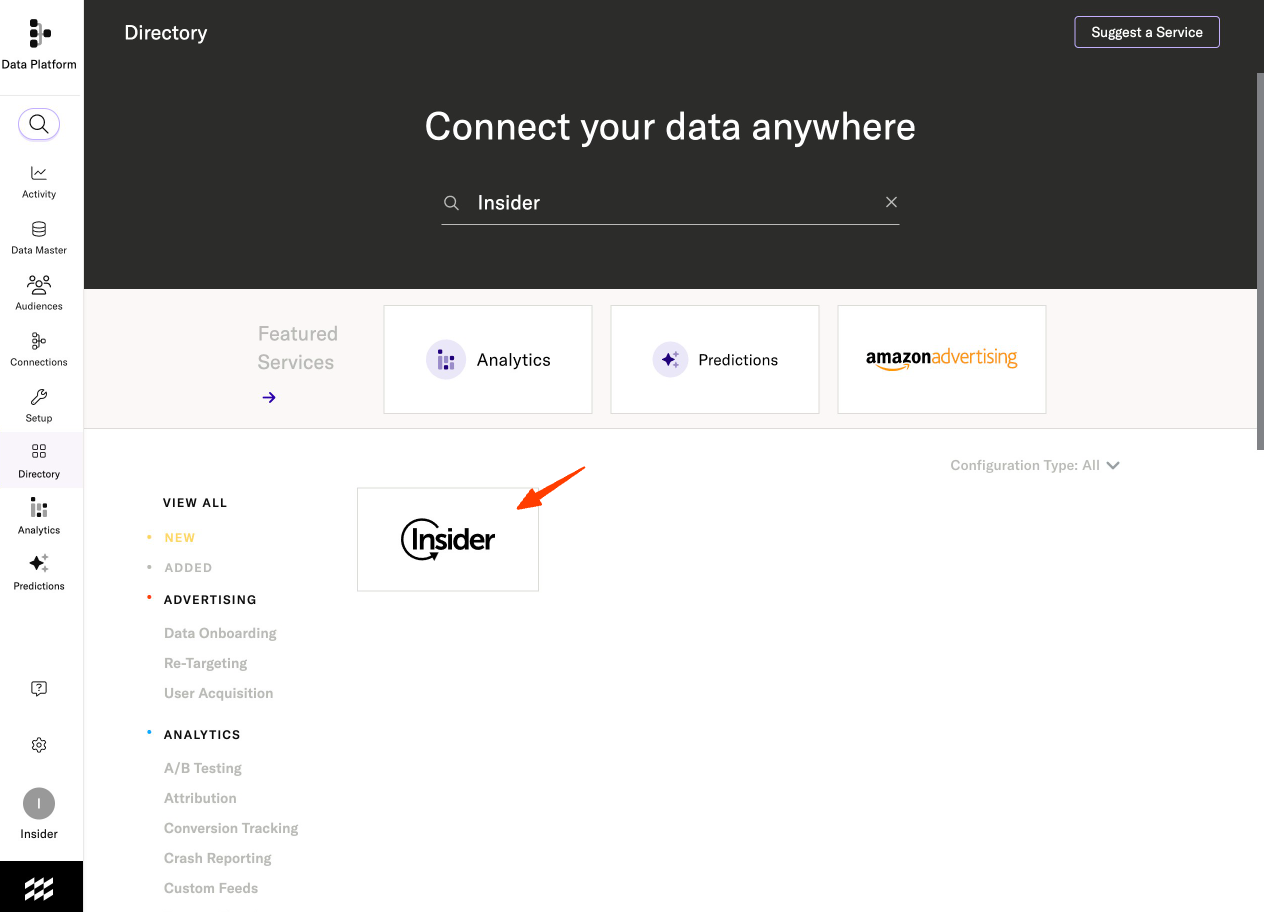
Navigate to the Directory from the side menu and find Insider as your output connector in your mParticle marketplace.
Click the Output Integration Type and start configuring Insider One.
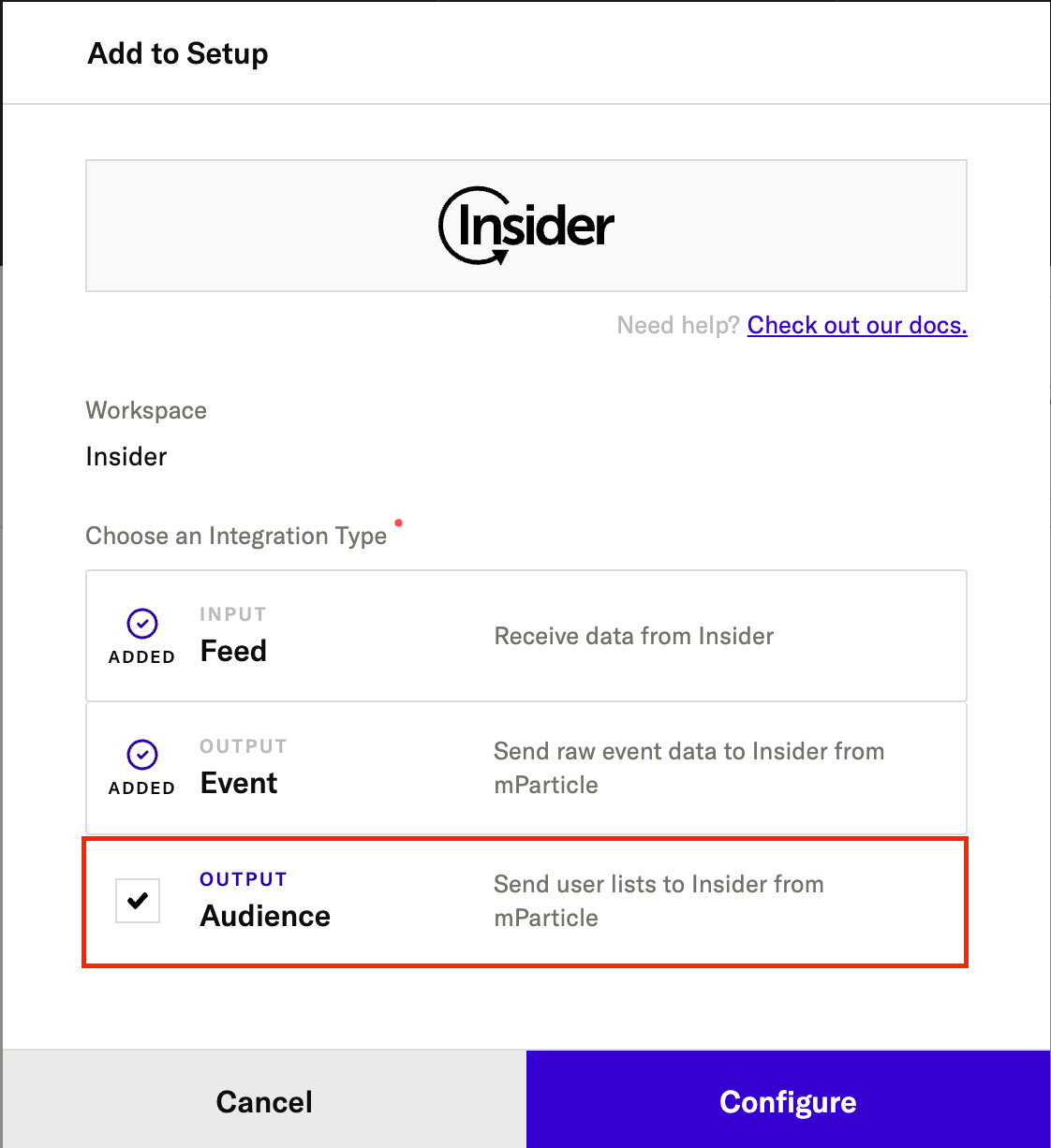
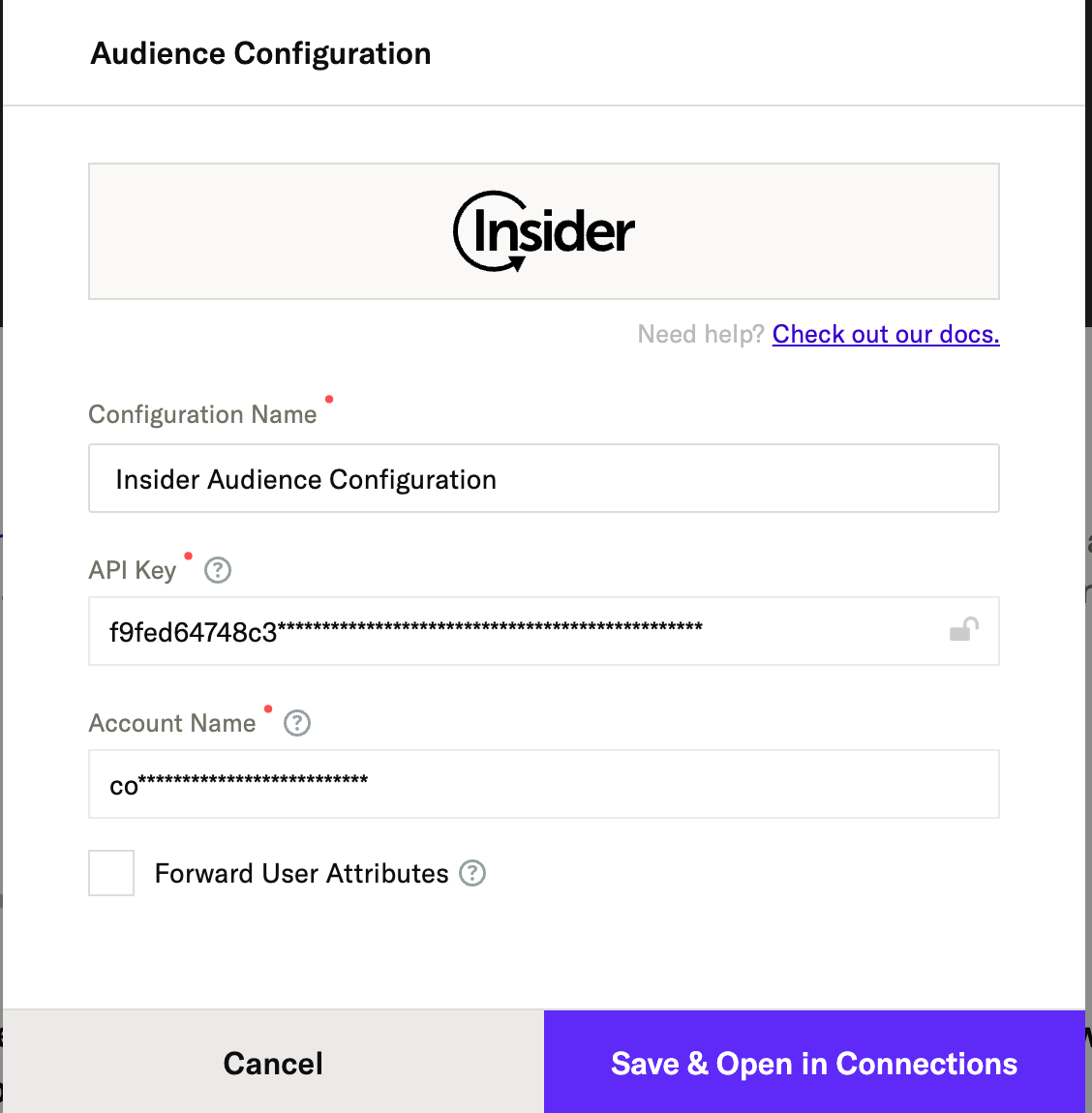
Place your API Key, Insider One Account Name, and Account ID into the configuration settings.
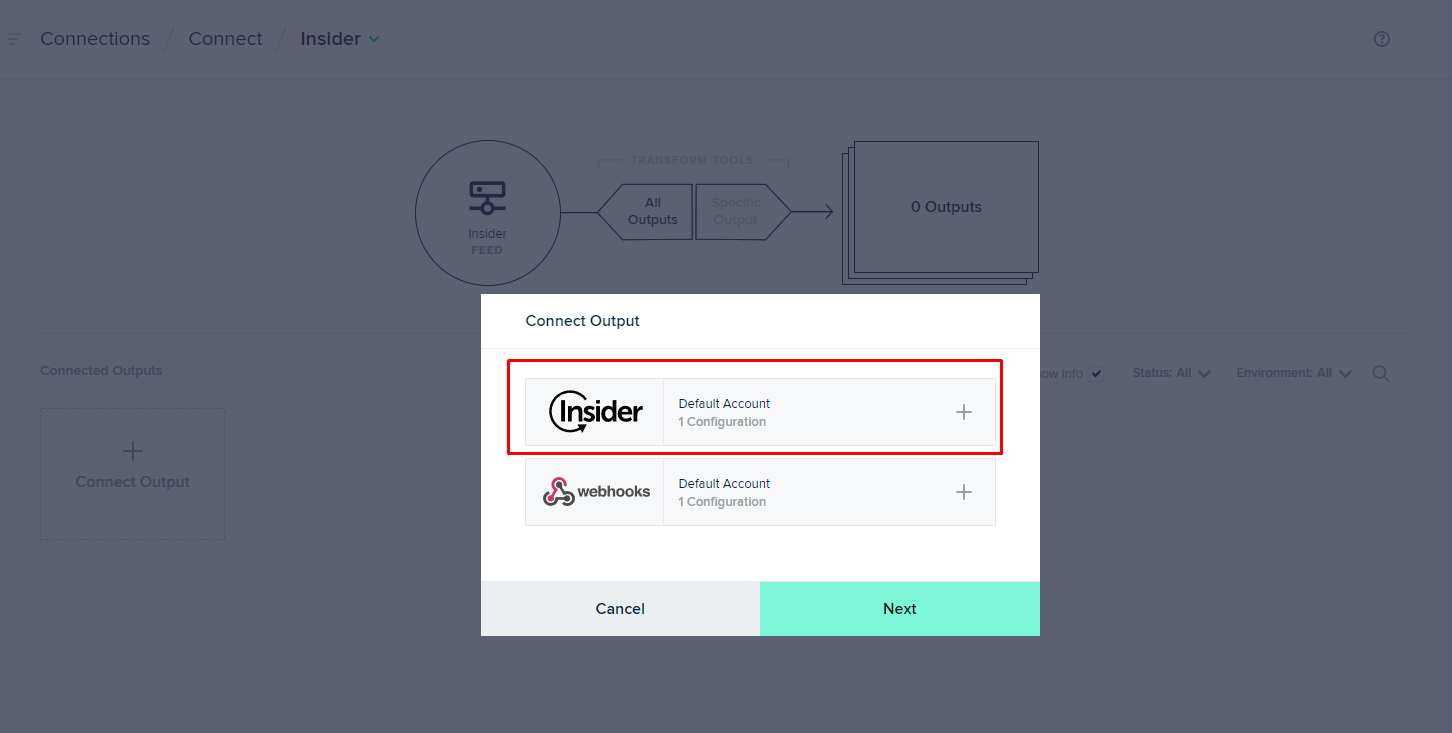
After saving the configuration settings, connect your desired input to your Insider output.
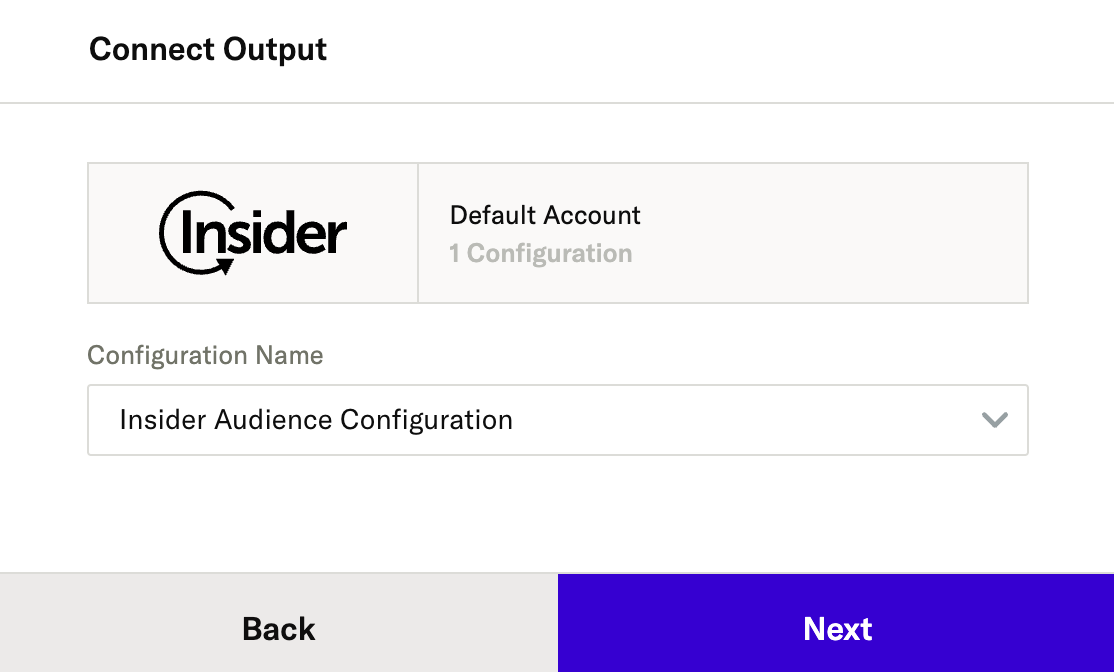
Select your Insider One configuration and activate your integration.
User Identification
By default, Insider One gets email, phone number, uuid (mParticle customer_id), and mpID as identifiers. You can easily change it via your identity resolution settings from the Identity Resolution Management page. Insider One directly collects data as an identifier if the attribute sent by mParticle is selected as an identifier.
Event and Attribute Sync
Inisder can get all the events and attributes that are sent from mParticle over to Insider One. By default, some of the events and attributes are mapped when syncing data from mParticle. All other events and attributes that are not in the tables below are collected as custom events or attributes from mParticle to Insider One.
In Insider One, an attribute name is limited to a maximum of 40 characters. If an attribute name exceeds this limit on the mParticle side, it will be rejected by Insider One.
Mapped Events
mParticle Event Name | Insider One Event Name |
|---|---|
add_to_cart | Item Added to Cart |
remove_from_cart | Item Removed From Cart |
checkout | Cart Page View |
view_detail | Product Detail Page View |
purchase | Purchase |
session_start | Session Start |
Event Parameters Mapped
mParticle Event Parameter Name | Insider One Event Parameter Name |
|---|---|
action | Event Name |
id | Product ID |
name | Name |
category | Category |
price | Unit Sale Price |
quantity | Quantity |
transaction_id | Event Group ID |
session_id | Session ID |
timestamp_unixtime_ms | Timestamp |
Attributes Mapped
mParticle Attribute Name | Insider One Attribute Name |
|---|---|
Age | Age |
Gender | Gender |
Country | Country |
City | City |
Firstname | Name |
Lastname | Surname |
email_optin | Email Optin |
sms_optin | SMS Optin |