The Transactional WhatsApp API, also known as automated WhatsApp order or status messages sent through the Transactional API, is a POST endpoint for sending template-based WhatsApp messages triggered by customer actions in your system. Use it for event-driven notifications such as order confirmations, shipping updates, and delivery alerts, which are messages triggered by a specific action rather than sent as part of a marketing campaign.
Before sending Transactional WhatsApp template messages, make sure you create your template in InOne first. Refer to Create a WhatsApp Business Standard Template on InOne for step-by-step guidance.
Refer to the visual below for an example of how a transactional WhatsApp template message is displayed.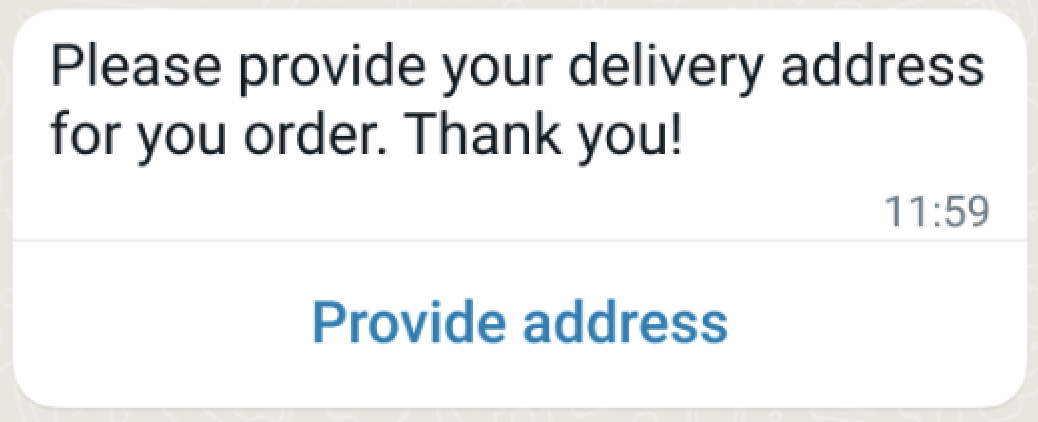
Endpoint and Headers
Visit our Postman collection to test this request.
Headers
Header | Sample Value | Description |
|---|---|---|
X-INS-AUTH-KEY | 1a2b3c4d5e6f | This key is required to authorize your request. Refer to API Authentication Tokens to generate your token. |
Content-Type | application/json | This header specifies the media type of the resource. |
Body Parameters
Column | Description | Data Type | Required |
|---|---|---|---|
messages | All messages are contained in the messages key. You can send multiple messages with a single request. | Array | Yes |
from | Specifies the sender phone number ID. Only required when multiple phone numbers are configured for the account. If not specified, the default phone number is used. This applies to both Transactional and Conversational WhatsApp APIs. | String | Optional |
uniqueArgs | Custom key-value pairs used for tracking purposes. The values provided are returned as-is in all webhook callback events. Use this field to pass your own user or record identifier so that you can map callback events to the corresponding record in your system. | Object | No |
phoneNumber | Phone number for the person you want to message.
| String | Conditional. Required if recipient is not sent. |
recipient | Specifies the recipient’s WhatsApp Business-Scoped User ID (BSUID). For example, TR.2124566744990207. Use this identifier to send messages without providing the recipient’s phone number. Pass the complete BSUID, including its country prefix. | String | Conditional. Required if phoneNumber is not provided. |
message | Message object | Object | Yes |
type | It must be a “template” for this message type. | String | Yes |
name | Template name to be sent. | String | Yes |
language | - | Object | Yes |
code | Template language | String | Yes |
policy | It must be deterministic. | String | Yes |
message variable components | - | Array | Yes |
type | body | String | Yes |
parameters | - | Array | Yes |
type | text | String | Yes |
text | Parameter value | String | Yes |
button components | - | Array | Yes |
type | button | String | Yes |
sub_type | Quick_reply, URL, PHONE_NUMBER | String | Yes |
index | - | String | Yes |
parameters | - | Array | Yes |
type | payload | String | Yes |
payload | Payload value | String | Yes |
header | Header component object | Object | No |
type | Must be "header". | String | Yes |
parameters | - | Array | Yes |
type | One of: text, image, video, document | String | Yes |
text | Header text (used if type = text) | String | Yes (if type = text) |
image | - | Object | Yes (if type = image) |
link | Image URL | String | Yes |
video | - | Object | Yes (if type = video) |
link | Video URL | String | Yes |
document | - | Object | Yes (if type = document) |
link | Document URL | String | Yes |
filename | File name | String | No |
bid_spec | Opt-in for dynamic pricing. Only valid for MARKETING templates. | Object | No |
Meta doesn't support adding emojis to the button ID.
How template fields map to the API payload
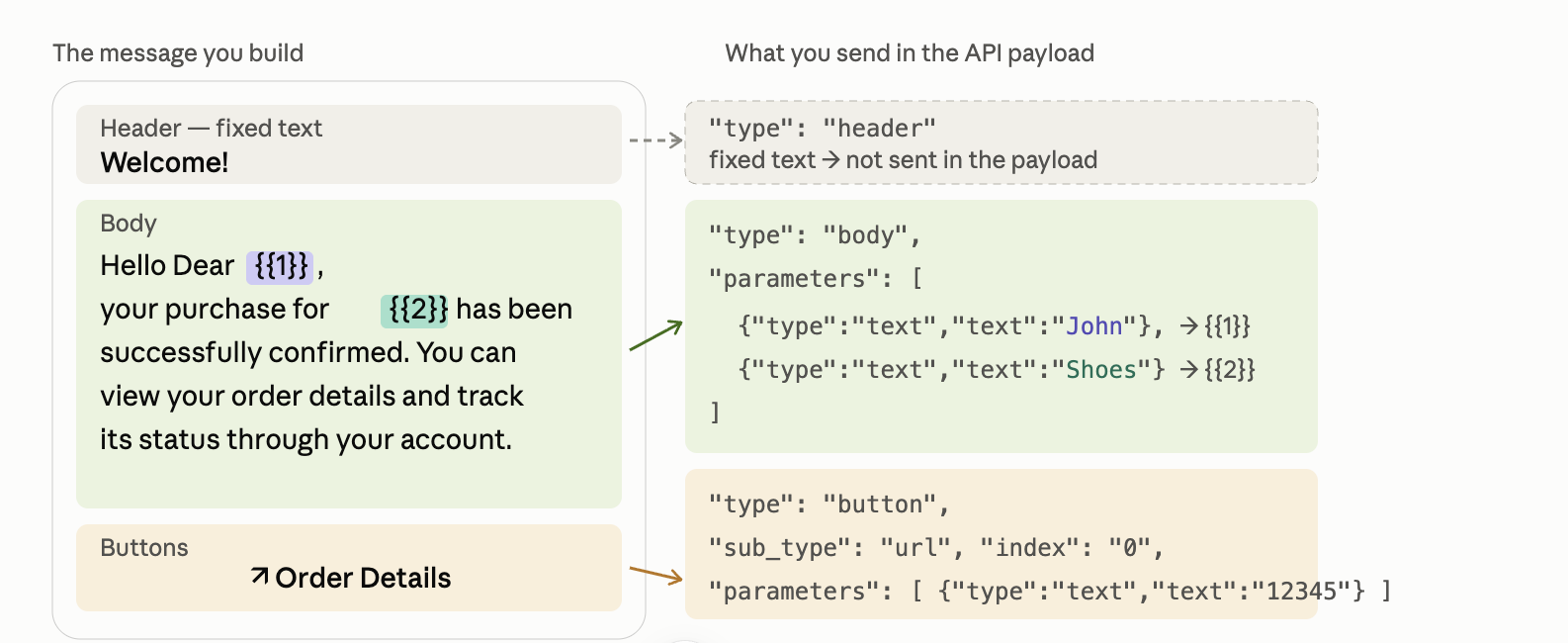
A WhatsApp template can include a header, body, and buttons. In the API payload, each dynamic part is sent as a component with the corresponding type, such as header, body, or button.
Only values that change for each message need to be included in the payload. Fixed content, such as static header text and non-variable body text, is already defined in the template approved by Meta and does not need to be sent again.
For example, a static text header such as Welcome! is not included in the components array. However, a media header is dynamic because you must provide the image, video, or document when you send the message.
{
  "type": "header",
  "parameters": [
    {
      "type": "image",
      "image": {
        "link": "https://.../banner.jpg"
      }
    }
  ]
}
For media headers, use the corresponding parameter type such as image, video, or document.
The following example shows how fixed template content and dynamic values map to the API payload.
Map body parameters to placeholders
If the template body contains placeholders such as {{1}} and {{2}}, provide their values in the body component's parameters array.
Parameters are positional and must follow the same order as the placeholders in the template:
The first parameter provides the value for {{1}}.
The second parameter provides the value for {{2}}.
Additional parameters continue in the same order.
Keep the parameter count and order aligned with the template. The number of parameters must match the number of {{n}} placeholders, and the values must be sent in the same order. If the parameter count does not match, the request is rejected. If the values are sent in the wrong order, they are inserted into the wrong placeholders. For example, a product name could appear where the customer name should be.
Map button parameters
Buttons that contain dynamic values must also be included as components in the payload. Specify the button type and index, then provide its dynamic value in the parameters array.
For example, a dynamic URL button can include a value such as an order ID that is appended to the URL defined in the approved template.
The index in a button component is the absolute, zero-based position in the template's button array. Every button type consumes a position; URL buttons are not counted separately. Without this, the second Quick Reply might get index: 1 and the wrong button might be parameterized.
The example below shows a case where url is set to index: 0, the phone button is index: 1 but does not take any parameters, and the Quick Reply ones are index: 2 and 3:
{
  "messages": [
    {
      "phoneNumber": "+905XXXXXXXXX",
      "message": {
        "type": "template",
        "template": {
          "name": "order_update_combined",
          "language": {
            "code": "en",
            "policy": "deterministic"
          },
          "components": [
            {
              "type": "body",
              "parameters": [
                {
                  "type": "text",
                  "text": "Ayse"
                },
                {
                  "type": "text",
                  "text": "12345"
                }
              ]
            },
            {
              "type": "button",
              "sub_type": "url",
              "index": "0",
              "parameters": [
                {
                  "type": "text",
                  "text": "12345"
                }
              ]
            },
            {
              "type": "button",
              "sub_type": "quick_reply",
              "index": "2",
              "parameters": [
                {
                  "type": "payload",
                  "payload": "delivered"
                }
              ]
            },
            {
              "type": "button",
              "sub_type": "quick_reply",
              "index": "3",
              "parameters": [
                {
                  "type": "payload",
                  "payload": "not_received"
                }
              ]
            }
          ]
        }
      }
    }
  ]
}
If sub_type does not match the real button type in the template, Meta returns error 100 (e.g., sending quick_reply for a CTA button). Meta-API does not validate the index; it forwards the request as is.
To receive message events such as sent, delivered, read, and failed for messages sent through the API, you must set up a webhook. See Set Up a Webhook in WhatsApp Settings for further information.
WhatsApp Status Callback
The Status Callback allows you to track the delivery status of your WhatsApp messages in real time. When you send a message, the system sends status updates to the API URL you’ve specified in the callback parameter. If you don't respond to code between 200 and 300, the system automatically retries the request up to 10 times following this schedule:| Retry Attempt | Time After First Attempt |
|---|---|
| 1st retry | 1 minute |
| 2nd retry | 2 minutes |
| 3rd retry | 3 minutes |
| 4th retry | 8 minutes |
| 5th retry | 13 minutes |
| 6th retry | 18 minutes |
| 7th retry | 28 minutes |
| 8th retry | 38 minutes |
| 9th retry | 48 minutes |
| 10th retry | 1 hour |
WhatsApp Status Callback
The Status Callback allows you to track the delivery status of your WhatsApp messages in real time. When you send a message, the system sends status updates to the API URL you’ve specified in the callback parameter. If you don't respond to code between 200 and 300, the system automatically retries the request up to 10 times following this schedule:| Retry Attempt | Time After First Attempt |
|---|---|
| 1st retry | 1 minute |
| 2nd retry | 2 minutes |
| 3rd retry | 3 minutes |
| 4th retry | 8 minutes |
| 5th retry | 13 minutes |
| 6th retry | 18 minutes |
| 7th retry | 28 minutes |
| 8th retry | 38 minutes |
| 9th retry | 48 minutes |
| 10th retry | 1 hour |
Sample Requests
You can find sample requests below for different header types (text, image, video, and document), for all button options available when creating your transactional WhatsApp template messages, and for sending a message by BSUID.
Use the following sample request to send a message by BSUID.
{
  "messages": [
    {
      "recipient": "TR.2124566744990207",
      "message": {
        "type": "template",
        "template": {
          "name": "order_update",
          "language": {
            "code": "en",
            "policy": "deterministic"
          }
        }
      }
    }
  ]
}
Header Samples
You can use these sample requests to add different header components to your transactional template messages:
Image Header
curl --location 'https://whatsapp.useinsider.com/v1/send' \
        --header 'Content-Type: application/json' \
        --header 'x-ins-auth-key: INS.**************************************' \
        --data '{
           "from": "{{PHONE_NUMBER}}", //Example: +112312312
           "messages": [
               {
                   "phoneNumber": "+1**********",
                   "message": {
                       "type": "template",
                       "template": {
                           "name": "{{TEMPLATE_NAME}}",
                           "language": {
                               "code": "{{TEMPLATE_LANGUAGE_CODE}}",
                               "policy": "deterministic",
                           },
                           "components": [
                               {
                                   "type": "header",
                                   "parameters": [
                                       {
                                           "type": "image",
                                           "image":{
                                               "link": "{{IMAGE_URL}}"
                                           }
                                       }
                                   ]
                               }
                           ]
                       }
                   }
               }
           ]
        }'
Video Header
curl --location 'https://whatsapp.useinsider.com/v1/send' \
        --header 'Content-Type: application/json' \
        --header 'x-ins-auth-key: INS.**************************************' \
        --data '{
           "from": "{{PHONE_NUMBER}}", //Example: +112312312
           "messages": [
               {
                   "phoneNumber": "+1**********",
                   "message": {
                       "type": "template",
                       "template": {
                           "name": "{{TEMPLATE_NAME}}",
                           "language": {
                               "code": "{{TEMPLATE_LANGUAGE_CODE}}",
                               "policy": "deterministic",
                           },
                           "components": [
                               {
                                   "type": "header",
                                   "parameters": [
                                       {
                                           "type": "video",
                                           "video":{
                                               "link": "{{VIDEO_URL}}"
                                           }
                                       }
                                   ]
                               }
                           ]
                       }
                   }
               }
           ]
        }'
Videos must be in MP4 format and have a maximum size of 16 MB.
Changing a file’s extension to .mp4 does not convert it into an MP4 format. The video must be originally encoded in MP4; otherwise, it might fail the format check and result in an error. If your video is in a different format or exceeds the size limit, you must convert or resize it before uploading.
Document Header
curl --location 'https://whatsapp.useinsider.com/v1/send' \
        --header 'Content-Type: application/json' \
        --header 'x-ins-auth-key: INS.**************************************' \
        --data '{
           "from": "{{PHONE_NUMBER}}", //Example: +112312312
           "messages": [
               {
                   "phoneNumber": "+1**********",
                   "message": {
                       "type": "template",
                       "template": {
                           "name": "{{TEMPLATE_NAME}}",
                           "language": {
                               "code": "{{TEMPLATE_LANGUAGE_CODE}}",
                               "policy": "deterministic",
                           },
                           "components": [
                               {
                                   "type": "header",
                                   "parameters": [
                                       {
                                           "type":"document",
                                           "document":{
                                           "link":"{{DOCUMENT_LINK}}",
                                           "filename":"{{FILE_NAME}}"
                                       }
                                   ]
                               }
                           ]
                       }
                   }
               }
           ]
        }'
Button Samples
You can use these sample requests if you want to include buttons in your template messages:
Quick Reply Buttons
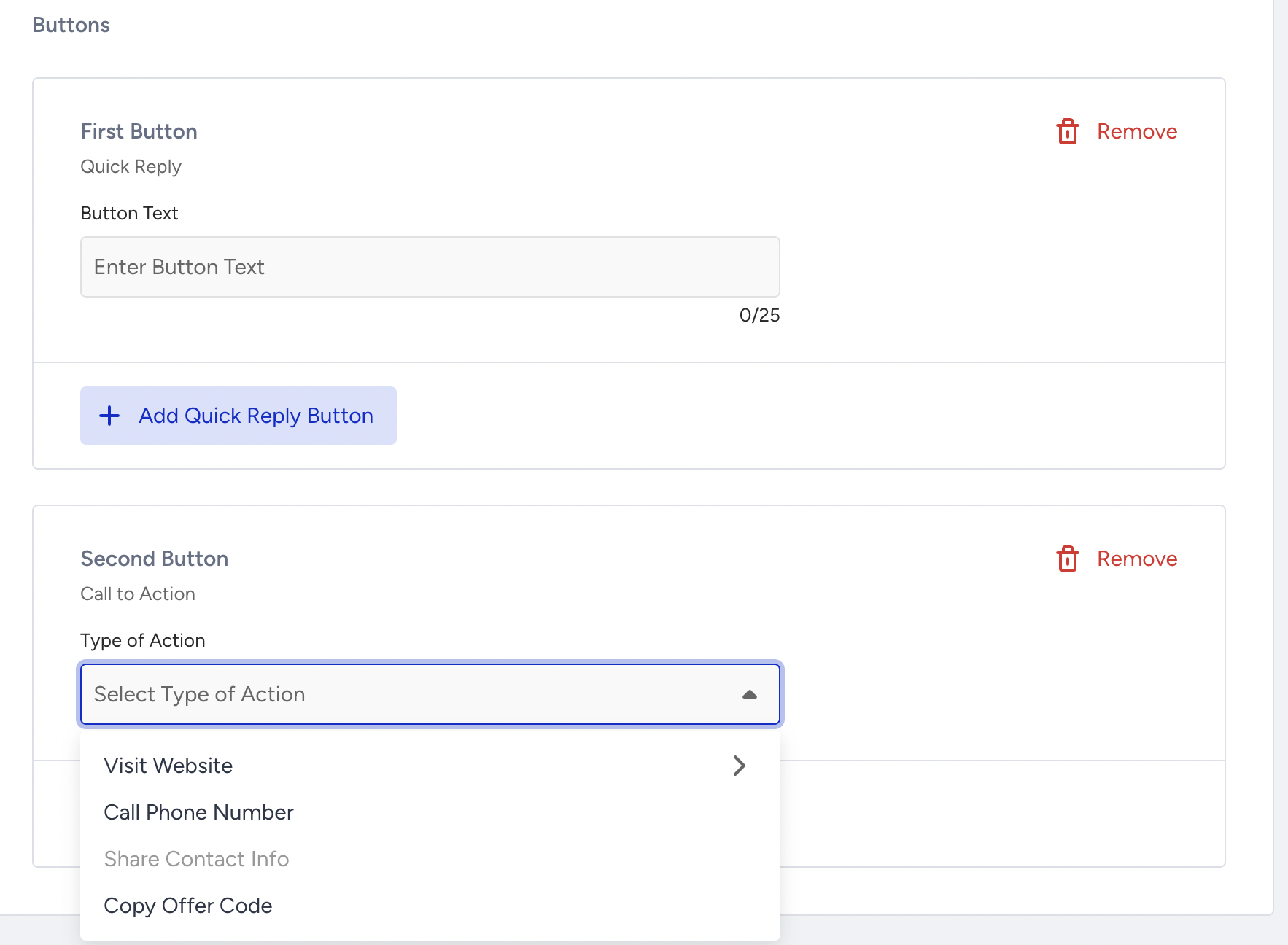
Select the Quick Reply button while creating your template message, then enter the text you want to display on each button.
See the visual below for an example of how Quick Reply buttons are displayed in a transactional WhatsApp template. 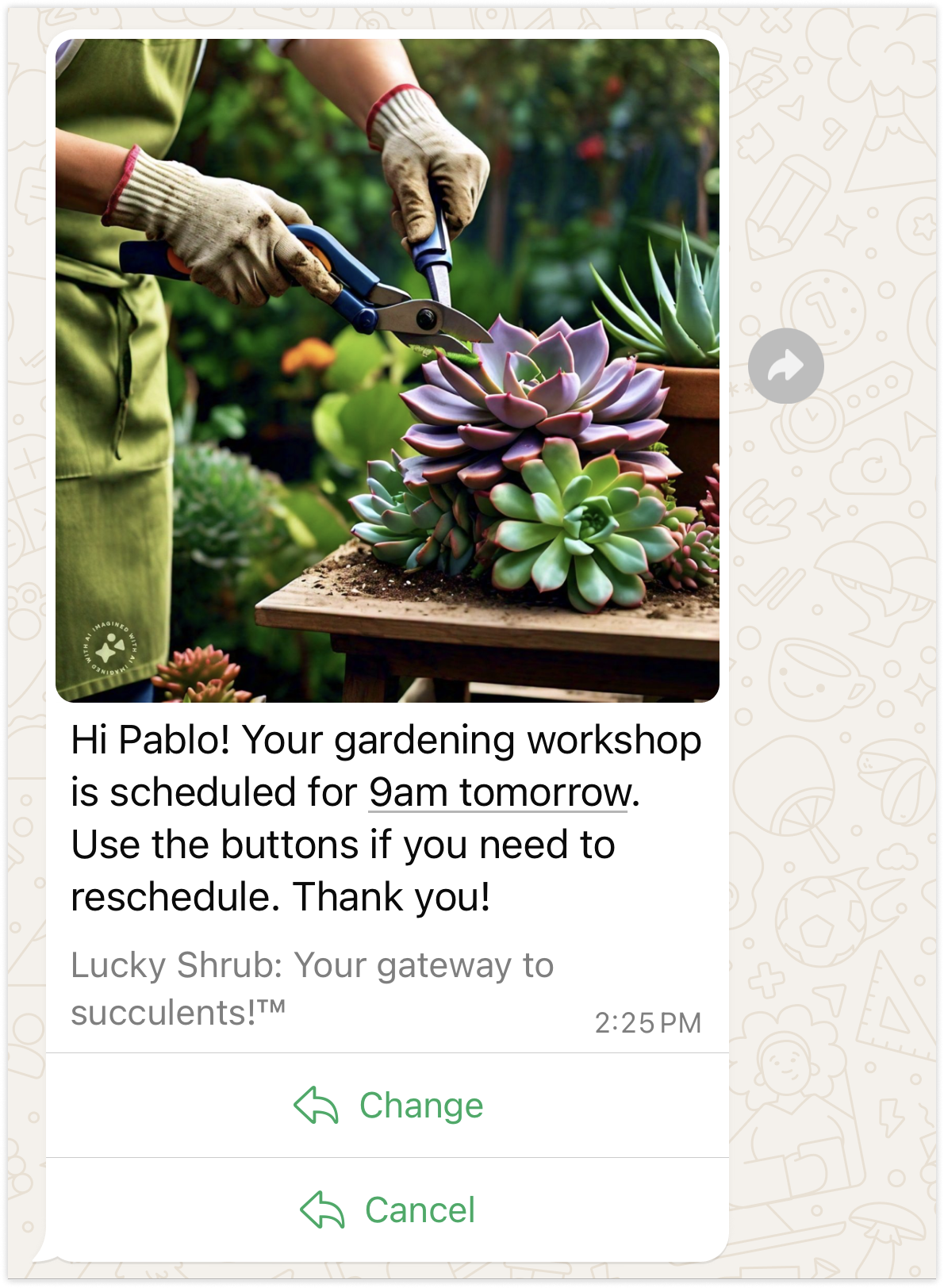
You can use the sample request below if you want to use the quick reply buttons:
curl --location 'https://whatsapp.useinsider.com/v1/send' \
  --header 'Content-Type: application/json' \
  --header 'x-ins-auth-key: INS.1a2b3c4d5e6f' \
  --data '{
    "messages": [
      {
        "phoneNumber": "+1**********",
        "message": {
          "type": "template",
          "template": {
            "name": "{{TEMPLATE_NAME}}",
            "language": {
              "code": "{{TEMPLATE_LANGUAGE_CODE}}",
              "policy": "deterministic"
            },
            "components": [
              {
                "type": "body",
                "parameters": [
                  {
                    "type": "text",
                    "text": "{{PARAMETER_VALUE}}"
                  }
                ]
              },
              {
                "type": "button",
                "sub_type": "quick_reply",
                "index": "0",
                "parameters": [
                  {
                    "type": "payload",
                    "payload": "1"
                  }
                ]
              },
              {
                "type": "button",
                "sub_type": "quick_reply",
                "index": "1",
                "parameters": [
                  {
                    "type": "payload",
                    "payload": "2"
                  }
                ]
              }
            ]
          }
        }
      }
    ]
  }'
After sending the request above, proceed to create your quick reply responses. Refer to the sample response below to create responses for each quick reply button:
Refer to the Send Transactional WhatsApp Message with Button Reply (Quick Reply) to learn more about the Button Reply parameters.
curl --location 'https://whatsapp.useinsider.com/v1/send' \
  --header 'Content-Type: application/json' \
  --header 'x-ins-auth-key: INS.1a2b3c4d5e6f' \
  --data '{
    "messages": [
      {
        "phoneNumber": "+1**********",
        "message": {
          "type": "interactive",
          "interactive": {
            "type": "button",
            "header": {
              "type": "text",
              "text": "HEADER_TEXT"
            },
            "body": {
              "text": "BUTTON_TEXT"
            },
            "action": {
              "buttons": [
                {
                  "type": "reply",
                  "reply": {
                    "id": "UNIQUE_BUTTON_ID_1",
                    "title": "BUTTON_TITLE_1"
                  }
                },
                {
                  "type": "reply",
                  "reply": {
                    "id": "UNIQUE_BUTTON_ID_2",
                    "title": "BUTTON_TITLE_2"
                  }
                }
              ]
            }
          }
        }
      }
    ]
  }'
Call to Action Buttons
You can add call-to-action (CTA) buttons, such as "call us" or "visit the website," to your promotional message template to increase user engagement. Two URL buttons are allowed, plus one phone button and one coupon code button, for up to 10 buttons in total.
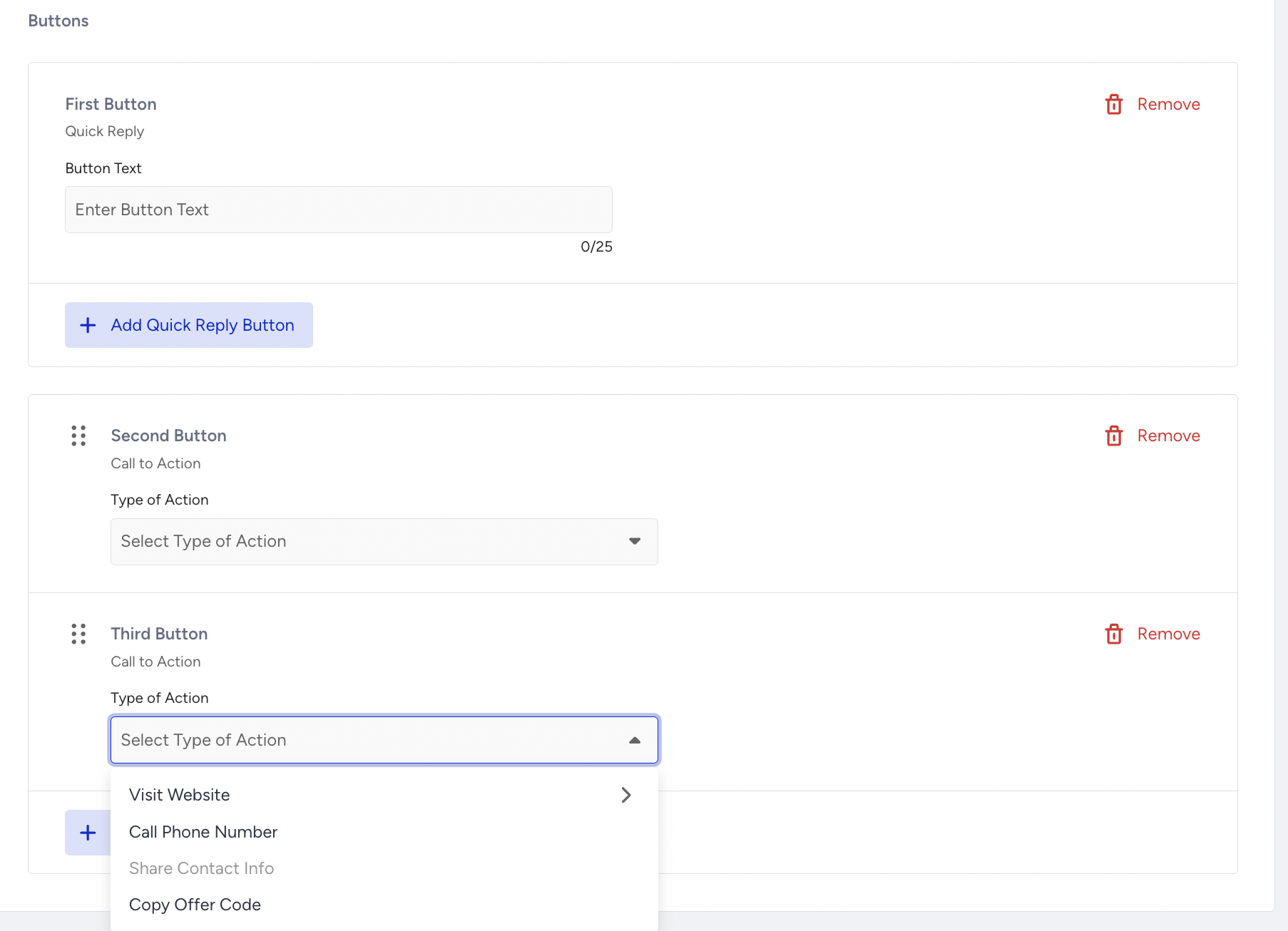
See the visual below for an example of how a CTA button is displayed in a transactional WhatsApp template. 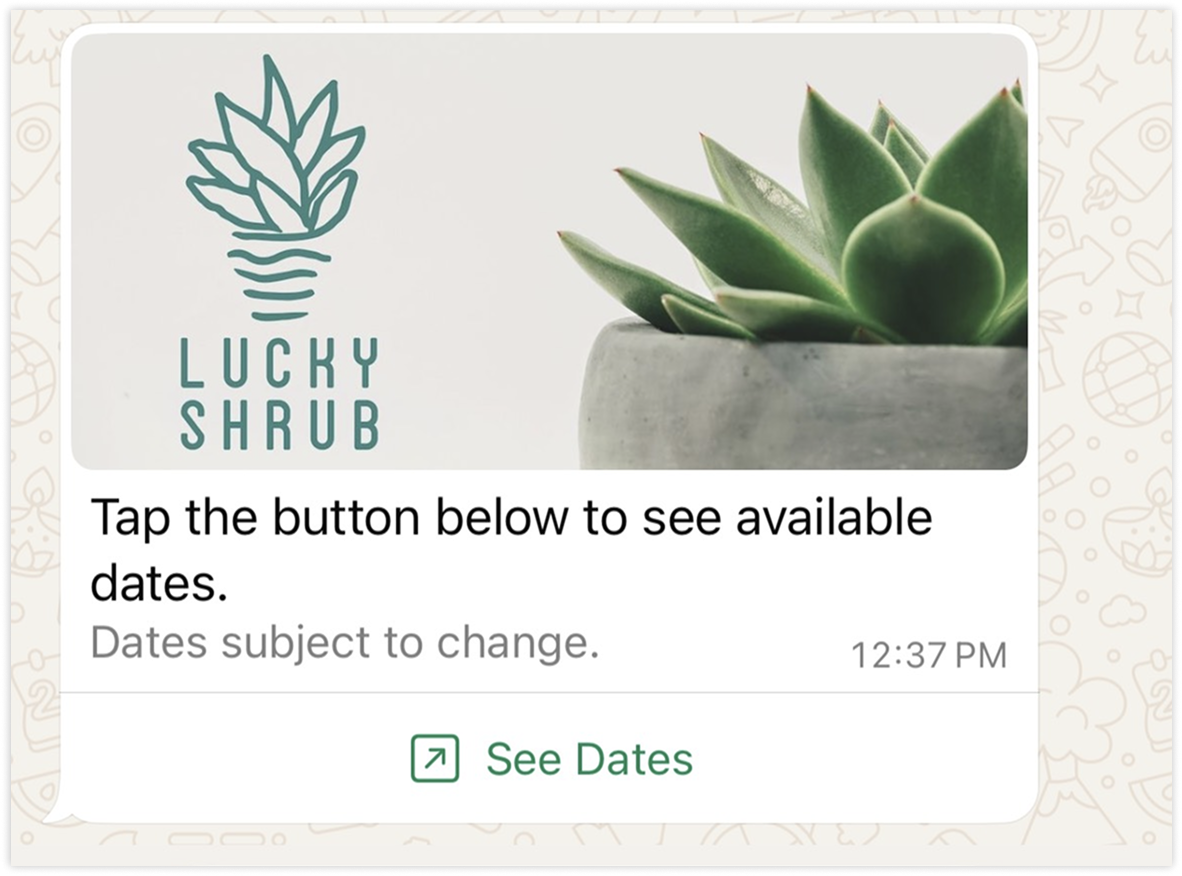
If you want to use CTA buttons in your Transactional WhatsApp template message, you can use the sample request below:
curl --location 'https://whatsapp.useinsider.com/v1/send' \
  --header 'Content-Type: application/json' \
  --header 'x-ins-auth-key: INS.**************************************' \
  --data '{
    "from": "{{PHONE_NUMBER}}", //Example: +112312312
    "messages": [
      {
        "phoneNumber": "+1**********",
        "message": {
          "type": "template",
          "template": {
            "name": "{{TEMPLATE_NAME}}",
            "language": {
              "code": "{{TEMPLATE_LANGUAGE_CODE}}",
              "policy": "deterministic"
            },
            "components": [
              {
                "type": "body",
                "parameters": [
                  {
                    "type": "text",
                    "text": "{{PARAMETER_VALUE}}"
                  }
                ]
              },
              {
                "type": "button",
                "sub_type": "url",
                "index": "0",
                "parameters": [
                  {
                    "type": "text",
                    "text": ""
                  }
                ]
              }
            ]
          }
        }
      }
    ]
  }'
Meta does not allow the URL to be empty when creating a template. For this reason, at least the domain part of the URL must be entered during template creation. Alternatively, you can enter the entire URL you want to send.
If you want to send the same URL to all users, select "Custom Link" while creating the template and define the shared URL. Make sure to leave the text field empty in the message payload, as shown in the example below:
{
  "type": "button",
  "sub_type": "url",
  "index": "0",
  "parameters": [
    {
      "type": "text",
      "text": ""
    }
  ]
}
Meta automatically appends a forward slash (/) at the end of the URL. If this breaks your URL structure, only enter the domain part while creating the template (e.g., https://insiderone.com/). You can then append the remaining path dynamically in the message payload.
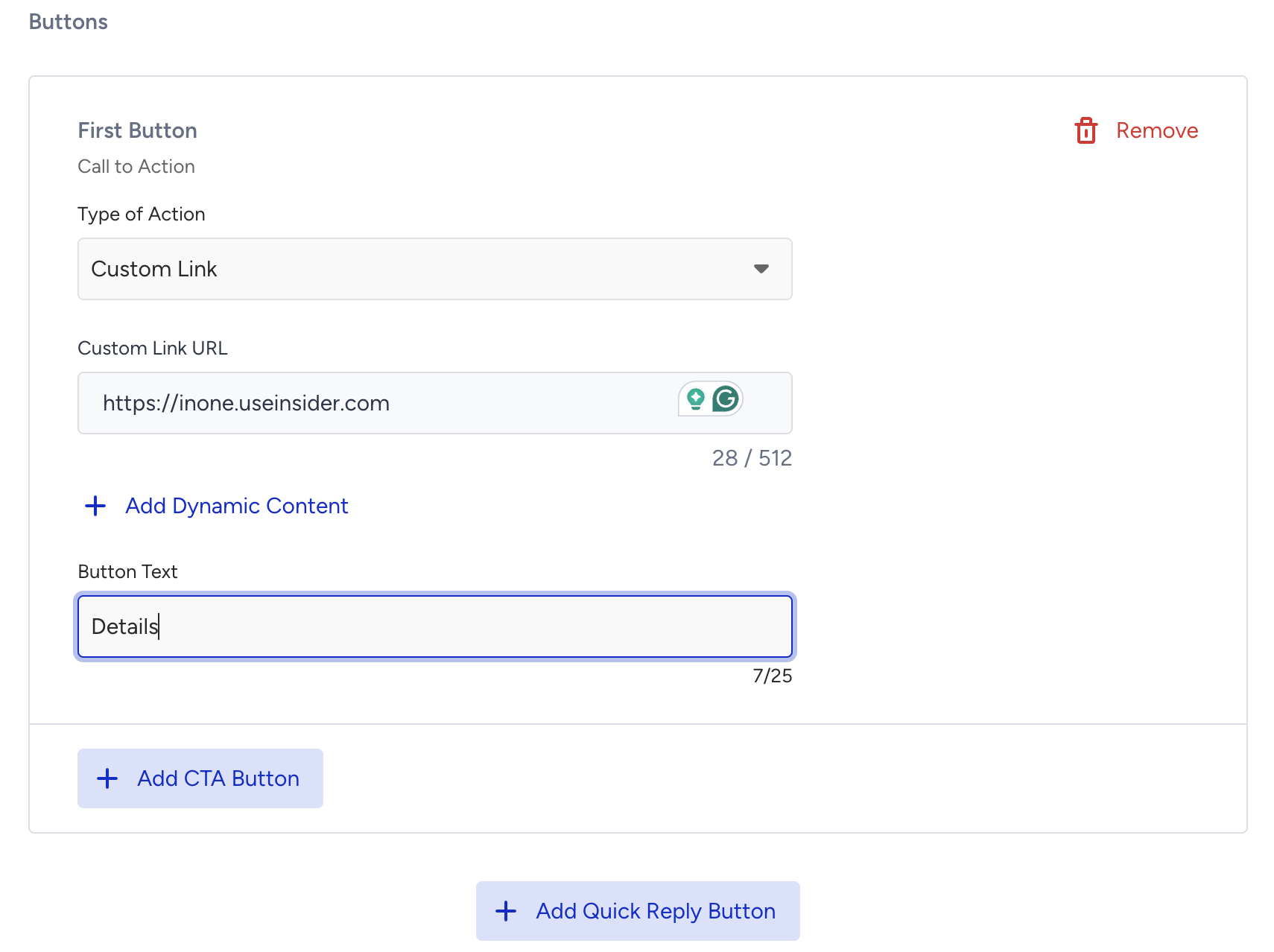
Leaving the text field empty ensures that the URL defined during template creation is sent exactly as-is to the end user. If you want to customize the URL path for each user, you must provide the remaining part of the URL dynamically in the message payload. For example, suppose you want to send the following URL, where the part products?userId=1000 is unique for each user: https://inone.useinsider.com/products?userId=1000
To achieve this:
While creating the template, select "Custom Link" and define only the common domain part of the URL (e.g., https://inone.insiderone.com/).
.png)
At the message sending stage, include the rest of the path as a parameter value.
{
  "type": "button",
  "sub_type": "url",
  "index": "0",
  "parameters": [
    {
      "type": "text",
      "text": "products?userId=1000"
    }
  ]
}
Meta will automatically concatenate the base domain defined in the template (https://inone.useinsider.com/) with the value provided in the message payload (products?userId=1000). As a result, the full URL sent to the user will be: https://inone.useinsider.com/products?userId=1000
No Buttons
If you don’t want to include a button in your Transactional WhatsApp template message, do not select any button..png)
To use the None option, refer to the sample request below:
curl --location 'https://whatsapp.useinsider.com/v1/send' \
  --header 'Content-Type: application/json' \
  --header 'x-ins-auth-key: INS.tiNlcL284J8dwCpfoqdR.gpyLwFG-0fSHPS9+kZYNsI-D2IWFNjlaRDlXJrZjx2_ZPTP37I' \
  --data '{
    "messages": [
      {
        "phoneNumber": "+994558964184",
        "message": {
          "type": "template",
          "template": {
            "name": "7_image_header_no_button_copy",
            "language": {
              "code": "fi",
              "policy": "deterministic"
            },
            "components": [
              {
                "type": "header",
                "sub_type": "",
                "index": "",
                "parameters": [
                  {
                    "type": "image",
                    "image": {
                      "link": "https://image.useinsider.com/vikingsankara/media/whatsapp-business/11521/83rbBaWO7H63VmACSXiZ1716506118.jpg"
                    }
                  }
                ]
              },
              {
                "type": "body",
                "sub_type": "",
                "index": "",
                "parameters": [
                  {
                    "type": "text",
                    "text": "shahla"
                  }
                ]
              }
            ]
          }
        }
      }
    ]
  }'
Coupon Codes
When sending WhatsApp messages via API, you can add a coupon code that recipients can copy directly from the message. To use this option, add the Copy Code button component to your WhatsApp Business template.
To send a message with a coupon code, your WhatsApp Business Account template must include a Copy Offer Code button. This button is configured at the template level in Meta's WhatsApp Business Manager and cannot be added after the template is created. To set this up, refer to Add Copy Coupon Codes to WhatsApp Business Templates on InOne.
When sending a message using a template that includes a Copy Code button, include the coupon code in the components array of your message payload:
"components": [
  {
    "type": "body",
    "parameters": [
      {
        "type": "text",
        "text": "{{1}}"
      }
    ]
  },
  {
    "type": "button",
    "sub_type": "COPY_CODE",
    "index": "0",
    "parameters": [
      {
        "type": "coupon_code",
        "coupon_code": "SUMMER2024"
      }
    ]
  }
]
Copy Code Button Parameters
Field | Type | Required | Description |
|---|---|---|---|
type | string | Yes | Must be |
sub_type | string | Yes | Must be |
index | string | Yes | The zero-based index of the button as defined in the template (e.g., |
parameters[].type | string | Yes | Must be |
parameters[].coupon_code | string | Yes | The coupon code value that will be shown and copied by the recipient. |
Below is a sample request to send a promotional WhatsApp message with a discount code.
curl --location 'https://whatsapp.useinsider.com/v1/send' \
--header 'Content-Type: application/json' \
--header 'x-ins-auth-key: 1a2b3c4d5e6f' \
--data '{
  "messages": [
    {
      "phoneNumber": "+905XXXXXXXXX",
      "message": {
        "type": "template",
        "template": {
          "name": "promo_discount_template",
          "language": {
            "code": "en",
            "policy": "deterministic"
          },
          "components": [
            {
              "type": "body",
              "parameters": [
                {
                  "type": "text",
                  "text": "30%"
                }
              ]
            },
            {
              "type": "button",
              "sub_type": "COPY_CODE",
              "index": "0",
              "parameters": [
                {
                  "type": "coupon_code",
                  "coupon_code": "SUMMER30"
                }
              ]
            }
          ]
        }
      }
    }
  ]
}'
The recipient sees the message with a Copy Code button. Tapping it copies SUMMER30 to their clipboard.
Important: You are responsible for tracking whether
SUMMER30has been used or expired. Insider One's Coupon Manager doesn’t record this usage.
Limitations of API-sent Coupon Codes
Coupon codes sent via API are not connected to Insider One’s Coupon Manager. The add, reduce, and expire functionalities available in the Insider One platform do not apply to API-sent messages.
The API accepts any string value for the
coupon_codeparameter and doesn’t validate it against your Coupon Manager inventory.When messages are sent through the InOne, the coupon code field is populated automatically, and the full coupon lifecycle, including creation, usage tracking, and expiry management, is handled by Coupon Manager. This automatic management is unavailable for API-sent messages.
The Copy Code button must already exist in your WhatsApp Business Account template before sending the message. You cannot add a copy code button dynamically at send time.
Send a Marketing template with WhatsApp Dynamic Pricing (Max-Price)
To enable the WhatsApp Maximum Price (Max-Price) feature for a template, include the bid_spec object in the template request. The following example allows you to send a marketing template with Maximum Price bidding enabled.
Use per_message_bid_multiplier only with templates that have Maximum Price bidding enabled through the bid_spec object. The bid_amount is defined during template creation, and per_message_bid_multiplier can be used at send time to increase or decrease the effective maximum price for a specific message delivery.
Calculate bid_amount values
The bid_amount value represents your maximum price per 1,000 deliveries in the smallest unit of your WABA currency. To calculate the value:
Convert your desired per-delivery price to the smallest unit of your WABA currency.
Multiply the result by 1,000 to express the value per 1,000 deliveries.
For example, to set a maximum price of ₹0.87 per delivery:
Convert to paise: 0.87 rupees = 87 paise.
Multiply by 1,000: 87 × 1,000 = 87,000.
Set bid_amount to 87000.
For example, to set a maximum price of $0.05 USD per delivery:
Convert to cents: $0.05 = 5 cents.
Multiply by 1,000: 5 × 1,000 = 5,000.
Set bid_amount to 5000.
For more information about the feature, see WhatsApp Maximum Price Feature.
curl --location 'https://whatsapp.useinsider.com/v1/send' \
  --header 'Content-Type: application/json' \
  --header 'x-ins-auth-key: INS.**************************************' \
  --data '{
    "from": "{{PHONE_NUMBER}}",
    "messages": [
      {
        "phoneNumber": "+1**********",
        "message": {
          "type": "template",
          "template": {
            "name": "{{TEMPLATE_NAME}}",
            "language": {
              "code": "{{TEMPLATE_LANGUAGE_CODE}}",
              "policy": "deterministic"
            },
            "components": [
              {
                "type": "header",
                "parameters": [
                  {
                    "type": "image",
                    "image": {
                      "link": "{{IMAGE_URL}}"
                    }
                  }
                ]
              }
            ],
            "bid_spec": {
              "per_message_bid_multiplier": 1.5
            }
          }
        }
      }
    ]
  }'
Sample Responses
One key piece of information will be returned for each message to be sent. This key will be added to all events related to the message.
{
  "keys": [
    "whatsapp-*************************"
  ]
}
401 Unauthorized
If you use the wrong key, you will see the following error. Refer to API Authentication Tokens to get your API key.
{
  "message": "unauthorized"
}
429 Rate Limit
If you send more than 1000 requests per second, you will see the following error:
{
  "message": "rate limited"
}
403 Forbidden
This error occurs when requests are blocked by Cloudflare’s security mechanisms, which act as an additional protection layer for Insider’s infrastructure.
As part of this setup, Insider complies with Cloudflare’s automated security policies. In certain cases, these mechanisms may block specific User-Agent values or IP addresses.
If the client IP is denied or restricted, the API will return the following response:
{
  "message": "ip-restricted",
  "error": {
    "message": "ip-restricted",
    "code": 1088
  }
}Notes:
403 Forbidden error occurs when the IP address is not whitelisted for you.
Error code 1088 is specific to IP restriction errors.
Error responses
This endpoint can surface errors in two different ways, and it helps to keep them apart:
Errors returned in the send response: Returned directly in the HTTP response to your /v1/send call, so you can act on them the moment the call returns.
Post-acceptance drops: A message accepted with 200 OK can still be dropped later, while it is being sent. These don’t appear in the send response; you see them on your webhook and in WhatsApp Transactional Analytics.
Errors returned in the send response
For the errors below, branch on the HTTP status code. The numeric code values are useful context, but the same code can appear on more than one status, and the response bodies aren’t all shaped the same way, so read the status and code together rather than branching on the code alone.
Each row shows the status code, the response body you receive, what causes it, and how to fix it.
Status | Code | JSON response | Cause | Fix |
|---|---|---|---|---|
200 OK | — | { "keys": ["whatsapp-*************************"] } | The request was accepted. One key is returned per message to be sent, and that key is attached to every event related to the message. | Store every key in the array. It is the only way to correlate a send with the delivery events that arrive later on your webhook. Acceptance is not delivery. |
401 Unauthorized | 1001 | {"message": "authentication required", "errorCode": "1001"} | The X-INS-AUTH-KEY header was not sent. | Send a current key in X-INS-AUTH-KEY. Generate one in the panel if you don't have it. |
401 Unauthorized | — | {"message": "unauthorized", "error": {"message": "unauthorized"}} | The key in X-INS-AUTH-KEY is wrong or has been revoked. | Send a valid, current key. Generate a new one in the panel if the current key was revoked. |
401 Unauthorized | — | {"message": "something went wrong", "error": {"message": "something went wrong"}} | A temporary problem prevented your request from being authenticated. | Transient — retry with exponential backoff. If it persists, contact the Insider One team. Nothing in your payload will change it. |
403 Forbidden | 1088 | { "message": "ip-restricted", "error": { "message": "ip-restricted", "code": 1088 } } | The calling IP address is not allowlisted for this API key. This is an Insider-side IP restriction, not a Cloudflare block. | Add the calling IP to the allowlist for this key, then retry. Nothing in your payload will change this result. |
429 Too Many Requests | 2021 | {"message": "rate limited", "error": {"message": "rate limited", "code": 2021}} | You exceeded 1,000 requests per second. The limit is counted per API key, not per account. | Throttle to stay under 1,000 req/s per key and retry with exponential backoff. The response carries no Retry-After or X-RateLimit-* headers, so back off based on your known limit. Staying under the limit is not instant delivery: accepted requests are queued and paced by your Messaging Per Second (MPS) capacity. To raise either figure, contact the Insider One team. |
400 Bad Request | 2001 | Same body shape as 2002 below, with code / errorCode = 2001. | The request body could not be read: malformed JSON or the wrong Content-Type. | Send a well-formed JSON body with Content-Type: application/json. |
400 Bad Request | 2002 | { "error": { "code": 2002, "message": "failed to validate request" }, "errorCode": "2002", "errors": "failed to validate request. | ErrorCode: 2002 | Parameters: map[] | Error: Key: 'SubProductMessages.Messages' Error:Field validation for 'Messages' failed on the 'required' tag", "message": "failed to validate request" } | Request validation failed. The error string names the exact field and the rule it broke here: a required Messages field was missing. | Read the errors string rather than message, since only errors identifies the failing field. Correct the named field and resend. |
400 Bad Request | 2003 | { "message": "Message could not be sent. ", "detail": "no active provider found", "errorCode": "2003", "error": { "message": "Message could not be sent.", "code": 2003 } } | The request was well-formed, but the send could not be accepted; for example, the account has no active WhatsApp provider or product, the required channel is not enabled, or an eligibility or account restriction applies. | Read the detail field for the reason. It includes the specific cause only when the whole request is rejected; for partial failures, it is fixed: "Please contact support." Fix what you can (e.g., enable the product/channel); otherwise, contact the Insider One team. |
503 Service Unavailable | 2020 | {"message": "maintenance mode is active", "errorCode": "2020", "error": {"message": "maintenance mode is active", "code": 2020}} | Maintenance is active. It may apply platform-wide or be scoped more narrowly, so a 2020 does not necessarily mean an outage for everyone. | Pause sending and retry after a short wait. Because transactional messages are time-sensitive, queue them on your side rather than dropping them, and resend once the response clears. |
500 Internal Server Error | 2020 | {"message": "something went wrong", "errorCode": "2020", "error": {"message": "something went wrong", "code": 2020}} | A temporary internal problem. It carries the same code as the 503 above, which is why you should branch on the status, not the code. | Transient; retry with exponential backoff. If it persists, contact the Insider One team. |
Recipient number format is checked at request time, not after acceptance. When you target the recipient with phoneNumber, it must be at least 7 characters and cannot contain a * character; if it fails, you receive a 400 / 2002 immediately. This rule applies only when you send phoneNumber; it is not required if you target the recipient by recipient (BSUID). A number that passes this check but still cannot be delivered later shows up as a post-acceptance drop instead.
Response body shapes vary
Some errors carry a top-level errorCode string, some a nested error.code number, some both (with an errors field), and some no numeric code at all. Because the shape is not consistent, treat the HTTP status as the field you branch on and the numeric code as secondary detail.
Post-acceptance outcomes (webhook + analytics)
A message accepted with 200 OK is queued and forwarded to WhatsApp. If it later fails, you may receive a failed webhook event and/or see it in analytics. Two very different failures both arrive as failed events: one from WhatsApp, one from Insider One, with different body shapes and different code spaces. Handle them separately: a parser written for one shape will silently miss the other.
WhatsApp (Meta) failure: the failed event
The message reached WhatsApp and WhatsApp rejected it. Insider One forwards WhatsApp's error to your webhook. The identifier here is WhatsApp's own error code, inside an errors array. The key ties the event back to your send.
{
  "key": "whatsapp-**************",
  "object": "whatsapp_business_account",
  "entry": [
    {
      "changes": [
        {
          "field": "messages",
          "value": {
            "messaging_product": "whatsapp",
            "metadata": {
              "display_phone_number": "{{SENDER_PHONE_NUMBER}}",
              "phone_number_id": "{{SENDER_PHONE_NUMBER_ID}}"
            },
            "statuses": [
              {
                "id": "{{MESSAGE_ID}}",
                "status": "failed",
                "timestamp": "1671526301",
                "recipient_id": "{{RECIPIENT_ID}}",
                "errors": [
                  {
                    "code": "{{ERROR_CODE}}",
                    "title": "{{ERROR_TITLE}}",
                    "href": "https://developers.facebook.com/docs/whatsapp/cloud-api/support/error-codes/"
                  }
                ]
              }
            ]
          }
        }
      ]
    }
  ]
}
Fields to read:
Field | Description |
|---|---|
statuses[0].status | failed |
statuses[0].recipient_id | The recipient's WhatsApp ID |
statuses[0].recipient_user_id | The recipient's BSUID (Business-Scoped User ID). Present when Meta includes it. |
statuses[0].errors[].code | WhatsApp error code (integer), e.g. 130429 |
statuses[0].errors[].title | Error title, e.g. Rate limit hit |
statuses[0].errors[].href | Link to WhatsApp's error reference. Not returned for every error |
key | Insider One tracking key that ties this event back to your send |
uniqueArgs | Returned top-level if you sent uniqueArgs on the original request |
How to handle it:
Branch on code and title; these are the primary fields.
Some errors include an optional error_data object with extra context (for example, throughput details). Treat it as supplementary; don't depend on it.
href is not returned for every error, so don't rely on it either.
Common WhatsApp Cloud API codes
Code | Title |
|---|---|
0 | Unable to authenticate the app user |
190 | Access token expired |
130429 | Rate limit hit |
131048 | Spam rate limit hit |
131005 | Access denied |
368 | Account blocked for policy violations |
On a failed event, 0 is genuinely WhatsApp's authentication error. Do not confuse it with errorCode: 0 seen on a successful send response, where it is just a success artifact (if a wamid is returned, the send succeeded).
Common WhatsApp On-Premise API codes
These are the codes you will most commonly see; the code and title on the event itself are always the source of truth.
Code | Title | Details |
|---|---|---|
402 | Business eligibility issue | Payment issue preventing message delivery |
408 | Message not valid | Message has been pending validation too long |
429 | Rate limit exceeded | Too many requests in a given amount of time |
2000 | Template parameter mismatch | Number of parameters provided does not match the expected count |
2060 | Template rejected | Template has been rejected and cannot be used |
500 | Internal server error | Temporary server issue; please retry |
Insider One drop — the failed event
The message was dropped on Insider One's side before it ever reached WhatsApp (recipient country not contracted, POC quota reached, invalid recipient). It arrives under the same failed event name, but the body is much simpler: a single error object carrying an Insider One code (not a Meta code), with no errors array and no title/href:
{
  "key": "whatsapp-**************",
  "error": { "code": 20030, "message": "Country Code Drops" }
}
Code | Reason | Cause | Fix |
|---|---|---|---|
20030 | Country Code Drops | The recipient's country is outside your contracted countries list. The number itself may be valid. | Add the country to your contracted countries list, or stop sending there. |
20031 | POC Message Limitation | Your account is on a limited (Proof of Concept) allocation and has exceeded its quota. | Contact the Insider One team to raise or change the allocation. |
131026 | Invalid recipient | The recipient could not be resolved — a broken BSUID or a masked number. | Send a valid recipient in full international (E.164) format. |
A parser that only looks for errors[] will not find these. This body uses a single top-level error object.
These drop notifications are secondary events
If your account does not have secondary events enabled and your webhook is not subscribed to the failed event, they will not reach your webhook at all. The drop will only show up in analytics. Enable both if you need these notifications.
WhatsApp Transactional Analytics summarizes both kinds of failure under Dropped and Undelivered, broken down by reason, including the Insider One drop reasons above, whether or not the secondary webhook event reached you.
How to troubleshoot a 403 Forbidden Error
If you encounter a 403 Forbidden error when making API requests, for example, through the Conversational or Transactional API, please check the following:
Verify the User-Agent header used in your HTTP client (especially default or empty values, such as Java’s default
User-Agent).Review blocked requests under Security > Events in your Cloudflare dashboard to identify whether they were rejected due to User-Agent or WAF rules.
For more detailed troubleshooting guidance and Cloudflare’s official documentation, refer to the following resources:
Limitations
All functions must be executed with a simple HTTPS POST request.
Only new WhatsApp messages can be sent via this API. No data can be retrieved.
The API Key should be provided as the authorization key in the request header. If the key is incorrect, the operation will not be executed, and an authorization error will be returned in the response.
The rate limit is 1000 requests per second (maximum). Incoming requests are queued, and message delivery is processed based on your Messaging Per Second (MPS) capacity.
The default limit shown here is a standard baseline. If your use case requires higher capacity, feel free to reach out to the Insider One team. We can adjust it to fit your needs.