You cannot make any changes to External Platform Integrations without having either an Administrator or an Editor with PII access in InOne. Refer to User Roles for further information.
You can establish Insider One as a source in Segment’s ecosystem and send data from Insider One to Segment. With this integration, you can enable Segment to collect channel Interaction, lead collection, and purchase events.
This integration guide provides a complete framework for:
Use Cases
Once you integrate Insider One as a source on Segment, you can collect all messaging channel events, such as email open or SMS click. This integration helps you store your events in one place, create a segment with them, and forward them to your destinations.
You can easily forward collected leads using Insider One lead collection templates, and access data of your collected leads in your Segment dashboard.
In your favorite business intelligence or analytics tool, you can also analyze your email, SMS, WhatsApp, and InApp campaigns in SQL or through drag-and-drop reports. Besides, you can join your Insider One data with the event data you are already sending through Segment to analyze the down-funnel effects of your emails.
Configuring Insider One as a Source on Segment
To configure Insider One as a source on your Segment account, follow these steps:
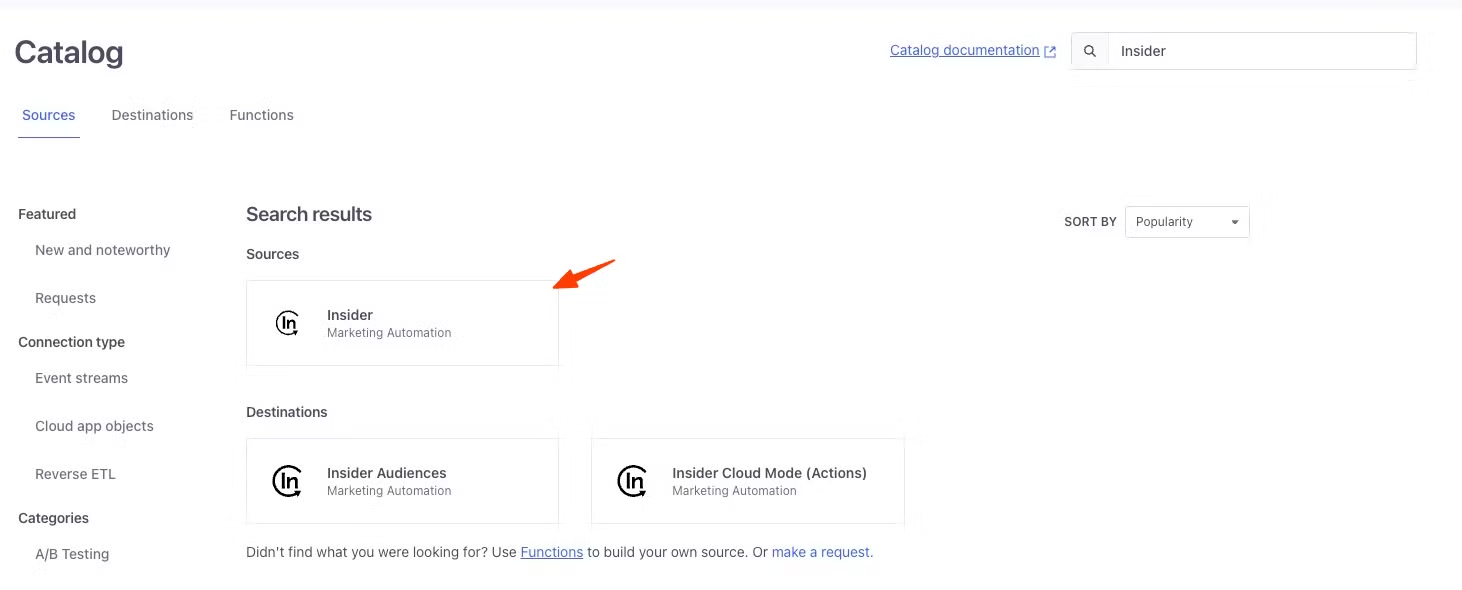
Log in to your Segment account to find Insider in the source catalog and click it.
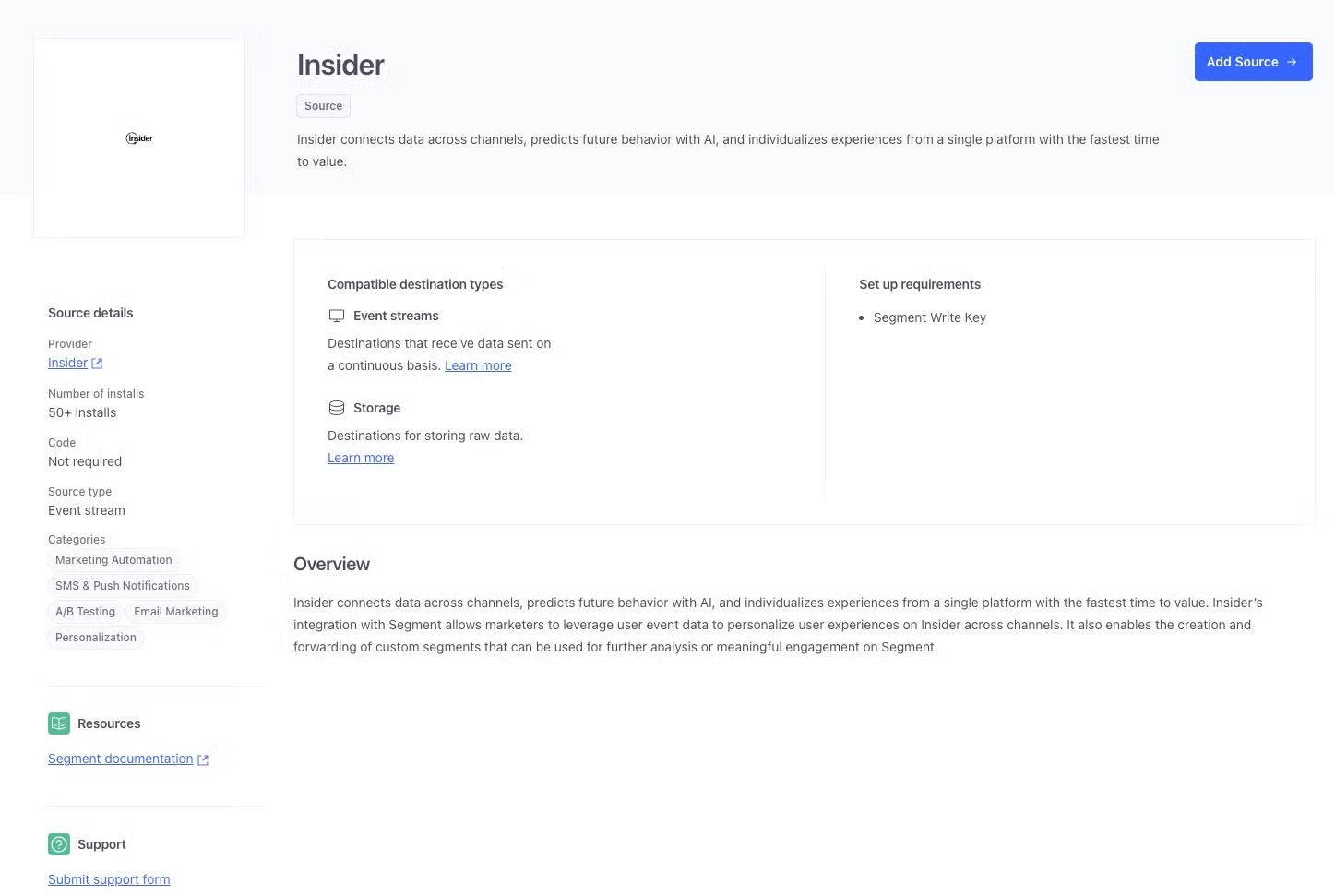
Click Add Source to proceed.
Name your source as Insider, and click Add Source.
Copy the Write Key on the Overview page.
.png)
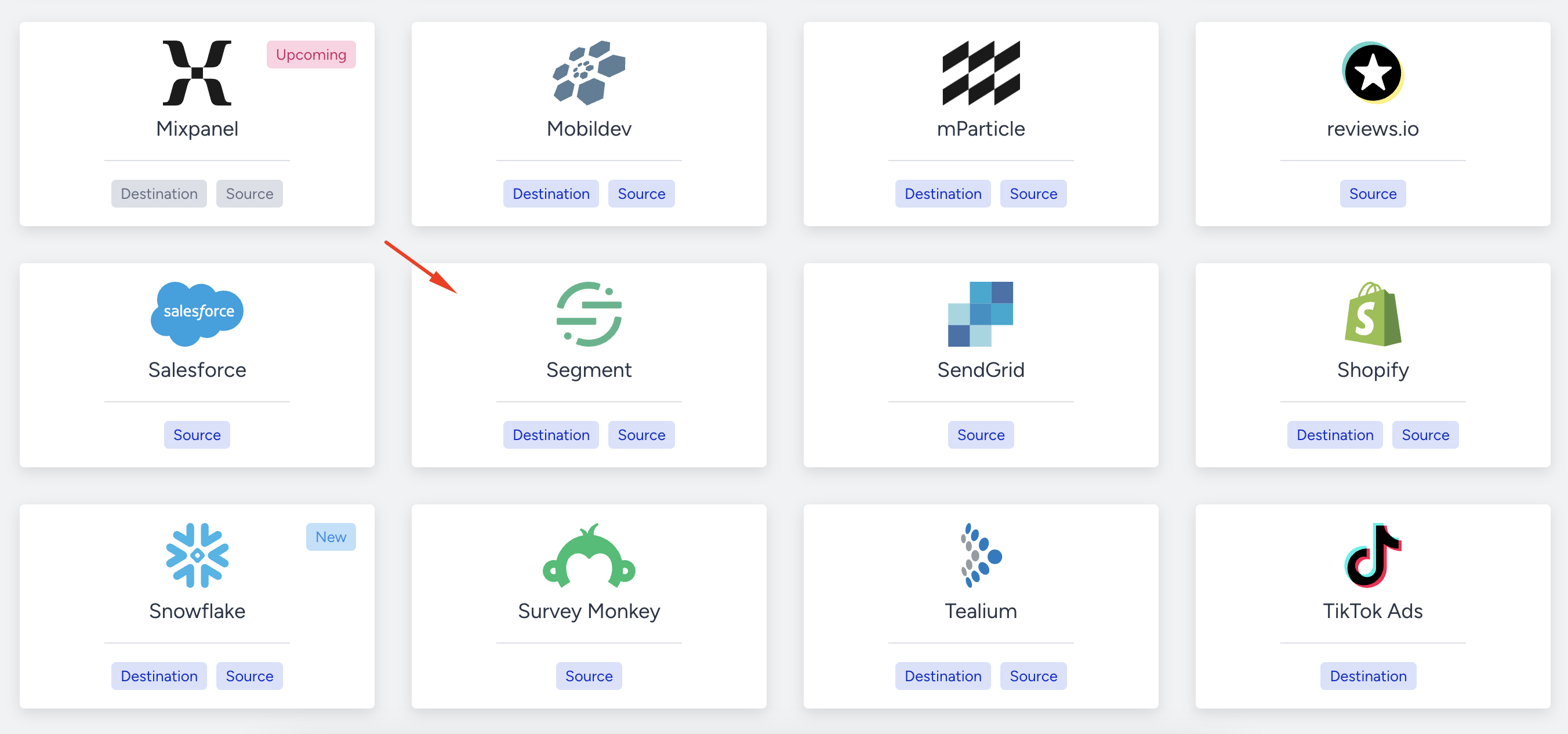
To finish the setup, navigate to Components > Integrations > External Integrations and select Segment.
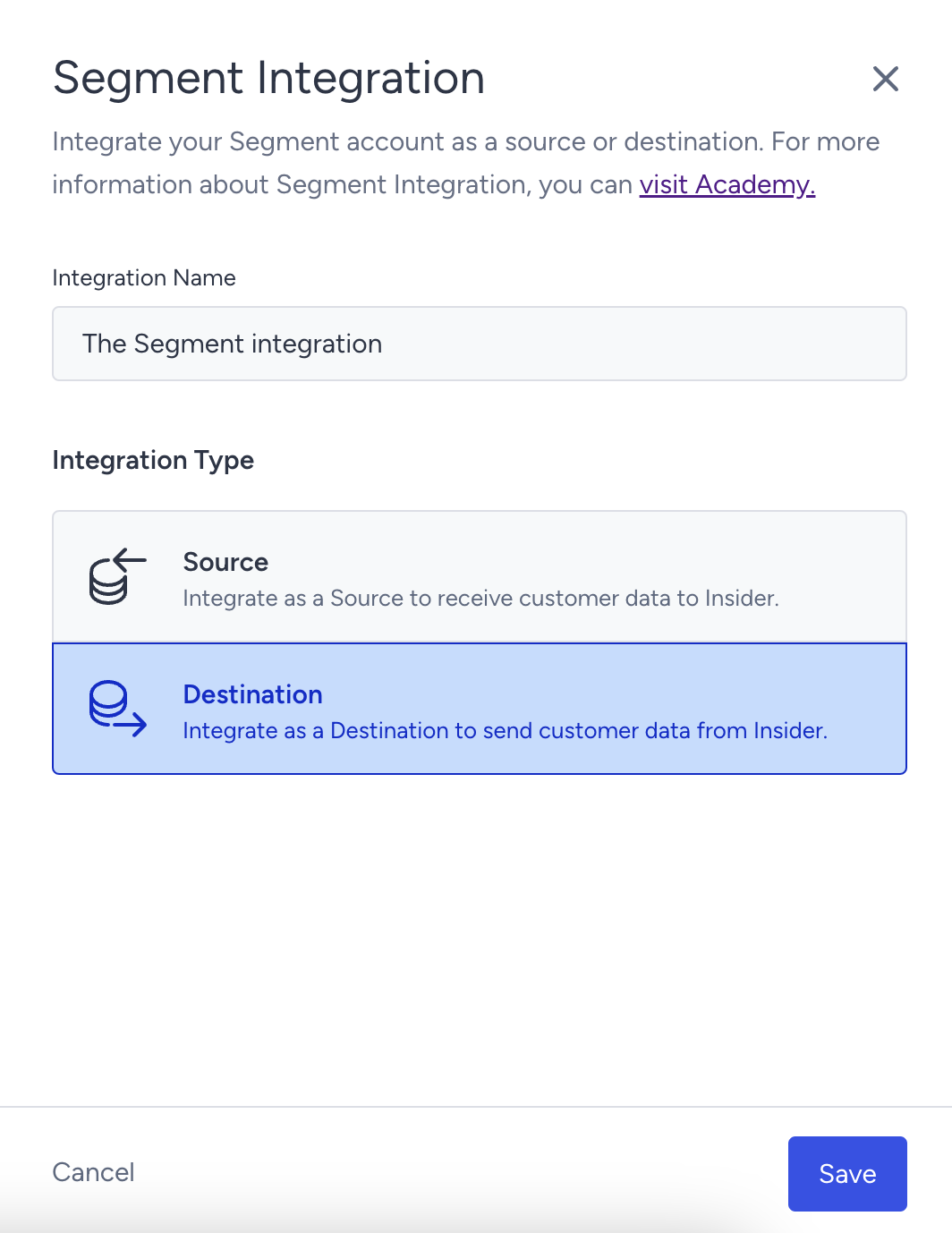
Name your integration and select Destination as the Integration Type.
Paste the Integration Key you copied from Segment into the Integration Key field.
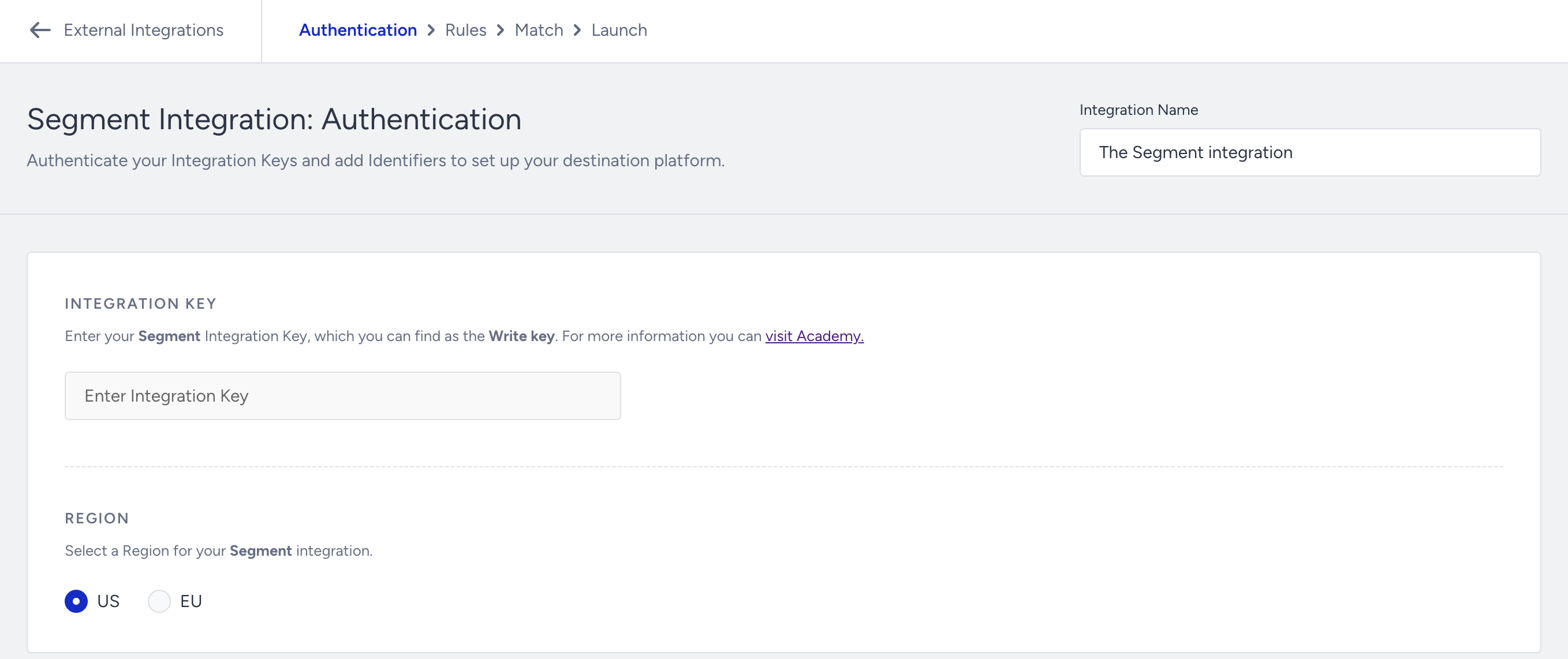
Select the region for your Segment integration.
Ensure the identifiers match between Insider One and Segment to maintain consistency across both platforms. Click the Save and Continue button.

After completing your Integration Key and Identifiers, continue with the Rules step. In the Events tab, you can select one or more Events to send to Segment.
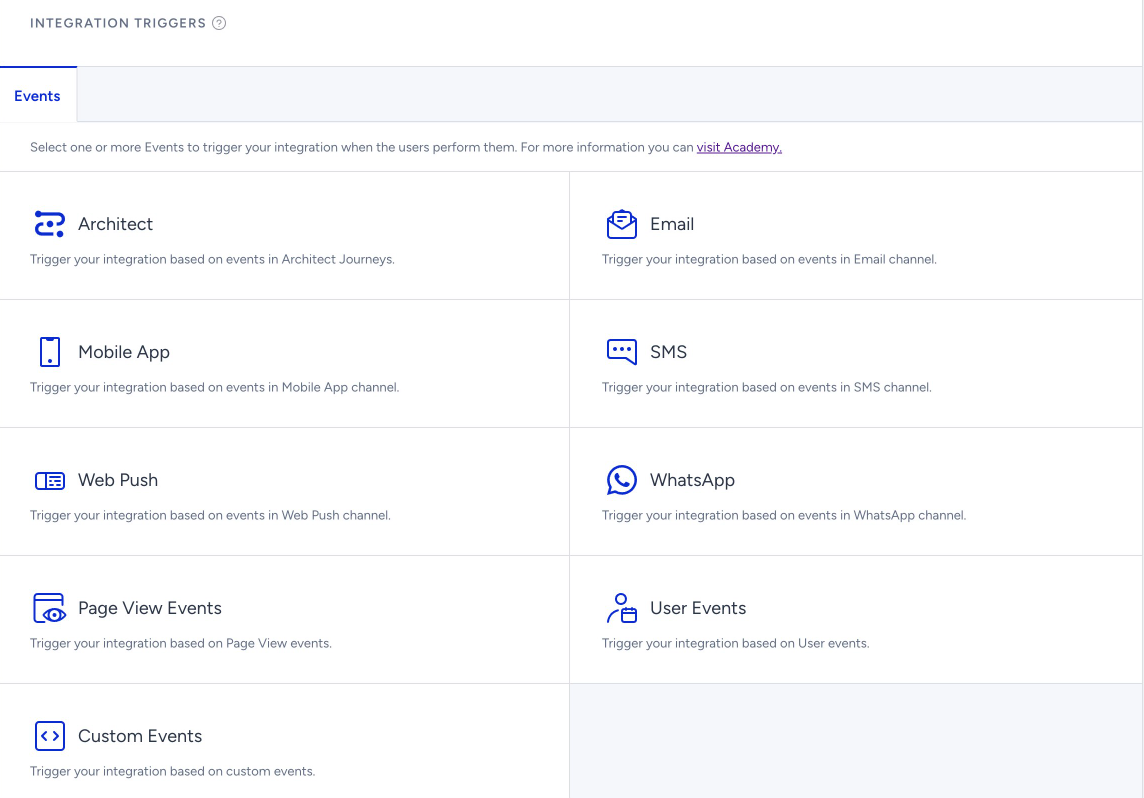
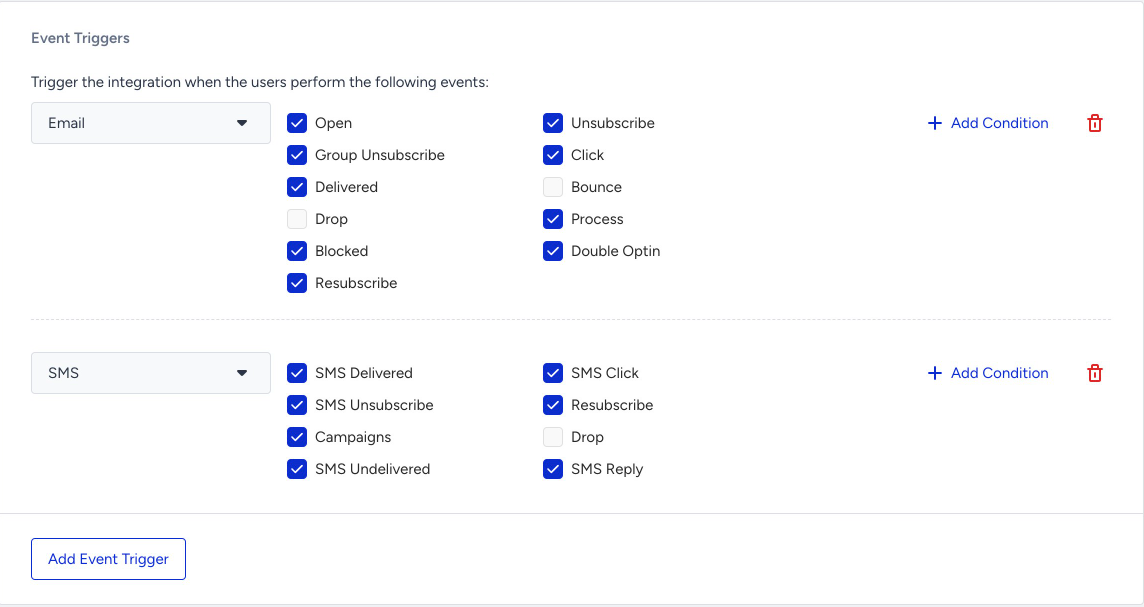
Once you choose the initial event type to start data collection, you can view events categorized by type and decide which ones to include or exclude for collection. You can also introduce additional event types within the same section. Plus, you can apply conditions to each event you want to send.
The Event Parameter section will be enabled after you select an event. You can select the parameters of your events through the dropdown menu that you want to send to your destination.
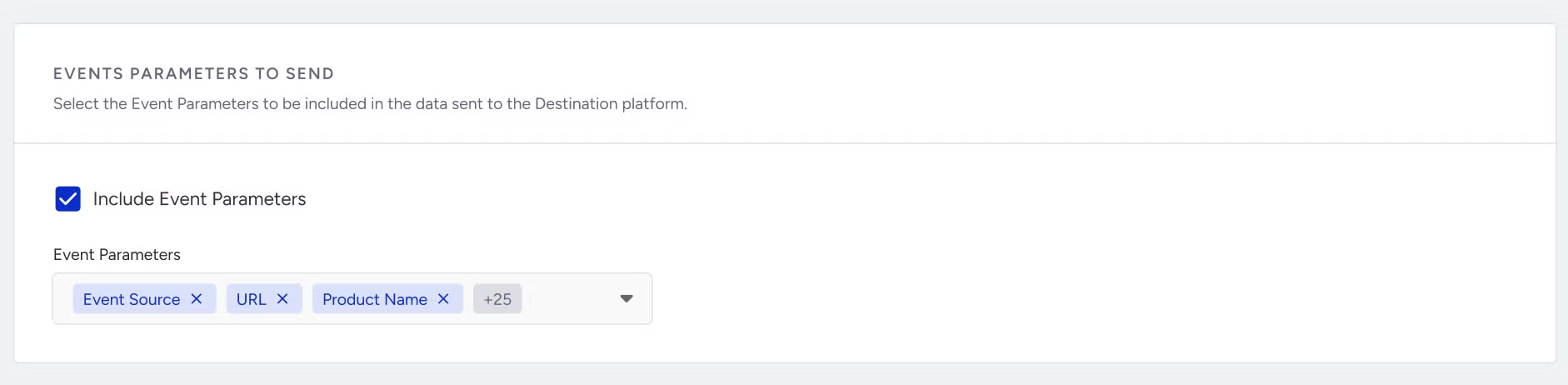
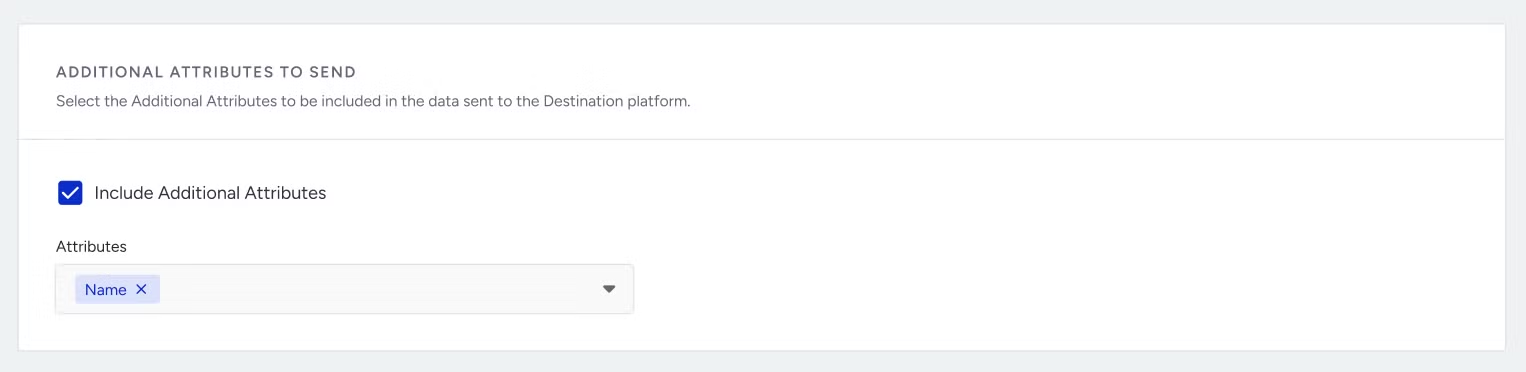
You can select the additional attributes to be included in the data sent to the endpoint. If you want to include additional attributes while sending the event data to your destination, you can add them here. For example, if you are sending an email open event, you can also select the email address to be sent to your destination. This way, you can understand which email address opened in which email campaign.
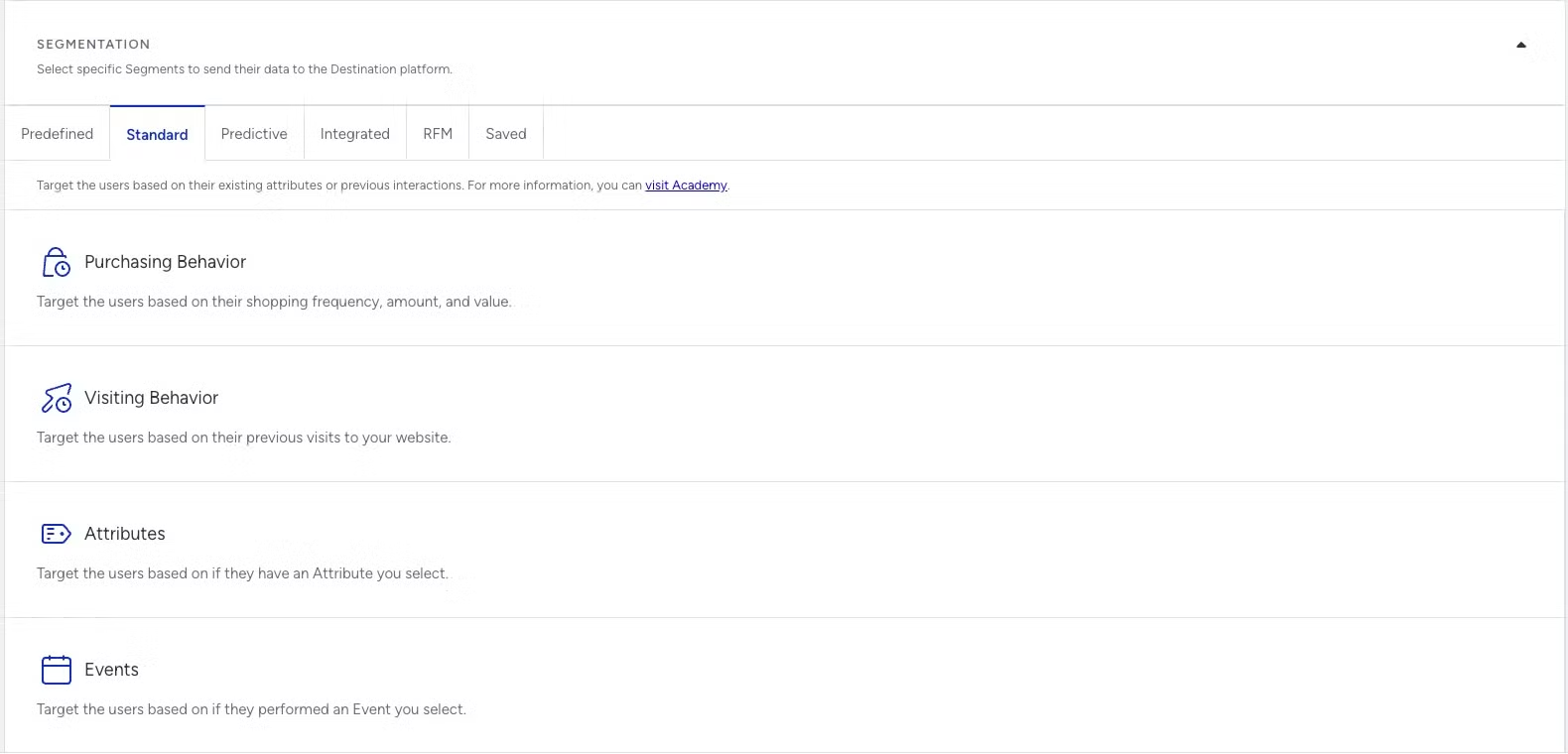
By creating segmentation, you can also decide which users' data will be sent to the destination. For example, you can send email open event only for the users whose Total Purchase Amount is more than 100 USD in the last 1 week. This way, you only get the data you need in the destination.
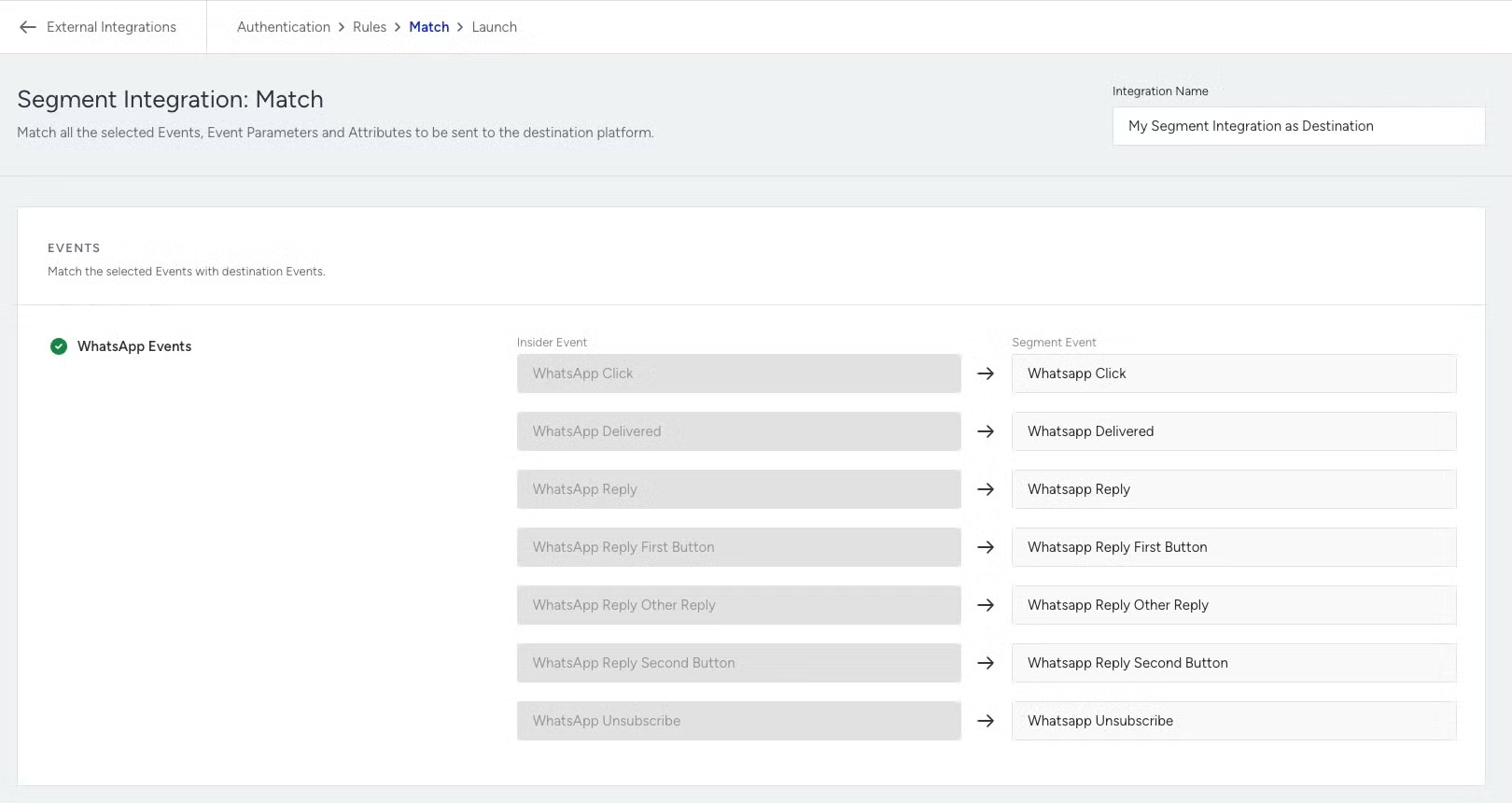
After selecting the data you want to send and when to trigger it under the Rules tab, go to the Match tab. Here, match the selected Events with the events in the destination to ensure your data aligns with the schema you have in Segment.
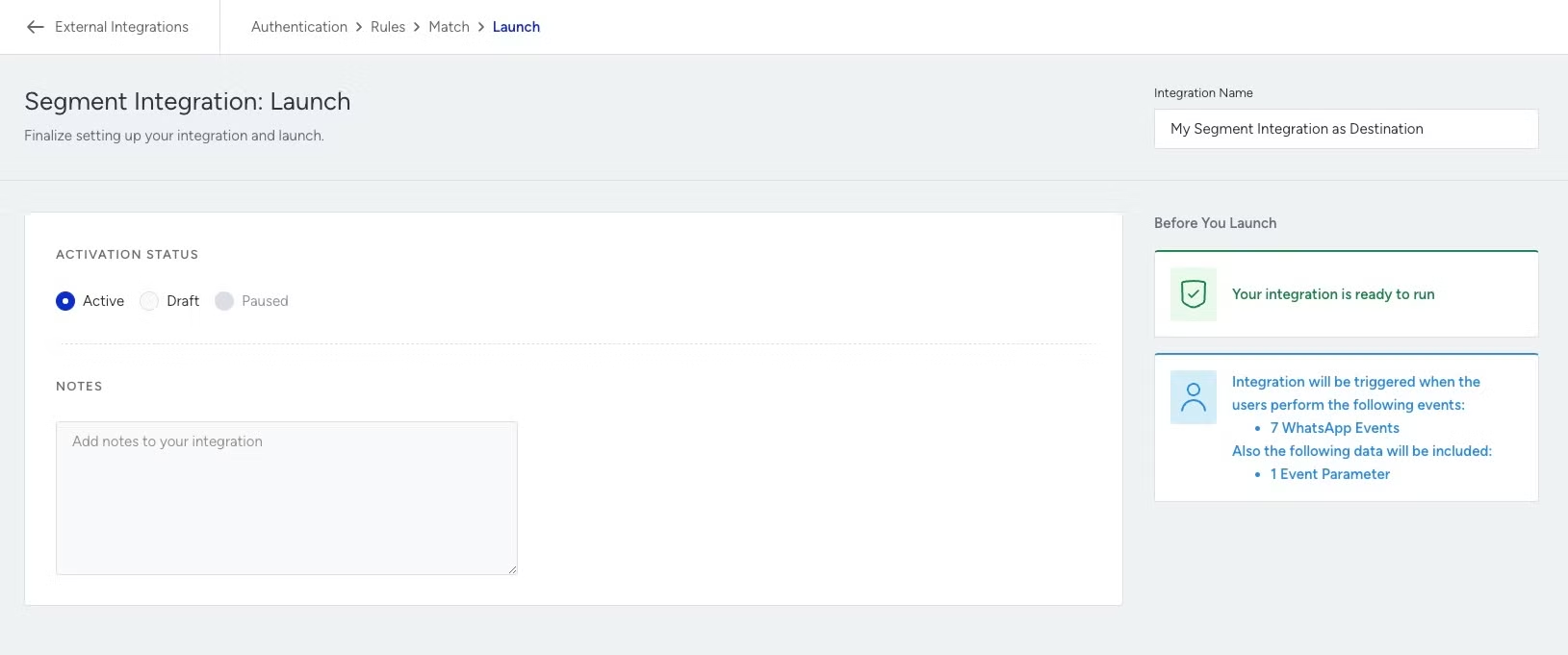
The final step is the Launch phase, where you can activate your Segment integration or save it as a draft. Click the Active and then Save button to set your integration in motion.
For an additional layer of security, configure your Segment HTTP API source to accept events only from Insider One’s egress IPs. This ensures that the source’s write key can be used only from approved Insider networks. Even if the write key is exposed, it cannot be used from any other network. You can find this setting in your Segment source’s security configuration. Refer to Segment’s documentation for the exact navigation path based on your workspace tier.
Refer to Insider One IP Allowlist for Destinations for the list of IPs to allowlist.
Data Synchronization
Insider One uses Segment’s Stream Source component to send events to Segment. These events are then available in any destination that accepts server-side events, including your data warehouse.
Supported Events
All default events can be forwarded to Segment.
Sending Data to Insider One
Insider One works best when you have a 2-way connection between Segment and Insider One. Follow this guide to send your Segment events and attributes to Insider One to unlock the full capabilities of the Insider One Growth Management Platform.