You cannot make any changes to External Platform Integrations without having either an Administrator or an Editor with PII access in InOne. Refer to User Roles for further information.
You can establish Insider One as a destination in the Segment’s ecosystem and send any Engage Audiences and Computed Traits to Insider One. With this integration, you can enable Insider One to collect Segment’s Engage Audiences and Computed Traits.
This integration guide aims to answer these questions:
- What are the use cases for syncing the audience from the segment to Insider One?
- How can I configure Insider One Audiences as a destination?
- How can I sync Segment Engage on Insider One's InOne?
- How can I segment Segment Engage on Insider One's InOne?
Use Cases
Syncing your Audiences from Segment to Insider One helps you leverage a range of use cases as follows:
- Channel Activation
- Personalizing user experience
Channel Activation
You can sync your engaged audiences and computed traits to InOne to activate segments across various channels such as email, SMS, and WhatsApp.
Personalizing User Experience
You can leverage the synced engaged audiences passed from Segment and deliver personalized user experiences and messaging based on the engagement you have created on your Segment panel.
Configure Insider One as a destination
You can follow these steps to configure Insider One as a destination in your Segment account.
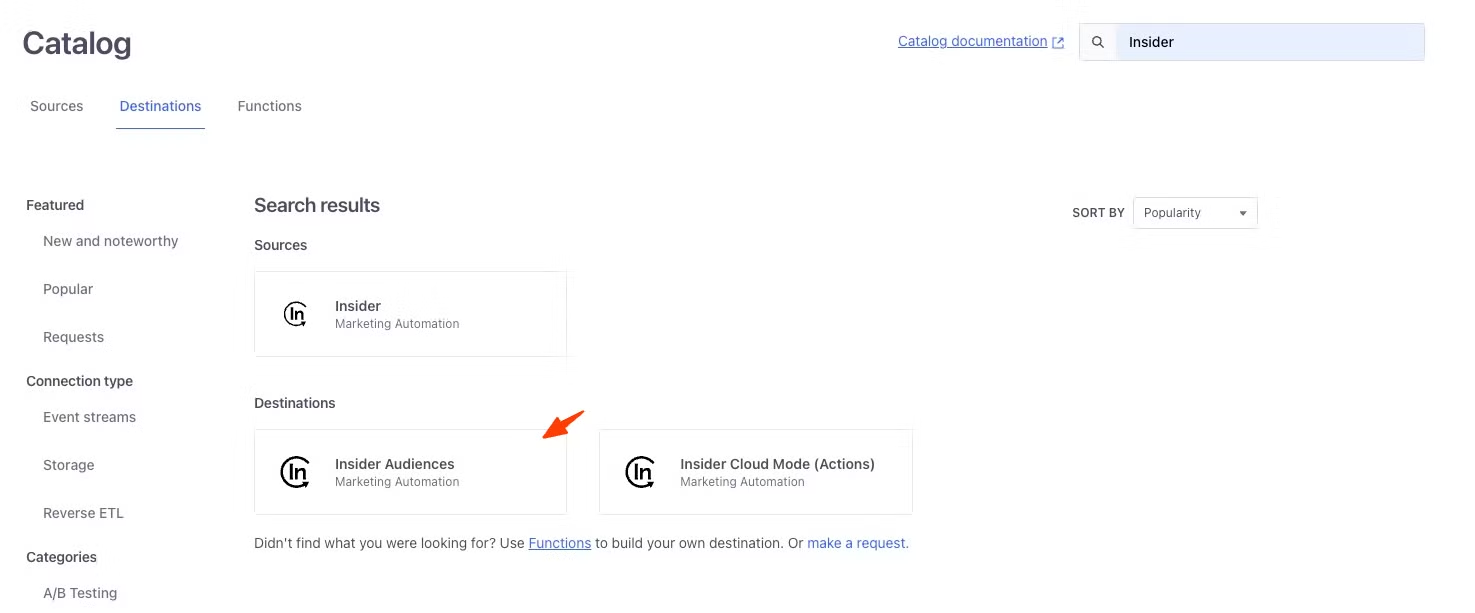
- Log in to your Segment account to find Insider Audiences in the destination catalog.
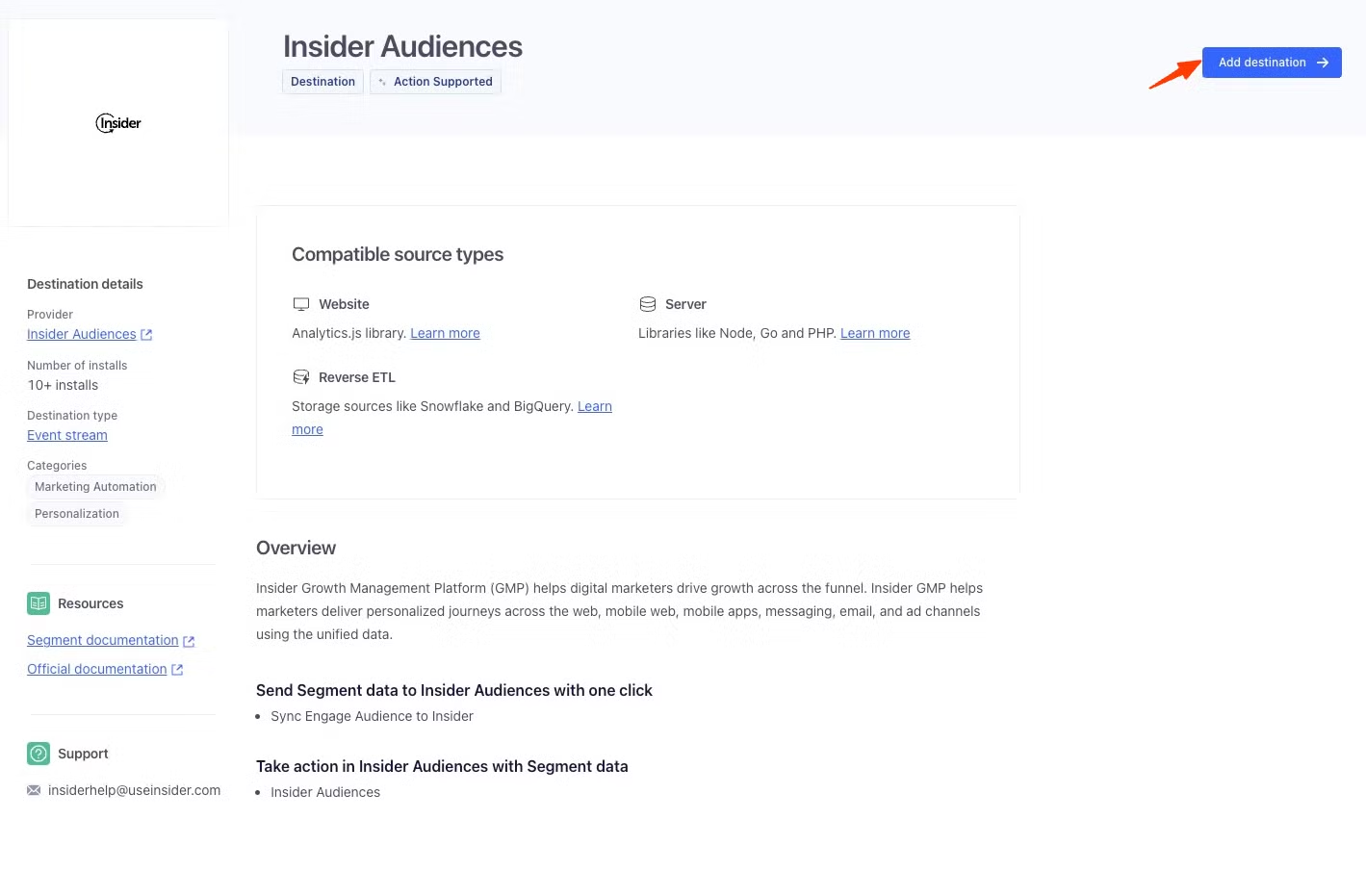
- Click the Add destination button to add Insider Audience as the destination to Segment.
- Select the data source you want to send data to Insider.
- Give the destination a name, then click the Create Destination button.
- To finish the setup, you need the Account Name and API Key. To get this information, navigate to Components > Integrations > External Integrations on the Insider One's InOne panel and select Segment.
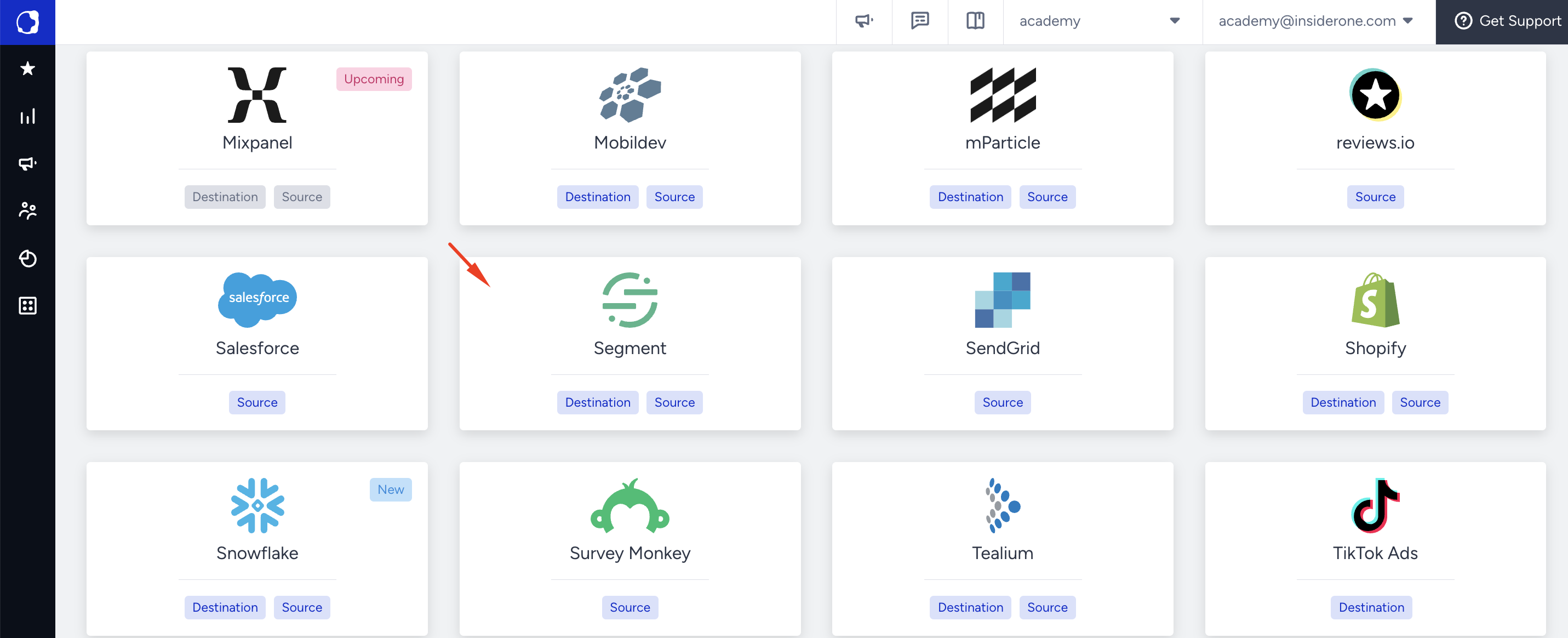
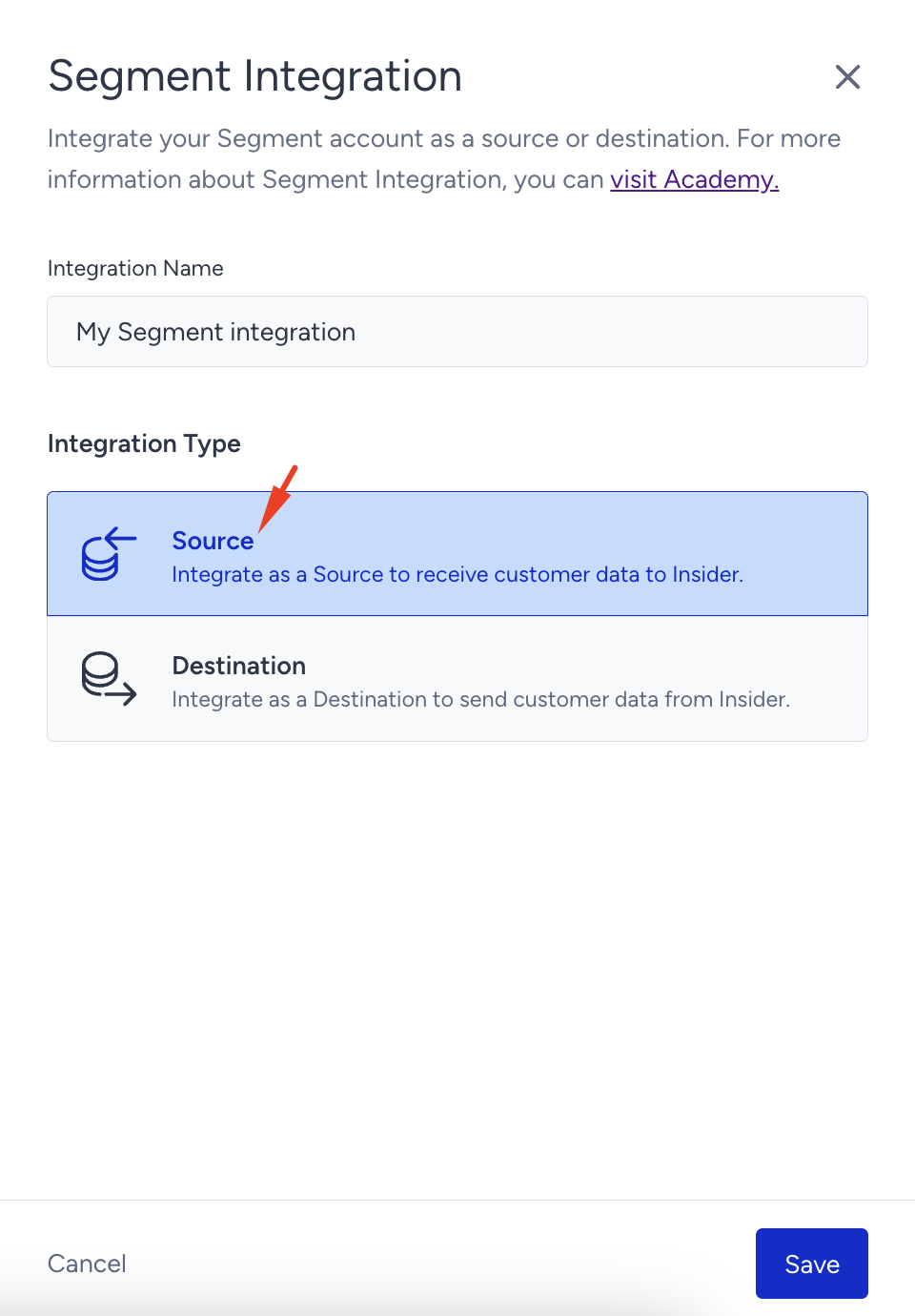
- Enter the Integration Name, and select Source as the Integration Type.
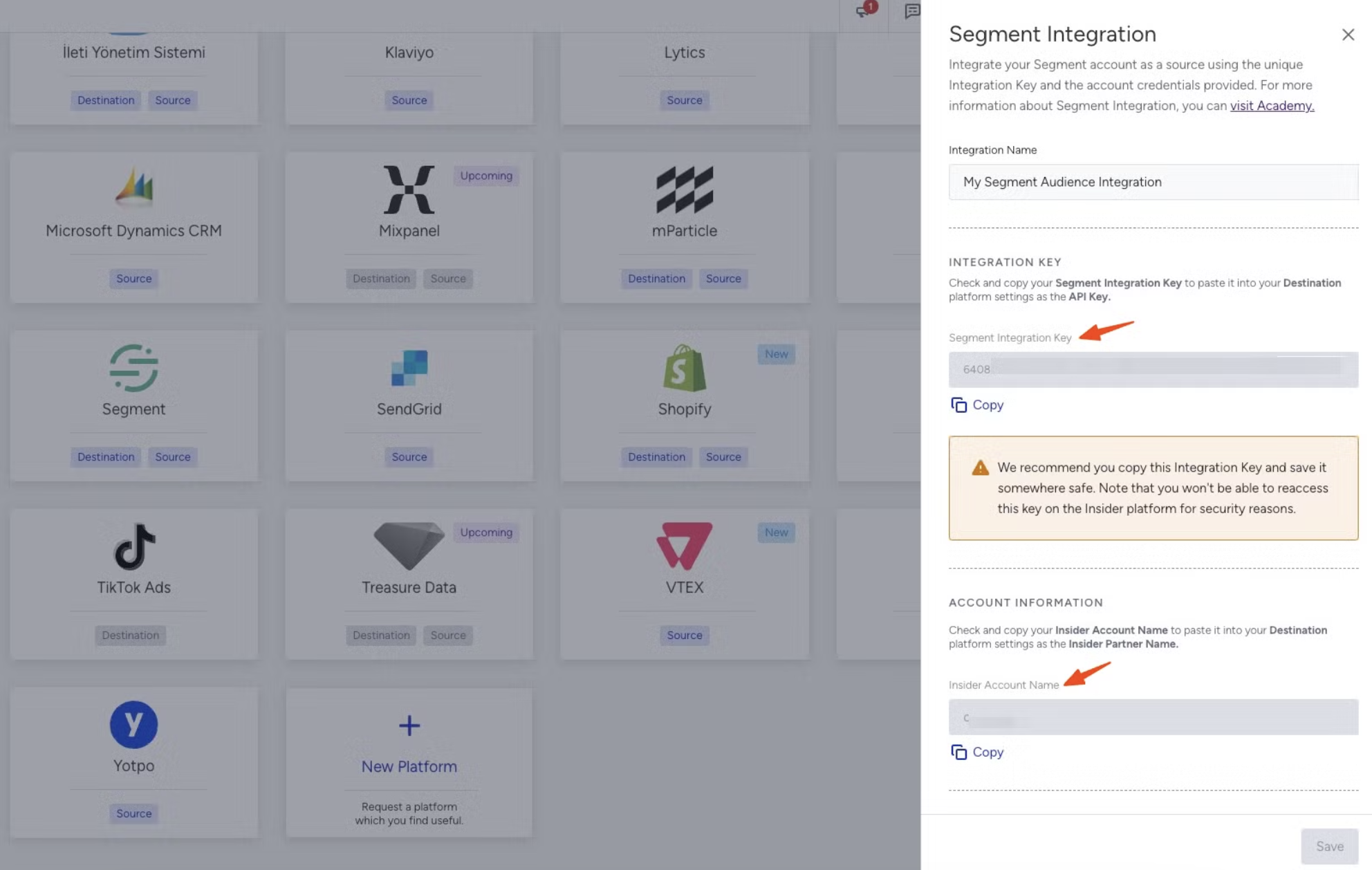
- Copy the Segment Integration Key and Insider One Account Name and click the Save button.
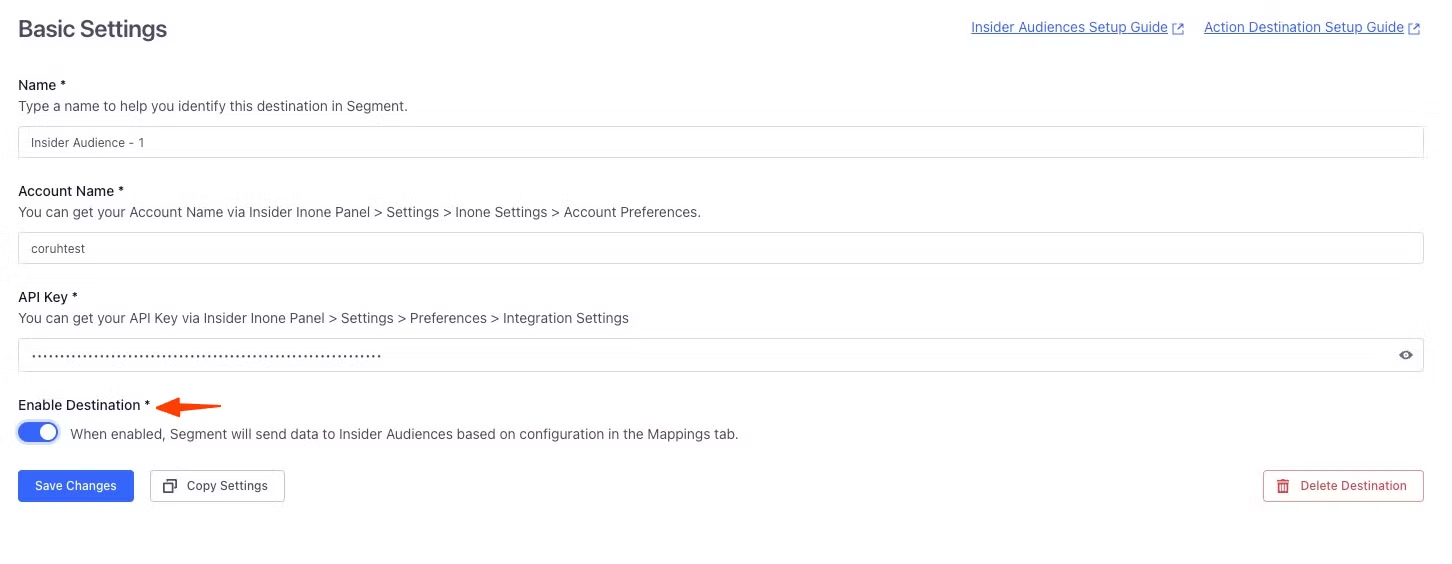
- Enter your Segment Integration Key and Account Name in Segment Settings, open the Enable Destination toggle, and click Save Changes.
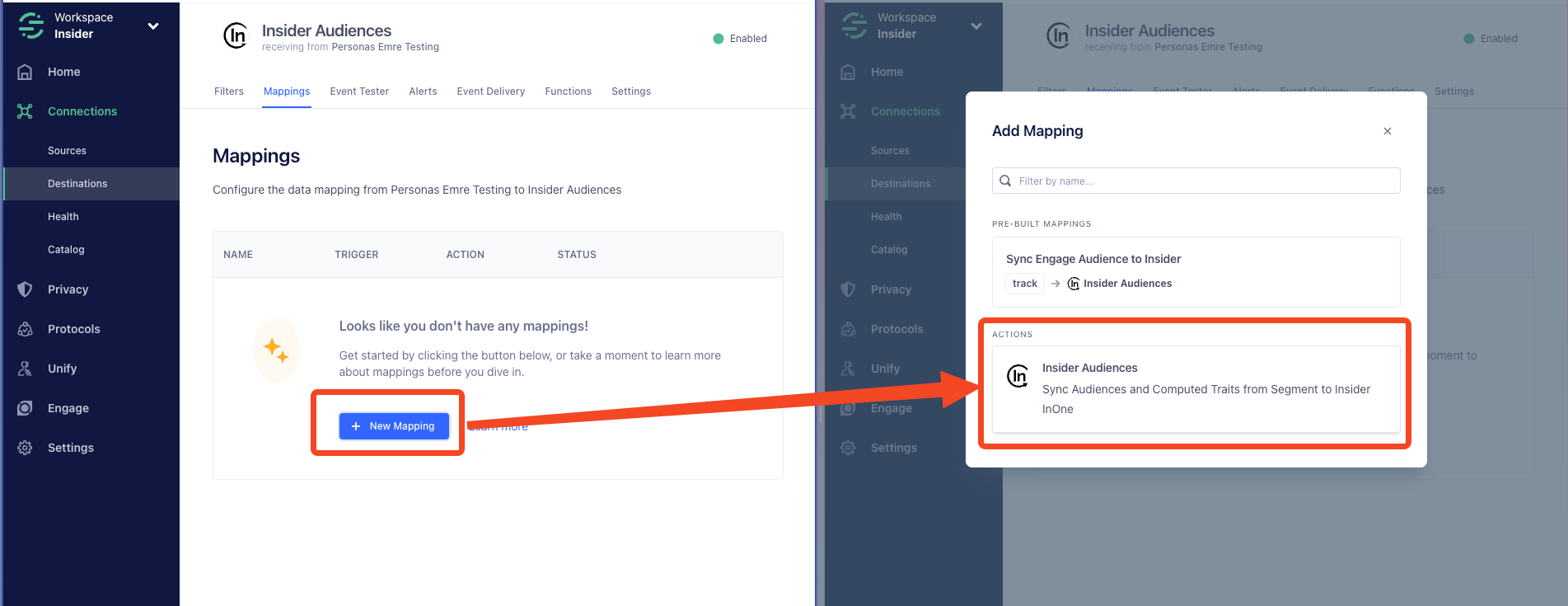
- Create a new mapping and select Insider Audiences action.
- Configure your settings and turn on the action from the integration listing page.
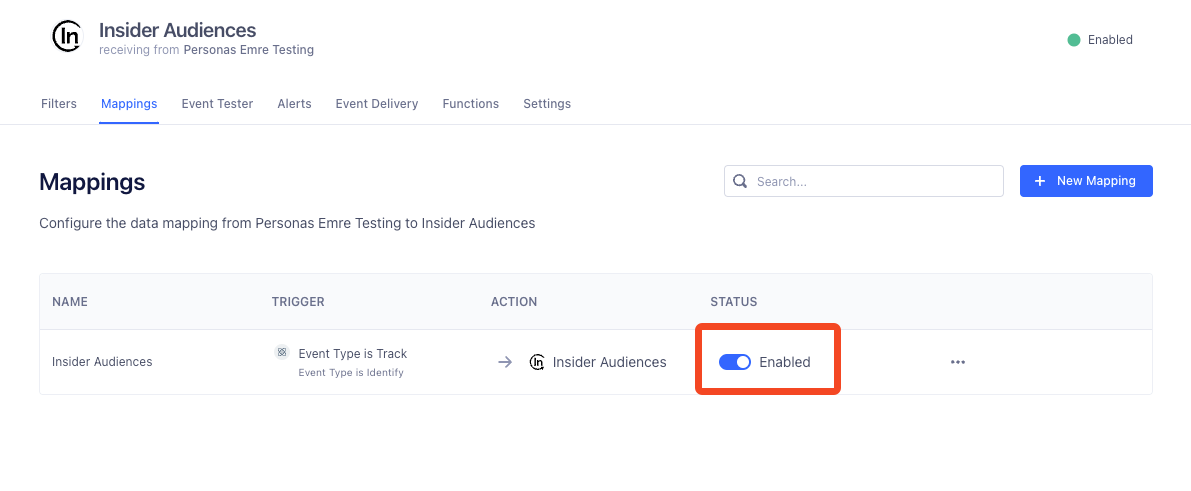
- You are all set! Now, connect your Audiences to Insider Audience integration.
Sync Segment Engage on Insider One's InOne
- Once you complete the setup process, navigate to your Engage space and select the Audience you want to sync to Insider One.
- Once you select, click +Add destination.
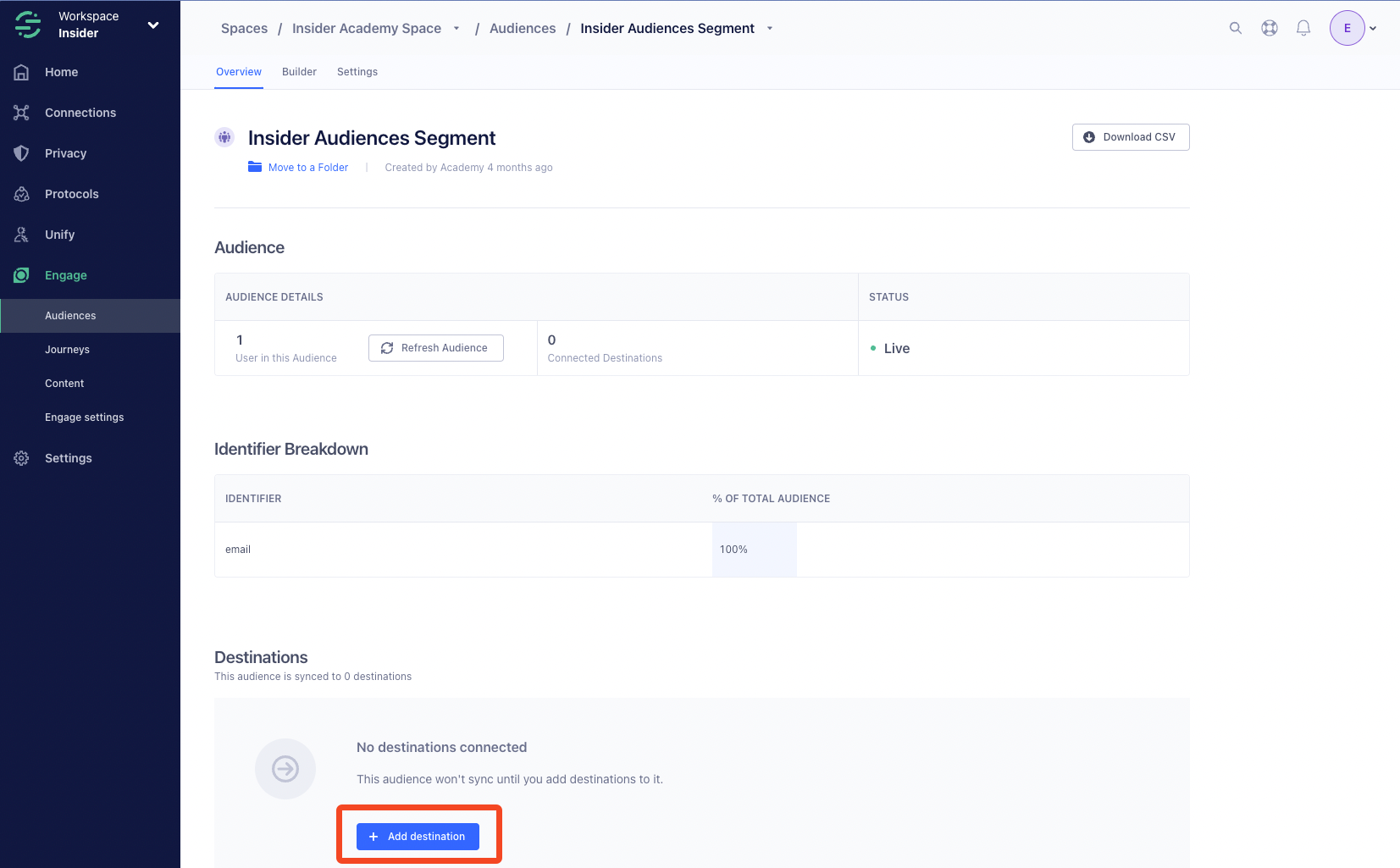
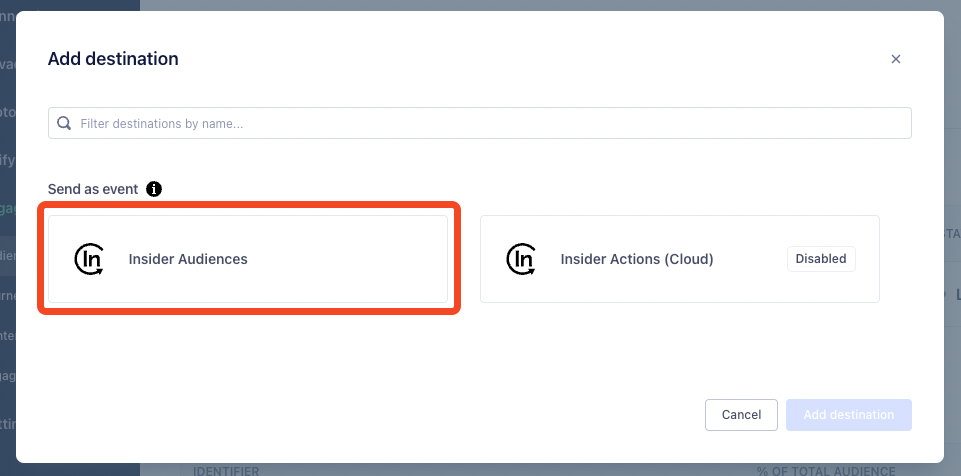
- Ensure you select Insider Audiences since the regular Insider destination does not support syncing Engage data.
- Send Identify (Required): Turn on to sync all users that enter and exit into your Engage Audience to Insider One.
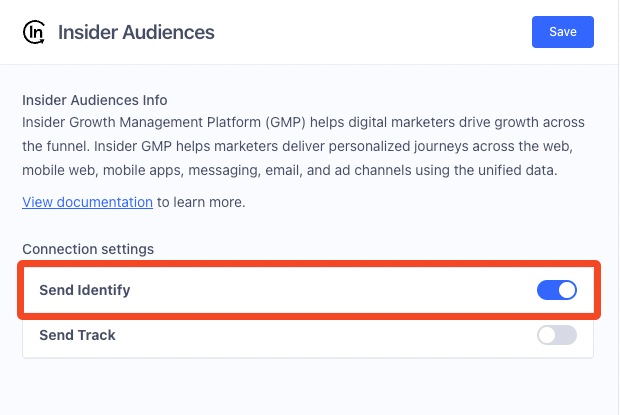
- Send Track (Optional): Turn on to send events when users enter or exit Engage Audience. Insider One receives the event names entered under the Enter and Exit event.
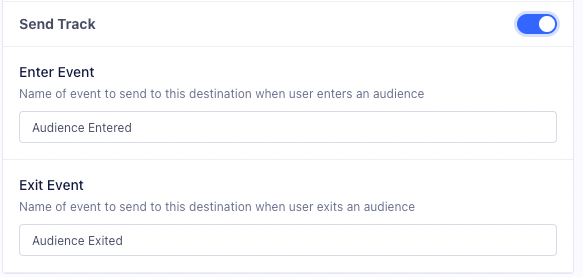
- That's it! You can now send your engaged audiences from Segment to Insider One and start automating journeys and personalizations.
Segment the Segment Engage on Insider One's InOne
Once you have completed syncing Engage to Insider One, you can utilize the synced Audiences for all messaging channels and Architect.
- Navigate to the segmentation step on any channel or the dynamic segment.
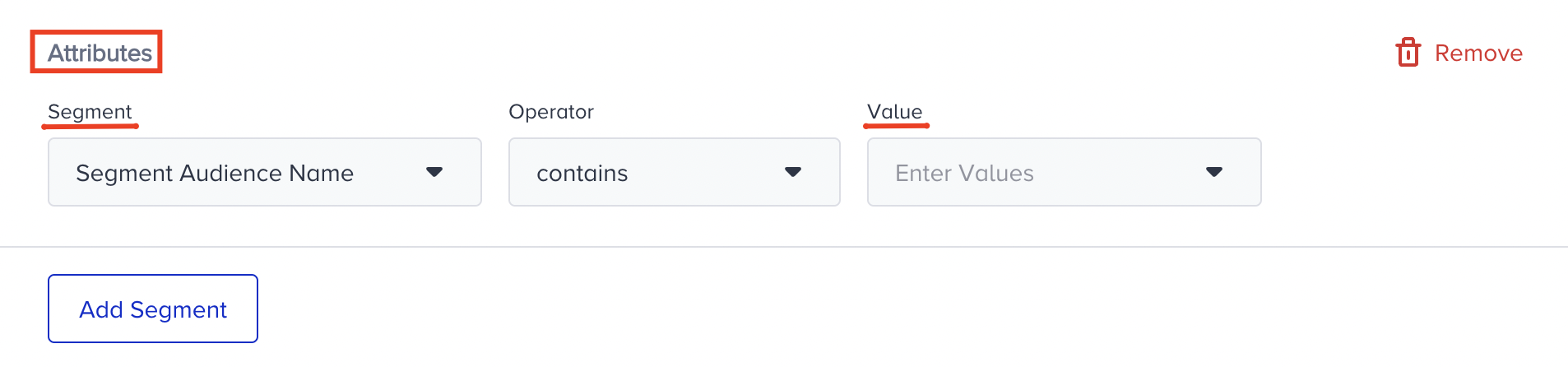
- Click on the Attribute box under the Standard Segment tab.
- Select Segment Audience Name under the segment dropdown and select the Engage Audience that you have synced from the dropdown.