This version of RSS feed has entered maintenance mode and will not be enabled anymore. To enable RSS feed for your emails, you can implement this version of RSS feed.
Really-simple syndication (RSS) is a web feed that helps users access website updates in a standardized, computer-readable format. Websites generally use RSS feeds to publish frequently updated information, such as blog entries, news headlines, or audio and video series episodes.
This article explains the following:
What are the benefits of RSS?
RSS feed enables you to embed your content on other websites. If you need to share your content with other sites and allow them to publish your content, you can give them a link to your RSS feed and they can easily embed it. Whenever you publish a new post, its content will be updated in real time.
Use RSS Feed in emails
1. Go to the Design step to start editing your email design.
2. RSS feed has several tags that allow you to separate information pieces from one another. Design your email with the Drag & Drop Editor or HTML editor, and place the related name tags in the fields in the {$ channel.item.title $}. If you have a couple of elements with name item you can do it like {$ channel.item.0.title $} or {$ channel.item.1.title $}.
Below is an example that shows how to detect the tags in your feed. The following feed has the <channel></channel>, <item></item>, and <title></title> tags.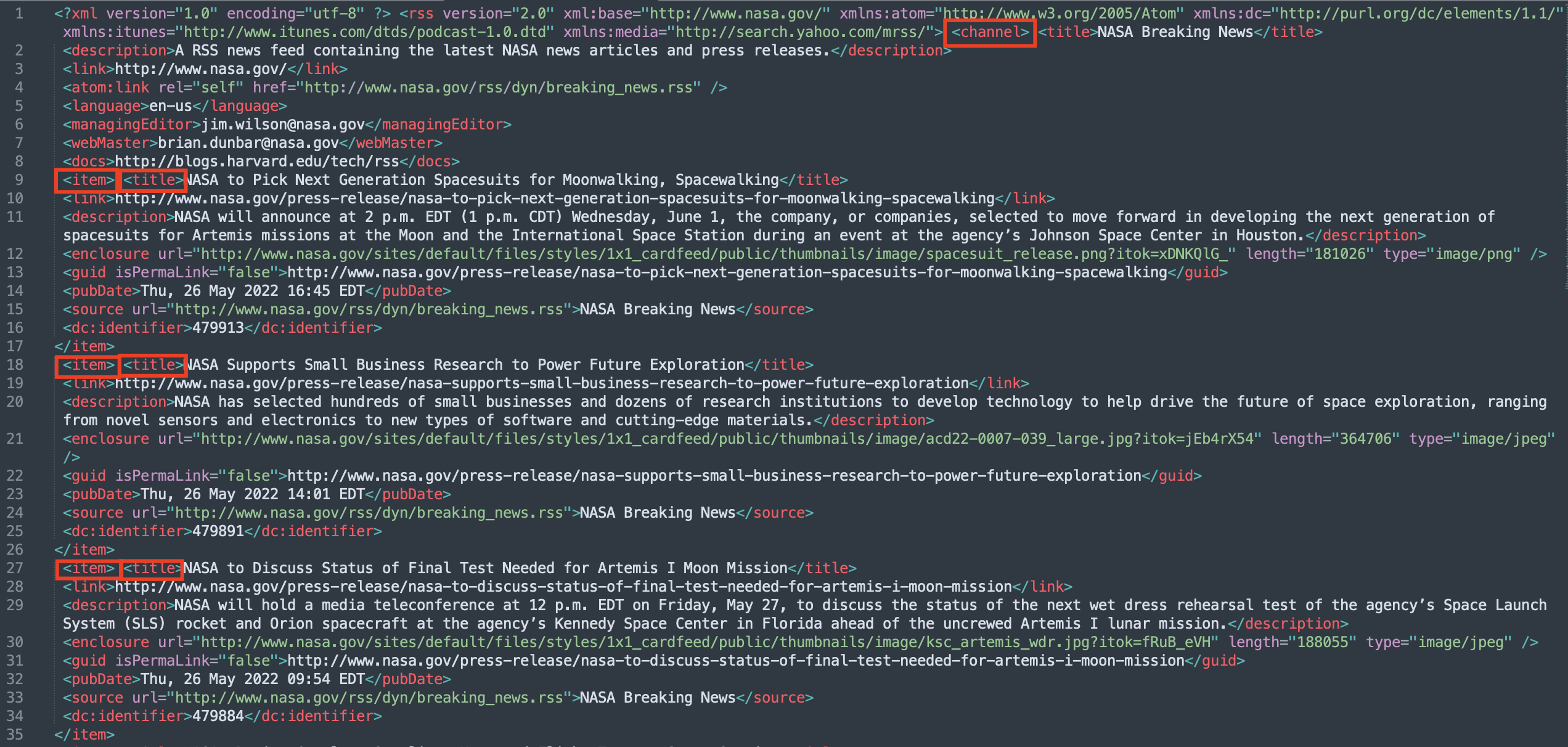
To get any information from the feed, you need to follow the "tree" of the elements. First, you get the element called channel, then search for an element called title under the channel element as the title is the child element of the channel.
The following tag gives the title of the channel: {$ channel.title $}
You can apply the same to the description element of the channel, and get it with the following tag: {$ channel.description $}
The example above has multiple item elements on the same level. In this case, you need to specify which item you want to use, and get it by its index. The index starts with 0 for the very first element. If you want to get any information about the second item element, then your index will be 1.
Let's say you want to get the title of the second item element. In this case, you should use the following tag: {$ channel.item.1.title $}
This tag means:
1. Go to the channel element.
2. Find all elements with the item name.
3. Get the 1st index, namely the second element, with the item name.
4. Find a title tag of the selected item element, and return its value.
You can have more elements in the element “tree”. There is no limit for the nested elements, and all elements can have duplications as follows:
<rss>
    <channel>
        <title>some title 1</title>
        <title>some title 2</title>
        <item>
            <info>
                <title>some info title</title>
            </info>
        </item>
        <item>
            <info>
                <title>some info title</title>
            </info>
        </item>
    </channel>
</rss>
To get the title of the first item element, you need to use the following tag:
{$ channel.item.0.info.title $}
To get the second title of the RSS feed, you need to use the following tag: {$ channel. title.1 $}
You may also have feeds with tags like <media:content></media:content>.
<rss>
    <channel>
        <title>some title</title>
        <description>some description</description>
        <item>
            <title>some title 1</title>
        </item>
        <item>
            <title>some title 2</title>
            <media:content url="thisisamediaurl.com" type="image/jpg" medium="image" width="800" height="450">
                <media:description type="plain">some description</media:description>
            </media:content>
        </item>
    </channel>
</rss>
In this case, to get the description value of the media tag, you should use the following tag:
{$ channel.item.1.media:content.media:description $}
This tag means:
1. Go to the channel element.
2. Search for the elements with the item tag.
3. Get the second item element.
4. Search for the elements with the media:content tag in the second item element.
5. Get the value of the description tag of the media:content element.
You may also have feeds with attributes such as url, type, medium, width, height, and isPermalink, which are as follows. These attributes have their values.
<media:content url="thisisamediaurl.com" type="image/jpg" medium="image" width="800" height="450"><title isPermalink="true">Permalink</title>You need to specify the tag, and use the @ sign to get the attribute. To get the values of the attributes, you should use the @ in your tags as follows: {$ channel.item.title@isPermalink $}
This tag means:
1. Go to the channel > item > title element.
2. Get the value of the isPermalink attribute.
Let's imagine you have a feed as follows:
<rss>
<channel>
<title url="test">some title 1</title>
<title url="test">some title 2</title>
<title url="test">some title 3</title>
</channel>
</rss>
To get the url attribute of the last title, you should use the following tag: {$ channel.title.2@url $}
If you have a single element, you should use a tag like {$ channel.item.media:content@url $}. For multiple elements of the same name, you should use an index like {$ channel.item.media:content.0@url $} or {$ channel.item.media:content.1@url $}.
Congratulations, your first RSS campaign is now ready!
The content will be fetched from the source at the scheduled sending time and your recipients will receive fresh content.
You can also get the subject and preheader of your email from your RSS feed. You can contact the Insider One team to activate this feature for your account.
What does RSS feed help you with?
RSS allows you to deliver fresh content frequently with less effort. In fact, creating content and scheduling emails manually take more time than we think. The RSS feature enables you to insert new content into your campaign automatically and send it on a scheduled date by only entering an RSS feed URL and tags.
More on RSS:
When a campaign is set to RSS type, the sending time should be scheduled to one hour after the RSS has been updated in the source.
Overall statistics for all RSS campaigns are displayed in the campaign statistics.
The comment lines on the feed will not be displayed in the content. E.g. <![CDATA[yourcomment]]>