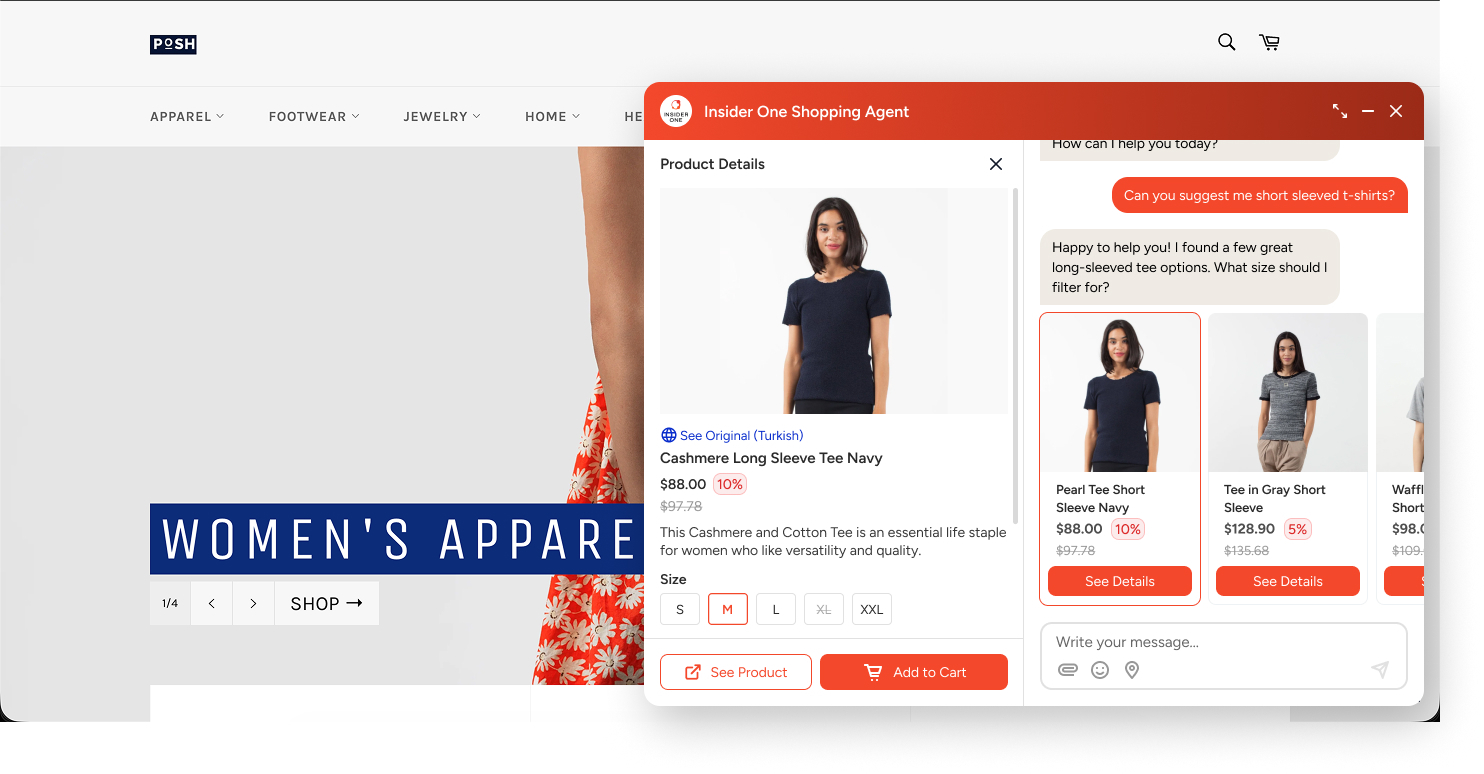
The Product Details Widget (PDW) displays a full product detail view directly within the Shopping Agent conversation. Shoppers can review information such as pricing, descriptions, and variants without leaving the agent.
With the PDW, shoppers can access product details and add items to their cart within the same conversation flow. This helps reduce the need to navigate between pages and supports a smoother path from product discovery to purchase.
You can complete the setup in a few minutes, and it does not require any engineering effort.
How does the Product Details Widget work?
When a product is shown in the agent, the PDW opens as a sidebar panel within the conversation. It displays a product detail view in context, so customers can review the information they need to make a purchase decision without leaving the chat.
The widget can display:
Product title and pricing, including discounts
Full product descriptions and key attributes
Variant options such as size, color, or material
Add to Cart option so customers can proceed to purchase within the same flow
By keeping product information within the conversation, customers do not need to navigate away, switch tabs, or lose context. This helps shorten the path from product discovery to purchase.
The example below shows how the Product Details Widget appears within the Shopping Agent conversation.
Set up Product Details Widget
Follow the steps below to enable and configure the Product Details Widget for your Shopping Agent.
Only users with Admin or Editor roles can configure these settings.
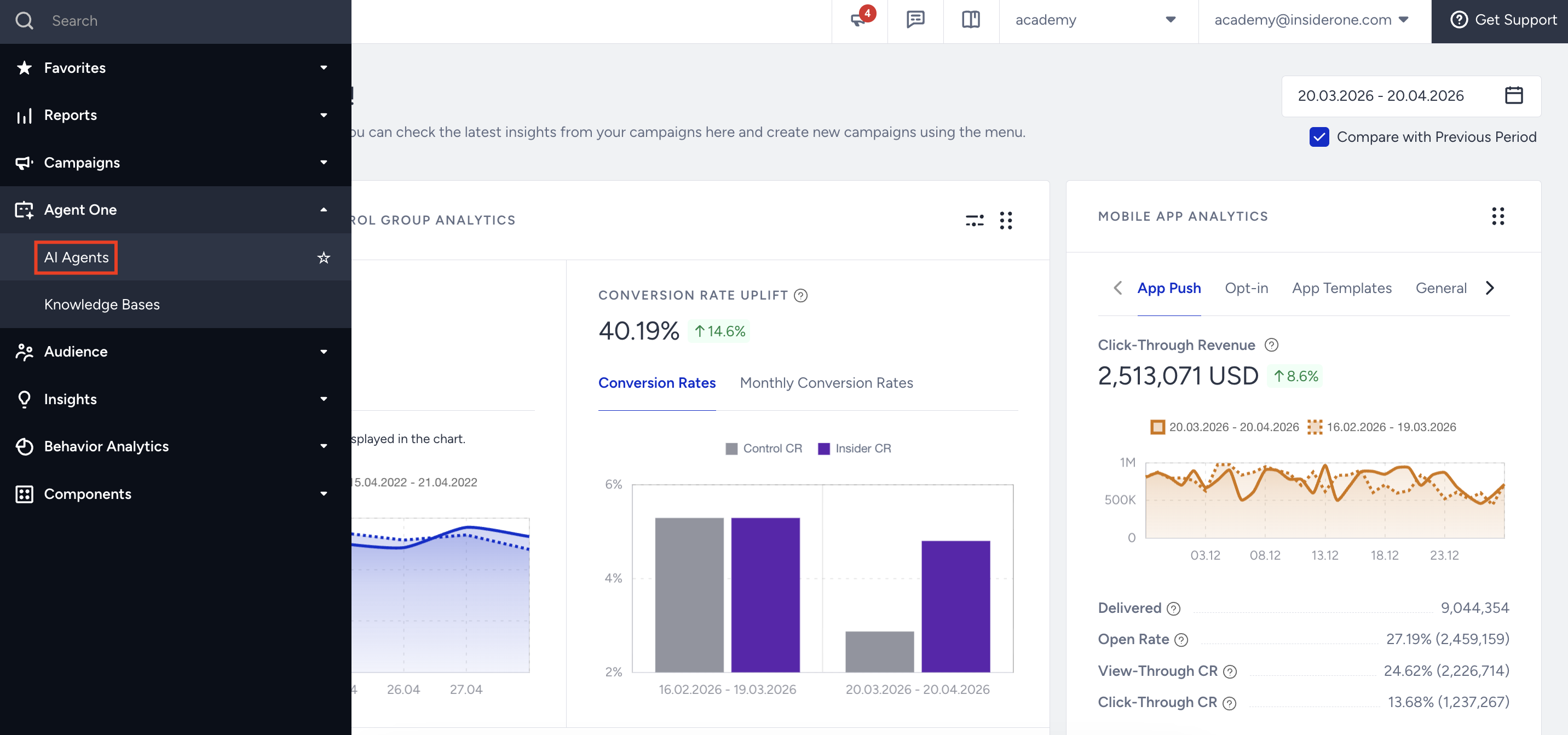
Navigate to InOne > Agent One > AI Agents.
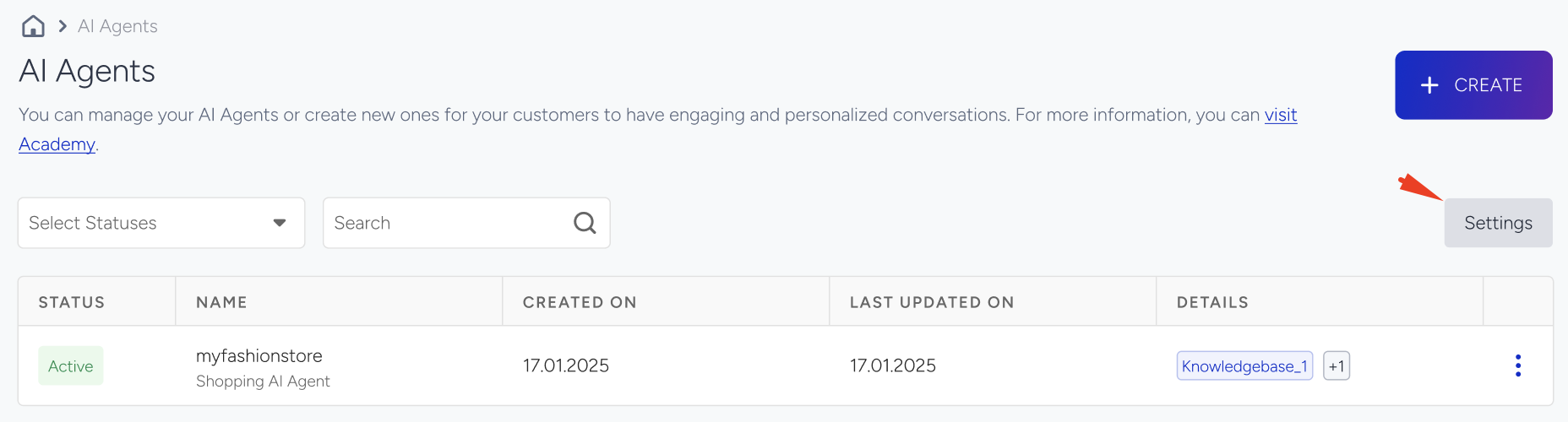
Click the Settings button to open the PDW configuration page.
Activate the Product Details Widget toggle at the top to enable the feature for your agent.
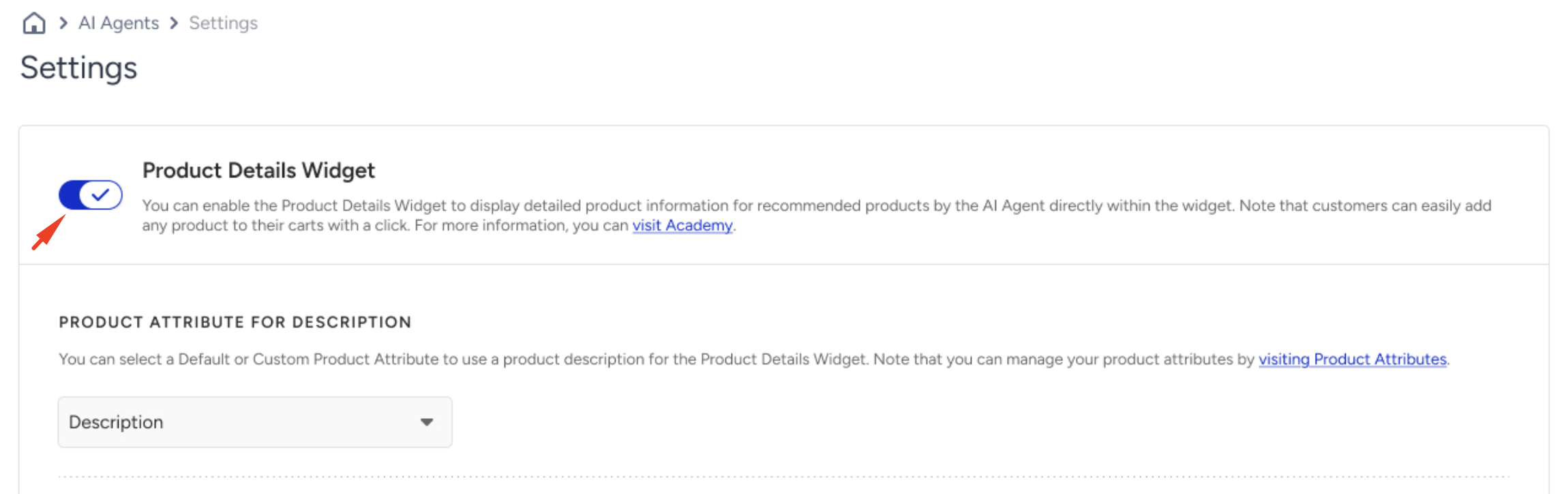
In the Product Attribute for Description field, choose which product attribute to use as the description inside the widget. By default, the system uses the predefined description field. If your product catalog uses a custom attribute for descriptions, you can select that instead.
Under Product Attribute Mapping, select the attributes you want to display in the widget, such as price, size, or material. Since attribute names may vary across catalogs, you can map each attribute to a clear, user-friendly label.
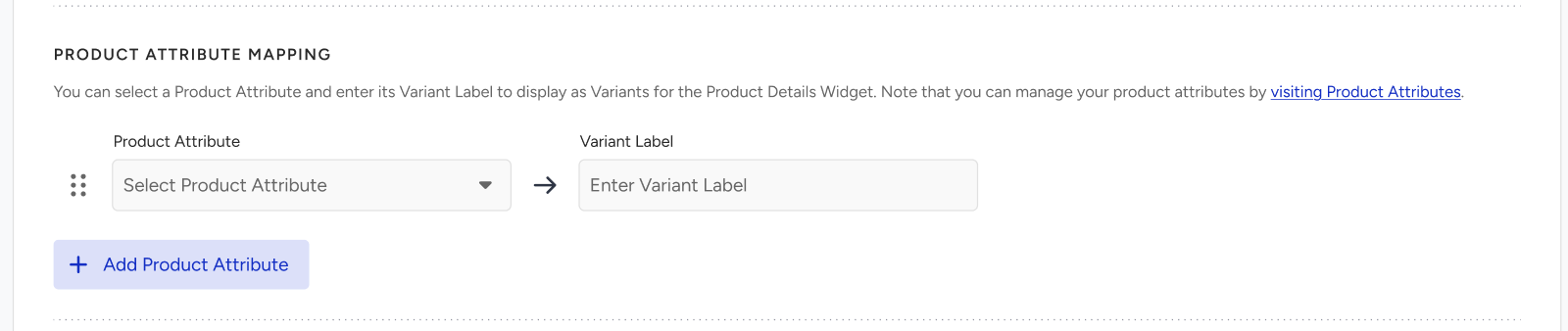
For example, the raw catalog attribute
size123can be mapped toSize, or whichever term makes sense for your customers. The widget displays the mapped label, not the raw attribute name.
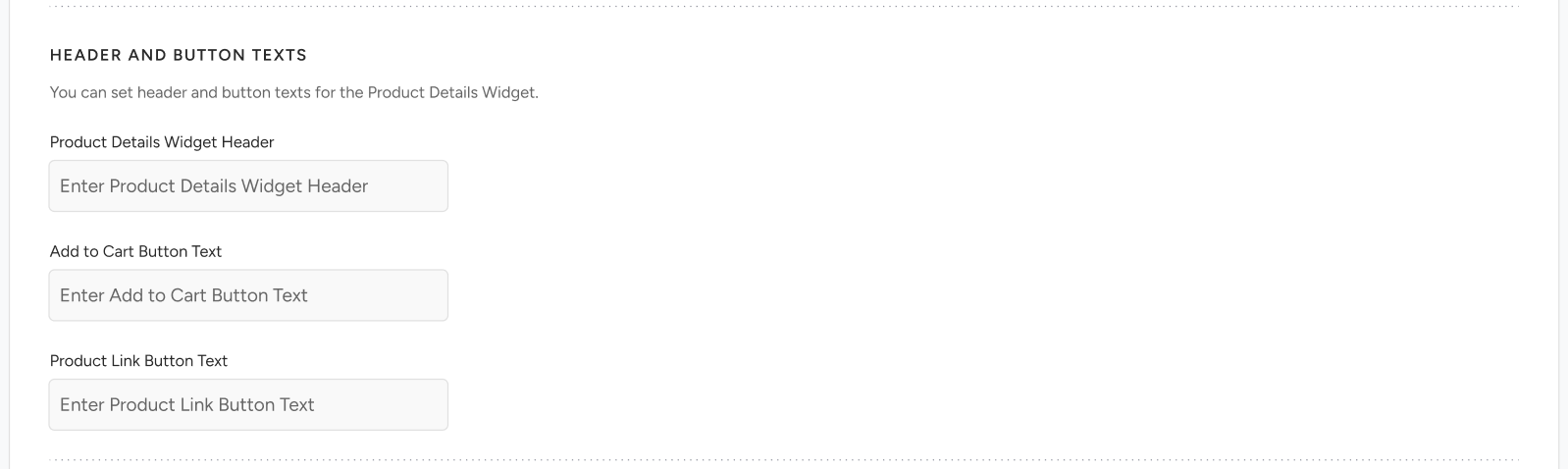
To customize the labels in the PDW, fill in the text fields below to match your brand and language:
Product Details Widget Header: The title displayed at the top of the widget.
Add to Cart Button Text: The label used for the Add to Cart button.
Product Link Button Text: The label used for the link that directs users to the full product page.
If you serve customers in multiple languages, the Product Details Widget supports automatic translation. A Translate button appears within the widget, allowing shoppers to view product content in their preferred language.
Translation covers:
Product descriptions
Attribute labels
Button text and widget headers
All other visible text within the widget

Click Save to apply your settings.