The General Settings step in the Insider Onboarding Center serves as the starting point for a smooth and tailored onboarding experience.
In this stage, you can:
These configurations establish the foundation for a seamless onboarding and integration process.
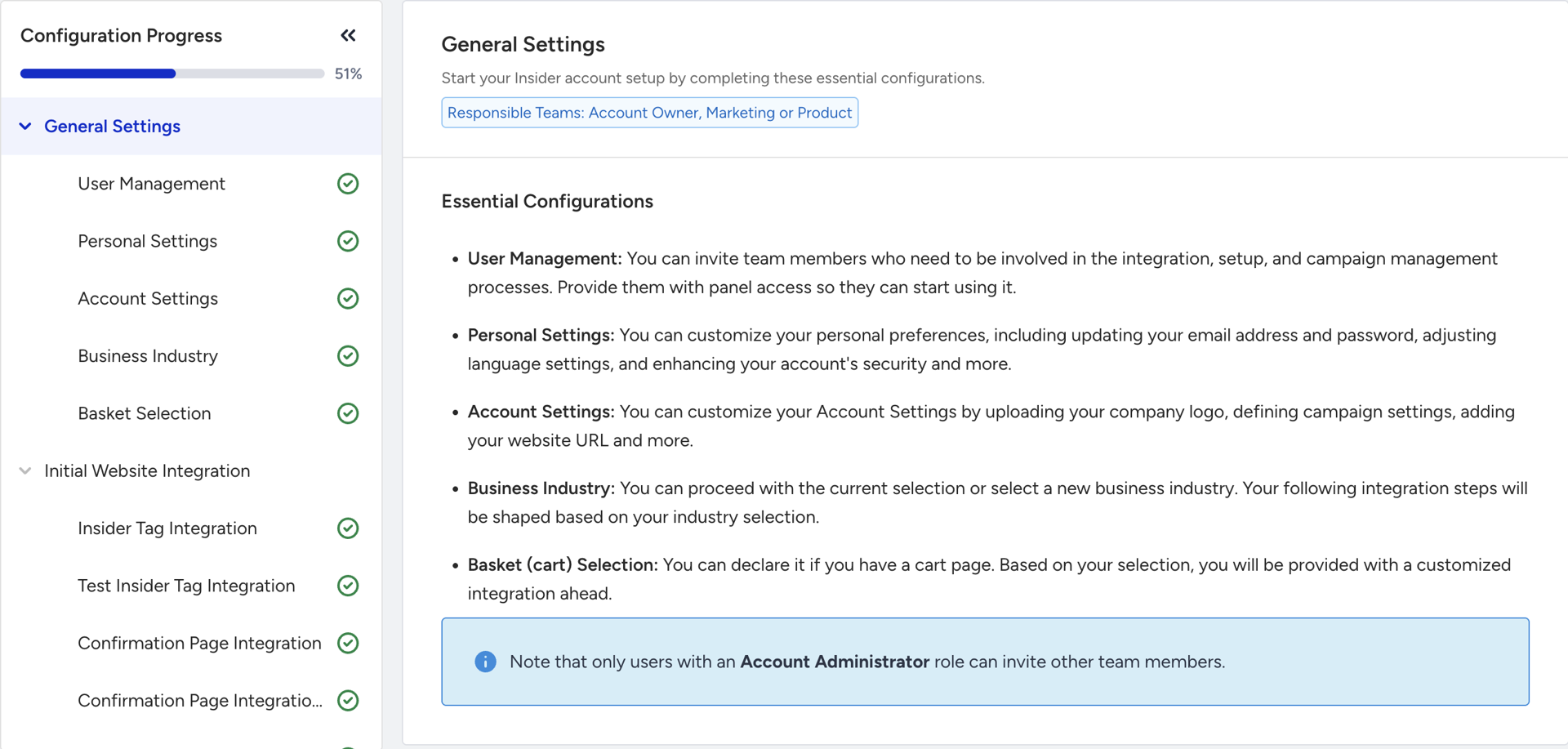
It consists of the following steps:
Inviting responsible team members
Setting up personal preferences
Customizing account settings
Selecting the business industry
Basket selection
At the end, you will complete your essential basic configurations.
User Management
As the Account Owner, you are responsible for inviting team members who will participate in integration, setup, and campaign management processes. Click the Go to User Management button to grant panel access to your team members and enable them to start using the platform.
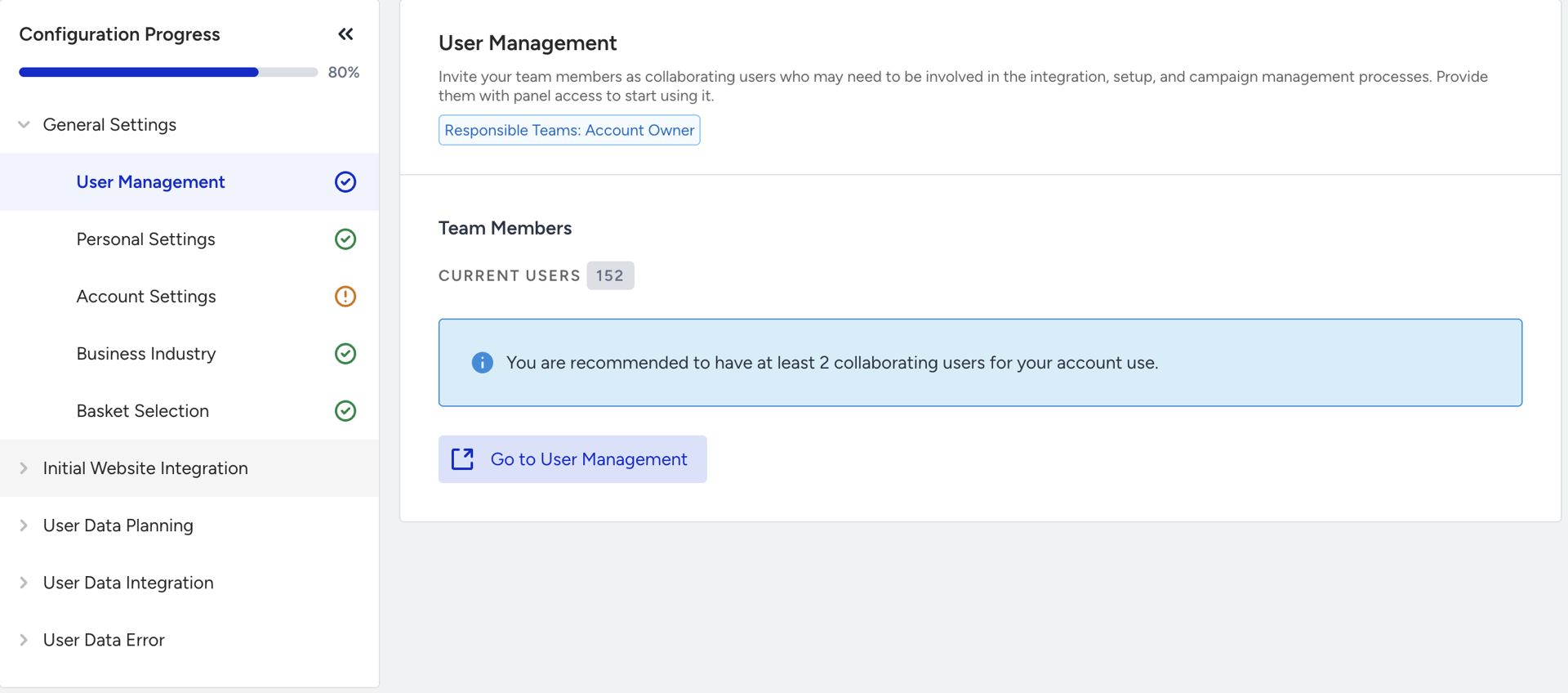
Only users with an Administrator role can invite other team members.
Personal Settings
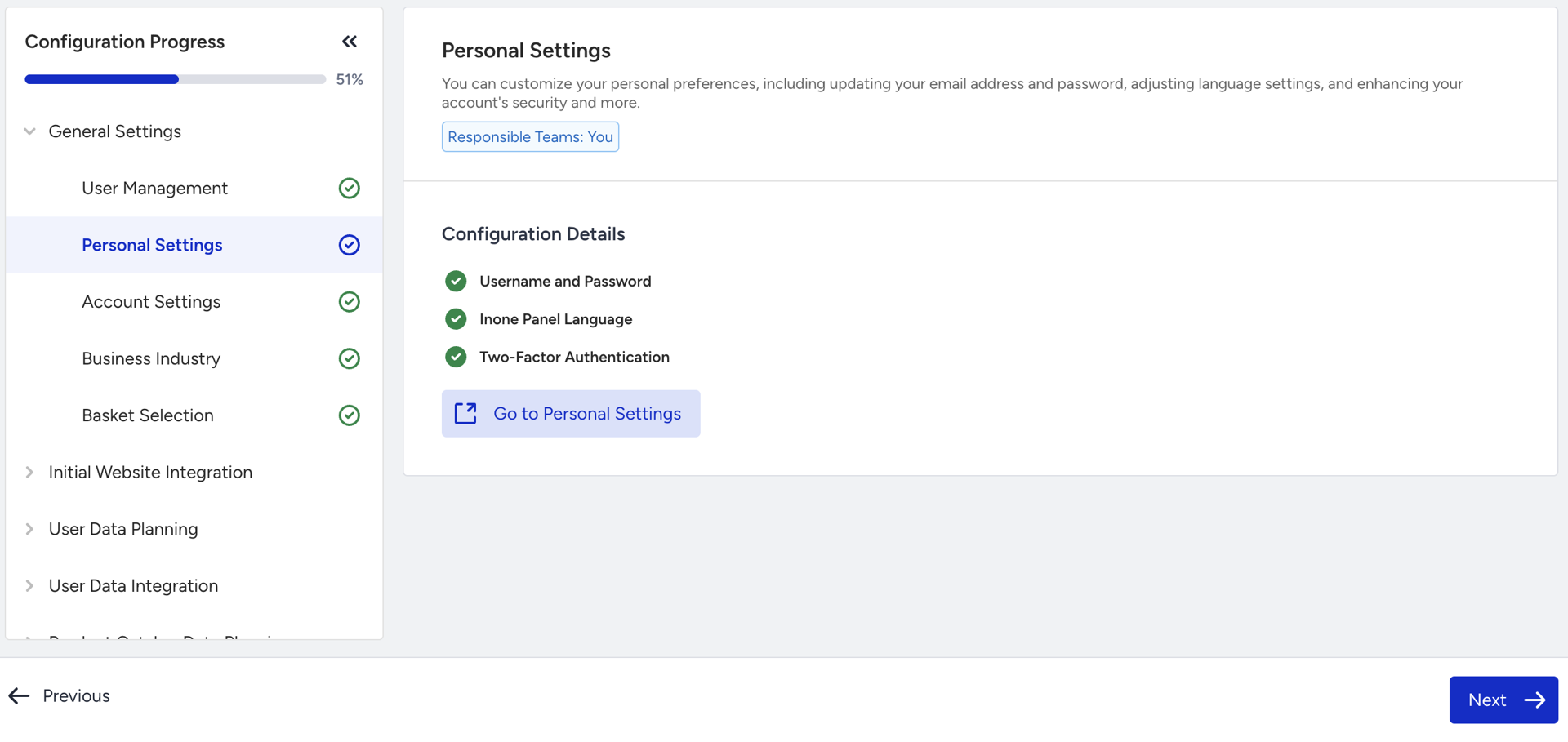
In this step, you can customize your personal preferences, including updating your email address and password, adjusting language settings, and enhancing your account's security by setting up Two-Factor Authentication (2FA), and more. Click the Go to Personal Settings button to visit the Inone Settings page.
Account Settings
Click the Go to Account Settings button to visit the Inone Settings page, where you can configure and save key account details. These settings include:
Logo
Two-Factor Authentication (2FA)
Campaign language
Time zone
Currency
Website URL
Mobile website URL
Instagram account URL
Customer service email address
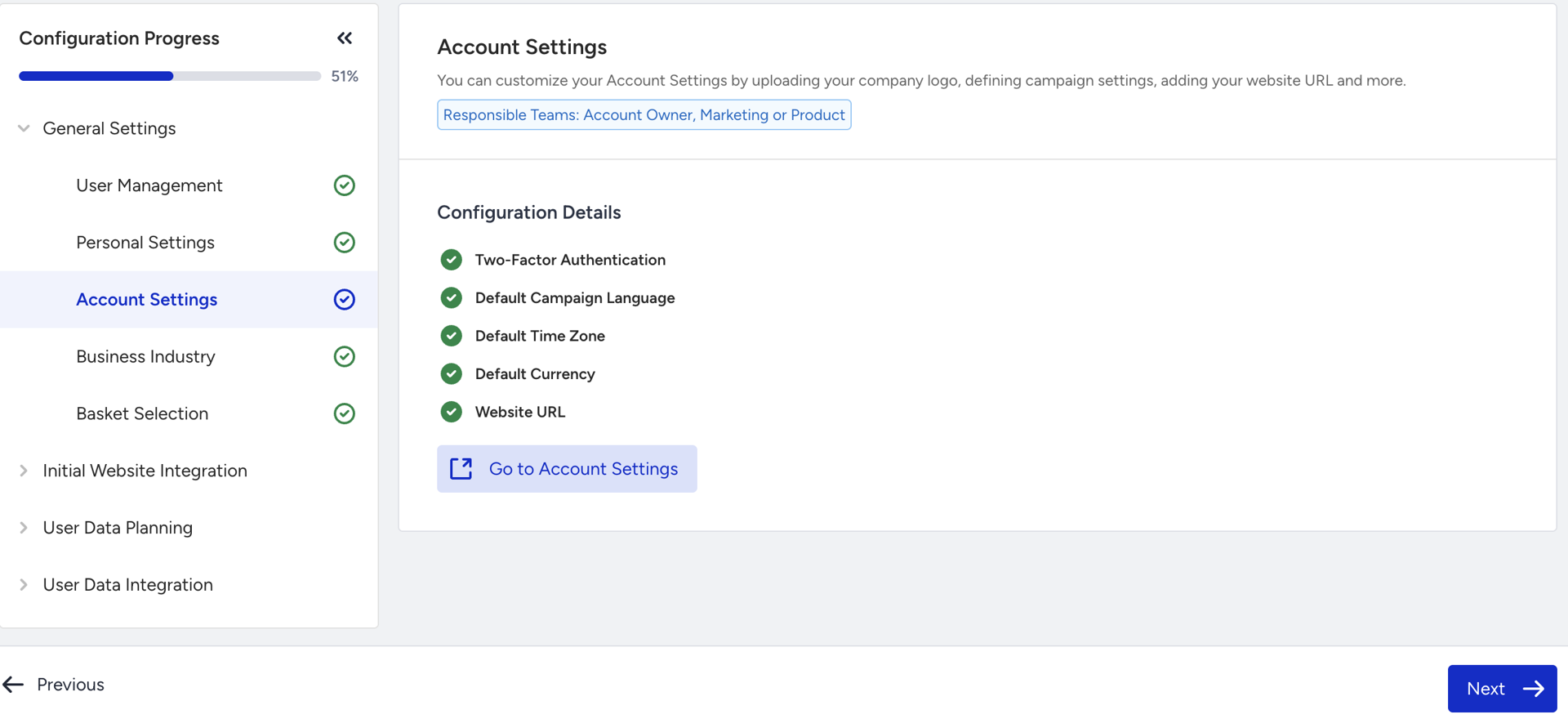
These configurations ensure that the account is properly tailored to your brand and operational requirements.
Two-Factor Authentication (2FA) is included in this step because all team members are required to complete their 2FA setup. If any account has not configured 2FA, this step will remain marked as incomplete until all users have successfully finished the setup process.
Business Industry
In this step, your Marketing or Product teams are expected to select the appropriate business industry. The subsequent integration steps will be customized based on this selection.
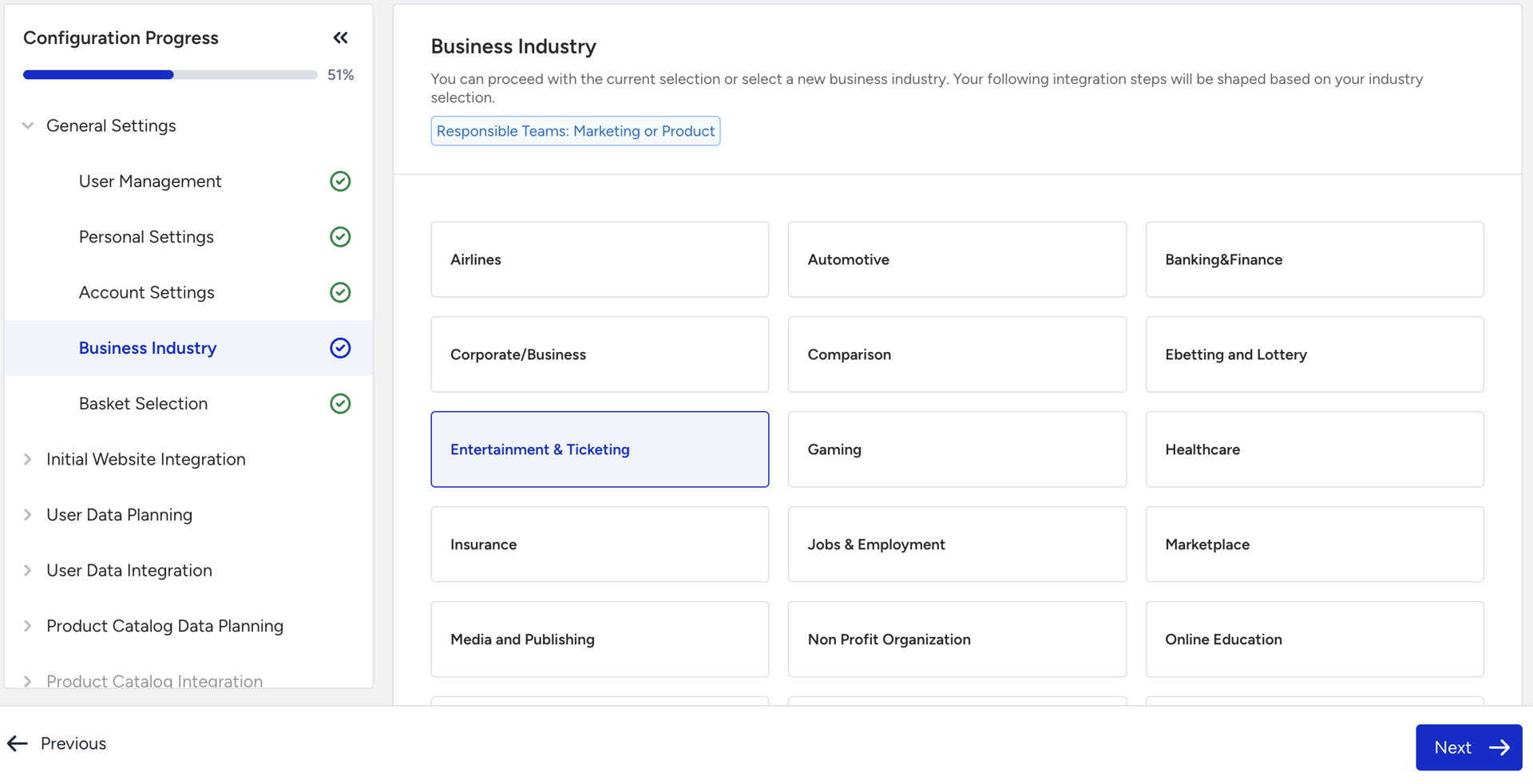
In the Data Planning stage, the default use cases presented to you will be determined by your chosen industry, your subscribed products, and the business objectives you selected.
Email Consent Settings
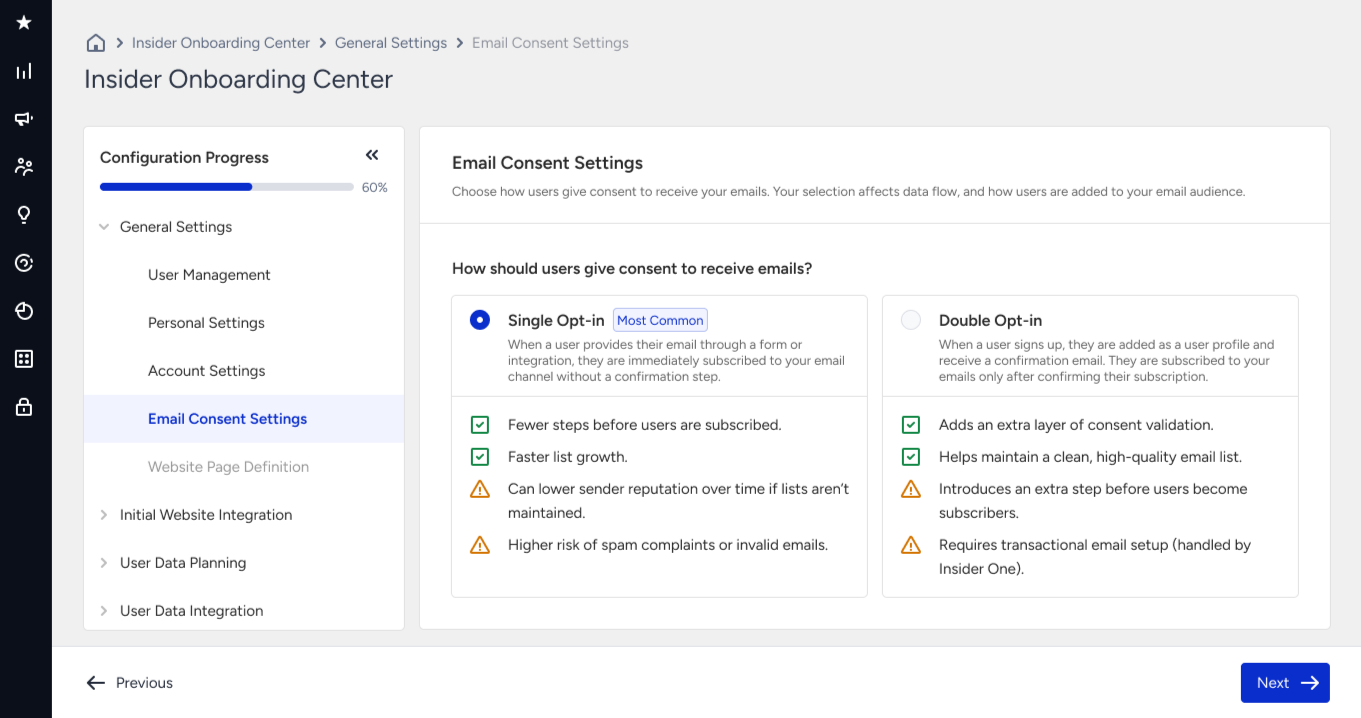
In the email consent settings, you will define how people subscribe to your email channel. Choose between Single Opt-in and Double Opt-in, review the impact, deliverability, and setup, and then confirm your selection before proceeding to user data planning and integrations.
Depending on where your subscribers are located, double opt-in may be legally required or strongly recommended.
If you are sending to subscribers in Germany or Australia, double opt-in is effectively required by law. If you are sending to subscribers in Austria, Switzerland, Norway, Greece, or Luxembourg, double opt-in is not legally mandated but is strongly recommended by local data protection authorities.
For all other regions, double opt-in remains a best practice for improving list quality, deliverability, and consent compliance. If you are unsure about the regulations in your target markets, we recommend consulting your legal team.
Basket Selection
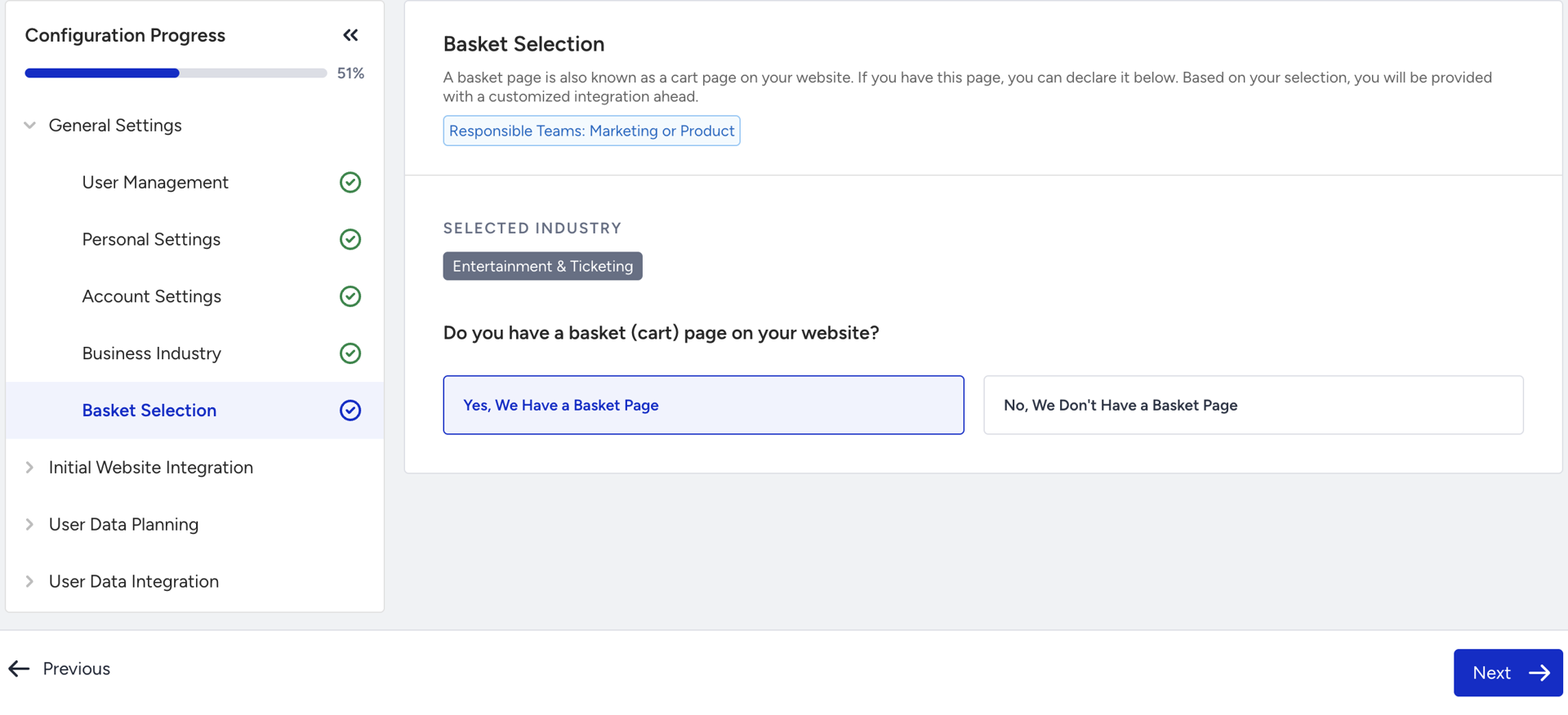
You need to indicate whether you have a cart page. Based on this selection, a customized integration path will be provided.
Once all sub-steps are completed, you can proceed with the Initial Website Integration step.