The integration of your product catalog is required for Smart Recommender and Eureka to operate their recommendation engine and provide search-optimized suggestions to your users.
The Product Catalog Data Planning step of the Onboarding Wizard guides you in planning your Product Catalog Data.
Business Details
The first step in data planning is to gather your key business details and determine the appropriate Product Catalog Feed Type. This choice is critical because it determines the attributes your catalog must include and lays the foundation for a smooth setup.
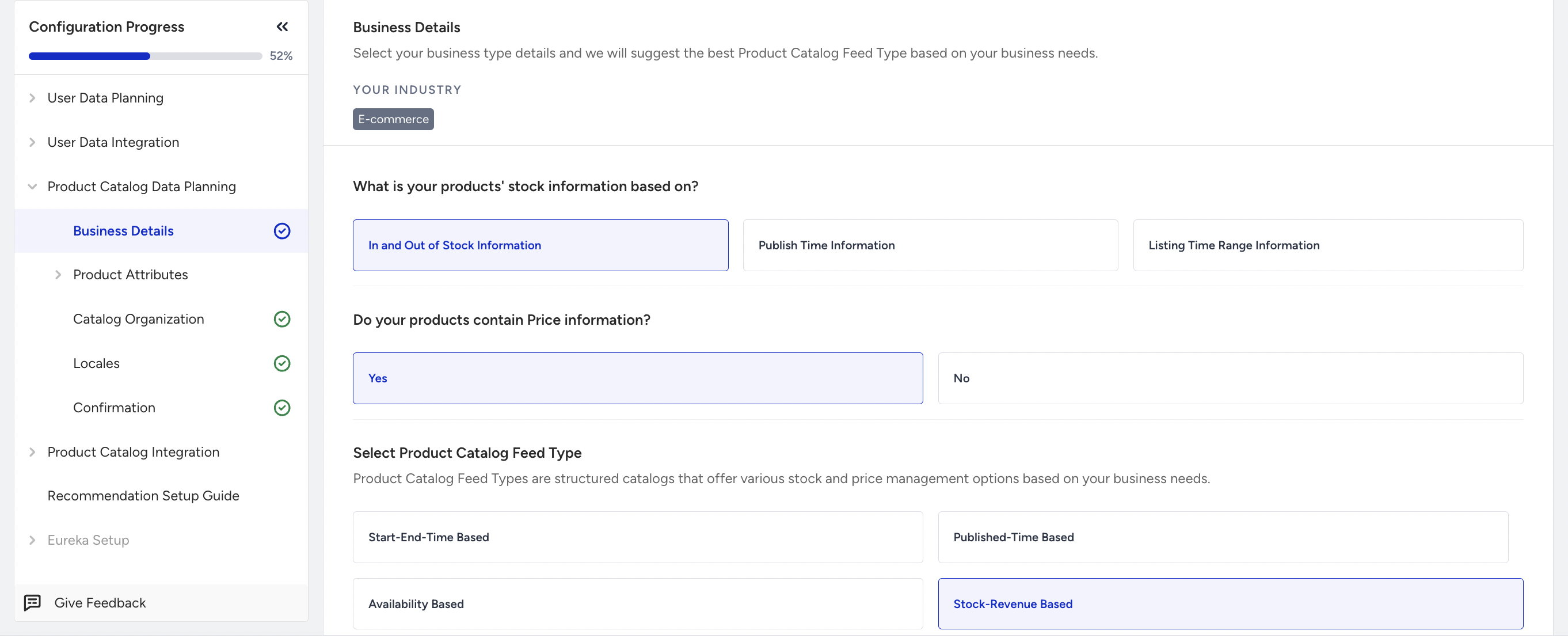
You need to select the Product Catalog Feed Type to proceed to the next step.
To identify the most suitable Product Catalog Feed Type, you’ll complete a quick two-question survey. Based on your responses, the system will recommend the option that best matches your needs:
Stock-Revenue Based: You have stock and price information in your catalog.
Availability Based: You have stock information but no price information in your catalog.
Published-Time Based: You don’t have stock and price information in your catalog. Also, you manage your catalog with published time product attributes.
Start-End-Time Based: You don’t have stock and price information in your catalog. You also manage your catalog with start-end-time product attributes.
The survey will recommend the most suitable feed type for your setup. However, you’re not locked in—you can still select a different Product Catalog Feed Type if it better serves your business requirements.
Product Attributes
Once you’ve determined the Product Catalog Feed Type, the next step is to define your product attributes.
Determining which Product Attributes are required to power your specific use cases is a critical step in your data planning strategy. Attributes serve as the building blocks of your product schema and are categorized into default attributes (essential for platform functionality) and custom attributes (unique to your business needs, such as loyalty_points or fabric_type). Early definition of these attributes prevents data type mismatches and ensures your catalog supports advanced filtering and dynamic personalization. Refer to the Product Attributes to align your schema with Insider One's supported data formats.
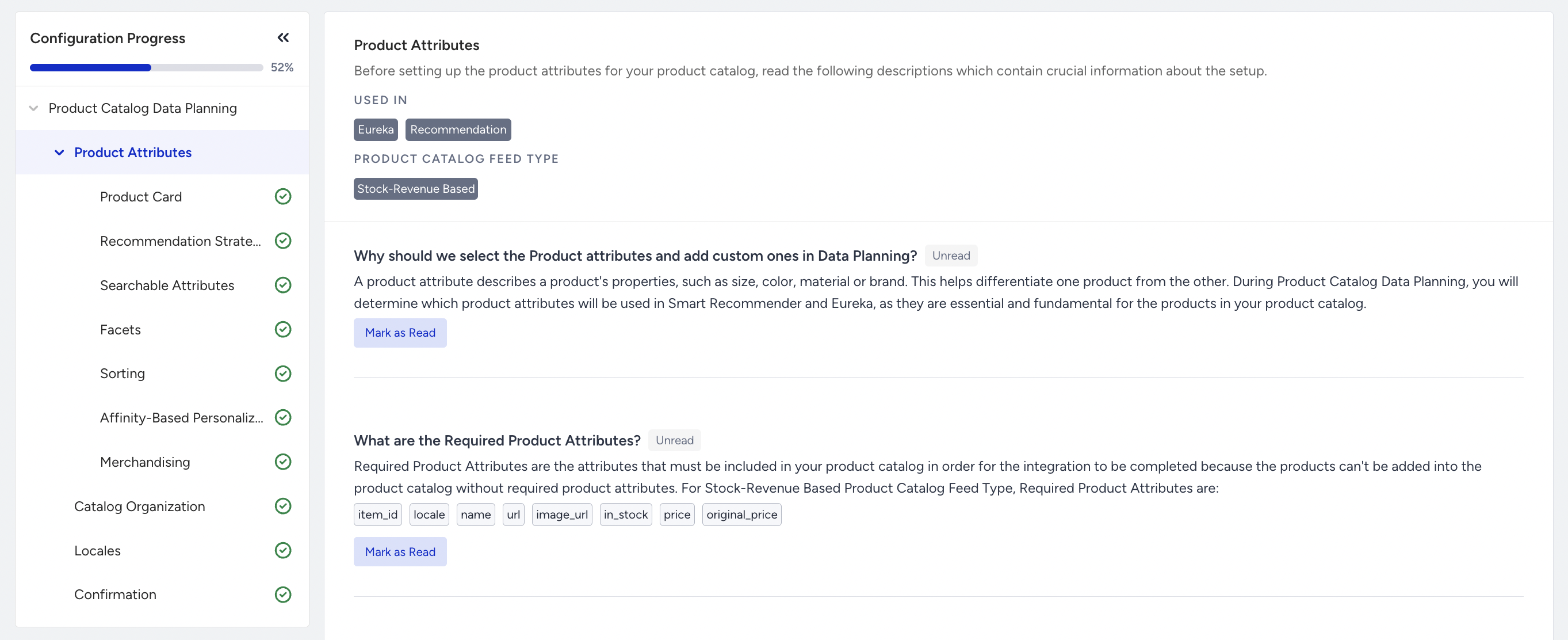
You need to mark all descriptions as read to proceed to the next step.
After selecting your Product Catalog Feed Type, the next step is to map out your specific attributes. These are categorized into two types:
Default Product Attributes: These are predefined based on your chosen Product Catalog Feed Type. You need to select the default attributes required for your planned use cases.
Custom Product Attributes: You can create additional attributes tailored to your needs by applying existing rules and definitions.
To effectively support your specific business requirements:
You need to select product attributes for the Product Card, Searchable Attributes, Facets, Sorting, Affinity-Based Personalization, and Merchandising pages in Eureka.
You need to select product attributes for Product Card, Recommendation Strategies, and Affinity-Based Personalization pages of Smart Recommender.
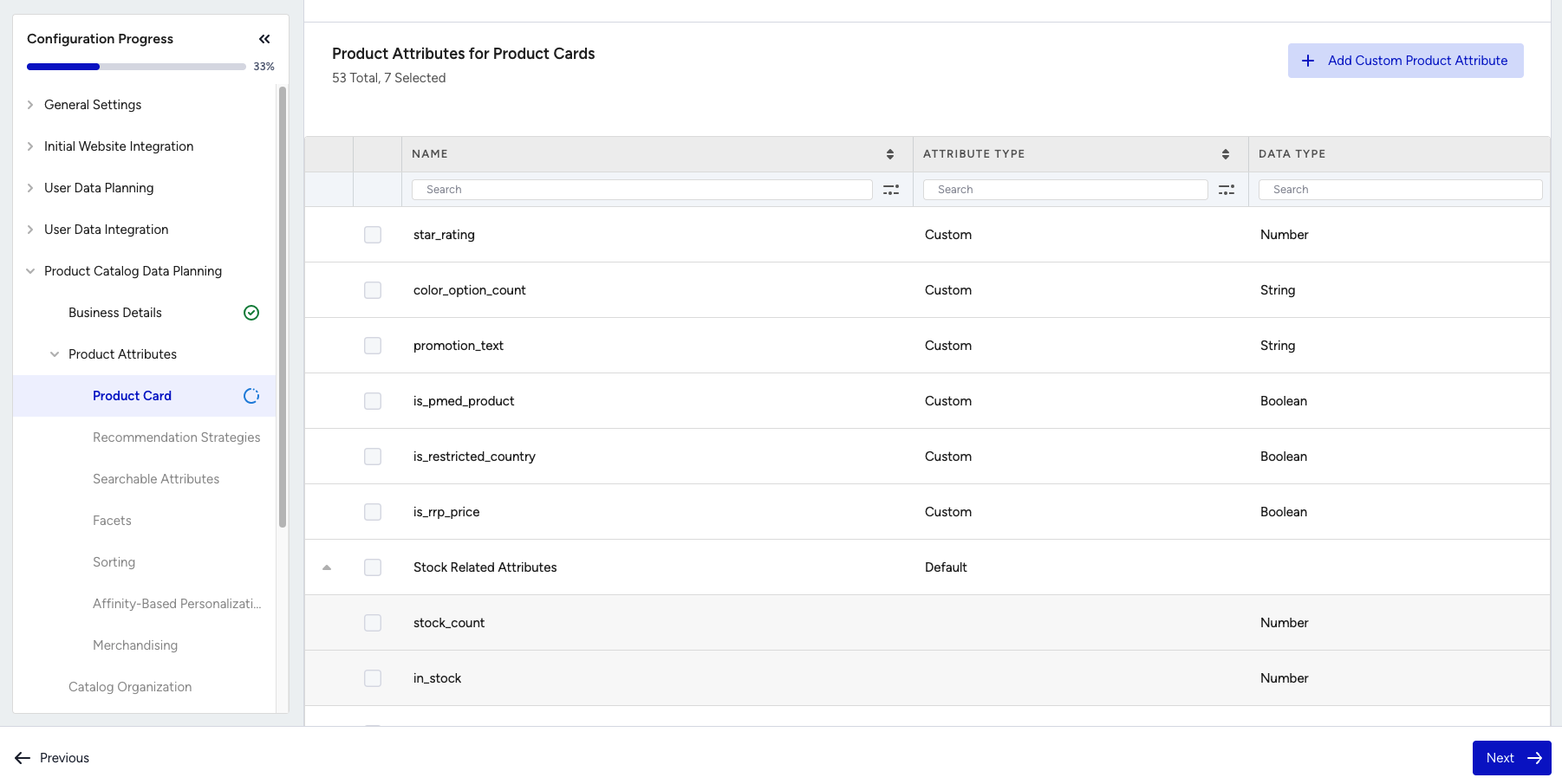
Ensure that you add your custom attributes and select both default and custom attributes for each use case.
Important points to consider when defining the Product Attributes:
When setting up your product catalog schema, it’s important to carefully plan the attributes you’ll need to support both Smart Recommender and Eureka use cases:
For Smart Recommender: Consider product card design, recommendation algorithms, applied filters, and personalization needs.
For Eureka: Consider product card design, searchable facets, sorting options, merchandising strategies, and personalization logic.
To ensure full functionality:
Select all product attributes you intend to use for each Product Attribute use case. Create any missing custom attributes as needed.
Keep in mind that custom product attributes cannot be deleted once created.
All required attributes (as defined by your Product Catalog Feed Type) must be included in your Insider One Product Catalog for the integration to succeed.
Selected attributes should be available in your Insider One Product Catalog to power Product Cards, Recommendation Strategies, Searchable Attributes, Facets, Sorting, Affinity-Based Personalization, and Merchandising.
For default attributes, the data type and size are predefined. Always follow these limits when adding data to your catalog.
You can continue to select and add attributes until your Product Catalog Integration step is completed.
Catalog Organization
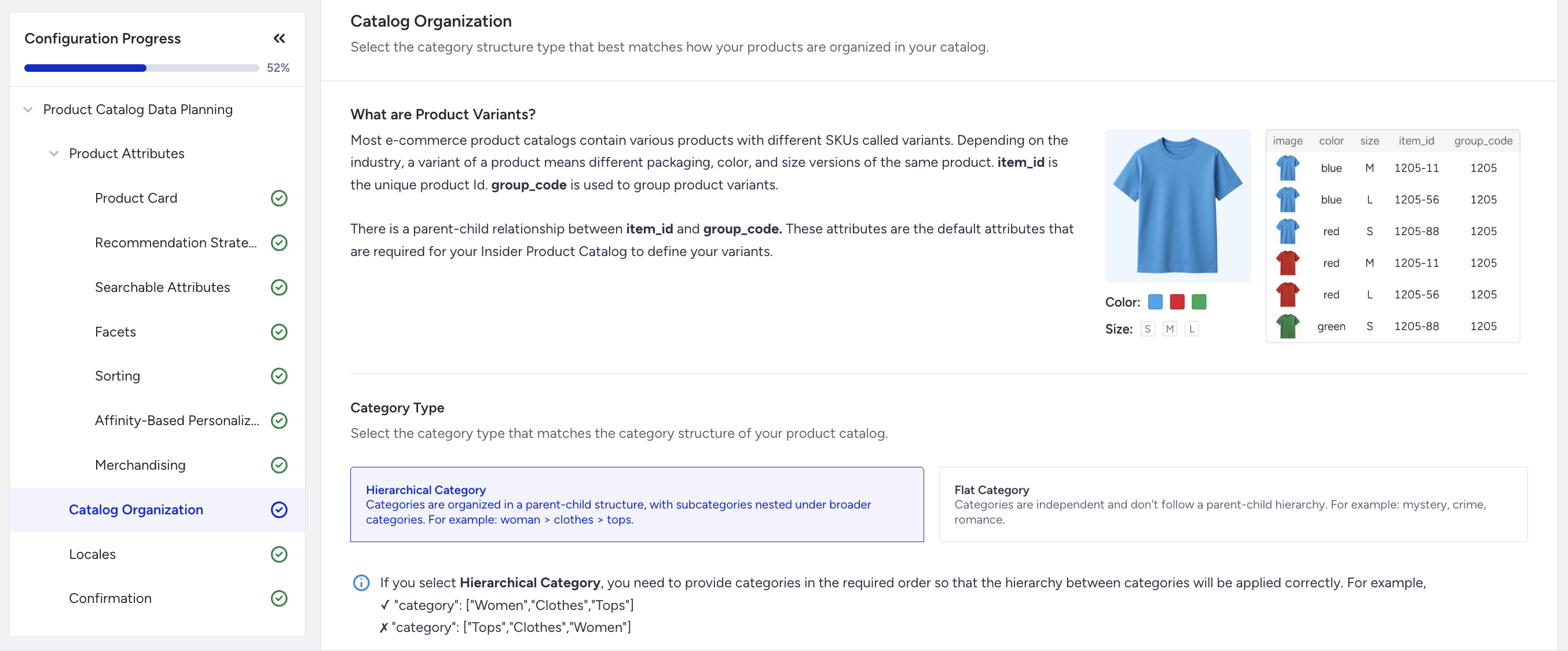
This step helps you properly organize your catalog by considering both product variants and category types.
Product Variants
If your catalog includes product variants (e.g., different sizes or colors of the same product), your Insider One Product Catalog must include:
item_id: Identifies the individual product variant.
group_code: Links the variant to its parent product, establishing the parent-child relationship.
Category Types
There are two ways to structure categories in your catalog. You must choose one to proceed:
Hierarchical Category Type
Use this if your categories follow a parent-child structure, with subcategories nested under broader categories.
Example: Clothing → Men → Shirts → Casual Shirts.
You’ll need to provide categories in the correct order to ensure hierarchy is applied properly.
Flat Category Type
Use this if your categories are independent and don’t follow a parent-child hierarchy.
Example: Men’s Shirts, Women’s Dresses, Kids’ Shoes (all listed at the same level).
Locales
You create your locales and stores based on your business structure on this page.
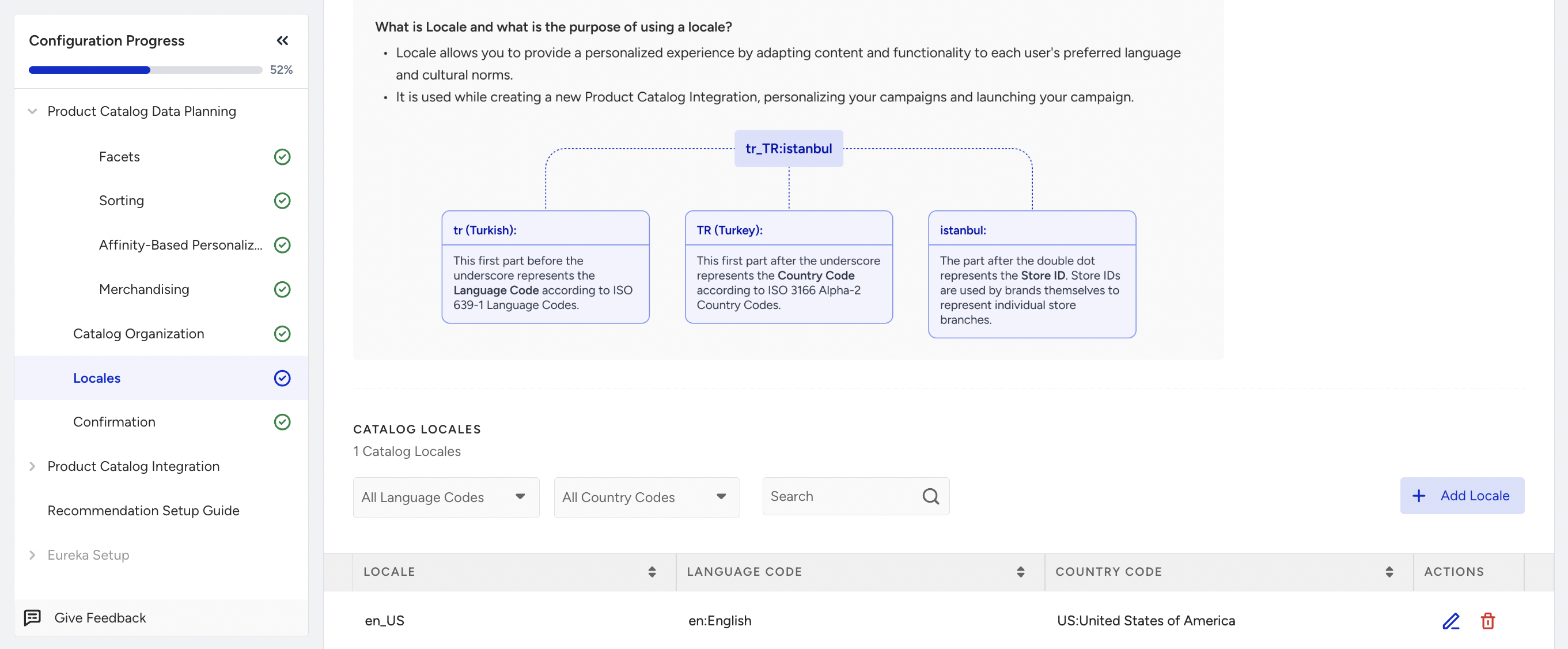
You must complete this step before proceeding with the Product Catalog Integration process. Until you complete the Product Catalog Integration step, you can edit or delete locales and stores that have already been created.
Although you can add more locales and stores after completing onboarding, we recommend adding them all at this stage.
All rules and limitations for locales also apply to this page.
Confirmation
A summary of all the previous steps is displayed on this page. To proceed with Product Catalog Integration, review and confirm the Product Catalog Data Planning.
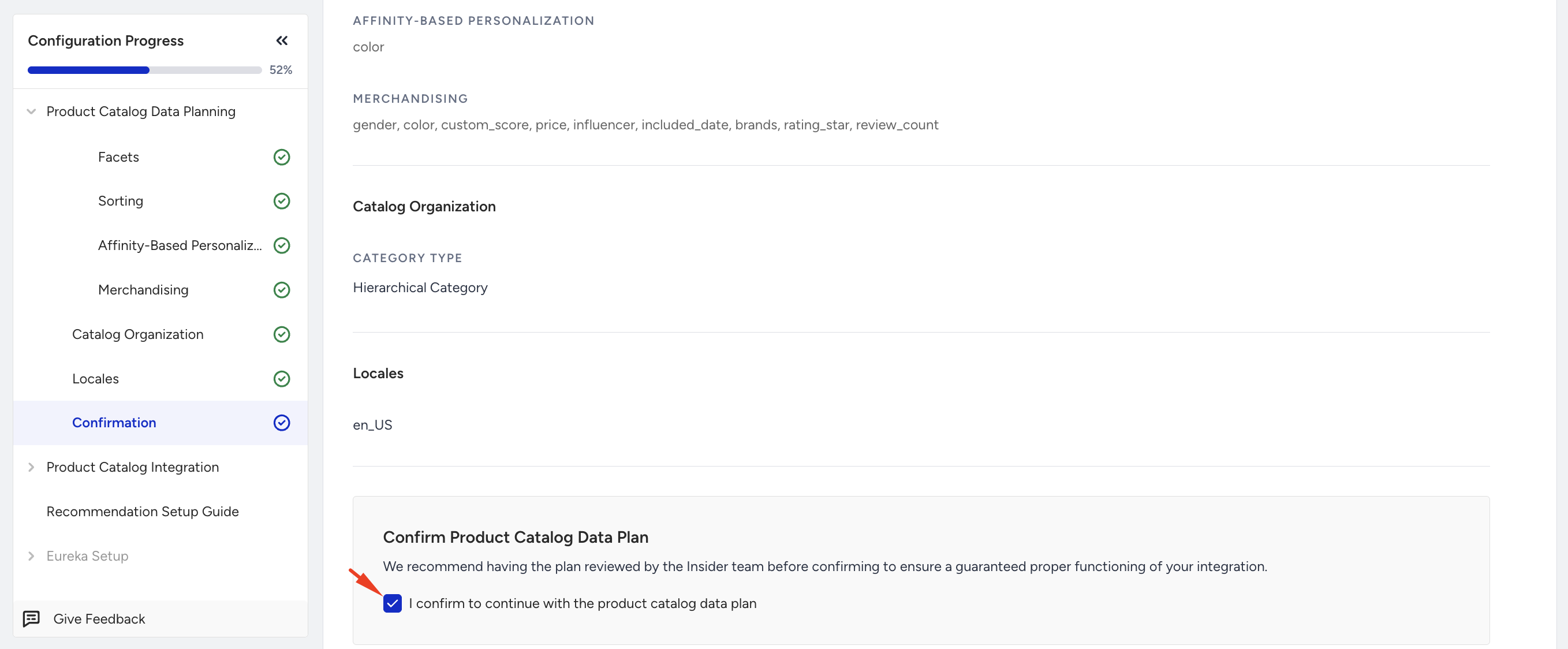
Ensure you verify and approve the following:
The selected Product Catalog Feed Type
All selected and created Product Attributes for all use cases for Eureka and Smart Recommender
Selected category type
All created Locales
Reviewing the summary of Product Catalog Data Planning step with the Insider One team before proceeding with Product Catalog Integration is recommended.