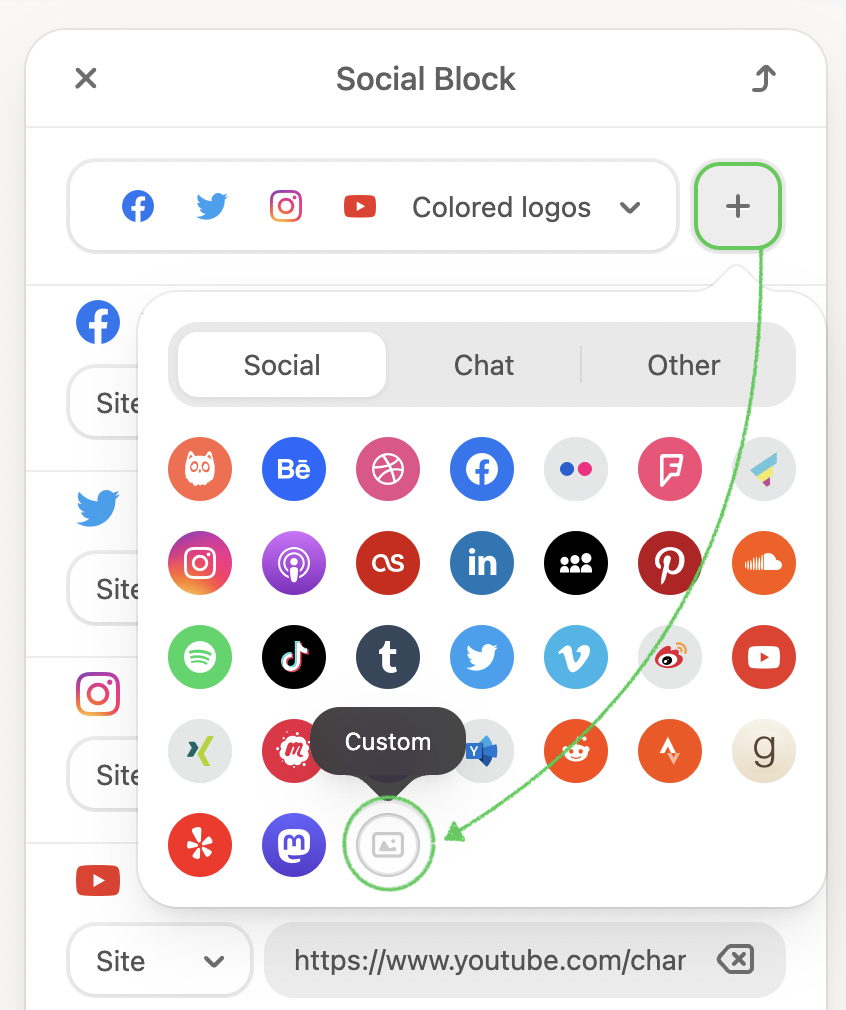
You can add social networking or social media icons in menus, footers, or the middle of the email, wherever you prefer.
To add social media icons, follow these steps:
1. Drag the Social Networks block into your email template.
2. Pick a design style you like.
3. Click the + sign to choose the necessary icons.
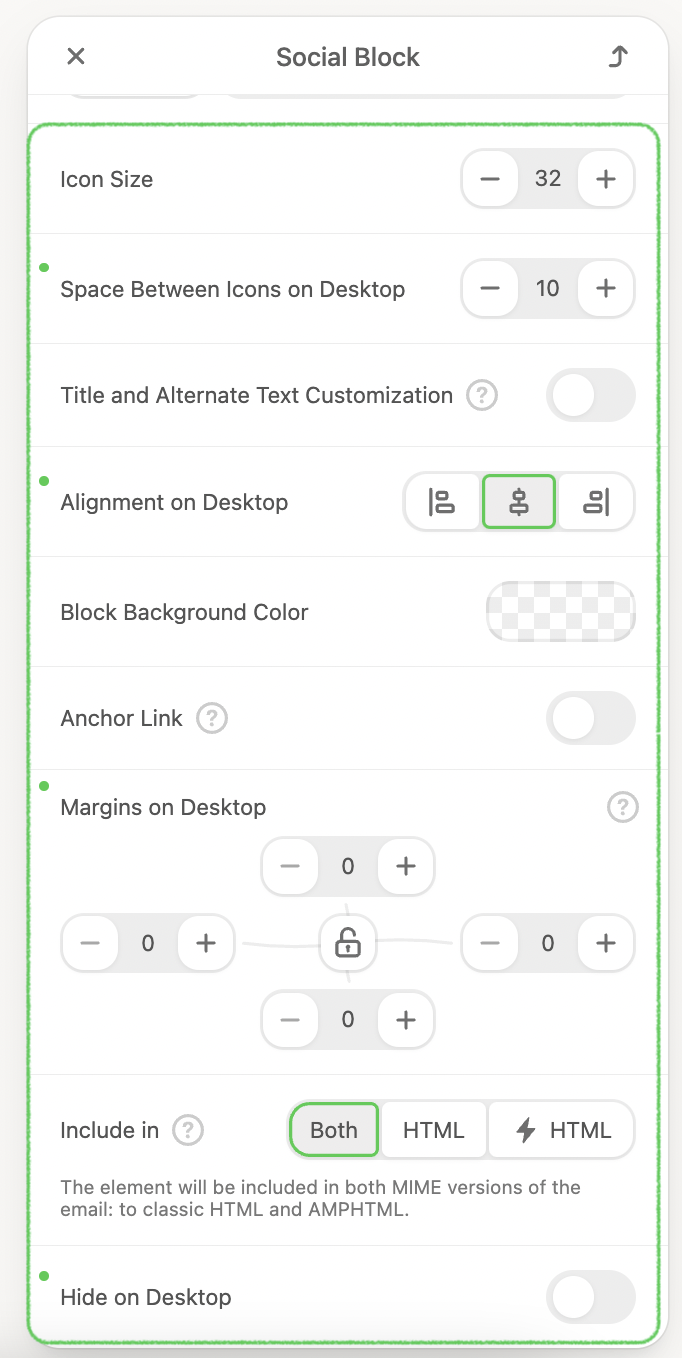
4. Paste your URLs.
5. Set Icon size. You can pick up from 16px to 64px.
6. Set the Space Between Icons. The maximum distance between icons is 40px.
7. Include Title and Alternate text Customization.
8. Adjust Alignment.
9. Set the Block Background Color.
10. Add the Anchor Link.
11. Set margins.
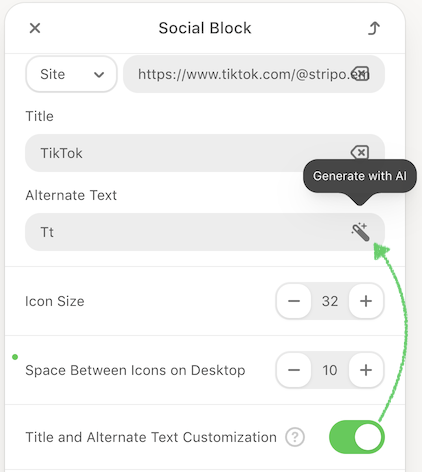
Furthermore, you can enable automatic Alternate Text generation using AI to enhance accessibility and improve search engine optimization. Simply click Generate with AI to create Alt Text for your social network icons.
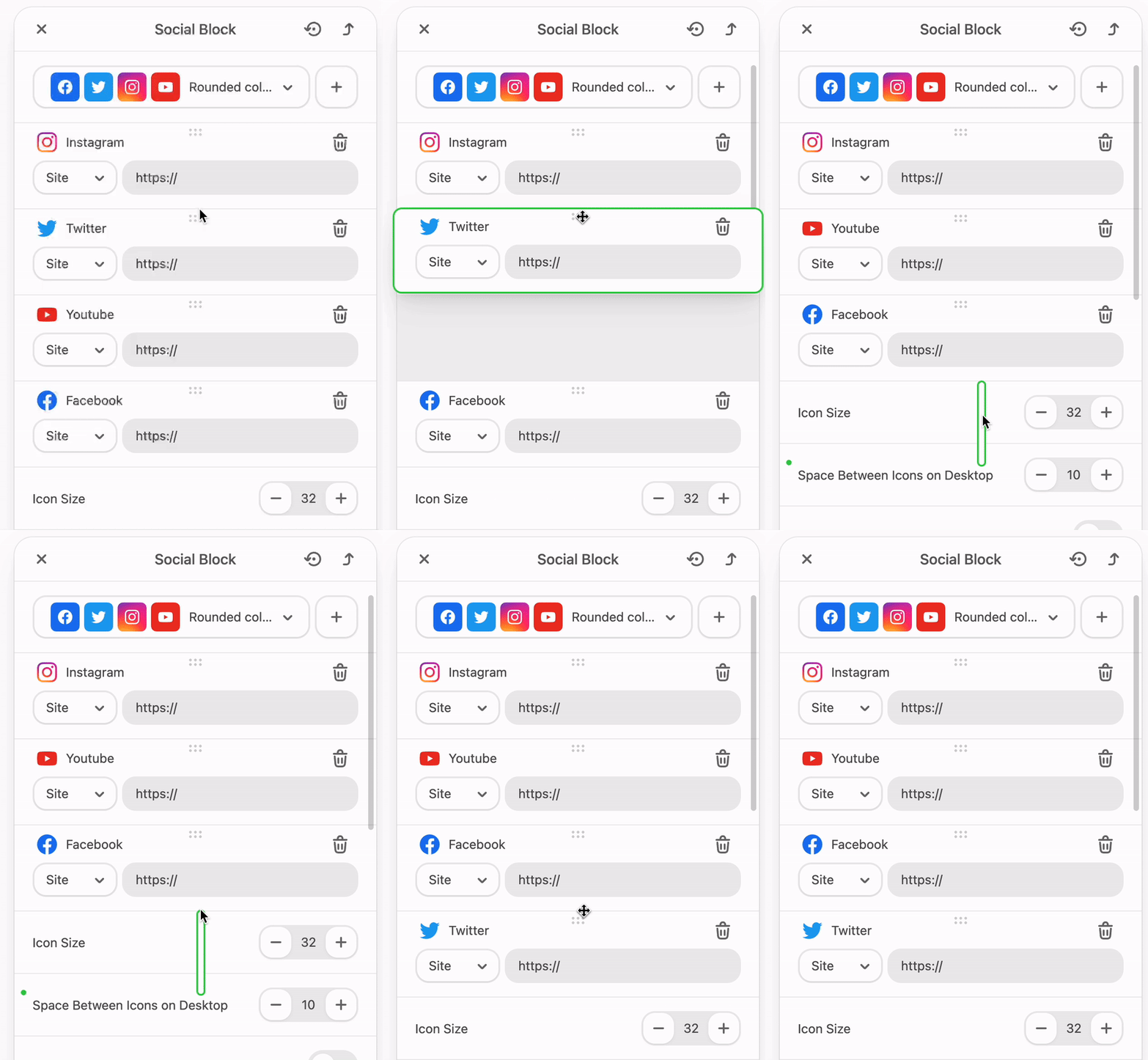
Also, you can change the order of your social media; just drag and drop them.
12. Furthermore, you can add your own social icons. To do that, pick up the Custom icons type and upload your icons.
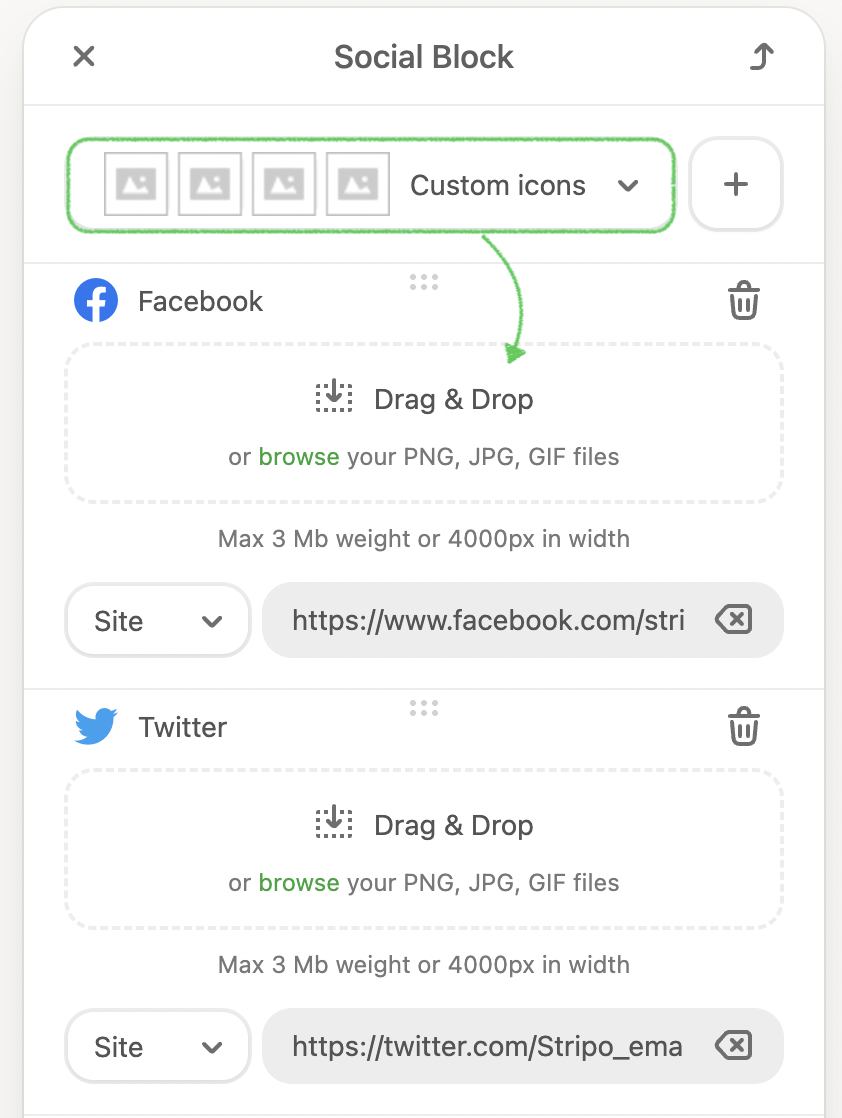
Click on the + sign, choose the Custom icon, and upload your image.