An ideal banner has an image that evokes emotions in your target audience, along with complementary copy over this particular image.
To build a banner in your email:
1. Drag a 1-column structure into your HTML email template.
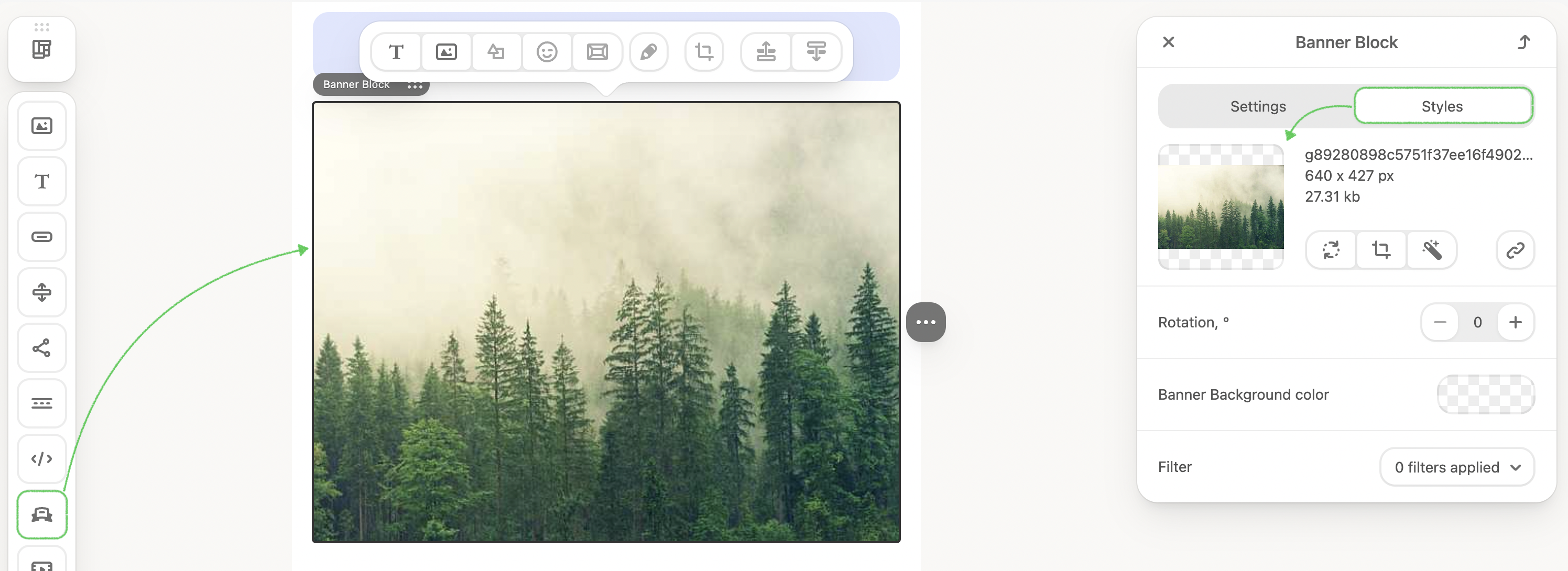
2. Pull the Banner block into this structure. Click on it to open the settings panel.
3. Add your main image from the Styles tab.
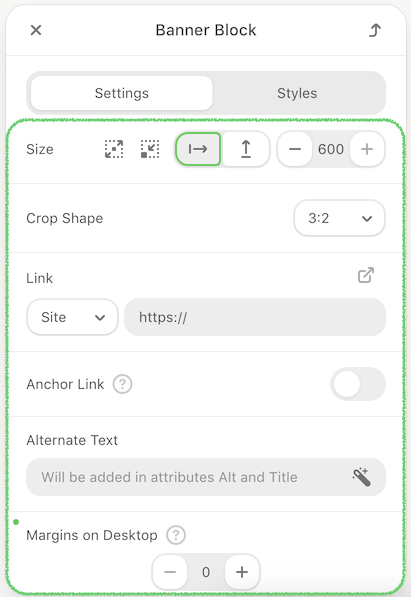
- Paste a link that will take recipients to the place related to the value offer described on the banner.
- Set the banner size.
- Crop Shape, where you can choose the orientation: horizontal or vertical.
- Add the Anchor link.
- Enter alt text. This text will be shown to recipients if images, for some reason cannot be displayed.
- Set margins.
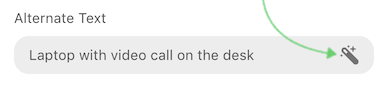
Moreover, you can also automatically generate Alternate Text using AI, improving content perception and accessibility. For this, simply click the Generate with AI button.
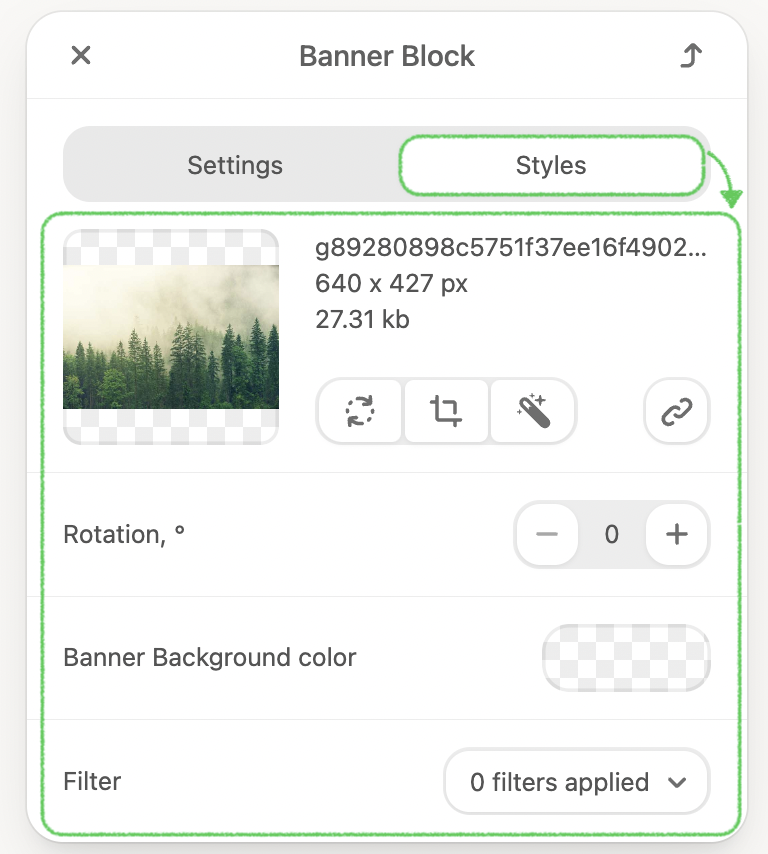
4. Switch to the Styles tab.
- Configure the Rotation, the ability to rotate your image clockwise in degrees.
- Set the Banner Background color.
- Choose the needed Filter to make your banner alluring.
5. If you need to place text over the banner image, click the T button on the settings panel above. Once it gets light, you need to left-click this image again.
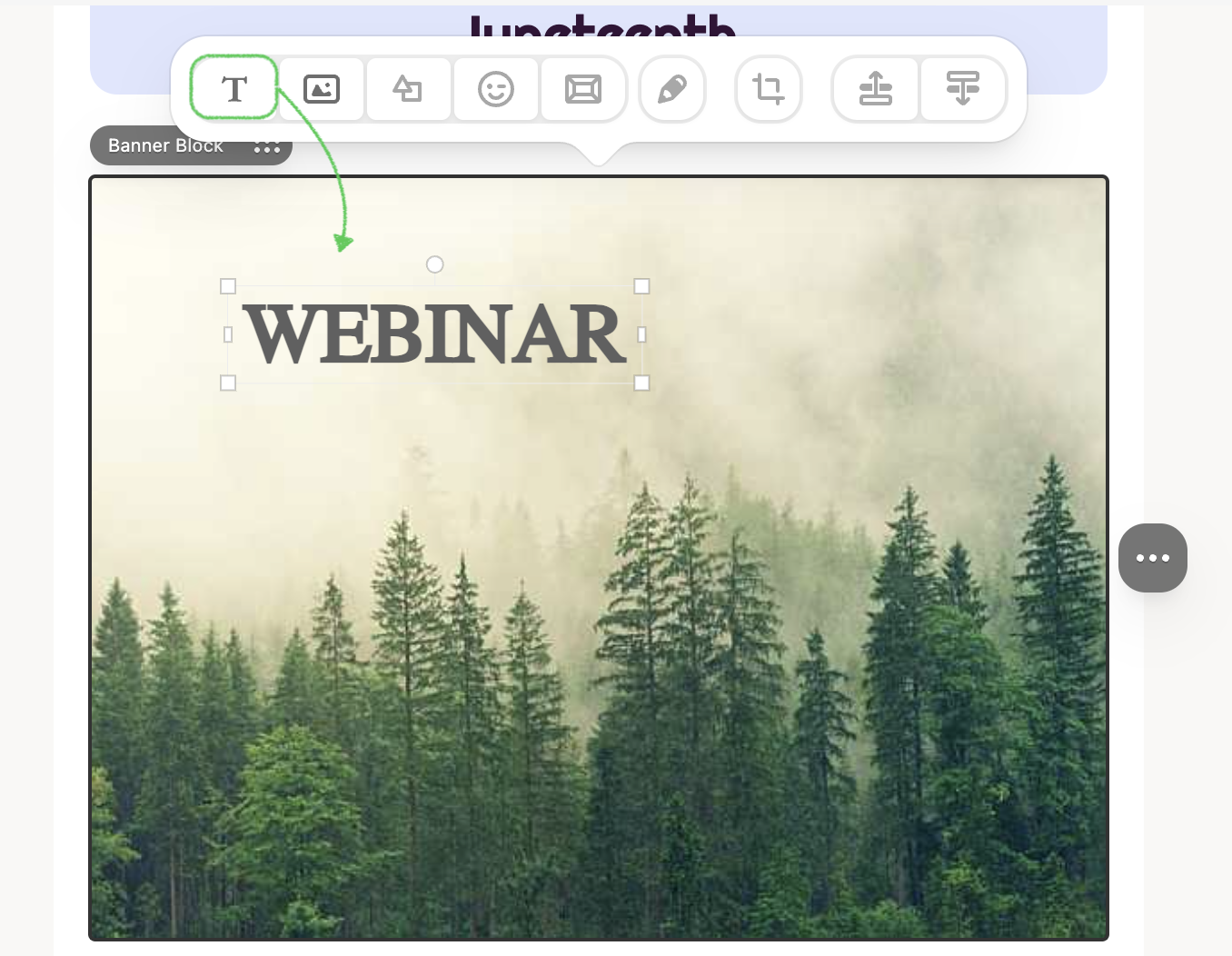
You’ll see the Text node inscription on the banner. Erase this inscription and enter your text here.
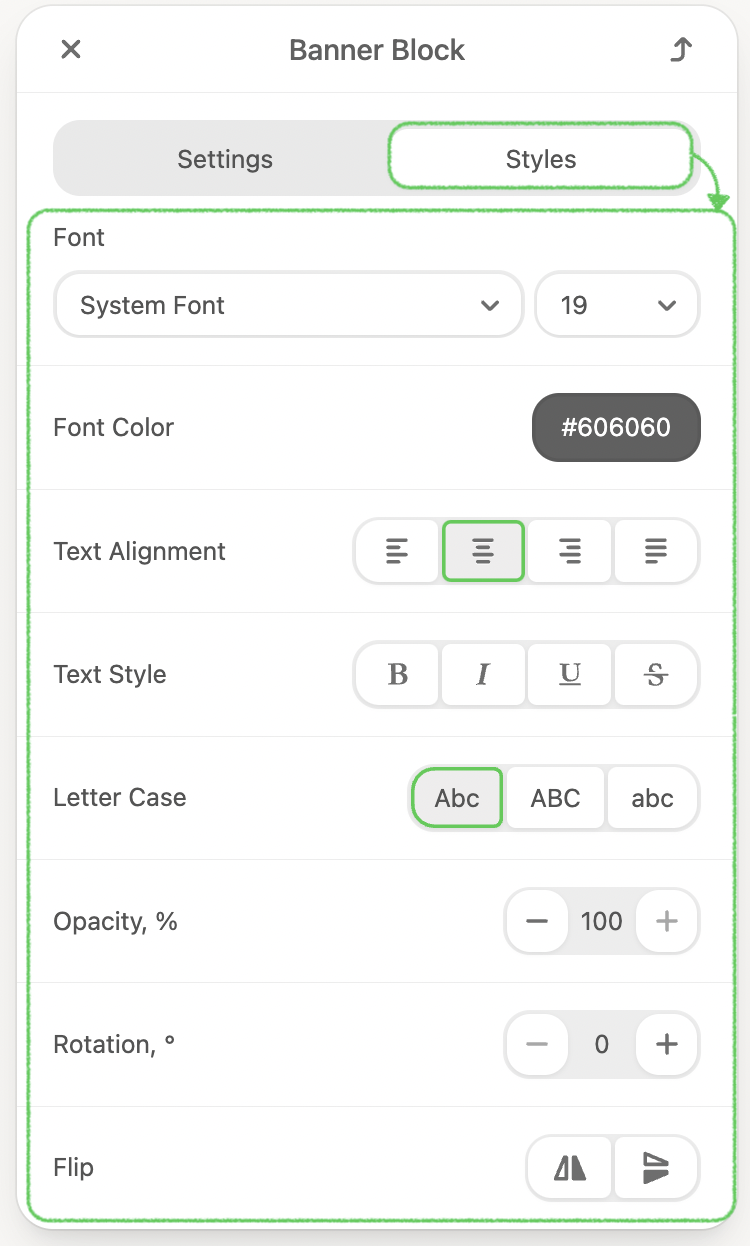
A menu for text style settings will open on the right: set font type, size, color, and other text formatting.
6. Click on the image above your banner block to add the additional picture and set up the styles as well. It can be anything you like: sticker, frame, logo, background to make your copy more noticeable, etc.
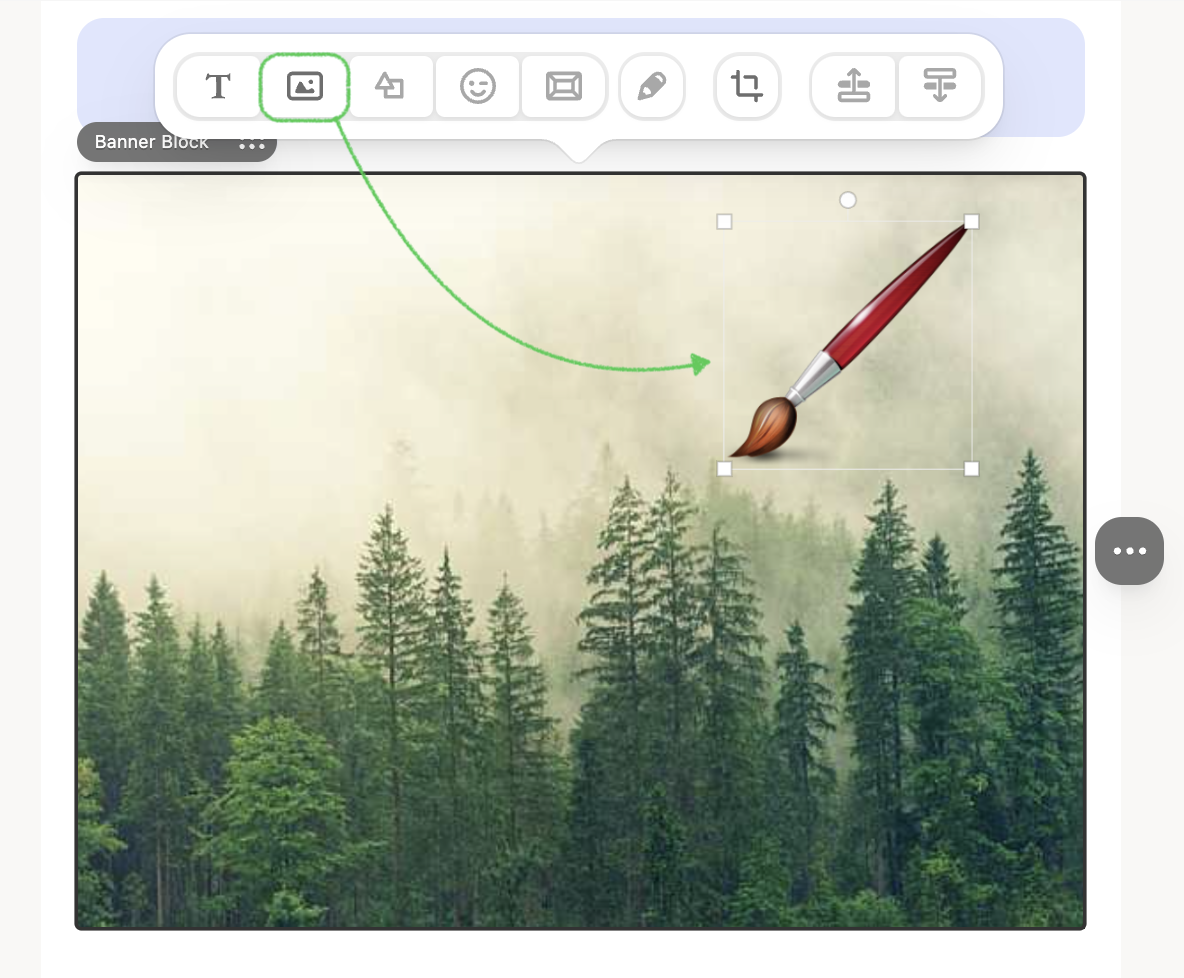
All the layers, aka elements, get together inside the block and make the banner. The banner will be mobile-optimized.