Numerous studies show potential customers are more likely to buy from your brand after watching a video. You can add videos to your emails to draw users' attention.
You can add videos to your emails in two ways:
- Inserting the URL link to your video
- Embedding a video player
Insert a URL link to your video
This is a safe way to deliver videos because it works with all email clients and devices.
1. To create a thumbnail image for your video, add the block Video to an email template. On the right panel, paste the video link in the field Video Link.
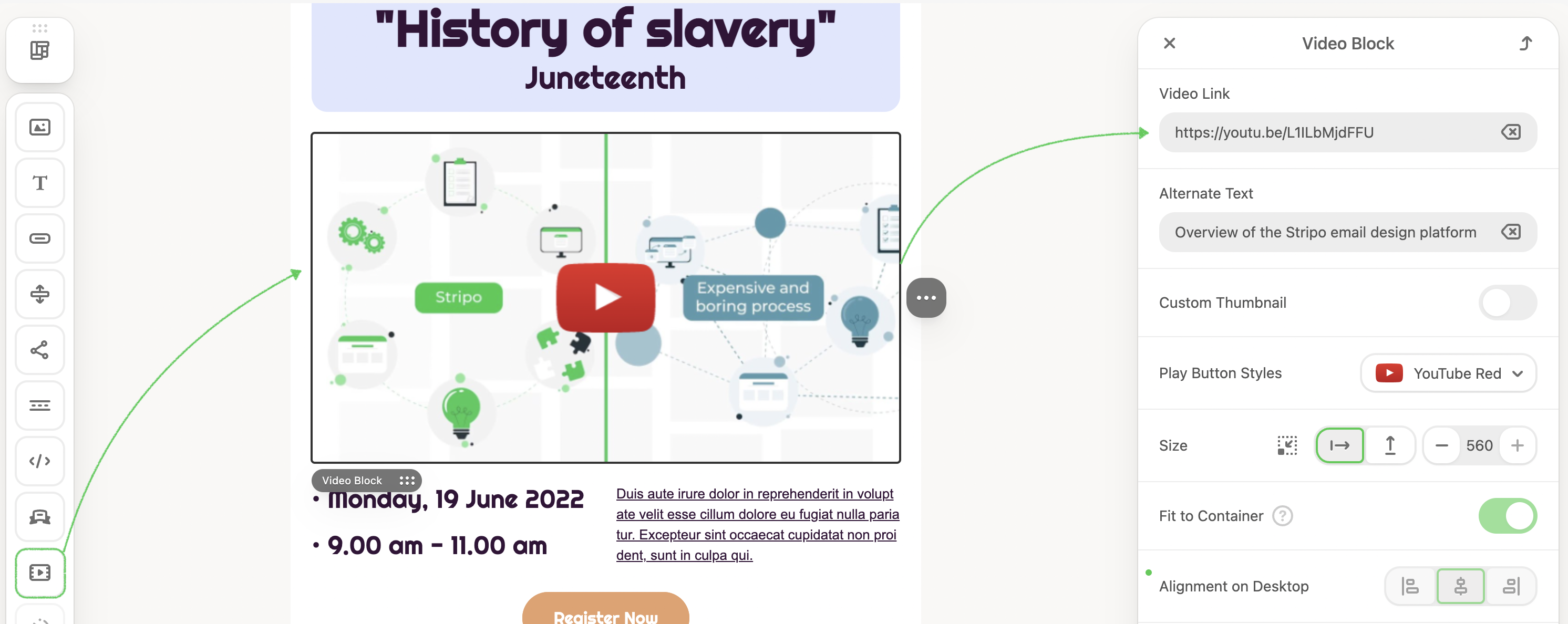
2. The editor generated a thumbnail image. Apply Custom Thumbnail, which lets you replace the video preview with a different image.
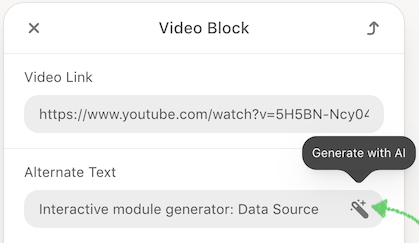
Besides, AI can automatically generate alt text, improving accessibility and search engine visibility. Simply click the Generate with AI button to create Alt Text for your video.
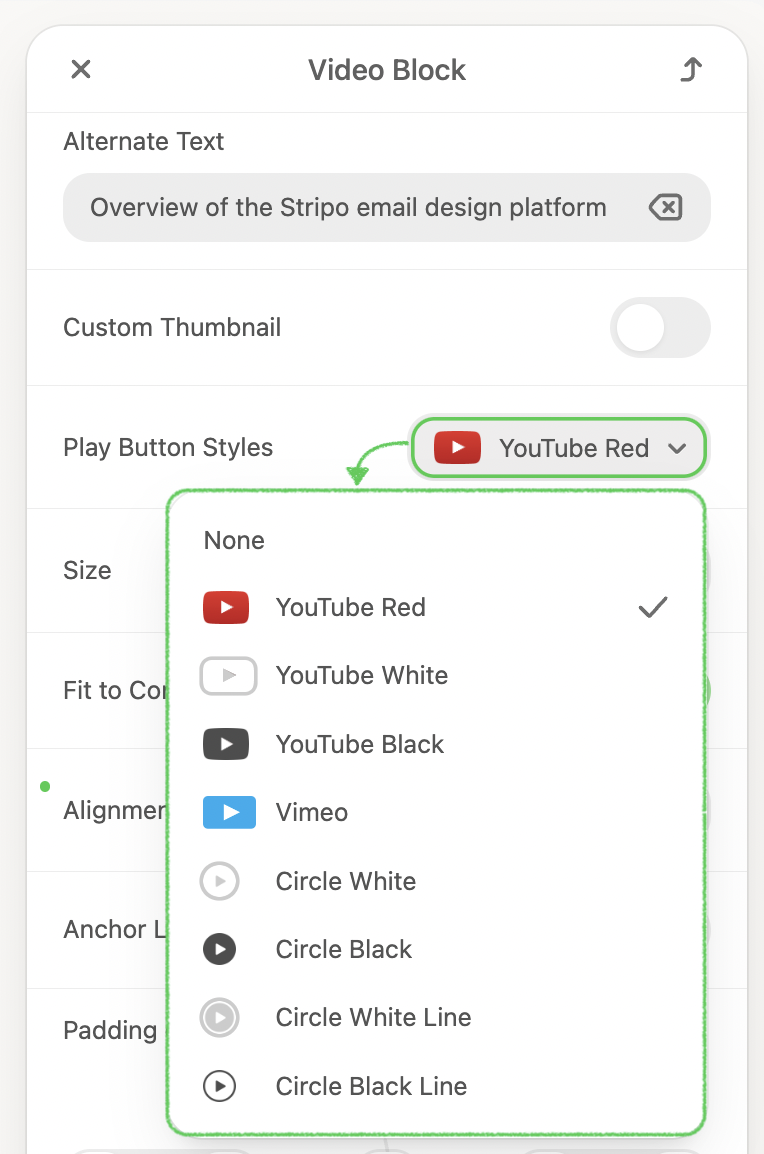
3. Choose the Play button Styles.
- Set up the needed size.
- Fit the video to Container.
- Apply alignment.
- Add the Anchor Link.
- Set padding.
Embed a video
The embedded video is the kind that plays right in email templates. Recipients do not need to visit another website to watch the video.
Most email clients don't support playing videos directly in emails.
However, a few email clients let users watch videos in emails if you add an HTML5 player. So far, it’s Outlook 2011 and 2013 for Mac OS, and AppleMail on MacBook, iPhone 7, 8, and X.
To embed the HTML5 player, your video clip must be uploaded to your own server in the MP4 and WEBM formats.
Then, add the ready-to-use video player’s code to an email. It consists of two parts:
1. The first part is meant for those email clients where the video player is supported; it contains links to a video file in the format of MP4 or WebM.
2. The second part contains a link to the same video, but it is hosted on websites such as YouTube or Vimeo. If an email client does not support the embedded player, a user will be redirected to a video hosting site and watch the video there.
Copy the code of the player:
<video class="adapt-img" controls="controls" poster="https://jenbfo.stripocdn.email/content/guids/videoImgGuid/images/image16586923322854343.png" width="100%" height="313">
<source src="http://www.w3schools.com/html/mov_bbb.mp4" type="video/mp4"> <source src="http://www.w3schools.com/html/mov_bbb.webm" type="video/webm">

<!-- fallback -->

<a href="https://www.youtube.com/watch?v=ryqOEPk51Lg/" class="esd-frame-element esd-hover-element esdev-disable-select">
<img class="adapt-img" src="https://jenbfo.stripocdn.email/content/guids/videoImgGuid/images/image16586923322854343.png" alt="" width="100%" height="313"></a>
</video>
In the editor, add an HTML block and replace the code of this block with our player’s code, as shown below:
.gif)
Now you need to insert your own links into this code.
The first link is a thumbnail image. Certainly, some devices can generate a thumbnail from an MP4 video, but this image will not render on iPhone X or on devices with Retina displays. Paste this link after the Poster attribute.
The next two links are links to our video files in the .MP4 and .WebM formats. Links to YouTube or Vimeo won’t work here. Replace the links that go after the "source src" attribute with your own links.
The other two links that go after the word fallback are links to a YouTube video and to its preview image. This is a fallback for those email clients that don’t support embedded videos. Upload your video to YouTube or Vimeo, and upload the second image used as a thumbnail. Replace the links that go after the "href" and “src” attributes with yours.
Now, some of your clients will be able to watch a video directly in the email, while others will be redirected to the fallback video page.