A spacer makes emails look more structured and makes email content easier to perceive.
To set a spacer in emails, follow these steps:
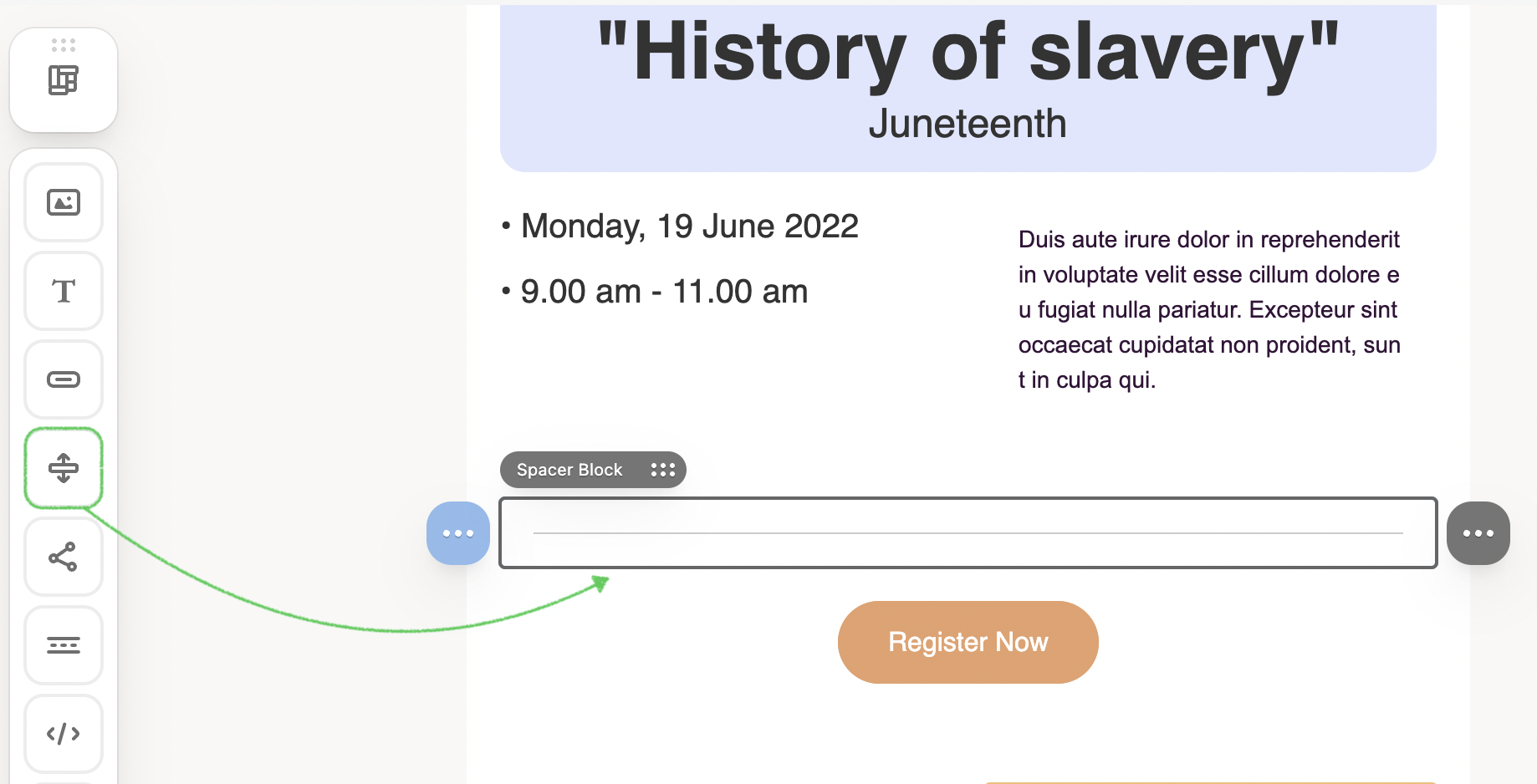
1. Drag the 1-column structure into your HTML email template.
2. Drop the Spacer block.
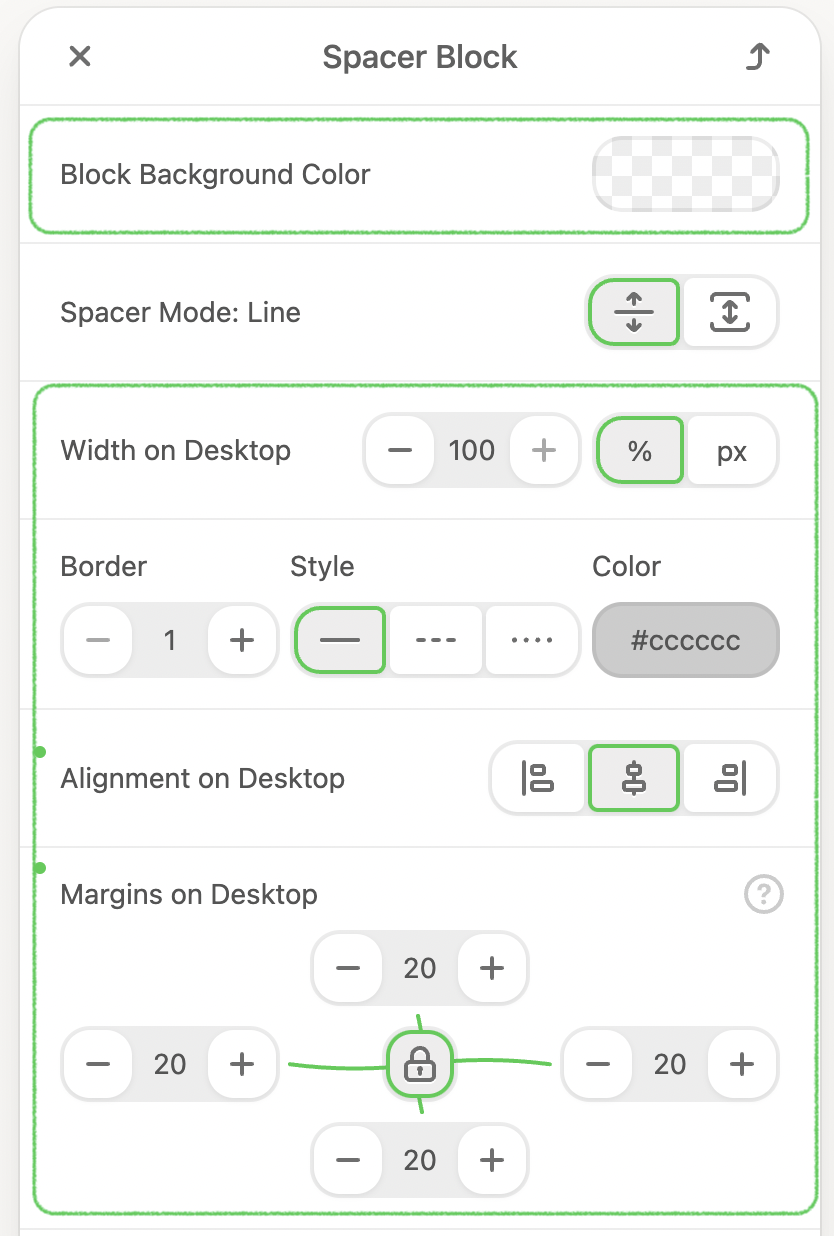
3. Double-click it to open the settings panel.
- Pick a Block Background Color.
- Set Width. The width here is measured in % by default, and you can switch it to px as well.
- Pick a Color and choose a Style for your spacer. It can be solid, dashed, or dotted.
- Set a necessary thickness of the spacer. To do this, set a digital value in the Border field by increasing or decreasing it.
- Choose a spacer Alignment. By default, center alignment is set. If you like, please change it in the alignment section.
- If necessary, set Paddings for the spacer block.
- Add the Anchor Link.
4. Switch to the Spacer Mode if you need a vertical alignment. Just stretch the spacer to the desired length or specify its height in px.
.gif)