This guide explains how to use the callout feature in Web Messenger. To learn how to use it, follow the steps below:
1. Go to the Callout Settings. Slide the Enable Callout toggle in the Web Messenger Editor to enable whether the callout will appear or not. 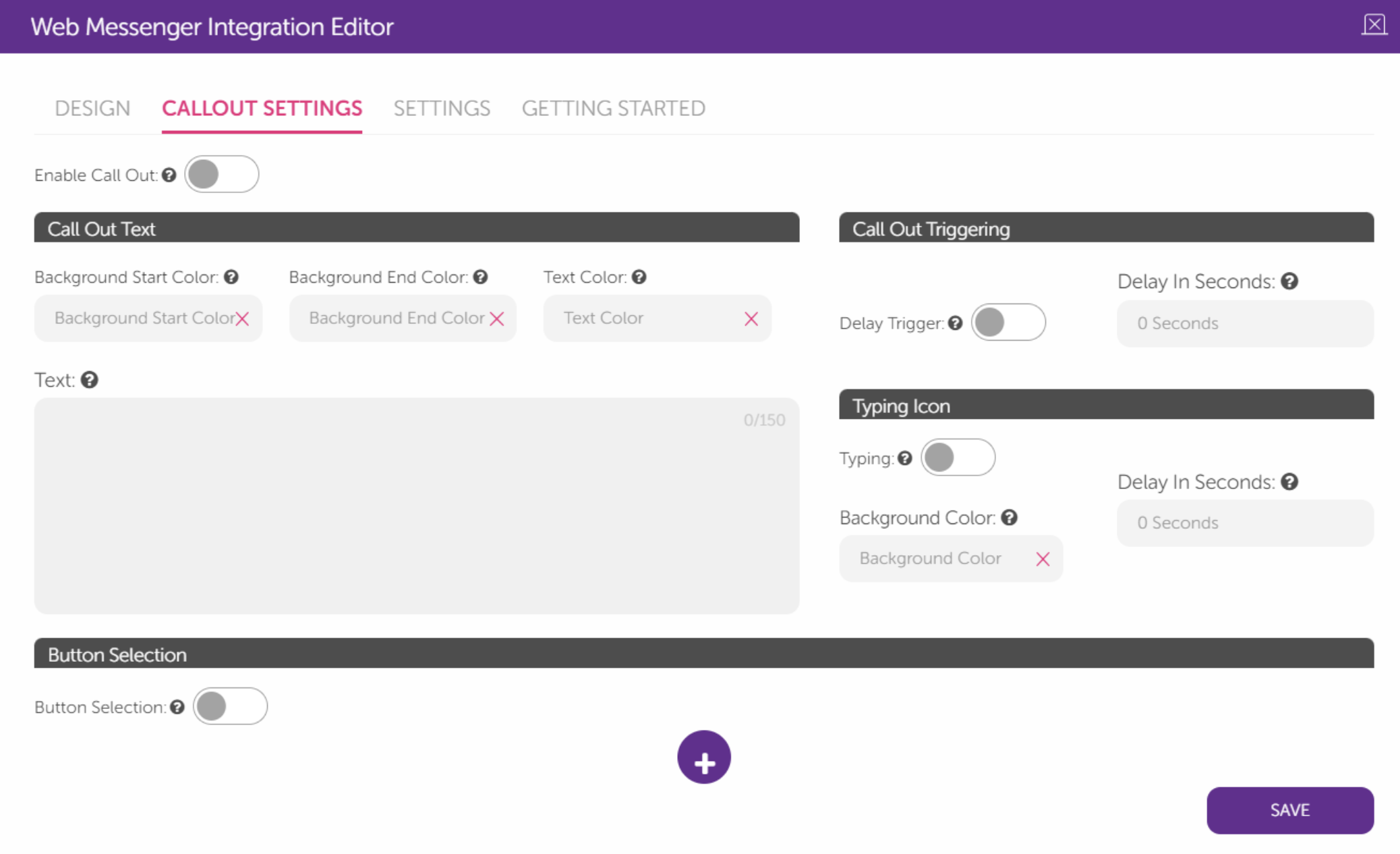 2. You can write your call-out text in the "Call Out Text" section. This section includes the fields below:
- Text: It includes a limit of 150 characters, which will be the main call-out message.
- Background Start Color and Background End Color: You can set the background gradient, if you want an even background (same color background) then select the same color in both fields.
- Text Color: You can choose the color of the text.
3. To use the Call Out Triggering, enable or disable the Delay Trigger toggle and determine the time in seconds before the Call Out appears in the Delay in Seconds.
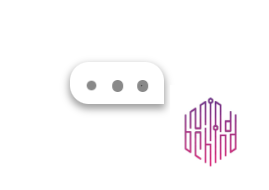
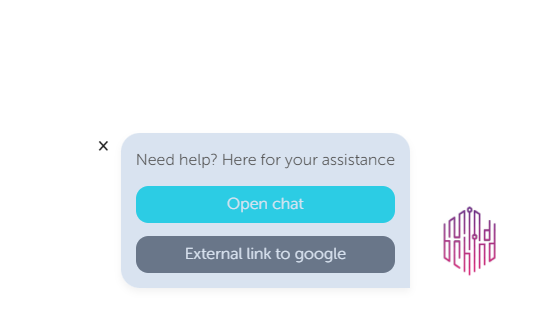 4. To set the typing icon to be displayed or not in the Web Messenger Editor, enable or disable the Typing toggle. You can also choose the Background Color and the Delay in seconds for the typing icon animation to start.
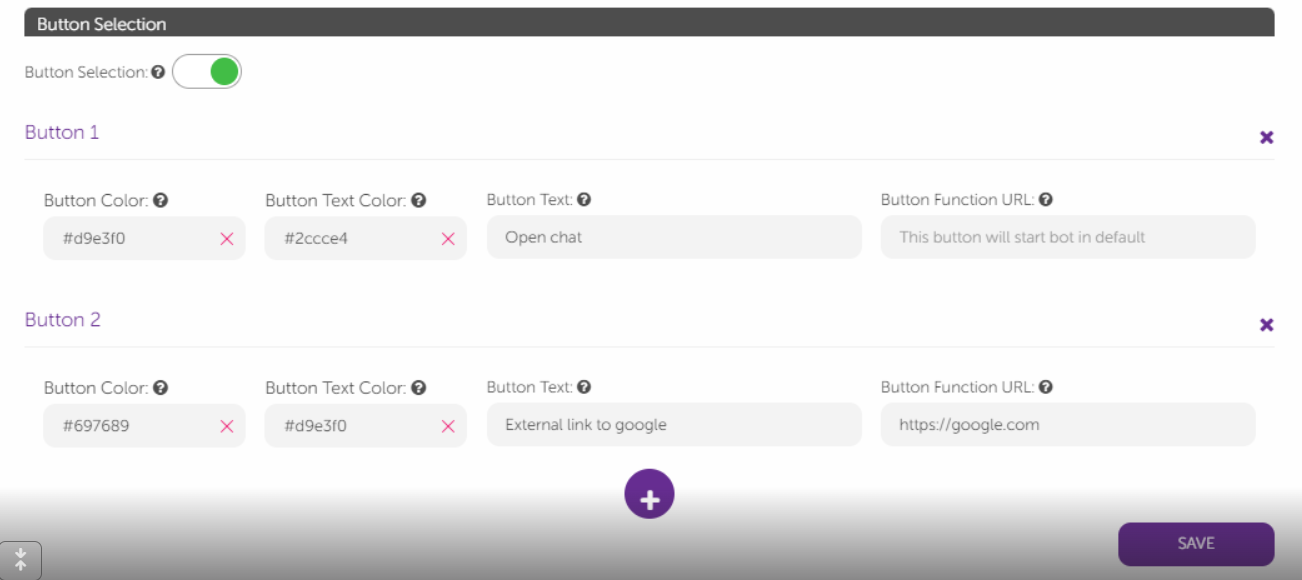
  5. If you want to show the buttons, slide the Button Selection toggle.
To add more buttons, you can click the plus (+) button at the bottom.