This guide aims to explain the parameters to use for Shopify. To learn how to use these parameters, follow the steps below:
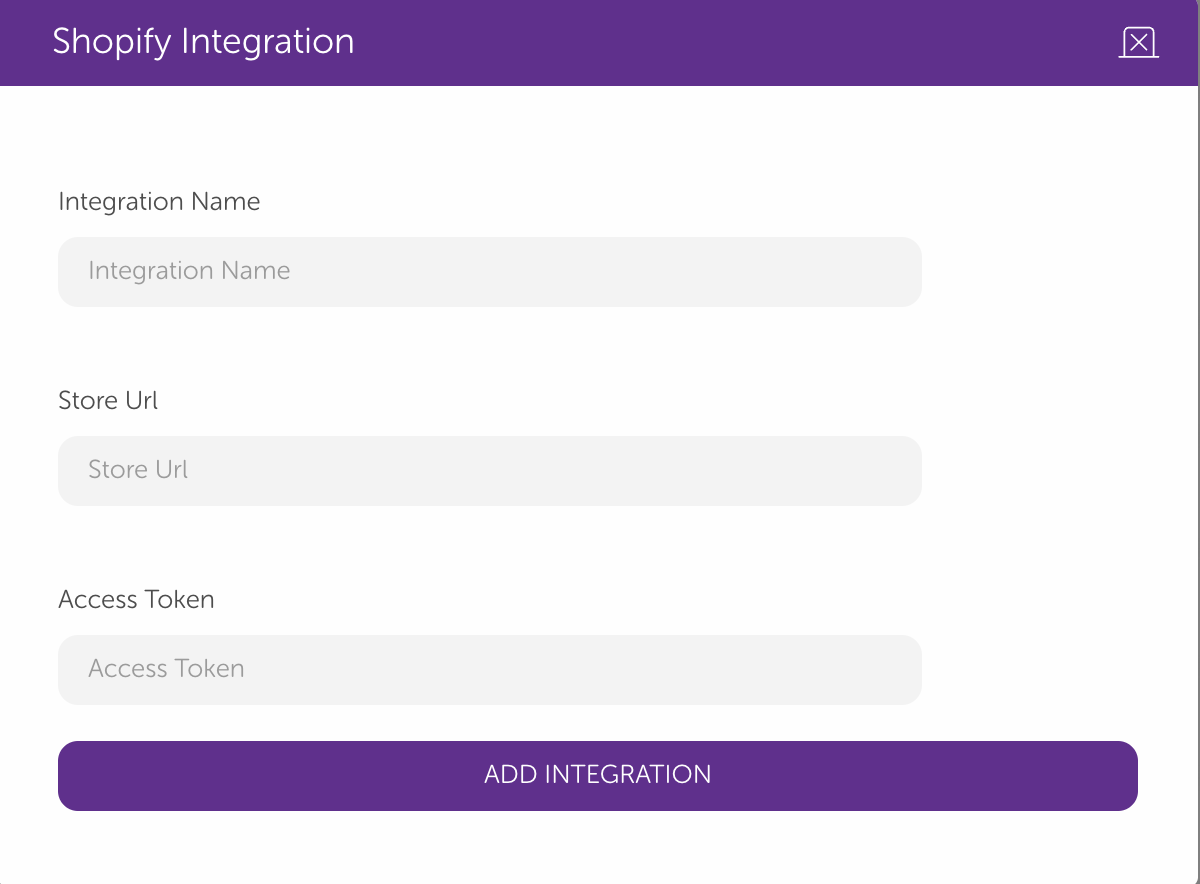
1. First, you should add Shopify integration to your company. 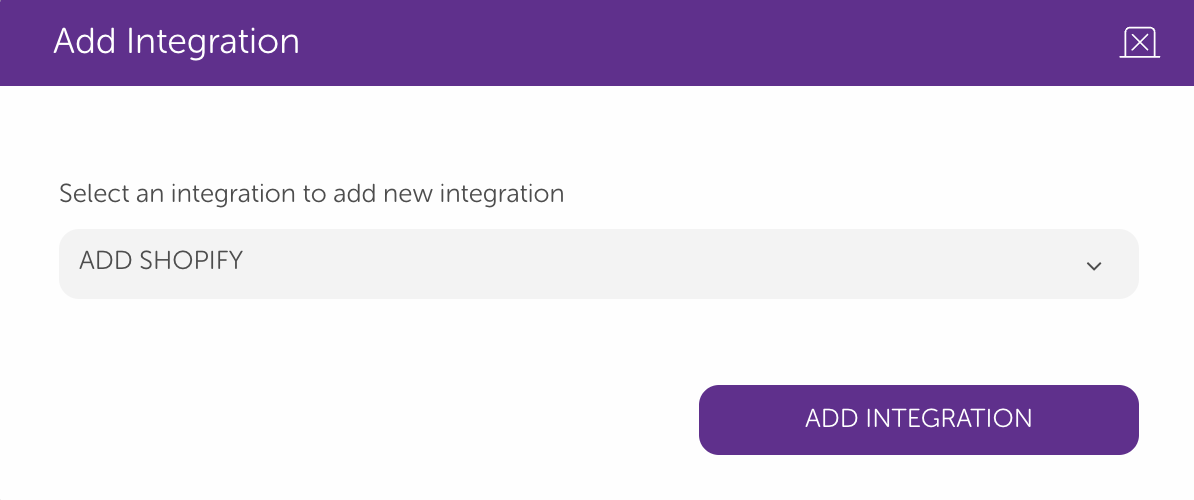 2. You can fill in the Integration Name with anything you want. You can get the Store URL and Access Token from Shopify.
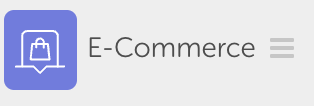
  3. Now, you can use Shopify integration on your bot with the E-Commerce module. Click on the E-Commerce module you see below.
  4. You can select your Shopify integration with the E-commerce Gateway section.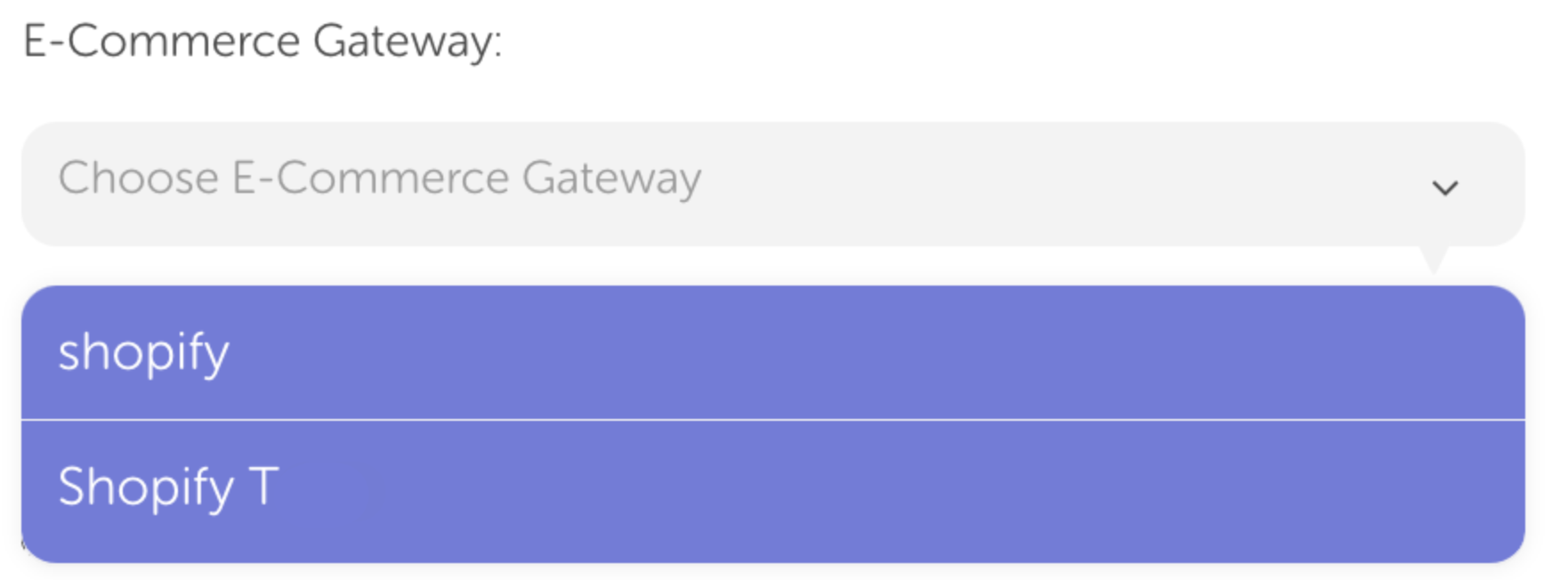
5. Now, you can select what you want with this module. You will see the action types below: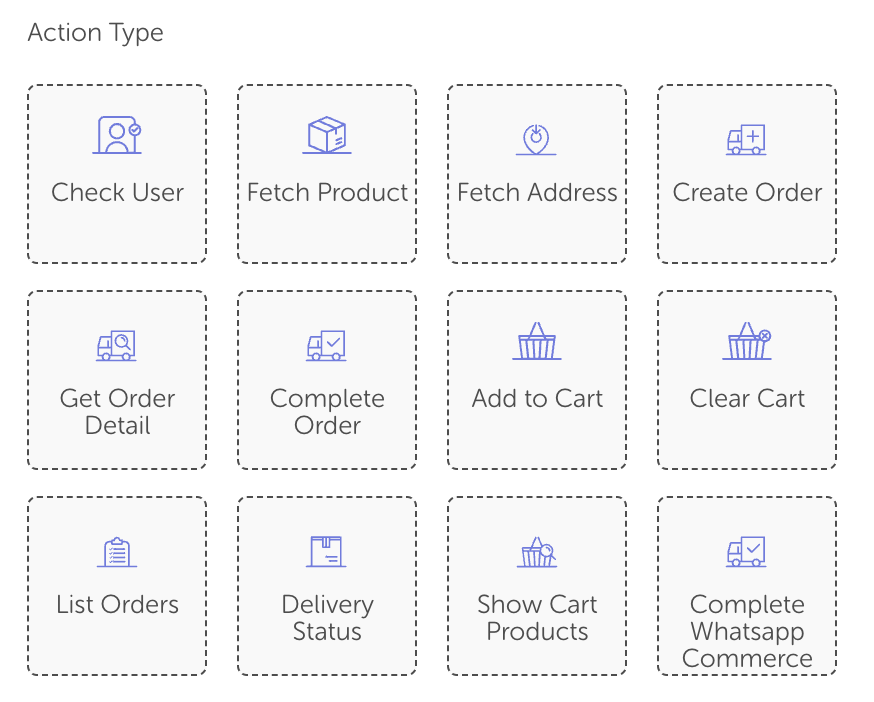
- Check User: You can get the information of customers. Also, you can check the user with a phone number or an email. If the user already exists, provide CUSTOMER_FOUND is 1 (true). Also, you can use these prefixes to retrieve customer information:
- ECOMMERCE_CUSTOMER_NAME: It gives the customer's name.
- ECOMMERCE_CUSTOMER_SURNAME: It gives the customer's surname.
- ECOMMERCE_CUSTOMER_ID: It gives the customer ID.
- Fetch Address: You can retrieve information on the address. You can use these prefixes:
- ADDRESS_FOUND: It provides 1 if the address exists.
- ECOMMERCE_ADDRESS_ID: It provides the address ID.
- List Orders: You can use it to list orders. You can use these prefixes:
- ORDER_FOUND: It provides 1 if the order exists.
- ECOMMERCE_ORDER_ID: It provides the order ID.
- Get Order Detail: You can retrieve selected order details. You can use these prefixes:
- ECOMMERCE_ORDER_STATUS: It provides order status.
- ECOMMERCE_ORDER_STATUS_URL: It provides the order status URL
- Delivery Status: You can retrieve the delivery status and information about the cargo. You can use these prefixes:
- ECOMMERCE_CARGO_NUMBER: It provides the cargo number.
- ECOMMERCE_CARGO_URL: It provides the cargo URL.
- Fetch Product: You can fetch products with the Product ID. You can use these prefixes:
- SHOPIFY_VARIANT_SELECTED: It provides 1 if the variant is selected.
- SHOPIFY_SELECTED_VARIANT_ID: IT provides the selected variant ID.
- Add To Cart: You can add selected products to the cart with the Product ID. If a variant is selected, you can use SHOPIFY_SELECTED_VARIANT_ID as Product ID. Check variant with SHOPIFY_VARIANT_SELECTED prefix. You can use these prefixes:
- ECOMMERCE_SELECTED_PRODUCT_DESCRIPTION: It provides the selected product description.
- ECOMMERCE_SELECTED_PRODUCT_PRICE: It provides the selected product price
- PAYMENT_AMOUNT: provides the total payment amount
- Show Cart Products: You can see your cart.
- Clear Cart: You can clear your cart.
- Create Order: You can create an order with ECOMMERCE_ORDER_CODE.
- Complete Order: You can complete the order, and you can see the result of the order with these prefixes:
- ECOMMERCE_ORDER_COMPLETED: It provides 1 if the order is completed.
- PAYMENT_IS_SUCCESS: It provides 1 if a payment is successful.
- SHOPIFY_TRANSACTION_ID: It provides the transaction ID.