This guide aims to explain how to integrate a Shopify store into MindBehind.
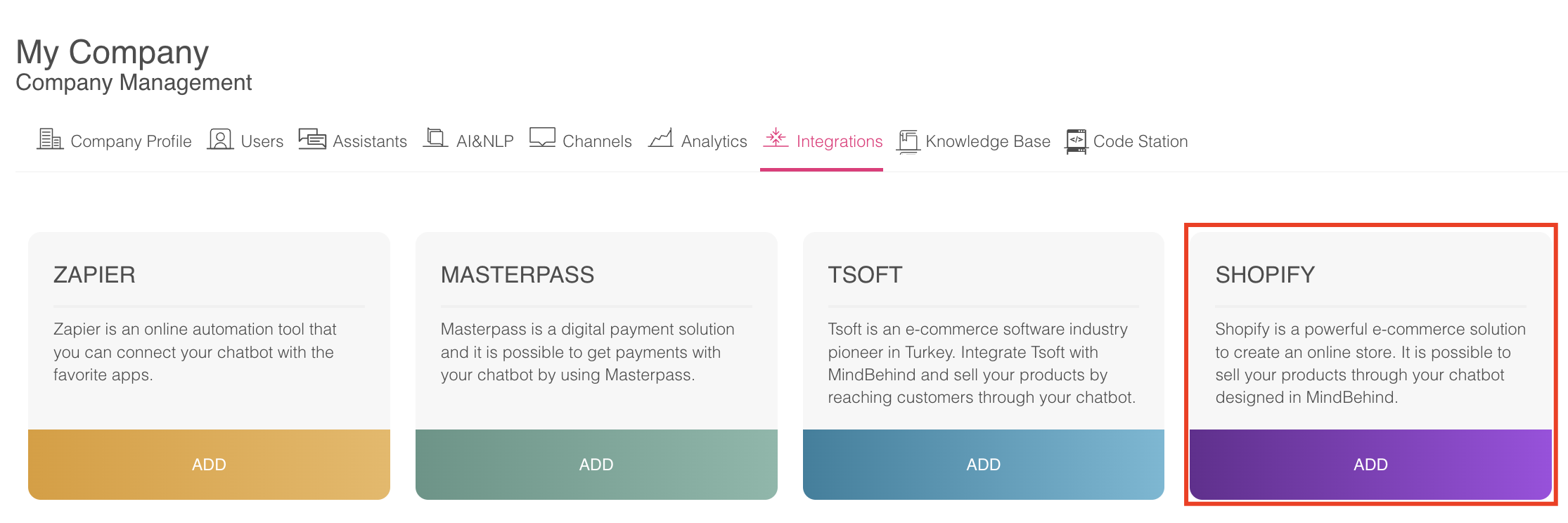
Navigate to the Company Management > Integrations tab to see the Shopify integration. Click the Add button for Shopify.
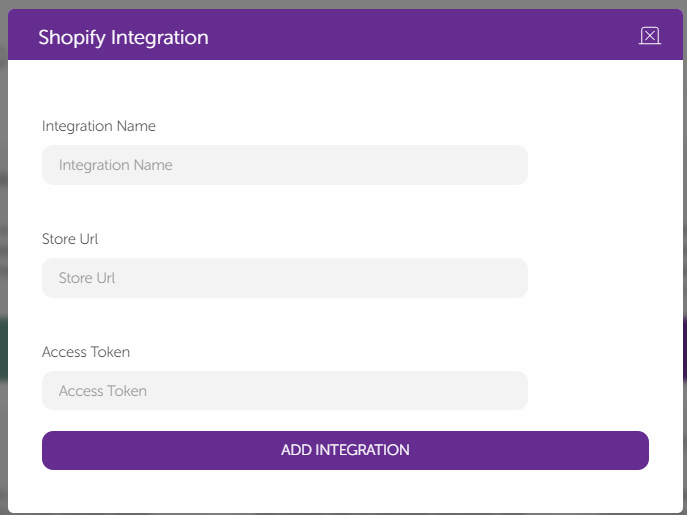
The form that directly pops up shows the required information to connect to your Shopify store. URL represents your regular URL directed to the relevant store.
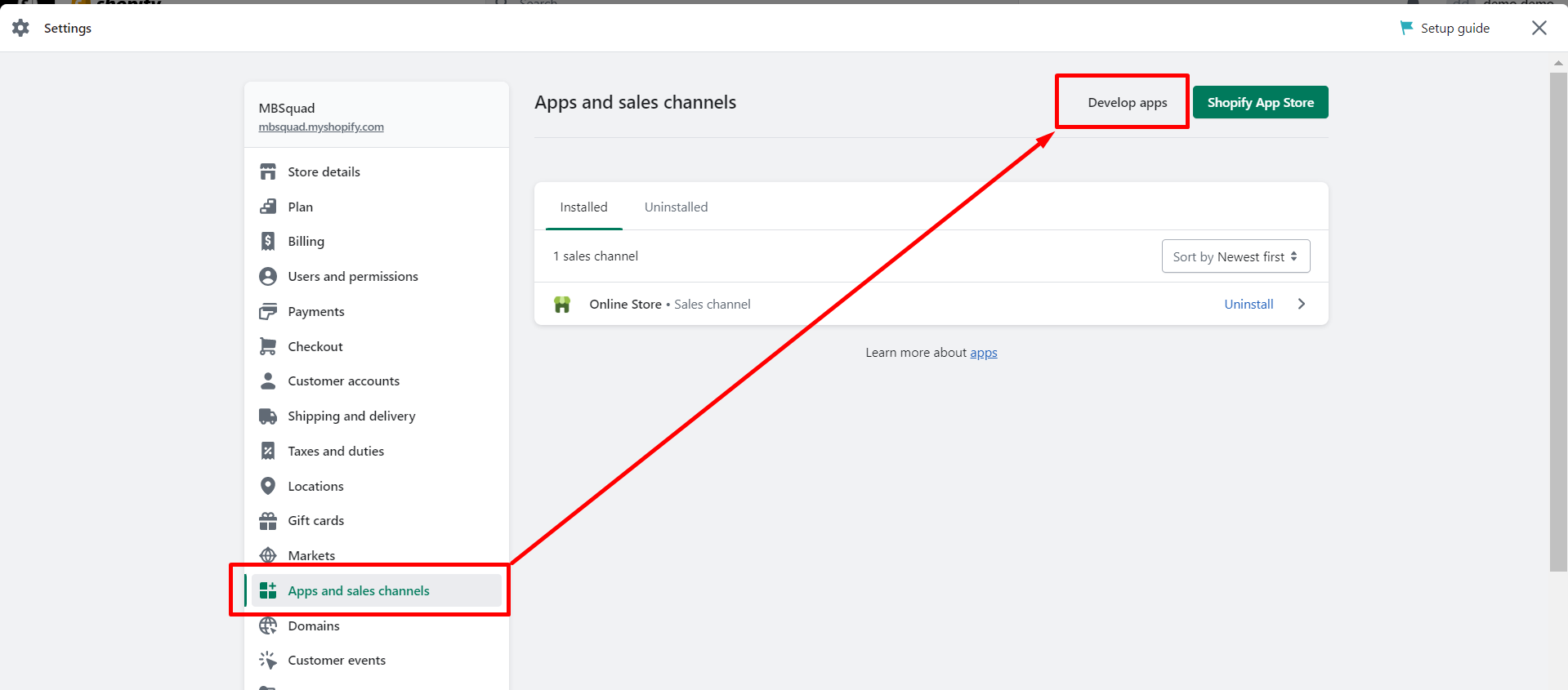
To get the Access Token, navigate to your Shopify account > Apps and sales channels. On this page, click the Manage private apps option and select "Develop apps for your store."
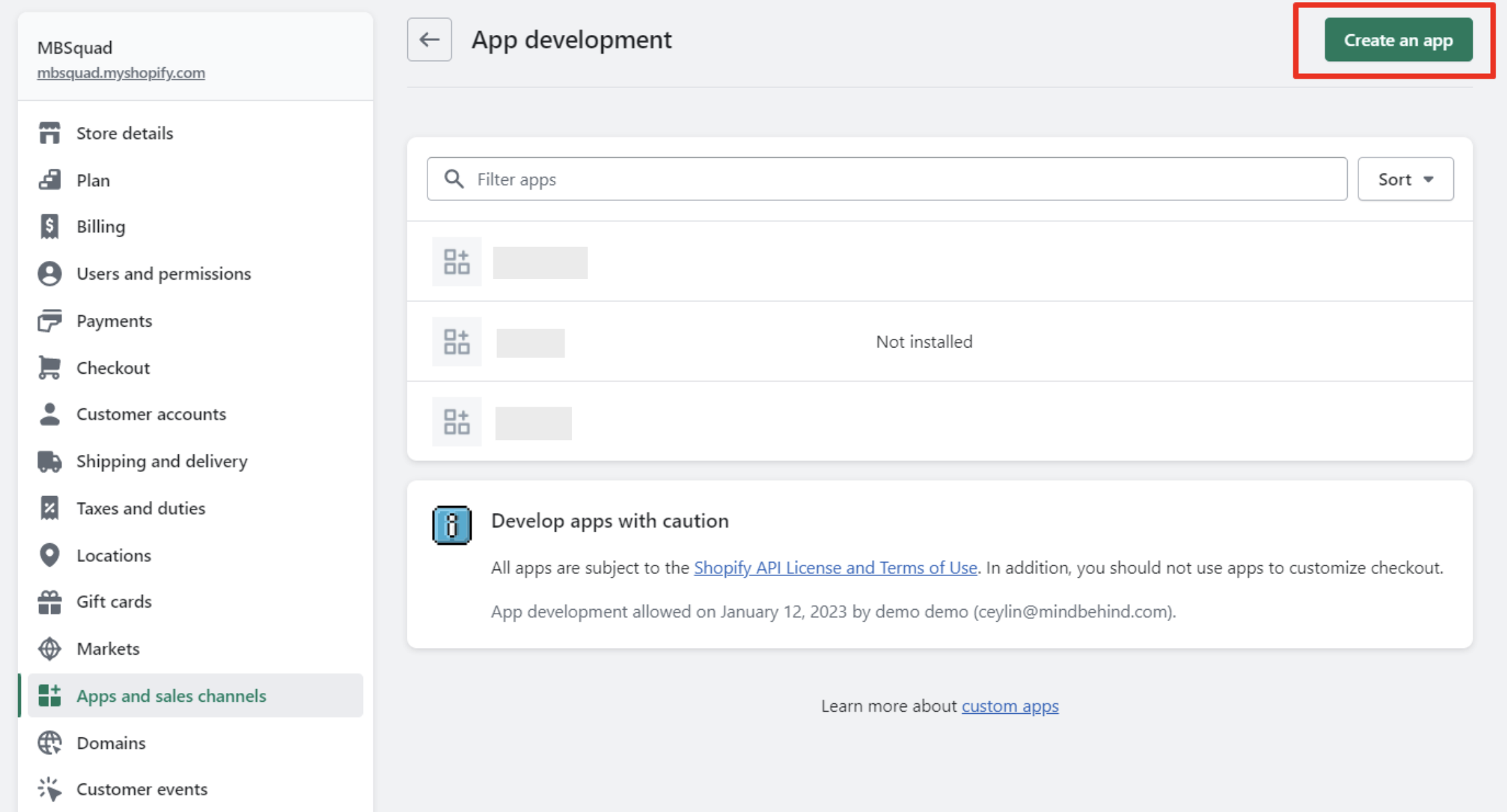
Click the Create an app button.
You need to give a name to your new app; you can use any name you want and click the Create app button.
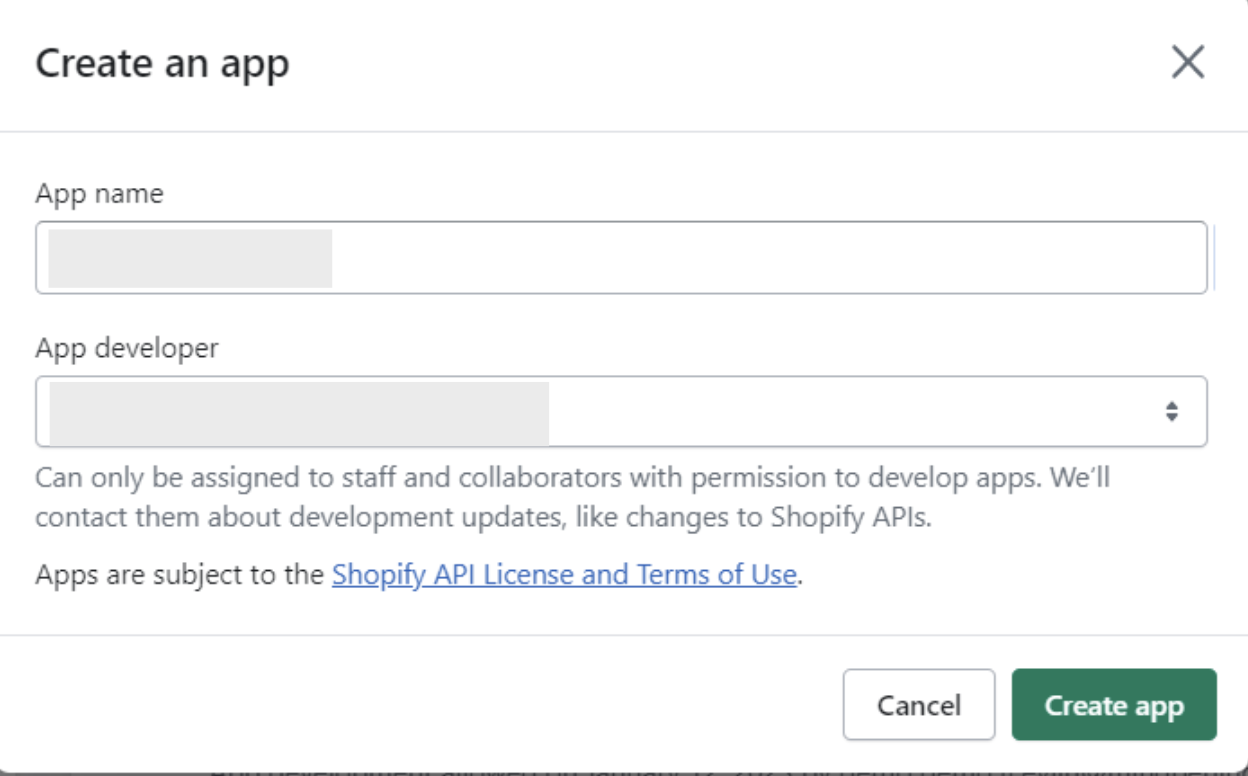
Before coming to this step, Shopify might ask you to give permission to create a new app.
To continue, you need to provide an emergency developer email. To ensure your Shopify integration works properly, ensure your Admin API settings give access, as in the following table.
Permission | Write/Read |
|---|---|
Assigned Fulfillment Orders | Write/Read |
Customers | Write/Read |
Draft Orders | Write/Read |
Merchant-managed Fulfillment Orders | Write/Read |
Order editing | Write/Read |
Orders | Write/Read |
customer_merge | Write/Read |
Files | Read |
Inventory | Read |
Product Listings | Read |
Products | Read |
Shipping | Write/Read |
7. Select the Webhook API version as 2023-04. 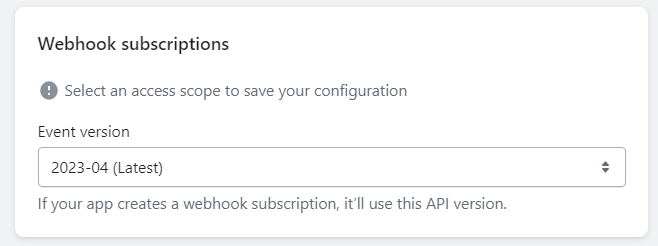 8. After giving the permissions, click the Save button. Then, you will see a pop-up again. To confirm, click on the Create app button.
 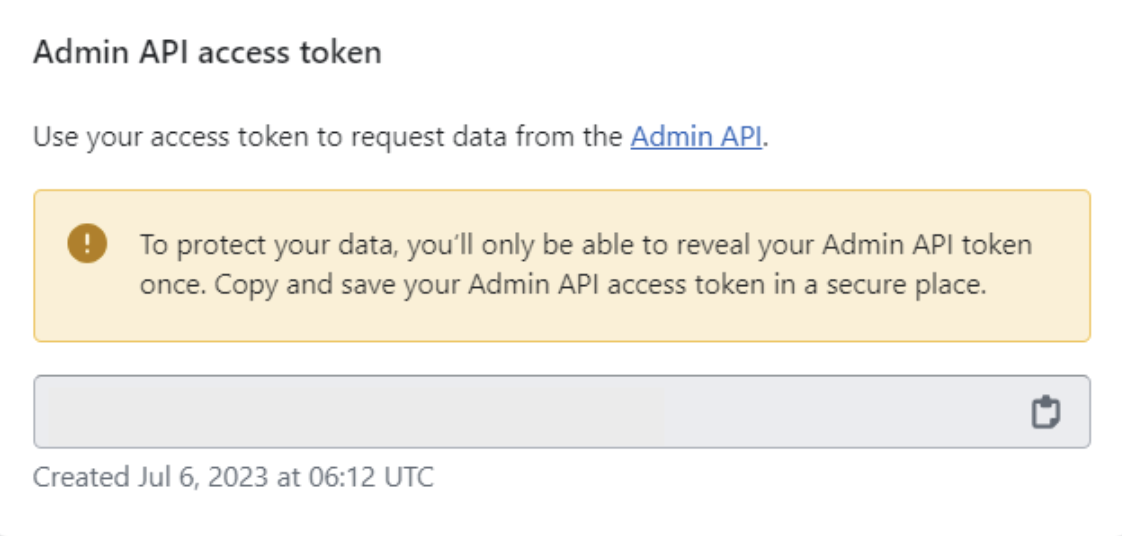 9. This will lead you to the page where you see the API key and password. Copy this information and paste it into the form in MindBehind.
10. After completing these steps, you will see the Shopify integration in the Integrations section. You can go to the E-Commerce module in your assistant, select this integration, and use it directly. You are all set.
Publish assistant with Shopify
To publish your assistant with Shopify, you can follow the steps below.
1. Navigate to your Shopify page > Online Store > Themes.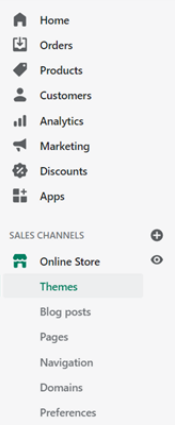
2. You will see your current theme. Click the Customize button. 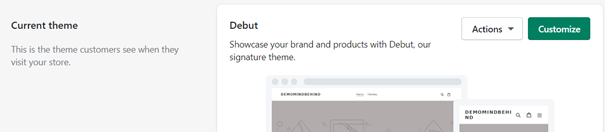 3. Navigate to the Theme Actions > Edit Code option.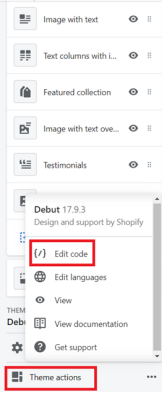
4. Select "theme.liquid" under the Layout. 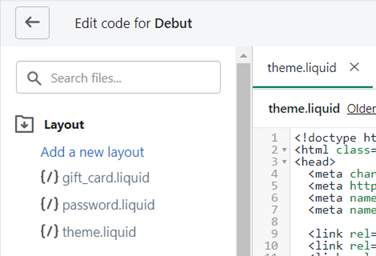 5. Scroll down to the end of your "theme.liquid code". You can paste your script between </ul> and </body>.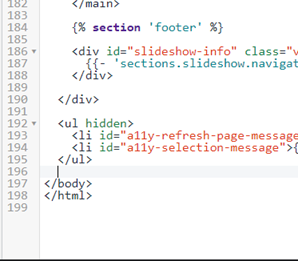
After you save it, you will be able to see your chatbot.
Refer to the ECommerce Action guide to learn how to use the ecommerce module for Shopify integration.