Suggested reading: Integrate Code Station
Ticimax is a SaaS solution technology company that provides ecommerce and export software, special e-commerce solutions, mobile applications, and design services.
You can create your code block for Code Station from scratch or integrate a template. One of these templates is the Ticimax template.
This guide aims to answer the questions below:
What are the requirements before using the Ticimax Code Station template??
How can I use the Ticimax Code Station template for the code module?
Requirements
Before adding the Ticimax template to your code module, you need to complete the requirements below:
1. Navigate to Companies > Your Company > Code Station > Secret Manager.
2. Click the Add Secret button and add the property keys and values below:
Your "WS_AUTH_CODE",
Your company's website URL,
"CARGO_ID".
.png)
3. To generate your "WS Authorization Code", go to the Ticimax panel.
4. You can also get the "Cargo ID" information in the Company Management menu in the Ticimax panel.
5. After filling in the required fields, click the Add Secret button. 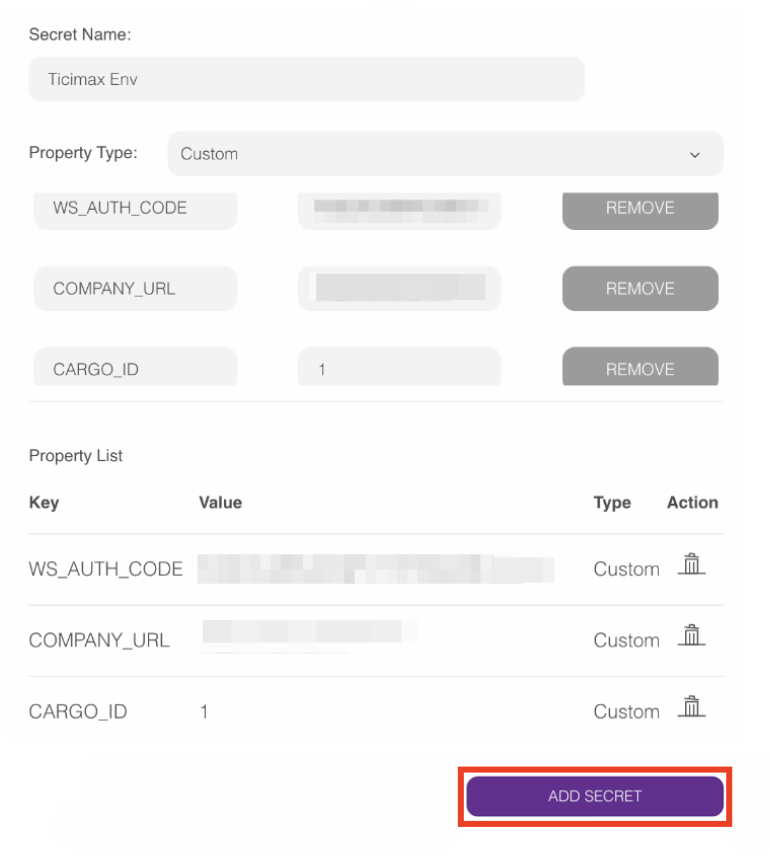
How to add the Ticimax template to the code module
After completing all the requirements, follow the steps below to add your Ticimax template to the code module:
1. Navigate to Companies> Your Company> Code Station. Click the Add Code Block button. 
2. Click the Select button for the Create from Template option..png)
3. Click the Select button on the Ticimax template. 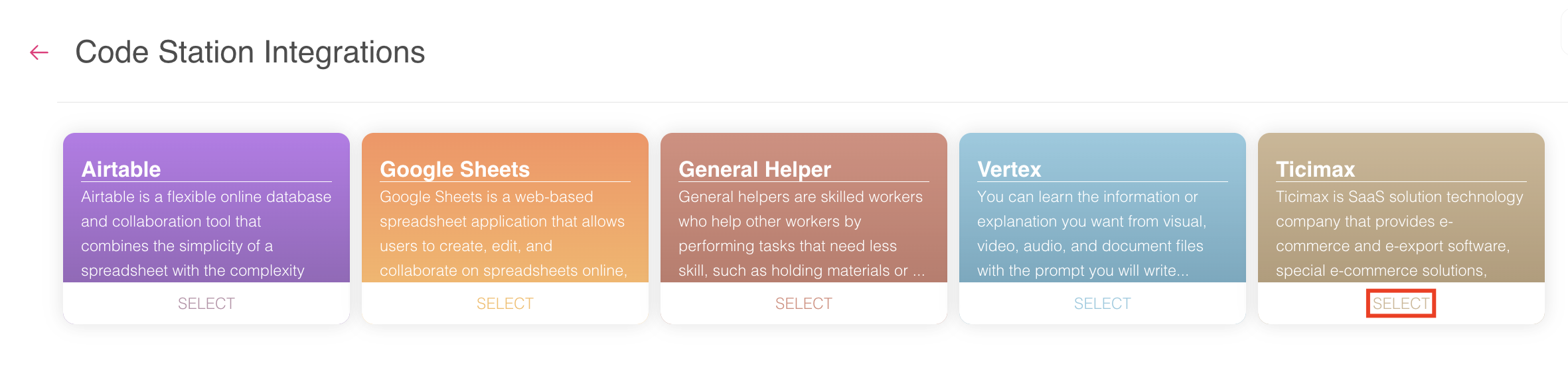
4. Name your function, select your template, and your secret. Click the Add Code Block button.
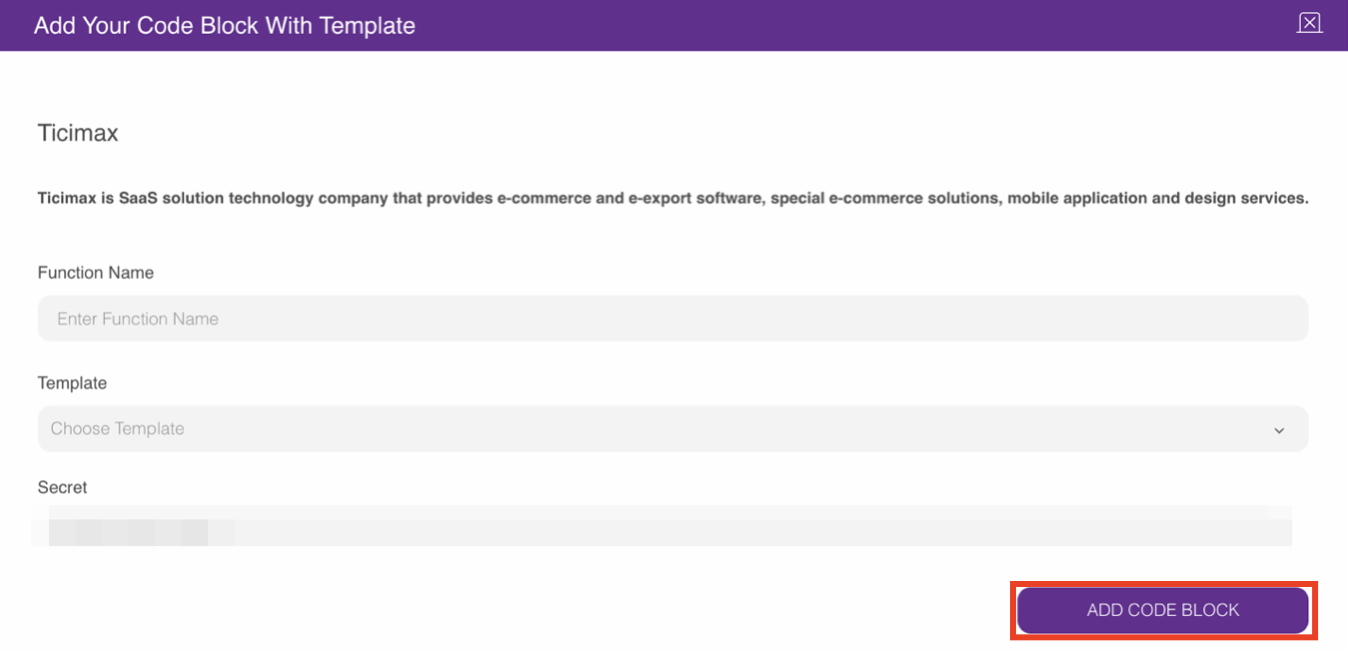
Now, you can use your Ticimax Code Station template in your maps.
Ticimax Code Station template services
You can use the Ticimax Code Station template services and their functions in the table below in your code modules:
Service | Function | Output Parameter |
|---|---|---|
Add to cart | It allows users to add products to their shopping cart. | <addBasketStatus> (true/false) |
Clear cart | It empties all items from the user's shopping cart. | <clearBasketStatus> (true/false) |
Create address | It allows users to save a new shipping or billing address. | <createAddressStatus> (true/false) |
Create order | It completes the purchase of items in the cart, creating an order. | <orderCreateStatus> (true/false) |
Get the city name | It provides the name of a city based on its ID. | <getCitiesServiceStatus> (true/false) |
Get district name | It provides the name of a district based on its ID. | <getDistrictServiceStatus> (true/false) |
Get order | It retrieves details of a specific order. | <userGetOrderStatus> (true/false) |
Get product by stock code | It fetches product details using a unique code. | <checkProductCodeStatus> (true/false) |
Get product count in cart | It shows the number of items in the user's cart. | <checkUser> (true/false) |
Get user by phone | It finds user details using their phone number. | <checkUser> (true/false) |
List address | Displays all addresses saved by the user. When you create this code function, you need to fill all the parameters inside the code module because this code module creates a pagination list with your filled parameters. These fields cannot be empty. | - |
List cart | It shows all items currently in the user's cart. | <listBasketStatus> (true/false) |
List city | It provides a list of all cities available. | - |
List districts by city ID | It displays all districts within a specific city. | - |
List order | It displays all orders made by the user. | - |
All the “List” services create pagination lists, and you have to fill all the fields in the parameters section.