Suggested reading: Integrate Code Station
You can use One-Time Password (OTP) verification through SMS and WhatsApp with Code Station Templates.
This guide provides answers to these questions:
- What are the requirements for using the OTP template?
- How can I use the OTP template in Code Station modules?
- How can I use the OTP template in the maps?
Requirements
Before using the OTP template in your Code Station modules, you should create a Secret Key.
1. Navigate to Companies > Your Company > Code Station > Secret Manager.
2. Click the Add Secret button and add the parameters below:
- BASE_URL: If you use Insider’s OTP services, you can use “https://verify.useinsider.com” as the endpoint.
- X_INS_AUTH_KEY: To create an API key from Insider’s services, refer to the Generate API Keys.
.png)
After generating the Secret Key, you can create code modules to generate and verify the OTPs.
How to use the OTP template in Code Station modules
After completing the requirements above, follow the steps below to create your OTP template:
1. Navigate to Companies> Your Company> Code Station. Click the Add Code Block button.

2. Click the Select button for the Create from Template option..png)
3. Select the OTP integration.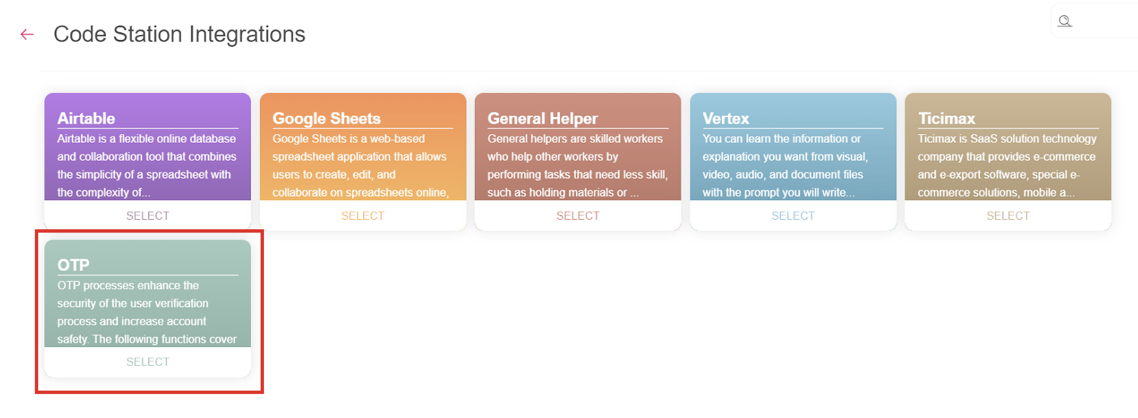 The OTP category has two functions, and it is important to use both of them:
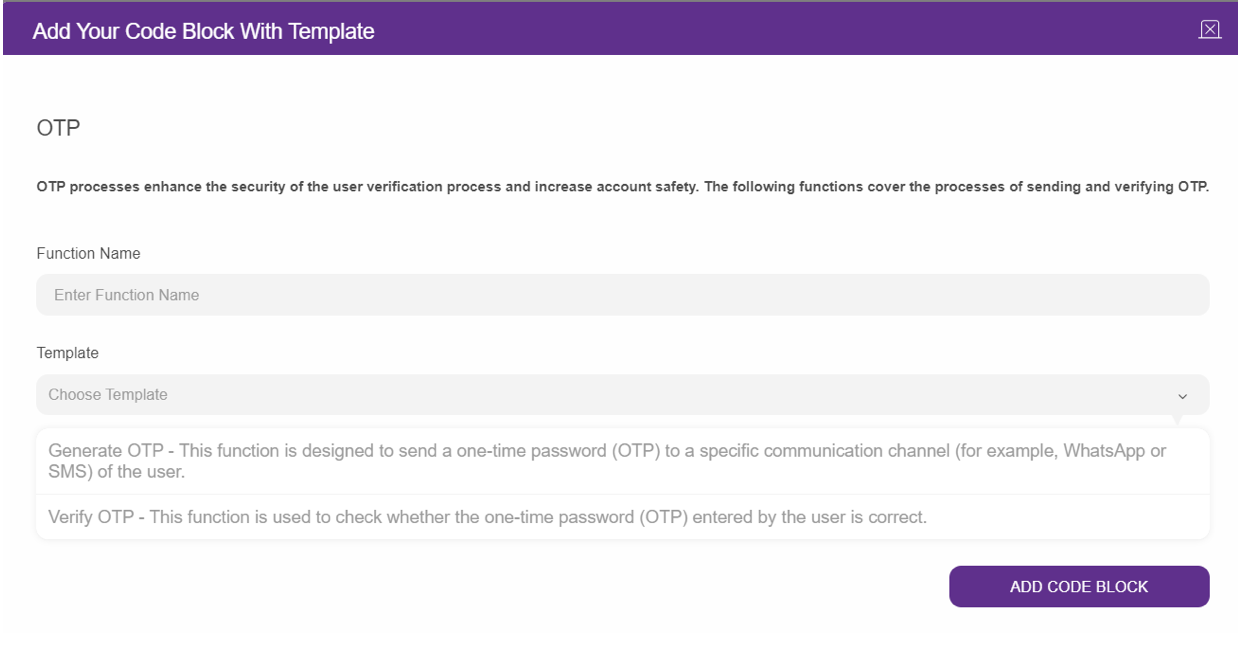
- Generate OTP: This function is designed to send a one-time password (OTP) to a specific communication channel (for example, WhatsApp or SMS) of the user.
- Verify OTP: This function verifies whether the one-time password (OTP) entered by the user is correct.
4. Choose the template you want to use.
5. Select the Secret Key that you created for your code block in the requirements steps. Click the Add Code Block button. 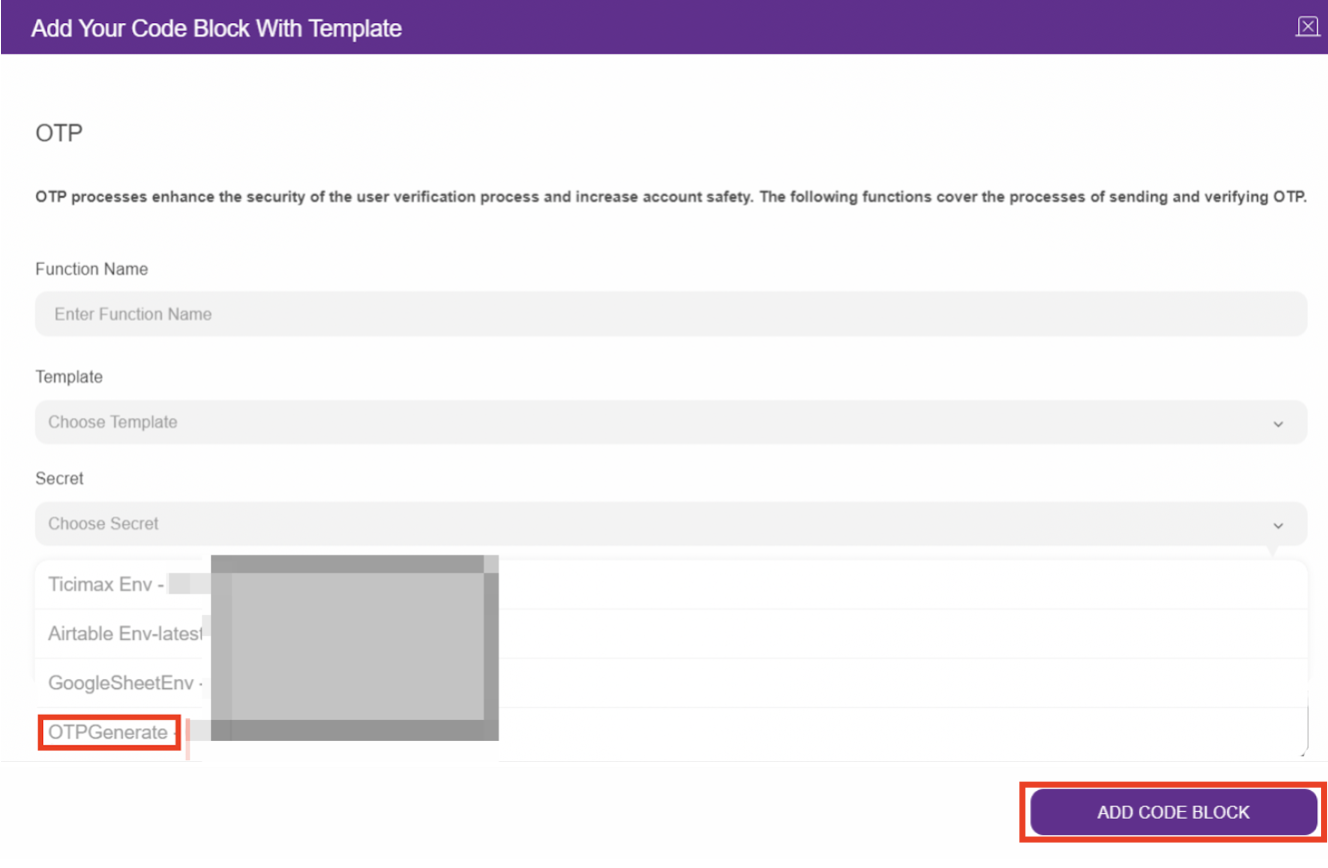
How to use the OTP template in the maps
You can use the OTP template in your maps to both generate and verify OTP's.
To use the Generate OTP function, you should add certain parameters in the Code Station Action module:.png)
You can find these parameters and their functions in the table below:
| Parameter | Function |
|---|---|
| to | It specifies the destination phone number in E.164 format to which the OTP code will be sent (+90XXXXXXXXXX, +55XXXXXXXXXX).
|
| channel | It indicates the channel through which the OTP code will be sent (SMS or WhatsApp).
|
| codeLength | It specifies the length of the OTP code to be generated, which must be between 4 and 8 digits. For example, when you set the codeLength to 5, OTP will look like XXXXX).
|
| locale | It determines the language in which the OTP code message will be sent (For example, tr: Turkish, de: German, en: English, etc.)
|
| ttl | It specifies the Time-To-Live (TTL) duration for the OTP code, indicating the time window within which the OTP code is valid. This is measured in seconds (min: 60, max: 600).
|
| maximumAttempts | It sets the maximum number of allowed OTP verification attempts. If verification fails after reaching this limit, further attempts might be denied (min: 1, max: 10).
|
To use the verify OTP function in your maps, you need to include certain parameters in the Code Station Action module:
.png)
You can find these parameters and their functions in the table below:
| Parameters | Function |
|---|---|
| code | It is the OTP code that you received. |
| to | It is the phone number to which the OTP code is sent. |
Output parameters of the Generate and Verify OTP functions are:
- Generate: isSent (true/false)
- Verify: isVerified (true/false)