The Manager Dashboard gives managers a quick overview of how their team is progressing through Insider One Campus learning content.
Instead of reviewing each learner individually, the dashboard helps you monitor activity, track progress, and identify learners who may need support.
In this guide, you will find answers to these questions:
Refer to the video below for an overview of the Manager Dashboard and learn how team leaders can track learning progress, monitor engagement, recognize achievements, and support continuous growth across their teams.
How do managers use the Manager Dashboard?
Managers can use the dashboard as a regular learning health check.
Typical workflow:
Select a timeframe (for example, the last 30 days).
Review enrollment, start, and completion trends.
Check overdue learning.
Identify learners who may need encouragement.
Celebrate credentials (badges) earned by the team.
This approach helps maintain consistent engagement and accountability.
Who Can Access the Manager Dashboard?
The Manager Dashboard is available to users who manage at least one team member in Insider One Campus.
You can reach out to the Insider One team at CEDX@insiderone.com to request access. Access is typically enabled based on your role and team structure.
Navigate to the Manager Dashboard
To access the Manager Dashboard,
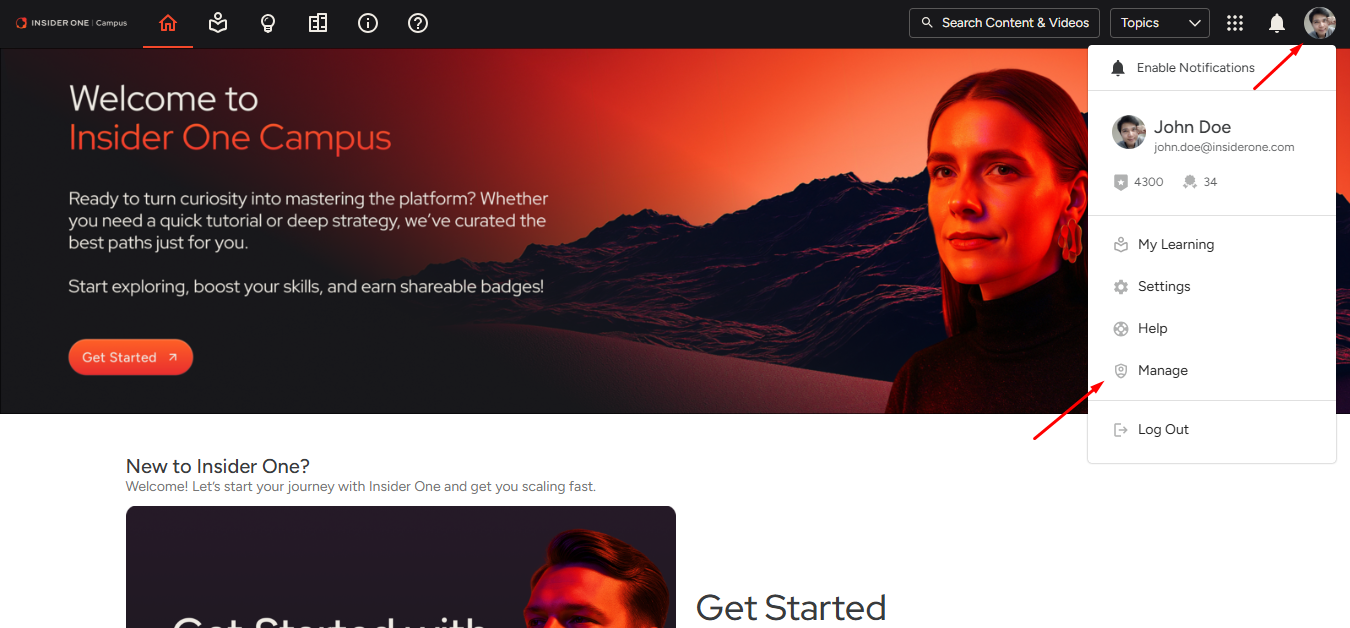
Go to the Insider One Campus homepage, click your user icon, and select Manage to open the Manage interface.
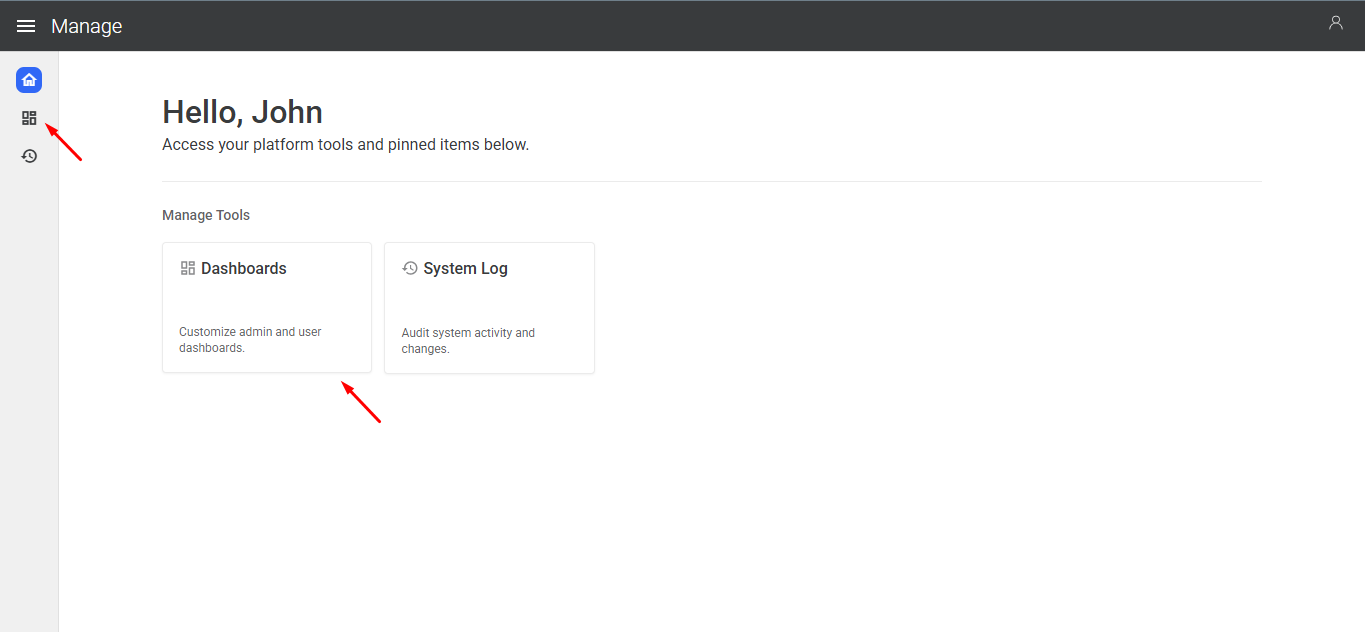
Click the Dashboards tile or the Dashboards icon in the navigation bar.
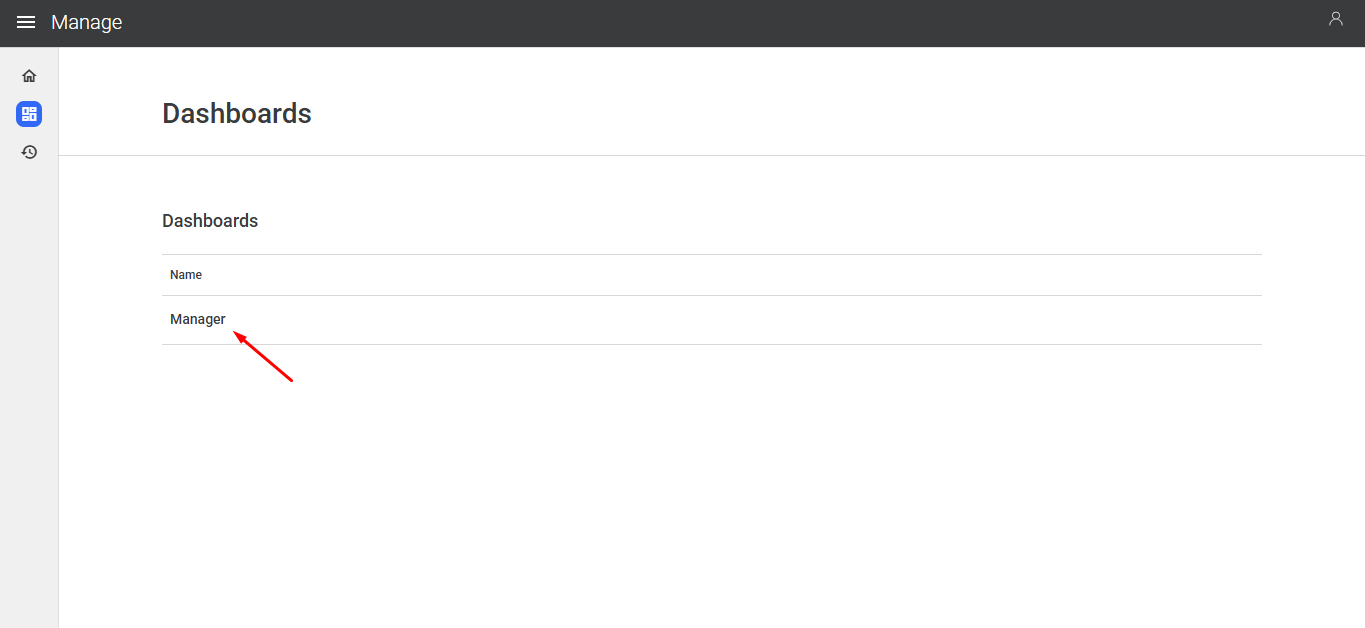
On the Dashboards screen, select Manager.
Filters
At the top of the dashboard, you can use filters to focus on a specific learning activity.

Available filters:
Activity: View data for specific learning content
Timeframe: Last 30 days, 90 days, or 1 year
Enrollment type: Filter by how learners were enrolled in the content
Elected → The learner self-enrolled in the content
Other enrollment types → The content was assigned by a manager, administrator, or automation
Learner: View data for a specific team member
Key Manager Dashboard Sections
My Team’s Recent Activity
This section shows learning trends over time using line and donut charts.
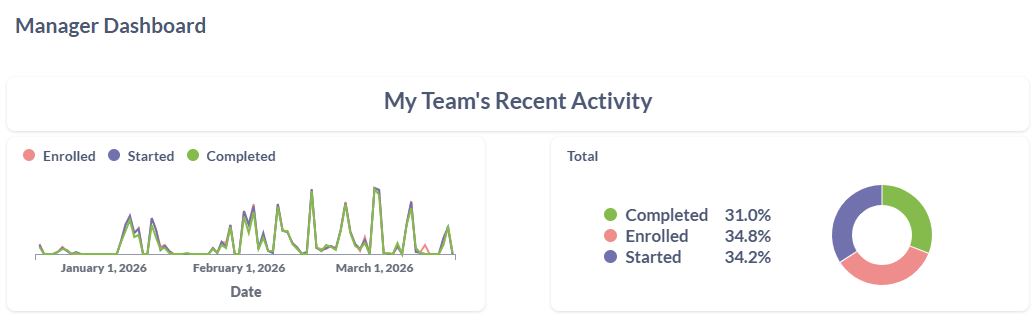
It highlights:
Enrollments
Content starts
Content completions
If these three lines stay close together, it typically indicates healthy engagement and consistent learning progress.
You can also hover over charts to see detailed metrics.
Overdue
The Overdue section helps you identify learning content that has passed its due date.
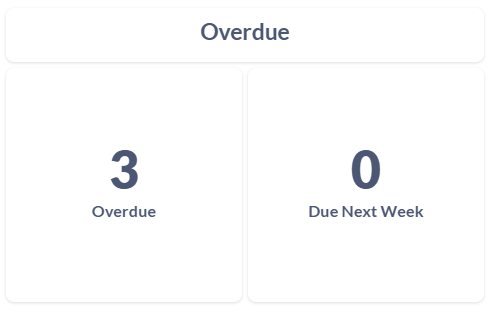
Use this section to:
Spot learners who may need reminders
Encourage completion of required training
Keep your team on track with learning goals
Only content assignments with a due date appear in this section.
My Team’s Progress
This section summarizes the overall status of your team’s learning content.
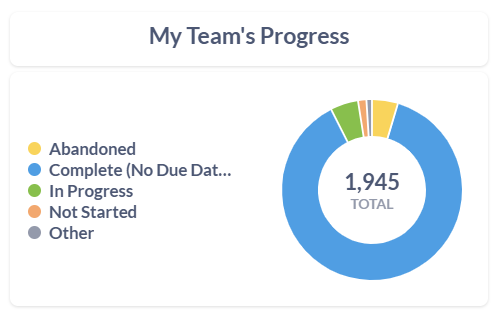
You can see how many enrollments are:
Not started
In progress
Completed
Abandoned
This provides a quick snapshot of engagement across your team.
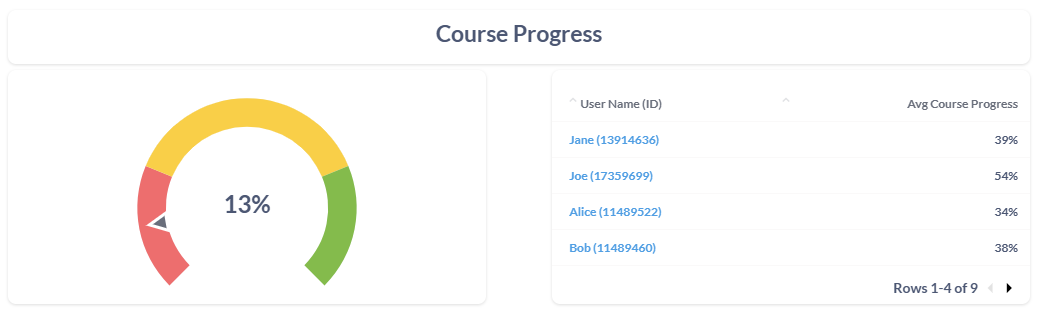
Course Progress
The Course Progress gauge shows overall completion rates.
You can view:
Total completion percentage
Progress by individual team member
This helps you quickly identify who may need additional support.
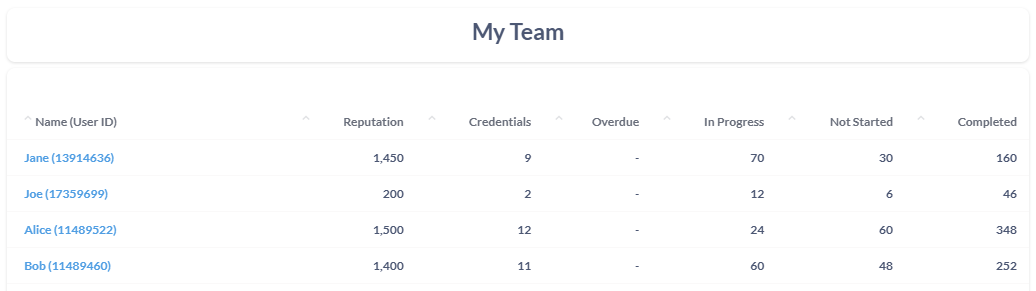
My Team
The My Team section shows a summary of each team member’s learning activity and achievements.
For every learner, you can see:
Reputation (skills): Points earned when a learner passes assessments. These points reflect how much they have learned across different products and help indicate their overall expertise level.
Credentials (badges): Recognitions earned after passing assessments. Each badge represents proven knowledge in a specific product or topic.
Learning activity status: Current progress (for example: not started, in progress, or completed)
This makes it easy to recognize achievements and encourage continued learning.
Skill points are awarded based on the level of the assessment:
100 points for passing the Essentials (beginner-level) assessment
250 points for passing the Deep Dive (intermediate-level) assessment
500 points for passing the Strategy Hub (advanced-level) assessment
By using the Manager Dashboard regularly, managers can support continuous learning and help their teams build product expertise in Insider One.