Account & Access
How is my Campus account created?
Your Insider One Campus account is usually created during onboarding. You will receive a “Welcome to Insider One Campus” email with your login instructions.
If you do not receive this email, or if you need to request an account, please contact the Insider One team at CEDX@insiderone.com.
How do I log in to Insider One Campus for the first time?
You will receive login instructions via email titled “Welcome to Insider One Campus.” Follow the steps in that email to access your account and set your password.
Do I need to log in to use Insider One Campus?
Yes. You can browse and see what content is available on Insider One Campus without logging in. However, you need to log in to access lessons, take assessments, track your progress, and earn badges.
What should I do if I forgot my password?
On the login screen, click “Forgot Password?” and follow the steps to reset it.
Who should I contact if I have access or login issues?
You can contact the Insider One team at CEDX@insiderone.com.
Will my Insider One Campus account expire or be deactivated?
Your Insider One Campus account does not expire on its own. It remains active for as long as your organization continues its relationship with Insider One.
Platform Usage
When should I use Campus vs Academy vs Use Case Library vs Help Center?
Use each platform based on what you need at that moment:
Campus → When you want guided training from Insider One experts to master key strategies and earn badges that showcase your expertise. You can follow structured paths, watch videos, or register for a live training.
Academy → When you want quick answers and how-to guides for a specific product and/or feature.
Use Case Library → When you are looking for real-world examples, campaign ideas, and inspiration to apply Insider One in your own strategy.
Help Center → When you need to troubleshoot an issue or connect with a support team member for one-on-one help.
Getting Started
Where should I start if I am completely new to Insider One Campus?
Start with the “New to Insider One?” section on the homepage. This will guide you through:
Insider One platform basics
Onboarding Center, a guided wizard that helps you set up your Insider One account step by step
Do I need to follow the learning paths in order?
Not strictly, but it’s recommended.
Essentials > Deep Dive > Strategy Hub is designed to build knowledge step by step.
Skipping levels can work if you already have experience, but you may miss context.
Tip: If something feels confusing in Deep Dive, go back to Essentials.
How do I know if I’m “ready” for Deep Dive or Strategy Hub?
General rule:
If you understand the basics but can’t execute confidently → Deep Dive.
If you can execute but want better results → Strategy Hub.
You should pass the assessment for your current level before moving to the next one.
Learning Experience
How long does it usually take to complete a learning path?
Most learning paths take around 30 minutes to 1.5 hours, depending on the product and level. However, it’s recommended to learn at your own pace and take time to apply what you learn in the panel. Learning is more effective when you practice while you learn.
How do I continue from where I left off?
Simply open the same content again. Your progress is saved automatically.
You can also find your in-progress content in My Learning (top navigation) > Up Next.
Can I learn multiple products at the same time?
Yes. Many users learn multiple products in parallel.
Best approach:
Focus on 1–2 products at a time, the ones you actively use in your account
Finish at least one path before switching fully.
Use My Learning (top navigation) > Up Next to stay organized.
What’s the fastest way to get value from Campus?
If you’re short on time:
Complete the Essentials path to build a strong foundation.
Move to key lessons in Deep Dive that match your immediate needs.
Use Video Hubs for quick understanding and fast answers.
Apply what you learned in your daily work.
Come back later to complete the remaining content and earn more badges.
Are Video Hubs enough, or do I also need to complete lessons?
Video Hubs are for quick learning. They help you understand basic concepts and get a quick overview of features. However, they do not go into full detail. For a complete understanding, Insider One strongly recommends following the paths in Learning Hubs.
What should I do if a learning path feels too advanced?
If a path feels too difficult, you can go back to the previous level (for example, from Deep Dive to Essentials) and apply what you learn in the panel to improve understanding.
Do I need to be logged in to the Insider One (InOne) panel while learning?
No, it is not required. However, it is recommended because it allows you to follow along and apply what you learn directly in the product, making learning more effective.
Navigation, My Learning, & Progress Tracking
How do I search or filter for content?
Use the Search bar at the top of the page to enter your search terms. After you search, you can apply filters to refine your results, including:
Product (e.g., Email, Architect)
Level (Essentials, Deep Dive, Strategy)
Content type (Learning Path, Video, Assessment)
Video category (e.g., use cases, how-to)
Duration
This helps you quickly narrow down the results and find the most relevant content.
I started a learning path, but I can’t find it again. What should I do?
Go to My Learning (top navigation) > Up Next.
If not there, check History in My Learning (you may have completed it).
What’s the best way to track my progress?
Go to My Learning in the top navigation bar. This page gives you a full view of your progress.
Use these sections:
Skills → See your overall growth and expertise
Credentials → Track your badges, which represent key learning milestones
History → Review what you’ve completed
Together, these sections help you clearly understand how far you’ve progressed and what to focus on next.
Can I save content for later or mark it as a favorite?
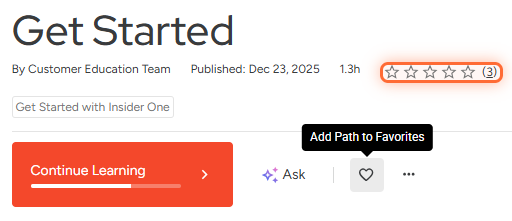
Yes. To save content, click the heart (favorite) icon below the content title.
You can access saved items anytime in My Learning (top navigation) > Favorites.
Why do I see content assigned to me that I didn’t choose?
This usually means:
It was automatically assigned based on the products in your package as part of the Insider One onboarding process.
It was assigned by your manager.
Assigned content helps ensure you complete the most relevant learning for your role.
Assessments
Is there a passing score for assessments?
Yes. You need to score at least 80% to pass an assessment and earn your badge.
What happens if I fail an assessment?
Nothing negative.
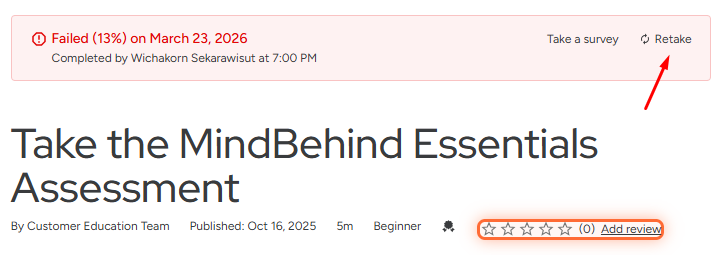
You can retake the assessment by clicking the “Retake” button at the top of the assessment page.
Your progress is not lost.
It’s part of the learning process.
Tip: You can revisit your completed learning paths in My Learning (top navigation) > History before retrying
Can I review my answers after an assessment?
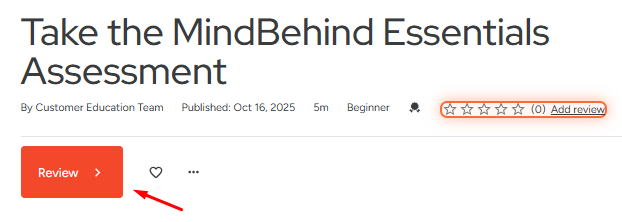
Yes. After completing an assessment, you can review your answers to understand what you got right and what you may need to improve.
How many times can I retake an assessment?
You can retake the assessment as many times as needed.
Do I need to complete all content before taking the assessment?
Not required, but strongly recommended.
Assessments are based on:
Concepts
Practical understanding
Use cases
Skipping content usually makes it harder to pass.
Badges & Certification
Are badges important?
Yes. Badges are valuable both for certification and career growth.
They help you:
Demonstrate your product knowledge with verifiable proof
Gain professional recognition by showcasing your achievements publicly in your LinkedIn profile
Advance your career within your current company or with future employers
Badges also support teams by:
Aligning knowledge across team members
Supporting onboarding and enablement
Helping managers track team readiness
Do I need to complete every lesson to earn a badge?
Technically, you only need to pass the assessment.
However, lessons are not just there to help you answer questions. They are designed to help you:
Understand the full context behind each feature
Learn key concepts and logic, not just steps
Apply best practices and strategy
Avoid common mistakes in real use
If you skip lessons, you may:
Miss important context
Struggle with scenario-based questions
Find it harder to apply what you learn in real situations
Recommendation: Complete the lessons first. This helps you not only pass the assessment but also use Insider One effectively.
Can I share my badge on LinkedIn?
Yes. After passing an assessment, a badge pop-up appears. Click Add to LinkedIn profile to share your badge directly.
What happens when my badge expires?
After 2 years:
Your badge may no longer reflect the latest product updates.
You may need to retake the assessment.
This helps ensure your knowledge stays up to date with current features and best practices.
What happens to my badge if the product changes before it expires?
Your badge is still valid until its expiration date (2 years), even if the product changes. However, it is recommended to stay updated with new features through the Academy and Campus.
Manager & Team Learning
Can my manager track my progress and badge status?
Yes. Managers can request access to the Manager Dashboard, where they can track your learning progress, see your content completion status, and view your earned badges and skills.
Who can access the Manager Dashboard?
The Manager Dashboard is available to users who have at least one direct report in Insider One Campus.
If you do not currently have access but need it, you can contact the Insider One team at CEDX@insiderone.com to request access. Access is typically granted based on your role and team structure.
Notifications & Updates
How can I be notified when new content is added?
You can subscribe to the Campus newsletter to stay updated on new learning content and upcoming webinars. To subscribe, scroll to the bottom of the homepage and click Join Our Community on the newsletter banner.
Language & Accessibility
How do I switch to another language?
You can change the language at the bottom of the Campus page.
What languages are available?
Currently available languages:
English
Brazilian Portuguese
More languages will be added over time.
Do videos have subtitles or CC?
Yes. You can enable subtitles or CC in the Video Settings.
Feedback
How do I share my feedback?
After completing a learning hub, learning path, or assessment, you can:
Select a star rating (1–5 stars)
Leave a comment
You’ll find this option below the content title. Your feedback helps improve the quality of courses and learning experience.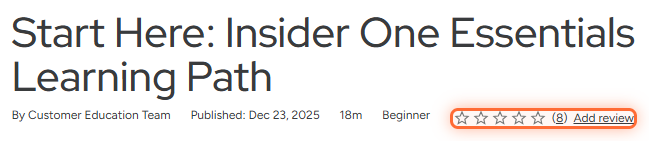
Technical & Troubleshooting
Which browser works best for Campus?
Campus works on all major browsers. However, Google Chrome is recommended for the best experience.
What should I do if a lesson, page, or video does not load properly?
Try the following:
Refresh the page
Leave and re-enter the content
If the issue continues, contact the Insider One team at CEDX@insiderone.com.
What should I do if my progress is not updating correctly?
If your progress does not update:
Make sure you have completed the content fully
Try leaving and re-entering the content
If the issue persists, contact the Insider One team at CEDX@insiderone.com.
Where can I report incorrect, outdated, or missing content?
You can report it by contacting the Insider One team at CEDX@insiderone.com.