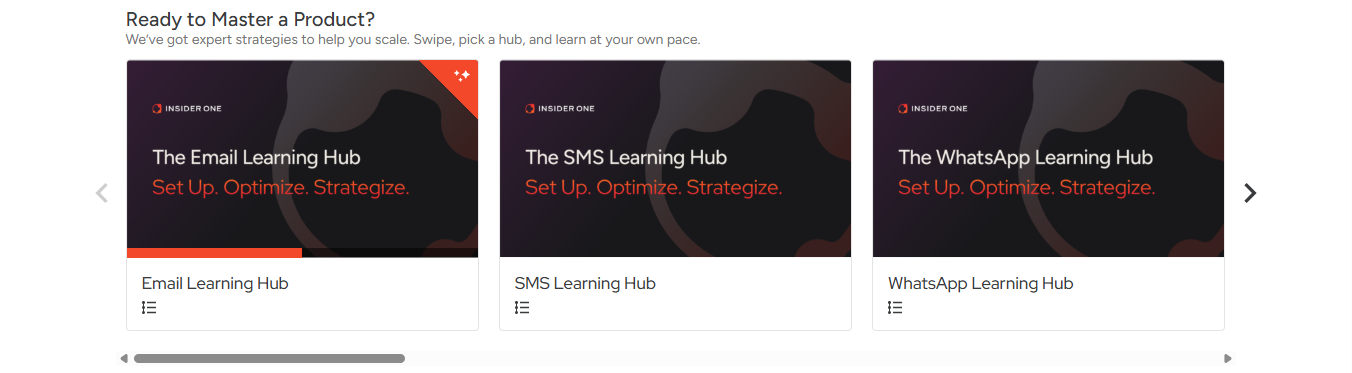
Each Insider One product has its own Learning Hub. Whether you’re exploring Email, Architect, Mobile App, SMS, or another product, the structure follows the same logic.
This guide answers the following questions:
While the structure is consistent, available paths and content depth might vary by product and release stage.
Choose your level
When you open a Learning Hub (for example, Email Learning Hub or SMS Learning Hub), you will see up to three learning paths:
Some Learning Hubs include all three levels. Others may include only Essentials, or Essentials and Deep Dive.
Each Learning Hub is designed around experience level.
Essentials
If you are new, start with the Essentials. Look for: Start Here: [Product] Essentials
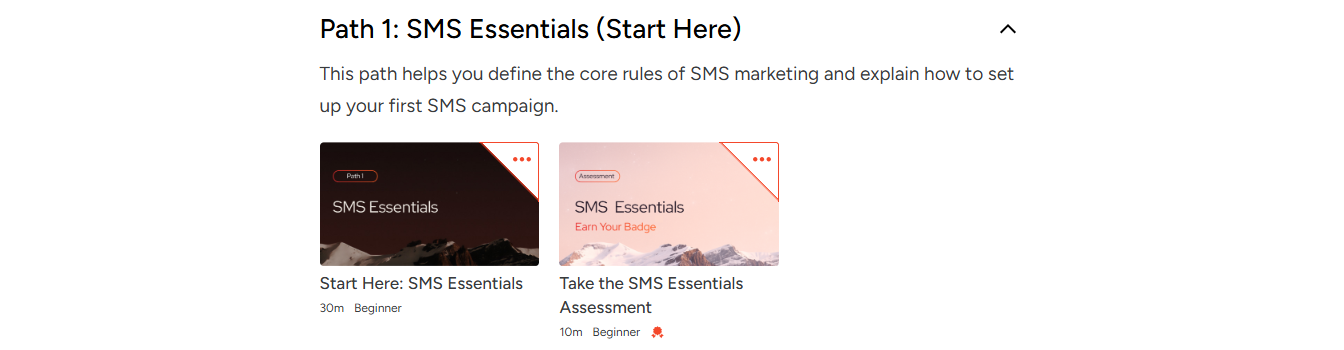 This path introduces:
Core concepts
Platform fundamentals
Basic setup
Key compliance or configuration topics
Essentials establishes your foundation and ensures you understand the core functionality before moving forward.
Deep Dive
If You Know the Basics, NAViGATE to THE Deep Dive. Look for: Build Expertise: [Product] Deep Dive
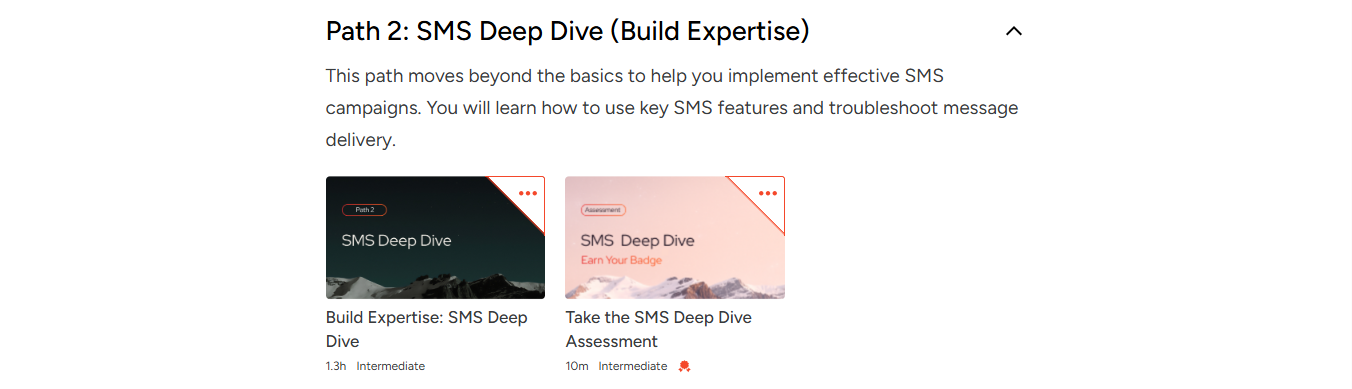
This path focuses on:
Campaign implementation
Feature configuration
Troubleshooting
Practical execution
Deep Dive is designed to help you apply your knowledge and develop operational confidence.
Strategy Hub
If You Want Strategic Impact, navigate to the Strategy Hub. Look for: Lead with Strategy: [Product] Strategy Hub

This path covers:
Performance analysis
Optimization frameworks
Advanced use cases
Cross-channel strategy
Strategy Hub is intended for experienced users who want to drive measurable business outcomes.
The depth and scope of content might vary depending on the product and its release stage.
Complete a learning path
Within each learning path, you will find:
Curated courses for each level
Detailed lessons with technical and strategic guidance
Videos
Interactive activities
Practical examples
When you select your learning path (for example, Start Here: Email Essentials), it opens in a new tab. This allows you to focus on the learning experience without losing your place in the Learning Hub.
Important:
Your progress is saved automatically.
You do not need to complete the path in one session.
Insider One Campus is fully self-paced.
To ensure your progress is logged correctly, please do not close the original Learning Hub tab while working on the content in the new tab.
Earn and share your badges
Badges validate your expertise and demonstrate your proficiency in a specific Insider One product. To earn a badge, you must pass the corresponding assessment.
Examples of assessments:
Take the [Product] Essentials Assessment
Take the [Product] Deep Dive Assessment
Take the [Product] Strategy Hub Assessment
To earn and share a badge, follow the steps below:
Select a Learning Hub (e.g., Email Learning Hub).
Choose and complete the appropriate Learning Path based on your level (e.g., Start Here: Email Essentials).
Take the corresponding assessment (e.g., Take the Email Essentials Assessment).
Pass the assessment to earn your badge.
To share your badge, click Add to LinkedIn profile on the badge pop-up that appears.
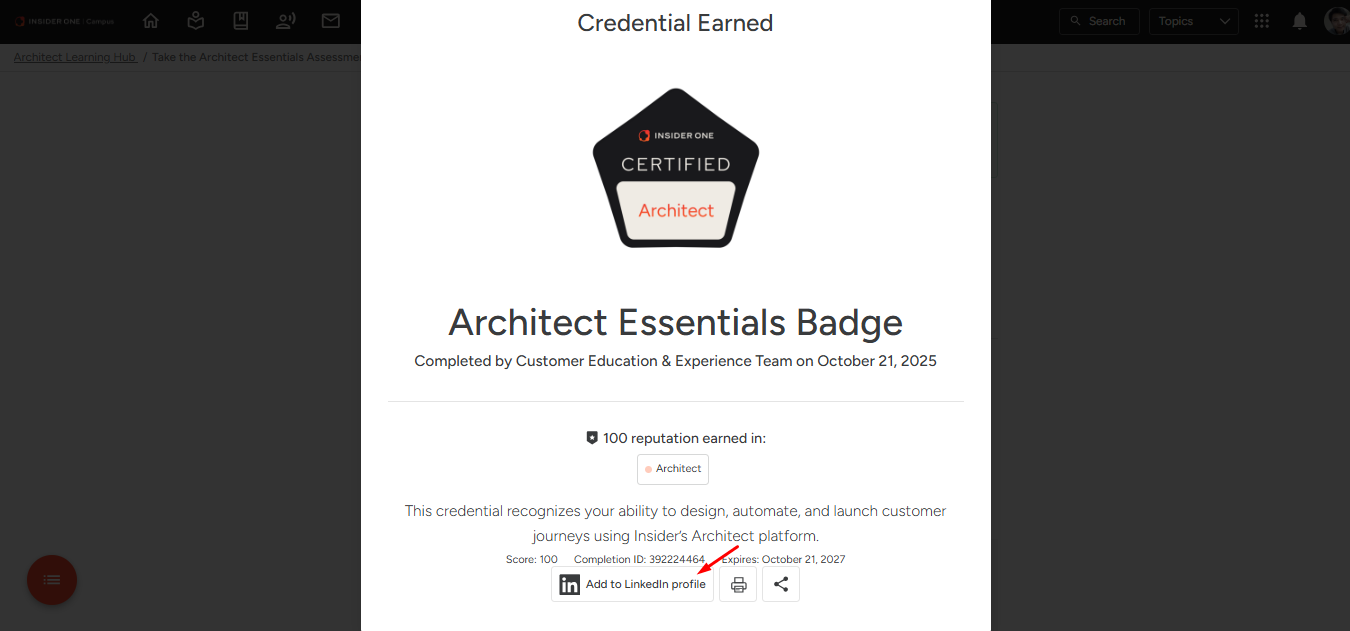 Or, select View Credential later on the assessment page and add it to LinkedIn from there.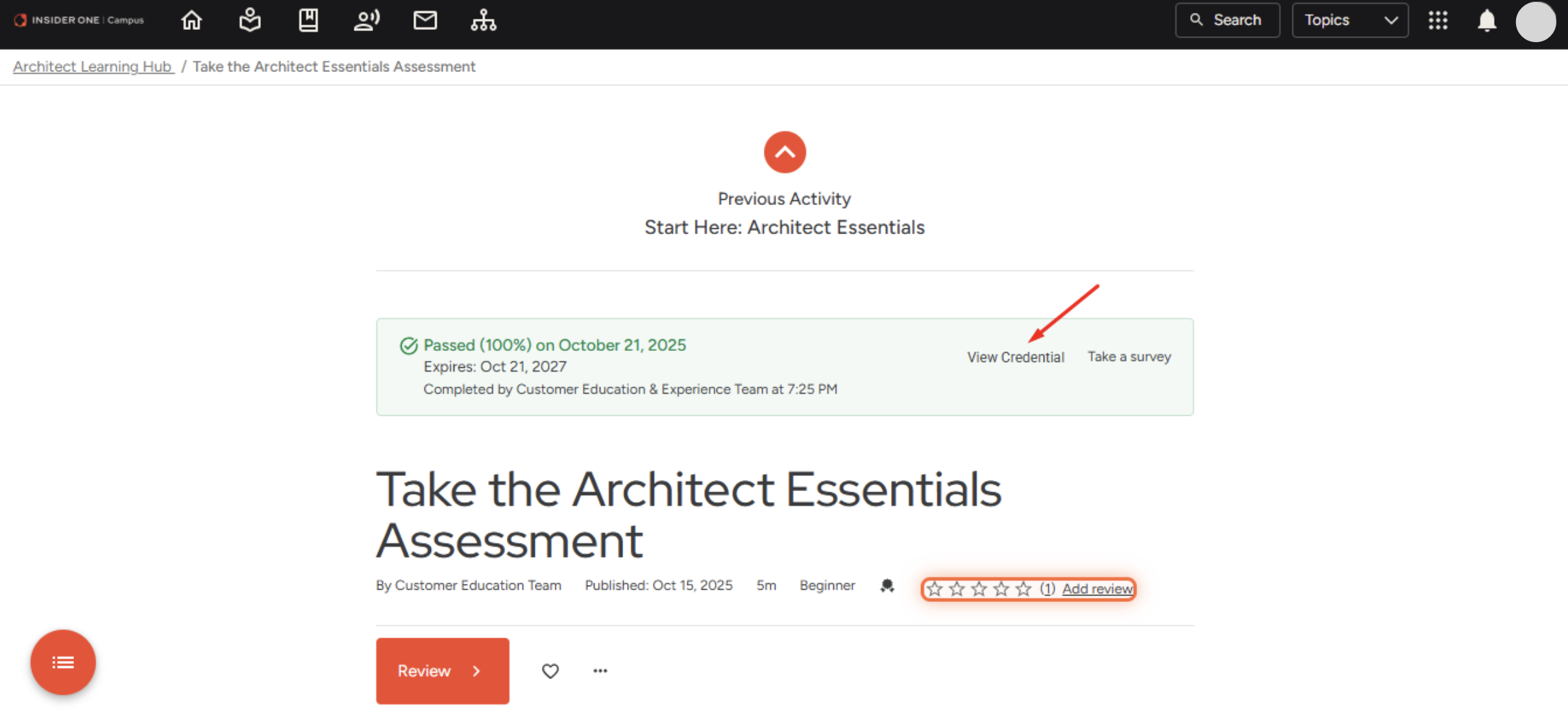
Sharing your badge publicly demonstrates verified expertise and professional development.
Once earned, your badge is valid for 2 years, ensuring that your certification reflects up-to-date product knowledge and best practices.
Share your feedback
After completing a learning hub, learning path, or assessment, you can leave a review using the five-star rating option located below the content title.
You can:
Select a star rating
Leave a comment
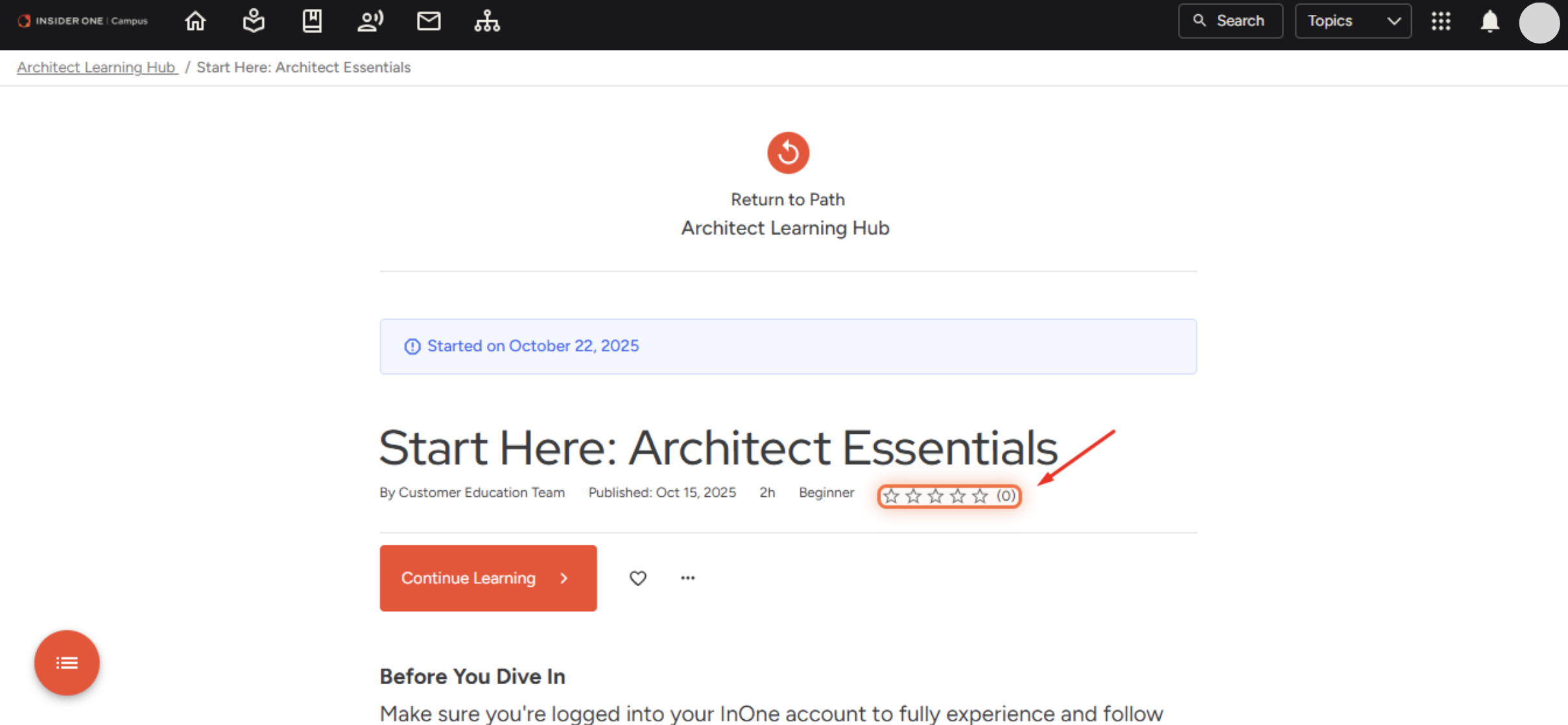
Your input helps Insider One enhance content quality and continuously improve the learning experience for all users.