The Insider One Campus homepage helps you quickly find the right learning content based on your goals and experience level. This guide walks you through the main sections so you can navigate confidently and use Campus effectively.
Quick start: Where should I begin?
If you are not sure where to start, you can use this guide:
New to Insider One? → Navigate to the “New to Insider One?” section to begin your onboarding journey.
Want structured product learning and badges? → Navigate to the “Ready to Master a Product?” section to explore Product Learning Hubs.
Want quick learning through short videos? → Navigate to the “Short on Time?” section to access Video Hubs.
Looking for specific content quickly? → Navigate to the Search bar at the top of the page.
Want to track your learning progress? → Click My Learning in the top navigation bar.
Top navigation: Your primary controls
At the top of the page, you’ll find the main navigation bar. These controls allow you to move between learning areas and manage your personal experience.
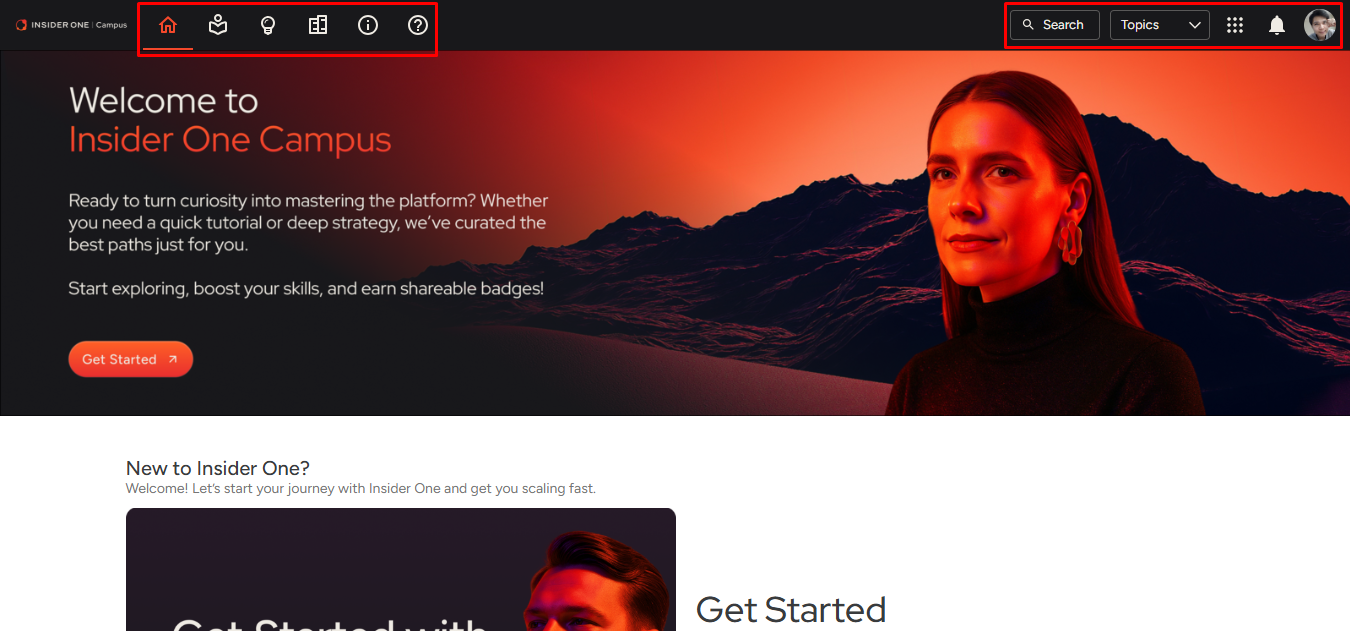
Home
Select Home at any time to return to the main Campus page. This is particularly useful after browsing learning hubs.
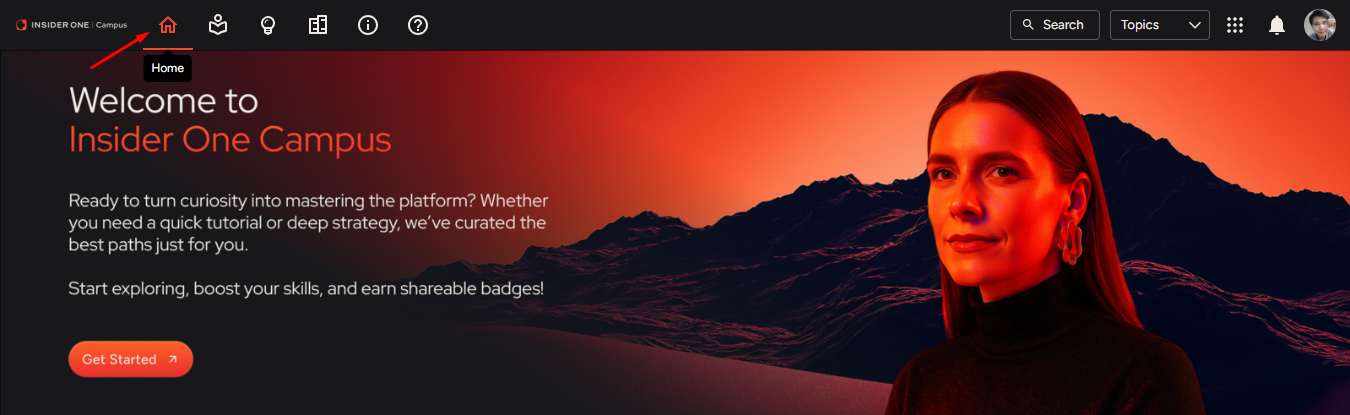
My Learning
My Learning is your personalized dashboard.
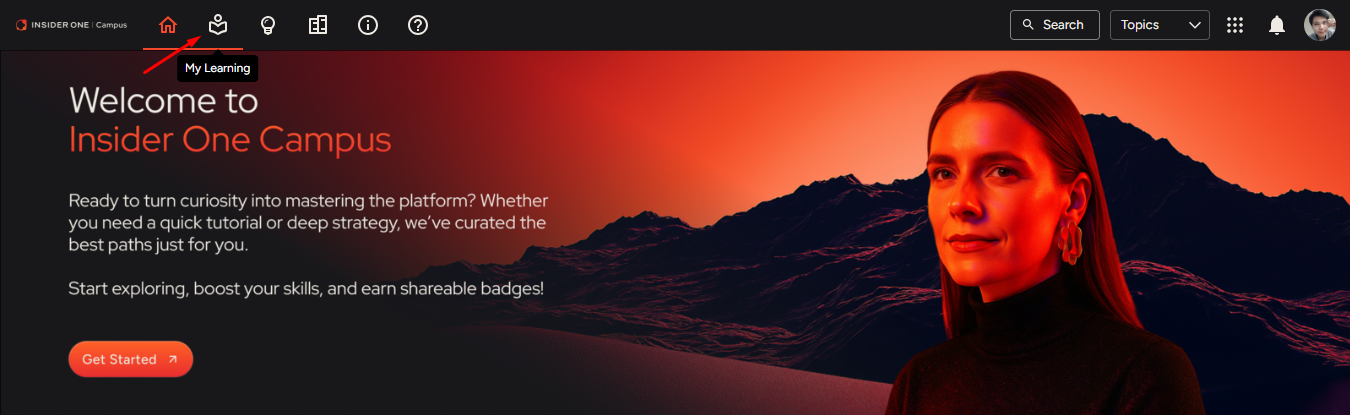
In My Learning, you can use:
Up Next: Resume in-progress content
Favorites: Access saved or favorited content
History: Review completed content
Skills: View acquired skills
Credentials: Track earned badges
All Learning
The All Learning section provides access to the full Campus catalog.
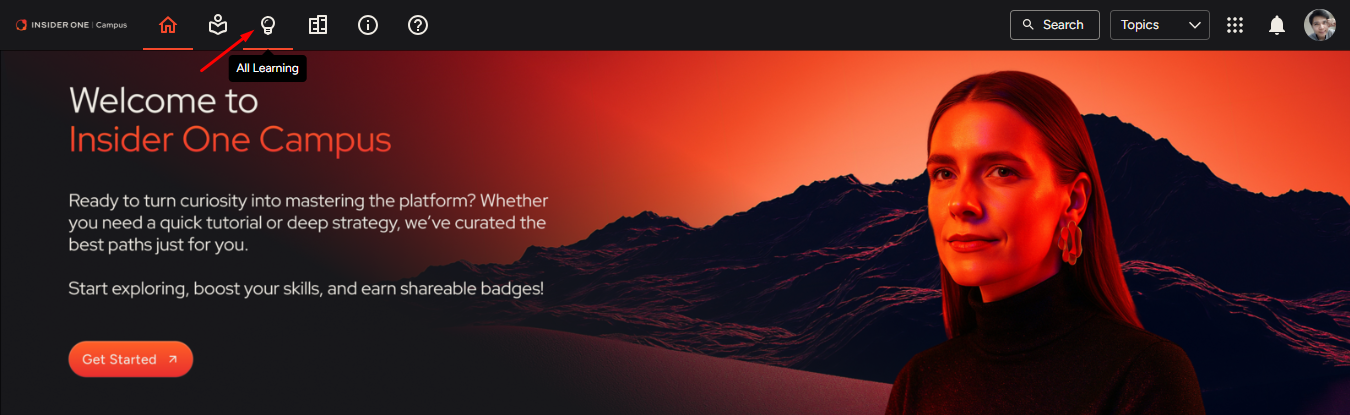
This section is organized into:
Get started with Insider One: Foundational learning for new users.
Explore all product learning hubs: Dedicated hubs for each Insider One product, containing structured learning paths and assessments across multiple levels.
Watch videos for quick learning: Short, focused video content for fast skill development.
Search and Filters
Use the search bar to quickly locate specific content.
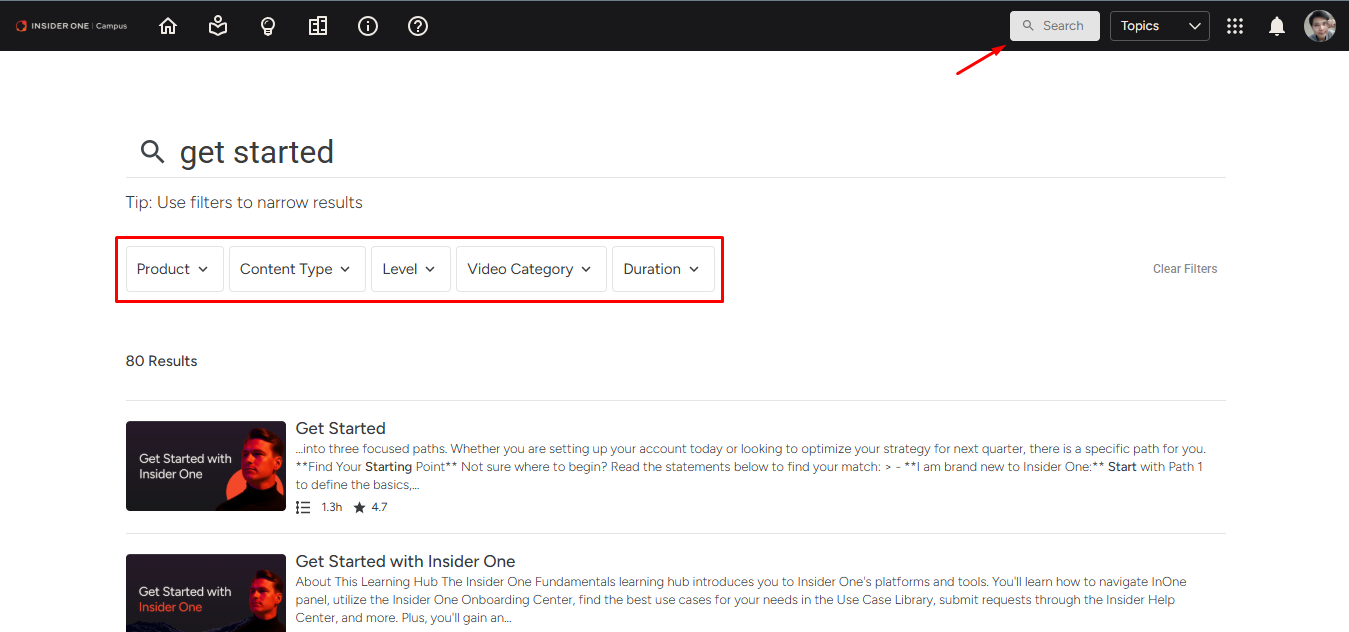
Filters help you narrow results. You can filter by:
Select the relevant product, such as Architect, Email, Mobile App, and other available solutions. This ensures you focus only on content relevant to your responsibilities.
Under the Content Type, you can select:
Learning Path
Assessment (required for earning badges)
Video
Level
Under Level, you can select the respective levels:
Essentials (Beginner)
Deep Dive (Intermediate)
Strategy Hub (Advanced)
Video Category
For video content, you can narrow results by purpose:
Product Introduction
Use Case
How-To
Explainer
FAQ
Troubleshooting
Duration
Plan your learning around your schedule:
Short (0–5 minutes)
Medium (6–20 minutes)
Long (20+ minutes)
Notifications
The notification icon displays important announcements and platform updates. Check it regularly to stay informed about new learning opportunities. 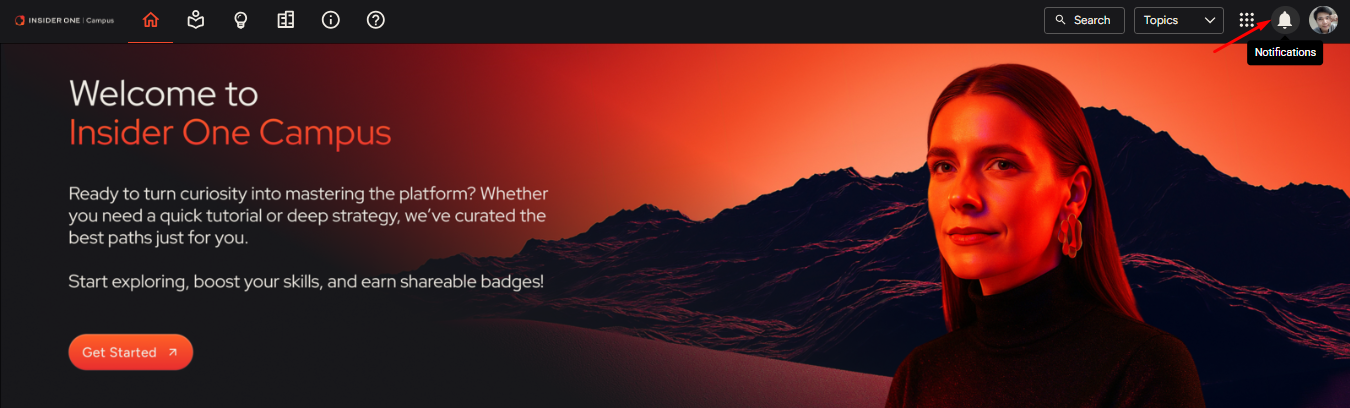
User Menu
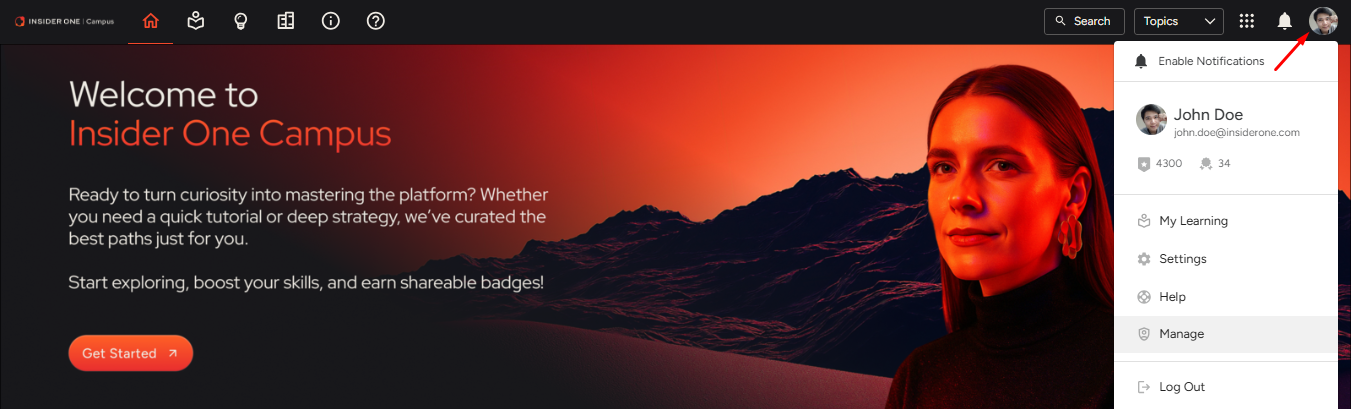
From the user menu, you can:
Enable notifications
Access My Learning
Open Settings to manage your profile
Main homepage sections: Structured entry points
Below the navigation bar, the homepage is organized into sections aligned with different learning needs.
New to Insider One?
This section is designed for onboarding and foundational understanding.
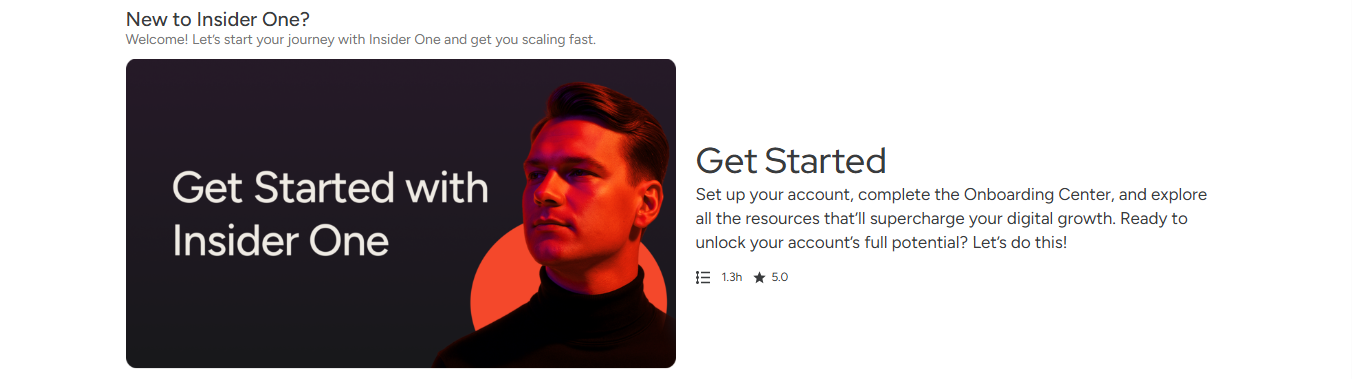
It provides structured guidance to help new users:
Navigate the Insider One ecosystem.
Set up your Insider One account.
Complete the Insider Onboarding Center.
This is the recommended starting point for first-time users.
Ready to master a product?
This section provides direct access to product-specific learning hubs.
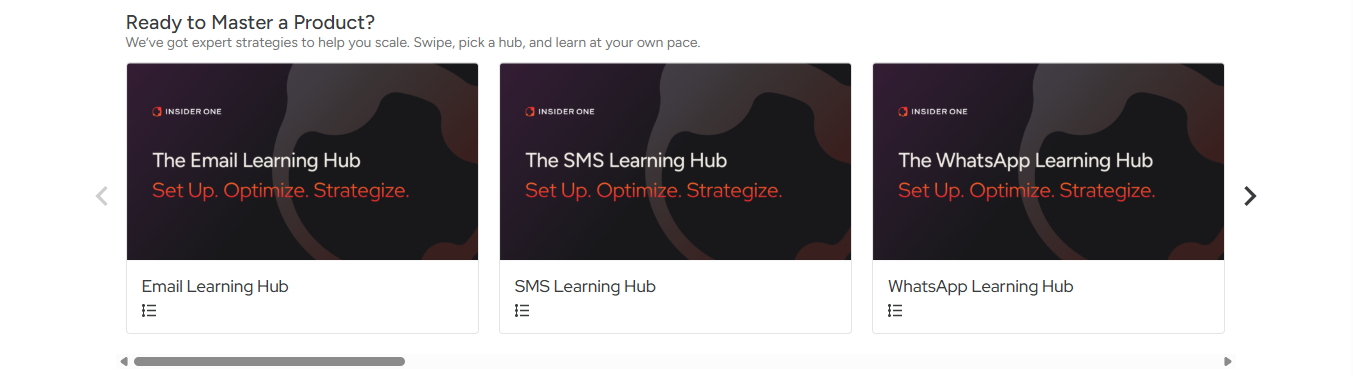
Each hub includes:
Multi-level learning paths
Multi-level assessments
Use this section when you want structured product mastery and certification.
Short on time?
Access Video Hubs with short-form learning designed for immediate use.
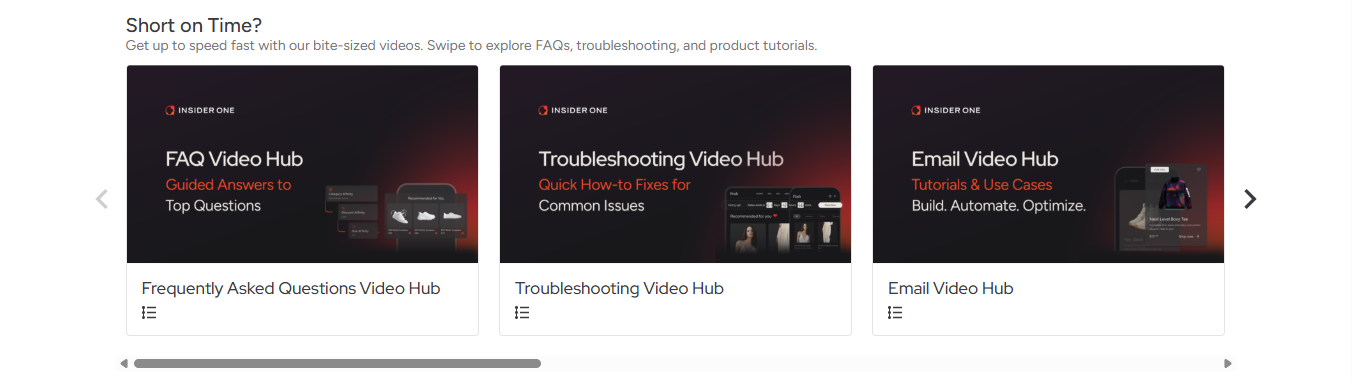
This section is ideal for:
Quick refreshers
Product/feature overviews
Step-by-step tutorials
Troubleshooting guidance
FAQs
This section is particularly useful when you need focused answers without committing to a full learning path.
Looking for more?
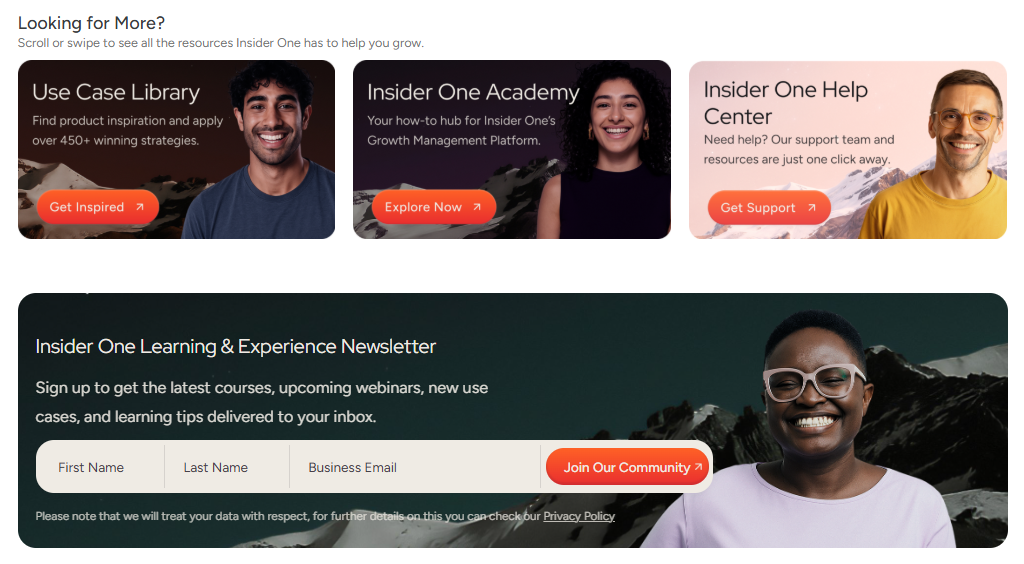
This section connects Campus to other Insider resources:
Newsletter subscription
Insider One Academy
Insider One Help Center (support ticket submission)
Here’s a quick overview of how each platform supports you:
Campus (learning platform) = Structured learning and certifications
Academy (knowledge base) = Knowledge articles and how-to documentation
Help Center (support/ticketing) = Technical support and ticket submission
Available filters, sections, learning hubs, and content might evolve as new products and features are released. The homepage structure is designed to grow with Insider One.
Now that you understand how the Insider One Campus homepage is structured, continue with the Learning Hub guide to learn how product-specific learning hubs are organized and how to start your learning path.