This guide explains how to publish your bot to Instagram. Before publishing your bot, you should fulfill the prerequisites.
Prerequisites
Before publishing your bot on your Instagram Business account, follow the steps below:
1. Connect your Instagram Business account to a Facebook account. 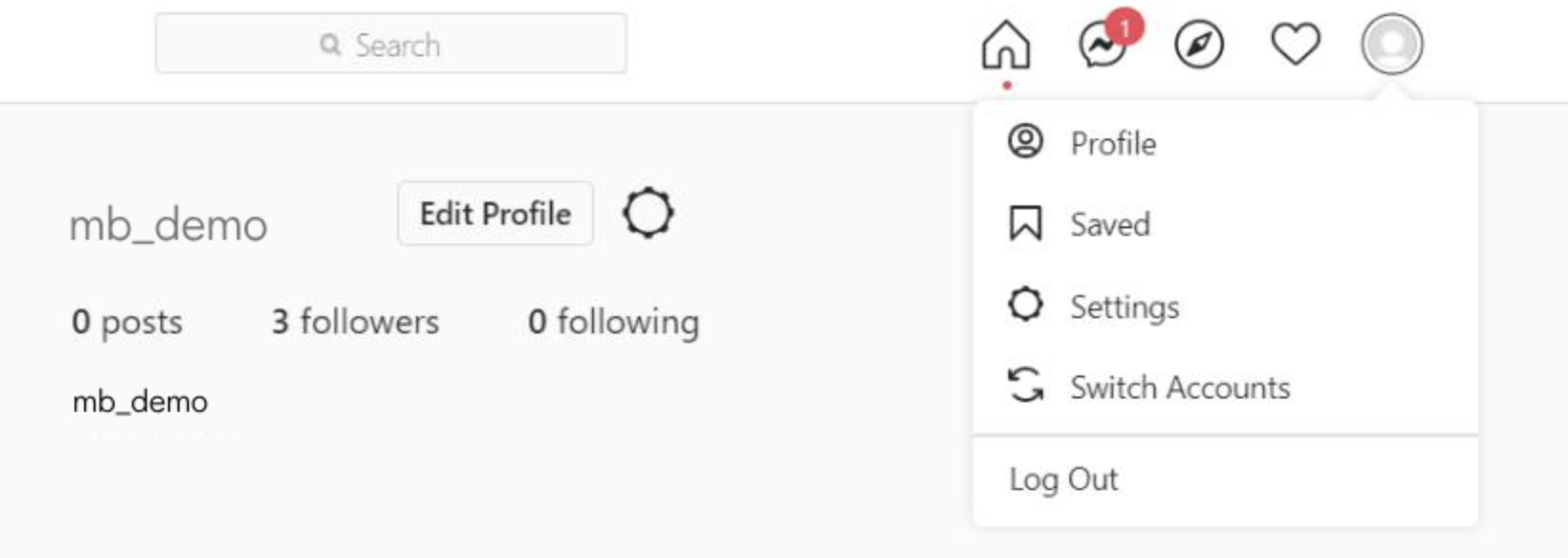
2. Go to the Settings menu from your Instagram account. At the bottom left of the page, select the Accounts Center option. 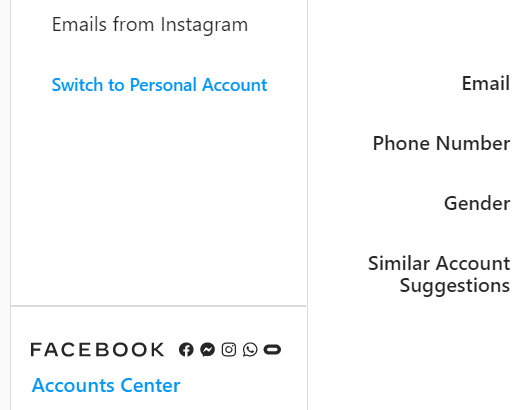
3. Click the Add Accounts button and add your Facebook account. 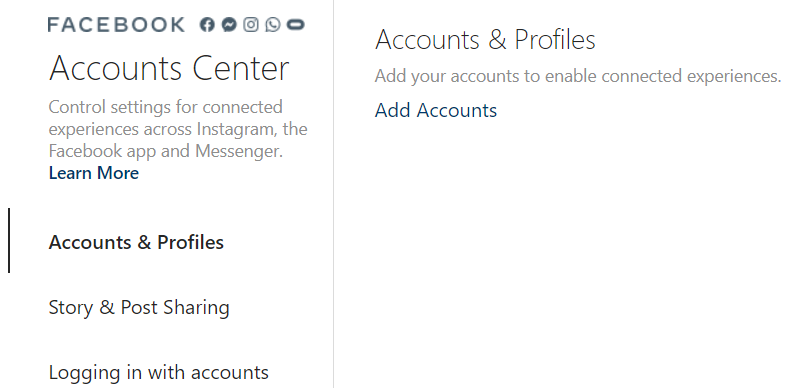 4. You will see the following pop-up that shows your Instagram Business account and your Facebook account.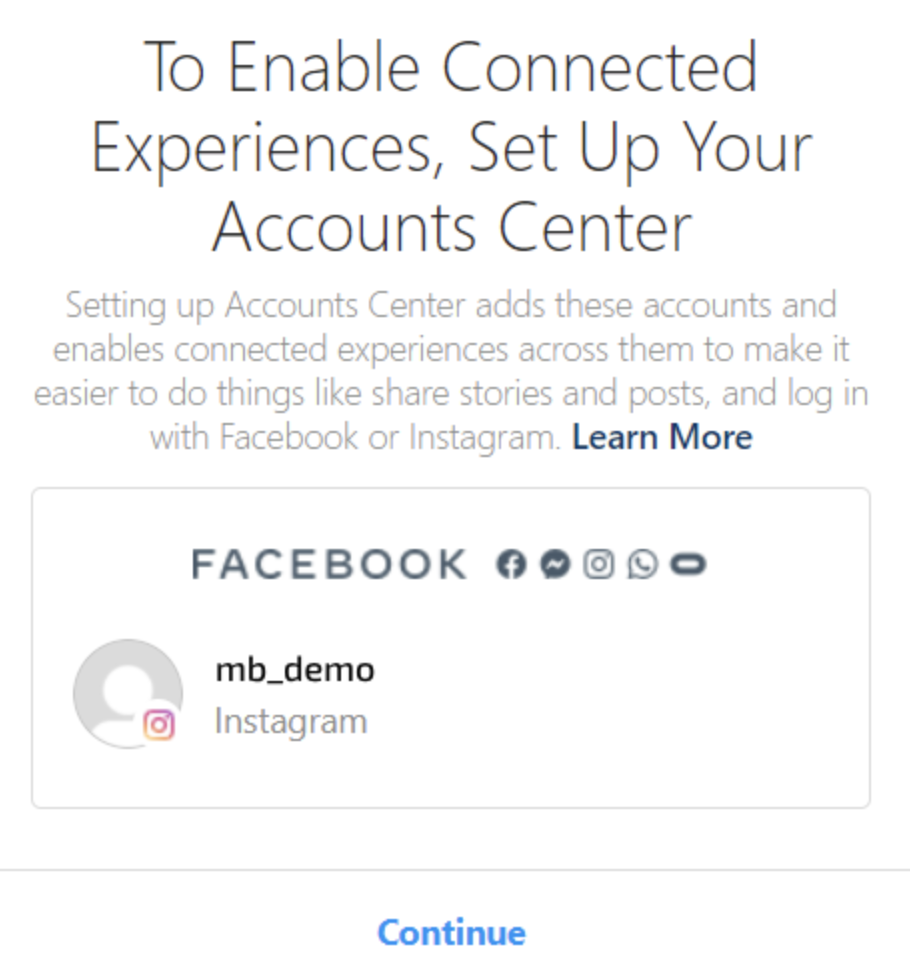
5. After setting up the account, you will see the window as follows. 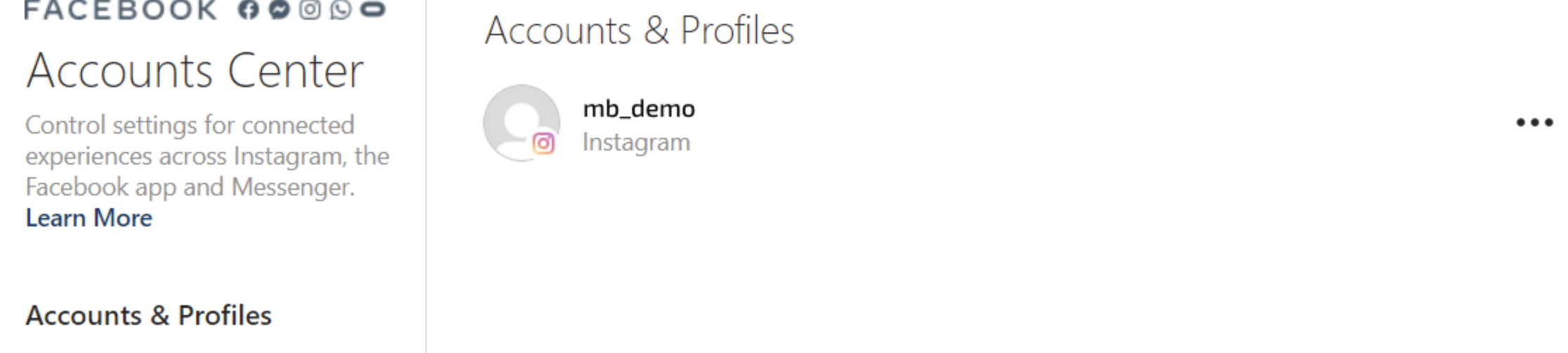
6. After connecting your Instagram account, you need to give permission for the bot to send messages on your Instagram business.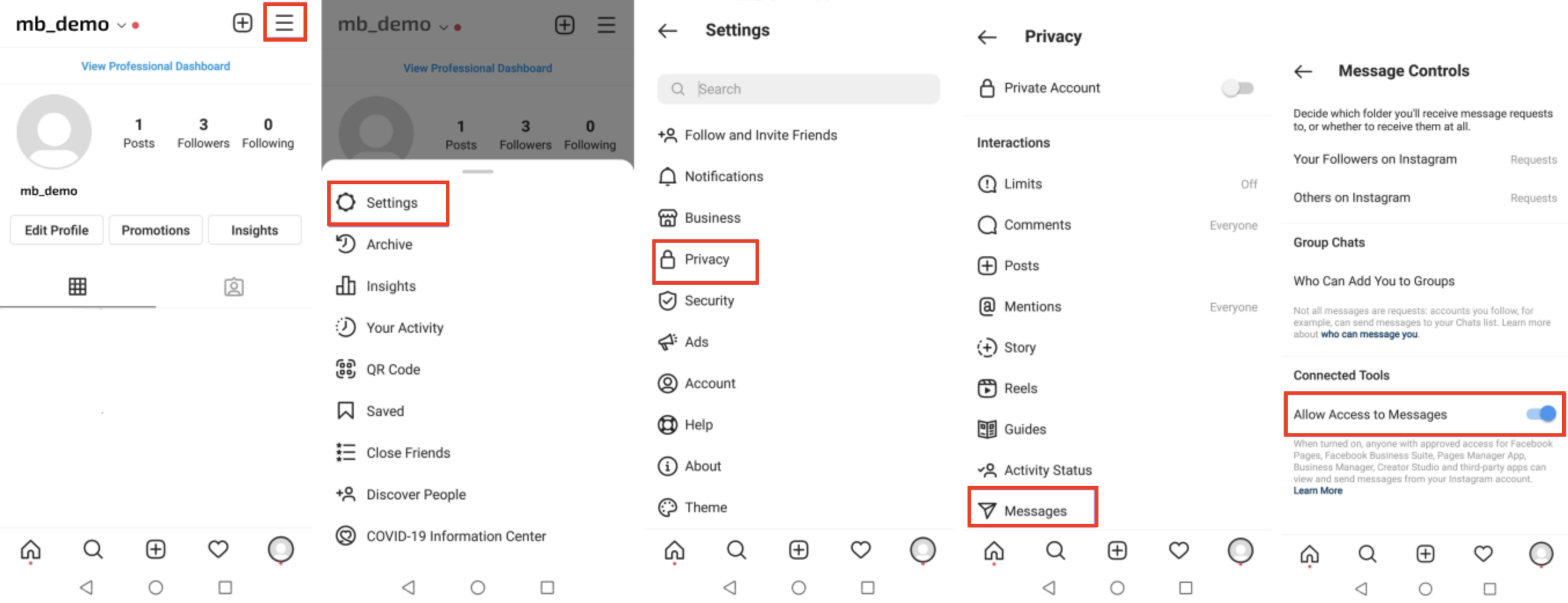
7. Go to the Options menu and Settings>Privacy>Messages and enable the Allow Access to Messages toggle.
8. After setting up your Instagram Business account with your Facebook account, you should connect your Instagram Business account with your Facebook page.
9. Go to the Settings menu on the Facebook page.
10. Click the Page Tasks or Page Roles option on the left menu.
11. Check your role; whether it is "admin"; if not, you should ask the page admin to change your role. 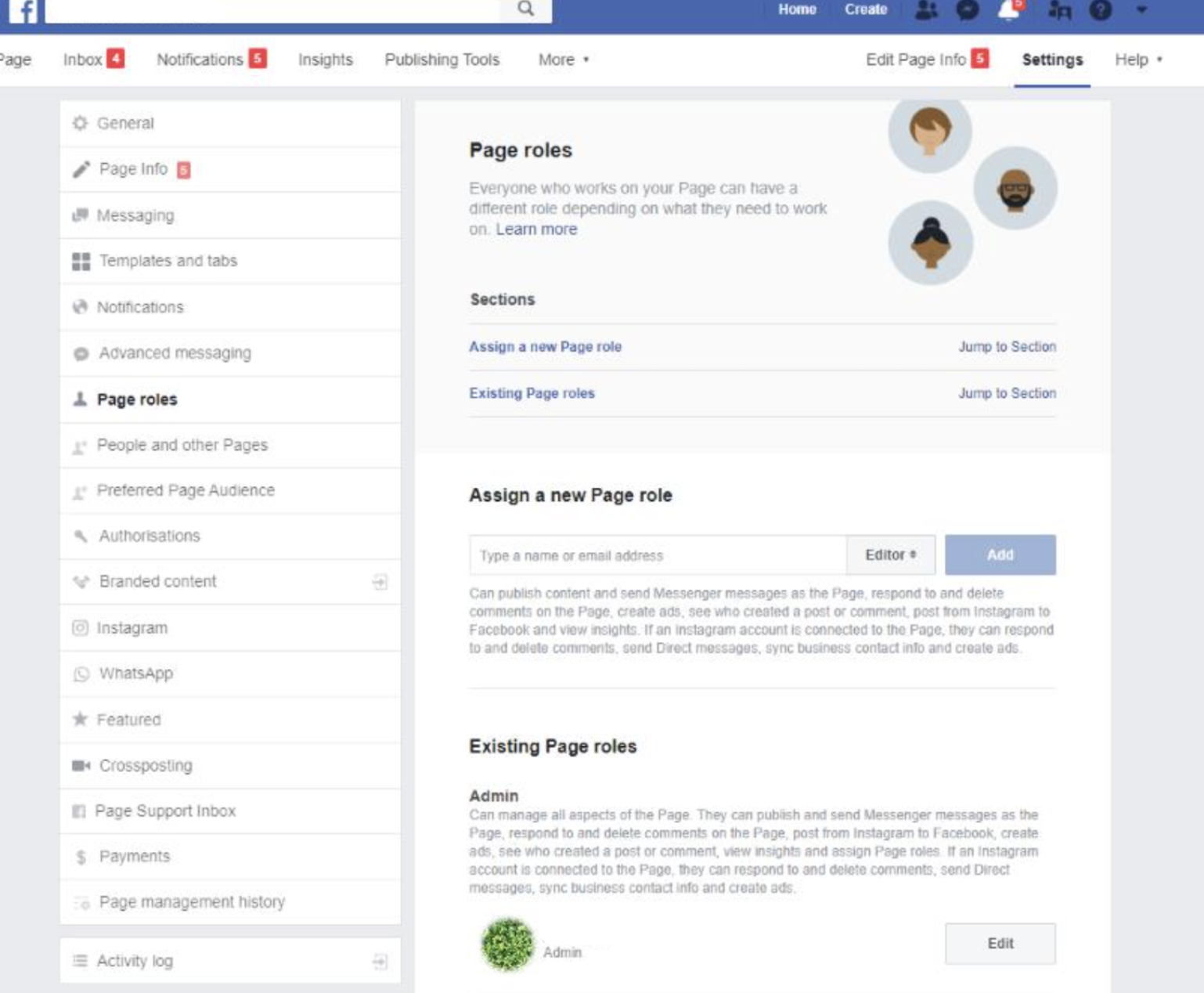
12. Select Instagram in the Page settings. Link your Facebook page to your Instagram Business. Click the Connect Account button 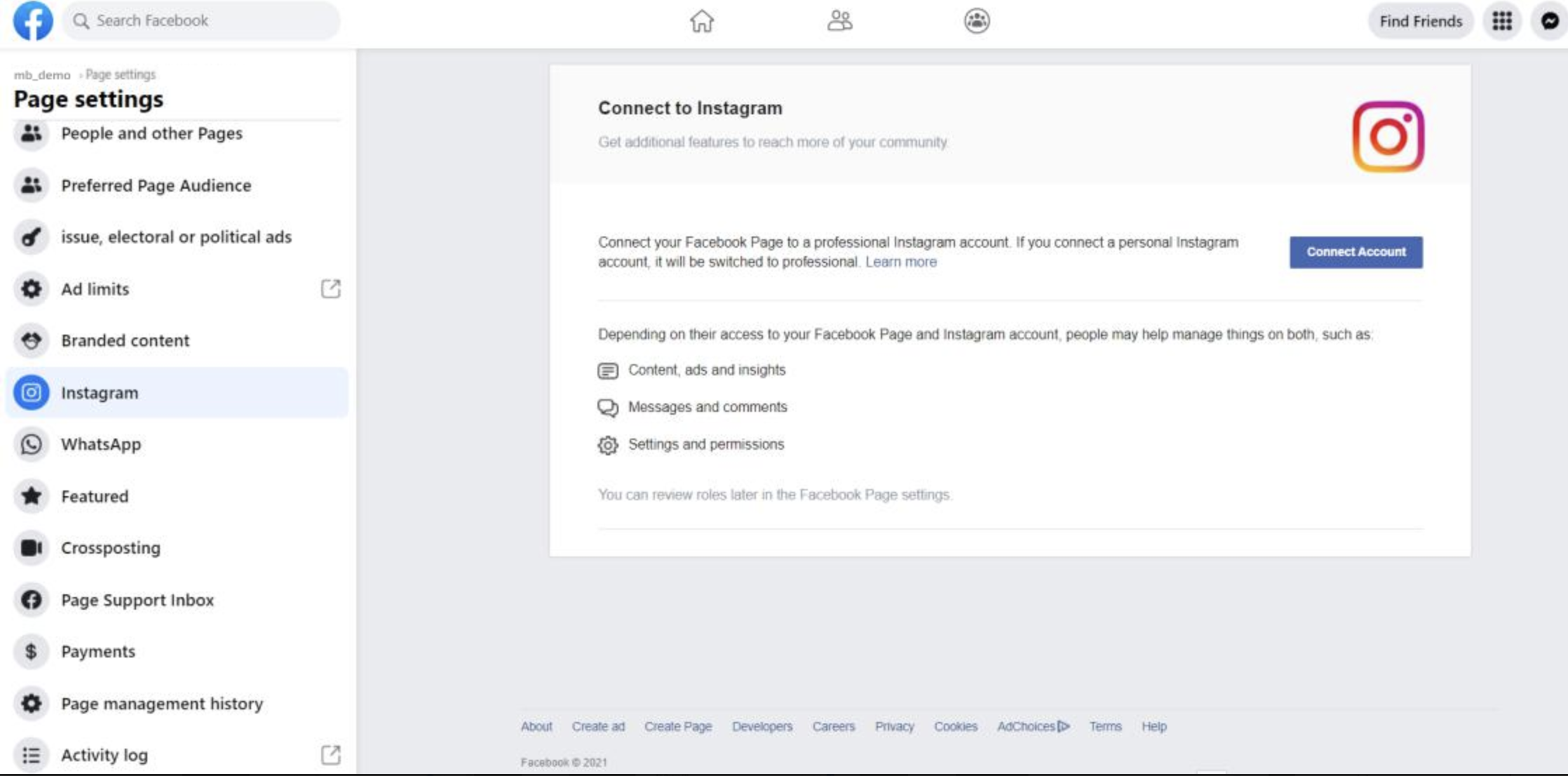
13. Allow access to the following permissions.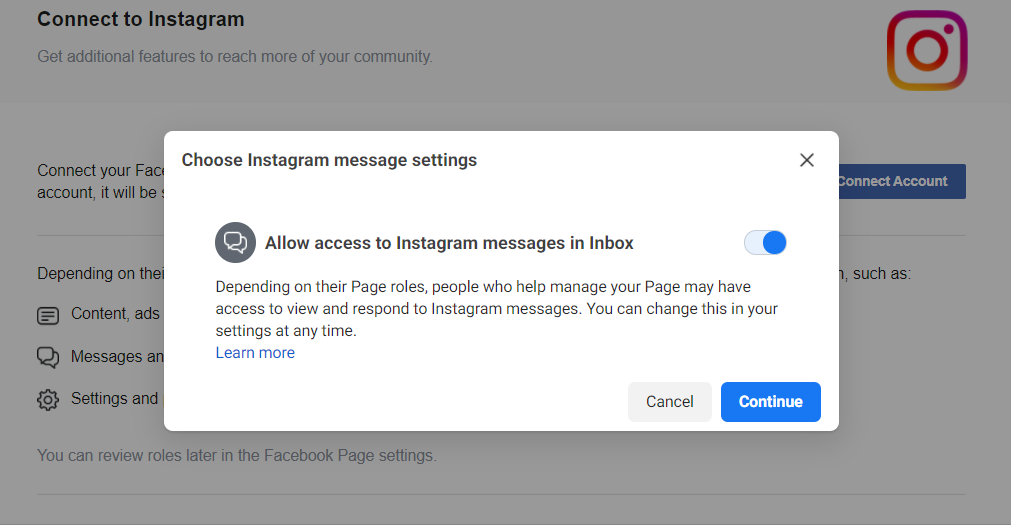
14. Log in to your Instagram Business account. 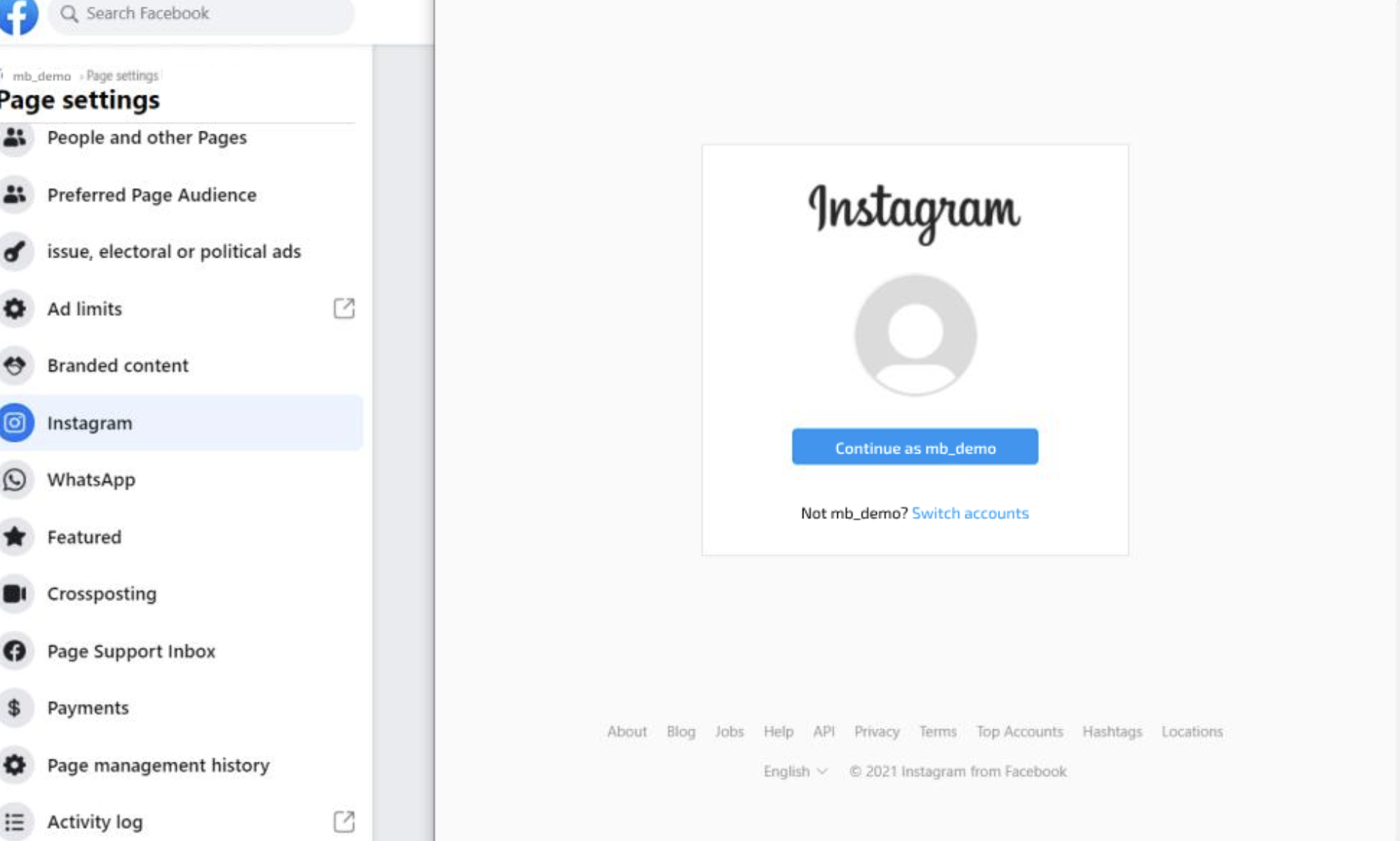
15. You will see a similar window upon successfully connecting your Instagram account with your Facebook page. 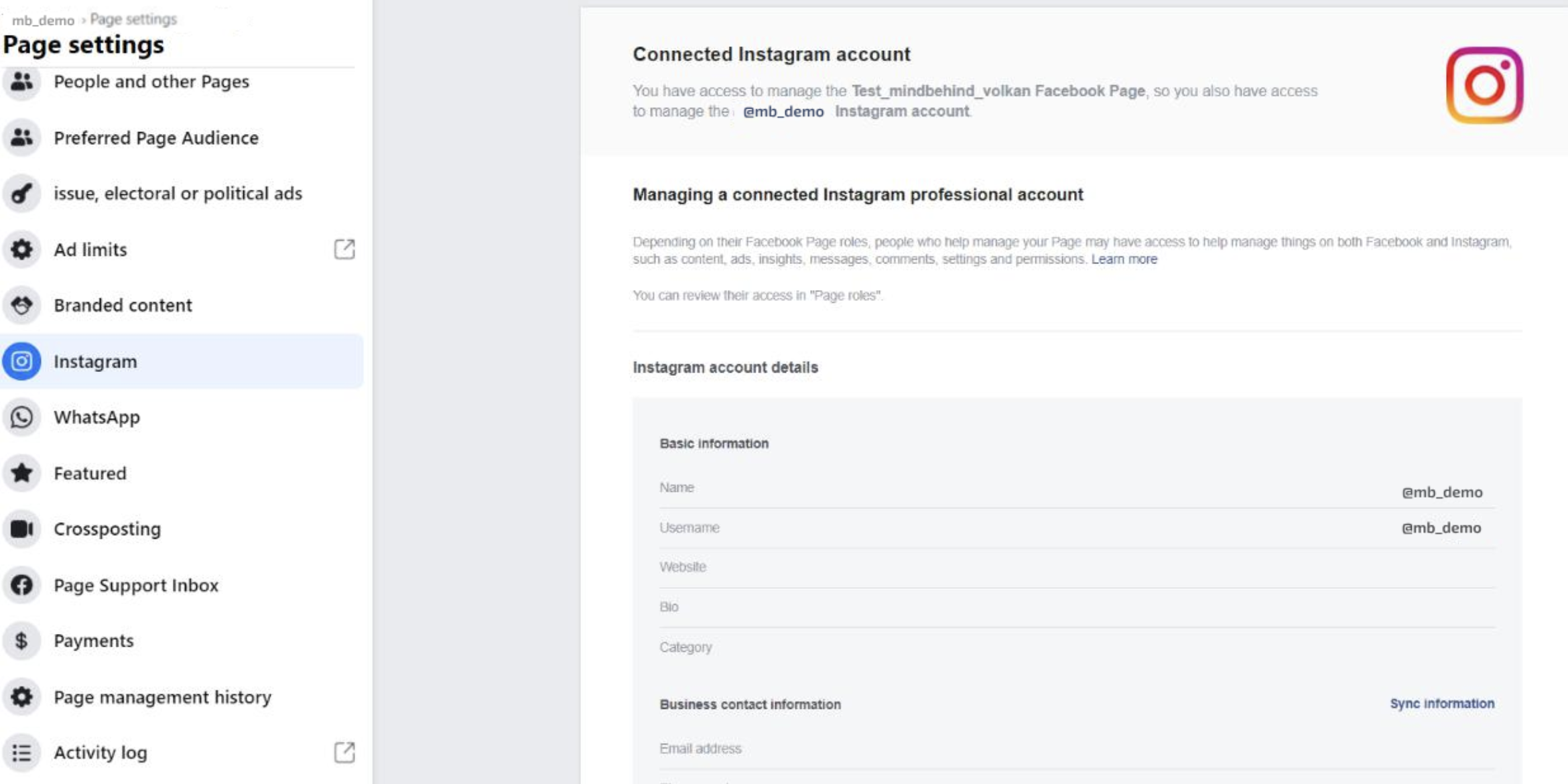
How to set up the bot for your Instagram Business account
To set up the bot for your Instagram Business account,
- Go to the MindBehind platform.
- Choose the company that your assistant belongs to.
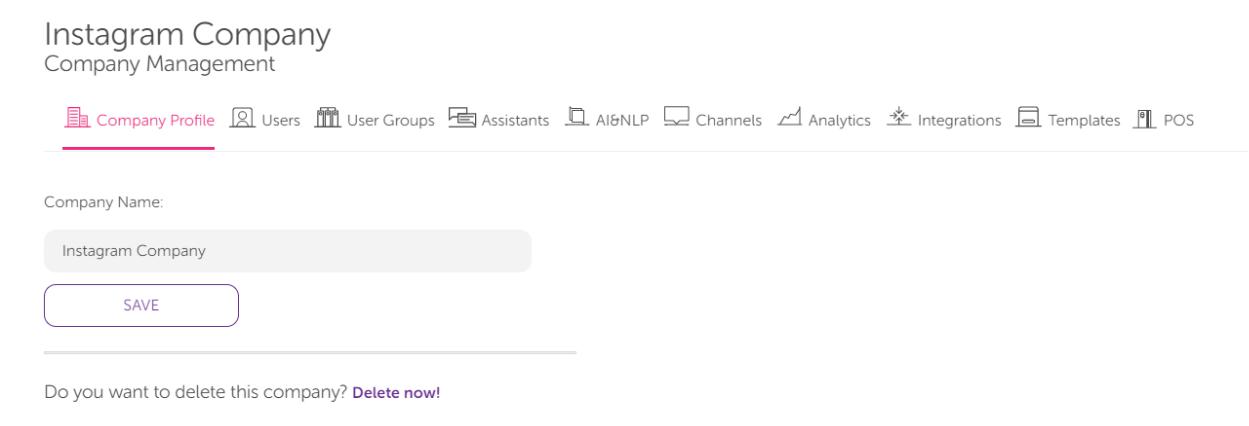
- Click on the Channels tab.
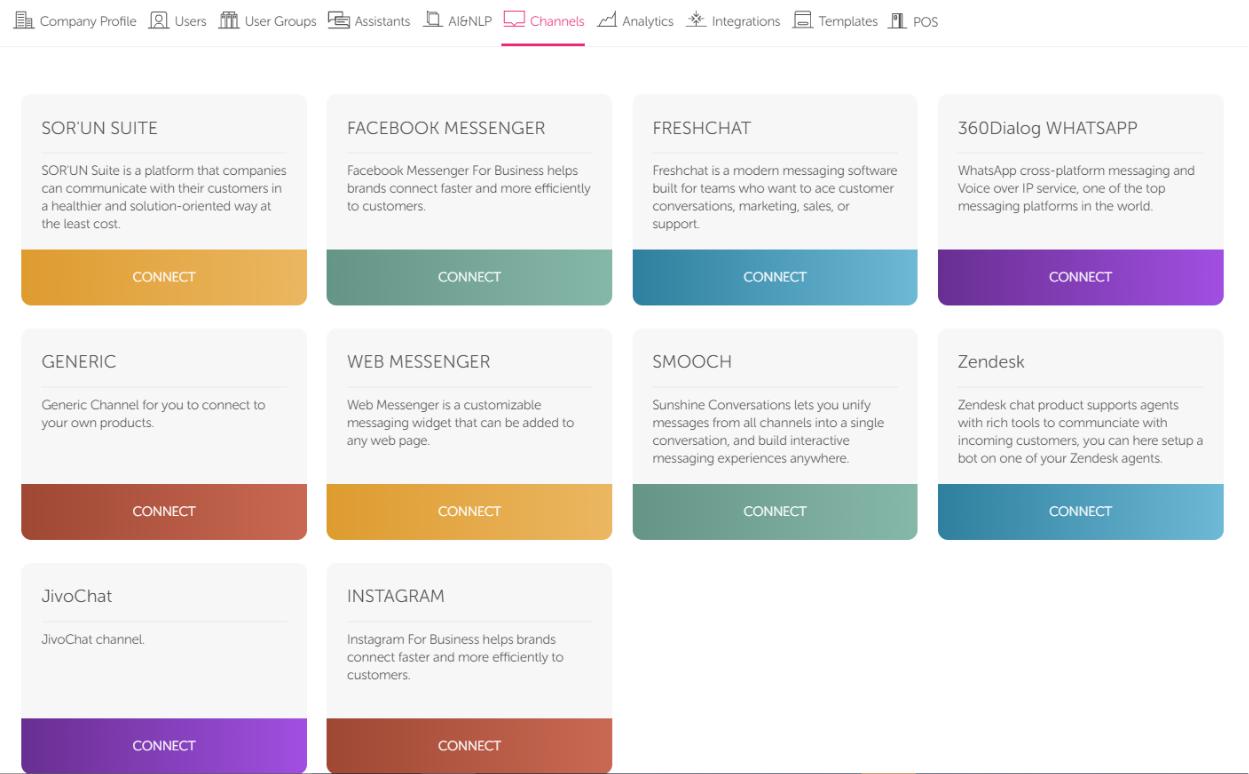
- Click the Connect button for Instagram.
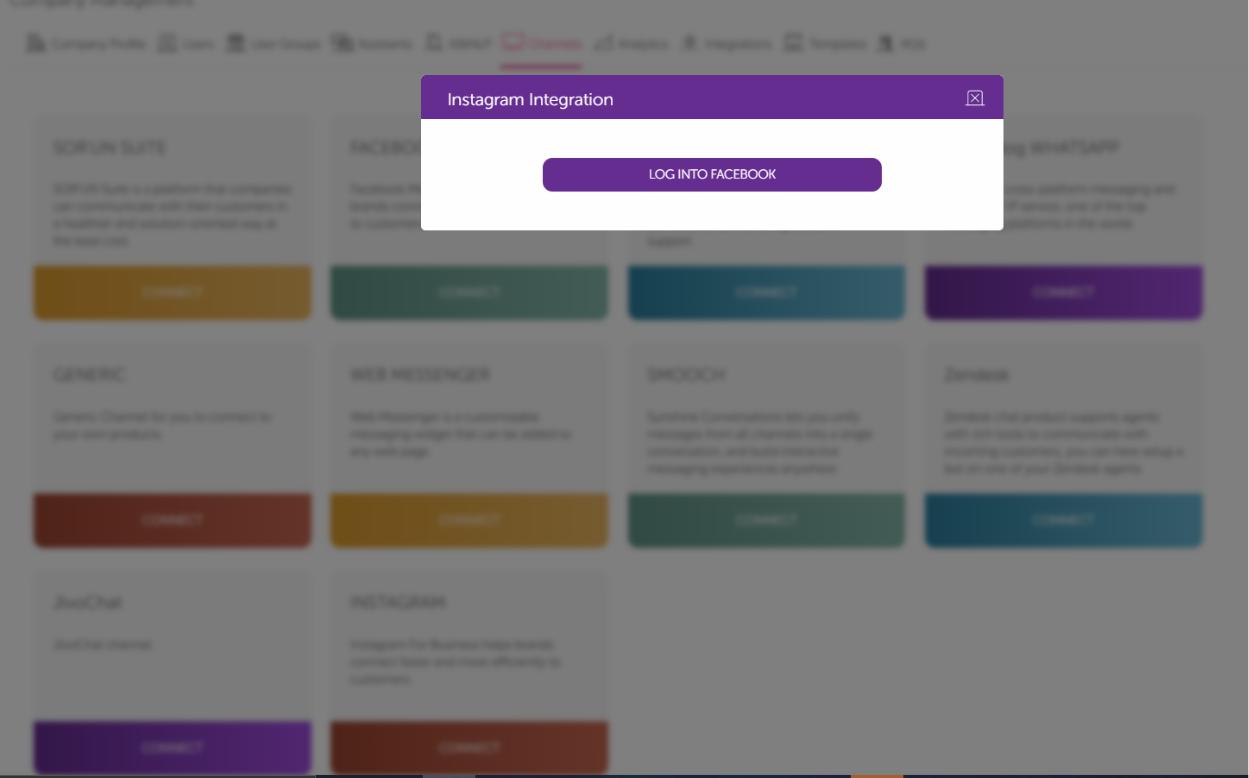
- Log in to your Facebook account.
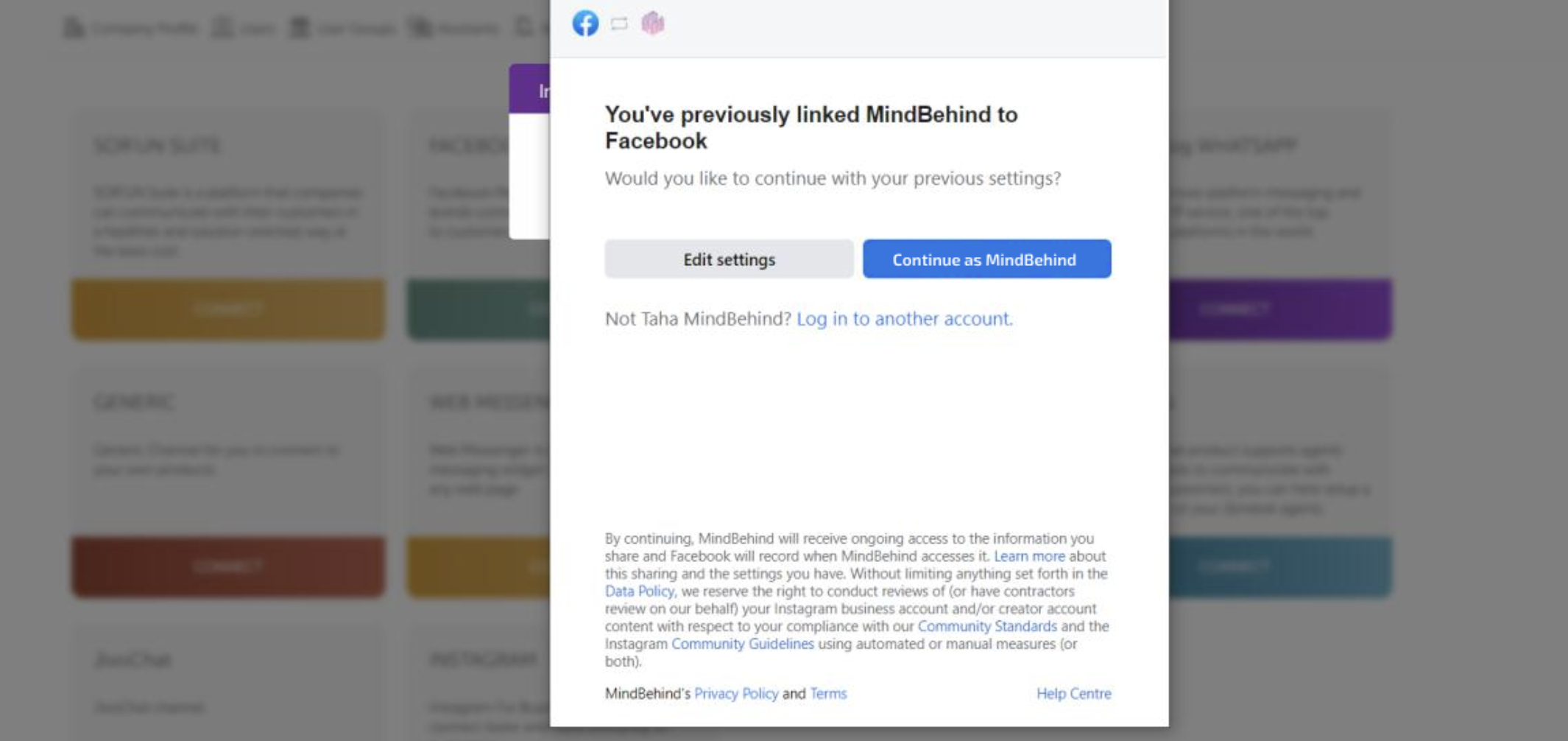
- Click on the Edit settings button.
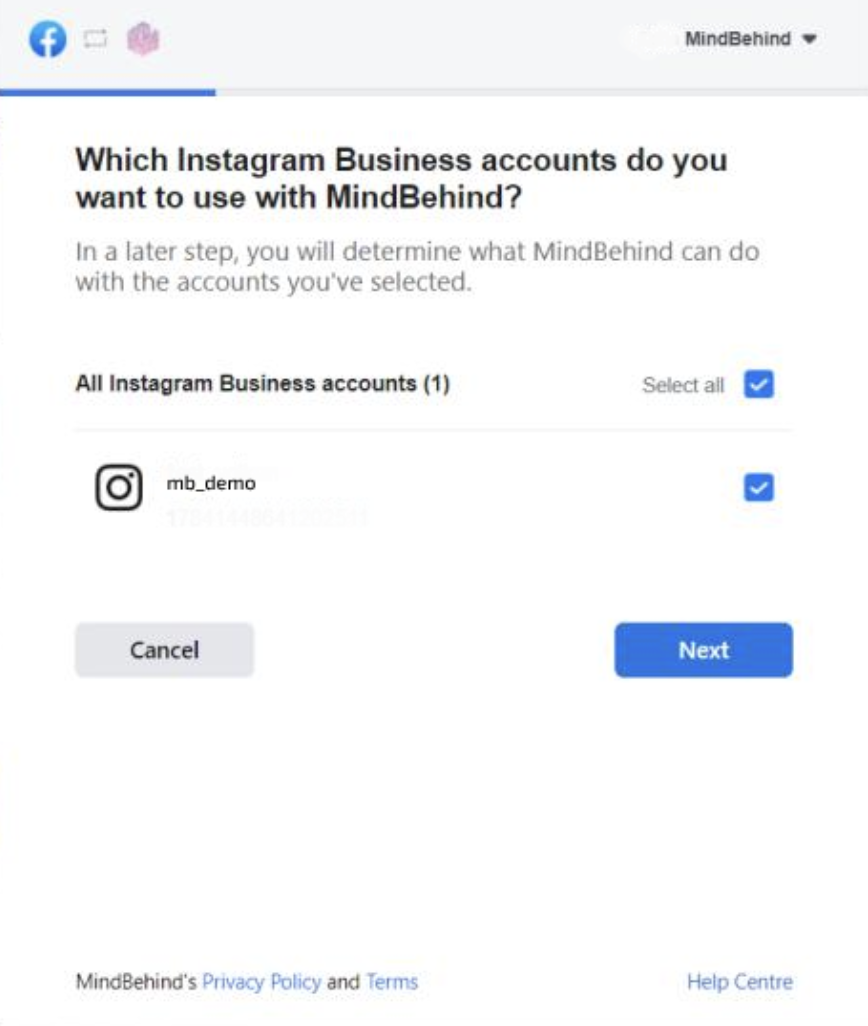
- Select the Instagram Business account.
- Select the Facebook page linked to the Instagram Business account.
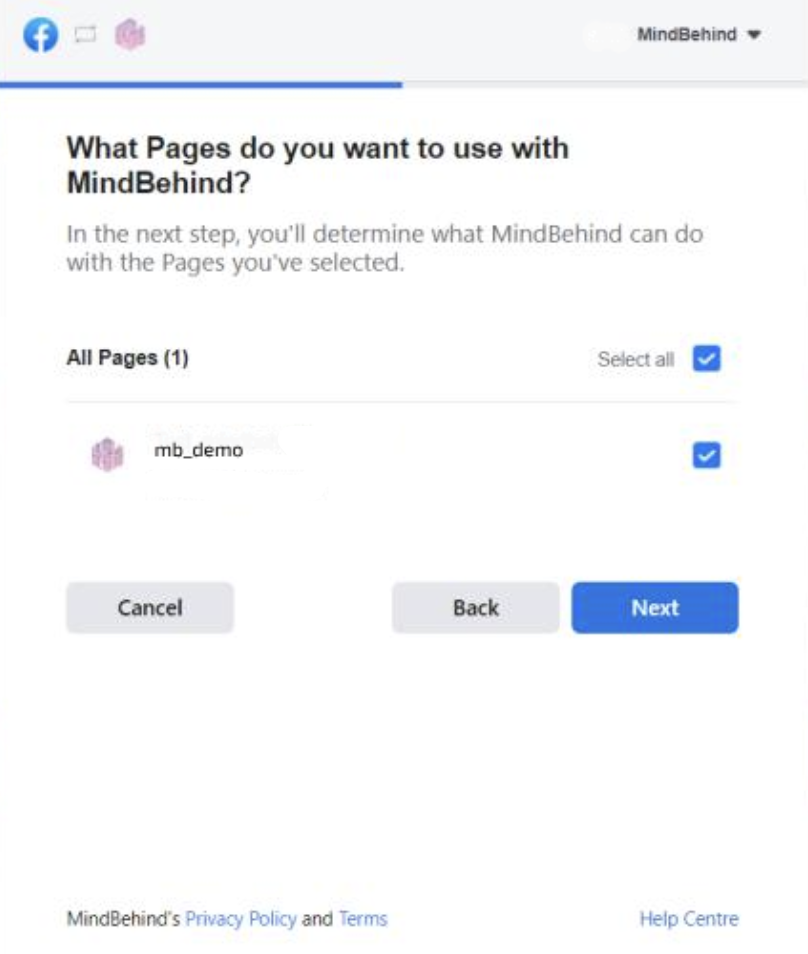
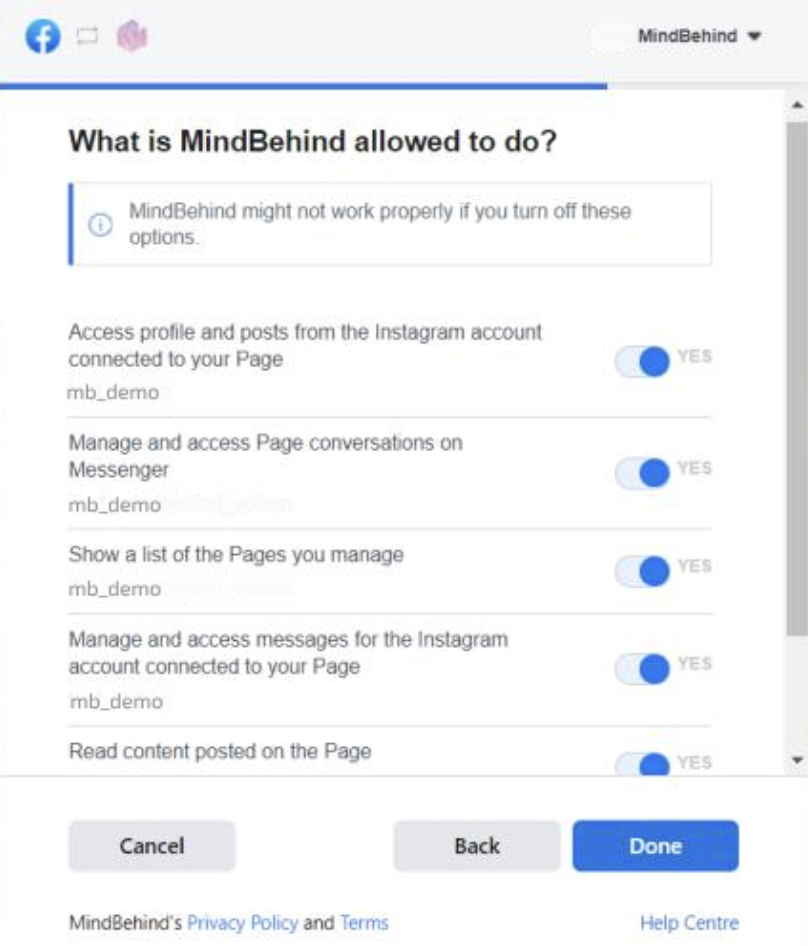
- Allow all the permissions required.
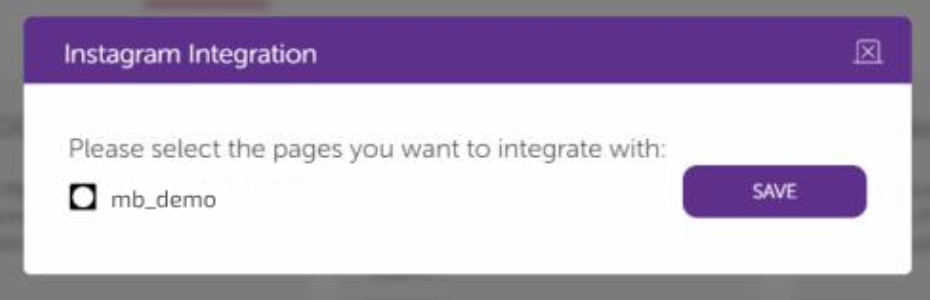
- Select the Facebook page and click the Save button.
- Go to your assistant.
- Click the Publish button on the top right.
- When you click the Channels button, you will see the Instagram page you added.
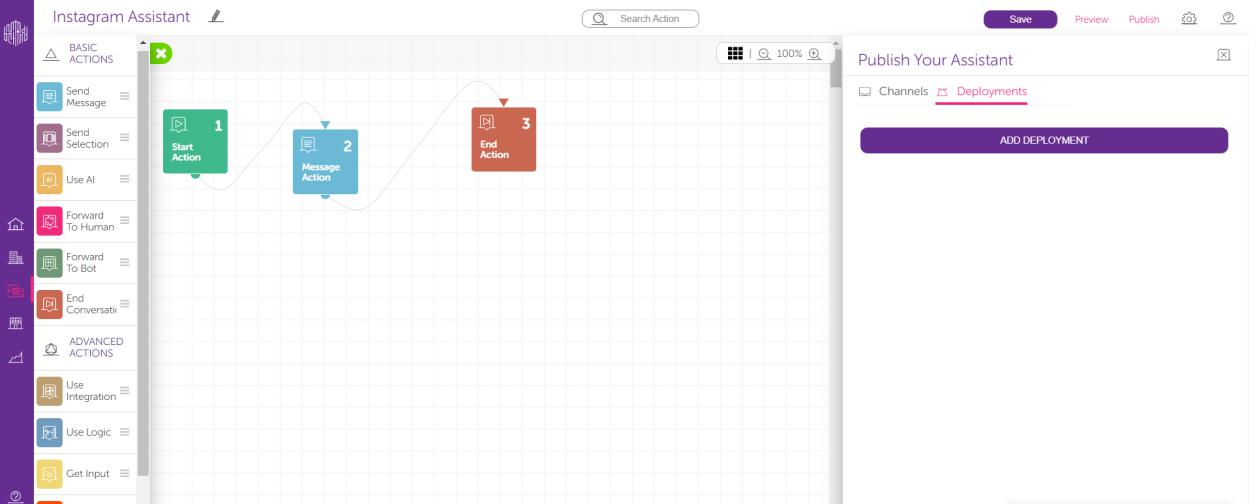
- Click the Deployments tab and click the Add deployment button on the bottom.
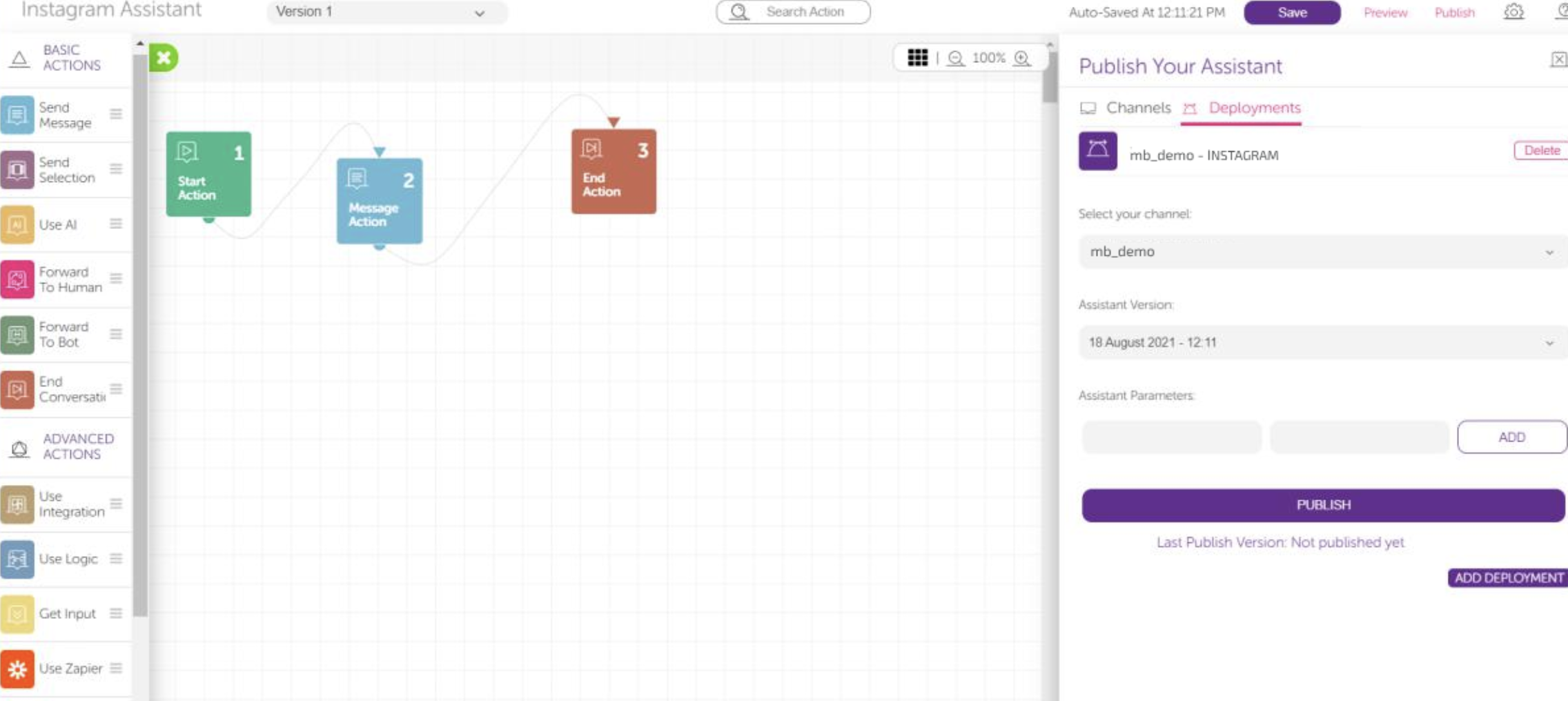
- Select your channel.
- Select the assistant version and click the Publish button.
Congratulations! It is all done. Your bot is running on your Instagram Business account.