The Persistent Menu is a user interface element inside Messenger API support for Instagram conversations that lists the main features of your page. It enables users to easily discover and access these features. This guide aims to explain how to set up the Instagram Persistent Menu.
Refer to Facebook's Persistent Menu guide for further details.
You can follow the steps below to set up the Persistent Menu.
The best practice is to set the menu before conversations on that channel start, so it's in place at the start of each conversation. It will only refresh when the conversation is deleted from the DM box, and a new conversation is opened. This restriction is caused by Meta.
Go to the company profile page and click the Channels tab.

Go to the Instagram channel you want to add the persistent menu to and click the Persistent Menu icon.

Fill in the required information in the pop-up.
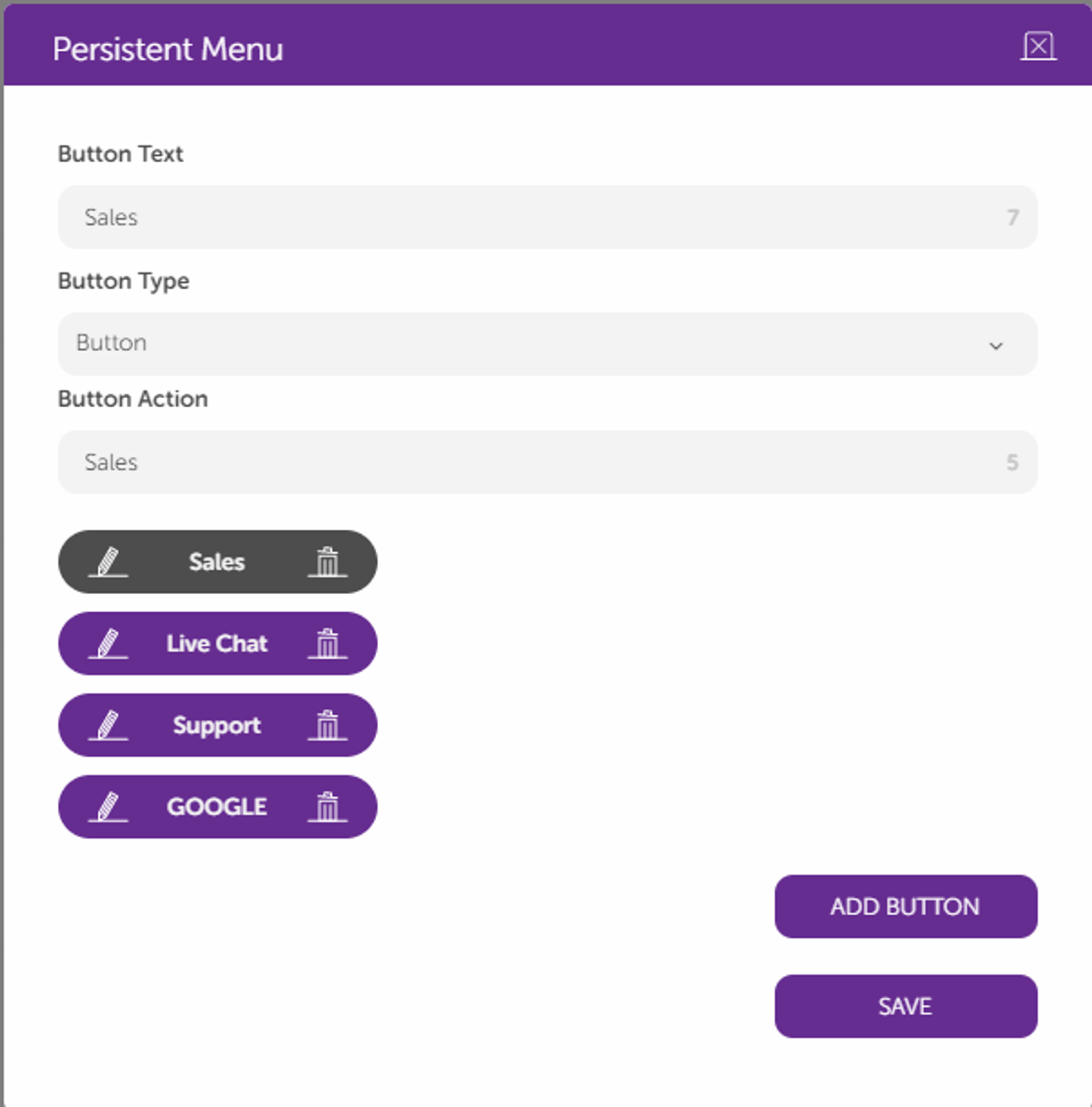
Each button will have its settings. Limitations are provided below at the end of the document.
The Button Type can be a link or a button. For the button, the Button Text will be the text that the user sees, and the Button Action will be the text that will be used inside the logic.
The Button Action for Button Type should be added to the Global keywords to maintain the conversation's logic. Therefore, you should add unique text that is not used in the assistant that you are going to publish.
6. To create a Logic Action to detect the Persistent Menu selection, add a Logic Action after the Start Action on the assistant map.
7. The logic should be as follows: “LASTMESSAGETYPE equal to PERSISTENT_MENU”.
8. After adding the logic, select the module that you want to connect. 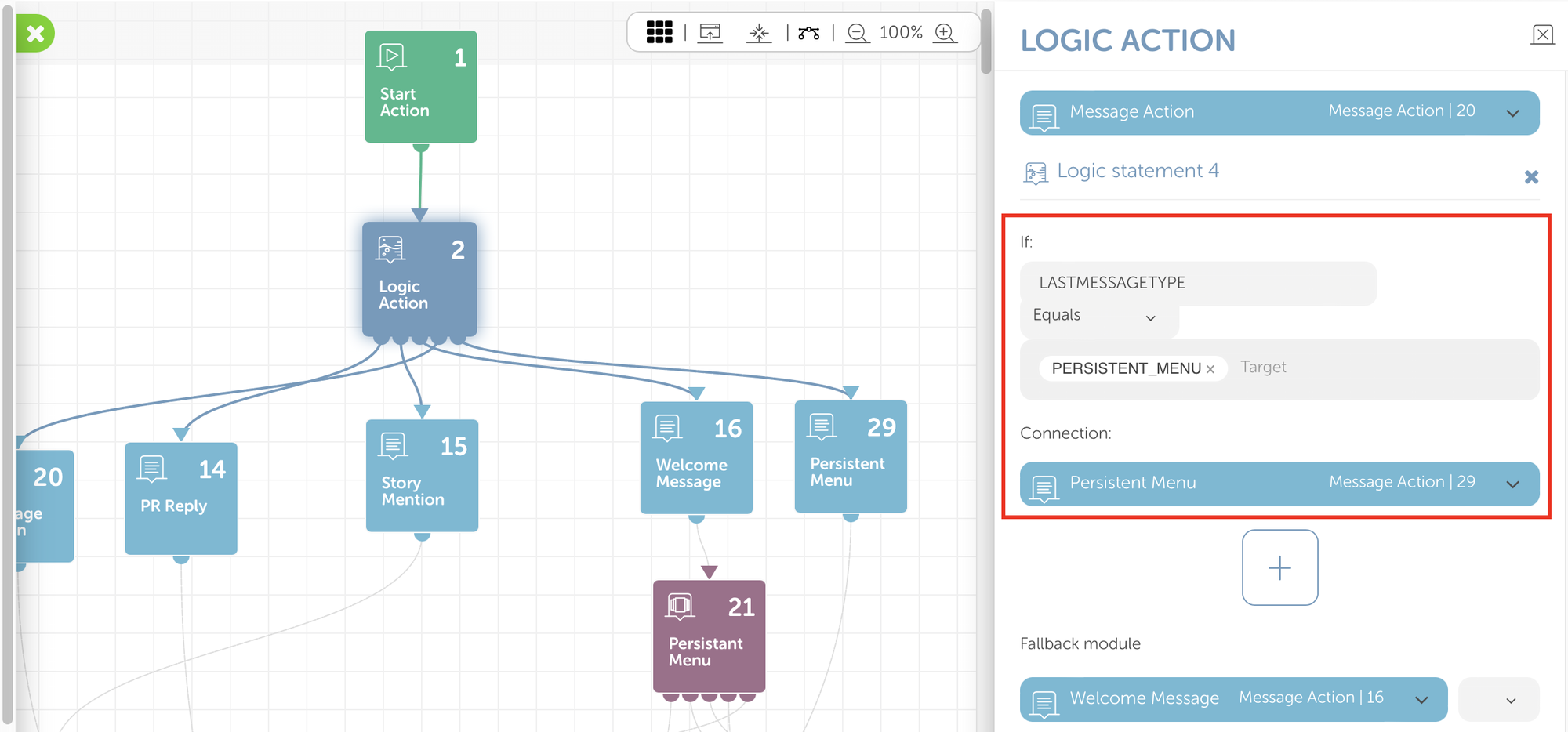
9. To detect the keyword during the conversation and how to continue the flow of the conversation, the button actions are added to the global keywords. Click the Settings icon to add the global keywords.
 10. Select the Global Keyword option.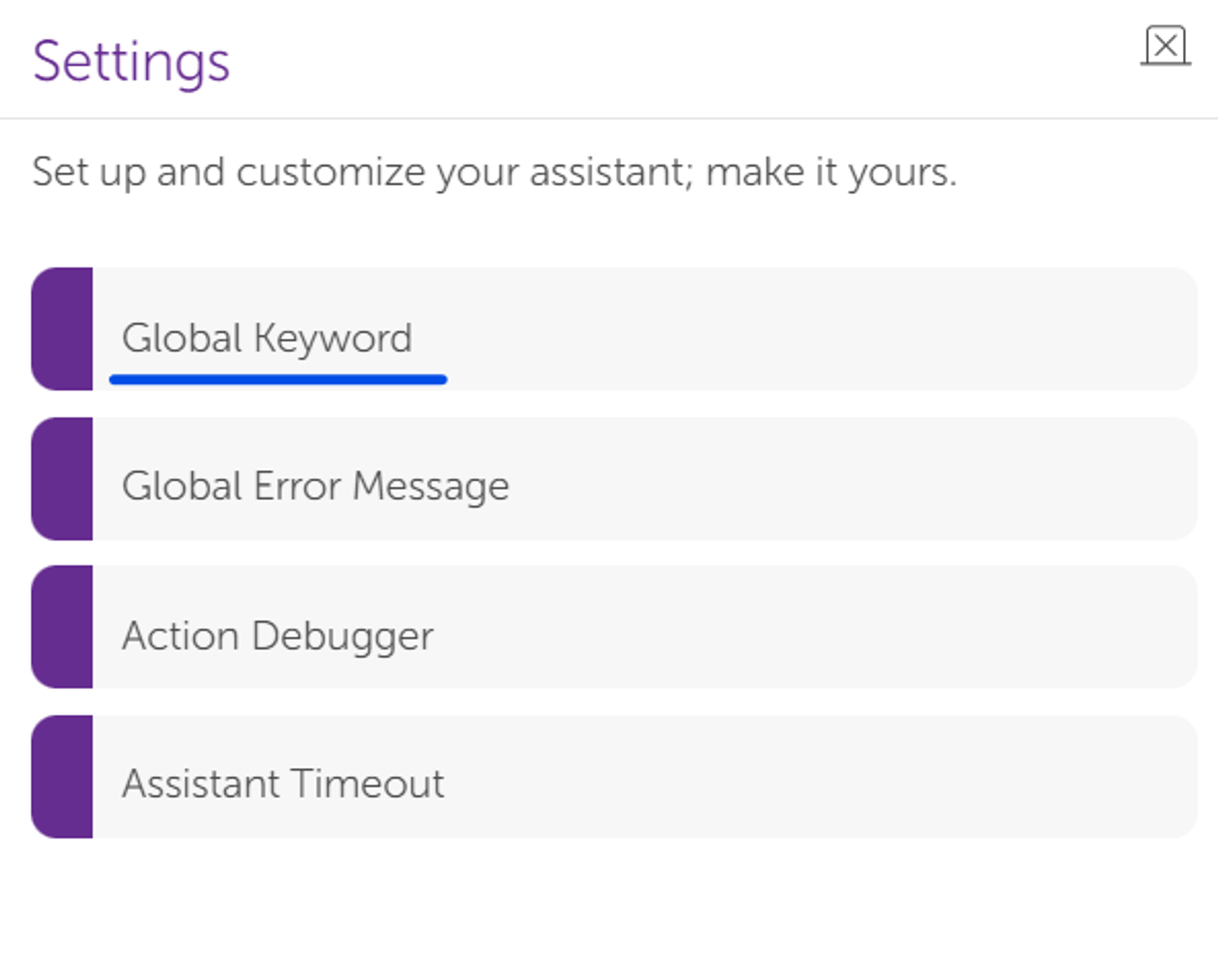
11. Click the Add icon and fill in the details. You will see the keywords provided in the Button Action, and the connection will be the module where the conversation will continue its flow.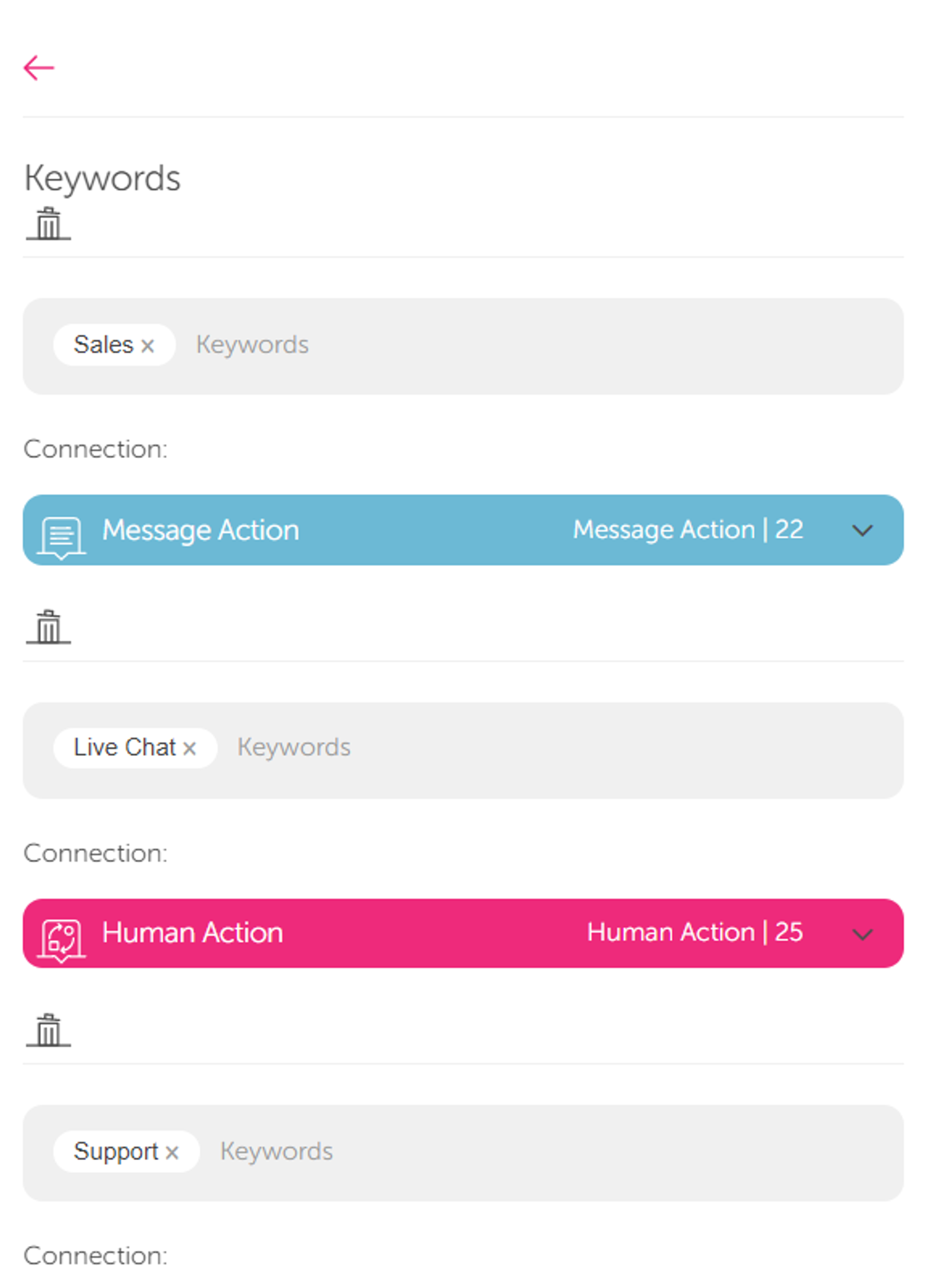
Button Text can be a maximum of 30 characters.
Button Action (payload) can be a maximum of 1000 characters.
A maximum of 5 buttons is supported.