This guide aims to explain how to set up BIP. After fulfilling the prerequisites, you can start your BIP integration.
Prerequisites
Before publishing the bot on your BIP account, follow the steps below:
1. After logging into your BIP Discover panel, click the Service Management option in the left navigation panel. 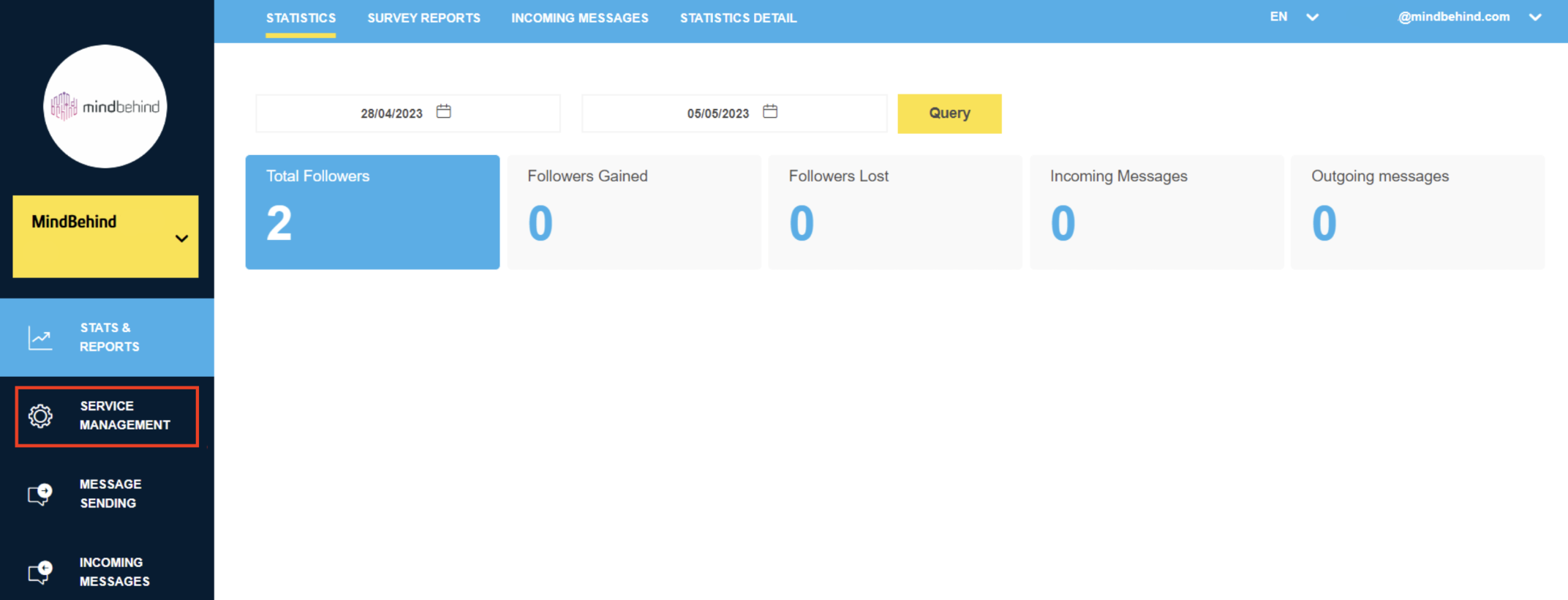 2. Click the Service Settings tab.
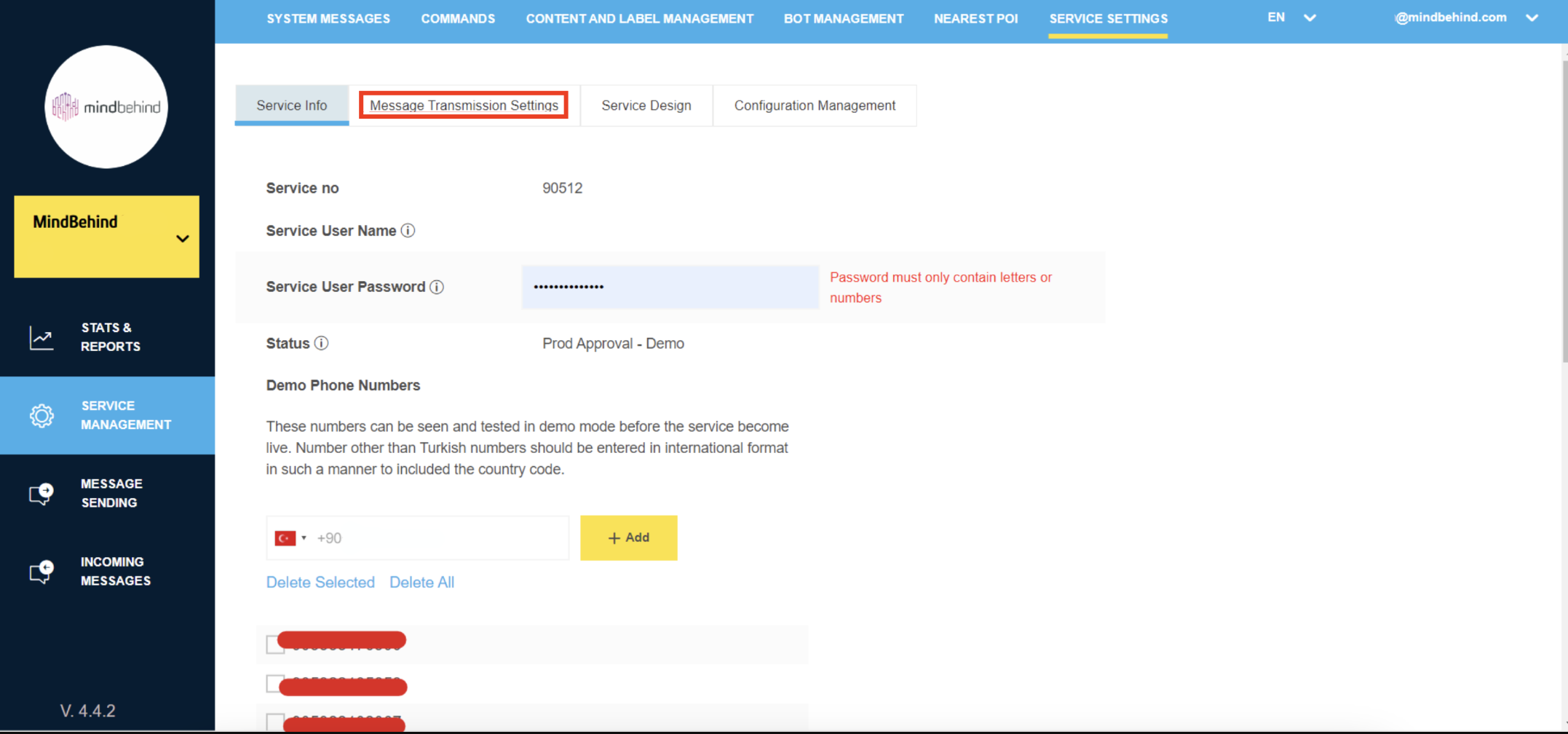
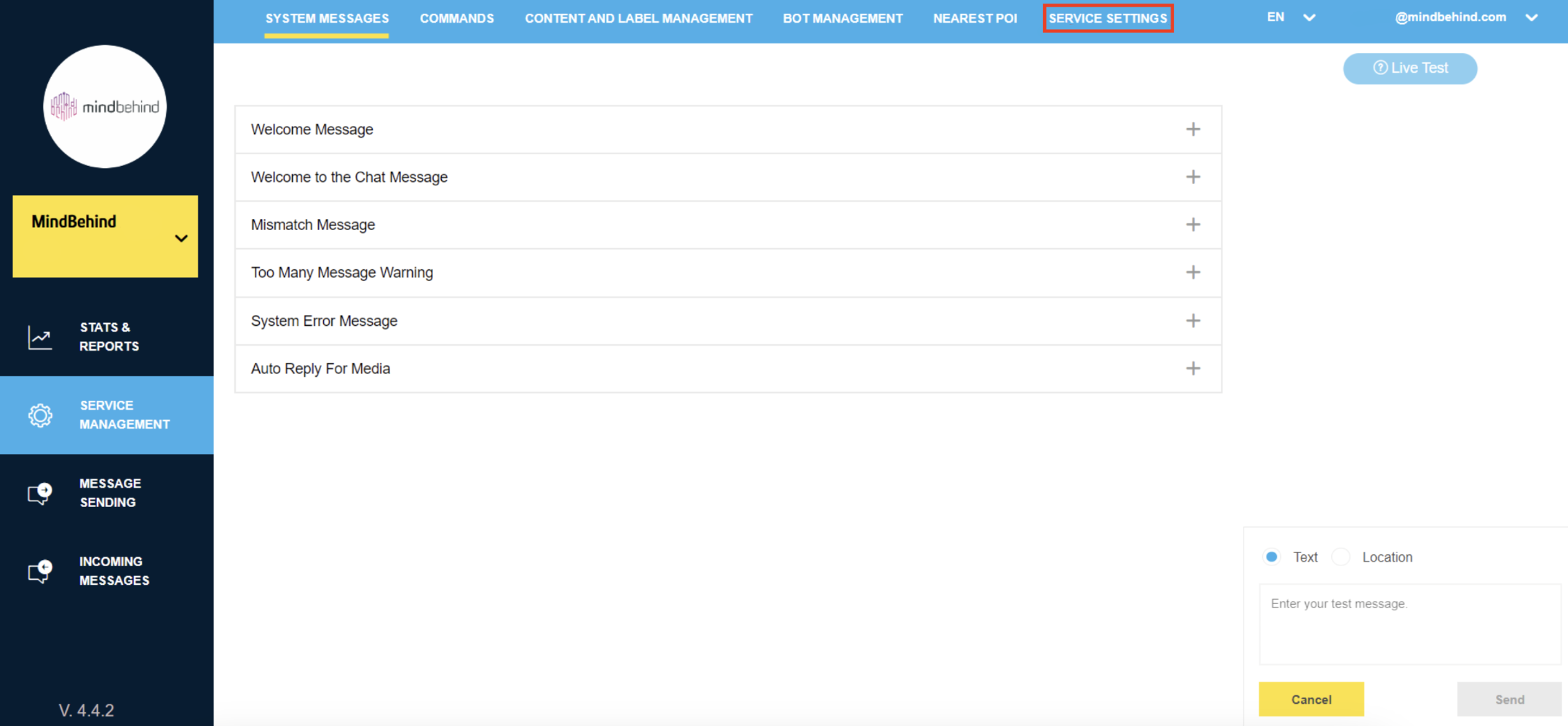 3. Note down the Service Username and Service User Password and go to the Message Transmission Settings.
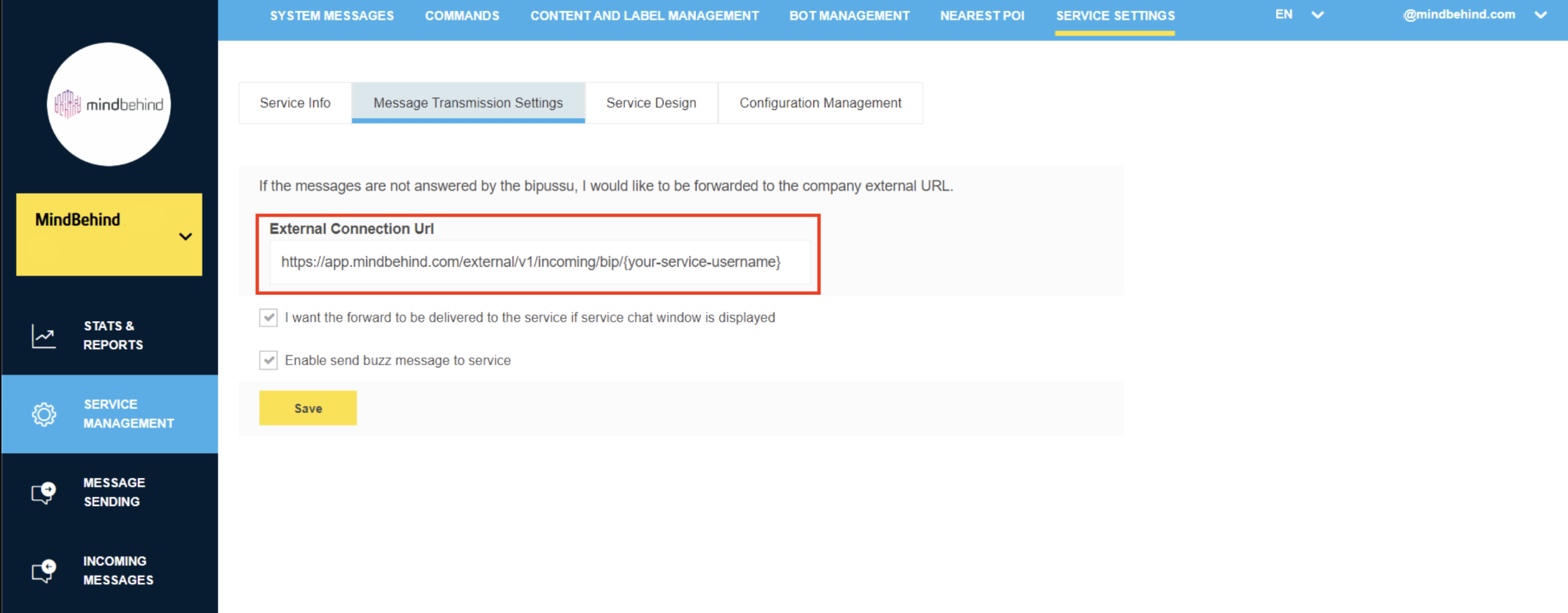
  4. Add https://app.mindbehind.com/external/v1/incoming/bip/{your-service-username} to the settings and tick the highlighted box.
  Congratulations, you have completed the prerequisites and can proceed to integrate the BIP channel for your company.
How to set up a BIP bot
1. Go to the MindBehind platform.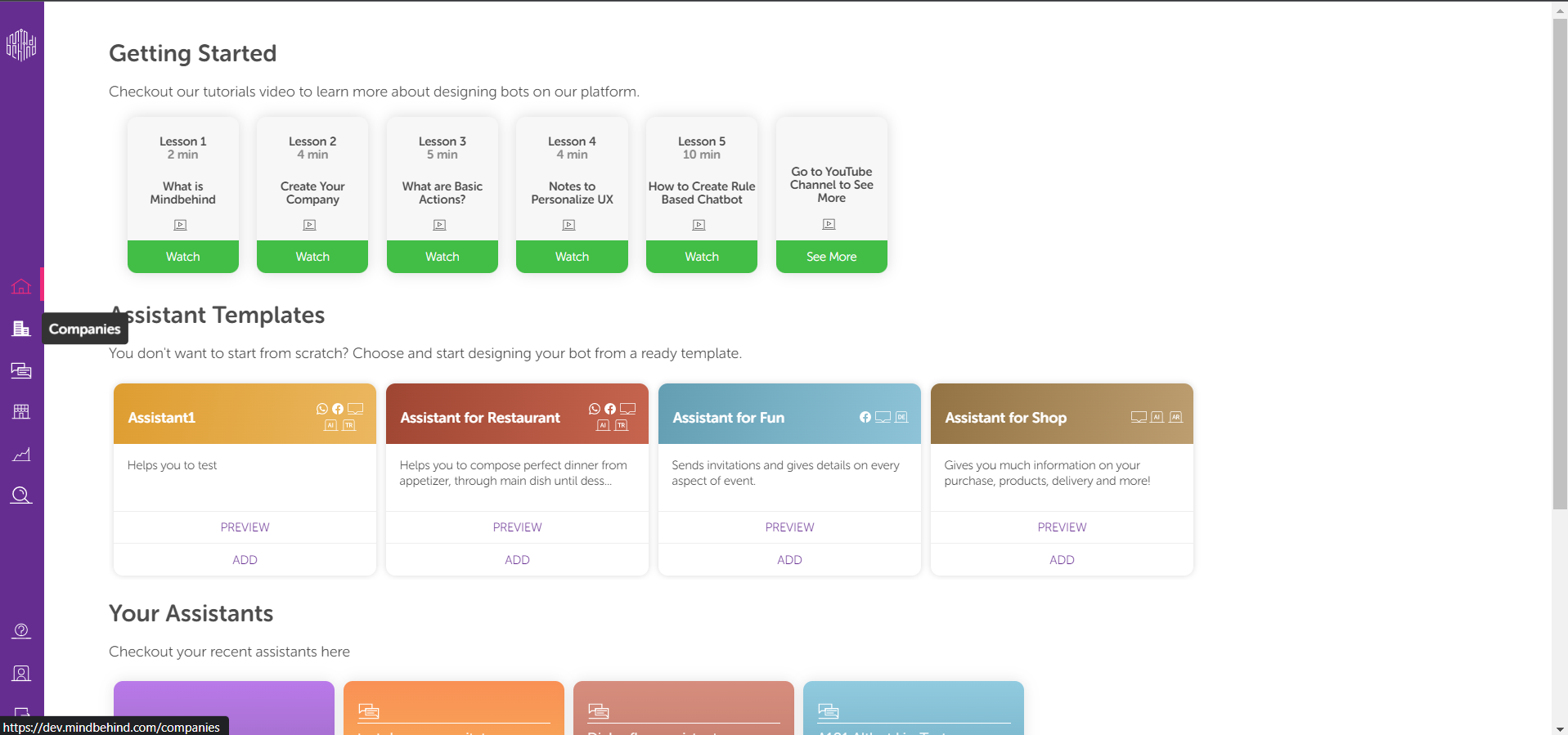 2. Select Companies from the left menu.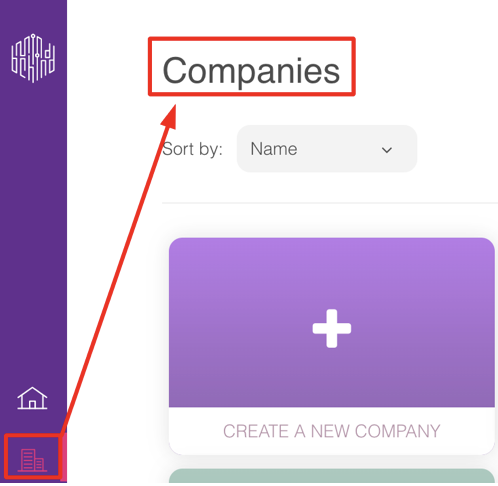
3. Choose the company that you have created and want to assign the bot to.
4. Click on the Channels tab. 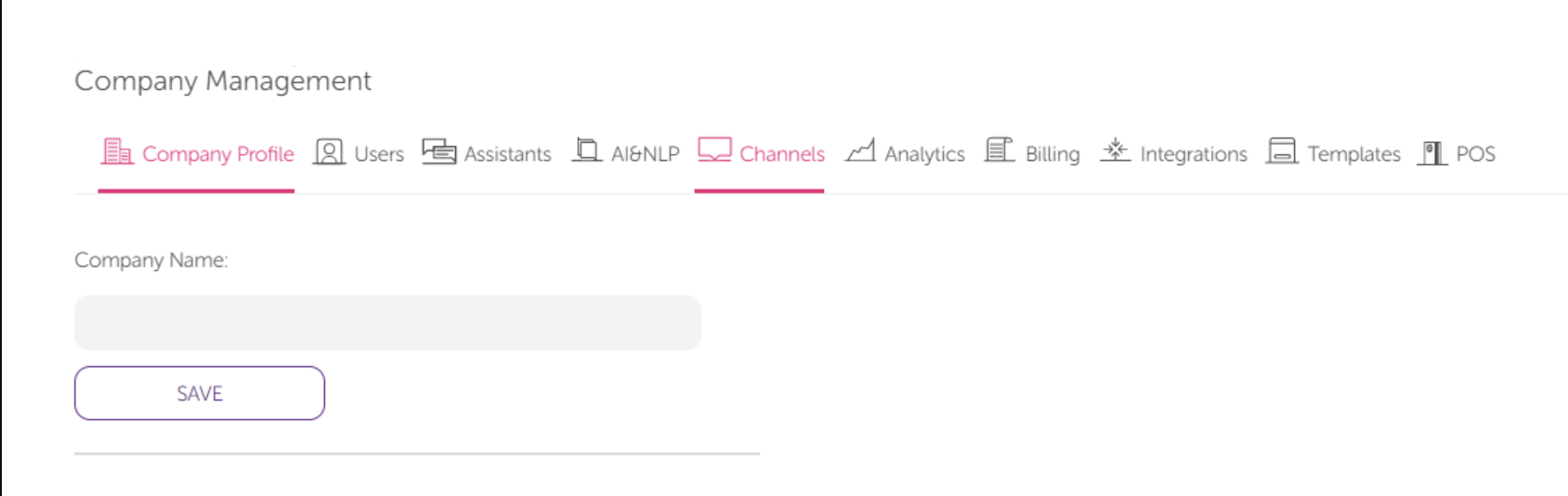 5. Click the Connect button for BIP.
 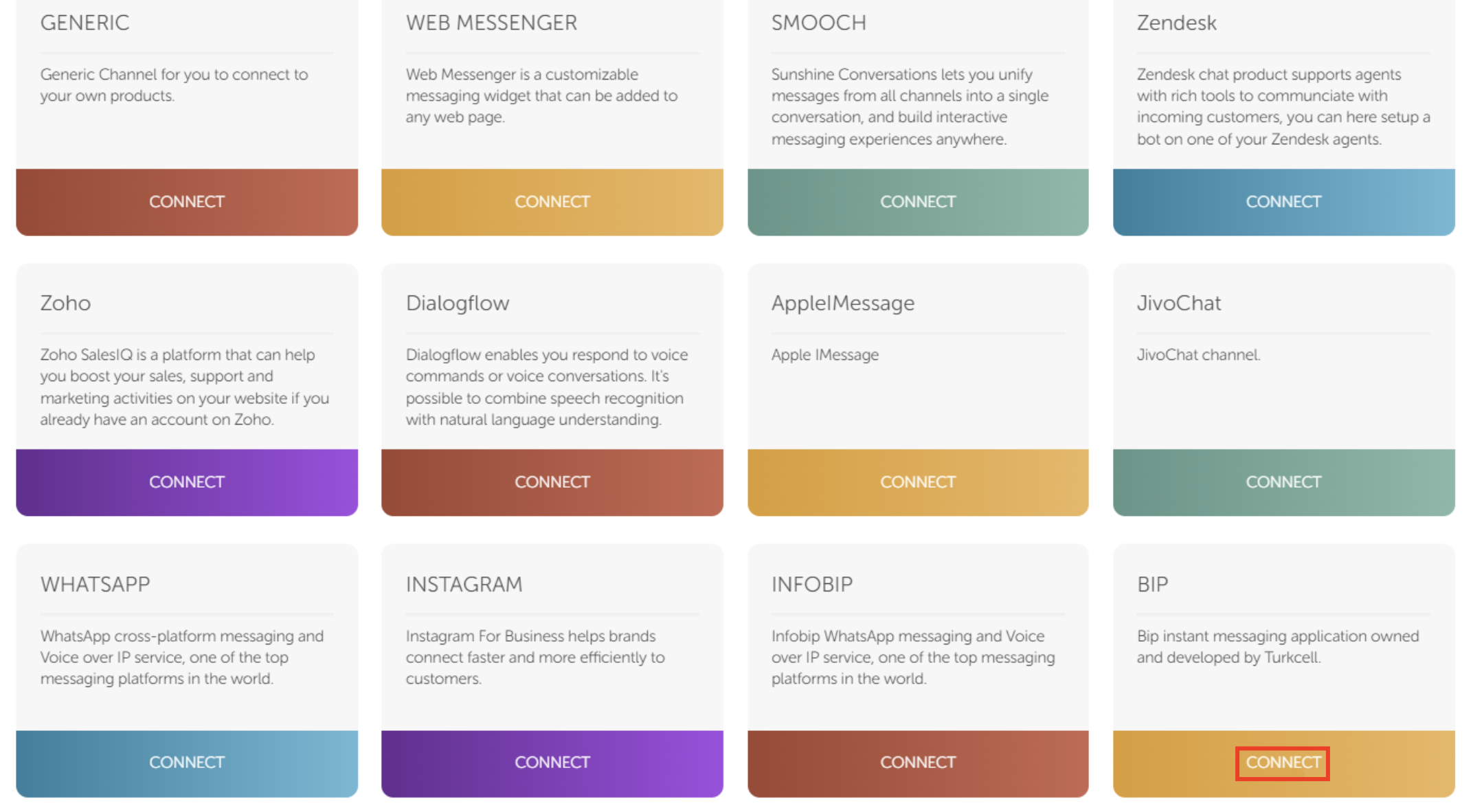 6. Enter a name for the Infobip channel you have created.
7. Click the Connect button after entering all the values. 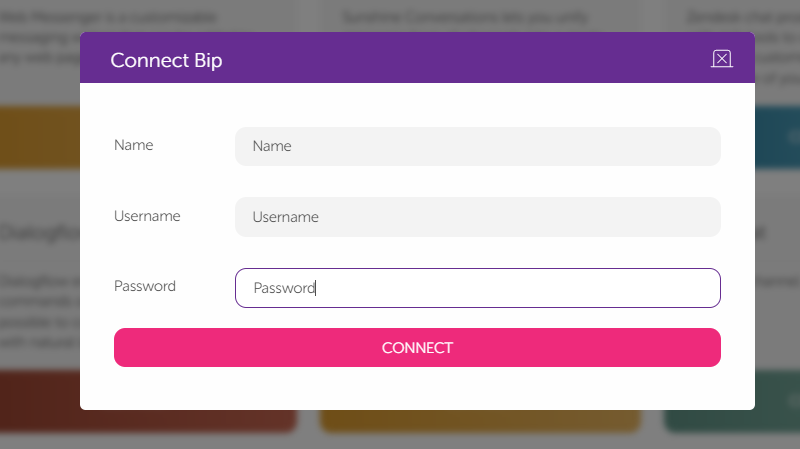 8. After creating the channel, go to the Assistant from the Company window. If you don't have an Assistant, create one and open it.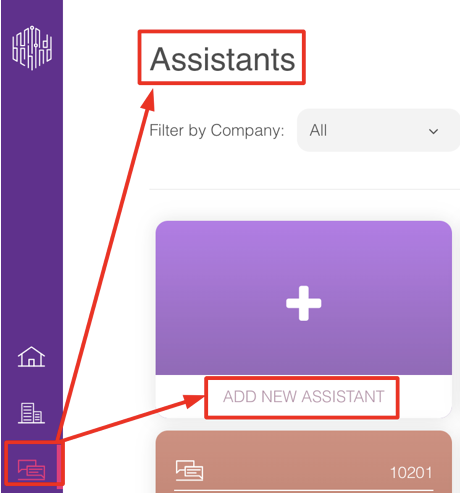
9. Click the Publish button on the top right of your screen. 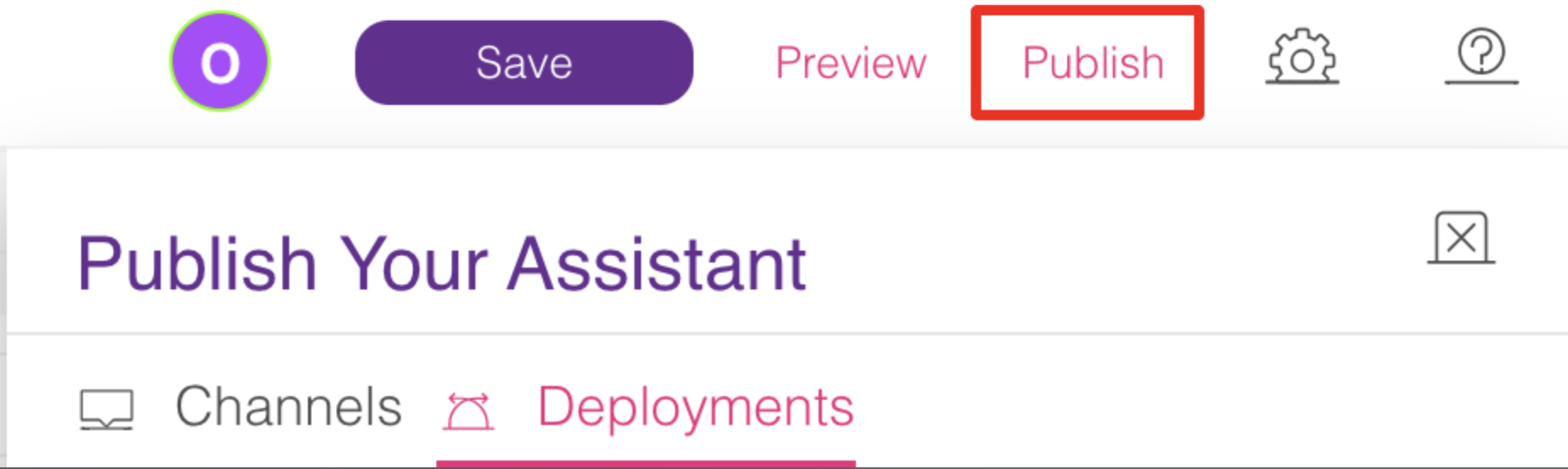
In the Channels section, you can see the pages that you added.
10. Click the Deployments tab and click the Add Deployment button. 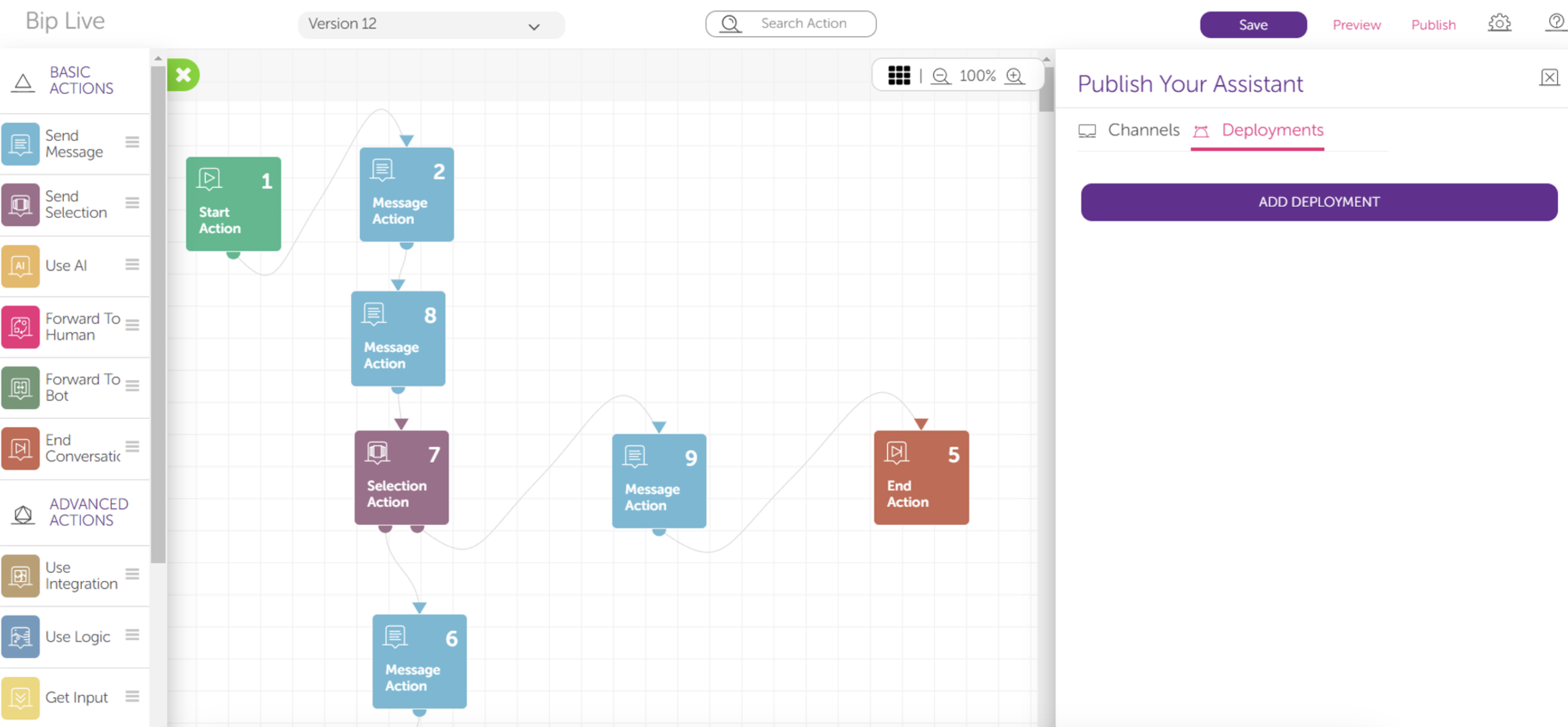
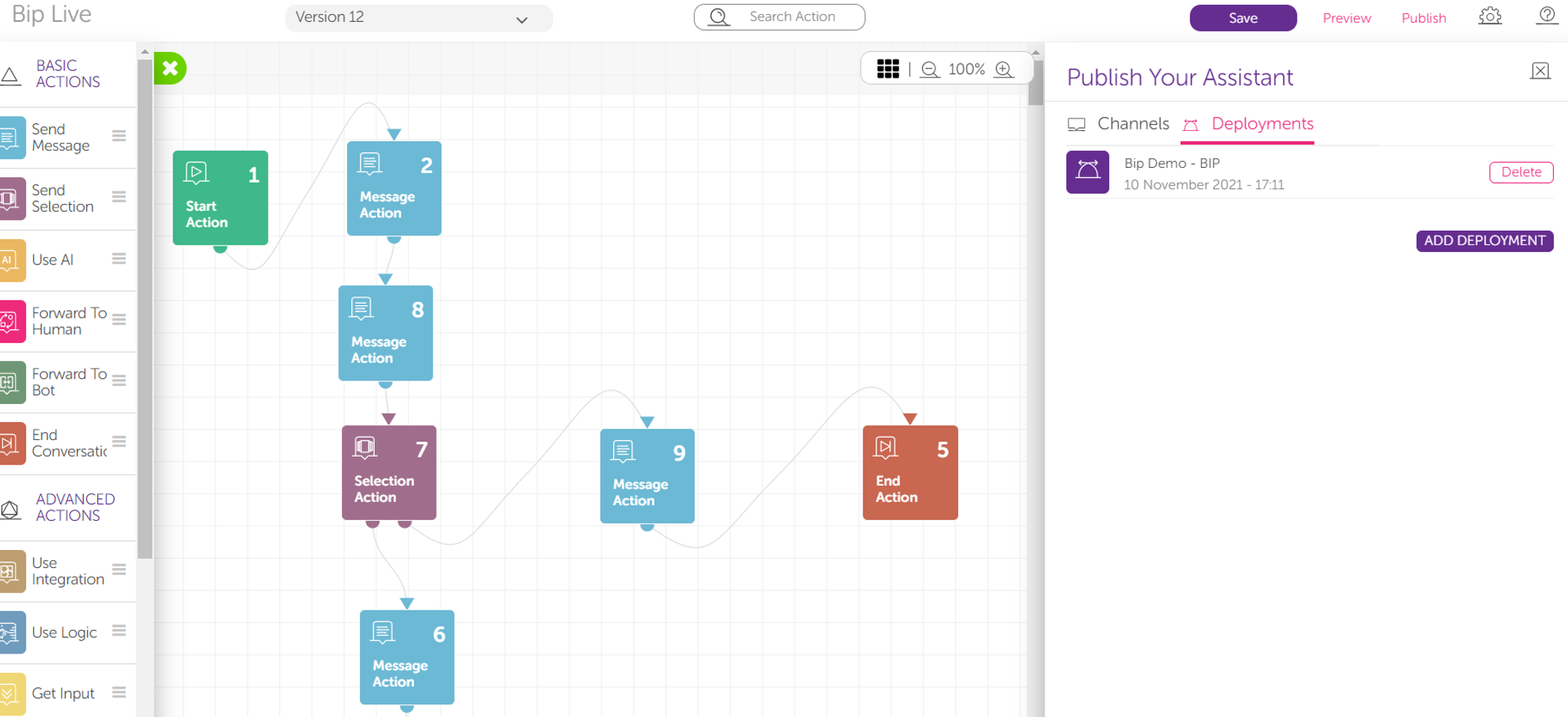 11. Select your channel and the assistant version and click the Publish button.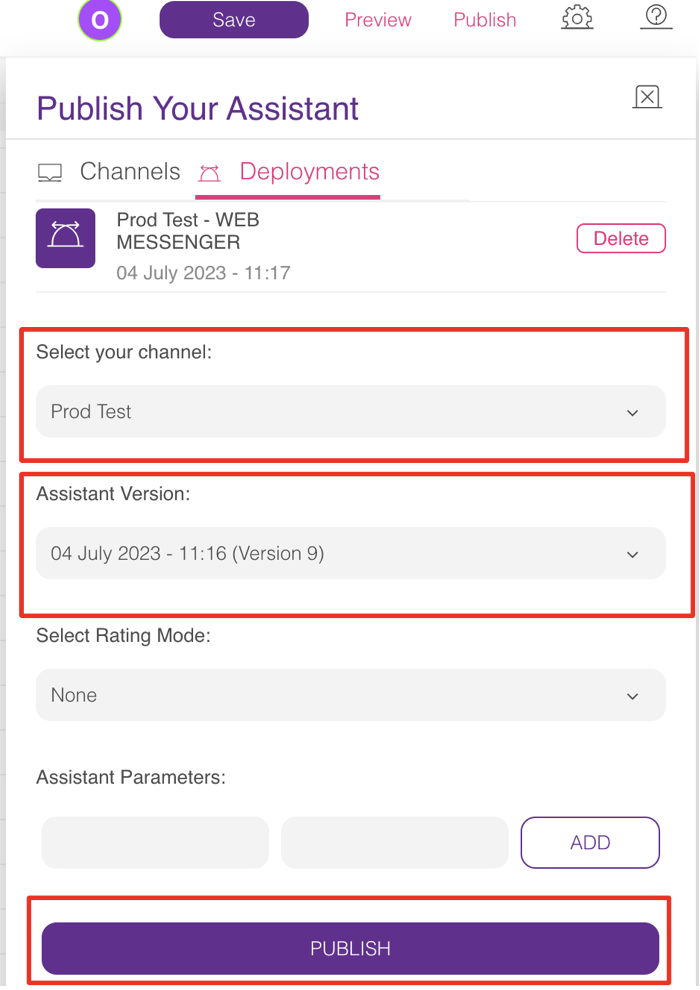
Congratulations! Your bot is running on your BIP account.