To check the data being sent and received from the device to Insider One and vice versa, follow these steps for Android and iOS:
Android
Connect your test device to your computer with the IDE (Android Studio) and open the Insider integration via cable.
Run the project on the test device.
Add the test device to the Insider One’s panel via a QR code.
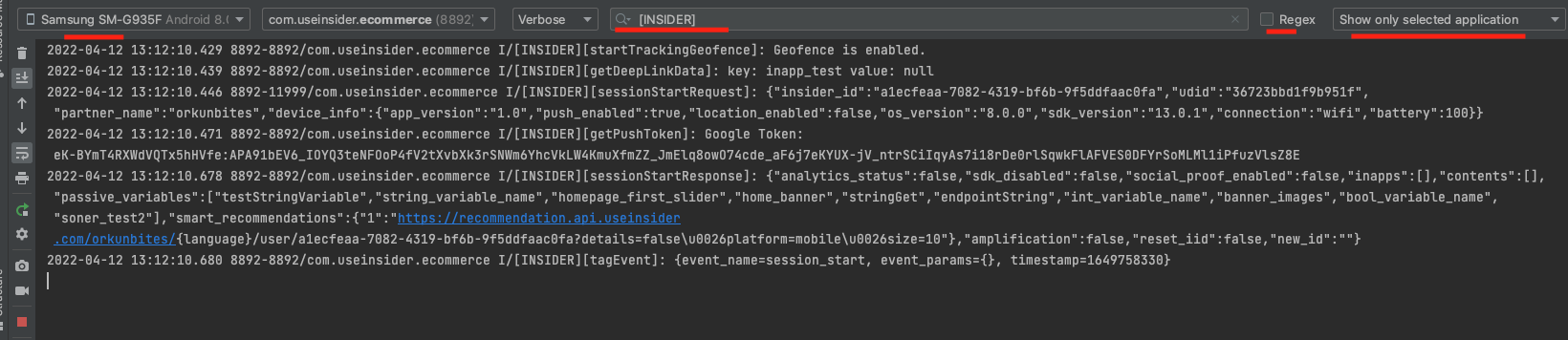
Once the app starts, stop it and restart it to view the SDK logs in Logcat.
To monitor the SDK logs, enter [INSIDER] in the filter and disable the regex. Then select Show only selected application from the dropdown on the right.
Once you scan the QR code, you do not need to add the device as a test device to the panel.
iOS
Connect your test device to your computer with the IDE (Xcode or Mac Console), then open the Insider integration via cable.
Run the project on the test device.
Add the test device to the Insider One’s panel via a QR code.
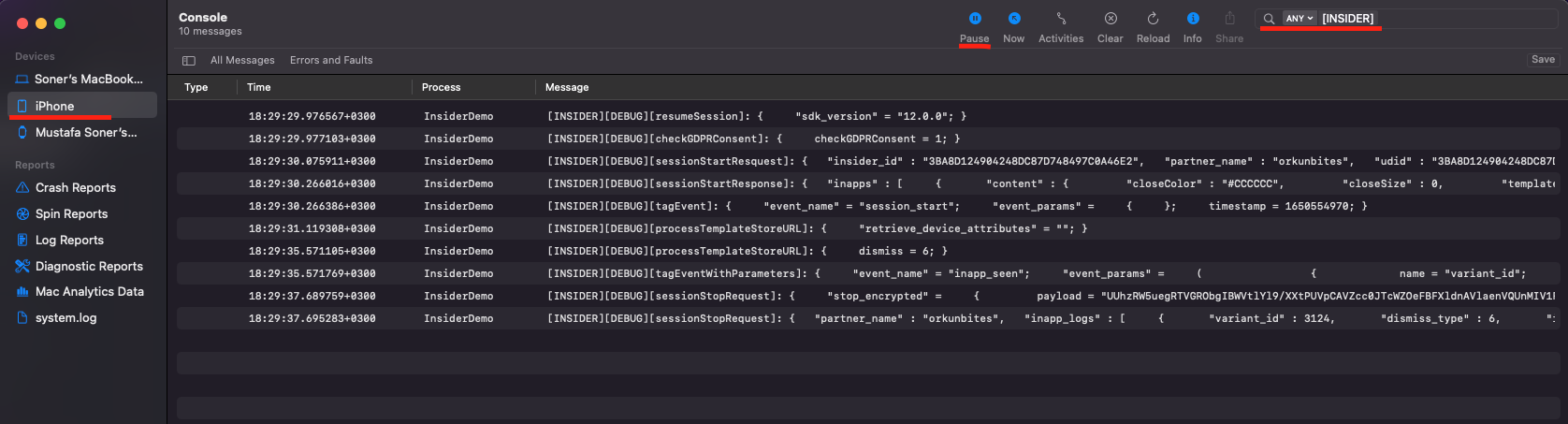
Once the app starts, you can view the logs in the Mac Console instantly.
Enter [INSIDER] in the filter to monitor the SDK logs.
Once you scan the QR code, you do not need to add the device to the panel as a test device.