This page lists what you prepare in Google Cloud and what you enter in Insider One to create a Google BigQuery authentication. For instructions on how to create, use, and manage authentications, refer to Authentications.
Before you begin
A Google Cloud project with Google BigQuery enabled.
A Service Account for Insider One with the BigQuery Data Viewer, BigQuery Job User, and BigQuery Metadata Viewer roles, and its JSON key file. To create them, refer to Create a Service Account.
Access to the datasets and tables that contain user and event data.
The location of your dataset. You can find it on the details page of the table or view you are using.
Create a Service Account
Go to the Google Cloud Console - Service Accounts page.
Select your project from the top navigation bar.
Click Create Service Account.
Enter a name (for example, insider-bigquery-integration) and a description.
Click Create and Continue.
To assign the required roles, add the following roles in the step that grants this service account access to the project:
BigQuery Data Viewer (roles/bigquery.dataViewer)
BigQuery Job User (roles/bigquery.jobUser)
BigQuery Metadata Viewer (roles/bigquery.metadataViewer)
After you add the roles, click Done. Your service account appears in the list.
In the Service Accounts list, click the email of your new service account.
Go to the Keys tab.
Click Add Key, then Create new key.
Select JSON and click Create. The JSON key file downloads automatically to your computer.
For further details, refer to the Google documentation on creating and managing service accounts and on Google BigQuery predefined IAM roles.
Always use a dedicated service account with least-privilege access.
Enter the authentication details
Open the Google BigQuery authentication form as described in the Create an authentication section of Authentications. The form has three steps.
Create a dedicated Service Account for Insider One or select an existing one in your Google Cloud Platform account. Grant it the required BigQuery Data Viewer, BigQuery Job User, and BigQuery Metadata Viewer permissions.
Upload the JSON file you generated in your Google BigQuery account. Upload a JSON file no larger than 5 KB. The script values are filled in automatically from the JSON file you upload.
To create a dedicated bucket for Insider One and grant the required permissions to your Service Account, copy the following script from the form, replace the DATASET_LOCATION placeholder with your actual value, and run the script in Cloud Shell. The form pre-fills the bucket name for your account.
gcloud storage buckets create gs://insider-<PARTNER_NAME> \
  --project=<PROJECT_ID> \
  --location=<DATASET_LOCATION> \
  --uniform-bucket-level-access

gcloud storage buckets add-iam-policy-binding gs://insider-<PARTNER_NAME> \
  --member="serviceAccount:<SERVICE_ACCOUNT_EMAIL>" \
  --role="roles/storage.objectAdmin"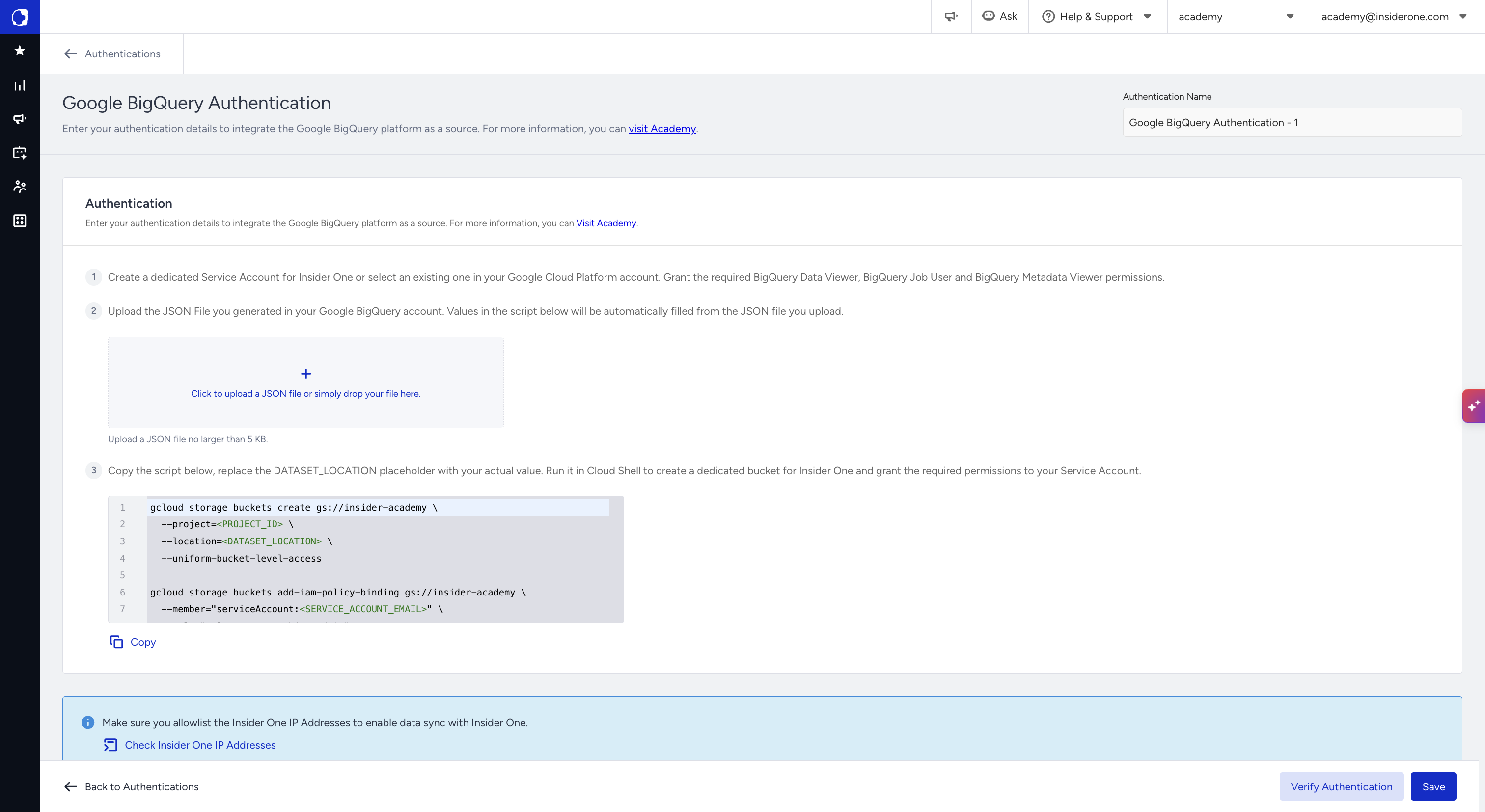
Allowlist the Insider One IP addresses
The form ends with this information box: "Make sure you allowlist the Insider One IP Addresses to enable data sync with Insider One." To see the addresses, click Check Insider One IP Addresses.
Verify and save the authentication
Click Verify Authentication. After a successful verification, the button turns into a green Authenticated label with a check mark.
Click Save.