This feature is currently available in early access. To enable it for your account, contact your Insider One team.
Many companies store identifiers such as email addresses or loyalty IDs encrypted with their own key and share them only in that form. With Field Encryption, you register your encryption key with Insider One once. Insider One then decrypts the identifiers you send and matches each one to the right user profile, so you never have to decrypt data before sending it.
This article covers:
Use cases
Send identifiers exactly as your systems store them. If your CRM or data warehouse keeps email addresses or customer IDs encrypted, send them as they are. You don't need to decrypt them first.
Keep plain identifiers out of transit. Your integrations send only encrypted values, so plain email addresses and phone numbers never travel between your systems and Insider One.
Update identifiers with encrypted values. Change a user's identifier, such as their email address, using the encrypted values your systems already hold.
Before you start
Field Encryption is off by default. Contact the Insider One team to enable it for your account. Once it's enabled, the Field Encryption Key section appears in your settings.
To save or change the key, you need a role that can manage users. Other users can view the settings but can't change them.
Your encryption must use one of the supported settings below.
Setting | Supported values |
|---|---|
Cipher | AES, DES, 3DES |
Mode | CBC, ECB |
Padding | PKCS7, ISO/IEC 7816-4, Zeros |
Encoding | UTF-8 |
Key length | AES: 16, 24, or 32 bytes DES: 8 bytes 3DES: 24 bytes |
Initialization vector (IV) | Optional. When provided, AES needs 16 bytes, and DES and 3DES need 8 bytes. |
If you don't save an IV: Each encrypted value must start with its own IV. Generate a new random IV for every value, place it before the encrypted data, and base64-encode the two together. Insider One reads the IV from the start of the value (16 bytes for AES, 8 bytes for DES and 3DES) and uses it to decrypt the rest. Include the IV in ECB mode too, even though ECB doesn't use it.
Set up your encryption key
Register your key in the InOne panel to turn on Field Encryption for your account.
Navigate to Settings > Integration Settings > Field Encryption Key.
Select your Cipher, Mode, Padding, and Encoding.
Enter your Key in base64. If you use an IV, enter it in base64 as well.
Enter a sample value and its encrypted version, produced by your own system with this key. Insider One decrypts the encrypted sample and checks that the result matches the sample value exactly.
Click Test to check your settings without saving them.
Click Save.
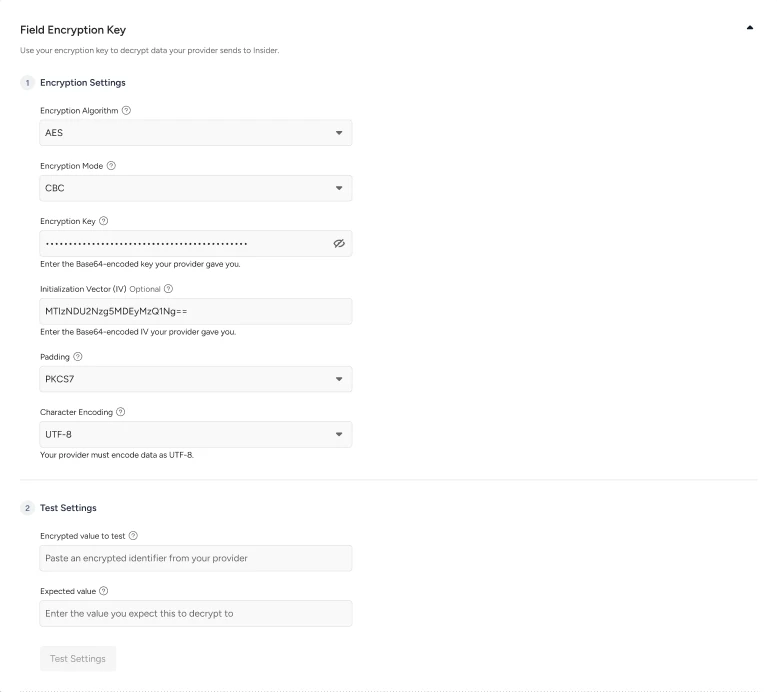
Once you save the key, Field Encryption is active, and Insider One accepts encrypted identifiers.
Note: Insider One never shows your key or IV again after you save them. The settings page shows only the cipher, mode, padding, encoding, whether a key is saved, and when it was last updated.
Important: The sample check is the only way Insider One can confirm your key works. A wrong key, mode, padding, or IV can still produce a value that looks valid, so always test with a real sample that your own system encrypted.
Base64 format
Keys, IVs, and encrypted values use padded base64, in either the standard or the URL-safe alphabet. Insider One rejects unpadded values and values that mix both alphabets. Each encrypted value can be up to 1,024 characters.
Send encrypted identifiers
To send encrypted identifiers with the Upsert API, add an encrypted object next to each user's identifiers, and put the encrypted values in encrypted.identifiers.
curl --location 'https://unification.useinsider.com/api/user/v1/upsert' \
  --header 'X-PARTNER-NAME: mybrand' \
  --header 'X-REQUEST-TOKEN: 1a2b3c4e5d6f' \
  --header 'Content-Type: application/json' \
  --data '{
    "users": [
      {
        "identifiers": {
          "uuid": "user-1234"
        },
        "encrypted": {
          "identifiers": {
            "email": "/UT6S+74gA8u8XOQQnkWFtwgupJzZYRtks/HqeDgKVw=",
           "custom": {
              "loyalty_id": "pe9E2kQ3x0aZ1mYtB8nR4w=="
            }
          }
        },
        "attributes": {
          "name": "Jane"
        }
      }
    ]
  }'
Header | Sample value | Description |
|---|---|---|
X-PARTNER-NAME | mybrand | Your partner name, in lowercase |
X-REQUEST-TOKEN | 1a2b3c4e5d6f | Your API authentication token |
Content-Type | application/json | Tells the API the request body is JSON |
The encrypted values in this example are placeholders. Your own system produces the real values with your key.
Insider One decrypts each value with your key and handles it exactly like a plain value: the same validation, the same matching rules, and the same user profile.
Follow these rules for the encrypted object:
You can encrypt email, phone_number, uuid, and custom identifiers. Put custom identifiers under custom, one level deep.
You can send some identifiers plain and others encrypted for the same user.
Send each identifier in only one place. If the same identifier appears in both identifiers and encrypted.identifiers, Insider One rejects that user with a conflict error.
Only identifiers can be encrypted. Send attributes, event parameters, and object attributes in plain form.
If any encrypted identifier for a user can't be decrypted, Insider One doesn't write that user. The other users in the request are processed normally.
Update identifiers with encrypted values
The Update Identifiers API also accepts encrypted values. Add a top-level encrypted object containing old_identifier, new_identifier, or both.
curl --location --request PATCH 'https://unification.useinsider.com/api/user/v1/identity' \
  --header 'X-PARTNER-NAME: mybrand' \
  --header 'X-REQUEST-TOKEN: 1a2b3c4e5d6f' \
  --header 'Content-Type: application/json' \
  --data-raw '{
    "encrypted": {
      "old_identifier": {
        "email": "/UT6S+74gA8u8XOQQnkWFtwgupJzZYRtks/HqeDgKVw="
      },
     "new_identifier": {
        "email": "kR7vQ2mX9pLz4sTn1wYb8eHc3uJd6fAg0iOq5rVt2xE="
      }
    }
  }'
You can encrypt one side and send the other side plain. Put the plain side as old_identifier or new_identifier at the top level of the request.
Put custom identifiers under custom, the same way as in a plain request.
If either side can't be decrypted, the request returns 400, and the identifier stays unchanged.
APIs that don't accept encrypted identifiers
Other identifier-based APIs, such as Get User Profiles, Delete, and Anonymize, accept only plain identifiers. If a request to one of these APIs contains an encrypted object, it returns an unsupported_route error. Use the plain identifier for those requests.
Change or remove your key
To change your key or any other setting, update the Field Encryption Key section and enter a new sample pair. The new settings replace the old ones immediately, with no overlap period where both keys work.
Important: Values encrypted with the old key stop matching as soon as the new key is active. Switch your systems to the new key at the same time you save it.
To remove your key, contact the Insider One team.
Error messages
Errors when saving the key
Message | What it means | What to do |
|---|---|---|
key is not padded base64 in the standard or URL-safe alphabet | The key, IV, or encrypted sample isn't valid base64. | Re-encode the value as padded base64, using only one alphabet. |
AES needs 16/24/32 bytes, you gave 8 | The key length doesn't match the cipher. | Use a key of the length the cipher requires. See the supported settings table. |
IV must be 16 bytes, you gave 9 | The IV length doesn't match the cipher. | Use a 16-byte IV for AES or an 8-byte IV for DES and 3DES. |
config does not work, check key/mode/padding combination | The encrypted sample doesn't decrypt to the sample value. | Check the key, mode, padding, and IV against your own system's settings. |
Errors when sending encrypted identifiers
Error | What it means | What to do |
|---|---|---|
decrypt_error | The value can't be decrypted with your key. | Check that the value was encrypted with the key and settings saved in Insider One. |
invalid_encoding | The value isn't valid padded base64, or it's longer than 1,024 characters. | Send padded base64 within the length limit. |
conflict | The same identifier was sent both plain and encrypted. | Send the identifier in only one place. |
missing_config | Your account has no saved encryption key. | Set up your key first. |
unsupported_block | The encrypted object contains something other than identifiers. | Send attributes and event parameters in plain form. |
unsupported_route | This API doesn't accept encrypted identifiers. | Use the plain identifier. |
config_unavailable | Your key couldn't be loaded at that moment. | Retry the request. |
Where these errors appear depends on the API:
Upsert User Data API: Errors appear per user in data.fail.errors, for example under users.0.encrypted.identifiers.email. The other users in the request are still written.
Update Identifiers API: The request returns 400 or 503 for config_unavailable.
Limitations
The Insider One team enables Field Encryption per account.
Each account can have one key.
Only identifiers can be sent encrypted. Attributes, event parameters, and object attributes must be sent in plain text.
Only the Upsert and Update Identifiers APIs accept encrypted identifiers.
A key change takes effect immediately, with no overlap period.
FAQ
Q: Does Insider One store my encrypted values?
A: No. Insider One decrypts each value to find the user and then works with the plain identifier, the same way as when you send it plain.
Q: Can I see my key after saving it?
A: No. Insider One never shows the key or IV again. You can only replace them.
Q: Can I send encrypted attributes or events?
A: No. Field Encryption supports identifiers only. Send attributes and events in plain form.
Q: What happens if one user in a batch has an identifier that can't be decrypted?
A: Insider One rejects only that user and returns the error in the response. The rest of the batch is written.
Q: Can I test my settings before turning the feature on?
A: Yes. Click Test in the Field Encryption Key section to validate your settings without saving them.
Next steps
With your key saved and tested, you can start sending encrypted identifiers in your Upsert User Data requests. For the full request and response reference, see the related articles below.