Fallback Strategy Management gives you control over what your recommendation strategy shows when the primary strategy can't return enough results on its own. With Fallback Strategy Management, you decide which of your strategies step in, in what order, and how they fill the gap.
What Fallback Strategy Management does
You choose where a strategy's fallback comes from: Insider One's prebuilt fallback, one or more of your own recommendation strategies (ranked), or no fallback at all.
You can assign up to four fallback strategies to a single recommendation strategy and rank them by priority. Insider One tries the highest-ranked strategy first.
You choose how a fallback fills the widget. It can add only the items the primary strategy is missing, or let the fallback's results replace the primary results entirely.
You build a fallback strategy once and reuse it across every recommendation strategy that needs it. Update it in one place, and every strategy using it picks up the change.
Only strategies that share your primary strategy's channel and page type appear as fallback candidates.
How to configure fallback strategies
Navigate to Recommendation > Recommendation Strategies, then click Create to build a new strategy, or open an existing one to edit it.

Set up your primary strategy as usual: page type, algorithm, product count, exclusions, and filters.
Scroll to the Fallback Strategies section and choose a fallback source:
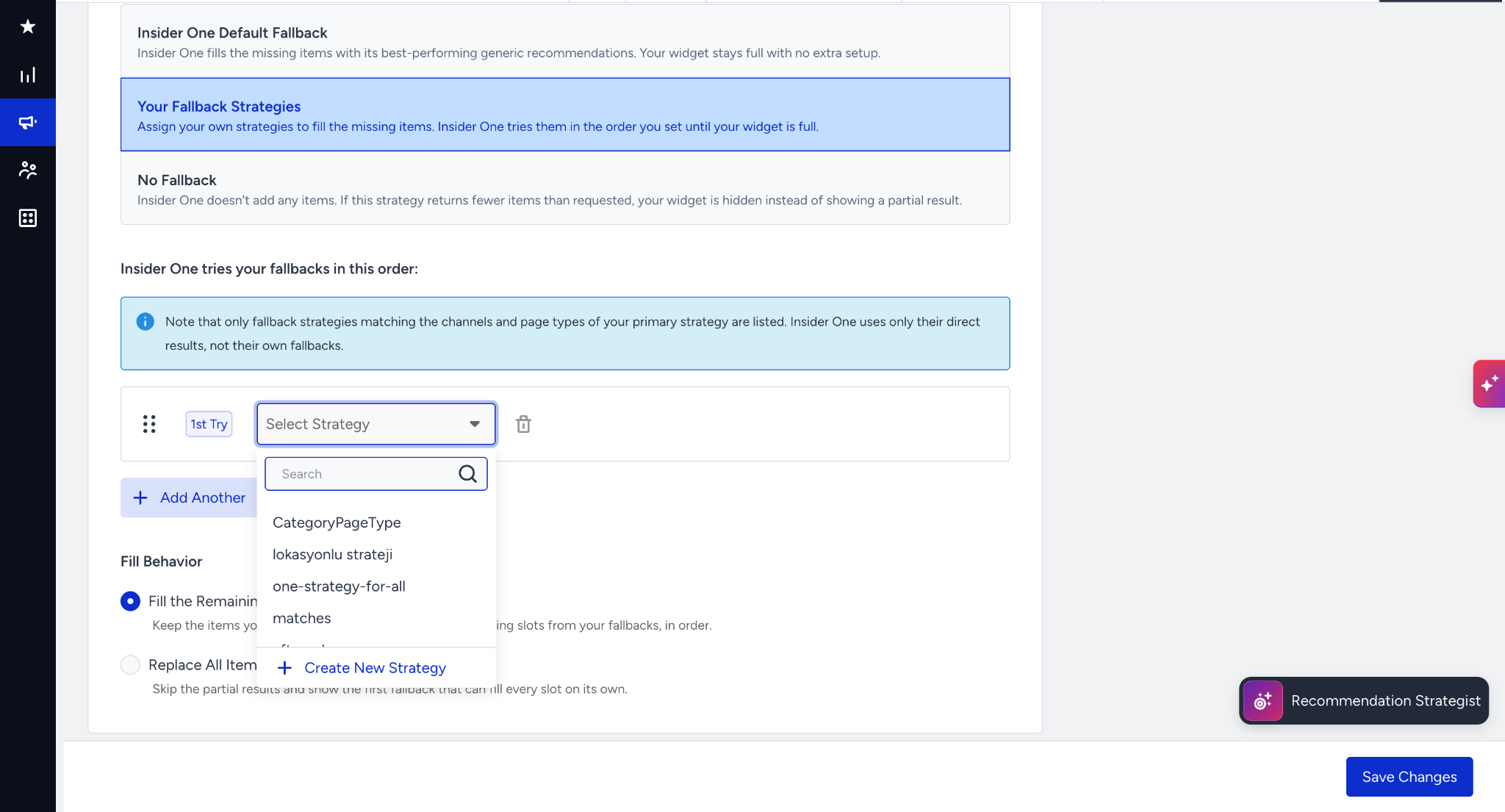
Insider One Default Fallback: Insider One fills the missing items with its best-performing generic recommendations, and your widget stays full with no extra setup.
Your Fallback Strategies: assign your own strategies to fill the missing items. Insider One tries them in the order you set until your widget is full.
No Fallback: If the primary algorithm returns fewer items than requested, only the primary strategy's results will be displayed.
(1).png)
If you chose Your Fallback Strategies, use the Select Strategy dropdown to search for and select a strategy, then click Add Another to add up to four in total. If you don't have a strategy yet, select Create New Strategy to build one, then return here to assign it. Only strategies that match your primary strategy's channel and page type appear in this list.
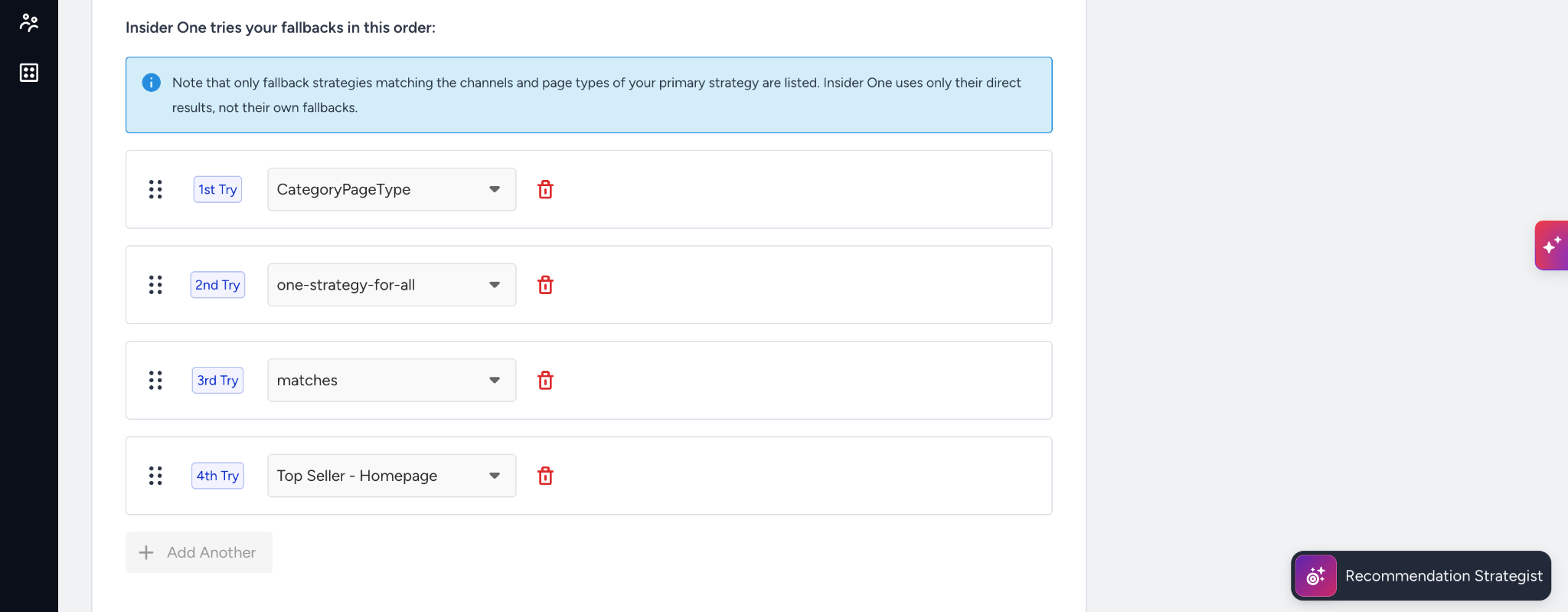
Reorder your selected fallback strategies to set priority. Insider One tries the strategy at the top first if the primary strategy falls short. Insider One only uses a fallback strategy's direct results, not its own fallback.
Choose your fill behavior:
Fill the Remaining Slots: keep the items your strategy returns and top up the remaining slots from your fallbacks, in order.
Replace All Items with a Fallback: skip the partial results and show the first fallback that can fill every slot on its own.
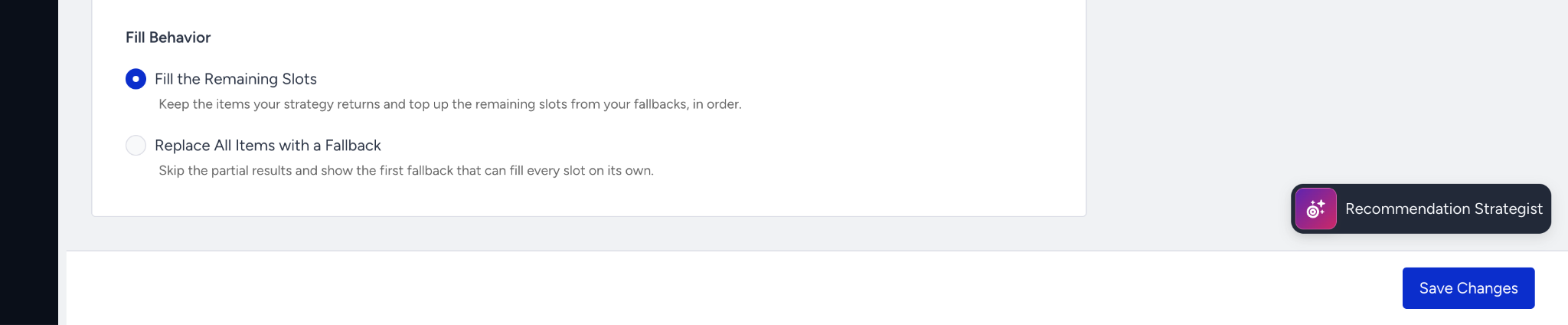
Click Save Changes to save your strategy.
Best practices
Rank your most relevant strategy first. Insider One tries fallbacks in order and stops at the first one that fills the gap.
Build broad, general-purpose fallback strategies, such as best sellers or most popular items, so they're more likely to return results when a more specific primary strategy comes up short.
Reuse one fallback strategy across every recommendation strategy that needs the same safety net instead of recreating it for each strategy.
Things to know
You can assign up to four fallback strategies to a recommendation strategy, ranked in priority order.
A fallback strategy only goes one level deep. If a fallback strategy has its own fallback, Insider One doesn't follow it.
Fallback candidates are limited to strategies that share your primary strategy's channel and page type.
You can't delete a strategy that's currently used in an active campaign until you remove it from that campaign.
With Fallback Strategy Management, your recommendation widgets stay full and relevant even when a primary strategy falls short. Set up a fallback source once, and every campaign using that strategy benefits from the same safety net.