Creating a recommendation strategy allows you to configure how products are recommended in your campaigns. The strategy comprises algorithms, filters, exclusions, and additional settings to ensure the recommendations align with your business goals. Once created, a strategy can be applied to multiple campaigns.
To create a Recommendation Strategy,
Navigate to the Recommendations > Recommendation Strategies.
Click the Create button.

Configure Strategy Settings
Define the strategy name: Enter a descriptive name that reflects the goal of the strategy (e.g., "Upsell Accessories", "Best Sellers for Homepage").
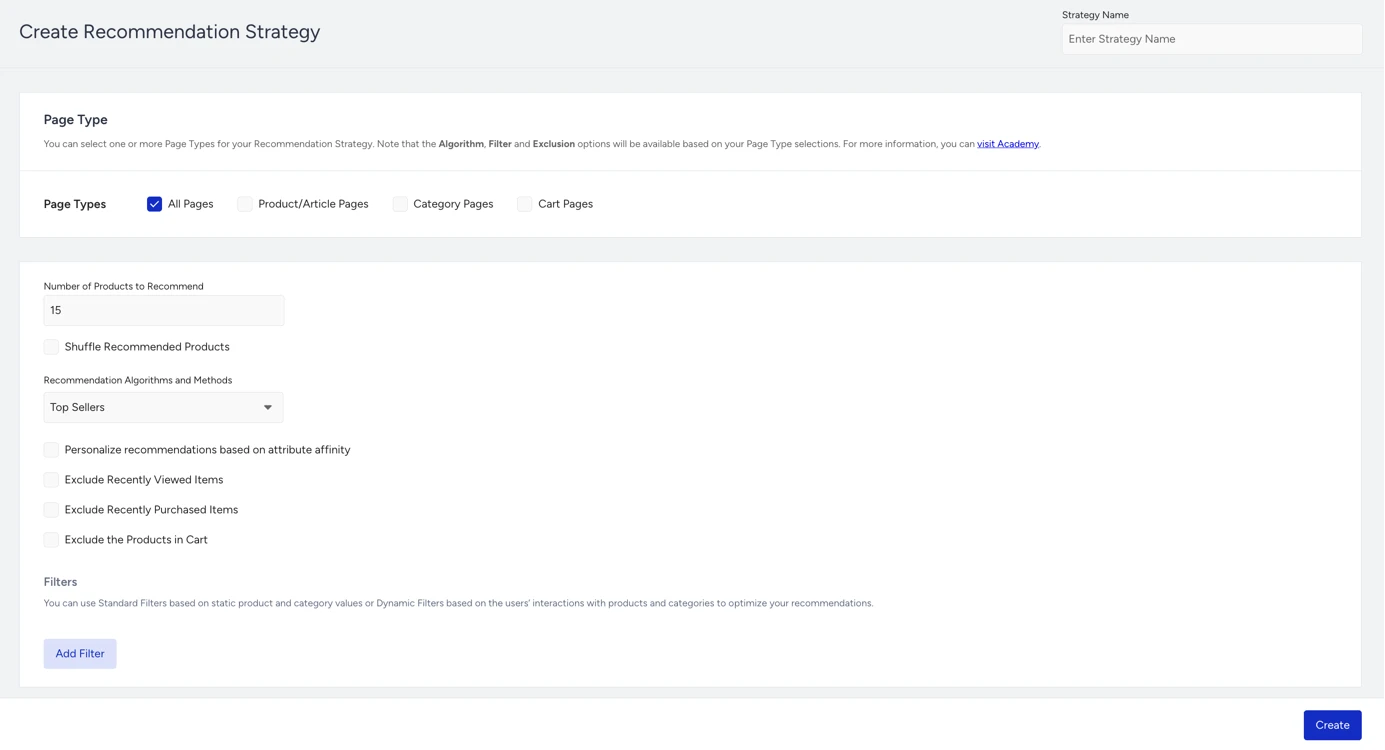
Select the Page Type: This determines where the strategy can be used. The available page types include:
All Pages: Works across all pages.
Product Detail Pages: Recommendations based on the product being viewed.
Category Pages: Focused on category-based recommendations.
Cart Pages: Ideal for cross-sell and upsell recommendations in the shopping cart.
You cannot change the page type for an active campaign’s strategy.

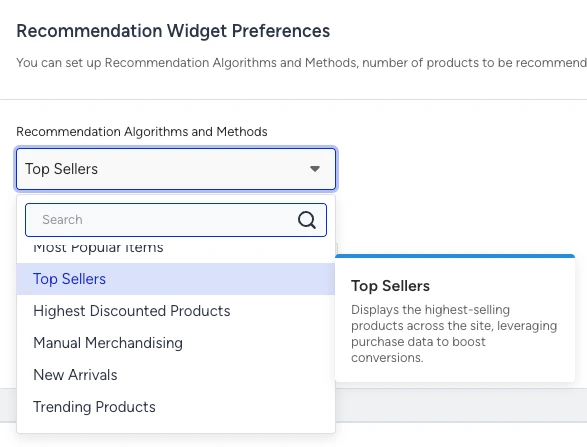
Adjust Recommendation Widget Preferences: Select an algorithm that determines how recommendations are generated.
If you select Viewed Together, Purchased Together, Complementary Products, Substitute Products, Similar Products or Visually Similar Products a Recommend Based On field appears, you can choose whether the base product comes from the page or from the shopper's own recent behavior (e.g., last viewed item).
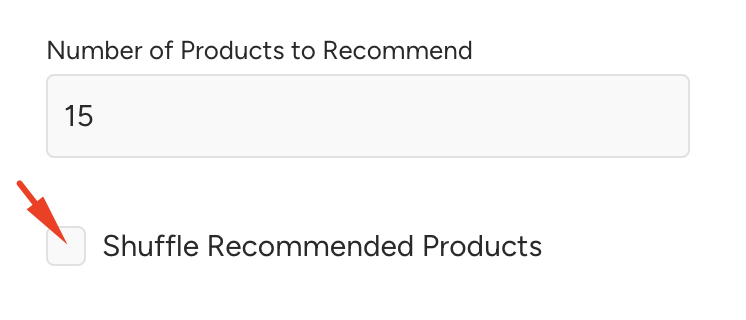
Define how many products should appear in the recommendation widget.
Enable the Shuffle Recommended Products checkbox to shuffle the order of the recommended products each time a recommendation widget appears.
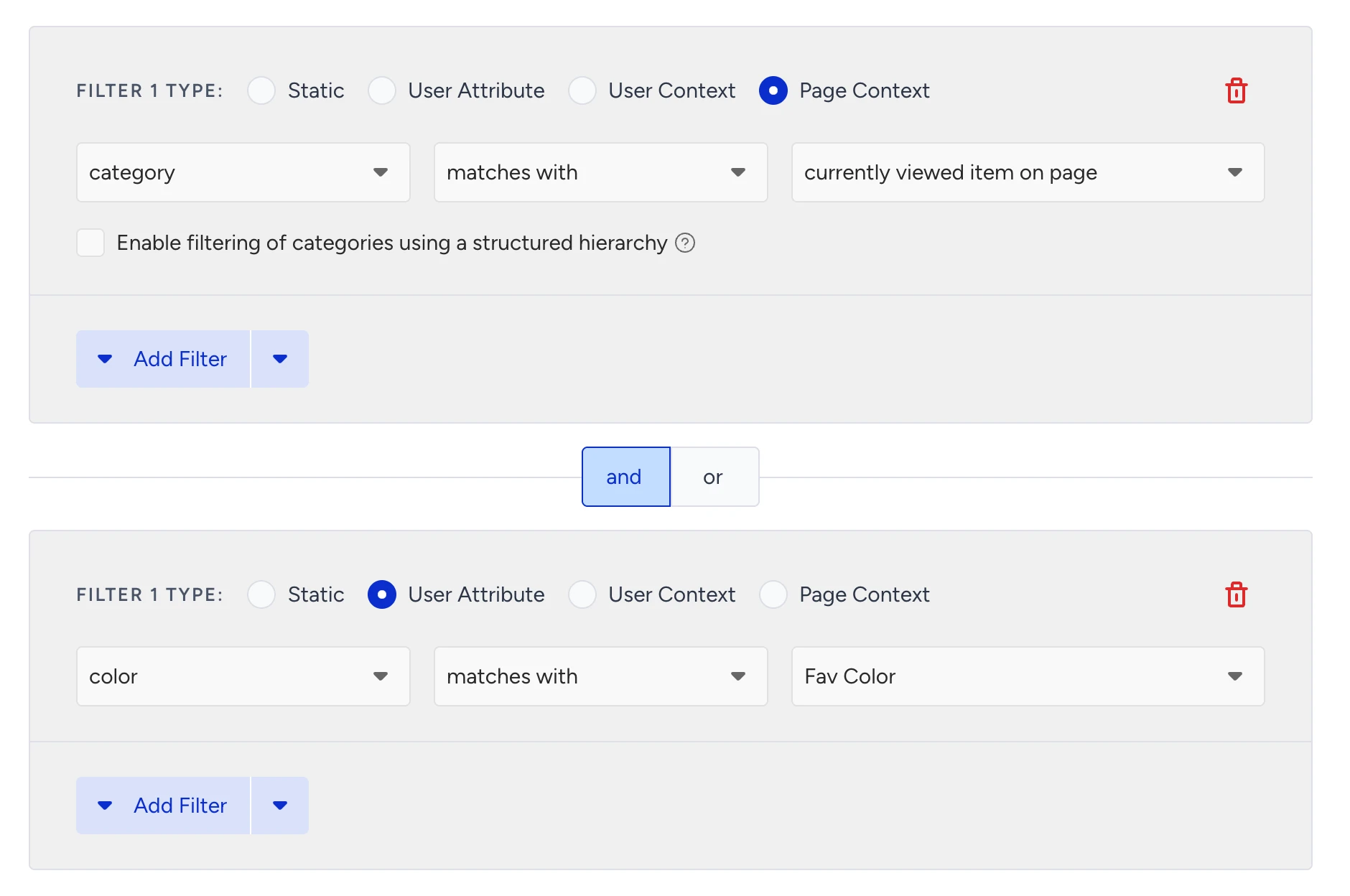
Configure filters: Filters refine recommendations based on product attributes.
Filters can use a static value, the product on the page, the user's recent behavior, their profile attributes, or product analytics metrics, depending on the filter type you choose.
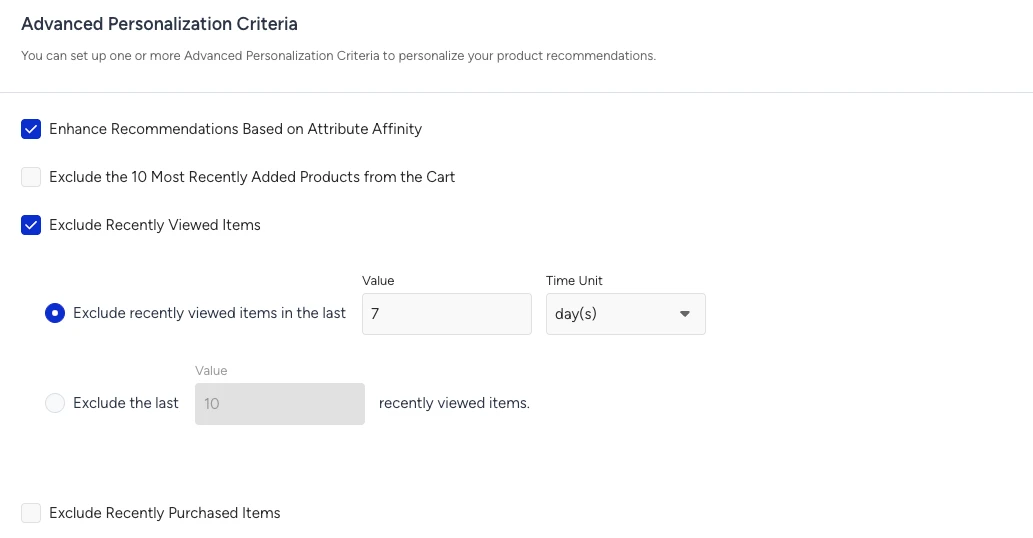
Set Advanced Personalization Criteria:
Attribute Affinity personalizes recommendations by boosting products that match a user’s preferred attributes (e.g., favorite brands or categories).
Exclude products that should not appear in recommendations, such as:
Recently Purchased Items
Recently Viewed Items
Products in the Cart
Check the Strategy Settings for more details on Attribute Affinity and exclusions.
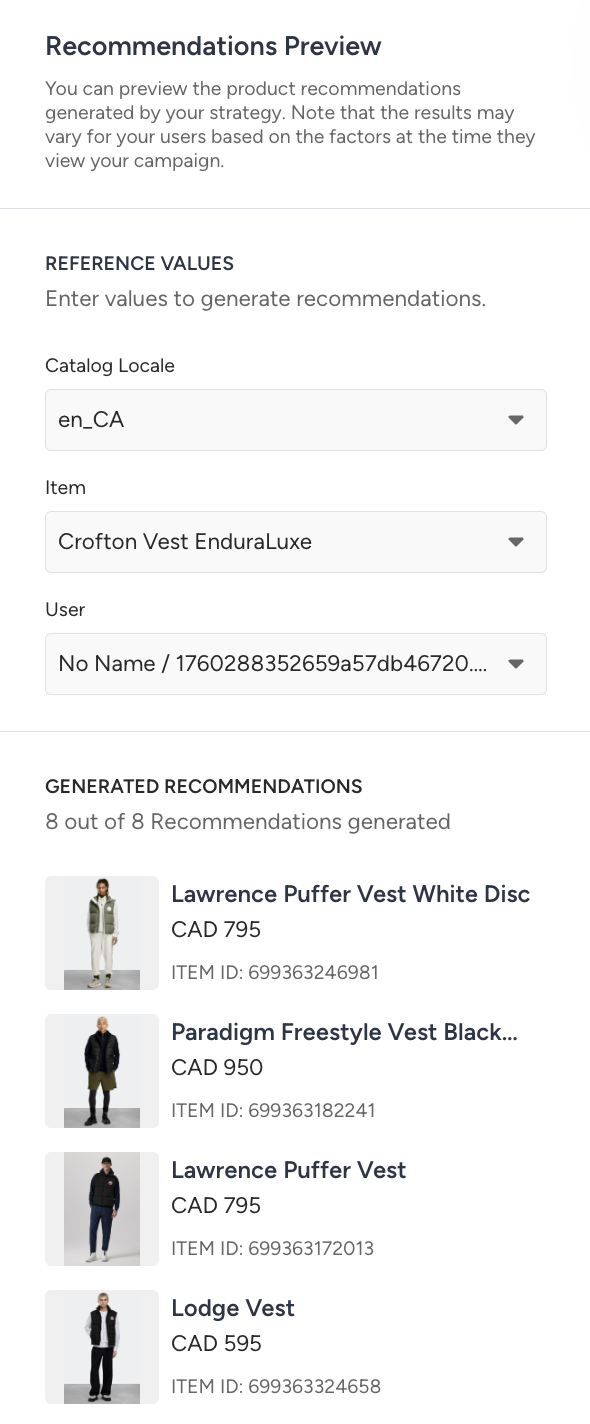
Preview your strategy:
Use the Recommendations Preview to check how your strategy behaves before applying it in campaigns. Confirm that the algorithm returns enough items, filters work as expected, and personalization rules produce relevant results. If necessary, adjust your settings to improve the outcome.
The preview requires specific inputs depending on the type of algorithm and personalization criteria you selected:
If you select a contextual algorithm such as Viewed Together, select an item to simulate what a visitor would see while viewing that product. This shows the contextual results for that specific item.
If you select a personalized algorithm, select a user to preview the recommendations tailored to that user.
If your Recommend Based On selection uses the shopper's behavior (e.g., last viewed item) rather than the page product, select a user to preview the base product resolved for that user.
If you enable advanced personalization criteria such as Attribute Affinity or exclusions, select a user to preview how those rules influence the results for that user.
If your strategy is for a Category page and you added a dynamic filter for category, select a category to preview results for that specific category page.
Click Create to finalize your strategy. The strategy will now be available for assignment to eligible campaigns.
Update Legacy Strategies to the Recommendation Strategy Model
If you have campaigns launched before the Recommendation Strategies feature was introduced, you can easily transition them into the new strategy-based structure with just a few clicks.
Start editing the campaign: Select the campaign you want to update and begin editing on the Web Smart Recommender listing page.
Proceed to the Design step: Continue through the campaign setup until you reach the "Design" step.
Identify Legacy Strategy: In the Recommendation Strategy dropdown, you will see the assigned strategy labeled as "Legacy Strategy."
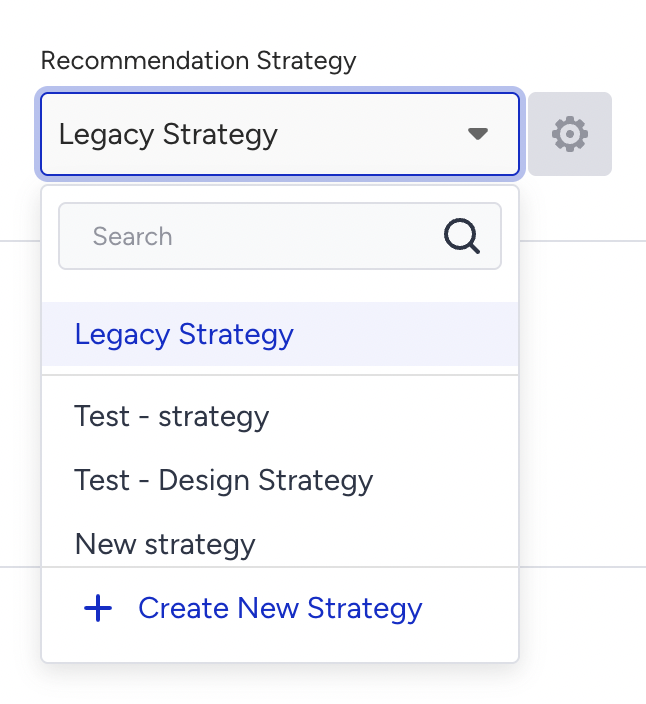
This indicates that the campaign is still using the old Smart Recommender settings instead of the new strategy model.
Convert to a New Recommendation Strategy: Hover over the Legacy Strategy label to reveal the Update option.
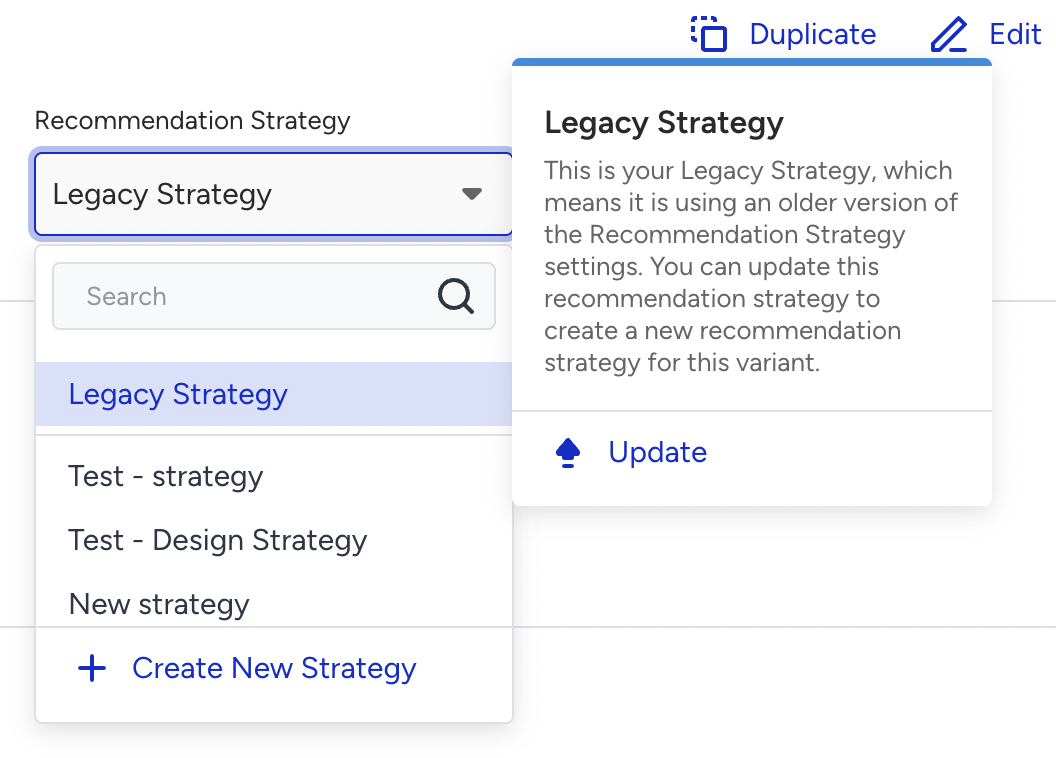
Click Update to automatically convert the campaign’s existing recommendation settings into a reusable recommendation strategy. This newly created strategy will be assigned to your campaign and can be used in future campaigns.
If you have legacy strategies with the exact same setup, when you convert a campaign’s existing recommendation settings into a reusable recommendation strategy, and a reusable strategy with the same configuration already exists, your legacy strategy will be replaced with that existing one; no new strategy will be created.
Benefits of updating to the Recommendation Strategy Model
Reusability: Create once, use anywhere. A strategy can be applied across multiple campaigns without duplication.
Standardization: Brings a consistent, scalable approach to how product recommendations are configured and delivered.
Ease of Management: Updates are made at the strategy level, automatically cascading to all linked campaigns.
Once updated, your campaigns will run under the Recommendation Strategy framework, giving you greater efficiency, consistency, and long-term optimization.
If you’d like to switch back to the Legacy Strategy, you can find it labeled as Legacy Strategy in the dropdown. Simply click it to revert the process. Please note that for campaigns duplicated from an original campaign using a Legacy Strategy, this option will not be available.