Overall Analytics is the ideal report if you have recently noticed issues with your email sending activities and want to track your deliverability closely. If you have concerns about your deliverability, you can check the overall analytics daily or weekly. If your engagement and deliverability performance is on track, monthly checks of overall analytics should be sufficient.
The email campaigns sent through Architect journeys are not included in Email Analytics. You can get insights about your journey emails via Architect Email Channel Analytics.
You can export your Overall Email Analytics from all email activities associated with your account through Campaigns > Messaging > Email > Analytics.
Select a date interval from the date picker.
Click the Reports button to select Overall Analytics.
If the Send Date filter is selected, only the sent campaigns are displayed and reported on the overall analytics page.
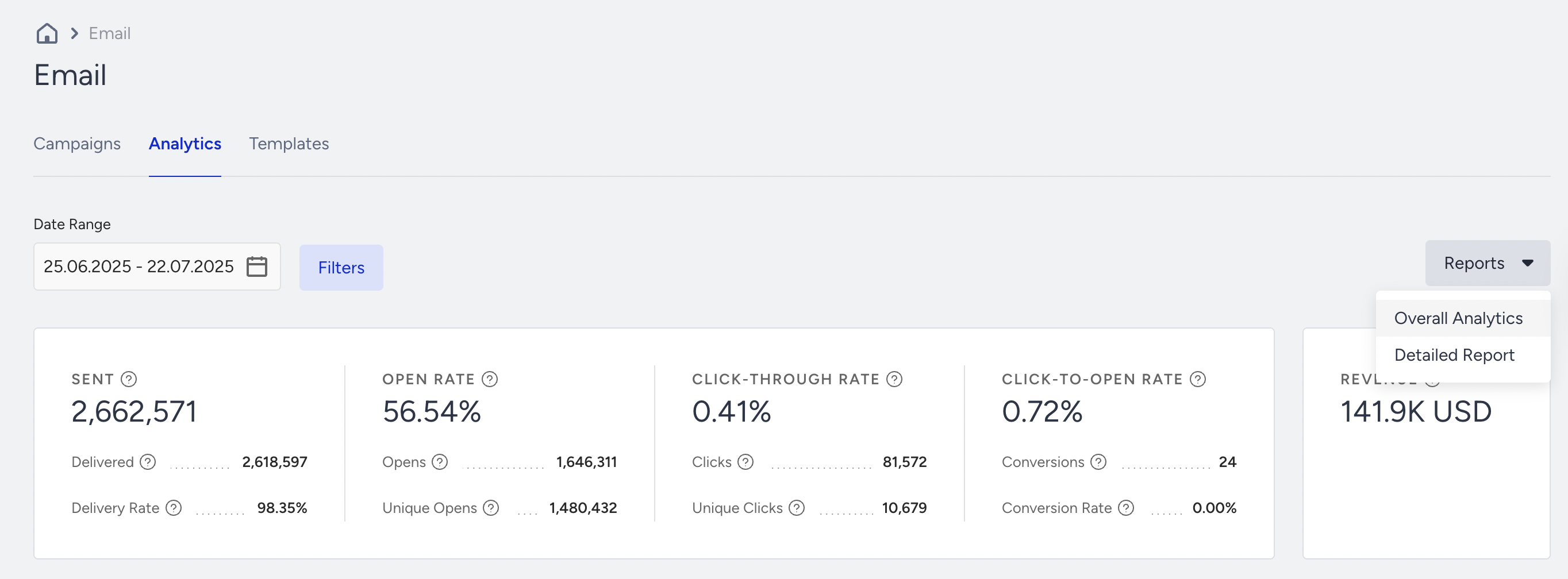
Once you click the Overall Analytics button, you will be prompted with a message that explains how to receive the report.
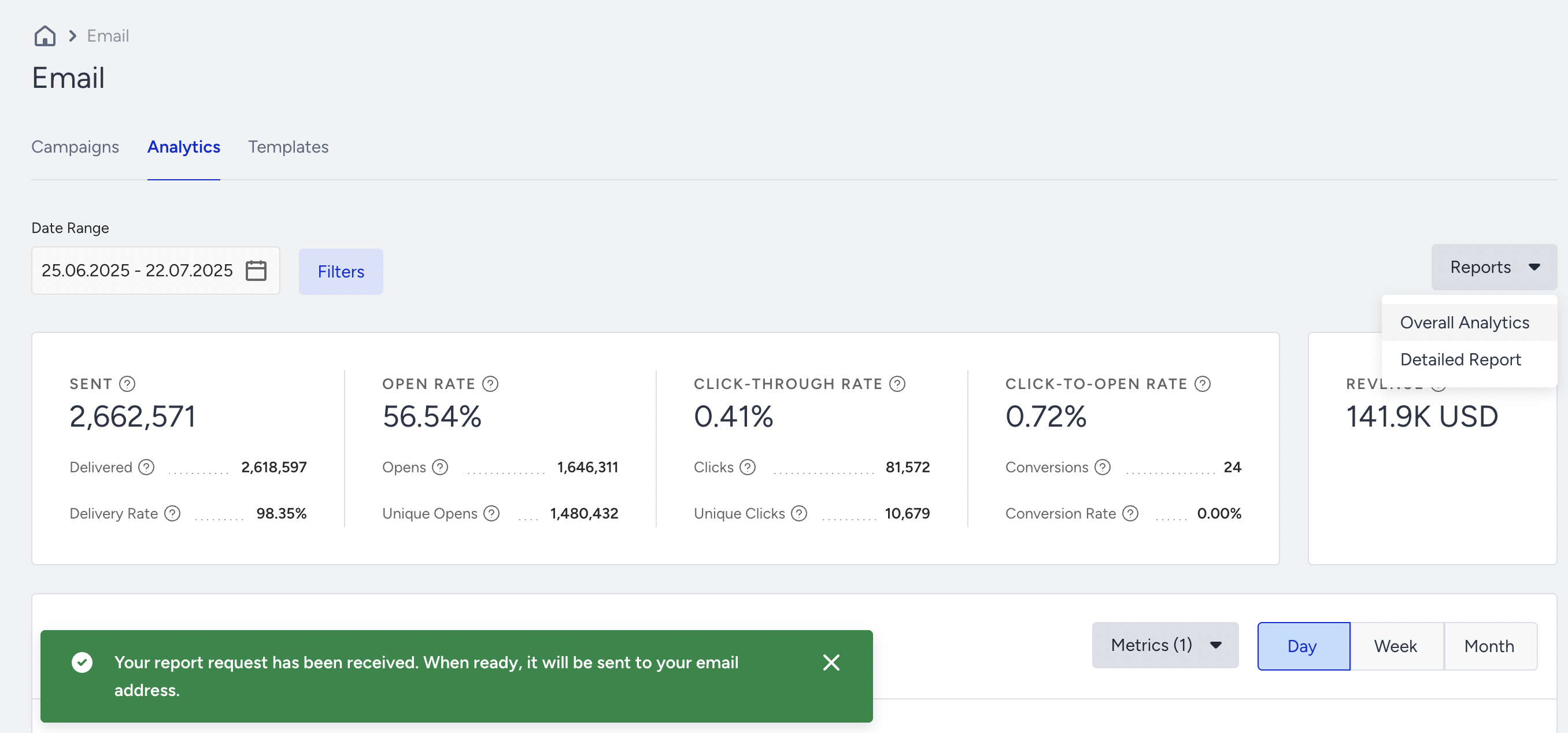
This report contains the following metrics:
|
|
The exported report also provides ISP & ISP Subdomain breakdown along with the following metrics: delivered, open rate, total opens, unique opens, click-through rate, total clicks, unique clicks, bounces, and blocks.
The Open Rate by Client metric in the report shows the client, applications, and devices the recipients use to view your email. For example, if a user uses Outlook to view your email, you can see this user included in this metric. However, if they have an email address like "insiderone@outlook.com", this does not mean that this user will be included in the metric as the "outlook" in the email address does not indicate the client.
If your campaign is an Experiment campaign, you can export the Link Click Activity up to 30 links.
Read more on Email Metrics here.