Recipients Activity lets you view user emails based on events in the associated email campaign. Also known as your email delivery status, it shows who received, bounced, or was blocked from your email. It makes each message's delivery flow visible, which speeds up troubleshooting. To troubleshoot any event associated with specific users, you can check Recipients Activity.
Once a user's data retention duration has passed, the user's events are dismissed. That's why you might not see recipient activity for those users. For further information about User TTLs (Time To Live), refer to Data Retention.
To reach the Recipients Activity, click the Analytics button next to the campaign you want to see.
Only team members with access to user profiles can view the Recipients Activity. You can grant team members access from the Settings tab.
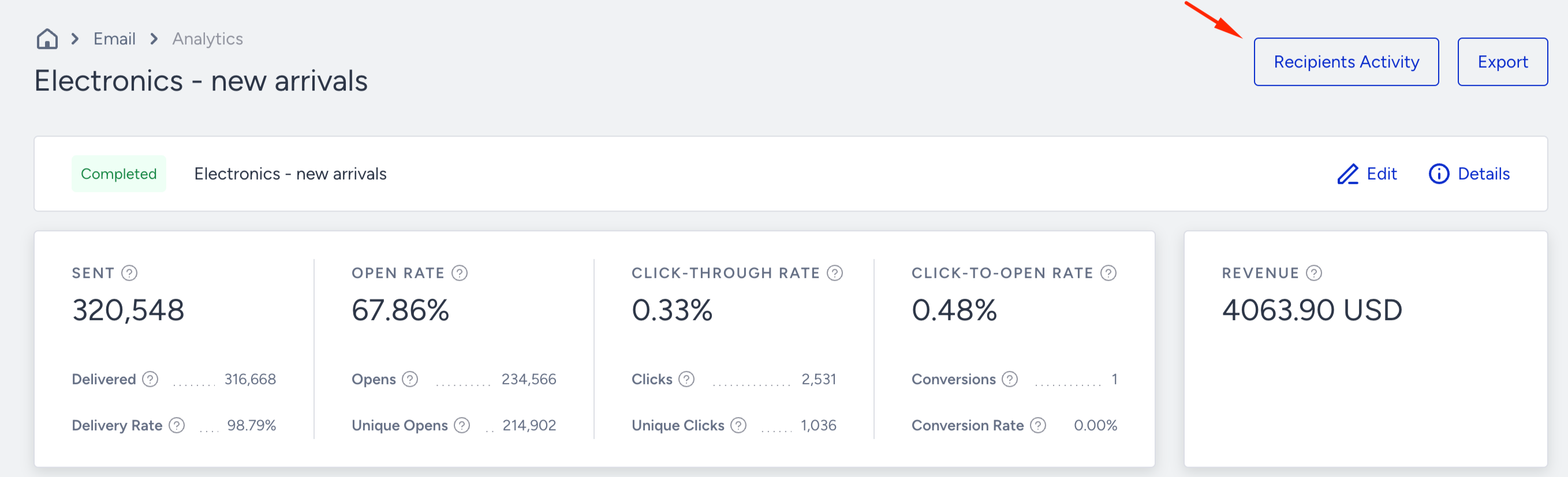
After sending an email, you can explore the Recipients Activity to:
Pinpoint specific emails easily with search and filter options,
Troubleshoot email delivery issues faster with event data by email addresses,
Customize your data with the CSV export option.
Recipients Groups
The Recipients Activity lists recipients in All, Delivered, Spam Reports, Bounced, Blocked, and Invalid groups, along with Total Opens and Total Clicks.
All: Lists all recipients of your email campaign.
Delivered: Lists the recipients whose server your email campaign is delivered to.
Spam Reports: Lists the recipients who reported your email as spam.
Bounced: Lists the recipients that have been returned to the sender due to an invalid address.
Blocked: Lists the recipients your email campaign couldn't be delivered to due to a reason (e.g., sending IP, message content, etc.).
Invalid: Lists the recipients whose email addresses do not exist on the recipient's mail server or do not fit the email format standards.
Recipients Activity Actions
With your recipients listed under Delivered, Spam Reports, Bounced, Blocked, and Invalid groups, you can:
Create a new static segment.
Add them to an existing static segment.
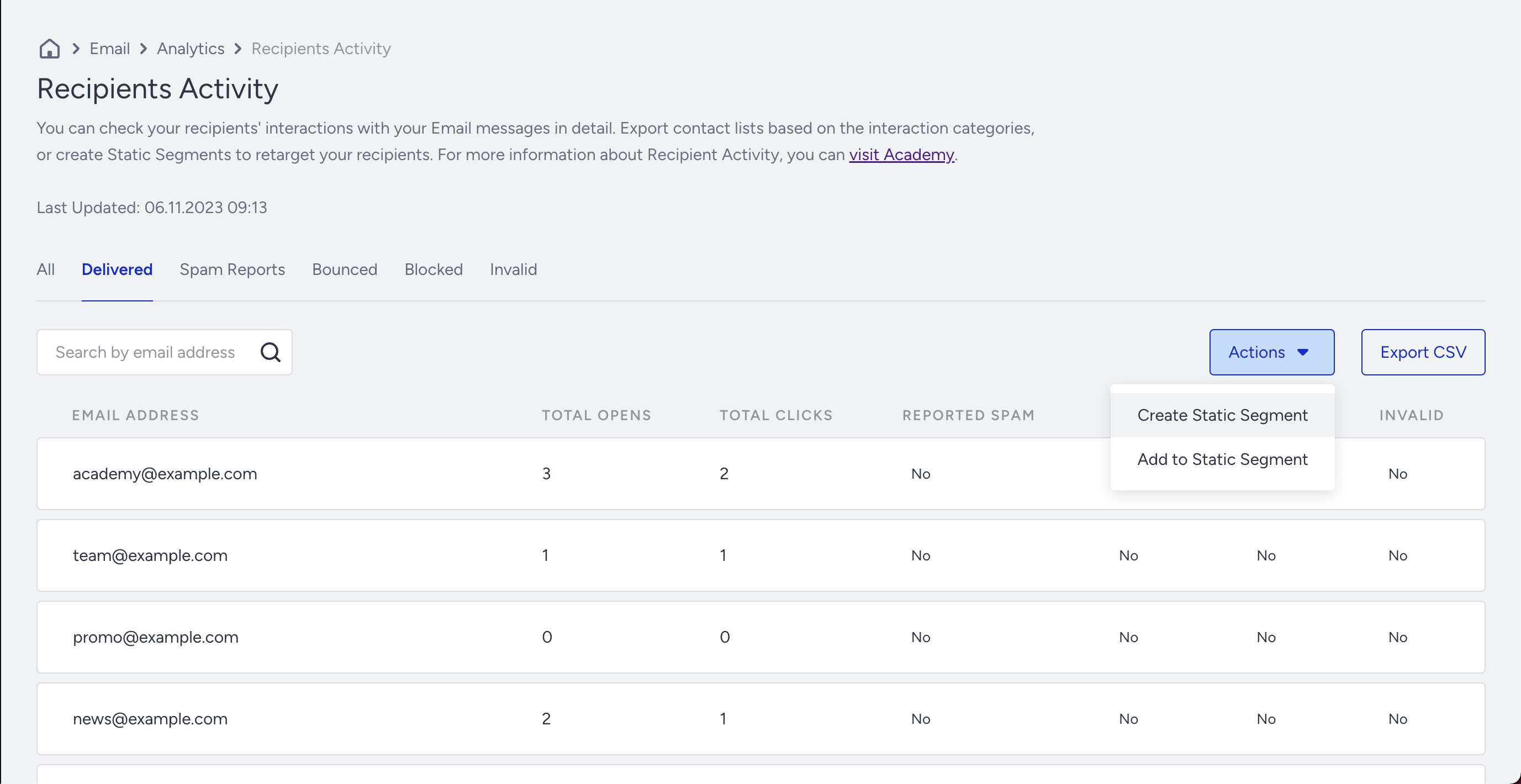
You can create a static segment with your recipients or add them to an existing static segment based on the Last Updated date shown above the recipients list.
Create Static Segment
Click the Create Static Segment button and add a segment name.
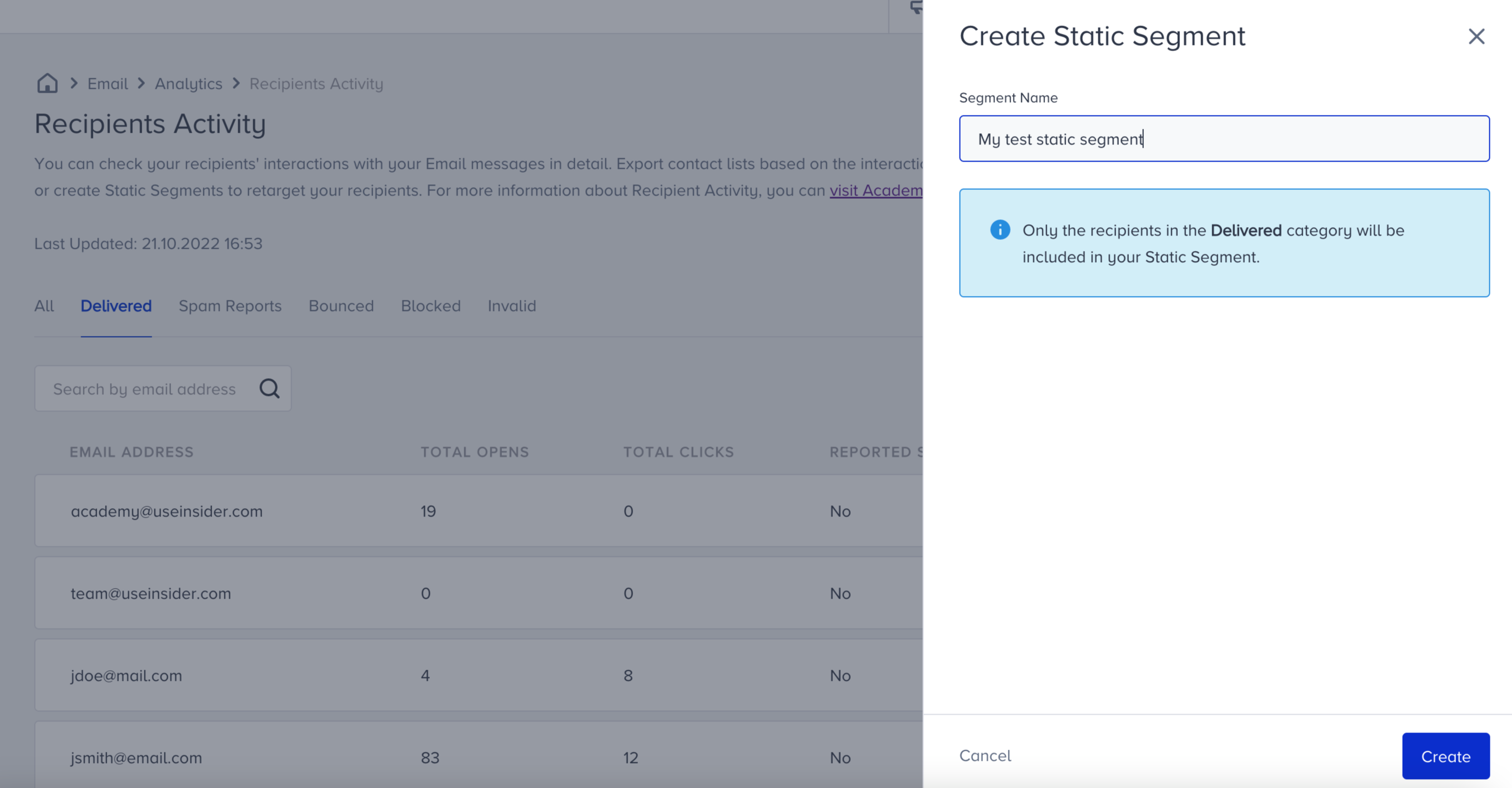
Click the Create button to save your segment.
Once saved, you can view it under Audience > Segments > Static Segments.
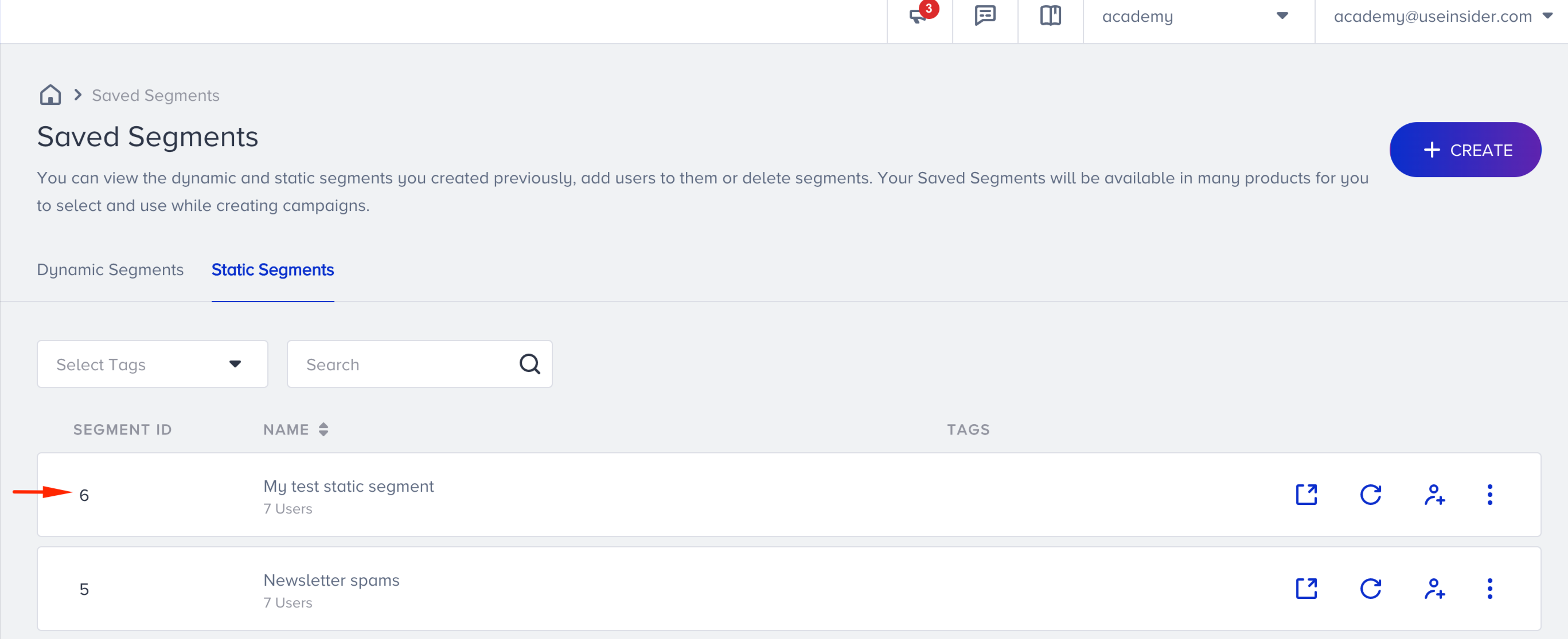
Add to Static Segment
Click Add to Static Segment to add the listed group of recipients to an existing static segment. Select the static segment you want.
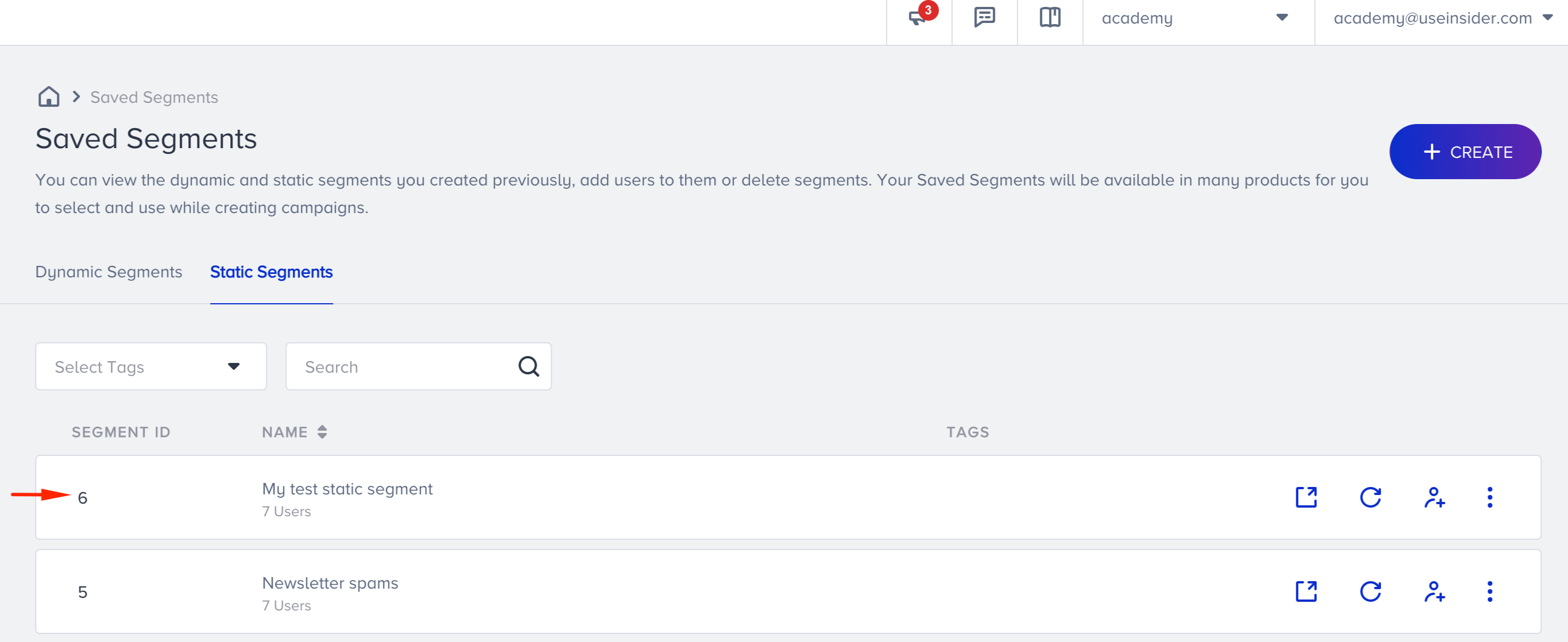
Click the Add button to save your step.
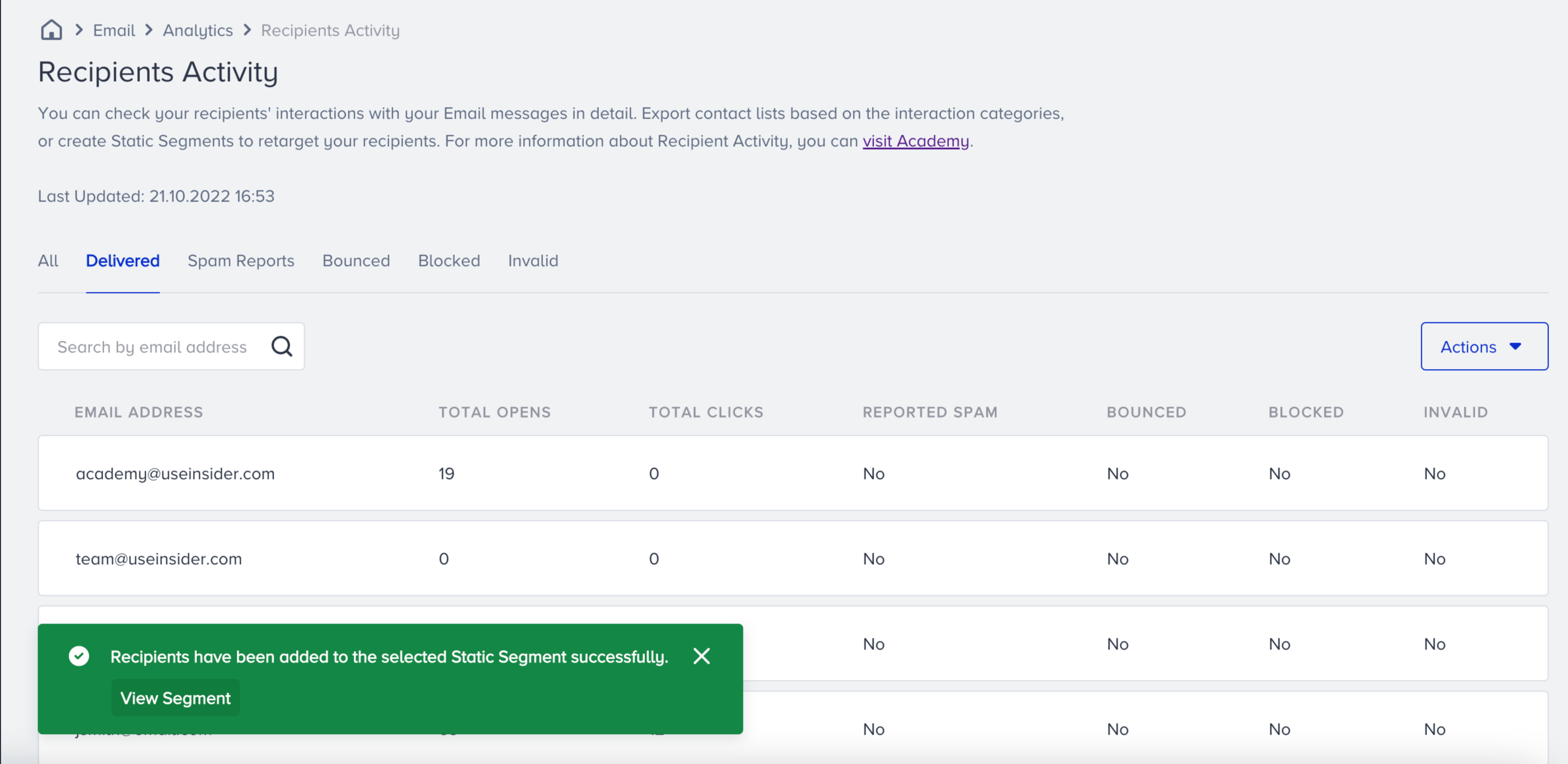
Once you save your static segments, you can use them in your campaigns. Learn more about Static Segments.
Export CSV
To export a CSV file of your recipients, you need to have PII (Personally Identifiable Information) access.
Click the Export CSV button.
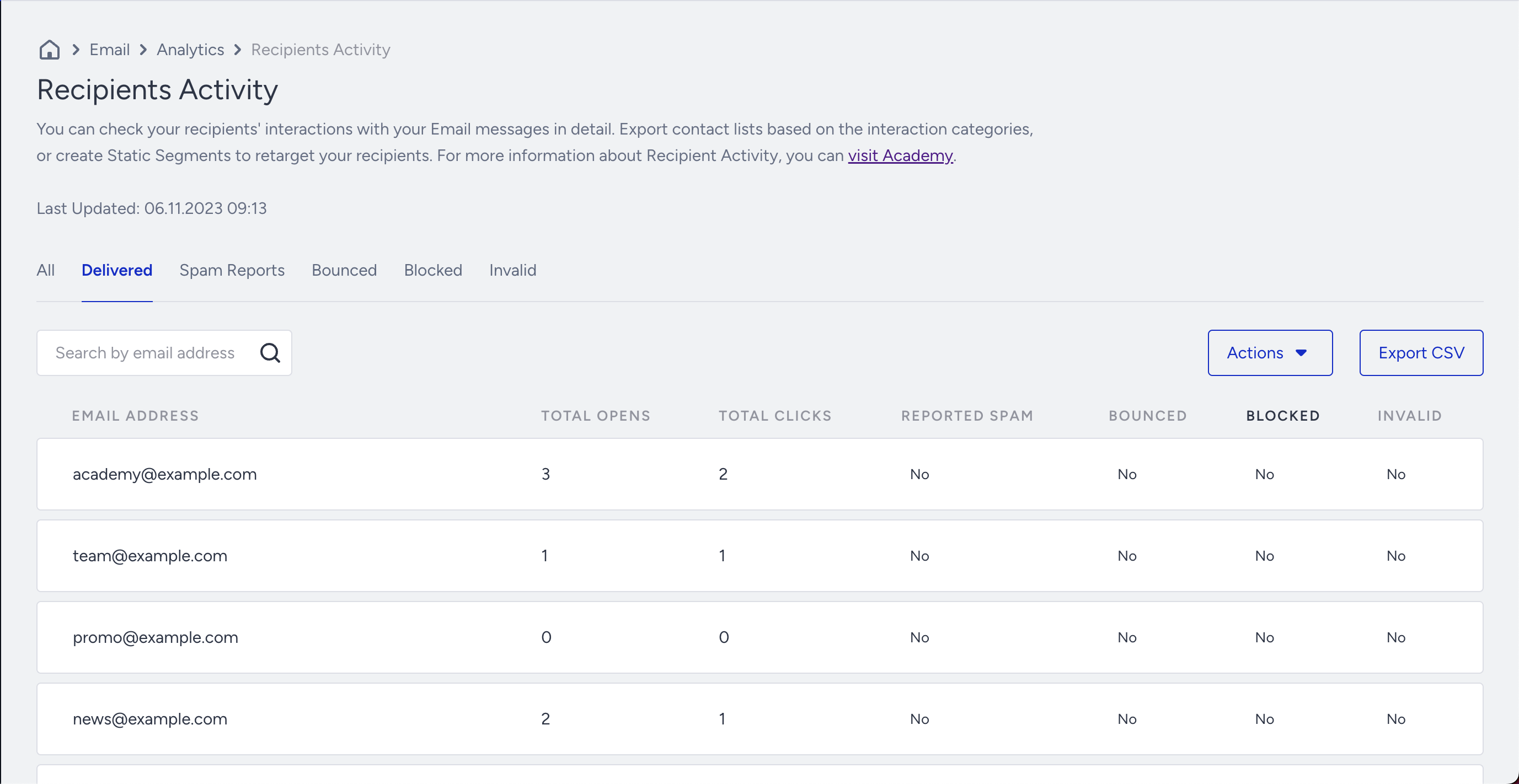
You will be prompted with a modal that displays the applied filters on the recipients.
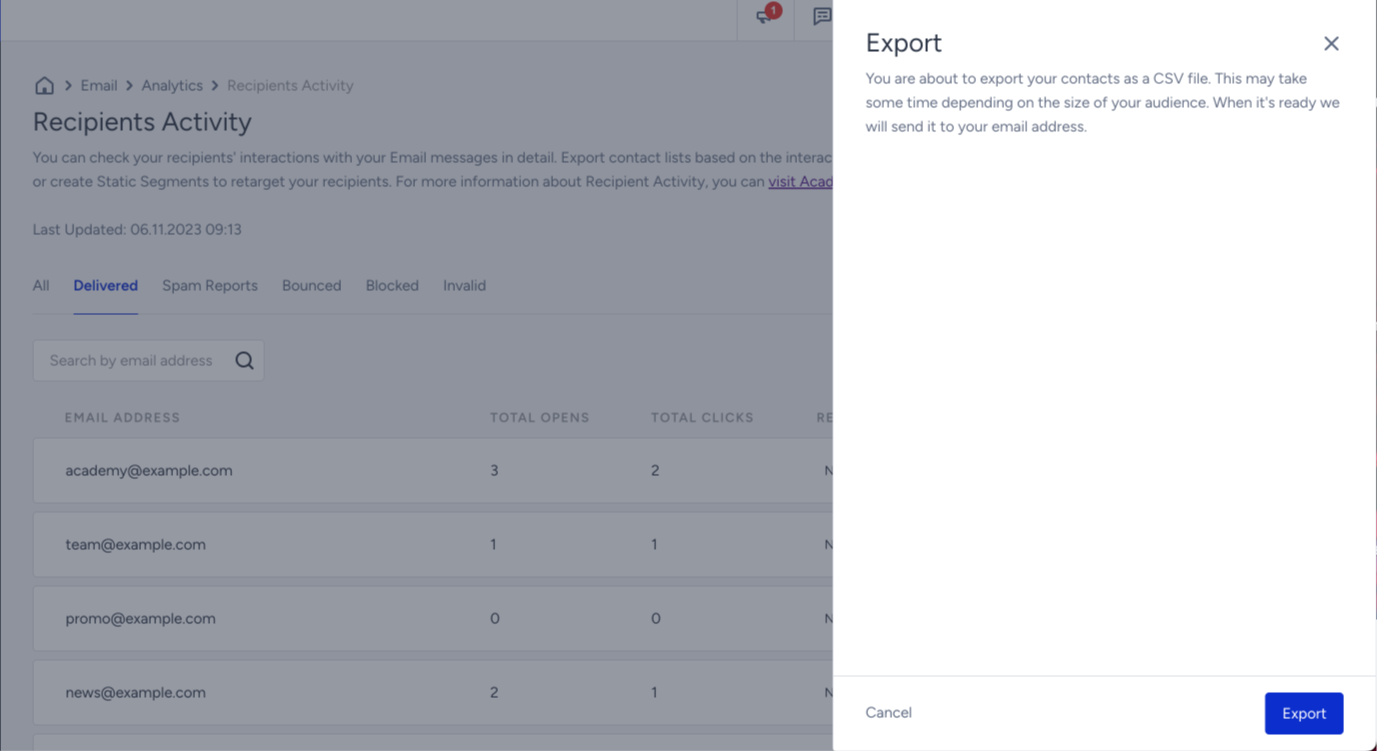
Click the Export button at the bottom of the page.
Once your request is received, you will see the respective message on the page. When your report is ready, you will receive an email with a download link.