Suggested readings: Best examples of countdown timers in emails, Top elements of an email with a countdown timer
Countdown timers in emails create a sense of urgency, inform recipients of the sale duration, or indicate how soon an event will start. Using countdown timers in your emails, you can increase your conversions and revenue.
You can design your HTML email template and add a timer to it in the editor.
To build and add a countdown timer in emails with the Drag and Drop Editor:
Pull the 1-column structure into your template, and drop the Timer block.
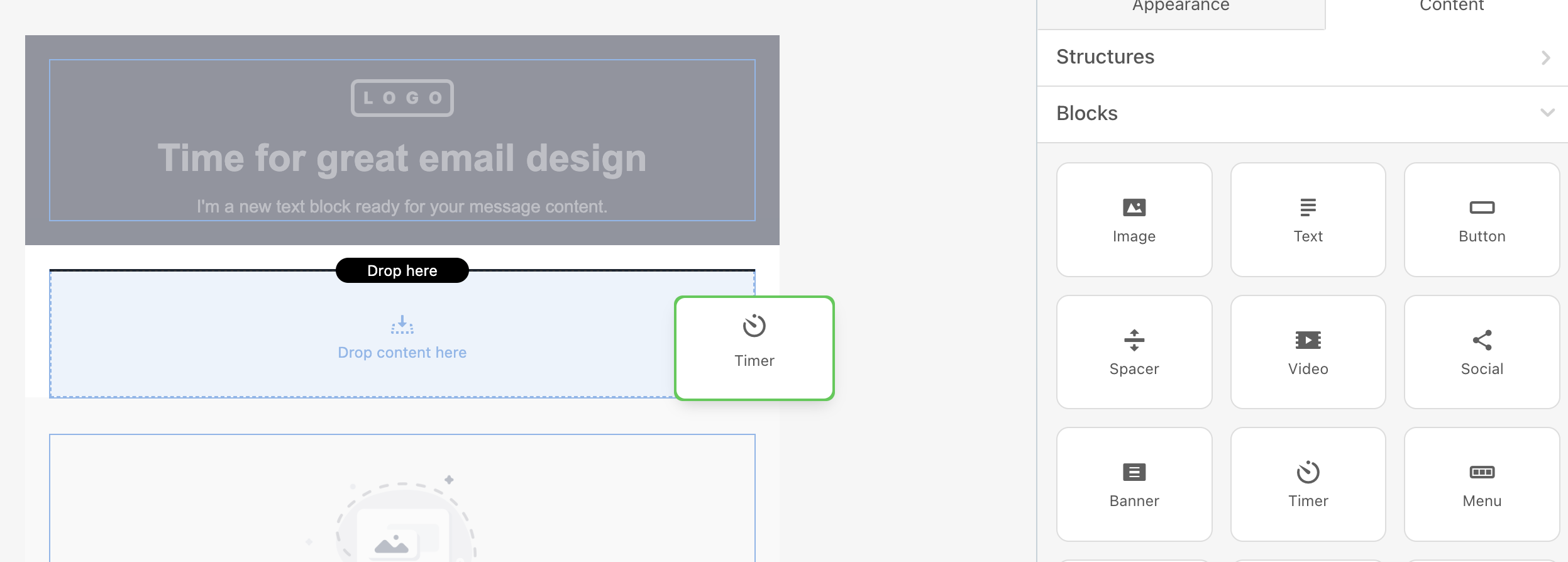
Left-click this container in the email template to open the settings panel and manage the timer.
Set the end date and time, and time zone.
.png)
Set the number font family, size, and color, and change the timer background color if necessary.
A transparent background is not supported because the timer generates a GIF.

Toggle the Display days button to show your recipients how many days are left. Otherwise, they will see hours, minutes, and seconds. You can also change the default ":" separator if needed.

Toggle the Number labels button to display the "days", "hours", "minutes", and "seconds" copy under the respective numbers in the countdown.

To change the language of the "days", "hours", "minutes", and "seconds" copy under the countdown, select the language you want on the Label language. Adjust the label font family and text color.
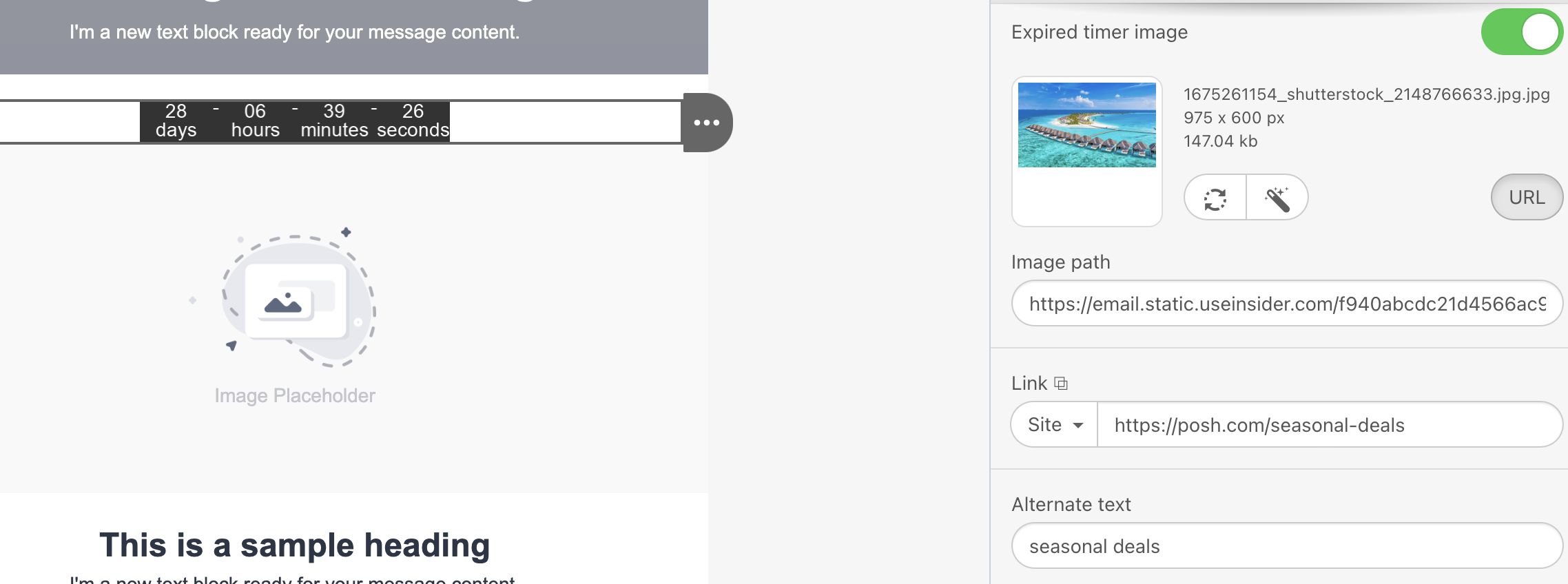
To display an image to the recipients once the timer expires, toggle the Expired timer image button on. We recommend using this option to keep your customers informed. Once you add the image, insert a URL to redirect users when they click. This link will also be applied to the expired timer image.