Suggested readings: Build Countdown Timers in an Email, Best Examples of Countdown Timers in Emails
When building your email with a countdown timer, you need to include certain elements to deliver a better user experience.
1. Informative subject line
All emails start with a subject line, and about 65% of recipients decide whether to open the email based on the subject line alone. Regarding countdown timers in emails, including a clock emoji in the subject line is reasonable.

Email on Acid warned that it was our last chance to register for free. They urged with a clock emoji and “last chance.”
Adidas even mentioned how much time is left to buy from them: there is no time left, and the offer ends soon.
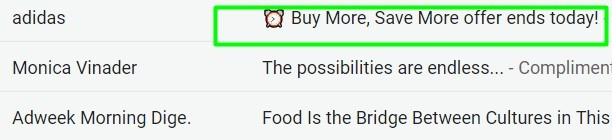
If you wish, you can even create an email sequence, like the D’Artagnan restaurant did:
.jpg)
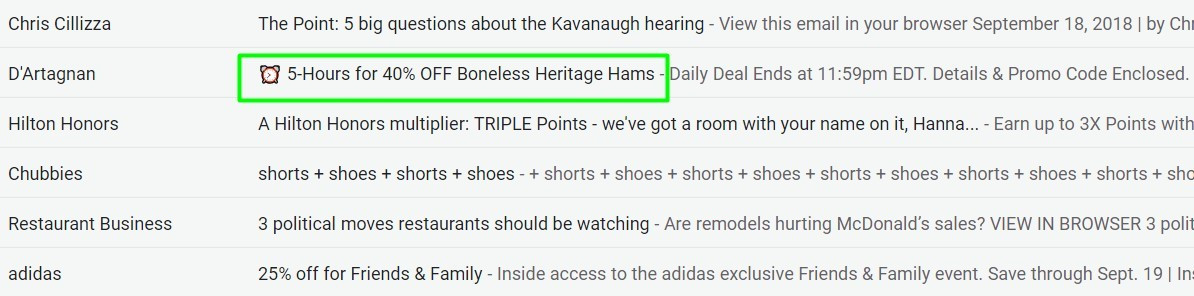
A day left, 12 hours left, five hours left. This sequence, along with the perfect subject lines, created a sense of urgency.
2. Specific time
Yes, your email has an embedded countdown timer; your customers see the clock ticking. But it would be even better if you mentioned the exact hours, as in from Hour X through Hour Y.
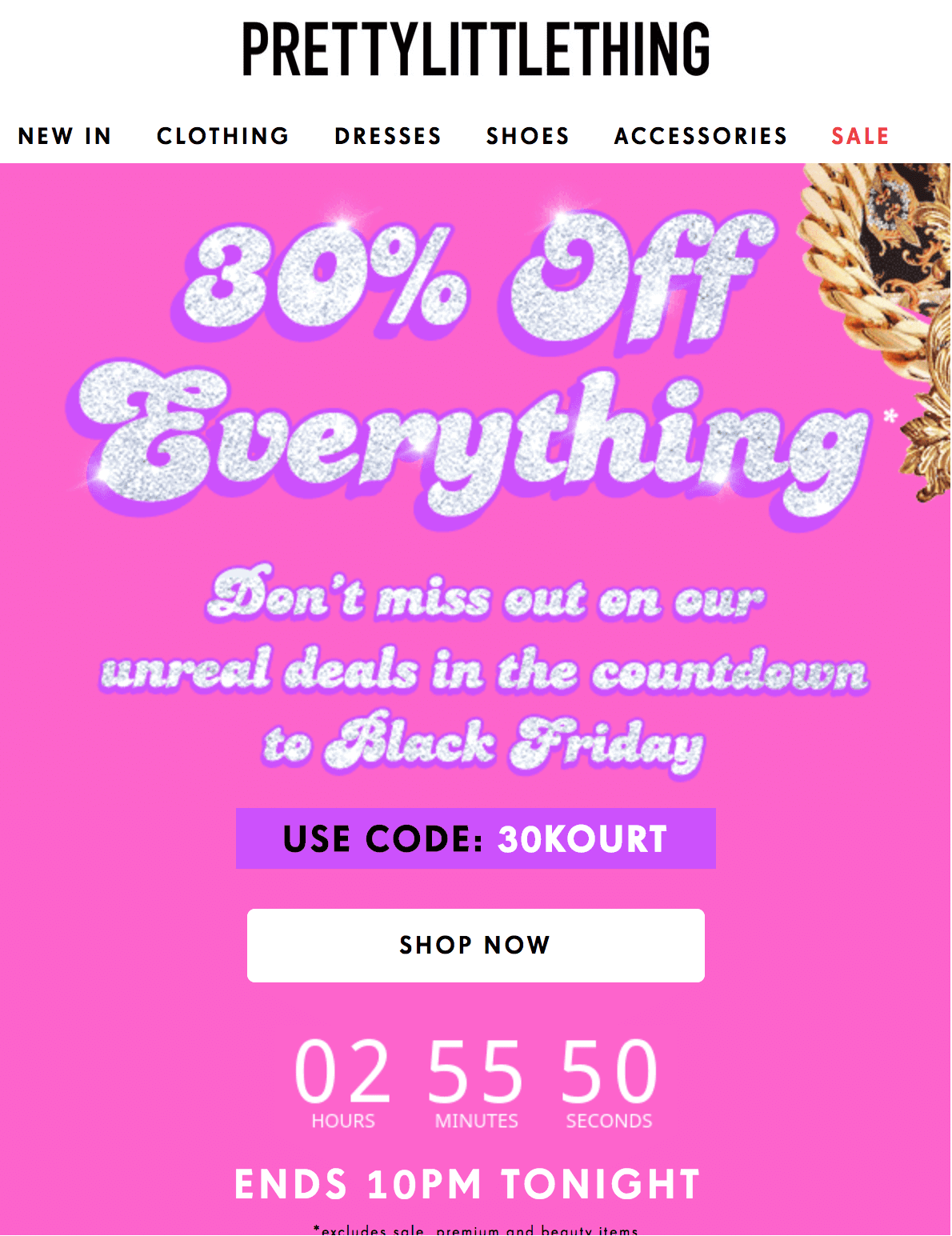
You can also specify when the offer ends.
3. Specific dates
The same as in the previous paragraph, except that you should set the dates. For example, it can be from February 15 to February 18 for President's Day. Always be specific about letting recipients manage their time or hurry up in case the offer ends in a few hours.
4. Fallback image
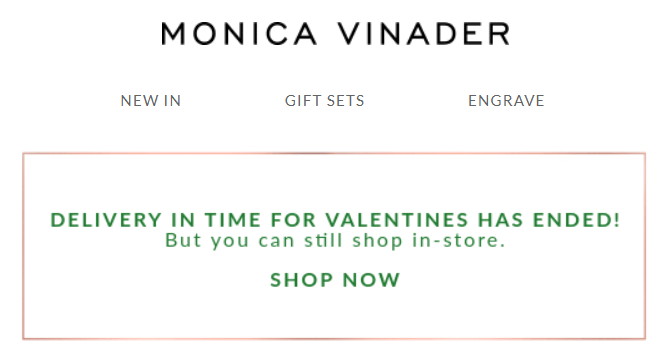
Usually, when the offer ends, your recipients see just zeros on the email countdown timer, which is not good. Inform them that the sale is over by adding a fallback image and an email timer to your template.
You can show an image that says the sales ended on Day Z. It may make your audience anticipate and participate in your next sale.
Alternatives to countdown timers in emails
If your editor does not enable you to build a countdown clock for email, you may try the following alternatives:
1. Setting the dates
Specify the exact dates the offer starts and ends. Once your customers know a specific time, they will make sure to check out your offer.
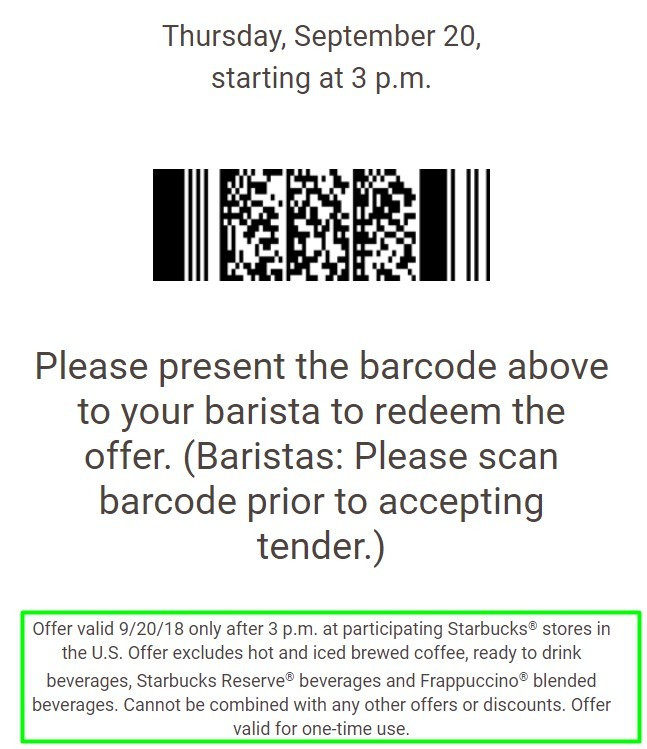
Another great example by Monica Vinader:

2. Setting the dates and inserting images of clocks
Create a sense of urgency by inserting the images of clocks.
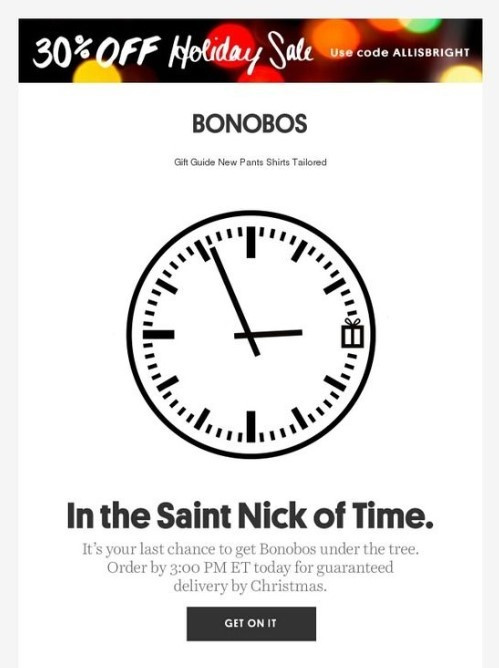
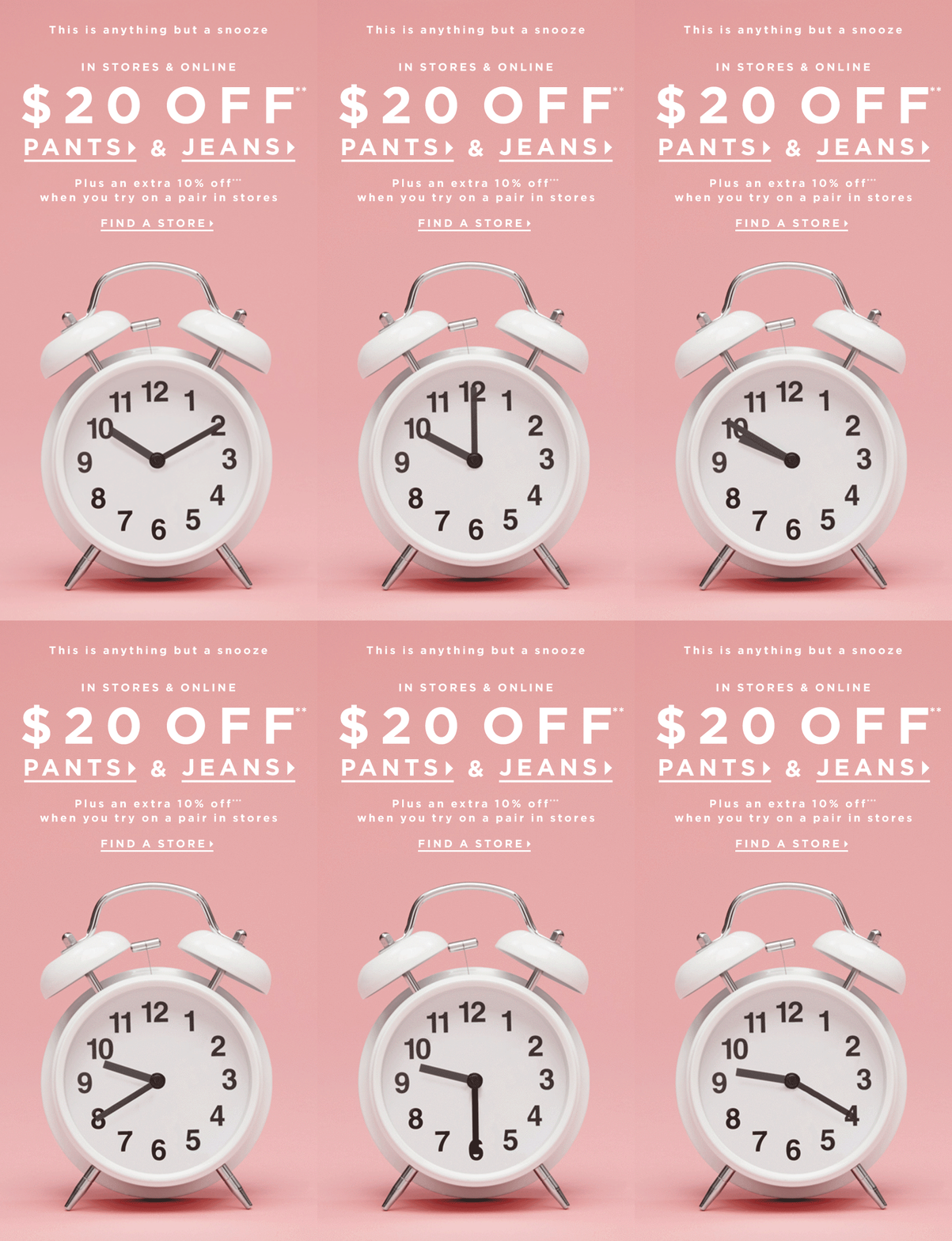
3. GIFs of ticking clocks
The trick they implemented here is the clock arrows moving counterclockwise as if the time were running out.
All these alternatives are excellent and perform well. But our countdown timer can be implemented in just 2 minutes and is web-safe, so you don’t have to worry about it being displayed correctly on your recipients’ devices.