Double Opt-in is a subscription model in which users confirm their email addresses before being added to your email list. After a user signs up, they receive a confirmation email with a unique verification link. Only after clicking that link are they officially subscribed and eligible to receive your marketing emails.
Double Opt-in helps you:
Stay compliant with GDPR and regional data protection regulations.
Keep your subscriber list clean by filtering out invalid or mistyped addresses.
Improve deliverability and sender reputation by sending only to verified, engaged users.
Reduce bounce rates and spam complaints.
If you are sending to subscribers in Germany or Australia, Double Opt-in is effectively required by law. For Austria, Switzerland, Norway, Greece, and Luxembourg, it is strongly recommended by local data protection authorities. For all other regions, it is a best practice for list quality and consent compliance.
Double Opt-in setup
Setting up Double Opt-in is a shared process between customer and the Insider One team. Follow the steps below in order.
Step 1: Select Double Opt-in in the Onboarding Center
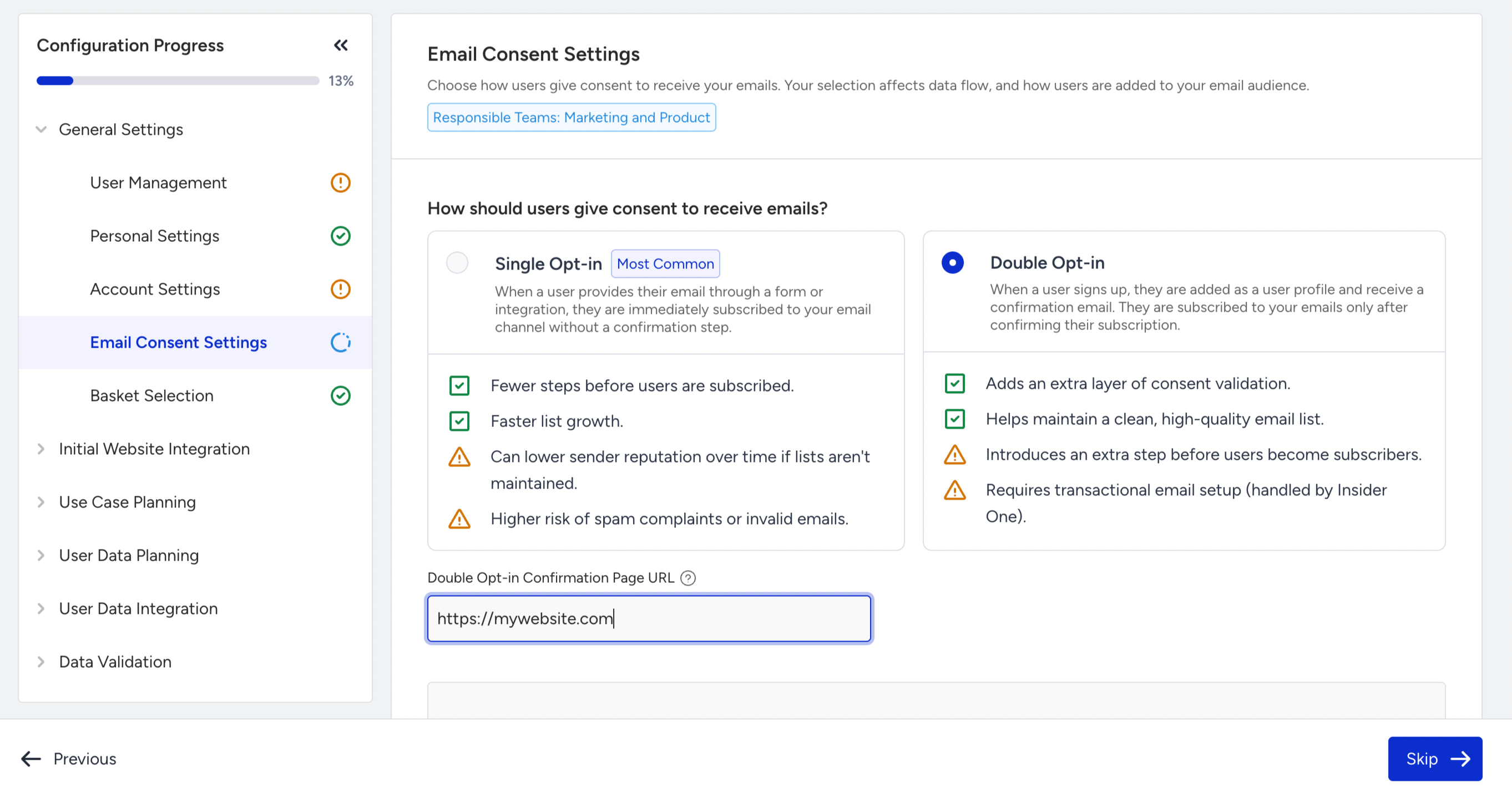
In the Insider Onboarding Center, go to General Settings > Email Consent Settings and select Double Opt-in as your email consent type. Once you confirm your selection, it will be sent to Insider One for review.
Step 2: Insider One team enables Double Opt-in for your account
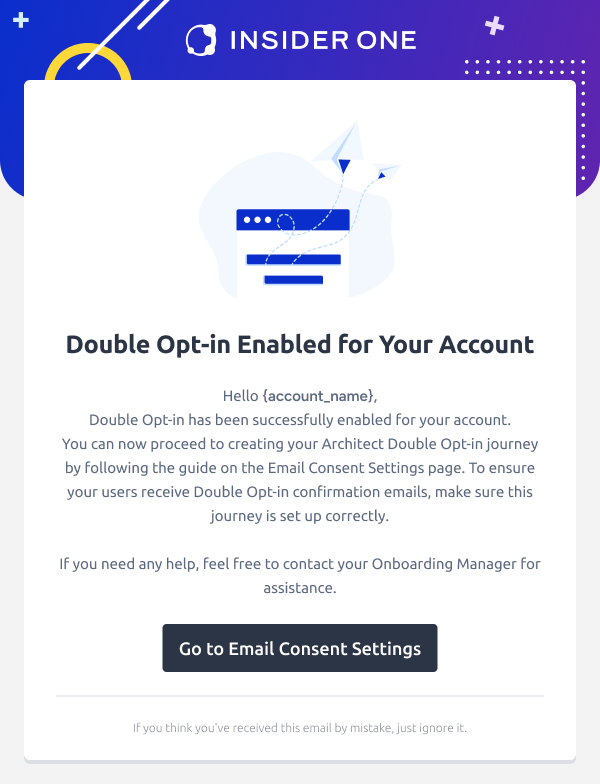
After your selection is reviewed, the Insider One team will enable Double Opt-in on your account and notify you via email. You cannot proceed to the next steps until this step is completed.
Step 3: Complete the Transactional Email Setup wizard
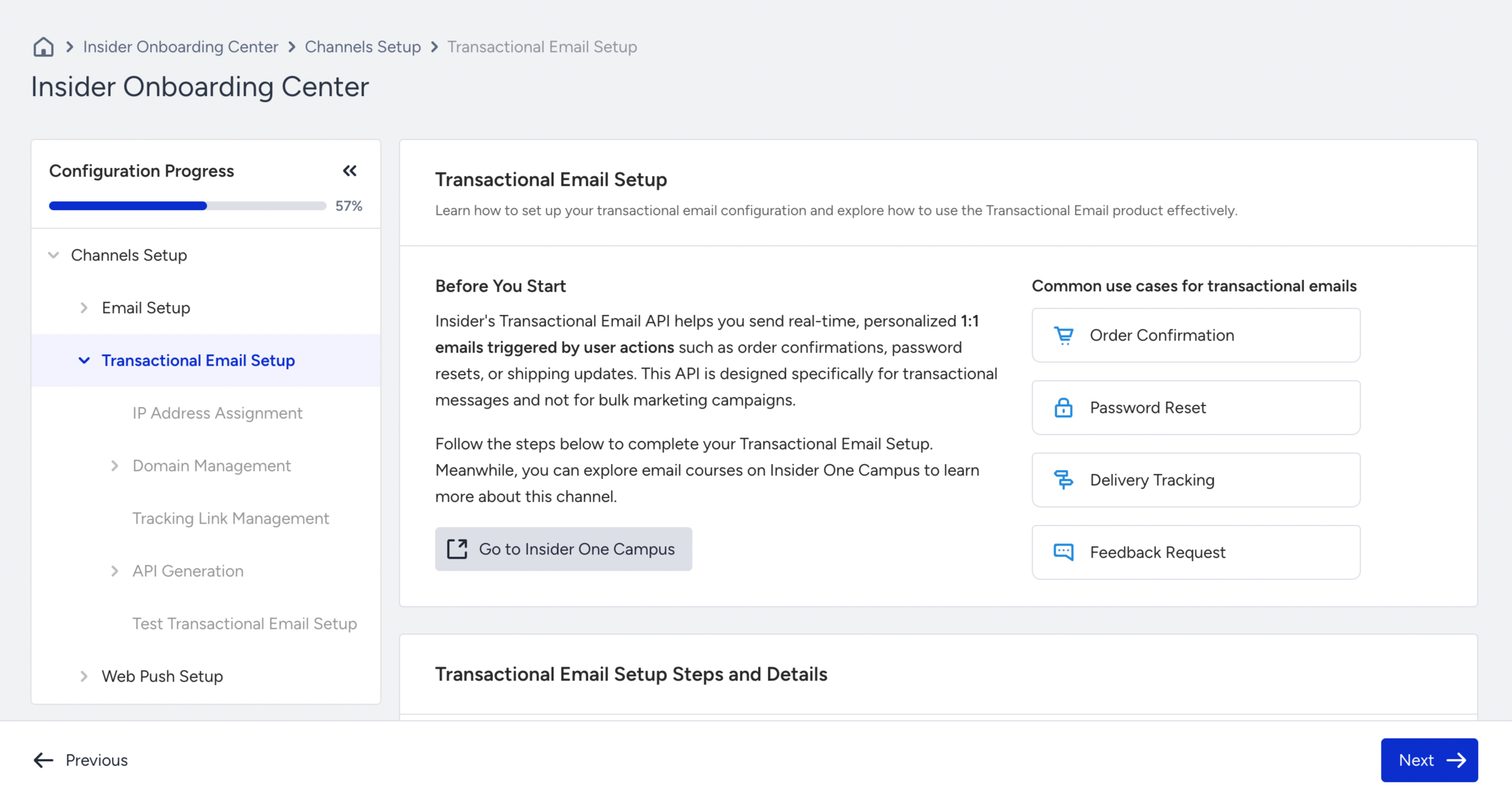
Double Opt-in confirmation emails are sent as transactional emails, so you need to complete the Transactional Email Setup Wizard before they can be delivered.
Step 4: Select your integration source in User Data Planning
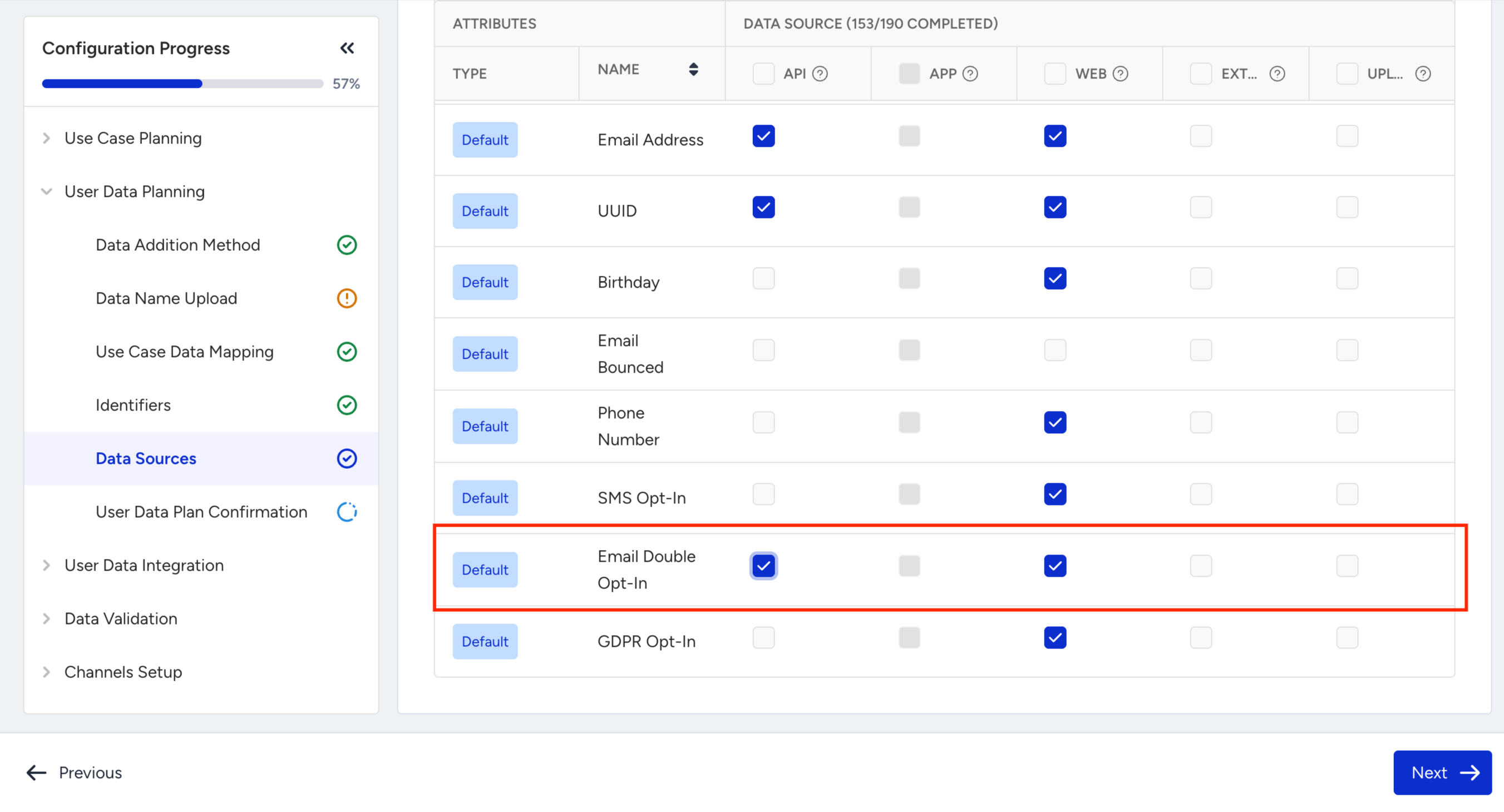
Go to User Data Planning > Data Source and select the integration source for the double_optin event and email_double_optin attribute. This tells Insider One where these two data points will be coming from. E.g., your website, mobile app, or backend API. See the section below for an explanation of these two data points.
Step 5: Build your Architect Double Opt-in journey
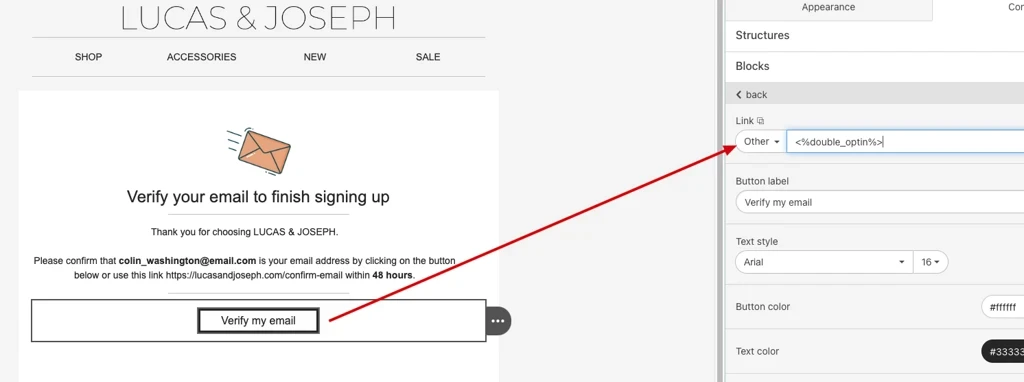
Your confirmation email is sent through an Architect journey. The journey listens for the double_optin event and sends a confirmation email with a unique link. When the user clicks the link, their email_double_optin attribute is set to TRUE, and they become eligible to receive your marketing emails. Refer to Double Opt-in for Email for detailed instructions on journey setup and email template requirements.
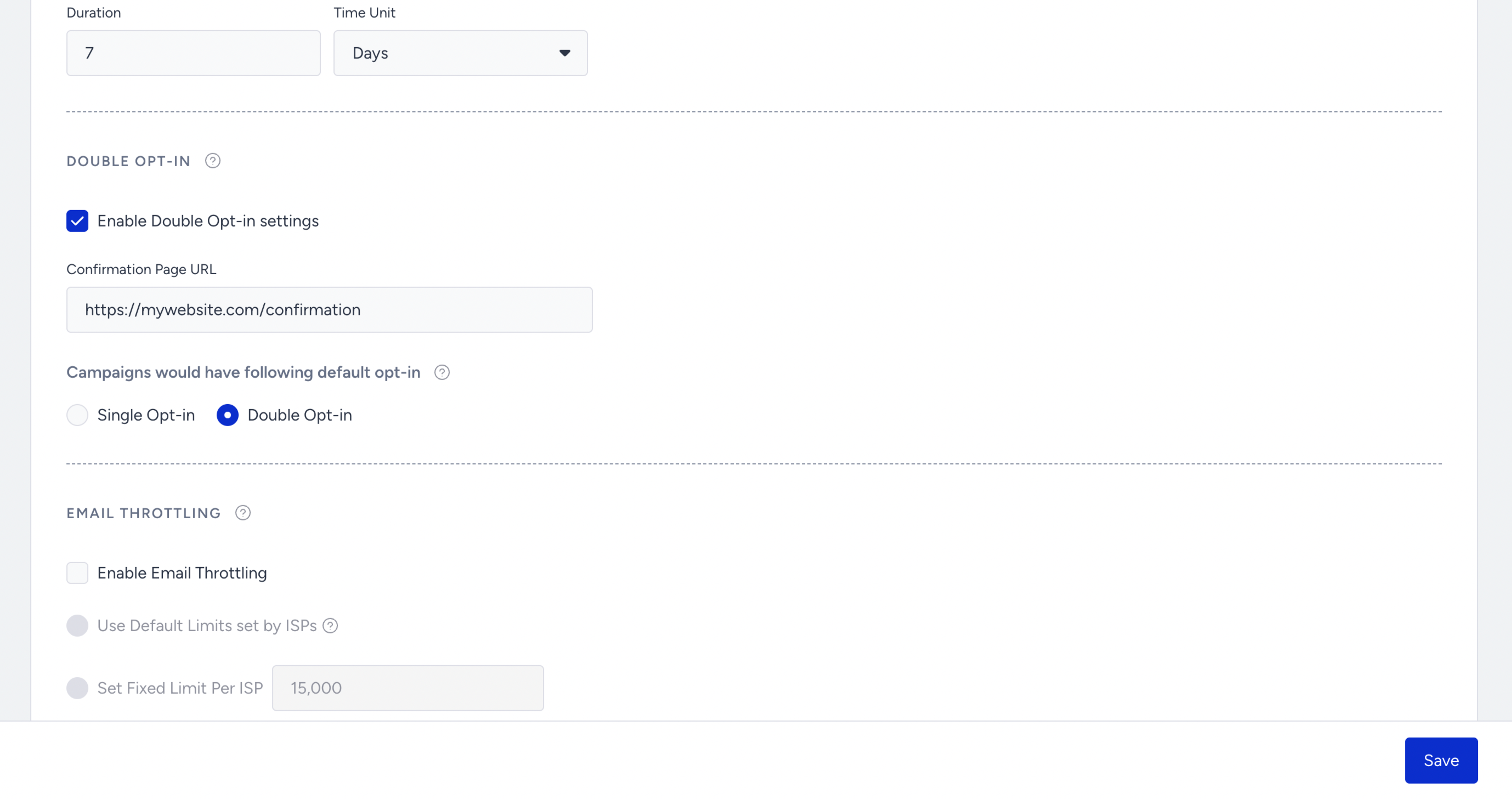
Step 6: Enable the Double Opt-in toggle and set your Confirmation Page URL
In InOne Email Settings, turn on the Enable Double Opt-in Settings toggle and enter your Confirmation Page URL (the page your users land on after clicking the confirmation link). This can be a dedicated landing page, any existing page on your website, or an on-site experiment pop-up.
Once this toggle is enabled, all marketing emails on your panel will be sent only to users with the email_double_optin attribute set to TRUE. Make sure your Architect journey is live, and your existing confirmed subscribers are backfilled before enabling this toggle.
Step 7: The double_optin event and email_double_optin attribute
Two data points power your Double Opt-in flow. You will use both when configuring your data integrations and building your Architect journey.
double_optin event: Fired when a user submits their email address. This is the trigger for your Architect confirmation journey. Depending on how you collect emails, this event is either sent automatically by Insider One (when using Insider One’s Lead Collection) or sent by your own system via Web SDK, Mobile SDK, or API.
email_double_optin attribute: Tracks whether a user has confirmed their email. It is set to TRUE when the user clicks the confirmation link. Users who have not yet confirmed will have a value of null or FALSE. Only users with email_double_optin = TRUE can receive your marketing emails once Double Opt-in is enabled on your panel.
When adding a condition in Architect to check whether a user still needs to confirm, use email_double_optin is not equal to TRUE (not = FALSE). New users start with a null value, not FALSE, and using = FALSE will cause new users to be skipped.
Ways to collect Double Opt-in consent
You can collect Double Opt-in consents through multiple channels; you don't have to choose just one.
Insider One’s Lead Collection: Enable the Double Opt-in checkbox on your Lead Collection campaign's Launch step. Insider One automatically sends the double_optin event.
Website forms (Web SDK): Send the double_optin event from your website's sign-up or subscription forms using Insider One’s Web SDK Event Integration.
Backend/API: Trigger the double_optin event from your backend using the Upsert User Data API.
Mobile app (Mobile SDK): Send the double_optin event from your app using Insider One’s Mobile SDK. Insider One's mobile Lead Collection templates do not support this. You must send the event from your app code directly.
Backfill (existing users): If you have existing users who have already confirmed through your own system, upload a user list with email_double_optin = TRUE before enabling the global toggle. This prevents them from being filtered out of marketing sends.
FAQ
Q: My confirmation emails are not being sent. What should we check?
A: The two most common causes are:
The confirmation button in your email template is missing the <%double_optin%> variable in its link. This variable must be inside the button's URL.
The email element in Architect is using your Promotional Sender Address instead of your Transactional Sender Address. Check both before investigating further.
Q: How long does the confirmation link stay valid?
A: The confirmation link expires after 7 days. If a user does not click within that window, they will need to re-enter their email to receive a new confirmation email.
Q: After enabling Double Opt-in, our marketing email audience dropped significantly. Is this expected?
A: Yes. Once Double Opt-in is enabled, only users with email_double_optin = TRUE are eligible to receive marketing emails. If you had existing subscribers before enabling the feature, make sure to backfill them by uploading a user list with email_double_optin = TRUE before you turn the toggle on.
Q: Can we send users to different confirmation pages depending on their country?
A: The Confirmation Page URL is a single static URL per panel. You can handle multi-country setups in two ways:
Set up separate InOne panels per country, each with its own Confirmation Page URL.
Point the Confirmation Page URL to a routing page on your own website that redirects users to the correct country-specific page based on their location.
Q: What happens if we change the Confirmation Page URL after going live?
A: Changing the URL immediately invalidates all confirmation links that have not yet been clicked. If you need to change the URL, contact your Insider One team first to coordinate the change safely.
Q: Can we use Double Opt-in for some campaigns but keep Single Opt-in for others on the same panel?
A: No. Double Opt-in is a panel-level setting. Once enabled, all marketing emails on the panel are restricted to confirmed users only. If you need to run both consent types simultaneously, contact the Insider One team for a separate panel setup.