To enrich your cross-platform Lead Collection campaigns, you can add up to three separate single-choice inputs to the templates and 20 different options to each single-choice input. Also, you can utilize the User Attribute feature together with the Single Choice to specify user attributes for user answers to be assigned.
This way, you can segment your users based on their preferences.
How does the Single Choice Element work?
In the Design step of your campaign,
Select the on-page or inline cross-platform Lead Collection templates from the template store.
Add a Single Choice Input to your template.
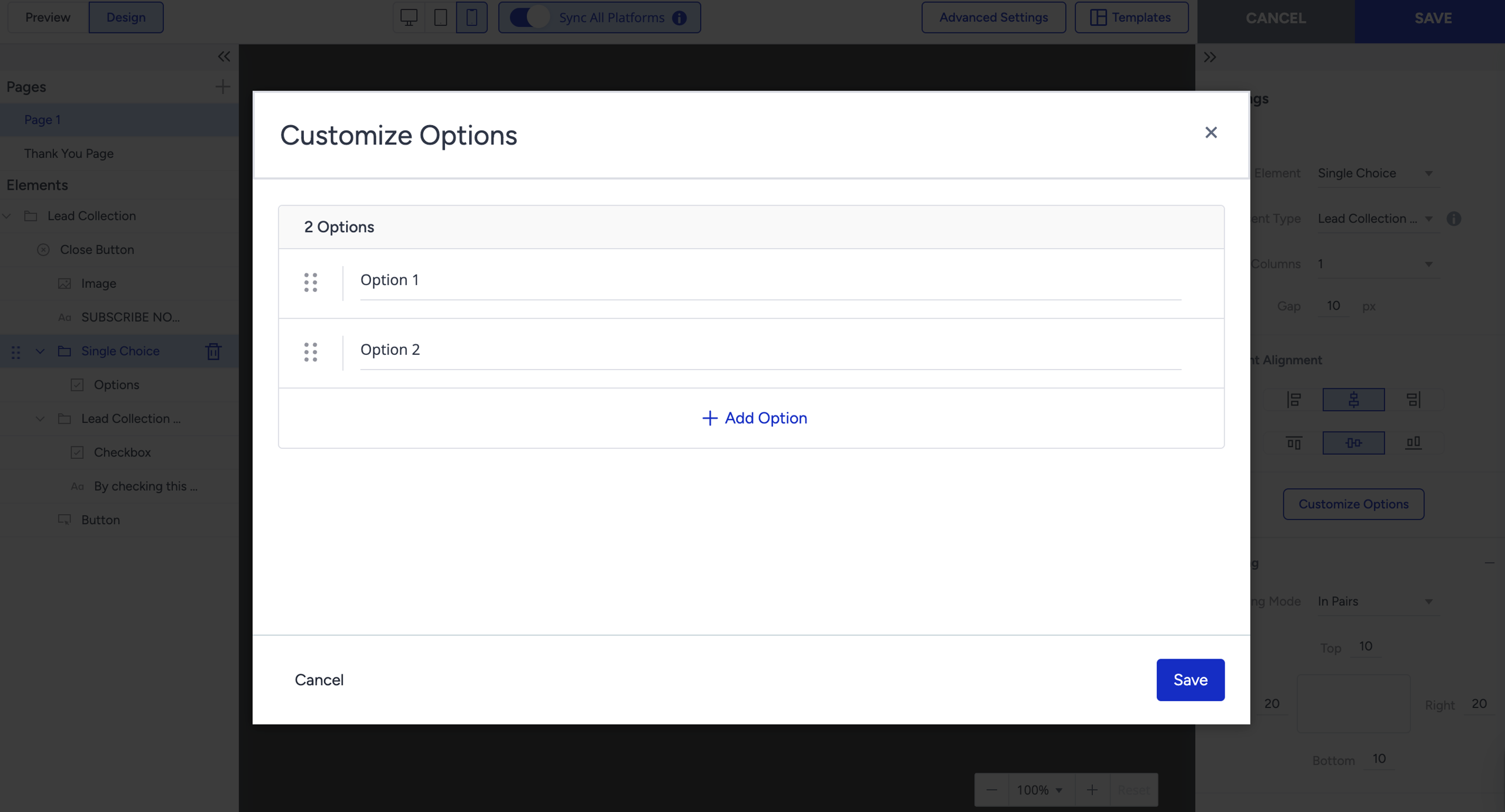
You will have a Single Choice selection in your template with default options: Option 1 and Option 2, each labeled.
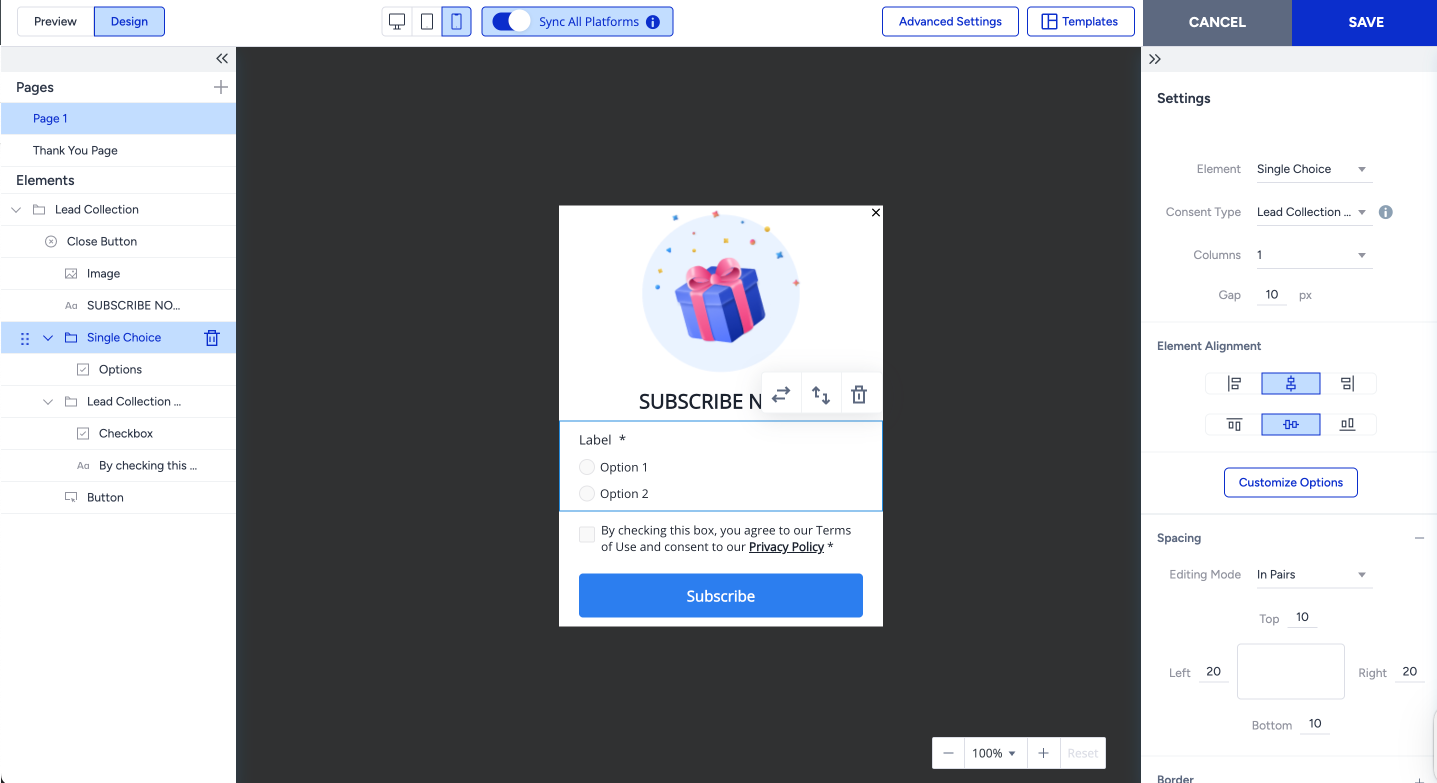
If you select the Single Choice element from the Elements in the right menu, click the Customize Options button on the right menu to prepare the options for the Single Choice element.
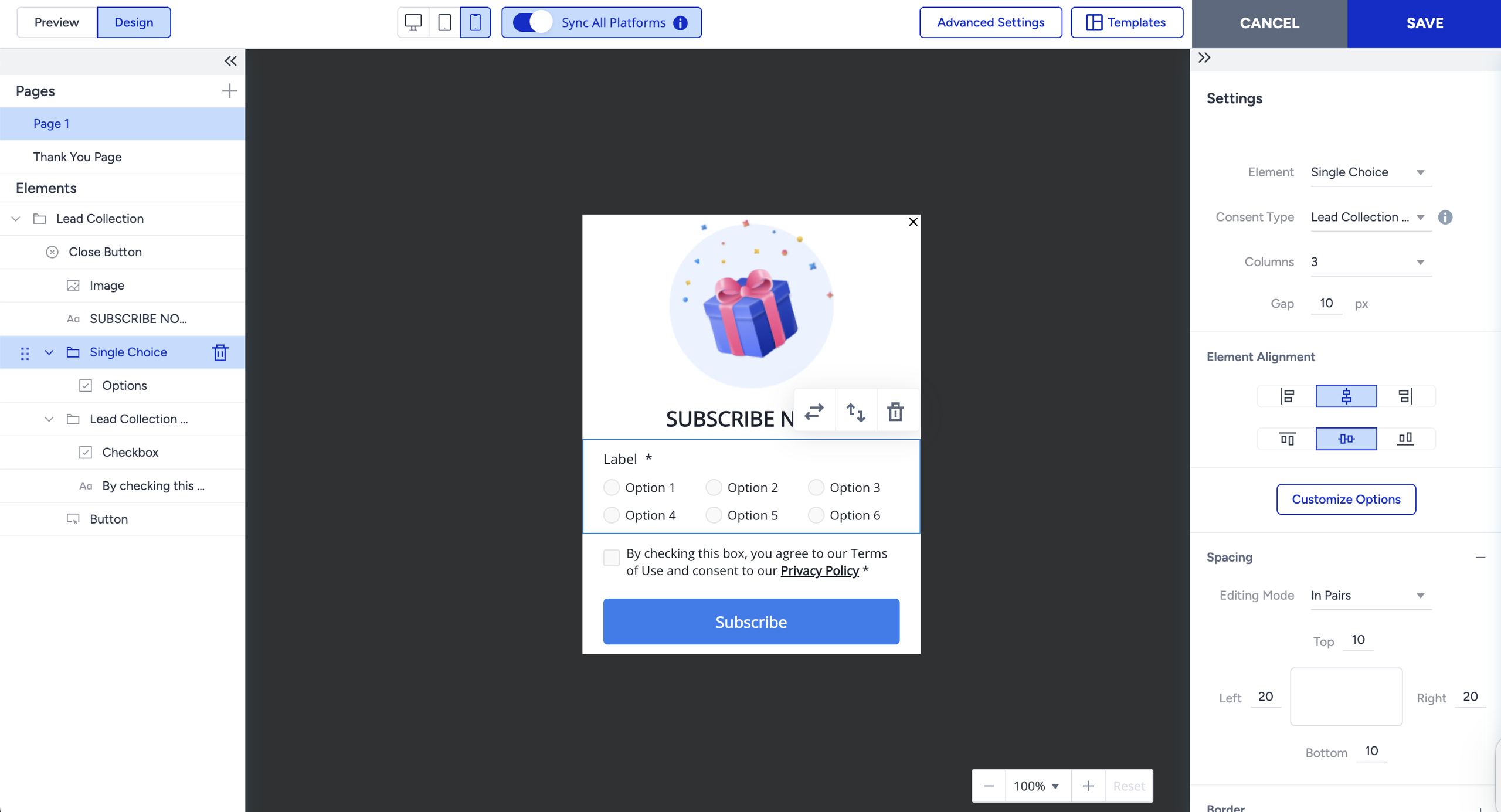
If you select the Single Choice Container from the Elements, you can customize its design and behavior directly in the template.
It is possible to arrange options up to five columns with 20 different options.
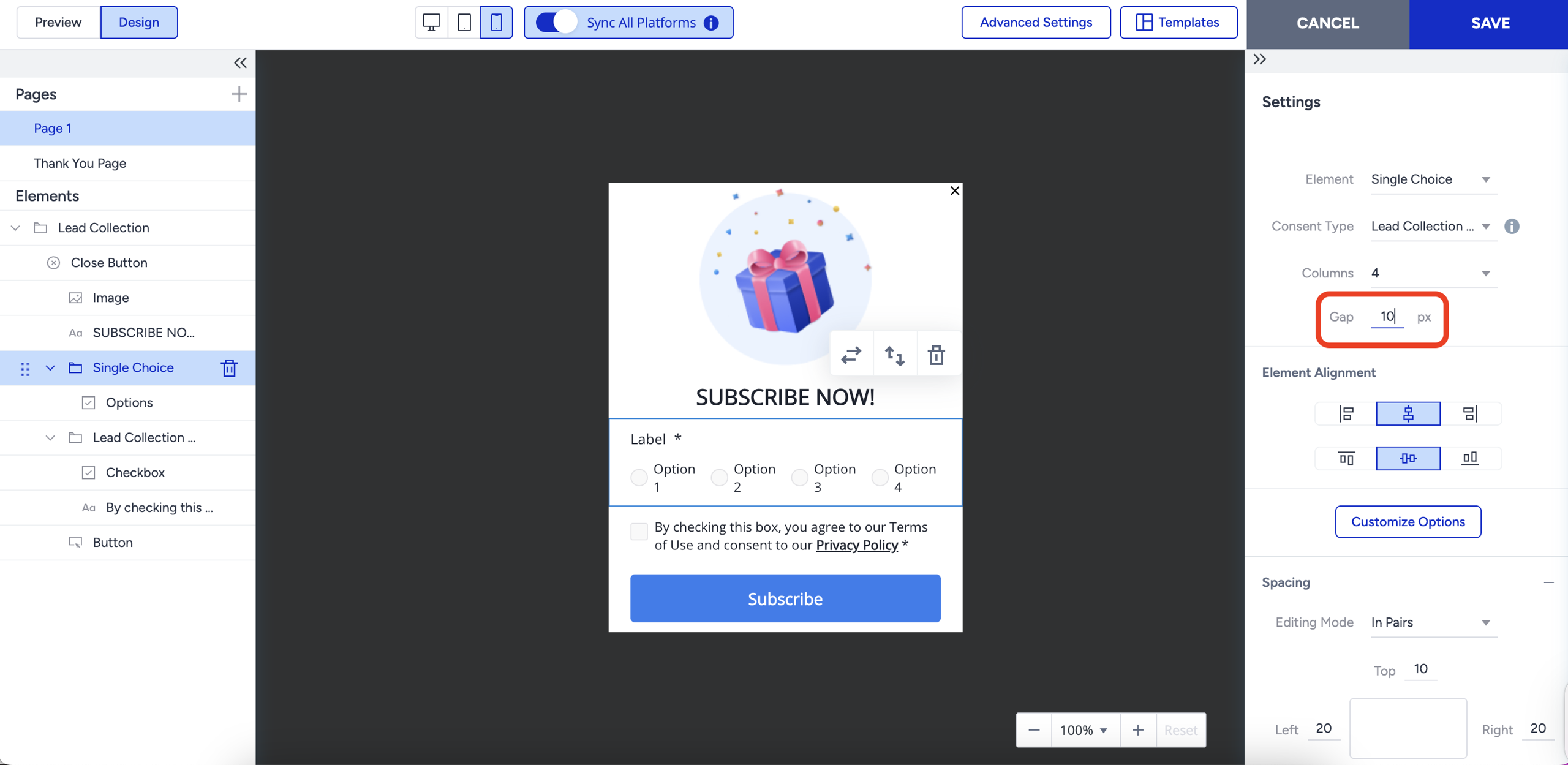
If you select the Single Choice Menu from the Elements, you can customize the design and behavior.
The gap setting under the Single Choice menu is changing the horizontal gap between columns and the vertical gap between options at the same time.
After completing your configurations, select the Single Choice element and configure the User Attribute feature for the Options element.
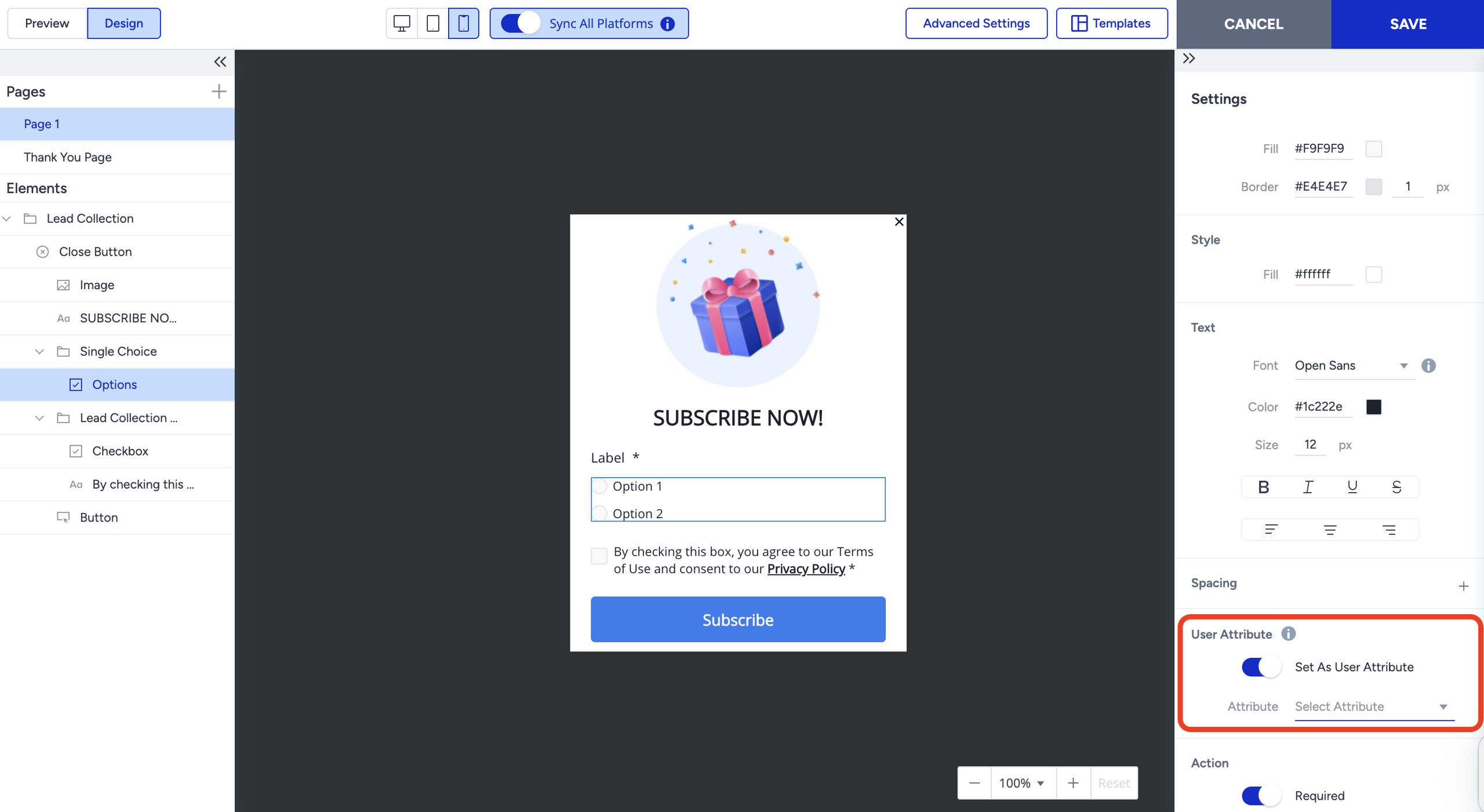
Remember that you can add three single inputs to the template.
How to use User Attribute with the Single Choice input
Use case example 1:
Single Choice + User Attribute is a great way to collect user preferences that directly improve personalization and targeting across your campaigns.
Let’s say you’re an online fashion retailer preparing to launch a new collection. You want to make sure users see the most relevant content based on their style preferences.
You can create a Single Choice element asking “How would you describe your style?” with options like:
Casual
Elegant
Streetwear
Business/Formal
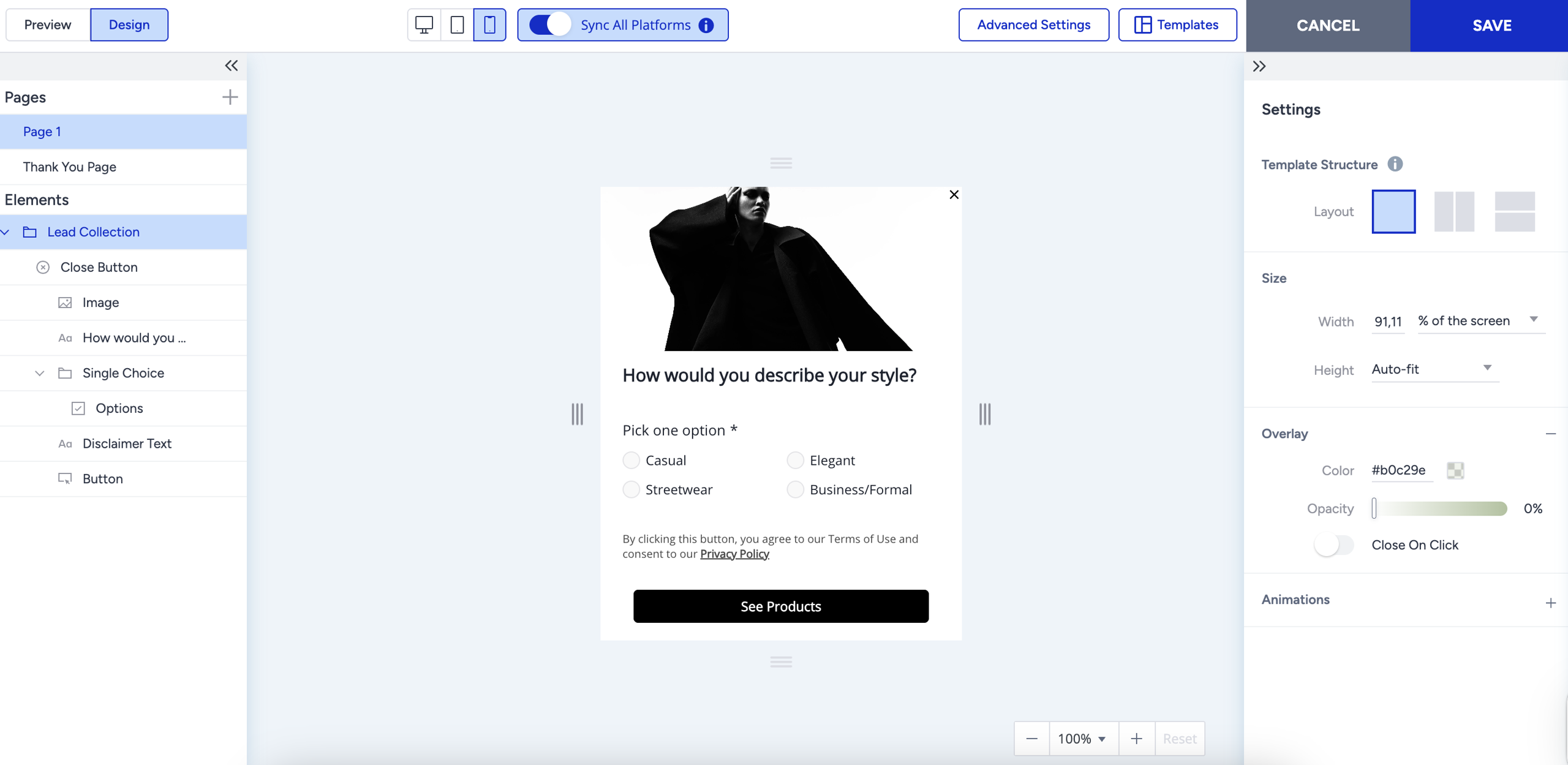
Link this element to a custom user attribute, such as style_preference, using User Attribute.
This way, users who select “Streetwear” can receive personalized homepage banners, Web Push notifications, or Emails featuring the latest streetwear drops, while those who select “Business/Formal” see tailored suggestions that match their taste.
Use case example 2:
Let’s say you’re a beauty & skincare brand launching targeted campaigns for different skin types. You can create a Single Choice element asking “What’s your skin type?” with options like:
Oily
Dry
Combination
Sensitive
Normal
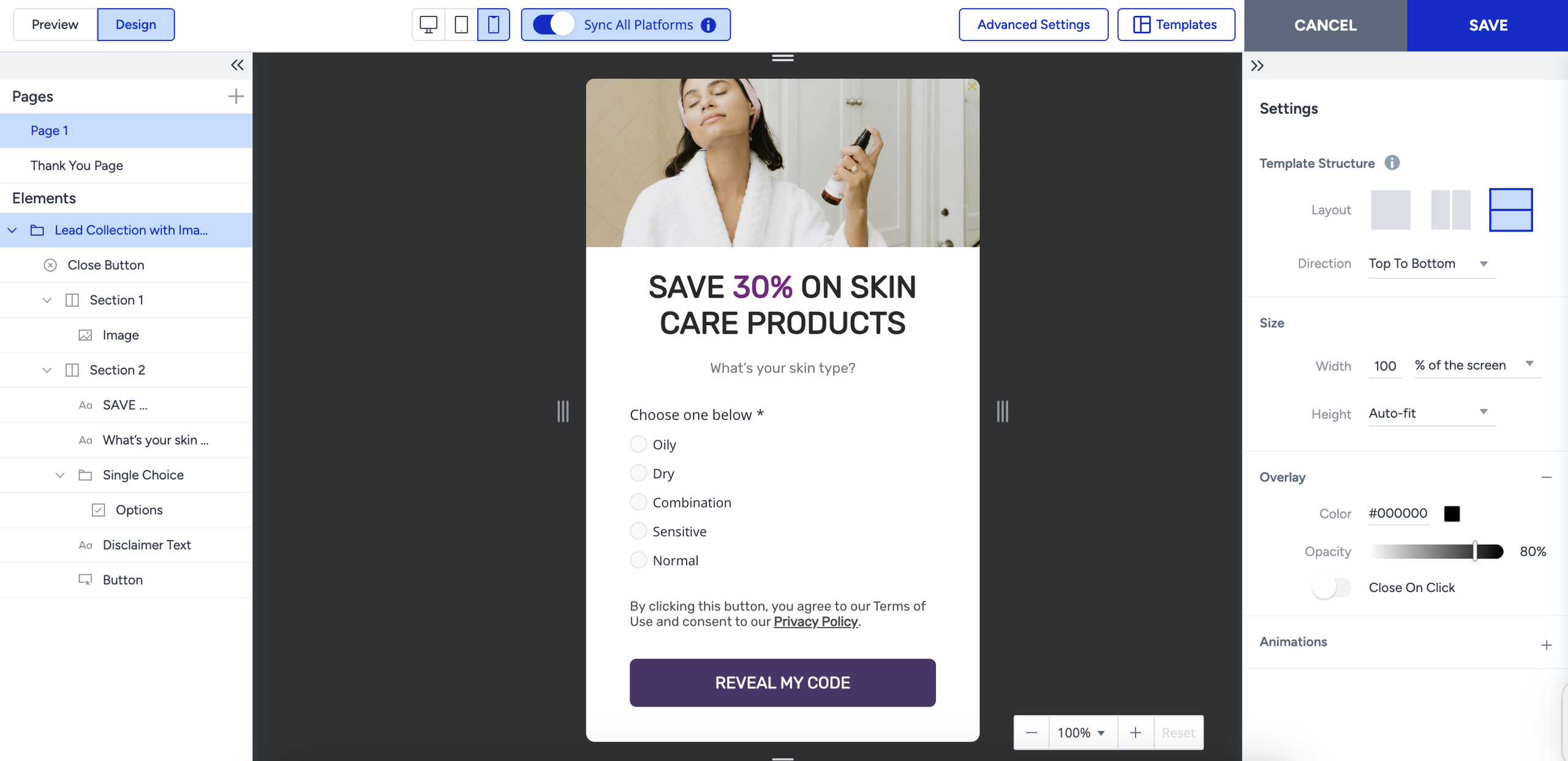
Connect the selection to a custom user attribute, such as skin_type, using User Attribute. Once collected, you can personalize skincare product recommendations, tutorial content, or campaign messages, offering, for example, oil-control solutions to users with oily skin and hydrating routines to those with dry skin.