To enrich your cross-platform Lead Collection capabilities to gather richer, more structured user input, you can use the Multi-Choice element while designing your campaign.
With Multi-Choice, your users can select multiple options from a predefined list you set, making it ideal for capturing a broader range of preferences, needs, or interests. You can add up to three Multi-Choice inputs per template, with up to 20 selectable options for each input.
Combined with the User Attribute feature, selected responses can be saved as user attributes. This enables you to create powerful segmentation rules and deliver highly personalized experiences based on users' multifaceted choices.
Whether you’re collecting style preferences, feature interests, or product needs, the Multi-Choice element enables smarter targeting and a more relevant user journey.
How does the Multiple Choice Element work?
Select the on-page or inline cross-platform Lead Collection templates from the template store.
Add a Multi-Choice Input to your template.
Insert a Multi-Choice Input element into your template. By default, you’ll see a sample label and two checkboxes (Option 1 and Option 2).
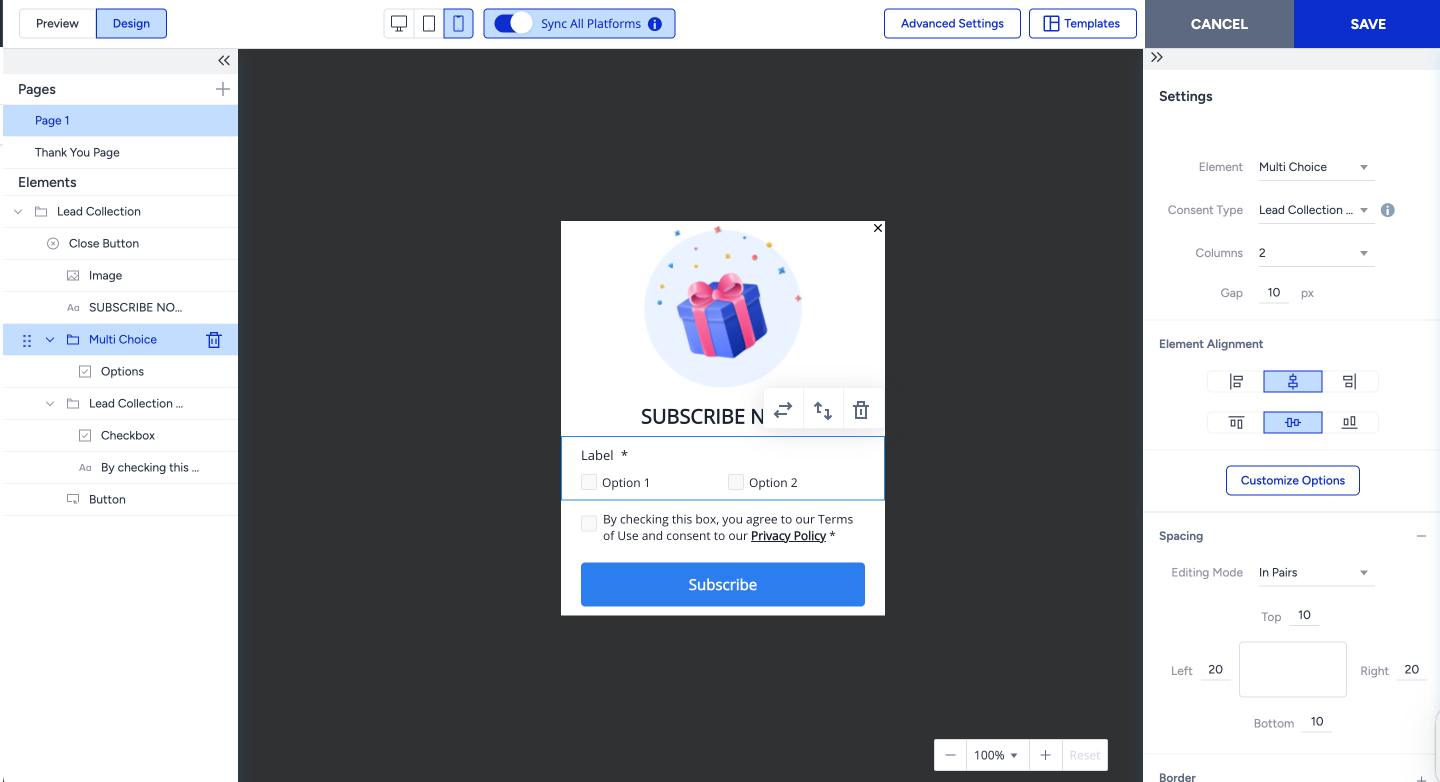
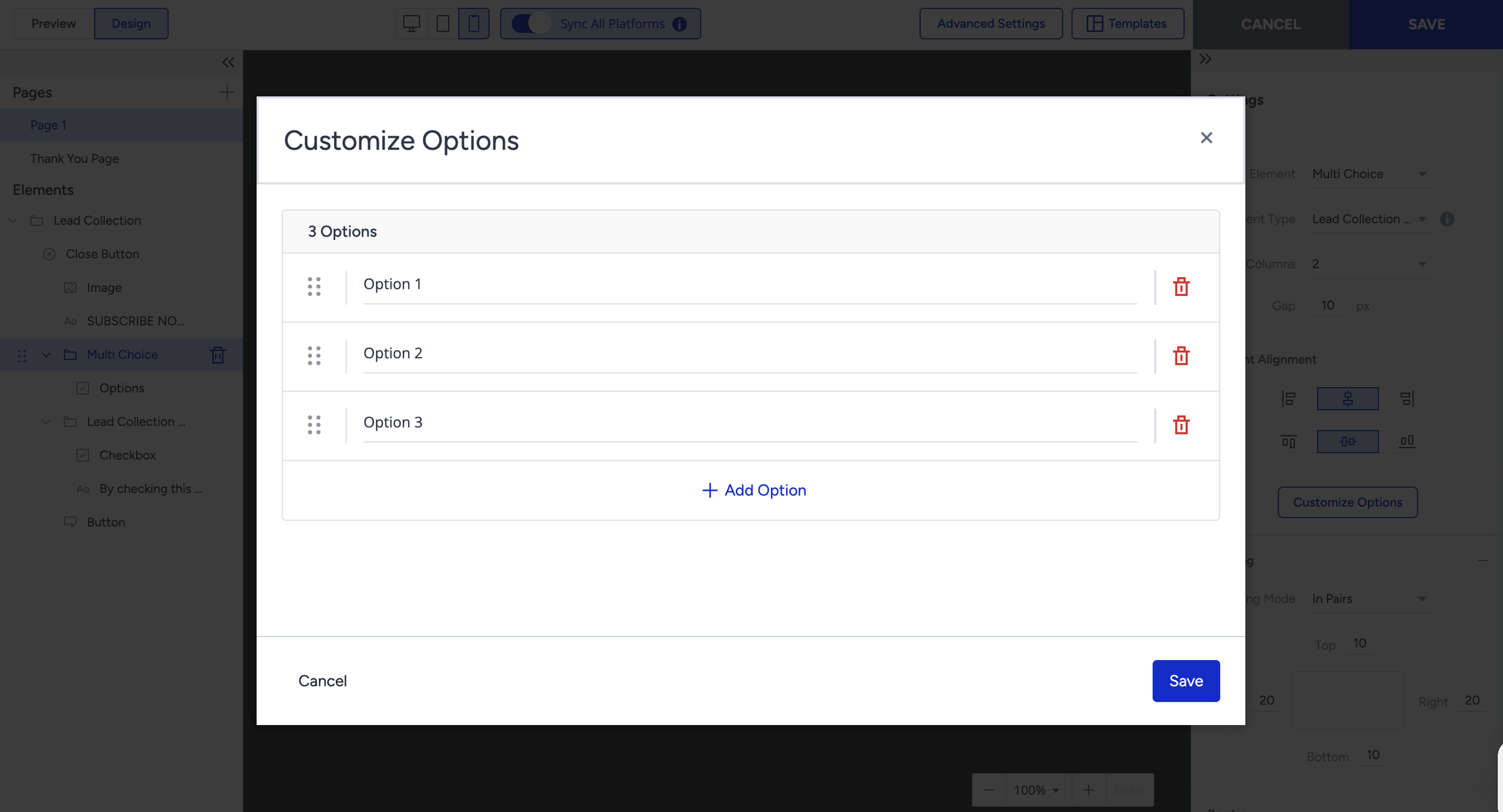
Click on the Multi-Choice element in the Elements section in the left menu. Use the Customize Options button to define the list of options you want to show (up to 20).
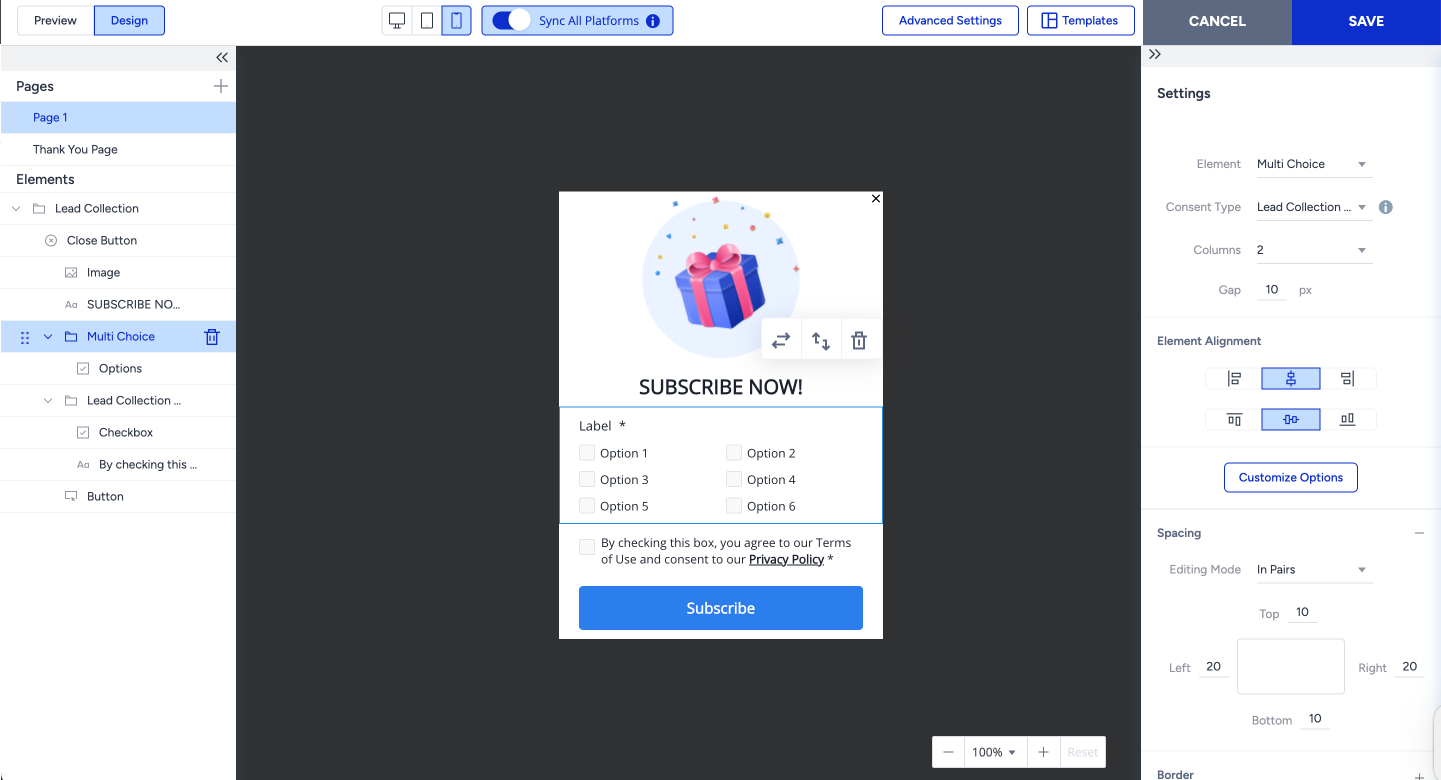
If you select the Multi-Choice from the Elements, you can customize the design and element behavior of the container on the template itself.
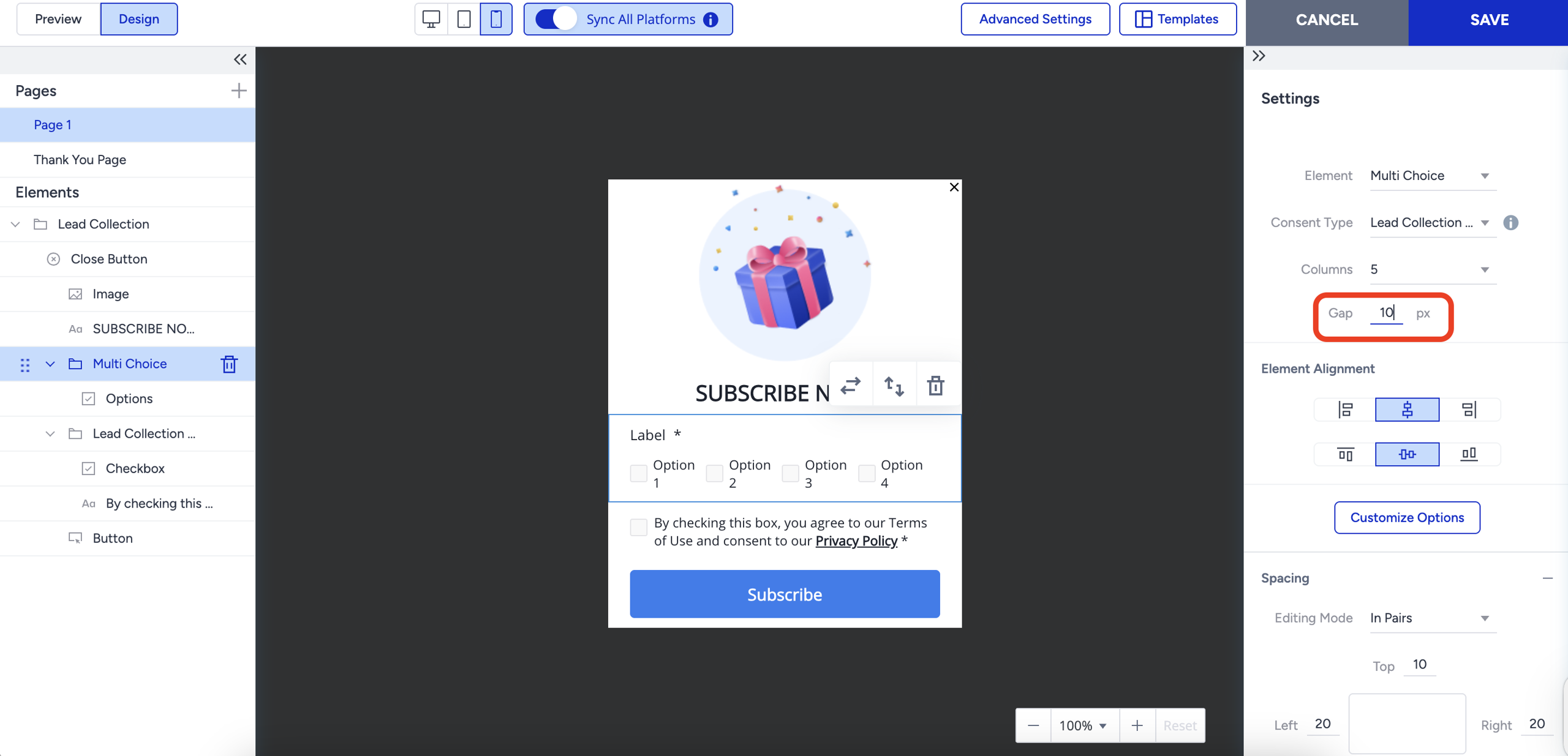
It is possible to arrange options up to 5 columns with 20 different options.
Select the Multi-Choice container to customize its appearance and behavior in the template. Select the Multi-Choice Menu to edit the styling and behavior of the checkboxes or selection layout shown under the container.
The gap setting under the Multi Choice menu changes the horizontal gap between columns and the vertical gap between options at the same time.
After finalizing your setup, select the Options element in the Elements section of the left menu and enable the User Attribute feature for the element.
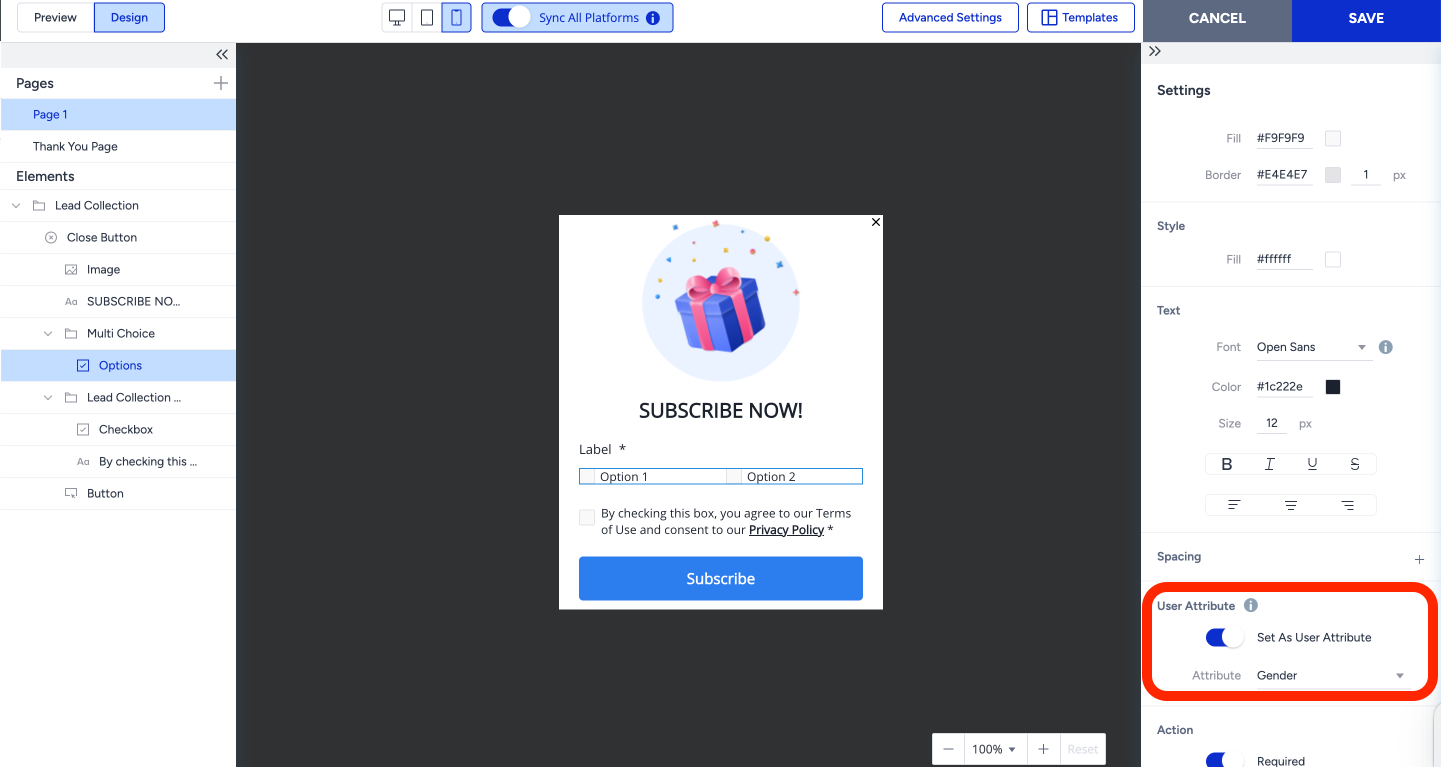
Remember that you can add three multiple-choice inputs to the template.
How to use User Attribute with the Multi-Choice input
Use case example 1
Multi-Choice + User Attribute is especially valuable for B2B SaaS companies aiming to qualify leads and personalize onboarding or nurture journeys based on what prospects care about.
Let’s say you’re a B2B SaaS platform offering marketing automation tools, and you want to understand what features potential customers are most interested in during signup or a lead generation flow.
You can create a Multi-Choice element asking “Which features are you most interested in?” with options such as:
Email Campaign Automation
Website Personalization
CRM Integration
Real-Time Analytics
A/B Testing
Lead Scoring
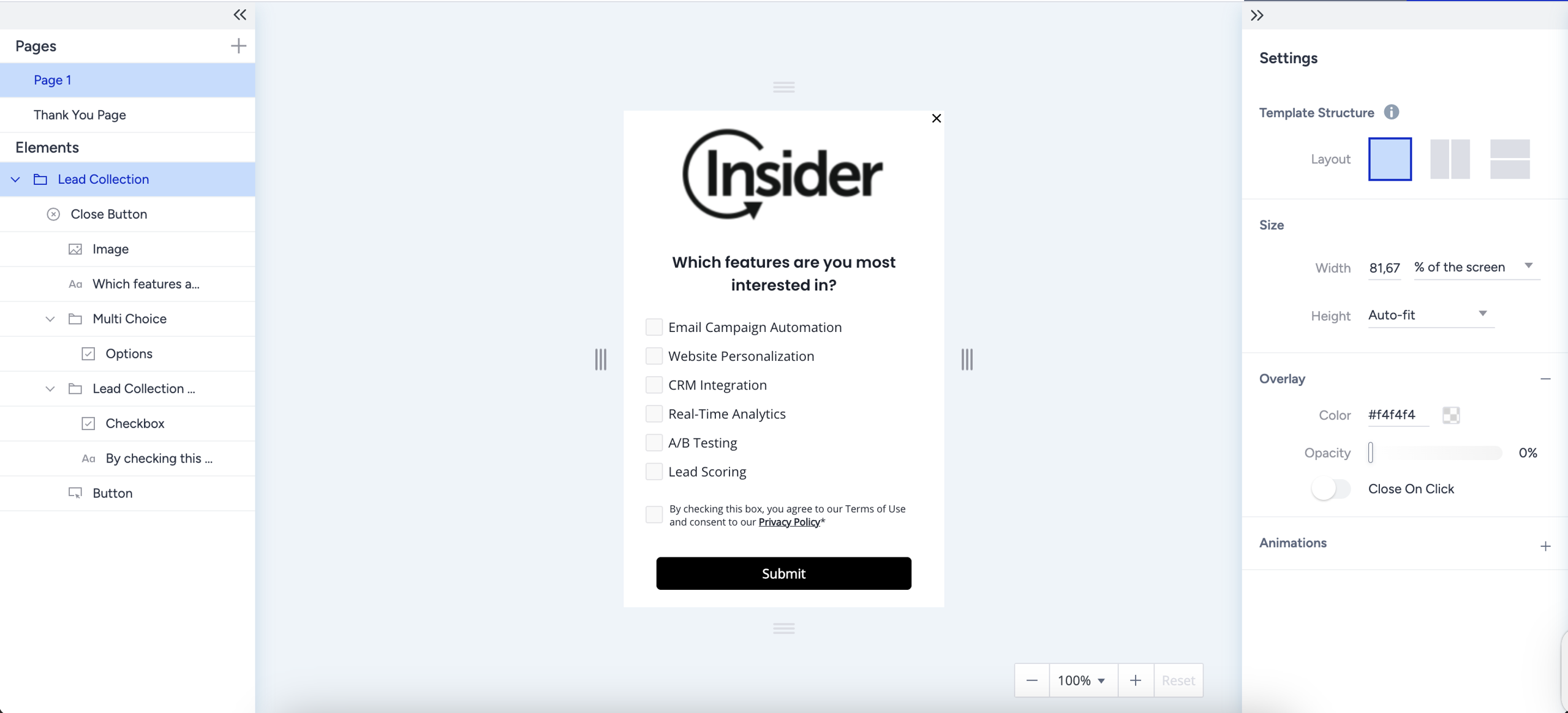
Link this element to a custom user attribute such as feature_interest. Once collected, this data allows you to:
Personalize product tours based on selected features
Route leads to the right sales teams (e.g., CRM-focused vs. analytics-focused)
Send nurture Emails that highlight relevant use cases or success stories
Prioritize roadmap feedback based on popular feature demand
This approach helps you not only improve engagement and conversion but also qualify leads with richer intent data, early in the journey.
Use case example 2
Let’s say you’re an automotive brand or dealership running lead generation campaigns for new car models. You want to understand what features are most important to potential buyers.
You can create a Multi-Choice element asking “What features are most important to you in a car?” with options such as:
Fuel efficiency
Advanced safety features
All-wheel drive
Technology & infotainment
Spacious interior
Electric or hybrid engine
Luxury finishes
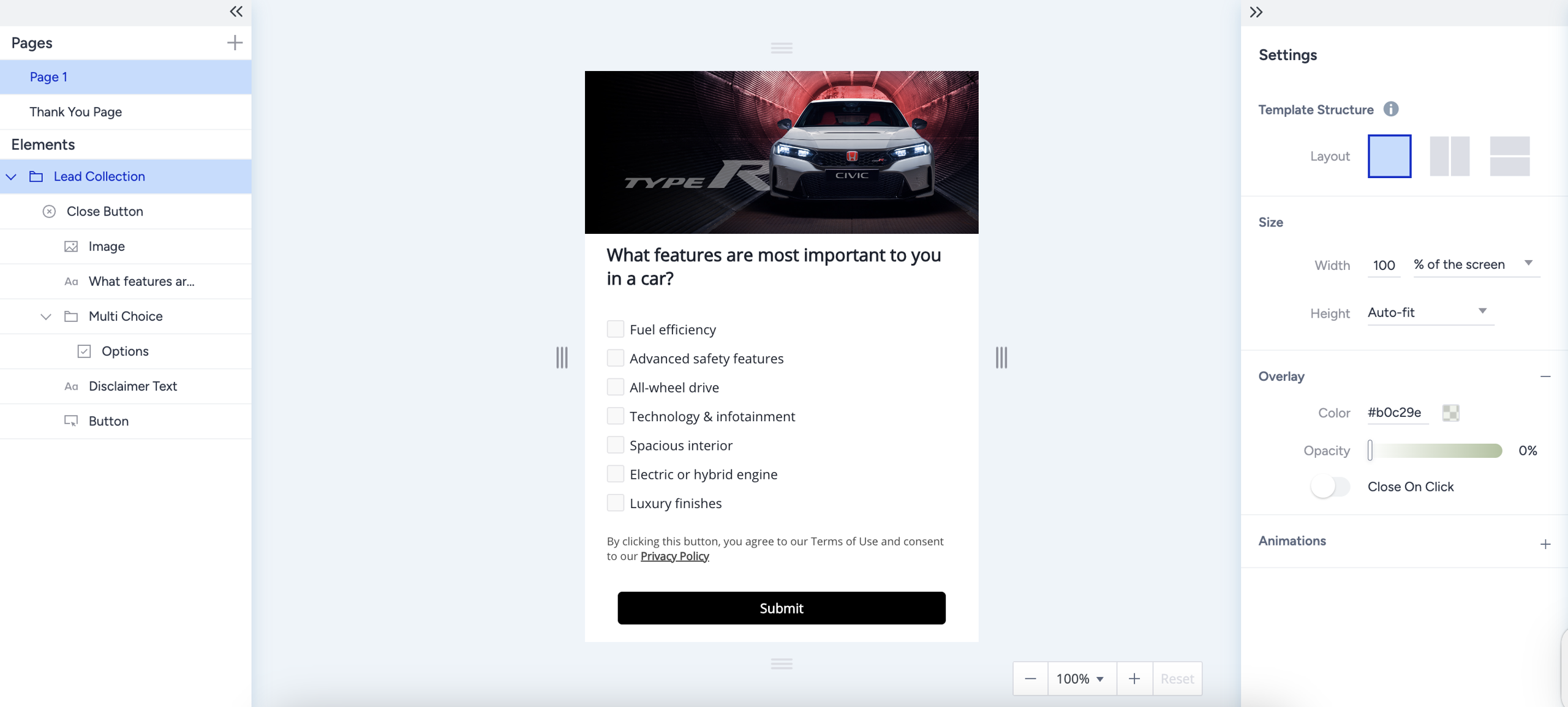
Link this input to a custom user attribute, such as car_feature_preferences. Once collected, you can:
Personalize Email follow-ups, highlighting models that match selected features.
Create retargeting audiences based on feature combinations (e.g., safety + fuel efficiency).
Guide users to tailored product recommendation pages.
Equip sales teams with pre-qualified lead insights before making contact.