You can personalize the dropdown input element on the template in different ways while designing it.
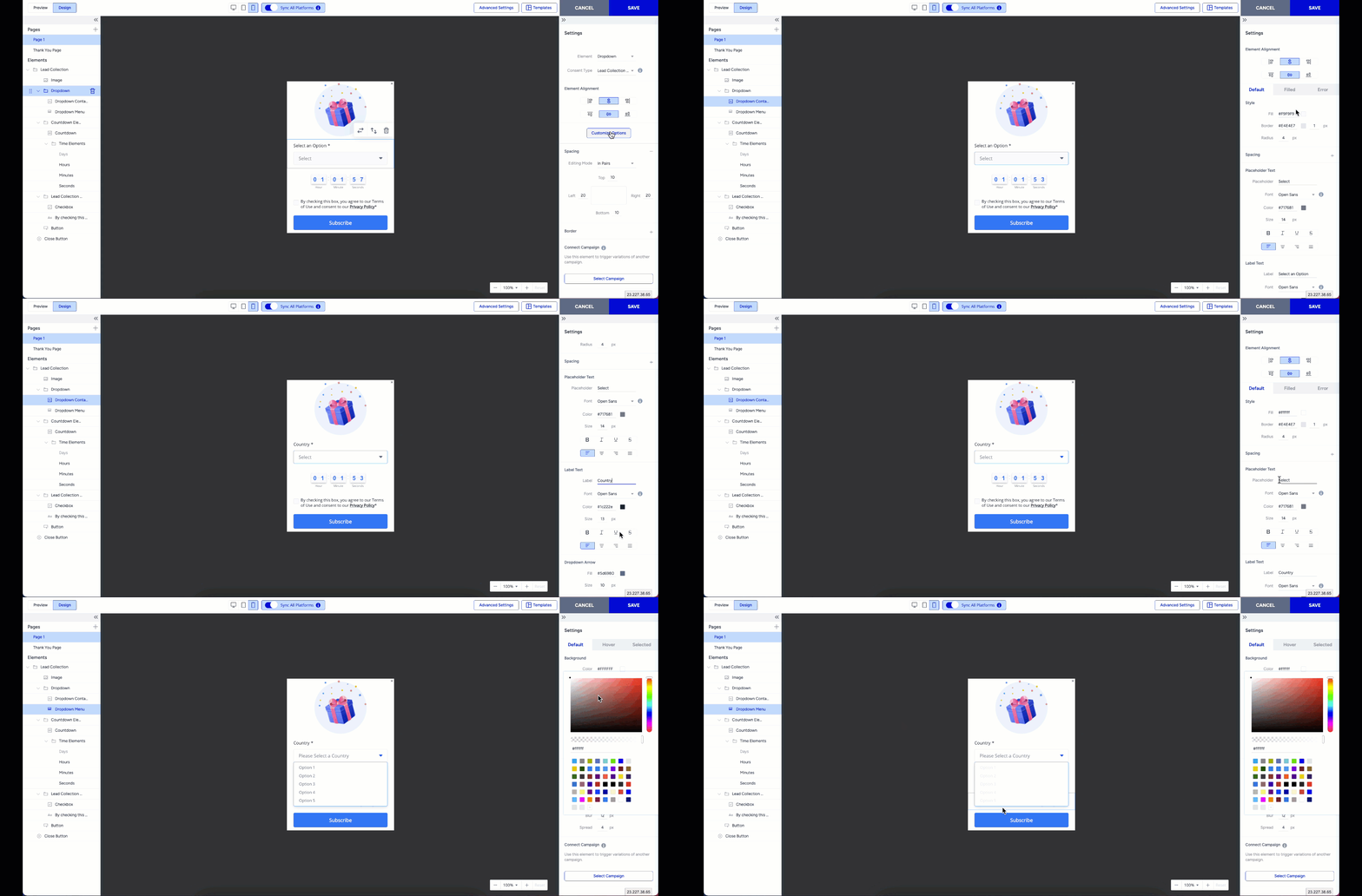
The Customize Option modal lets you add new options to the dropdown or remove the existing ones.
If you select the Dropdown Container from the Elements, you can customize its design and behavior directly on the template.
If you select the Dropdown Menu from the Elements, you can customize the design and behavior of the dropdown menu shown below the Dropdown Container.
In the right menu, you can easily change the appearance of the dropdown menu and container.
You can change the placeholder and label text in the Settings menu and decide whether this input is mandatory for the end users to submit the form.
After you finalize your configurations, you can select the Dropdown folder and configure the Set as User Attribute feature for the element.
Remember that you can add three dropdown inputs to the template.
Use Cases
The Dropdown and Set as User Attribute features help you prepare various personalizations and segmentations. You can collect default user attributes, such as City or Country, as well as custom user attributes.
Let’s assume you want to promote a new hair conditioner for curly hair:
Create a Dropdown element named “Select your Hair Type” with available options, and link it to a custom user attribute called hair_type using Set as User Attribute. Then you can promote your new conditioner to users with curly hair without bothering other users with different hair types.
Let’s assume you operate as a B2B company with a significant call center operation in your business:
You can utilize two dropdown elements with two custom user attributes: preferred_day and preferred_time_slot, set with Set as User Attribute. You can prompt your users to ask when they want to be called, so you don’t bother them when they are not available.