To send messages to your users via WhatsApp, they must first give their consent. In other words, you need to collect opt-ins from them so that they agree to receive messages over WhatsApp from your business and provide you with their mobile phone number.
In this article, you can find answers to the following questions:
What is Text to Opt-in?
Text to opt-in is a way to collect subscribers by asking them to write a predefined keyword/sentence to your WhatsApp account. For example, you can define your opt-in keyword/sentence as “Subscribe”. When a user writes Subscribe on WhatsApp and sends it to you, they directly subscribe to your WhatsApp channel.
You can also use pre-created links to make it easier for your users to subscribe. When a user clicks that link, they are redirected to the WhatsApp Desktop or Mobile Application and see a pre-created message to send. It is an advantageous way to collect opt-ins from offline and online channels.
This approach makes it easy to collect subscribers through various platforms, including:
Instagram Stories to add pre-created opt-in links to the stories and collect opt-ins with Instagram’s swipe-up option.
Call-to-Action Buttons (CTA) to embed pre-created links into the call-to-action buttons on your website or social media pages and redirect your leads to WhatsApp.
Offline QR Codes to use QR codes in your offline stores to collect subscribers to the WhatsApp channel.
.png)
Create a WhatsApp Text to Opt-in keyword and link
To create a text to opt-in keyword and link:
1. Navigate to Campaigns > Messaging > WhatsApp. 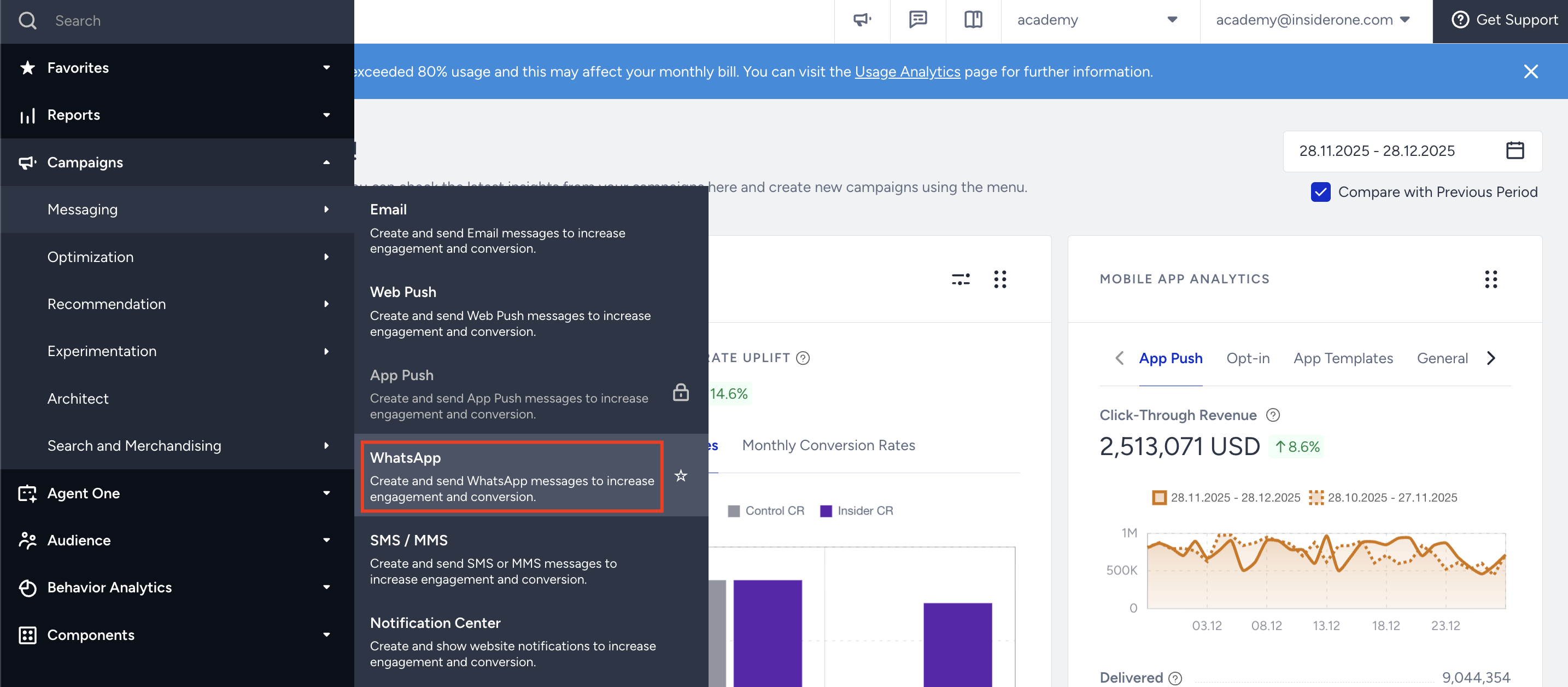
2. Click the Settings button. 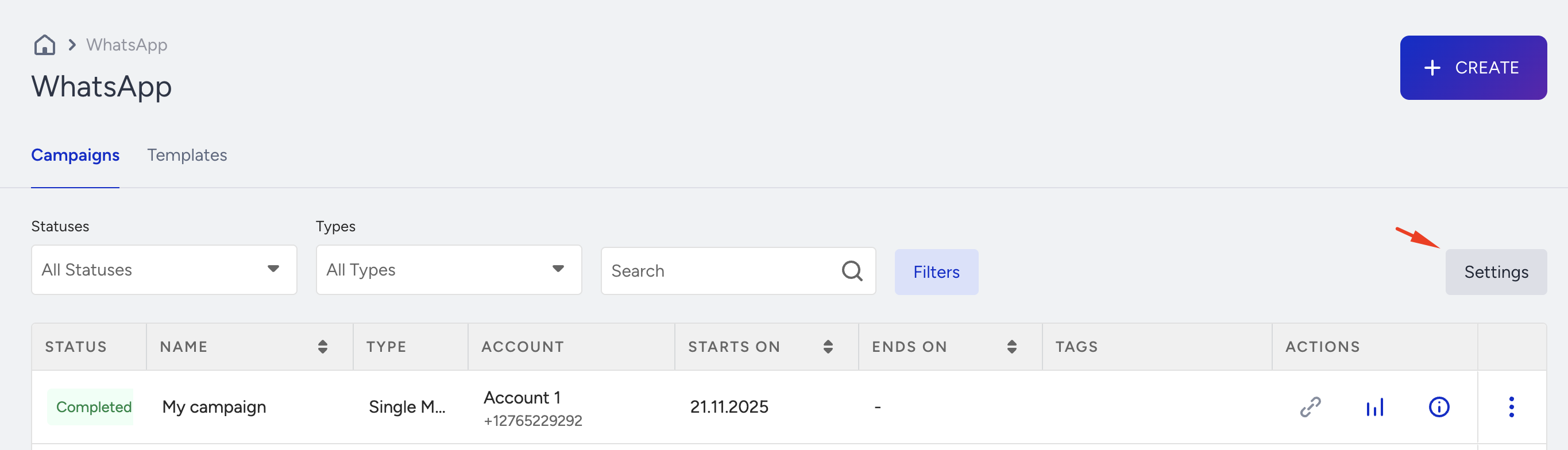
3. Click the gear icon to open Account Preferences.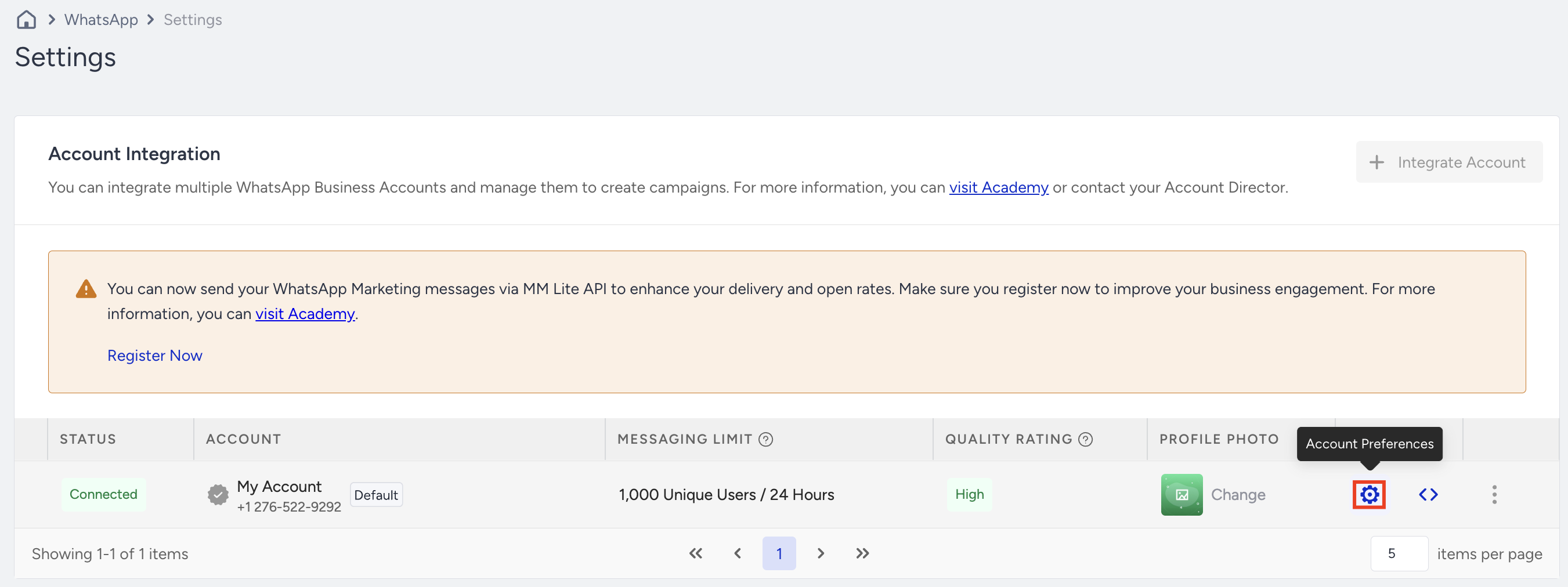
4. Enable the Subscribe toggle to set a unique Subscribe Keyword. Then, enter your Subscribe Confirmation Message. Once your keyword is saved, you can preview how it will appear to users. Consider adding a compelling prompt to encourage opt-ins, such as: “Want to stay updated about our campaigns? Just type ‘subscribe’!”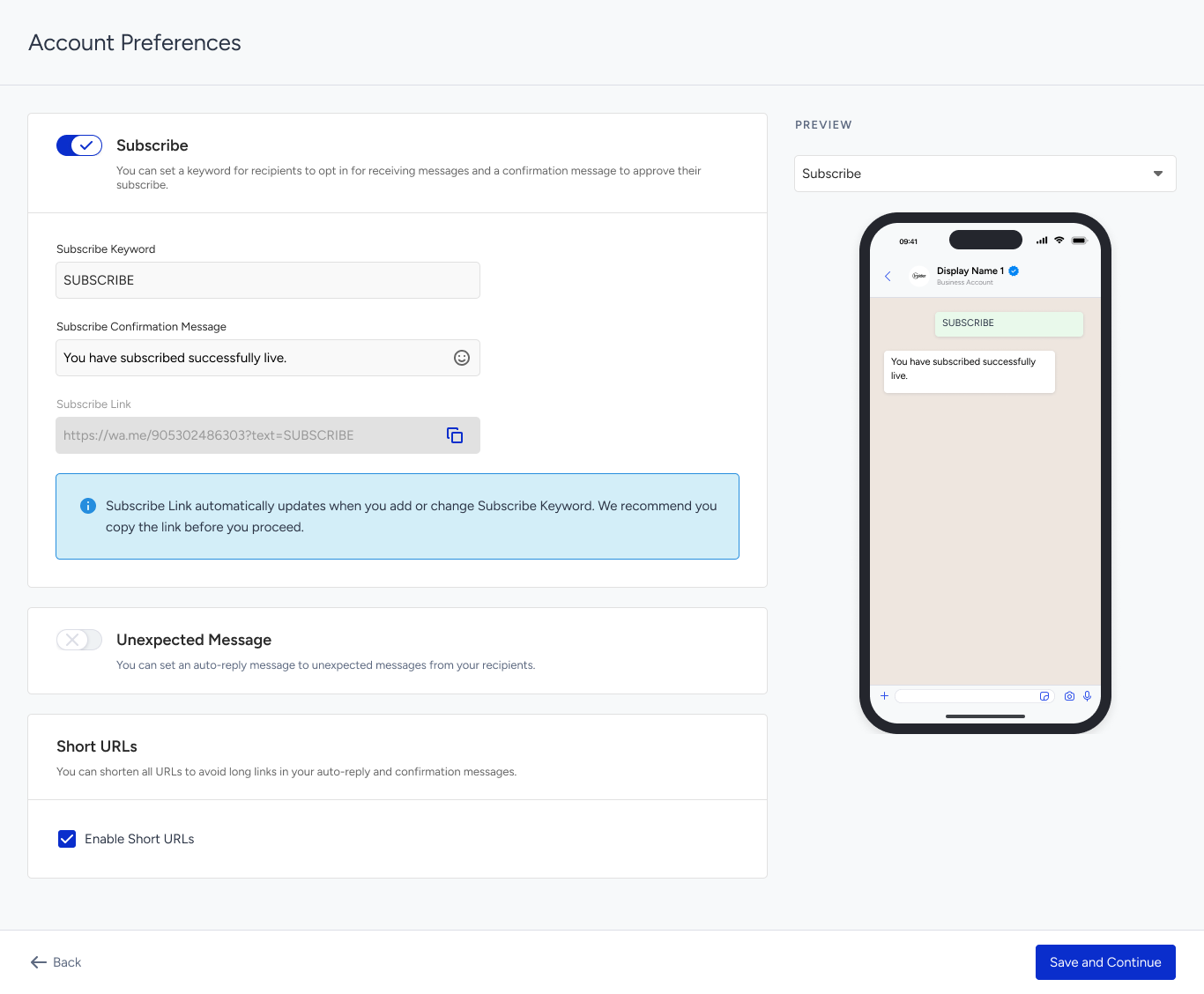
5. Click Copy Link to copy your Subscribe link. Once copied, click Save and Continue to proceed.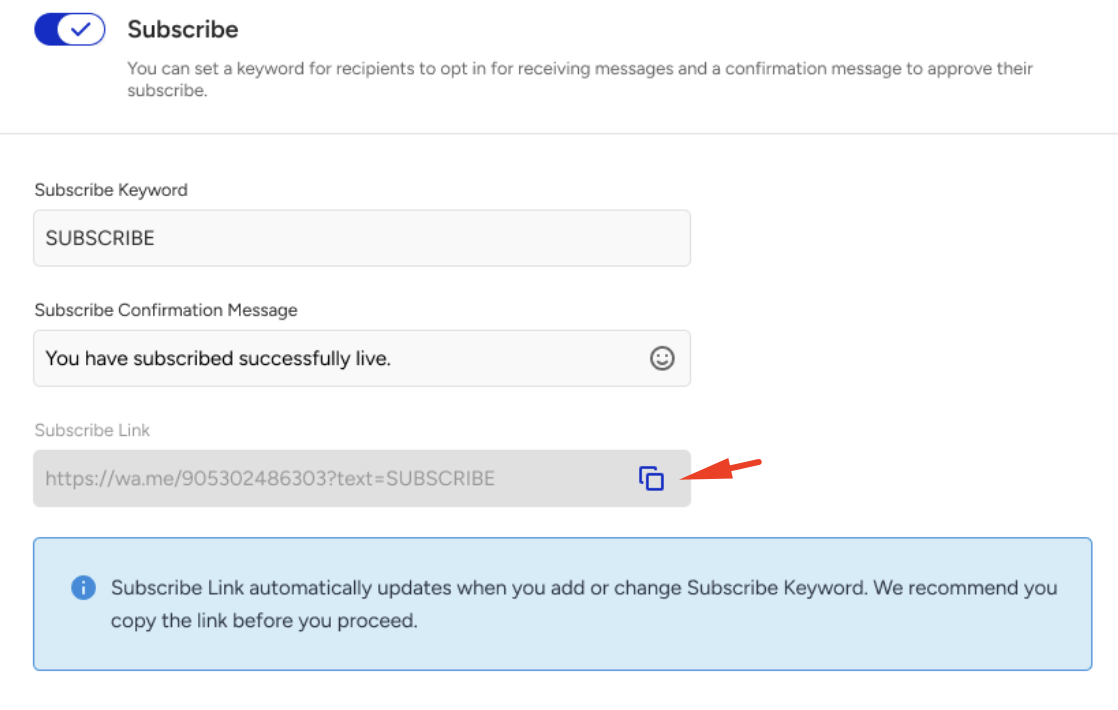
The Subscribe Link automatically updates when you add or change the Subscribe Keyword. We highly recommend you copy the link before you proceed.
Refer to WhatsApp Settings for further details.
How does text to opt-in work?
When a user clicks the subscription link, WhatsApp (mobile or desktop) opens with a pre-filled message and recipient. Once the user sends the message, they receive a confirmation reply; this is the message you defined in WhatsApp Settings.
To boost engagement, you can offer users exclusive discounts or deals after they opt in.
Share the subscription link across your marketing channels, or convert it into a QR code to place on posters, physical displays, or ads; perfect for collecting leads both online and offline.
.png)
How does a user see the subscription link?
When a user clicks the subscribe link, their WhatsApp desktop or mobile app opens, and they see a pre-created message and the receiver.
When they send the message, they will receive a confirmation message that you set in the settings: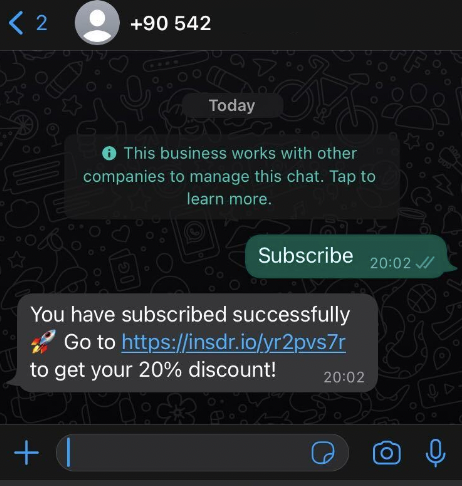
You can offer your users discounts and special offers when they complete the text to opt-in process.