Coupons have always been a terrific way to draw users. Combining this capability with specific segments and predictive audiences makes things run more smoothly. Coupon codes are essential for use cases such as win-backs, retention, and cross-selling.
You can give out coupon codes for various use cases, such as cart abandonment to drive conversions or welcome/onboarding to boost engagement.
You can deliver different discount codes to each user from your coupon lists based on a dynamic expiration date in your app templates and app surveys.
To get started with sending coupon codes to your users:
1. Create a coupon list
You can create a coupon list with unique or a single coupon code.
2. Add coupon(s) to your campaigns
After creating your coupon lists, you can add them to your app templates and app surveys.
App Templates
Once you start editing your app template, follow these steps to add coupon codes:
Toggle the Coupon option on to click the Coupon Settings button.
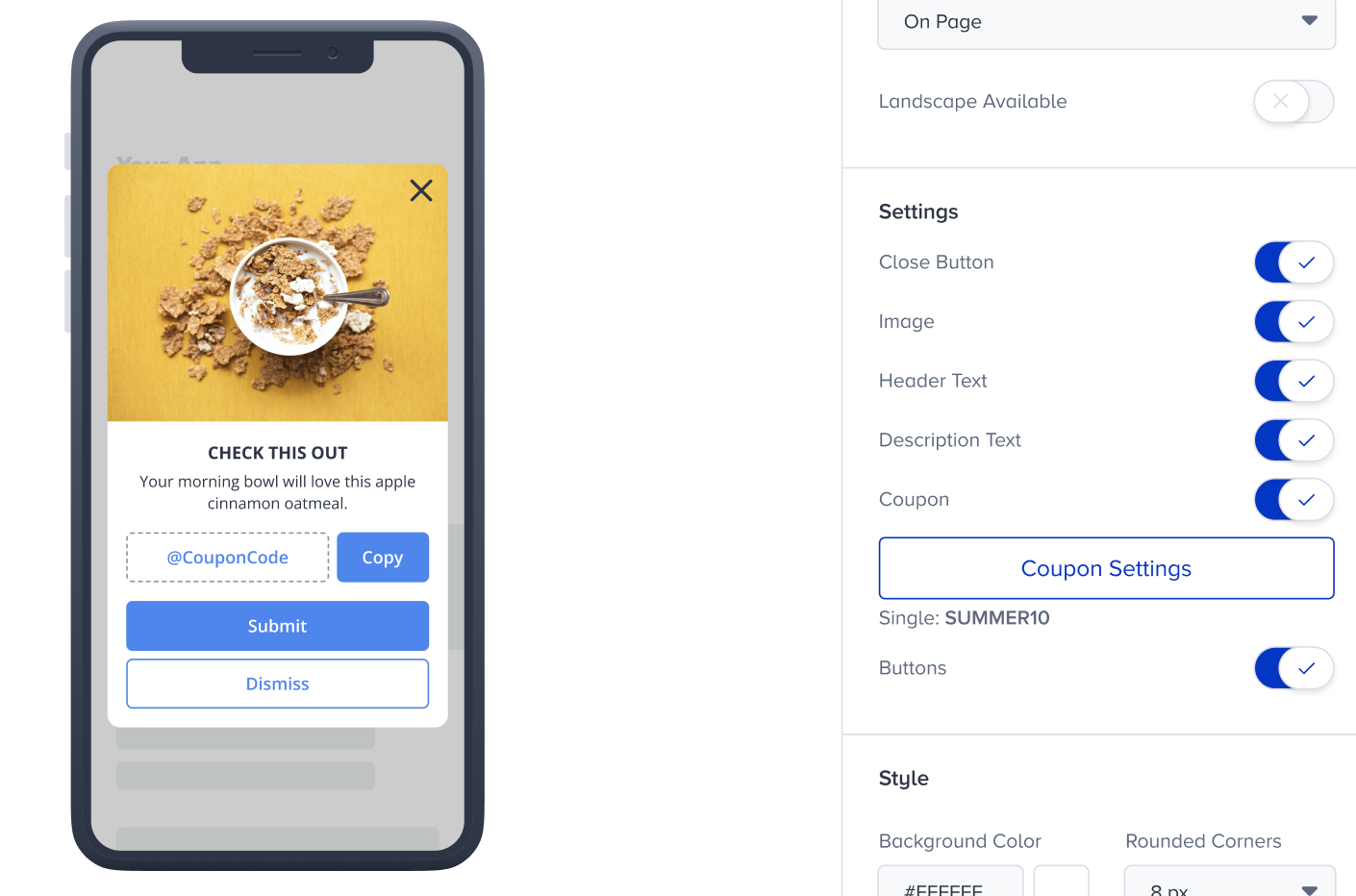
Select your coupon type: Single or Unique.
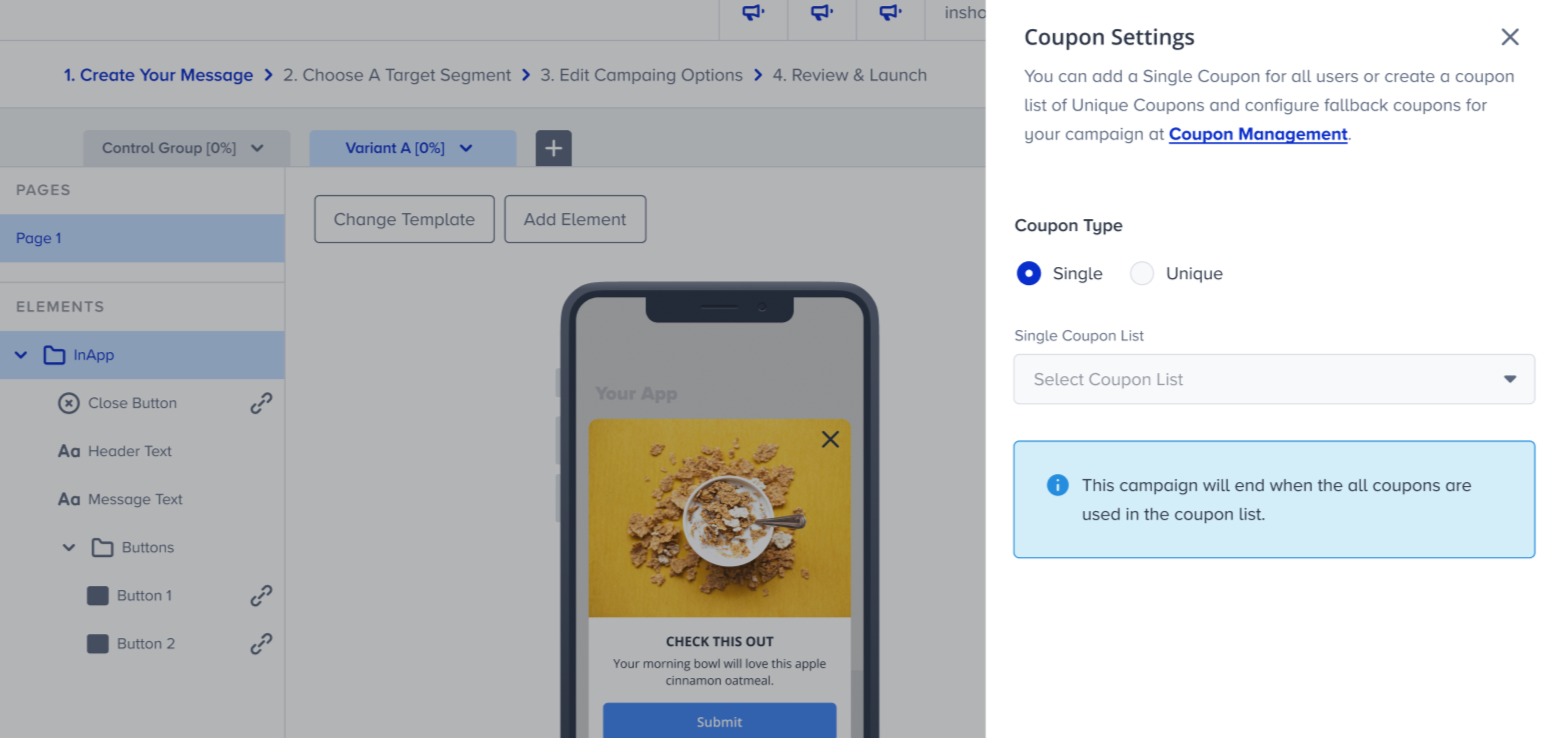 Single coupon list gives all users the previously defined same coupon codes. The dropdown displays the coupon lists created as single coupon codes.
The unique coupon list gives out the previously defined unique coupons to users.
If no coupons remain in the selected unique coupon list, you can provide fallback coupons to your users. If you have added the fallback coupon code to your list while uploading it, you can use it. If the coupon list has no fallback code, you can navigate to the Coupon Management page to set a fallback.
If the coupon codes expire in the respective variation, this variation and the entire campaign will move to Passive status.
App Surveys
Once you start editing your app survey, follow these steps to add coupon codes:
Click the Edit Questions button.
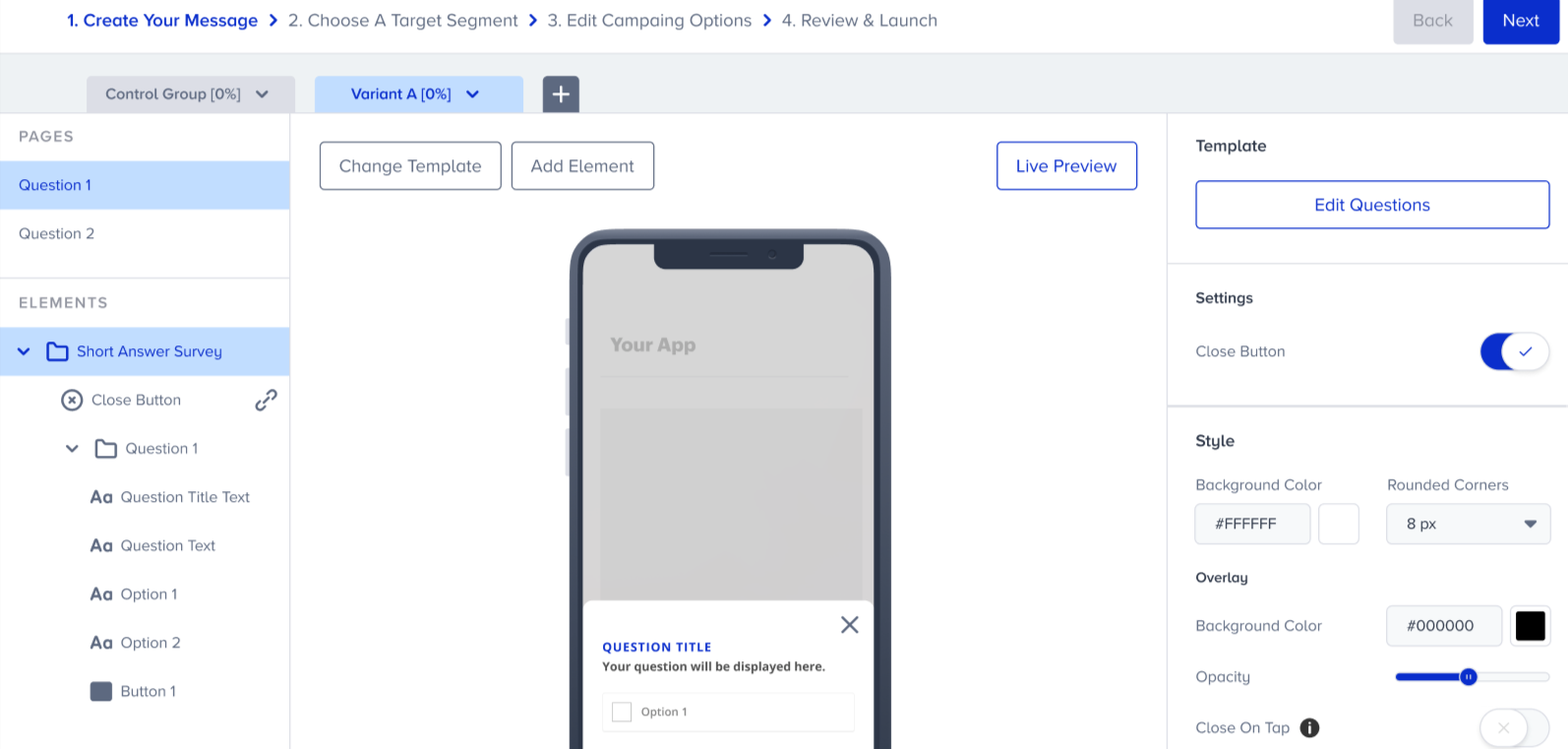
Select the Thanks question type to toggle on the Add Coupon option.
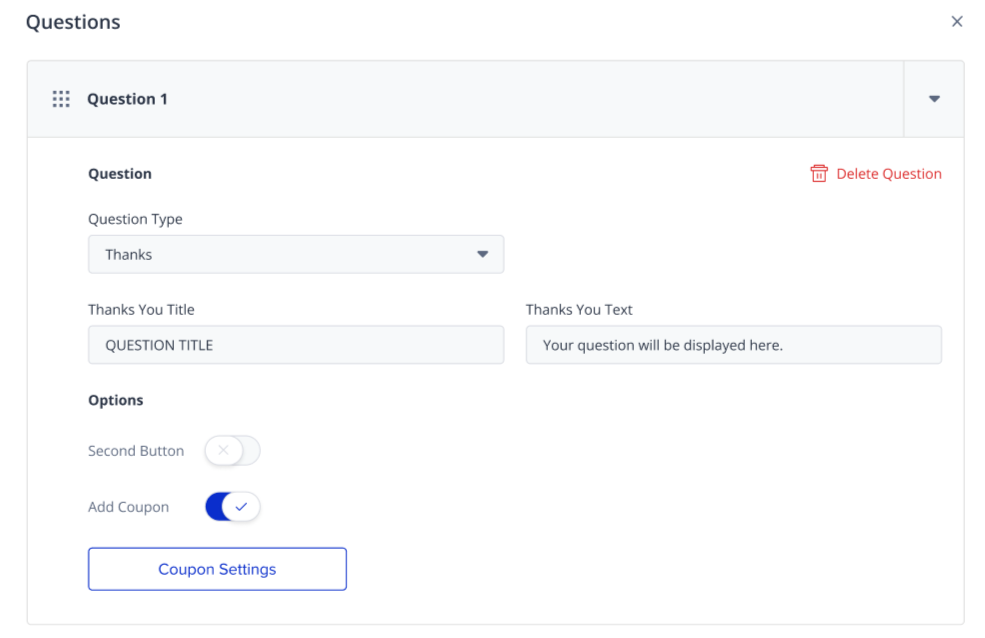
Click the Coupon Settings button.
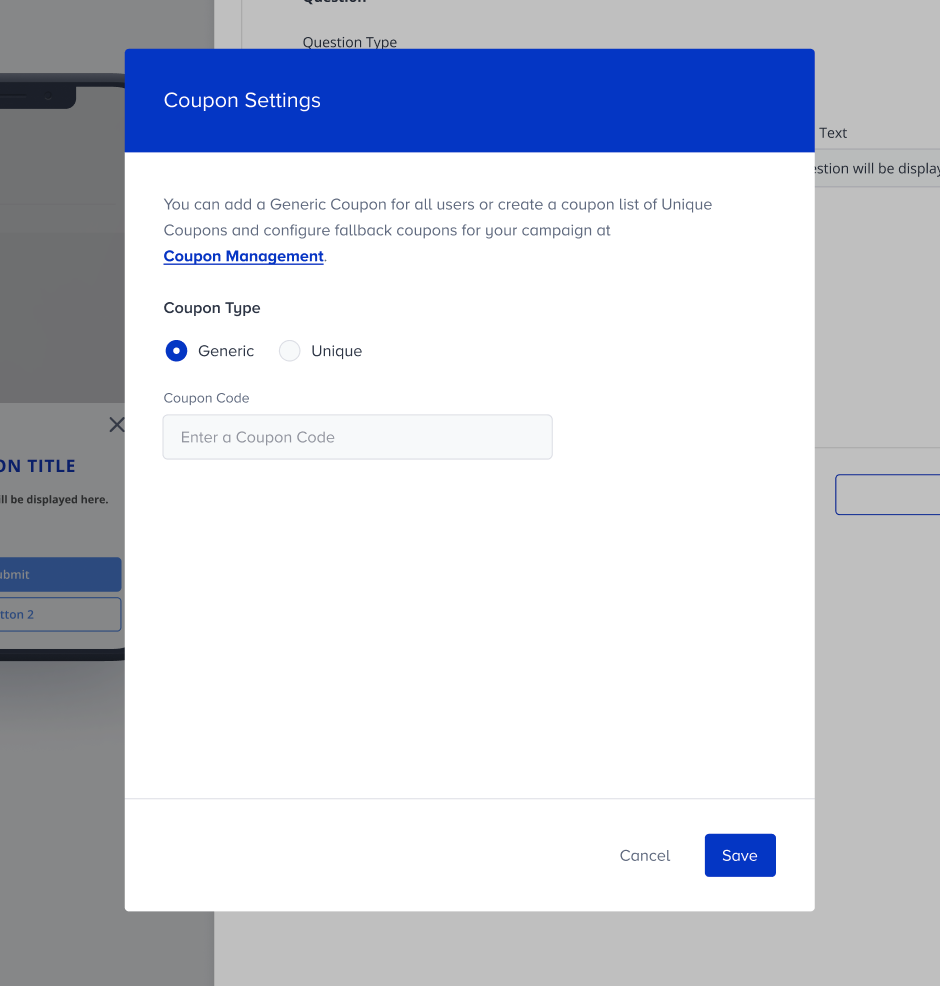
Select your coupon type: Generic or Unique.
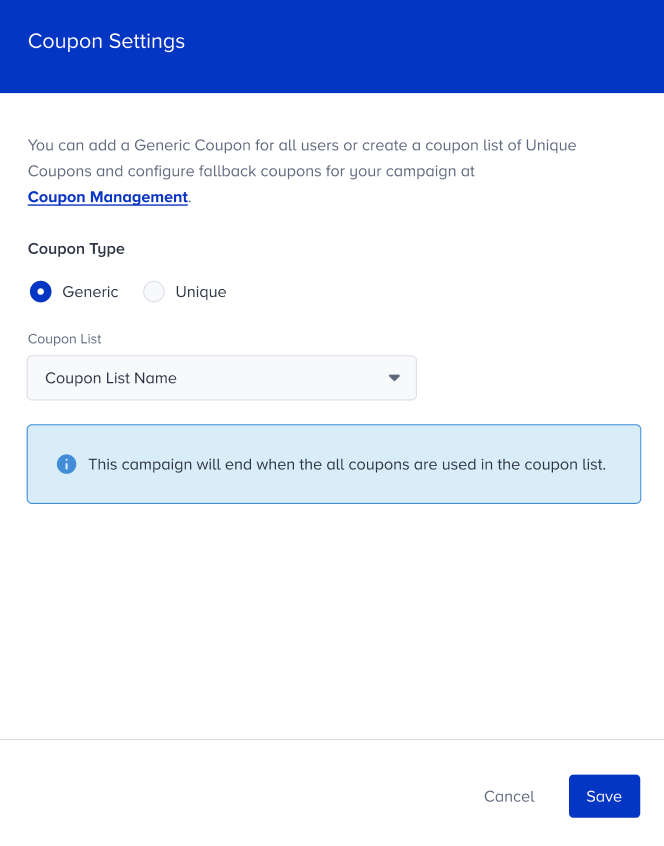
Once you select your coupon type, you can select your previously created coupon list from the dropdown.
.png)
If you select the Generic coupon, you can choose your coupon list accordingly. Once all coupons in your list are used, your campaign will end.
If coupon codes expire or run out in a variant, the variant and the entire campaign will move to Passive status. However, you can also configure the behavior for the remaining variants that still have coupon codes.
On the Edit Campaign Options step, you can check the "Use Up All Coupons in All Variants" box to keep displaying the rest of the variants. For example, you created Variant 1 with 30% traffic allocation, Variant 2 with 30% traffic allocation, and Variant 3 with 40% traffic allocation. Let's say Variant 3 goes passive as the coupon codes are finished. In this case, Variant 1 and Variant 2 will act like variants with 50% traffic allocations and continue to display to users accordingly.
On the analytics page of your campaign, if variants finish coupon codes at different times, you might see impressions and user distribution based on the number of coupon codes in the remaining variants, but not the traffic allocation, because variants may not finish their coupon codes simultaneously.
If a user is eligible to see an inApp campaign, the coupon is assigned to that user. For example, a user sees a lead collection campaign that has the coupon on the second page. This user sees the campaign and closes it without sharing their lead. In this case, a coupon is used and assigned to this user even if they have not submitted their lead.
Once you add your coupon list to your campaigns, you can save and edit the modals.