This guide aims to explain how you can use Commerce Manager for Live. To learn how to use the Commerce Manager for Live, follow the steps below:
- Click the eCommerce button on the chat screen to open the Catalog tab.

- You will see the Commerce Managers belonging to the company listed on the tab. Choose the relevant Commerce Manager.
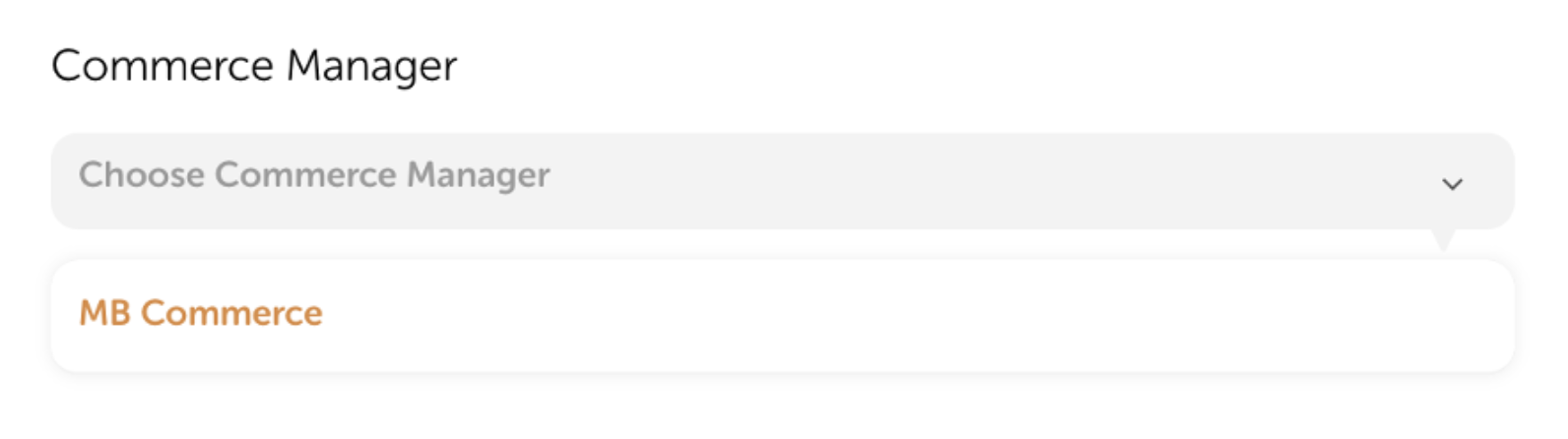
- Then, you will proceed to select the catalogs belonging to the Commerce Manager.
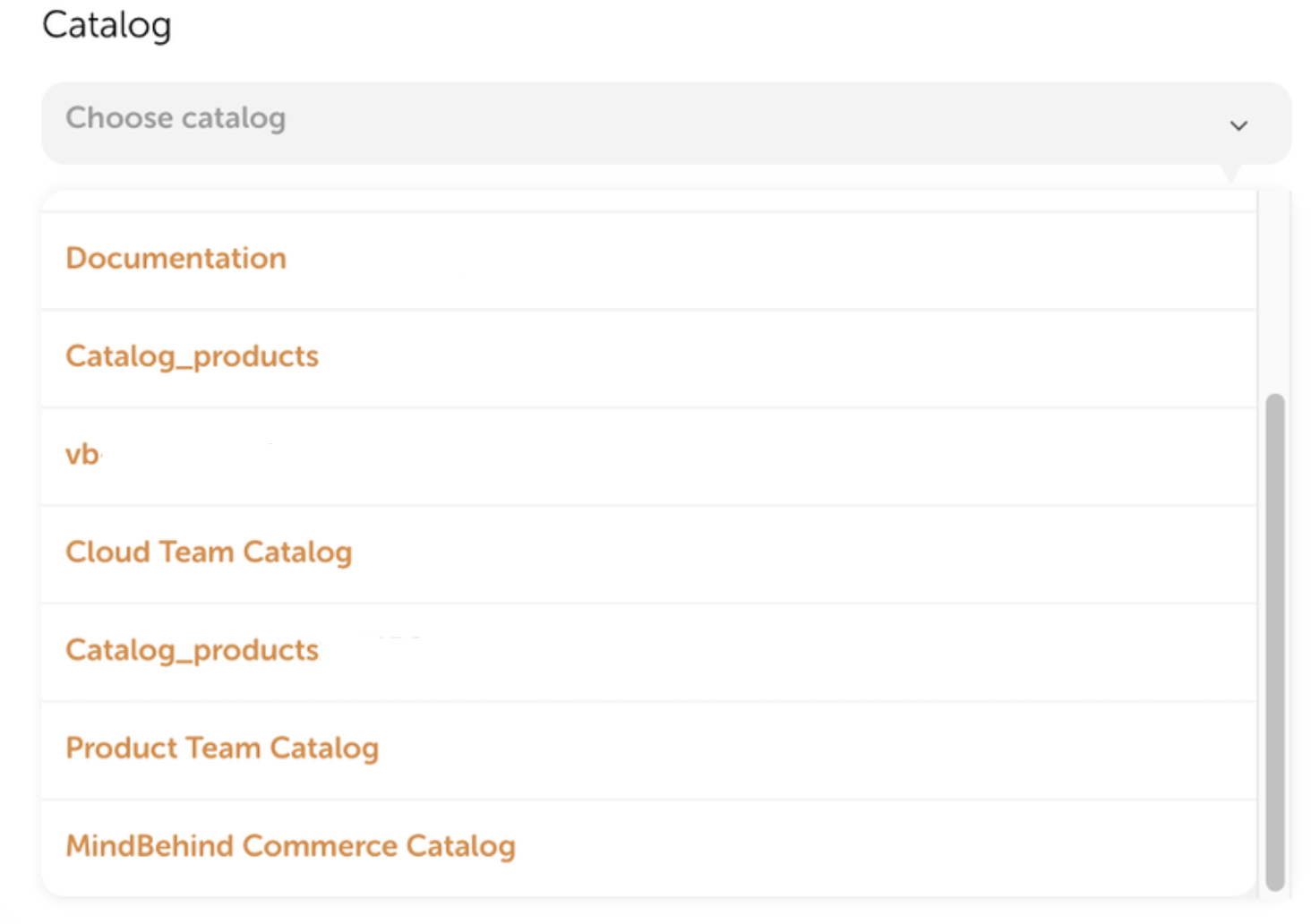
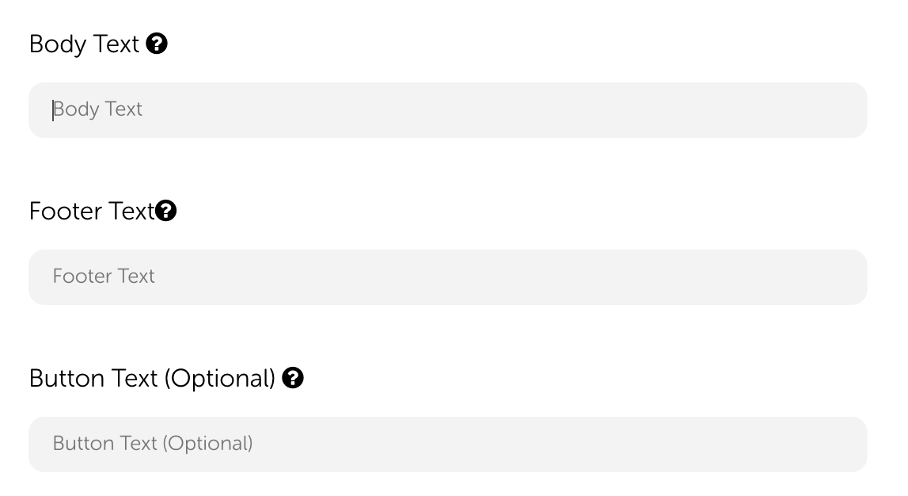
- After selecting the catalog, the body, footer, and button text fields are activated. If the total number of products is more than 1, the header field is activated.
- The Body text is required for multi-products and single products. It should be less than 1024 characters.
- The Footer text is optional and should be less than 60 characters.
- The Header text is required for multiple products and should be less than 60 characters.
- The Button text is optional and should be less than 20 characters. The default is "View" for the single product and "View items" for multi-product.
- After you fill in the required information, click the plus (+) button to add a new section.
- After selecting the section, you will see the section title field and products below. Enter the Section Title, and you can choose one or multiple products from the product list.
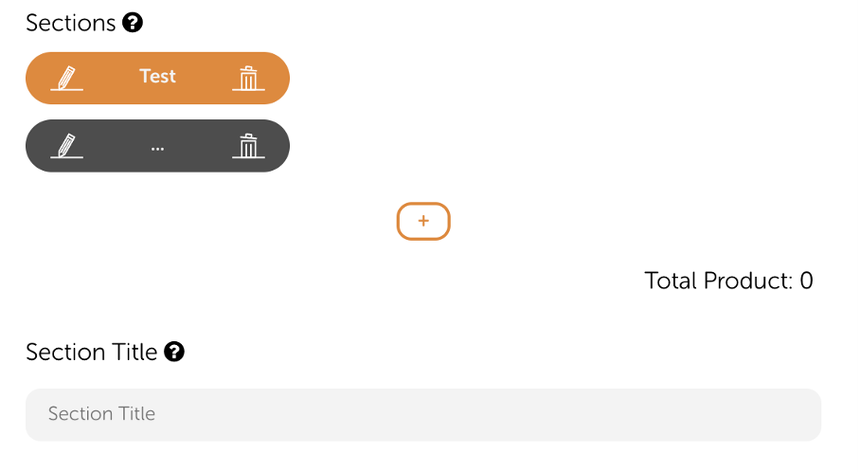
- The Section Title text is required for each section.
- A minimum of 1 and a maximum of 10 sections can be created.
- Each section should have at least 1 and at max 10 products, with a maximum of 30 products in total across all sections.
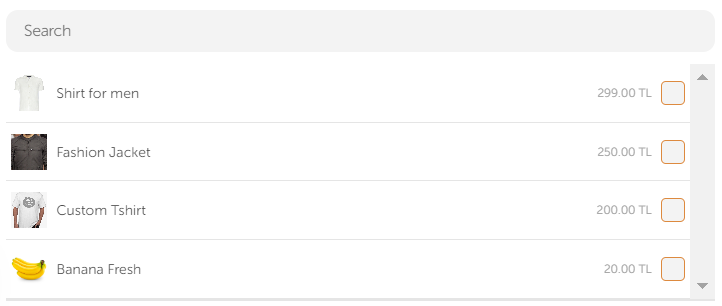
- You will see the products belonging to the selected catalog listed. You can mark the products to add them to the selected section.
- No new selection is allowed when the total product limit is exceeded. To make a new selection, you should remove one from the previously selected products.
- After filling in the relevant fields and selecting the products, click the Send button to send a single or multi-product message.

- You can click the Close button to close the Commerce Manager tab. Your configurations are not deleted when you click them.