MindBehind Live uses DailyCo, a third-party program where you can video chat with your customers. To start using it, you must first create a user account for this program.
To create a user account,
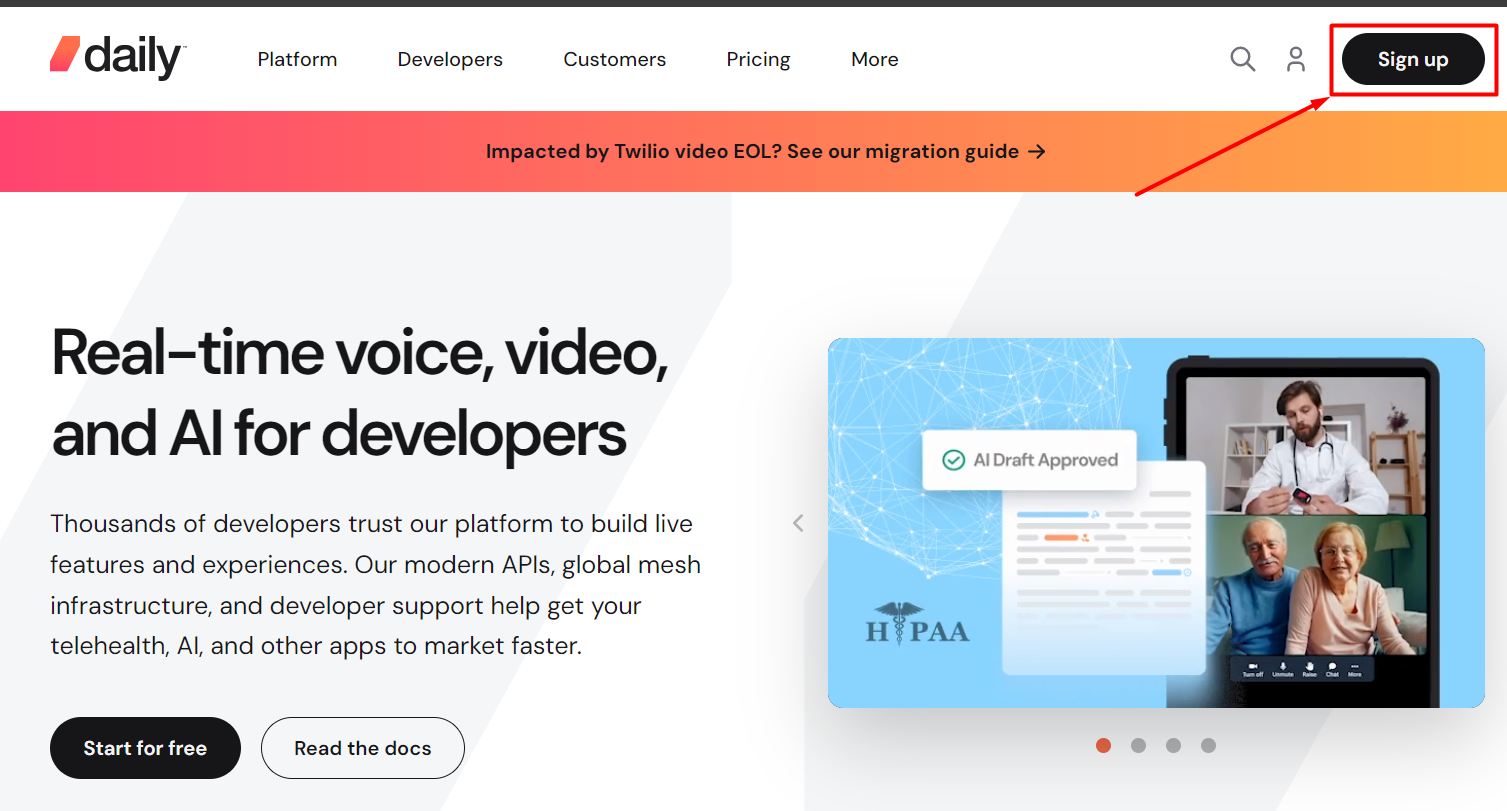
- Go to DailyCo's website and click the Sign up button.
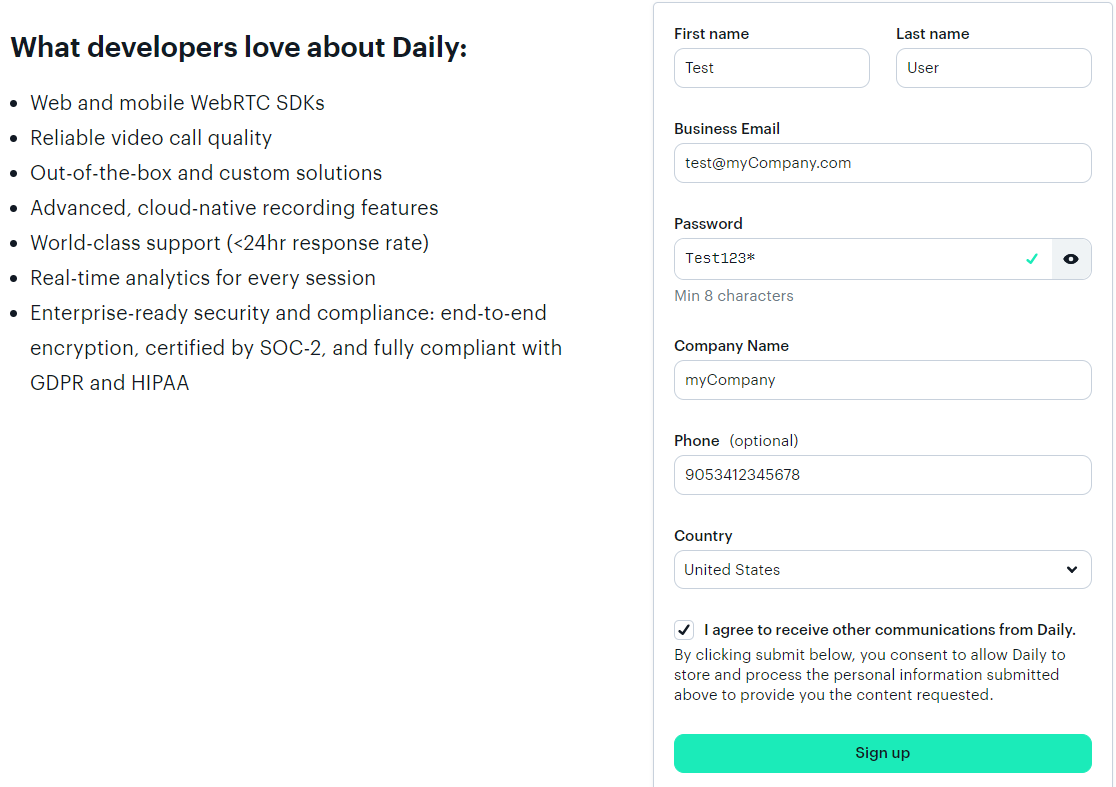
- Fill in the necessary information in the window that appears, and complete the process.
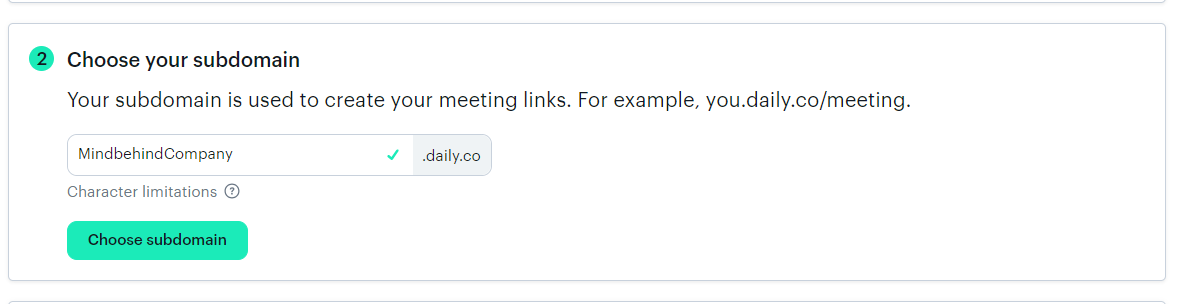
- After completing the registration process, enter the following information. You can choose the domain name yourself.
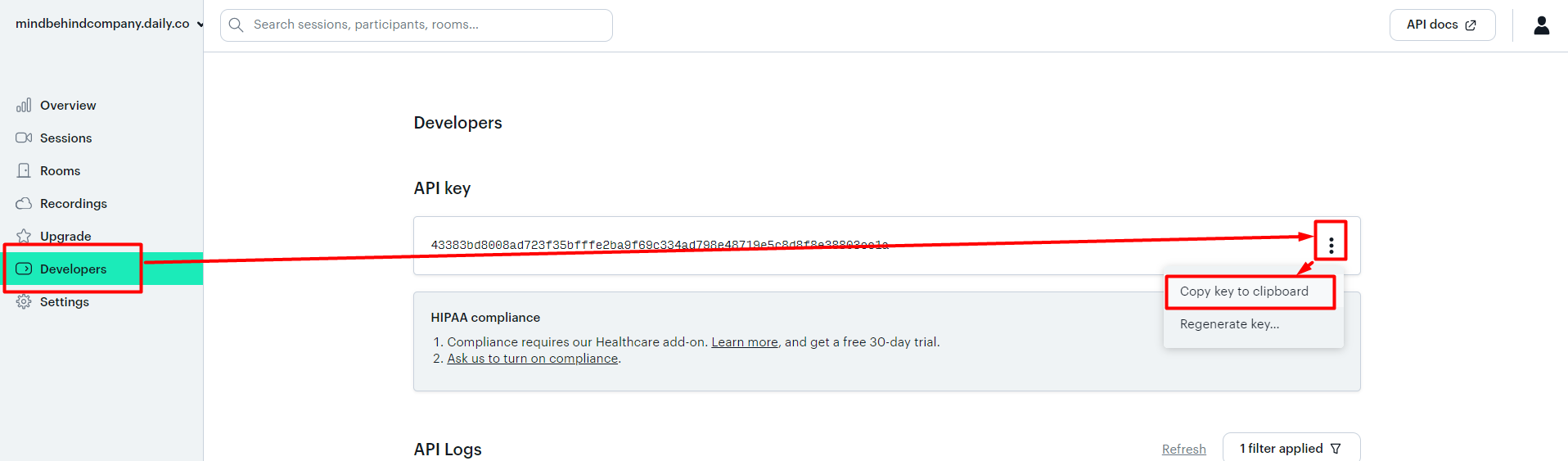
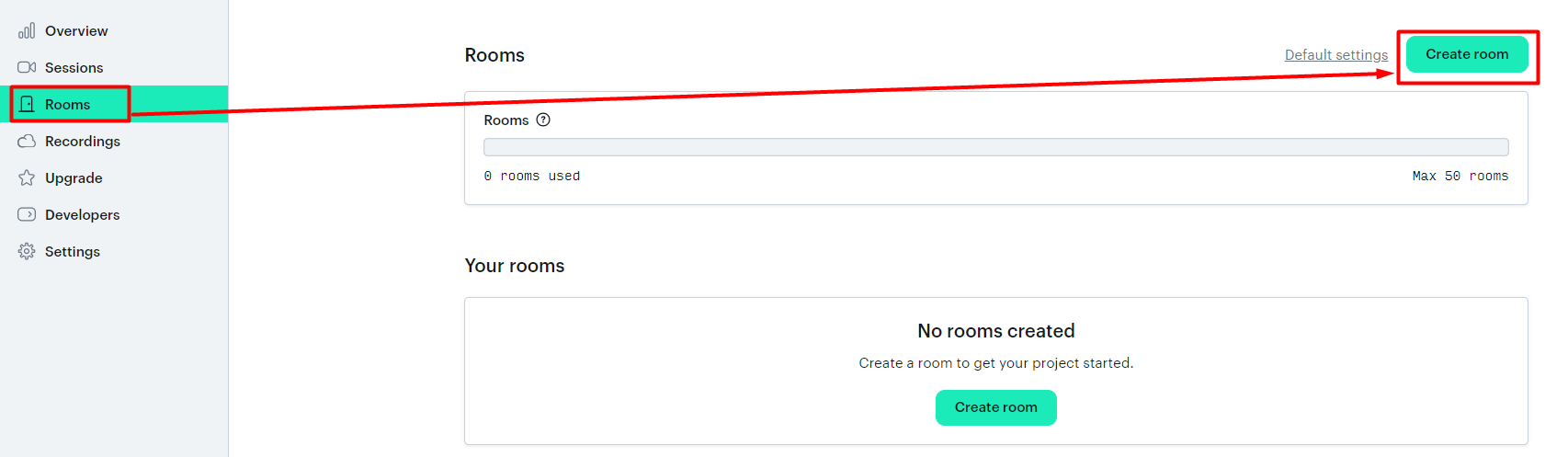
- After completing this process, go to the Developers tab in the home screen. Save the information in the "API key" field that appears here.
- Go to the Rooms tab and select any room. Copy the information where it says "ID".
- After completing the process, log in to MindBehind Live.
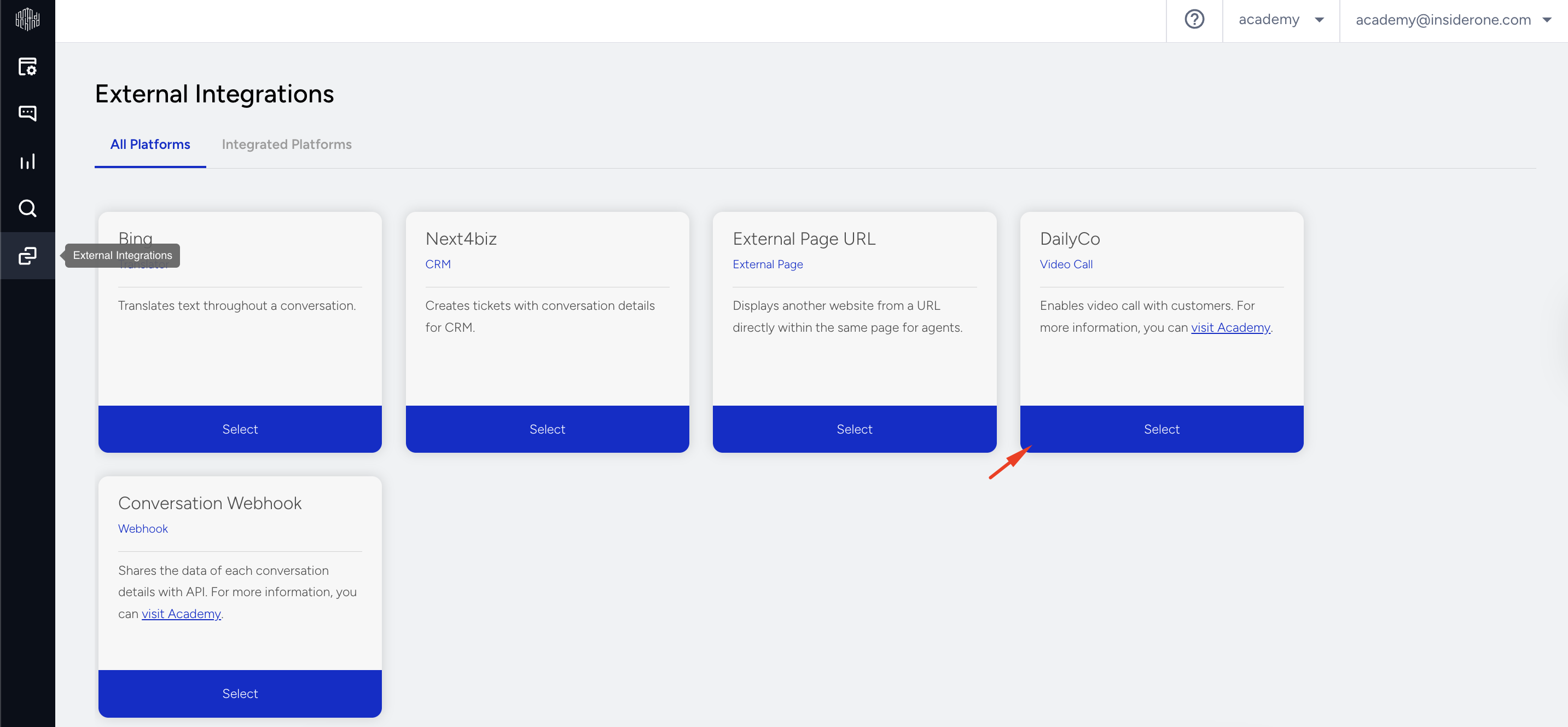
- Navigate to the External Integrations in the side menu and select DailyCo.
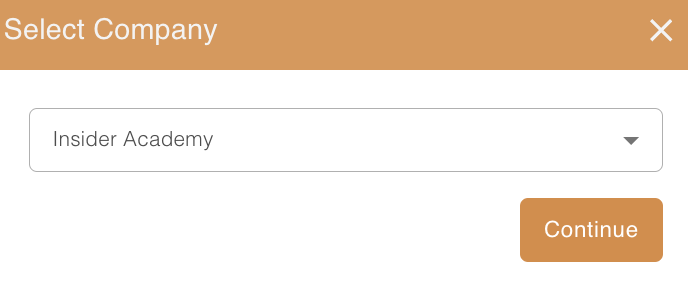
- Select your company name on the screen that appears, and click the Continue button.
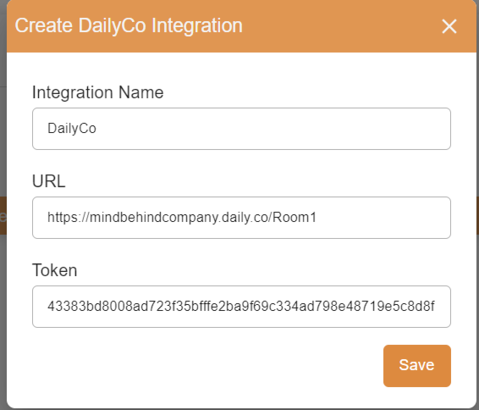
- Fill in the relevant fields in the next step. Paste the ID you received on the Rooms tab in DailyCo into the URL field.
- Paste the API Key information you received on the Developers tab in DailyCo into the API field and click the Save button.
- Now, the integration is completed, and you can use the video call feature.
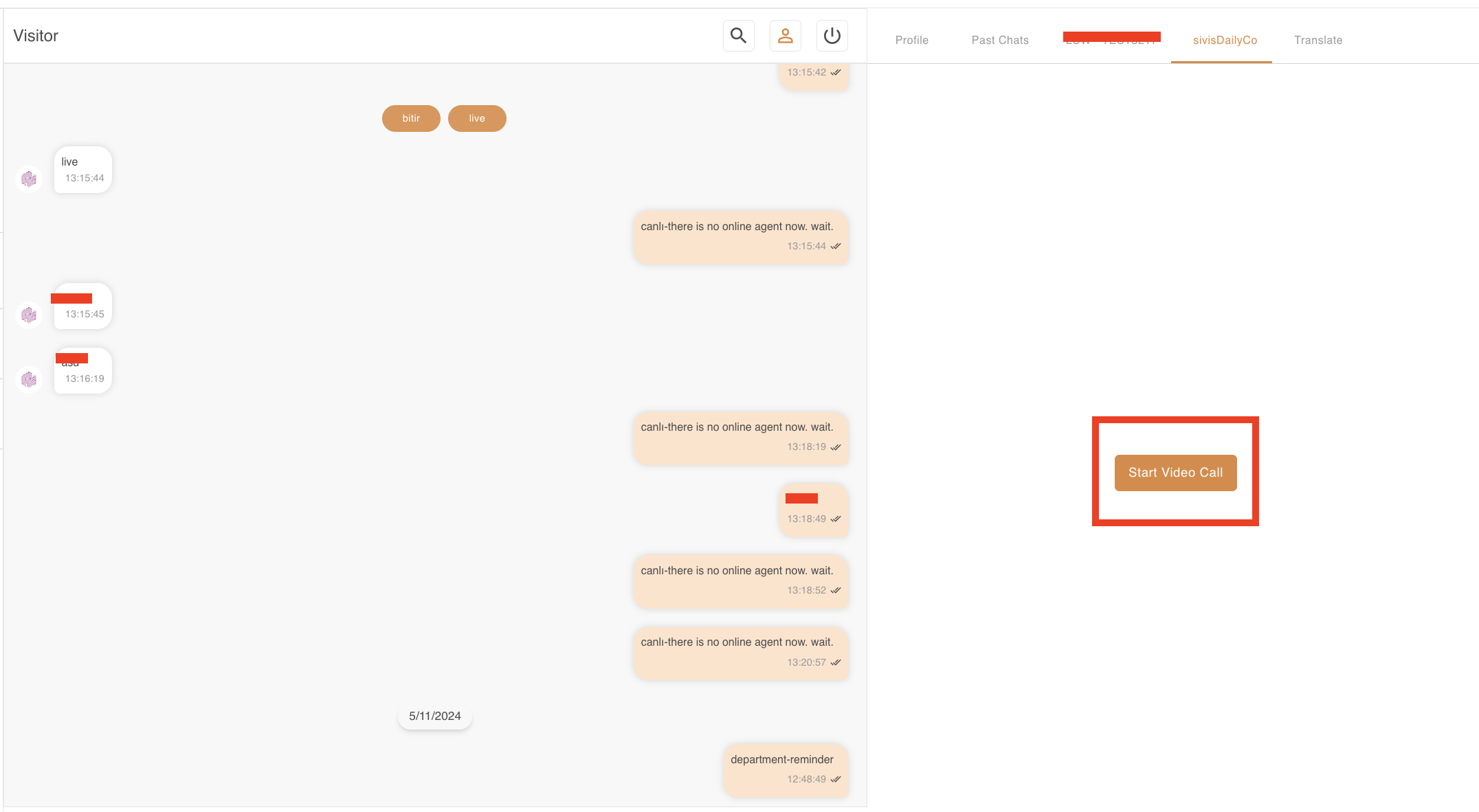
- Go to the MindBehind Live Agent Panel and find the integration name you entered earlier in the Profile tab.
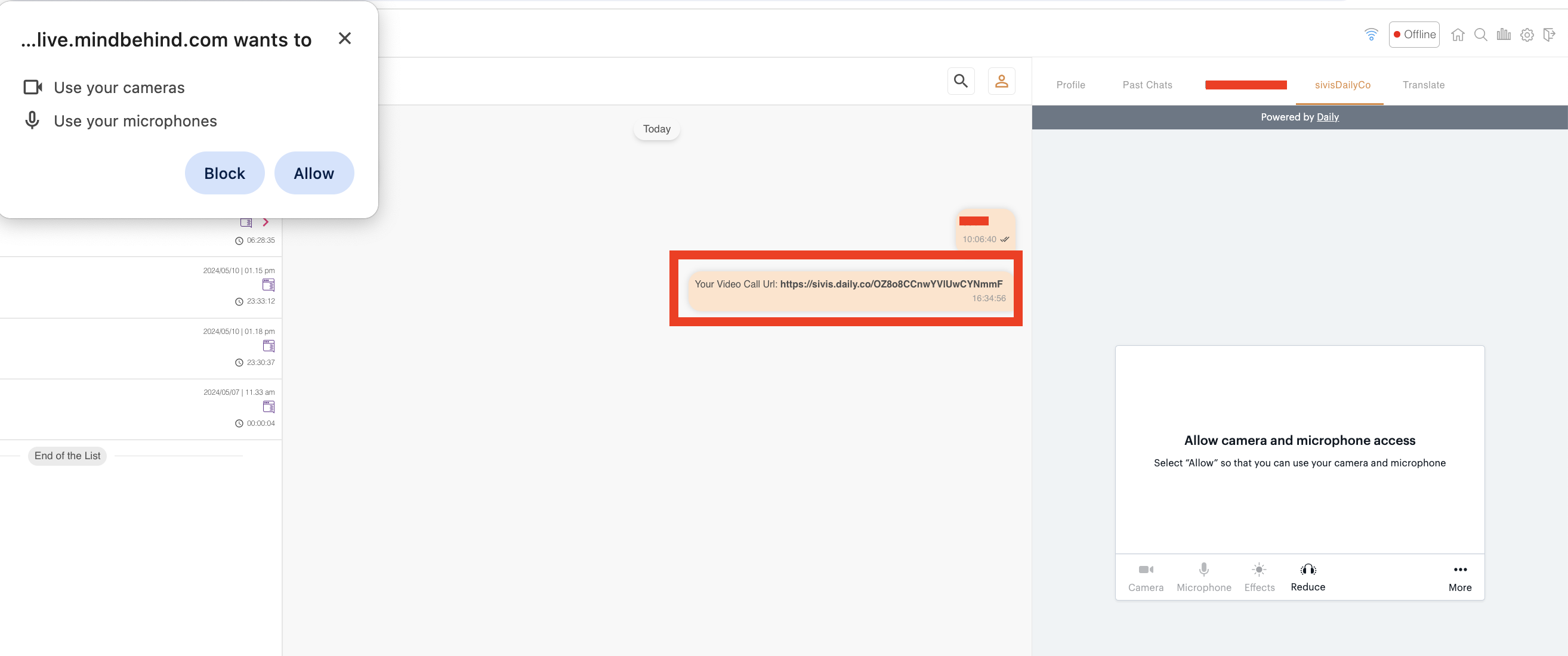
- When you click the Start Video Conversation button, a link will be sent to your customer in the conversation, and a tab will open on the right side for the agents.
- Fill in the information here and click the Join Meeting button; the conversation will then start. Likewise, customers can participate in this conversation when they click on the link they receive.