You need these consent elements in the Lead Collection templates to receive users' content. You can use opt-in elements to get active consent from users or the disclaimer element to obtain implied consent.
After creating a Cross-platform Lead Collection template and adding an email, phone number, name, surname, custom, datepicker, or dropdown input, you can set the relevant consent element from the Settings part of the selected input in the right menu.
Since the consent elements are mandatory, you cannot remove or hide them in your template. You must select either Opt-in and Data Privacy Policy, Disclaimer Text, or Lead Collection Opt-ins.
You cannot add the Consent elements from “Add Element” menu because these are not features that can be used alone in the template. Instead, they are complementary features for the data collection. You can add or change your consent type preference directly from the Settings part of the Email or Phone Number input.
The consent type in the phone number and email input works synchronously. If you select Opt-in and Data Privacy consent type for your email input, it will be automatically applied to the phone number input, or vice versa.
Consent Types
After you select the input element type, you choose the consent type: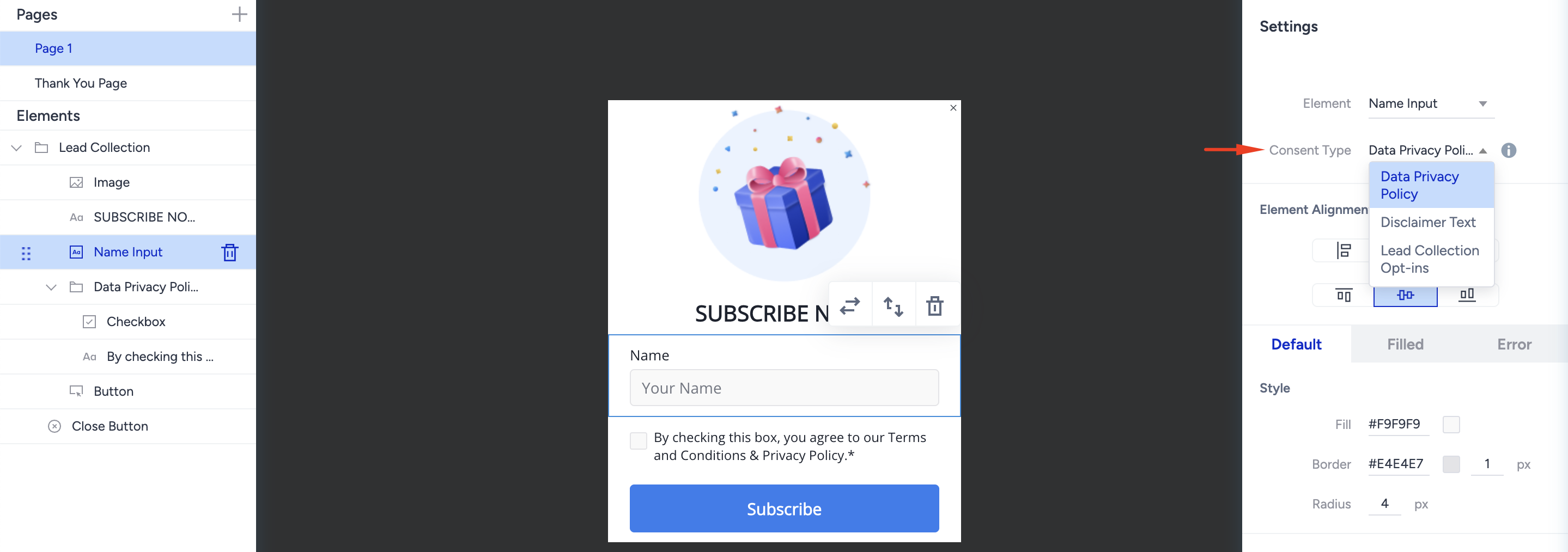
If you select Opt-in and Data Privacy Policy consent type, the Email Opt-in and GDPR Opt-in will be added as separate elements.
If you select the Disclaimer Text consent type, the disclaimer text will be added only, and the Email Opt-in and GDPR Opt-in will be considered as “true” automatically when a user clicks the submit button.
If you select Lead Collection Opt-ins consent type, only the Lead Collection Opt-ins will be added. Email Opt-in and GDPR Opt-in will be considered as “true” automatically when a user clicks the checkbox and submits the form.
Email Input
If you select the email input, you can see the Consent Type dropdown and decide which type of consent you prefer.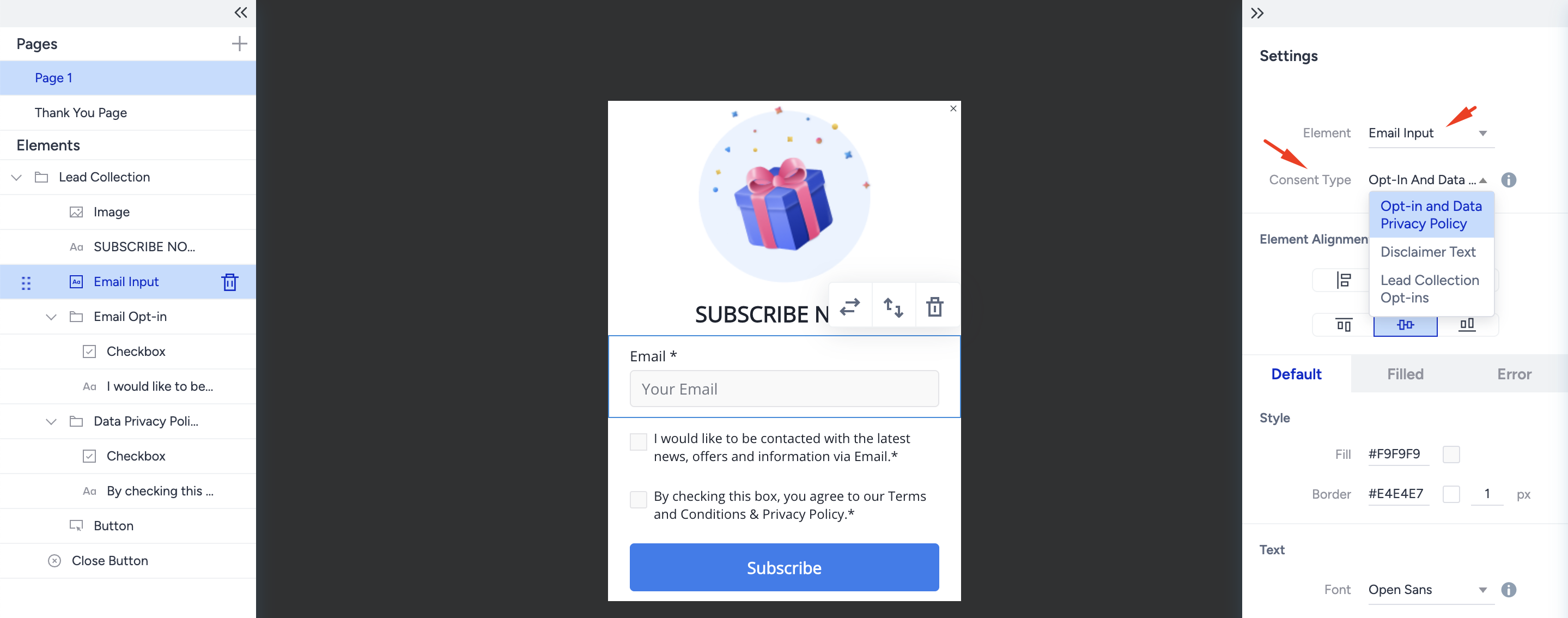
Phone number Input
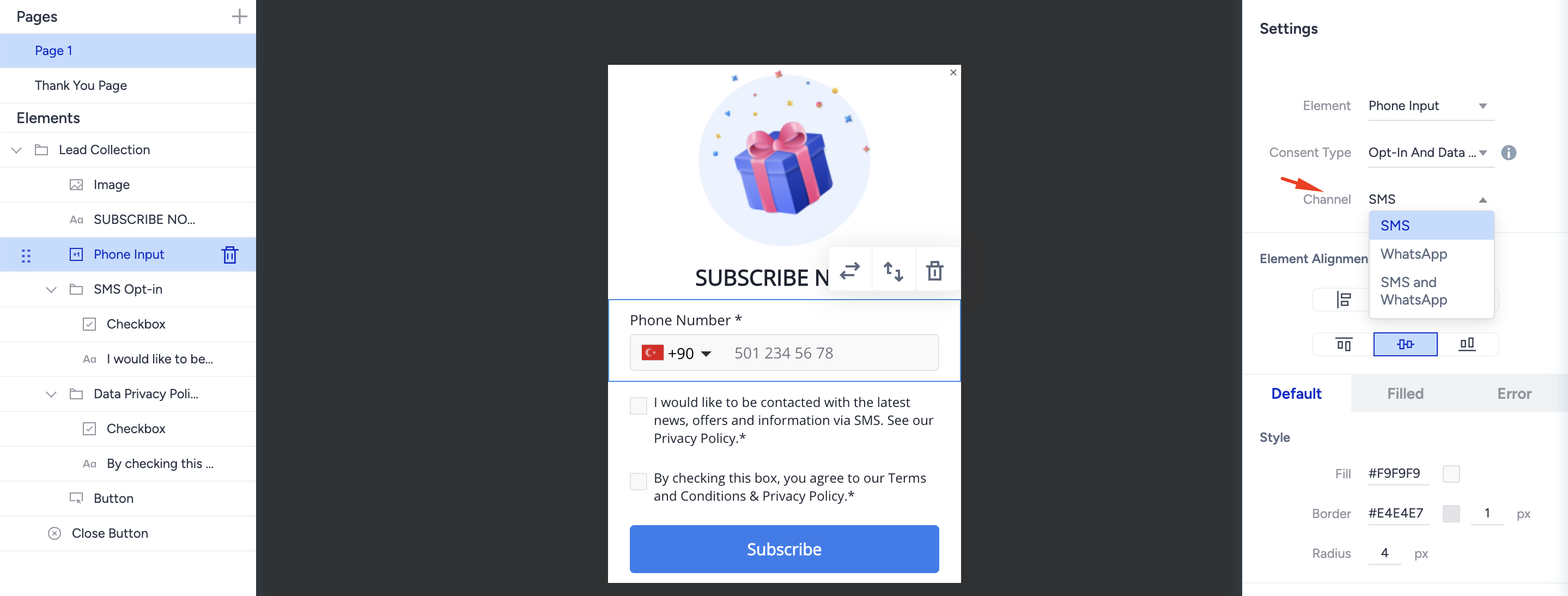
In addition to the Consent Type, the phone number input has a second dropdown to select which channel you want to collect consent. You can select only SMS, only WhatsApp, or both SMS and WhatsApp. Based on your selection, the consent will be saved for this channel with the phone number information.
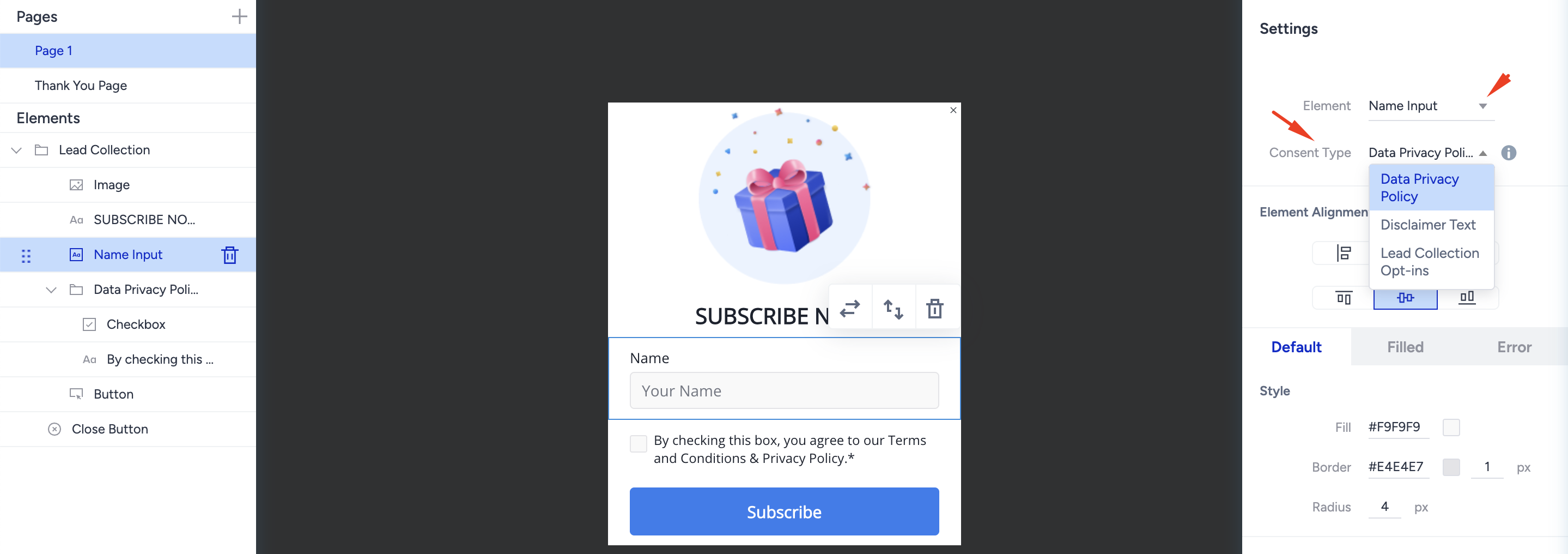
Name and Surname Input
When you choose the name or surname input element, you can see the Consent Type dropdown and decide which type of consent you prefer.
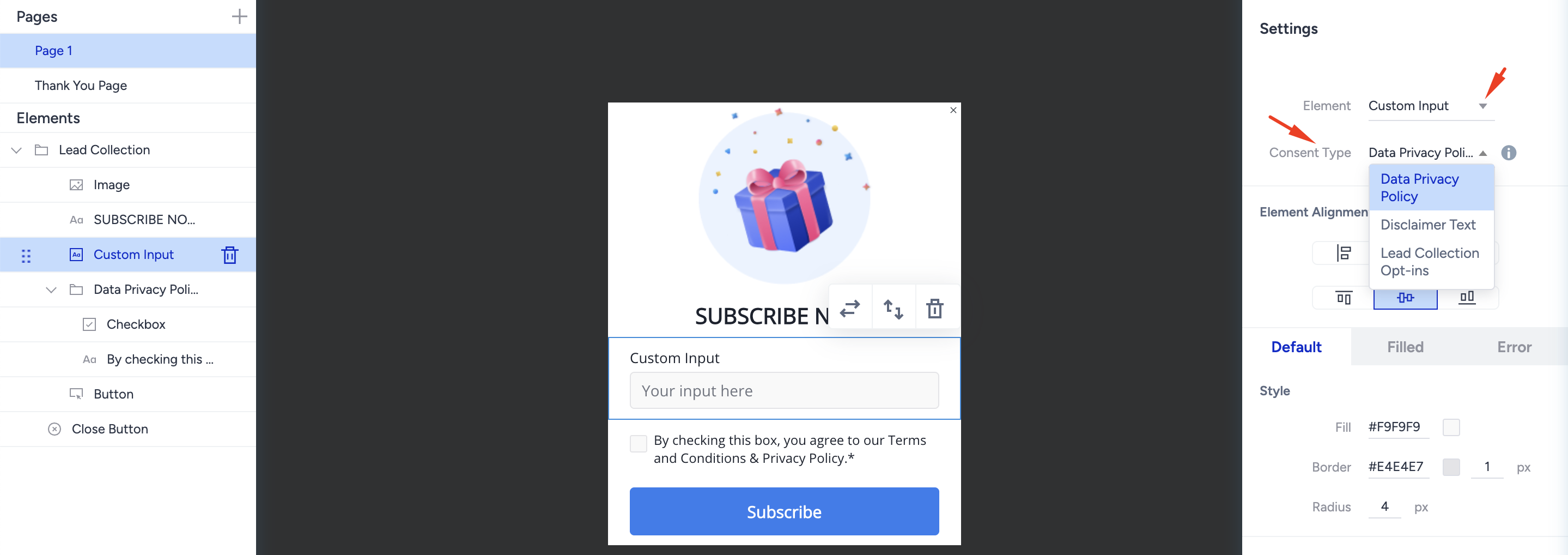
Custom Input
When you choose the custom input element, you can see the Consent Type dropdown and decide which type of consent you prefer.
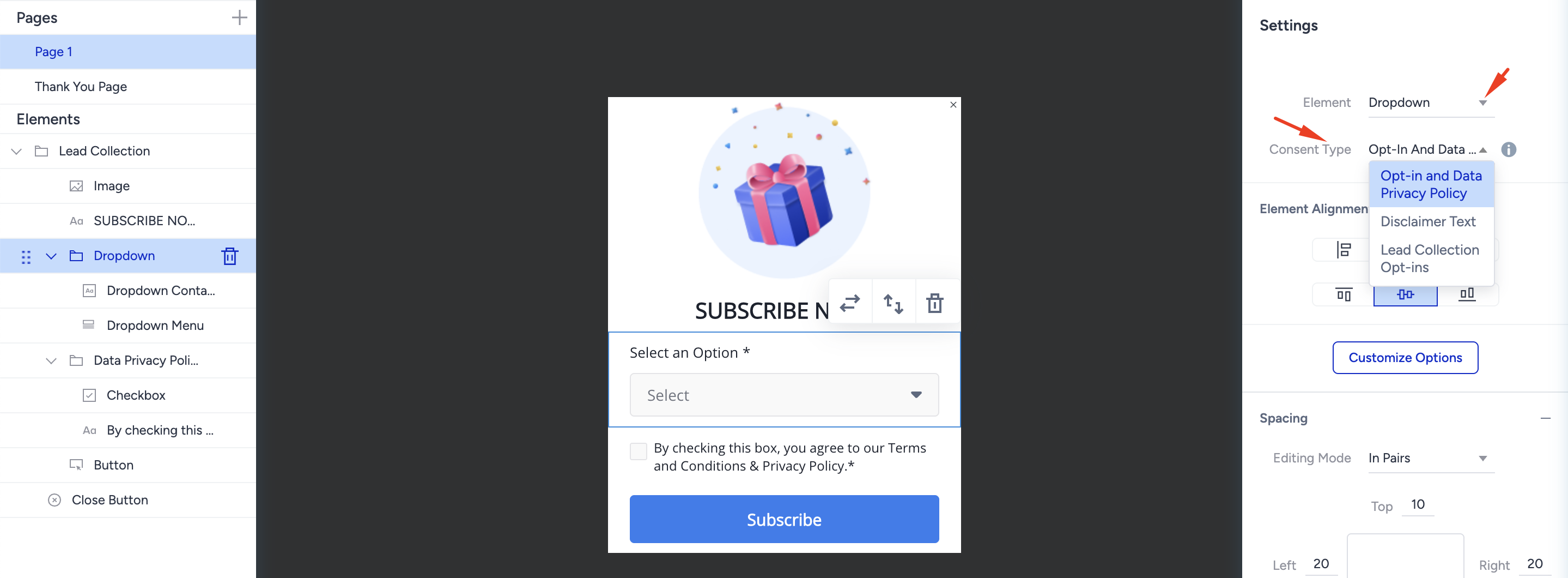
Dropdown Input
When you choose the dropdown input element, you can see the Consent Type dropdown and decide which type of consent you prefer.
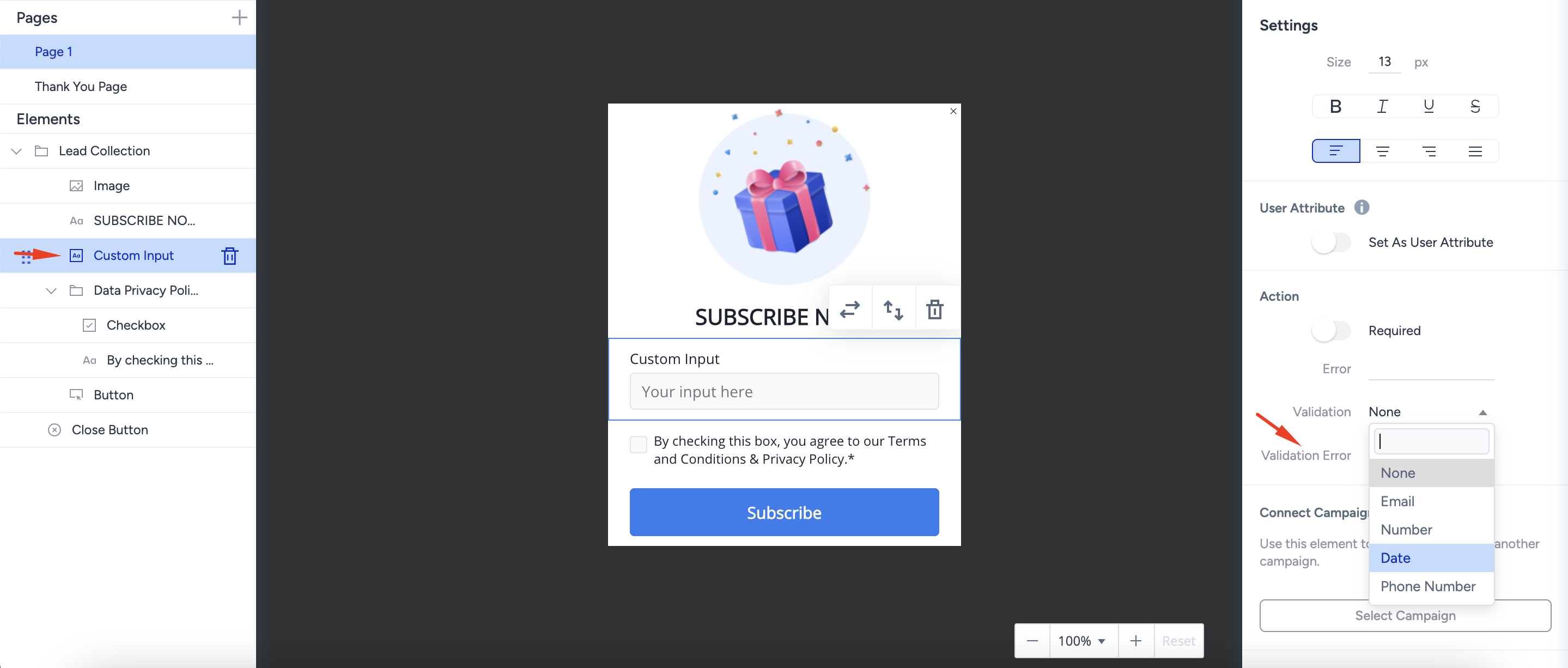
To add the datepicker element to your template, add the custom input and change the Validation type to “Date.”