The Add Page feature gives you the flexibility to add an extra page to your Web Template campaigns.
Add Page Capability for Lead Collection templates
Lead Collection templates include two pages by default: one for collecting input and one for showing a coupon code. Thanks to the Add Page flexibility, you can launch a 3-page Lead Collection campaign.
The Add Page feature is available only for Cross-platform Lead Collection (Inline and On-page) and its ready-made templates.
Click the + (plus) button on the left menu to add a new page.
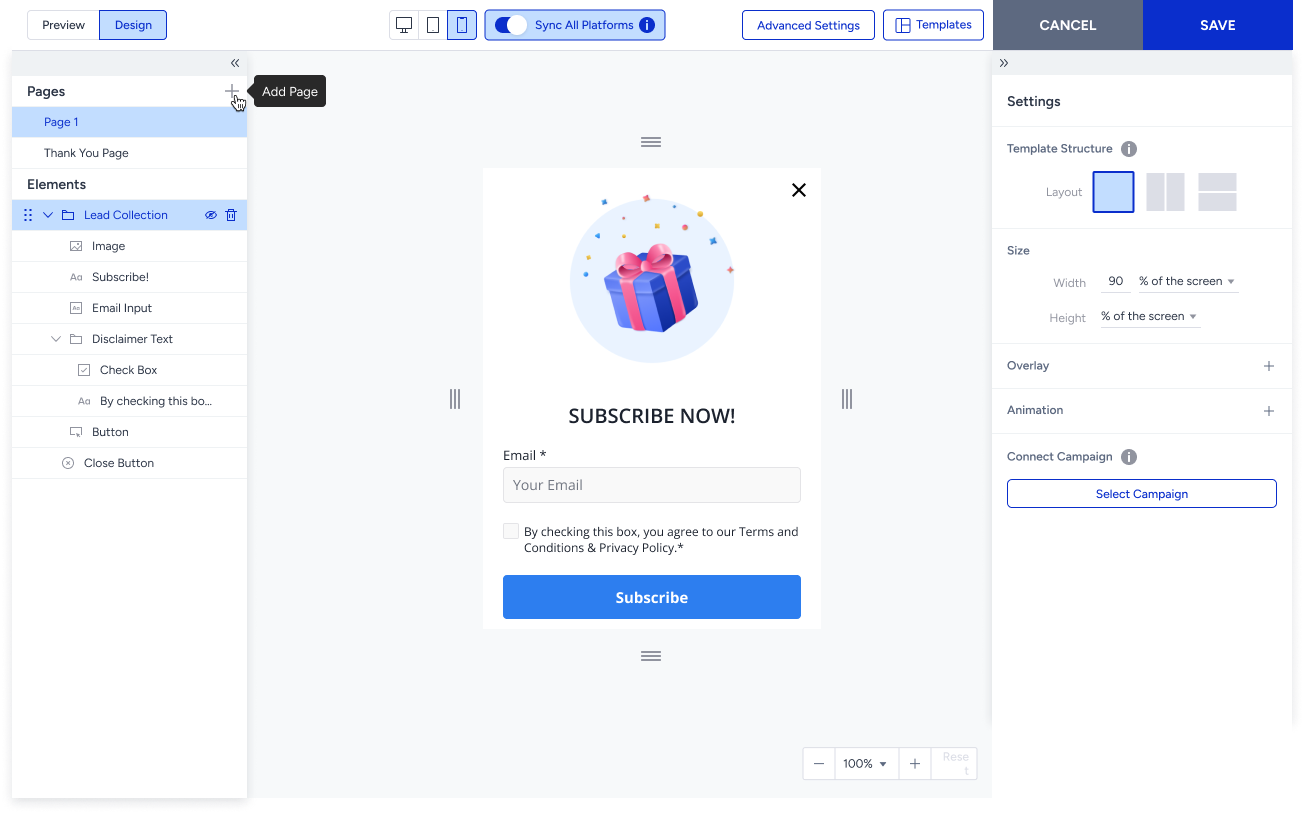
You can customize pages by adding new elements or removing existing ones. However, you can only add the Email or Phone Number input element once. This means you cannot add the Email input to the second page if it is already included on the first page, or vice versa.
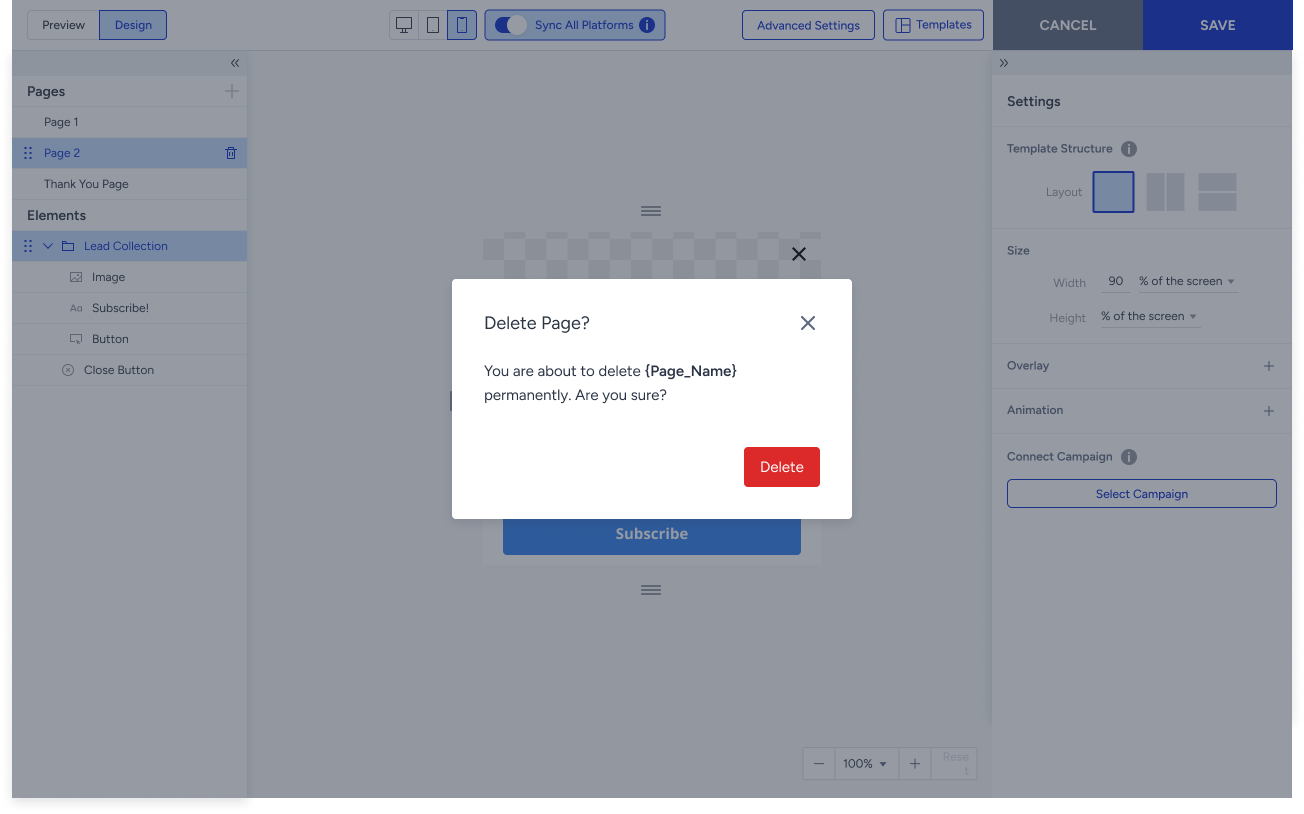
If you do not show the second page, click the Delete icon to remove it.
Consent types sync with all input elements. If you add a Disclaimer Text to the Email Input on the first page, it will automatically be applied to any other input elements you add on the second page.
If the Consent Type is Opt-in and Data Privacy Policy, and there are multiple input pages, the Data Privacy Policy will be added only to the first input page. If you reorder the input pages or delete the first input page, the Data Privacy Policy will automatically move to the new first input page.
Add Page Capability for the cross-platform version of Hello Bar and Countdown Bar templates
Using the Add Page feature, you can now create a cross-platform version of device-specific Hello Bar and Countdown Bar templates. This allows you to build a single campaign that works consistently across all devices, rather than managing separate desktop and mobile versions.
.png)
The Add Page capability is also available for On-Page and Enhanced App Templates as well.
.png)
Animation
For Hello Bar templates, you can configure a carousel-style animation when multiple pages are present. This allows pages to transition with a sliding effect, giving your campaign a dynamic, multi-step appearance.
To configure carousel animation:
Select the animation style from the Page Transition settings.
Set the animation speed and direction to control how pages slide in and out.
Preview the carousel behavior in the editor before publishing.
.png)
Non-Responsive Template activation will be blocked after May 22, 2026
Starting May 22, 2026, you will no longer be able to:
Create new variants using non-responsive Hello Bar and Countdown Bar templates.
Duplicate campaigns using these templates.
Activate test or passive campaigns with them.
Edit the design of campaigns using these templates.
To ensure campaign continuity, we recommend switching to Cross-platform templates as soon as possible.
Migrate to Responsive Templates Before October 1, 2026
We are retiring non-responsive Hello Bar and Countdown Bar templates from the Template Store on October 1, 2026. All active campaigns using these templates will be automatically deactivated on this date.
To avoid disruption, please migrate your campaigns to Cross-platform templates before the deadline.