Campaign Approval Mechanism

Prev Next

The Campaign Approval Mechanism introduces a structured approval workflow within Web Suite and Architect, designed for accounts that require strong brand governance, compliance, and accountability across distributed marketing teams.

This feature allows Collaborators to submit campaigns for review by Admins or Editors, ensuring that every campaign aligns with organizational standards before activation. It effectively centralizes the approval process within the platform, eliminating the need for external tools, reducing fragmentation, improving traceability, and minimizing compliance risks.

Roles and permissions

  • Collaborators: Can create campaigns and submit them for approval.

  • Admins & Editors: Serve as approvers who can approve, reject (with notes), or edit campaigns.

No new user roles are introduced; approval logic builds on existing permissions.

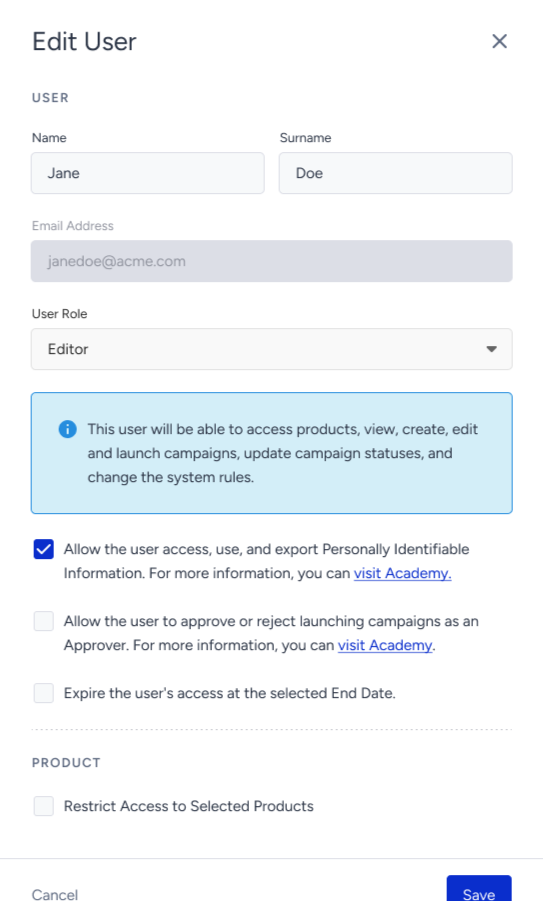
Approval permissions are managed at the user level, similar to PII access controls.

  • For Admin users: Approval rights are enabled by default and cannot be revoked.

  • For Editor users: Approval rights are disabled by default, but Admins can grant them via User Management settings.
Campaign Approval Flow

These steps below apply only to Active campaign launches. Test or Passive campaigns are excluded from the approval flow.

  1. A Collaborator user creates a new campaign and configures the campaign settings. In the Launch step, the Collaborator sets the campaign status to Active to enable the Submit for Approval option.

  2. All campaigns must be scheduled in advance to allow adequate time for review. Immediate launches are not permitted.

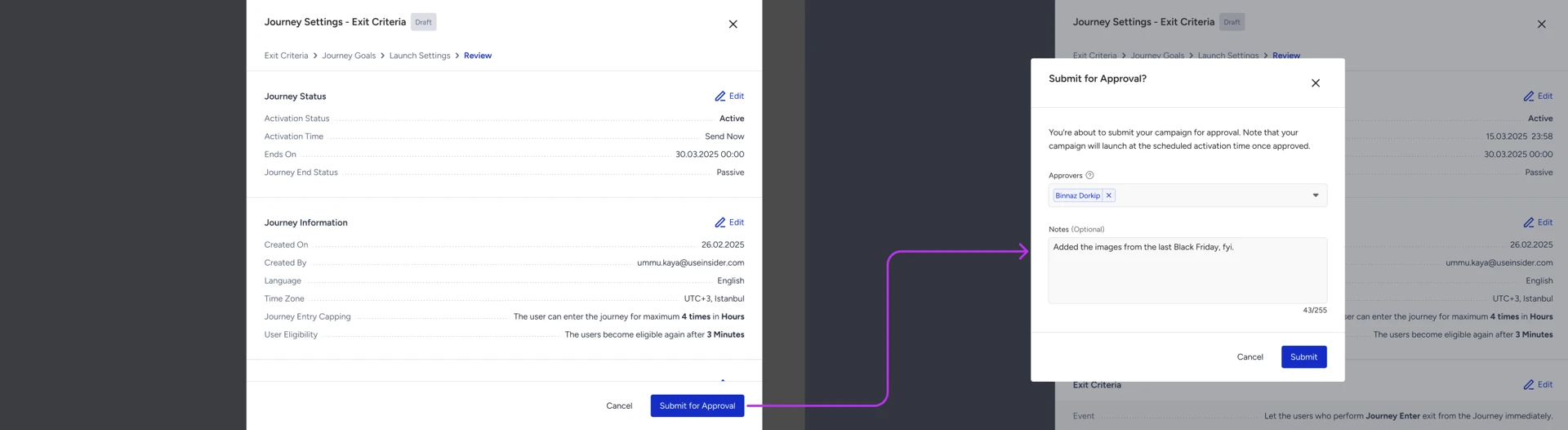
  3. In the Submit for Approval modal, you select approvers (Admin or Editor users) from a dropdown menu and may add notes if needed.
  1. Multiple approvers may be assigned, but only one approval is required for the campaign to proceed.

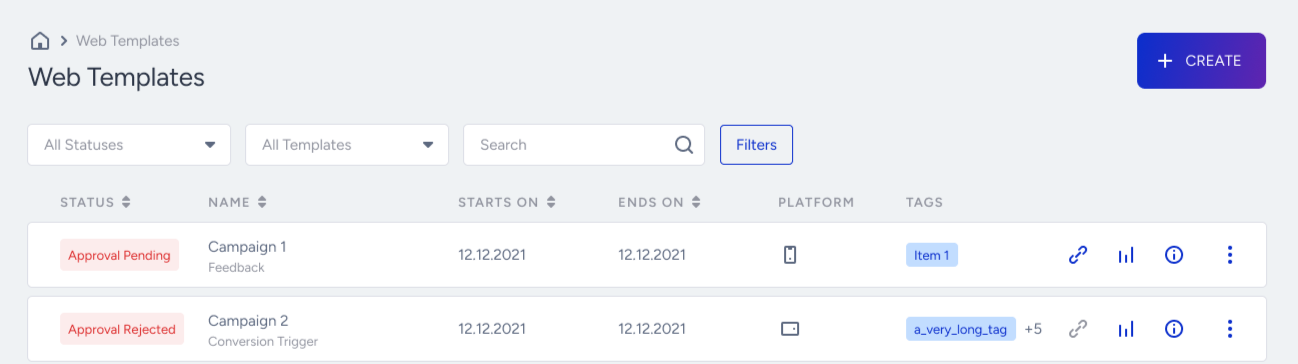
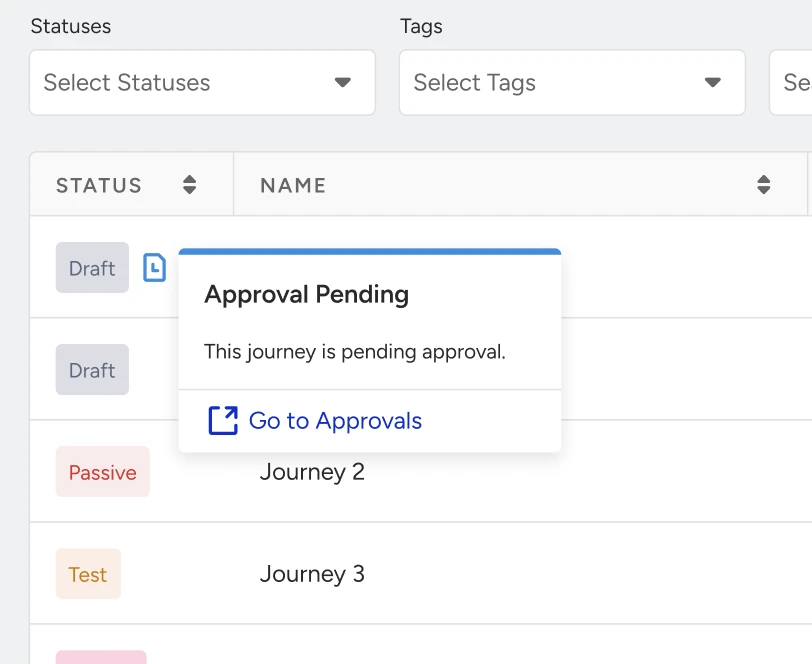
  2. The campaign status will appear as Approval Pending or Approval Rejected on the campaign listing pages.
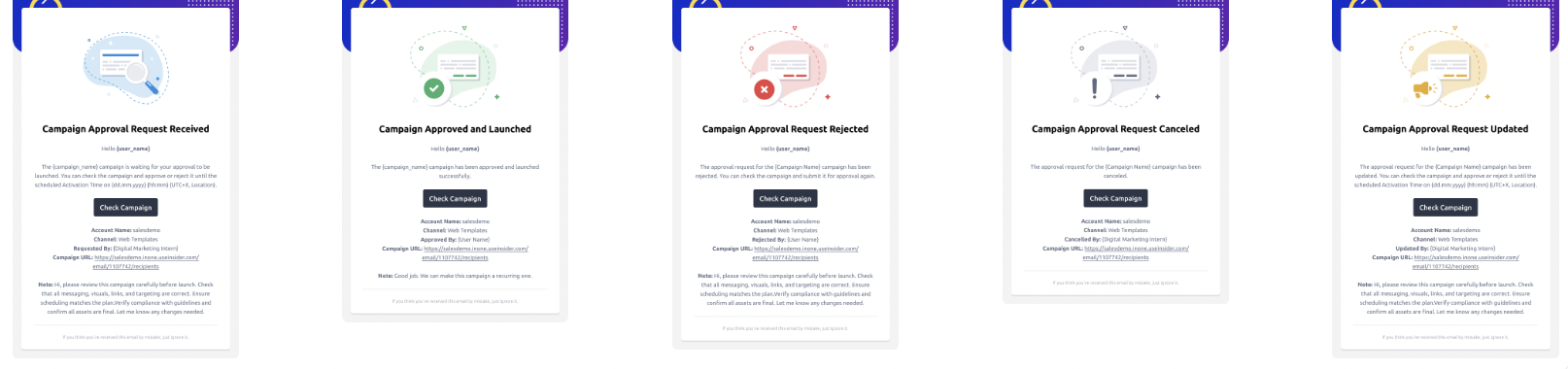
  1. Approvers are notified through multiple channels:

    1. Email notifications,

  1. In-platform ribbons — ensuring complete visibility and awareness across users.
  1. Once approved, the campaign becomes ready for its scheduled launch.

  • Reject: The campaign is returned to the Collaborator with a rejection note, and an email notification is sent.

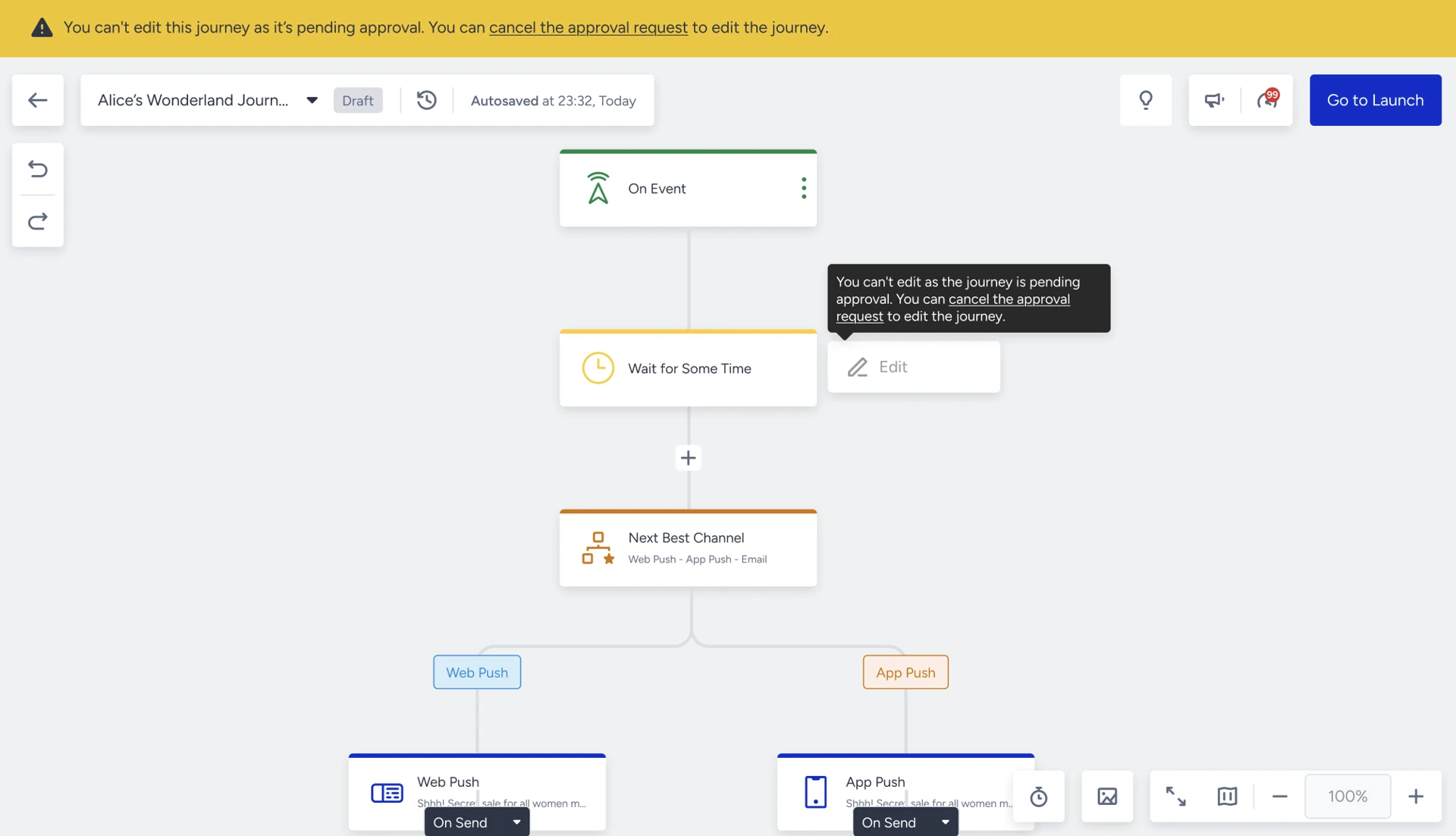
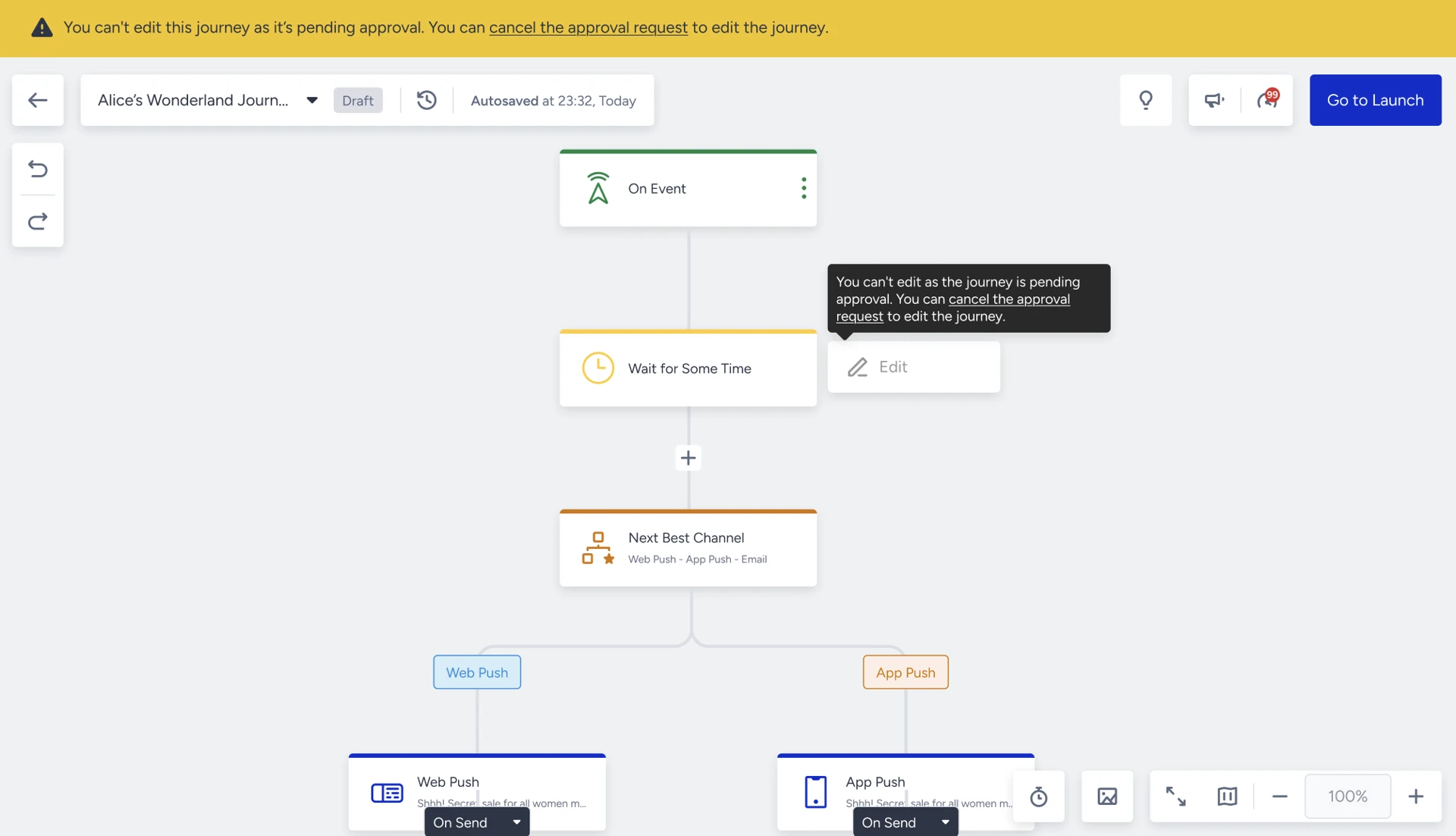
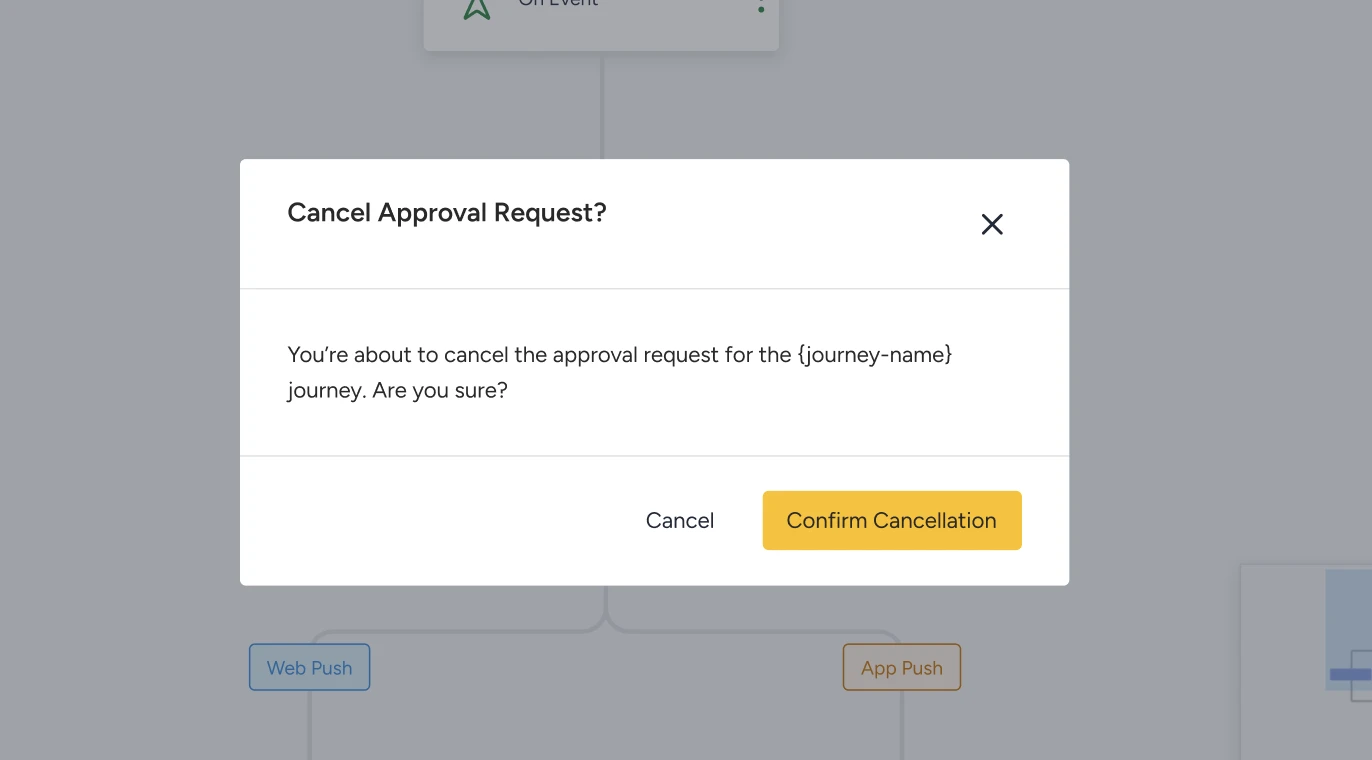
  • Edit: Edits are not permitted while a campaign is under approval. To make changes, the current approval request must be canceled first. After edits are made, the campaign must be resubmitted for a new approval cycle.

  1. Collaborators and other users who are not approvers will only see a ribbon indicating that the campaign is awaiting approval. To make any changes, they must cancel the existing approval request before editing or resubmitting the campaign.
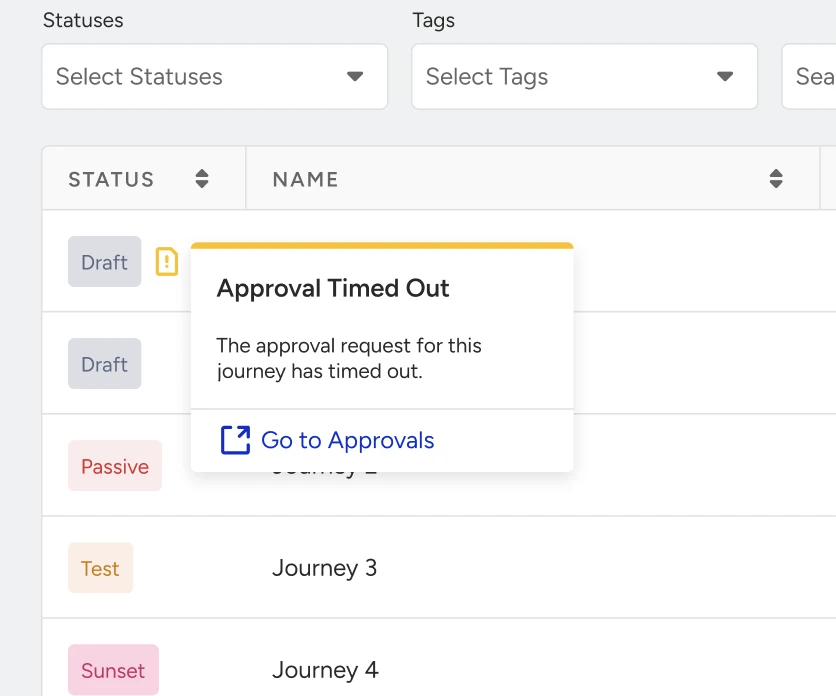
  1. The campaign approval activation time is set to the campaign’s end date. Once the end time has passed, the approval request automatically times out and must be resubmitted.
  2. If all assigned approvers lose their approval permissions or are removed from the approver list (for example, if their role changes from Admin/Editor to a non-approver role), the approval flow halts, and the campaign cannot continue in the approval process.

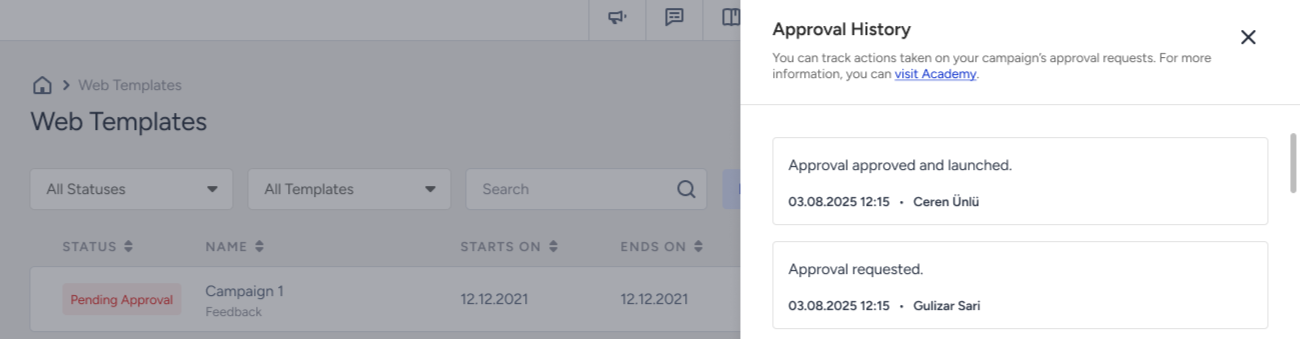
  3. All actions are logged in the Approval History modal, ensuring governance and transparency.
FAQ about Web Suite

Q: What happens if the approver (Admin) does not respond to my approval request?

A: If the approver takes no action, the campaign remains in Pending status. It will not launch at the scheduled time unless approval is granted. If needed, the Collaborator can cancel the approval request, make updates, choose a different approver, and resubmit the campaign for approval.

Q: What happens if an approver loses their Admin role?

A: If a user’s Admin role is removed:

  • They immediately lose their approval rights.

  • Any approval requests assigned to them become Expired. The Collaborator may need to resend the approval request to another approver. The system will not allow a user to approve a campaign after their role changes.

Q: What happens if someone else cancels the approval request for my campaign?

A: If another user cancels your approval request, the approval flow is reset, and the campaign becomes editable again. Collaborators and any assigned Admin or Editor users are notified when the request is cancelled.

Q: Can someone else edit my campaign while it is under approval?

A: No. Campaigns cannot be edited while they are in the approval process. If edits are required, the current approval request must be cancelled first.

Q: What happens if no approvers are left assigned to the campaign?

A: If all assigned approvers lose their approval rights or are removed from the approver list (e.g., their role changes from Admin/Editor to a non-approver role), the approval process times out and the campaign returns to editable mode. A new approval request must then be submitted.

Q: What happens if multiple users take action at the same time?

A: If two users attempt to act on the same approval request simultaneously (for example, one approves while another cancels or rejects), the system performs a database-level validation to ensure that only one valid action is processed.

FAQ about the Architect

Q: Do Admins or Editors need to submit their journeys for approval?

A: No, they can launch Architect journeys. Admins and Editors with approval privileges do not need a separate approver for their own campaigns. Approval rights are tied to user roles: Admin users have approval permissions by default (and cannot lose them), and Editors can be granted approval permissions by an Admin. If an Admin (or an Editor with granted approval rights) creates a campaign and marks it as Active to launch, they can approve it themselves as part of the launch; no additional reviewer is needed because they are the approver. In other words, Admins and Editors can launch journeys directly without the approval flow.

Q: Are approvals required for each step of a journey or just once per all canvas/journey?

A: Approval is enforced per journey, not per individual step. The approval mechanism treats the entire journey as a single entity to be approved prior to launch. You do not need to get each node or step in the journey approved individually. When a Collaborator submits a campaign for approval, they submit the entire journey (including all its steps and content) at once. The approver’s decision (approve or reject) applies to the entire campaign. All steps in the journey are reviewed collectively as part of that journey’s content. If any part of the journey needs changes, the approver will reject the journey and send it back; there is no concept of partially approving certain steps.

Q: Can a journey be edited after it is live (approved and active)?

A: Once a journey has been approved and is live (Active status), you cannot edit it directly. The approval mechanism is designed so that any significant change to a journey must also be approved to maintain compliance. Any change requires creating a new version of the journey, which must go through the approval flow before it can be launched.

Q: What happens to the old journey when I submit a new version for approval?

A: This is fully configurable by the partner. Partners can choose to either:

  • Keep the existing version live until the new version is approved, or

  • Manually set the existing version to passive immediately and wait for the new version’s approval.

Q: Can someone else edit my campaign while it’s under approval?

A: No, campaigns cannot be edited by anyone while they are in the approval process. In fact, as soon as a campaign is submitted for approval, it becomes locked for editing for all users (including the original Collaborator and other team members). The journey will have a ribbon on the canvas and inner pages, indicating that it is “awaiting approval,” and editing is disabled. This lock is in place to ensure the campaign version the approver is reviewing does not change mid-review. If changes are needed, the proper procedure is to cancel the approval request (which will unlock the campaign), make your edits, and then resubmit the campaign for approval as a new request. But until an approval decision is made or the request is canceled, no one, not even an Admin, can go in and change the campaign’s content or settings.

Q: What if no approver is assigned to the journey?

A: An approver must be assigned in order to submit a journey for approval – the system will not let you send a request without choosing at least one approver. If you attempt to mark a journey as Active and submit it, but there are no Admins or Editors with approval rights available to select, you will not be able to proceed. In practice, this situation is rare because every account should have at least one Admin user who can act as an approver. If you do find yourself without any available approver (for example, in a new workspace where no Editor has approval permission and the only Admin is the one creating the journey), the journey cannot be added to the approval queue. The best course is either to have an Admin grant an Editor approval permissions, or to have an Admin (who, by definition, is an approver) launch the journey directly. At least one eligible approver is required for the approval mechanism to function; without an approver, the journey launch will be blocked.

Q: What happens if the approver does not respond to my approval request?

A: If an approver never takes action on the request, the journey will remain in “Pending” status and will not launch at its scheduled time. The platform does not automatically approve journeys – no response means no launch. In many cases, if the scheduled launch time passes without approval, the journey is skipped (it doesn’t go live) and stays in a pending state. The approval request will eventually time out once the journey’s end time is reached (since the opportunity to run that journey has passed). If a journey’s activation time is set to now, the pending approval period lasts 2 hours, after which the approval request times out. At that point, the Collaborator would need to submit a new request if they still want to launch the journey.

If you’re facing a non-responsive approver and the launch time is approaching, you have a few options: you can edit the approval request and perhaps select a different approver who might respond faster, or adjust the schedule (push the start time out) to allow more time. The Collaborator who initiated the request can always edit the approvers. Other Collaborators can cancel the request first, then resubmit it to another approver as needed.

Q: What happens if an approver is removed or loses their Admin/Editor role during the process?

A: If a user who was assigned as an approver loses their Admin or Editor role (i.e., they are demoted or removed from the role that gave them approval rights), they immediately lose their ability to approve any pending requests. The system will recognize that the person is no longer an approver. In this case, any approval request that was waiting on that person’s action is marked as expired (since that approver is no longer valid). In this case, the journey will remain pending. If all approvers are demoted or no longer valid, the journey will remain in the pending state until the approval is cancelled or updated with new approvers. The Collaborator is prompted to choose a different approver and resend the approval request if they still intend to launch the campaign.

Q: What happens if an approval request is canceled before a decision is made?

A: If an approval request is canceled (by the Collaborator or an Admin), the journey returns to draft and becomes editable again. The approval is withdrawn from the queue, and the journey will not launch since it is no longer approved. The Collaborator can make changes and submit a new approval request.

All relevant users are notified. If the Collaborator cancels, approvers are notified that the request has been withdrawn. If someone else cancels it, the Collaborator and other approvers are notified accordingly. This ensures everyone knows the journey is no longer pending approval.

Q: What happens if multiple users take action on the same approval at the same time?

A: The approval mechanism safely handles concurrent actions. If multiple users attempt to approve, reject, or cancel at the same time, only the first action processed by the system is accepted.

The system locks the request at the database level to prevent conflicts. Any later attempt will be blocked, and the user will see a message indicating that the request has already been handled.

Q: How are users notified about approvals and rejections?

A: Users are notified through email and in-platform indicators.

When a journey is submitted for approval, assigned approvers receive an email. When it is approved or rejected, the Collaborator is notified by email. Rejection emails include the approver’s note and guidance on revising and resubmitting.

Within Architect, visual indicators in the listing page show the journey’s status (e.g., pending approval, approved, rejected). Approvers also see notification cues for pending requests.

If an approval expires or is canceled, relevant users are notified by email. The system ensures both Collaborators and Approvers are informed at every stage of the process.

Q: What does the approval history log show?

A: Approval logs will be accessible within the platform through the Approvals page.

By opening the approval modal for a campaign, users will be able to view key details such as:

  • Who the campaign was sent to for approval

  • When it was approved or rejected

  • Who took the action

  • Relevant timestamps for each step

These logs provide visibility into the approval lifecycle directly within the panel.

The approval history is view-only and available exclusively through the Approval modal in the platform. There will be no export capability for these logs.

Q: How are approval statuses like “Pending” or “Rejected” displayed in Architect?

A: The Architect clearly labels the status of journeys that are in the approval workflow. On the journey listing page, a journey that has been submitted for approval will show up with a status icon such as “Approval Pending”, indicating it’s awaiting review. If a journey was reviewed and the approver rejected it, the status will update to “Approval Rejected” (often accompanied by a color or icon to draw attention). These statuses appear in the same area where you’d normally see Active/Inactive, so that at a glance, users can differentiate which journeys are held up in approval versus which are live or draft.

  • Pending: This journey is pending approval.

  • Rejected: The approval request for this journey has been rejected.

  • Timed Out: The approval request for this journey has timed out.

Inside the journey detail view (the canvas view), you’ll also see visual indicators. As mentioned, a ribbon will show if the journey is pending approval or rejected:

  • Pending Ribbon: You can't edit this journey as it’s pending approval. You can cancel the approval request to edit the journey.

  • Pending Ribbon for Approver: This journey is pending your approval. You can reject the request or approve and launch it. You can cancel the approval request to edit the journey.

If a journey is Approved, its status will typically switch to Scheduled/Active (meaning it’s set to launch at the planned time). There isn’t usually an “Approved” label displayed permanently, because once approved, it’s treated as a normal scheduled Active campaign.