The Approvals page is a centralized workspace to provide full visibility and control over campaign approval workflows (also known as maker-checker processes). It allows you to monitor approval statuses, review campaign details, and take role-based actions without navigating to individual campaigns.
The Campaign Approval Mechanism is currently available for Web Templates, Onsite Experiment, InStory, Tab Talk, Notification Center, Category Optimizer, SMS, Smart Recommender, Eureka, WhatsApp and Architect.
If you want this feature to be enabled for your account, reach out to the Insider One team.
The Campaign Approval Mechanism provides structured governance and operational efficiency through the following benefits:
Centralized approval management
All approval actions and statuses are managed from a single, unified interface.
Faster decision-making
Reduced navigation steps enable quicker reviews and approvals.
Improved auditability
Accessible logs ensure full visibility into approval history and actions.
Role-aware actions
Permissions are enforced based on user roles, strengthening governance and compliance.
Reduced operational friction
Enterprise teams can collaborate more efficiently with fewer manual handoffs.
Save as Default Filtering
The Save as Default filtering capability allows users to apply personalized filters and store them as their default view. This ensures that preferences are preserved across sessions and removes the need to reapply filters each time the page is accessed.
How the Approval Mechanism works
To access the Approvals, navigate to Components > Approvals.
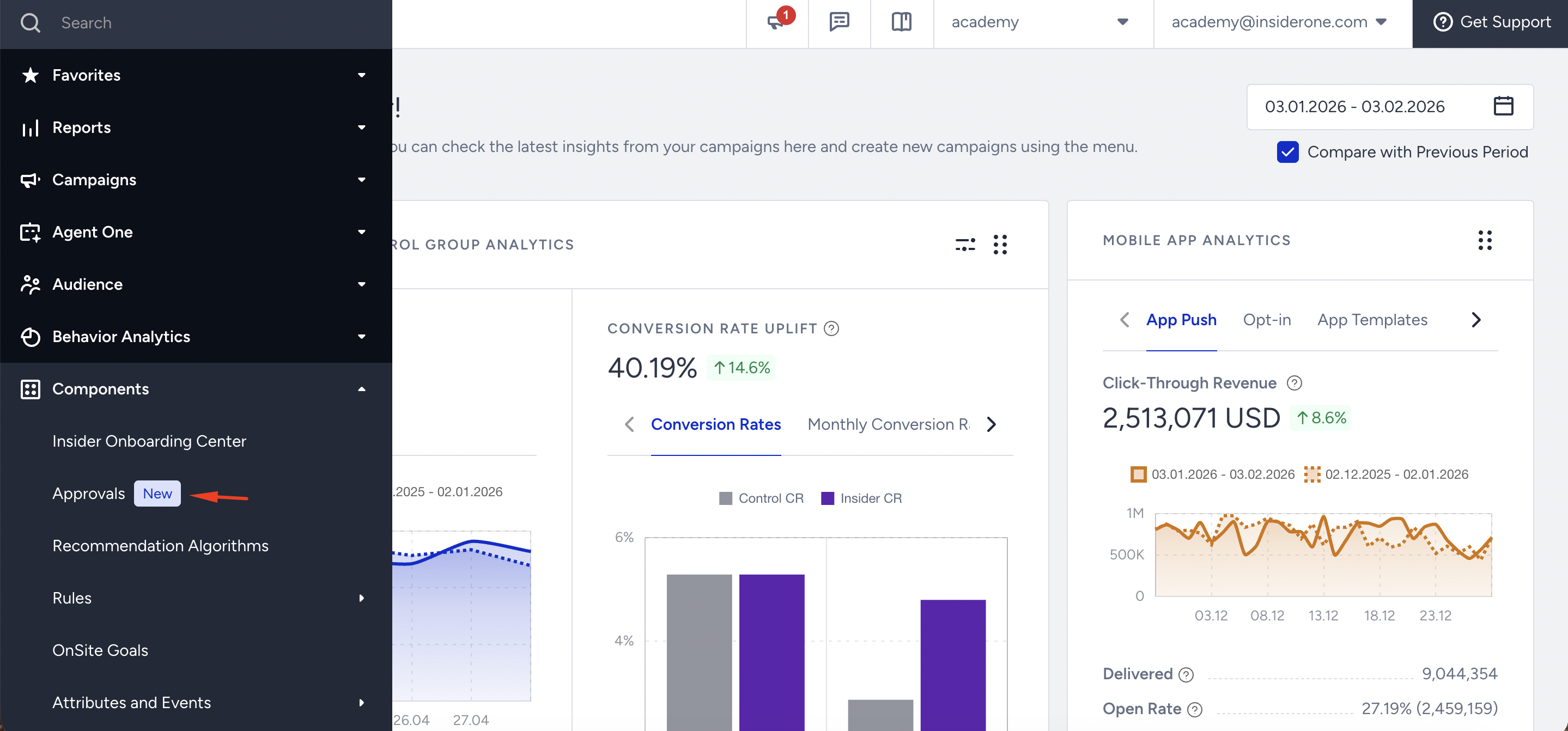
The Approvals Page lists all campaigns that are part of the approval workflow across supported channels and products. All related approval logs are directly accessible from this page, ensuring full transparency and auditability.
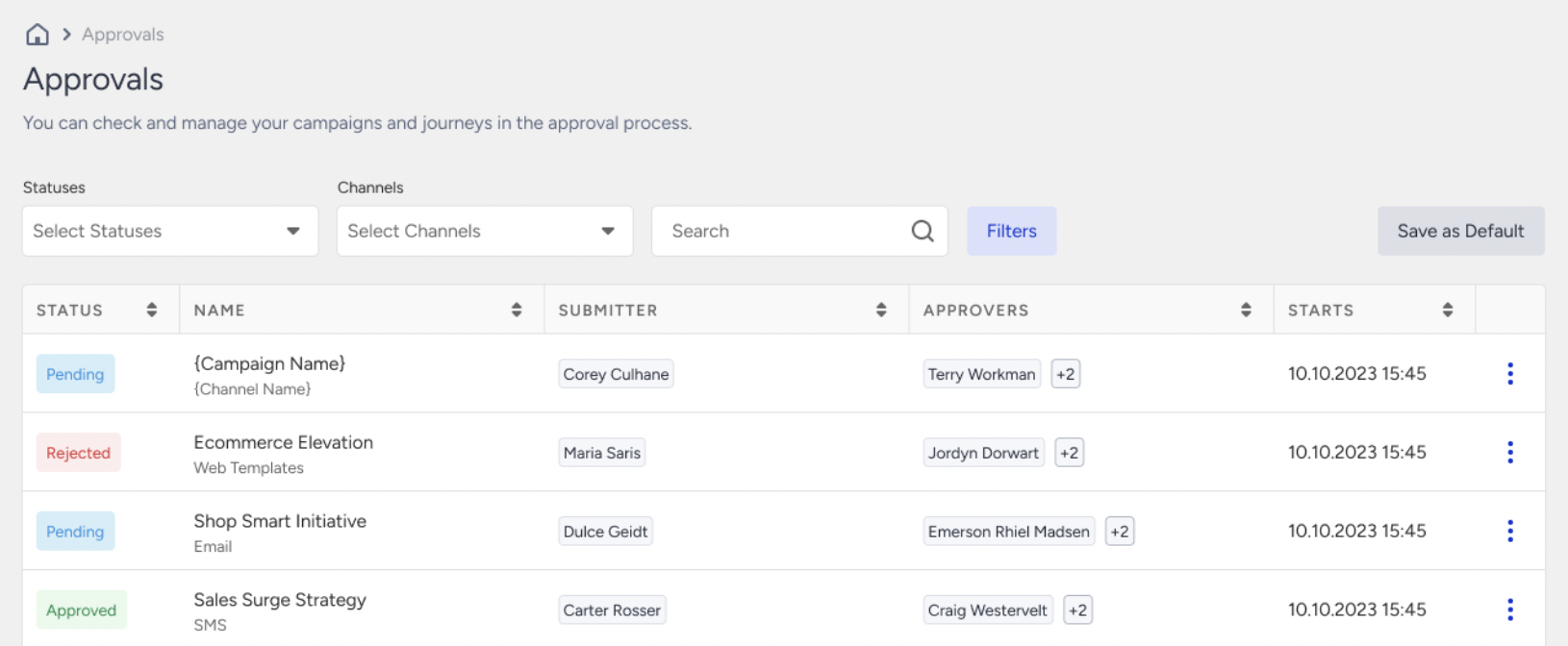
You can view campaigns categorized by status:
Pending: Awaiting approver action
Approved: Successfully approved and ready for launch
Rejected: Declined with feedback
Timed Out / Expired: Approval was not completed within the required timeframe
Each campaign entry includes:
Campaign name
Channel/product
Assigned approvers
Submitter (Collaborator)
Approval status
Activity logs
Role-based actions
Actions available on the Approvals Page dynamically adjust based on user roles.
Available actions may vary depending on your user role and the campaign’s approval status. Some actions may be enabled or disabled to ensure workflow integrity and prevent unauthorized changes.
Assigned Approvers (Admin / Enabled Editor)
The Assigned Approvers can perform approval actions directly from the page:
Approve campaigns
Reject campaigns
Cancel approval requests
Review approval logs
Navigate to campaign details
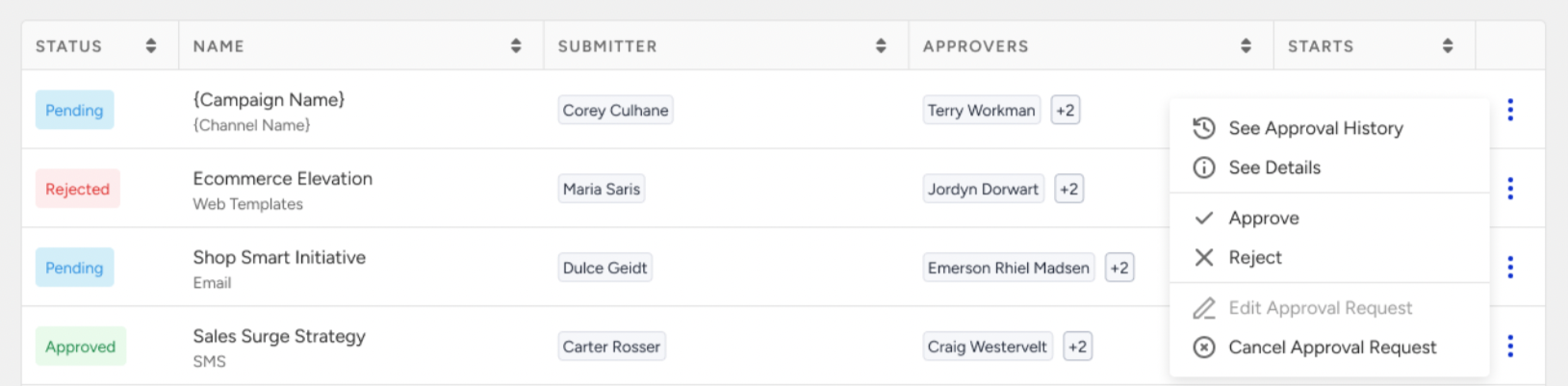
If a deeper review is required, approvers can open the individual campaign settings.
Submitters (Collaborators)
Collaborators who submitted the campaign can:
Edit the approval request
Review approval logs
Change assigned approvers
Update the notes section
Cancel the approval request if updates are needed
Resubmit approval requests for campaigns that were rejected or timed out
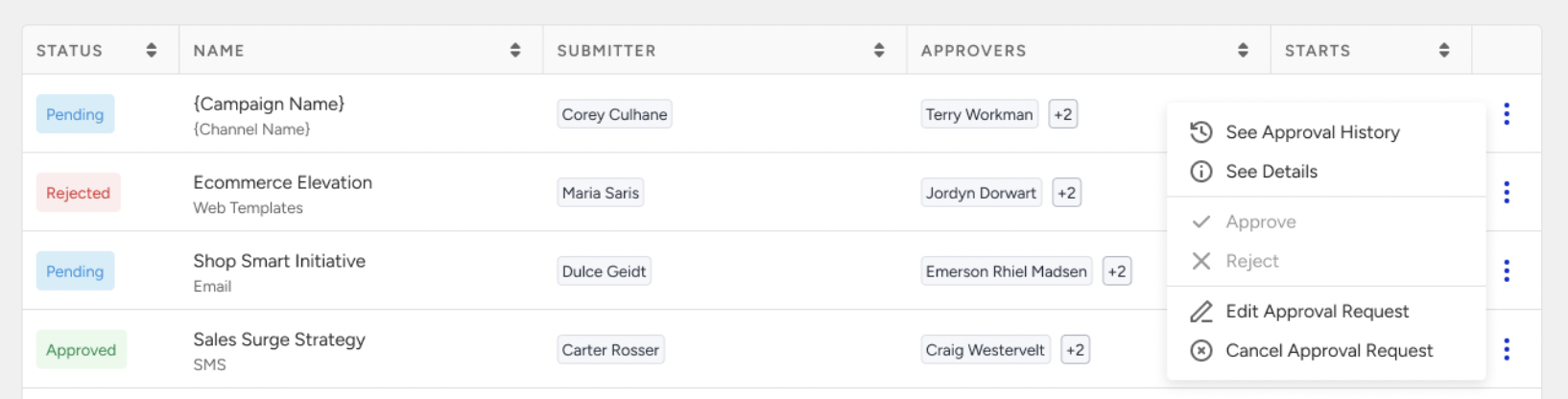

This ensures flexibility while maintaining governance controls.
Non-Associated Admins & Editors & Collaborators
Admins or Editors who are not directly assigned to the approval can:
Review approval logs
Cancel the approval request when necessary
View campaign and approval details
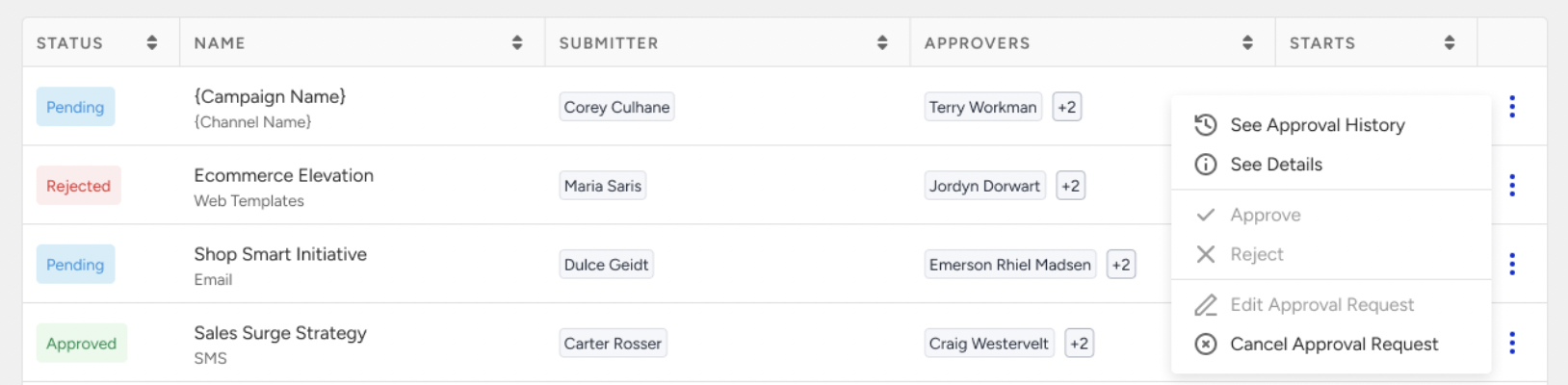
This provides operational backup and prevents approval bottlenecks.
Other User Roles
Users without approval-related permissions:
Can only view the Approvals Page and review approval logs
Cannot modify approval requests
Cannot take approval actions
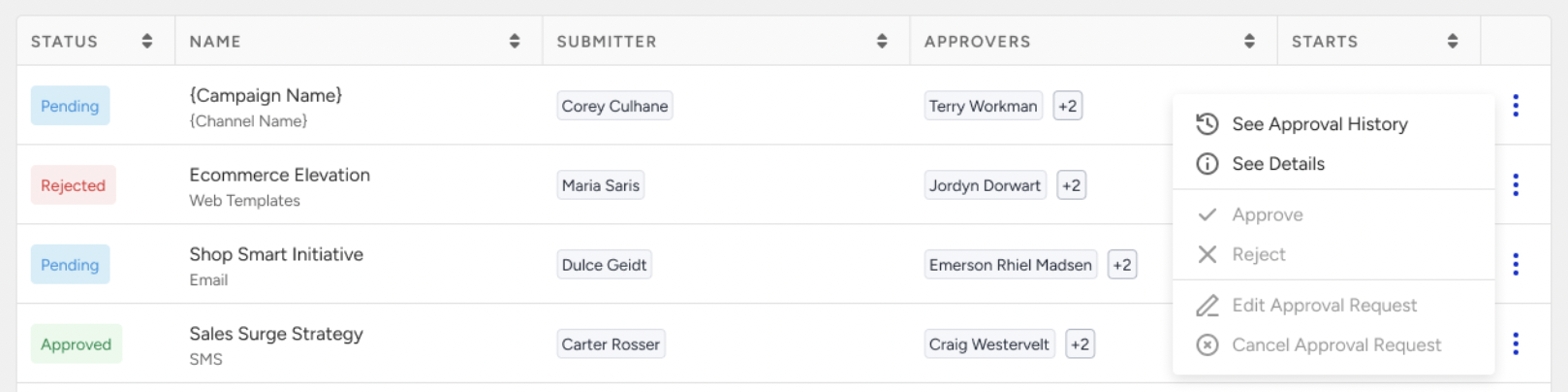
This protects workflow integrity while maintaining organizational visibility.
Important Notes
Actions are strictly permission-based.
Editing rules still apply; campaigns under approval cannot be modified unless the approval is canceled.
The page reflects real-time status updates to prevent conflicting actions.